
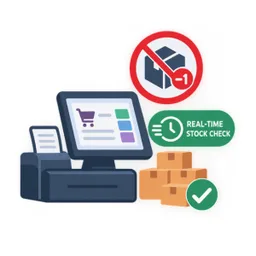
Odoo App · Point of Sale
POS Restrict Negative Stock
Live warehouse stock checks in Odoo Point of Sale that block or warn before a cashier sells more than you have.

Overview
Standard Odoo POS lets a cashier ring up any quantity, even when the shelf and the system both say zero. This module adds a stock check inside the POS so overselling is caught at the till, not at the next stock count.
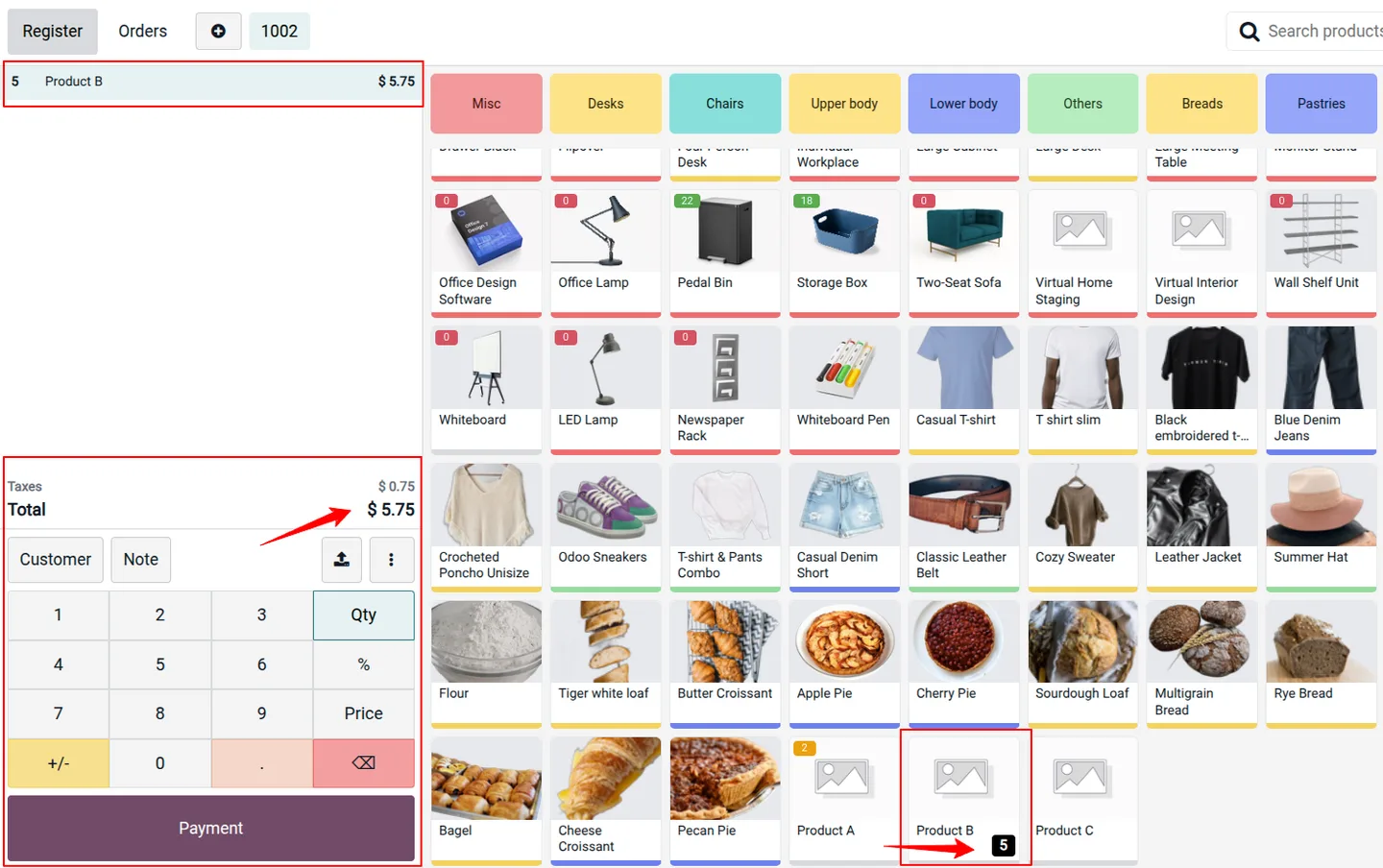
Each POS configuration chooses its rules: which quantity to check (On Hand, Free or Forecasted), whether to block or only warn, and when to check (on add, on quantity change, before payment). The check is cart-aware, so two units already in the order count against the available stock before a third is allowed.
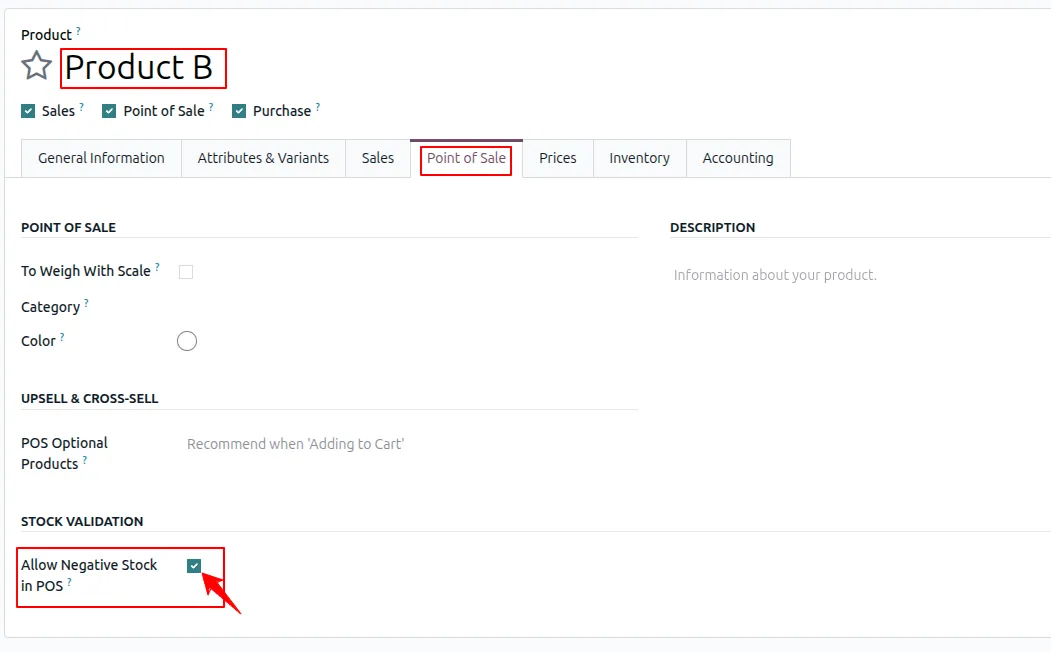
Some products should sell regardless. An Allow Negative Stock in POS flag on the product skips the check for made-to-order or custom items, and service and non-storable products are excluded automatically. POS Managers can approve a shortage from the popup. A server-side check re-validates order lines when orders sync, so a bypassed front-end check does not post zero-stock sales.
Key features
-
Real-time warehouse stock validation
Live checks against the POS warehouse when products are added, quantities are updated or checkout begins.
-
Choice of stock quantity
Validate against On Hand, Free or Forecasted quantity, set per POS configuration.
-
Block or Warn Only
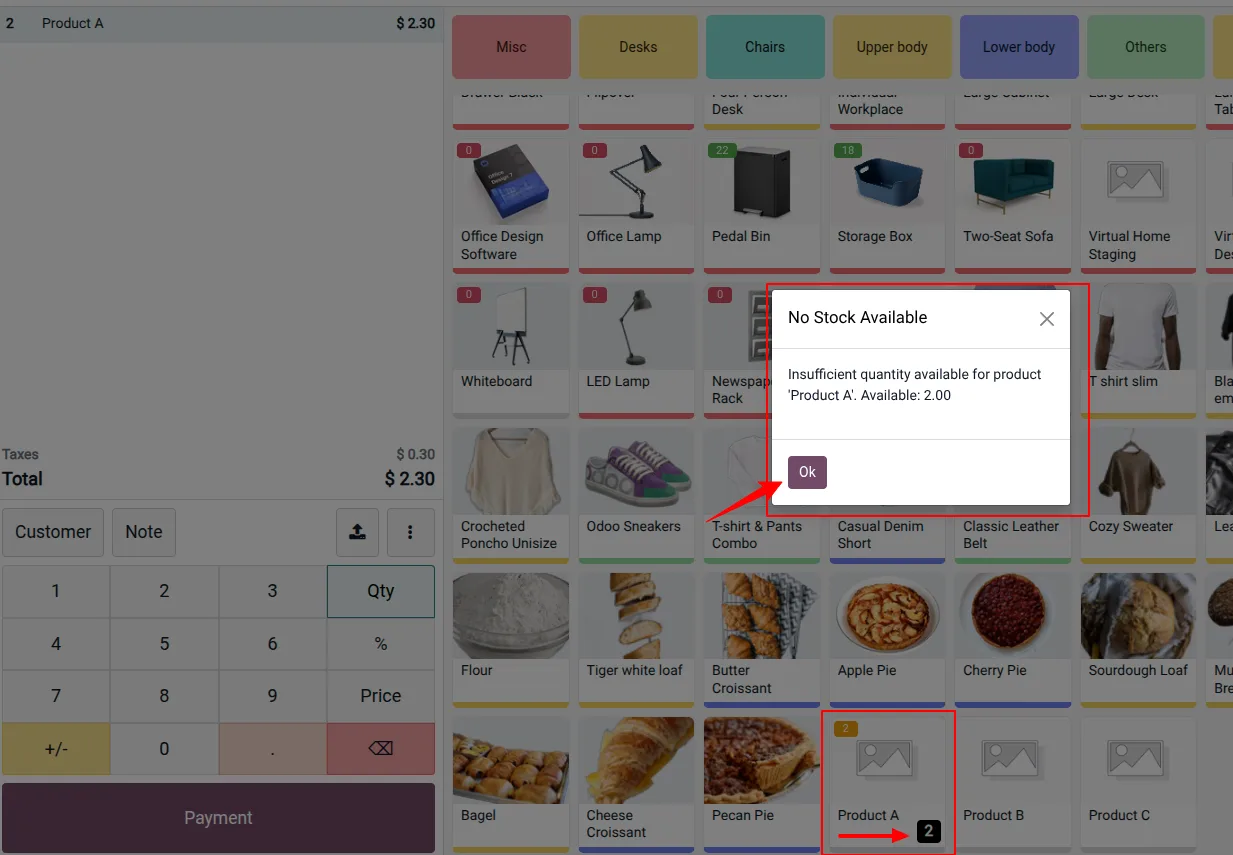
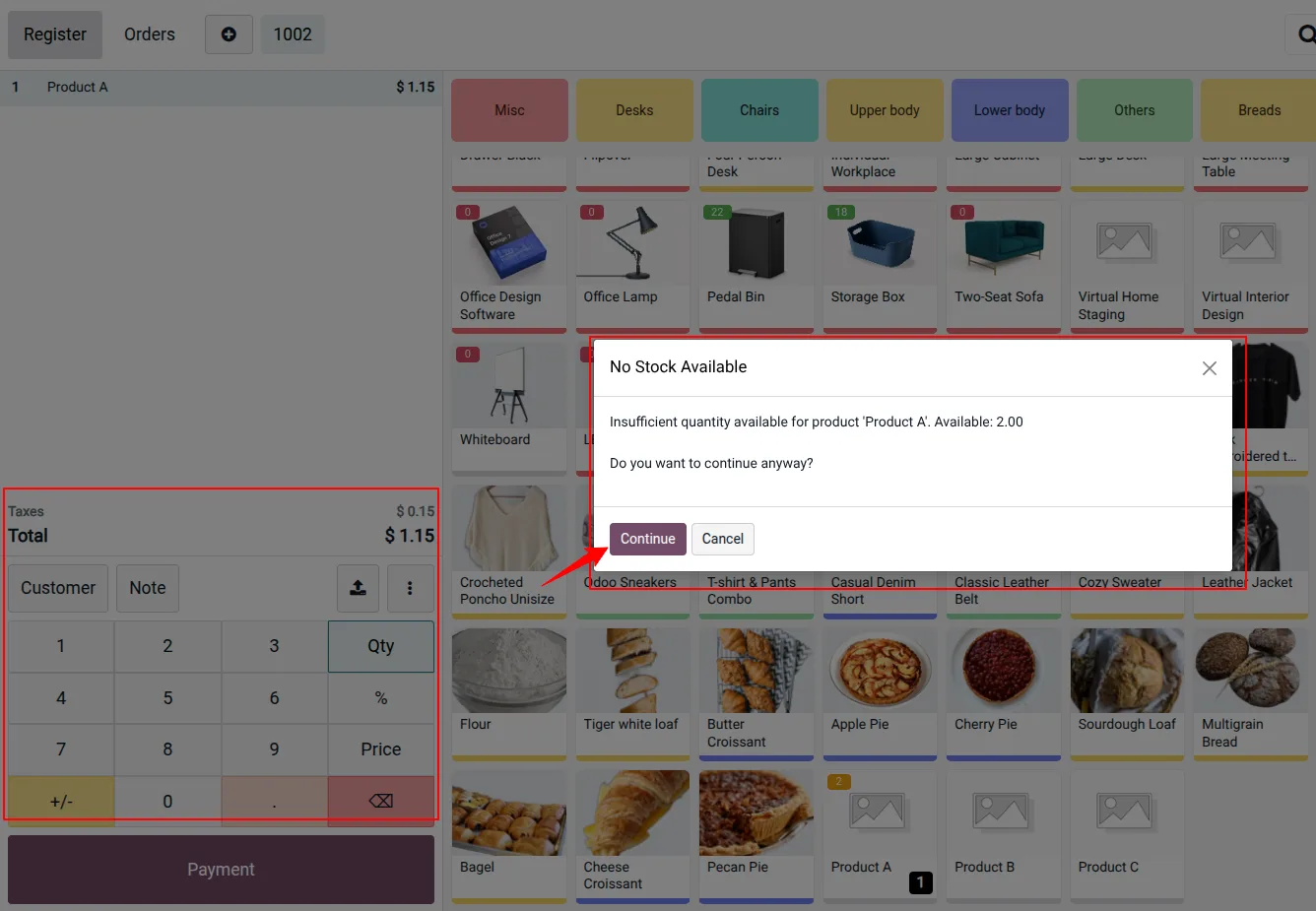
Block Overselling stops the sale with a No Stock Available popup. Warn Only shows the shortage and lets the cashier continue after confirming.
-
Cart-aware calculation
Units already in the active order are counted before more of the same product are approved.
-
Stock badges on product cards
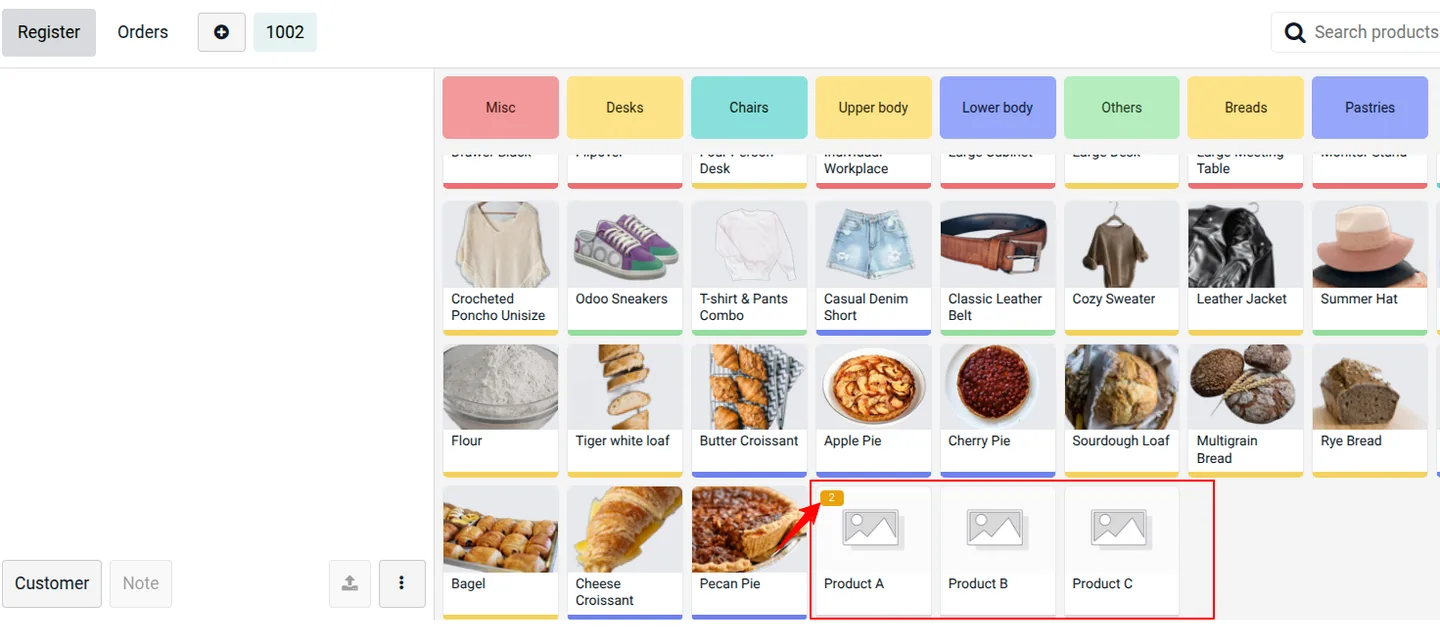
Colour-coded badges on POS product cards: green for high stock, yellow for low stock and red for out of stock.
-
Product-level exemption
The Allow Negative Stock in POS flag lets made-to-order or custom products sell without a stock check.
-
POS Manager approval
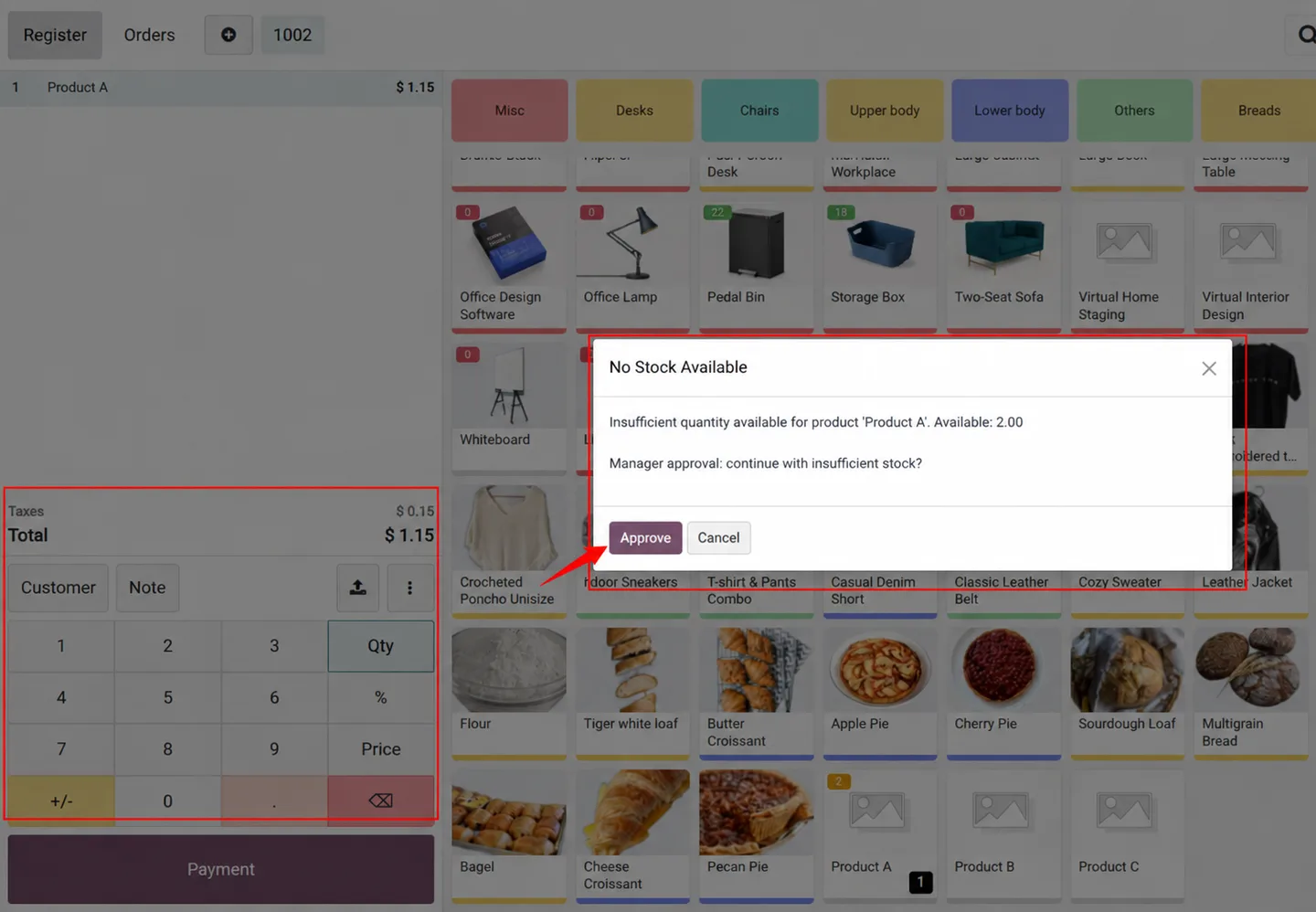
With Manager Bypass enabled, a user with Point of Sale Manager access can approve an out-of-stock sale from the shortage popup. Other cashiers stay blocked.
-
Server-side safety net
Order lines are re-validated during synchronisation, and the server checks any manager approval, so zero-stock items are not posted if front-end checks are bypassed.
Watch POS Restrict Negative Stock in use
A six-minute walkthrough of POS Restrict Negative Stock in Odoo Point of Sale: turning on stock control for a POS, choosing On Hand, Free or Forecasted quantity, and how Block and Warn Only modes behave when a cashier adds a product, changes the quantity or goes to payment.
POS Restrict Negative Stock in Odoo
Every screen, in the order you meet it — configuration first, then the module in use.
Technical details
Specification
- Publisher
- TechUltra Solutions Private Limited
- Technical name
- tus_pos_restrict_negative_stock
- Odoo versions
- 16.0, 17.0, 18.0, 19.0, 20.0
- Lines of code
- 880
- Validation modes
- Block Overselling, Warn Only (Allow Continue)
- Quantity types
- On Hand, Free, Forecasted
- License
- Odoo Proprietary License v1.0 (OPL-1)
- Price
- $29.00 (one-time)
Deployment
- Odoo Online
- Odoo.sh
- On-premise
Odoo dependencies
- Point of Sale
- Inventory
- Invoicing
- Discuss
Support
90 days of bug-fix support plus 5 hours of free configuration help (additional hours billable), Monday to Friday (10:00–19:00 IST). Raise a ticket at support@techultra.in.
Setup & configuration
From install to first call — here is the path.
- 1
Install the module
Install POS Restrict Negative Stock from the Apps menu.
- 2
Enable stock validation
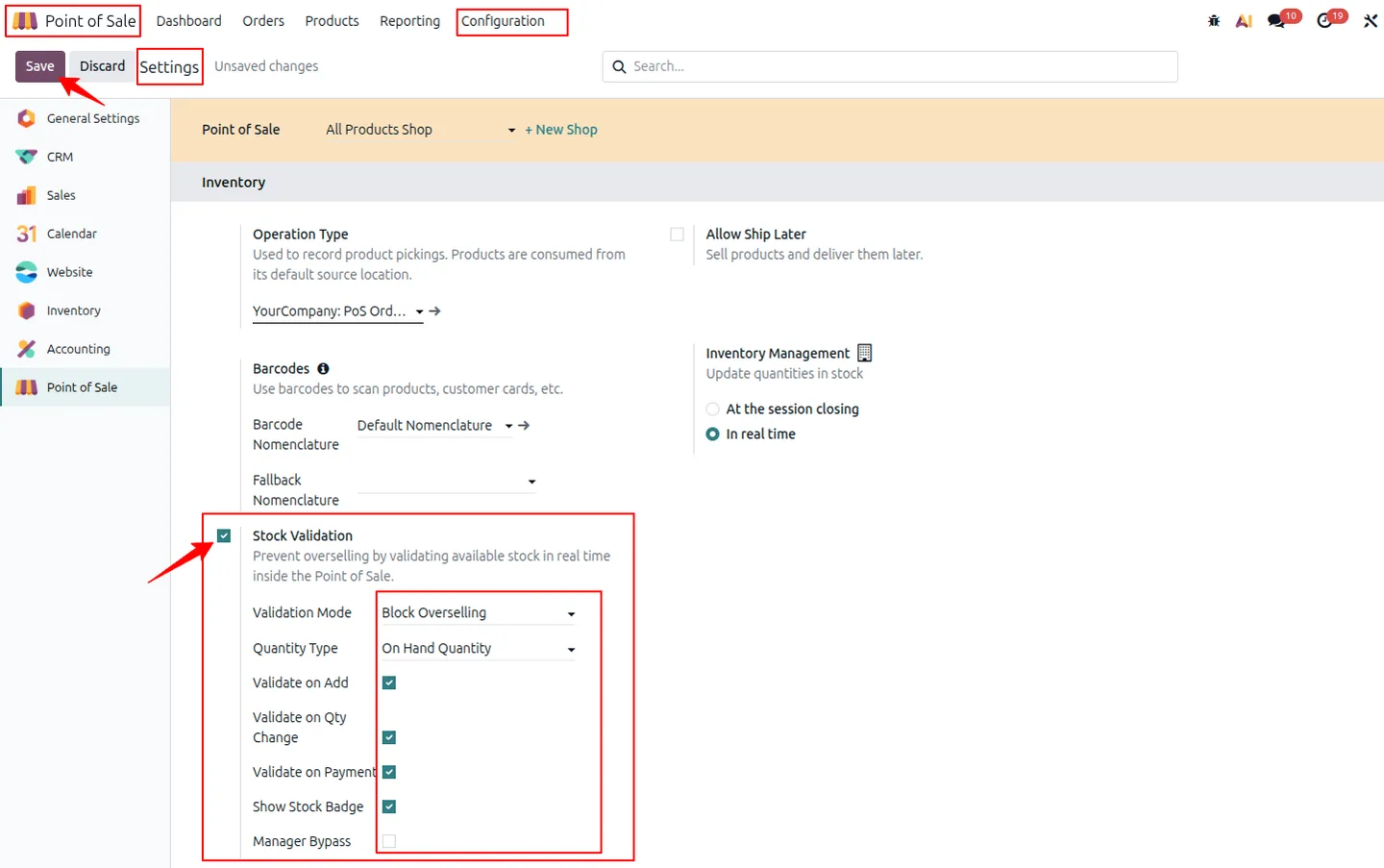
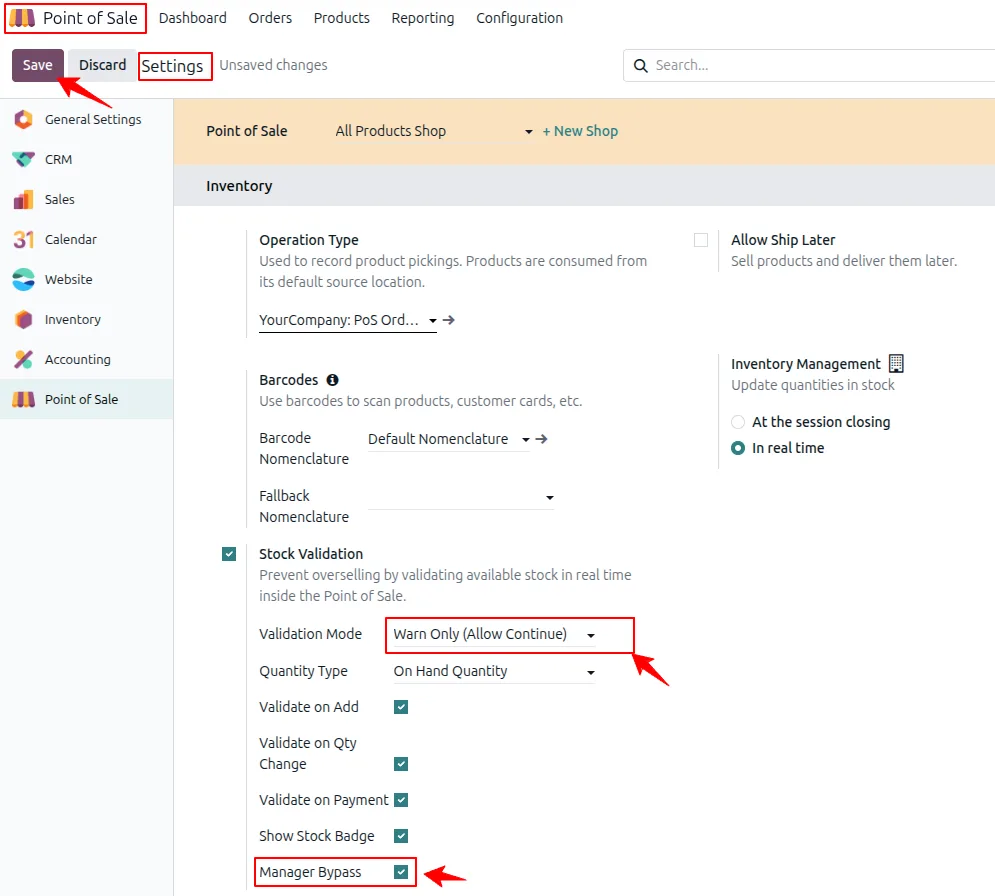
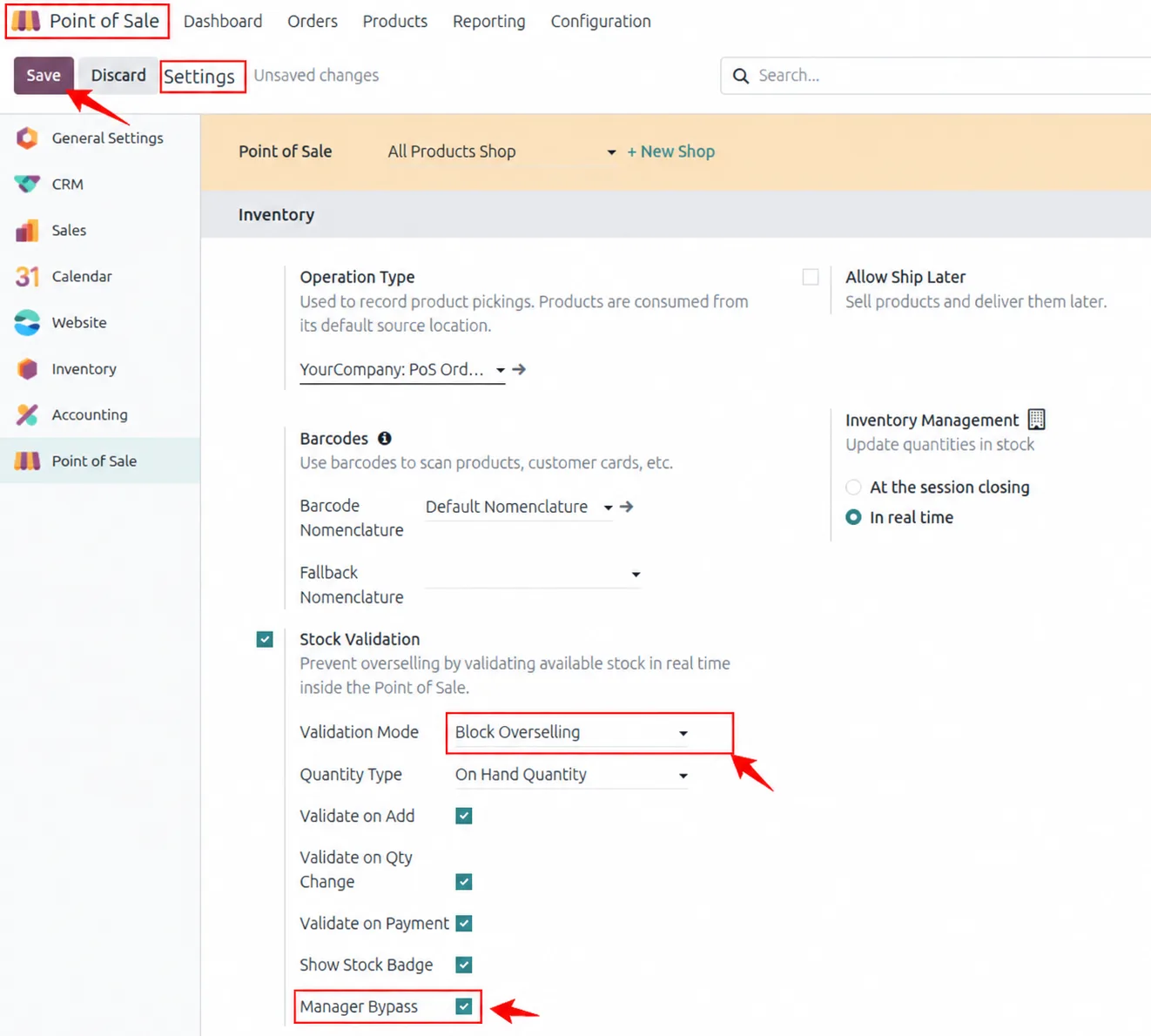
In Point of Sale → Configuration → Settings, enable Stock Validation and choose the Validation Mode and Stock Quantity Type.
- 3
Choose when to check
Tick Validate on Add, Validate on Qty Change and Validate on Payment, and Show Stock Badge to display stock on product cards. Save the settings.
- 4
Exempt products where needed
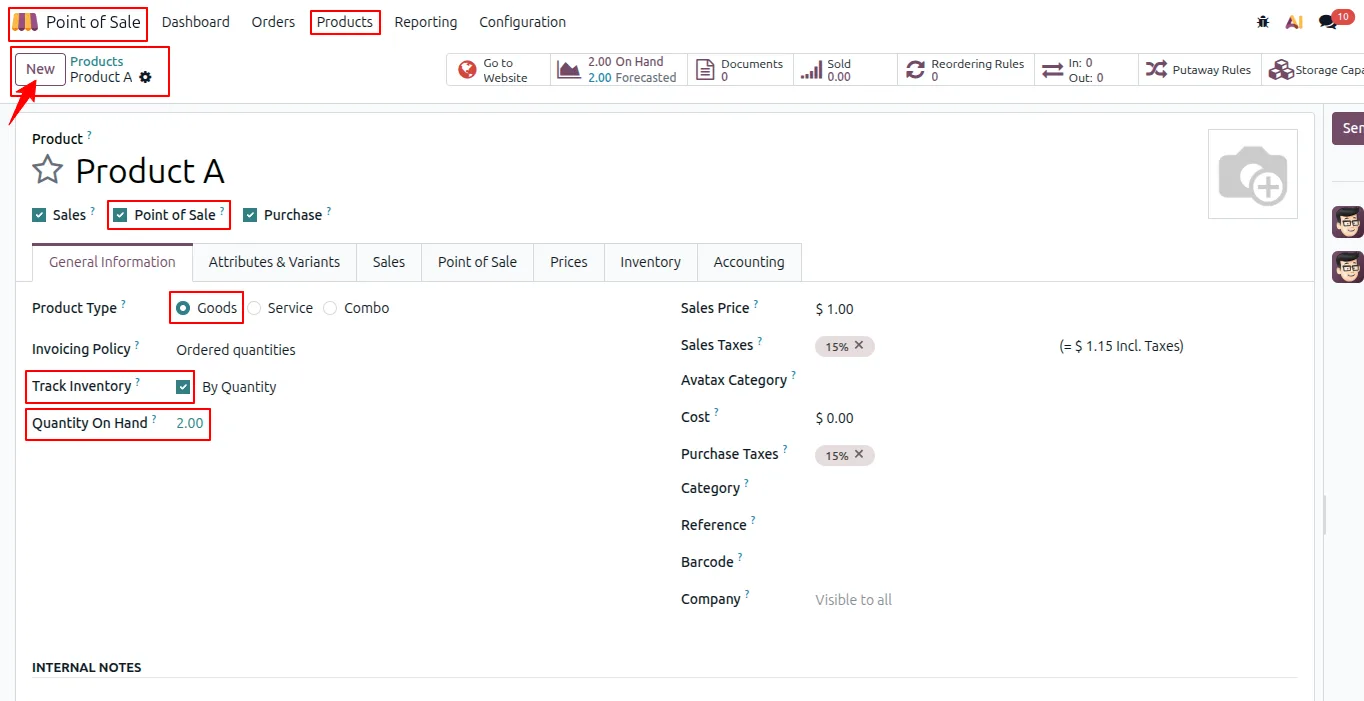
On a product's Point of Sale tab, tick Allow Negative Stock in POS for made-to-order or custom items.
- 5
Optionally allow manager approval
Enable Manager Bypass so users with Point of Sale Manager access can approve shortages from the popup.
Frequently asked questions
-
How does the module calculate available stock in POS?
It checks live warehouse inventory using the quantity type you choose (On Hand, Free or Forecasted) and subtracts the units already in the current cart.
-
What happens when a cashier tries to sell an out-of-stock item?
In Block Overselling mode a No Stock Available popup stops the action and shows the available quantity. In Warn Only mode the popup asks whether to continue anyway.
-
Can specific products sell with negative stock?
Yes. Tick Allow Negative Stock in POS on the product template to skip validation for special or made-to-order items.
-
Does validation apply to service and non-storable products?
No. Service and non-storable products are excluded from stock validation automatically.
-
Can a POS manager approve out-of-stock sales?
Yes. With Manager Bypass enabled, a user with Point of Sale Manager access sees an Approve option on the shortage popup. The server checks that approval when the order syncs. Cashiers without manager access stay blocked.
-
Is there a similar check for Sales orders?
This module covers Point of Sale only. For quotations and sales orders, see Prevent Out-of-Stock Sale.
Listing verified against the Odoo App Store:
Related solutions
Whole-platform solutions that complement POS Restrict Negative Stock.
Related services
Get the most out of this module with senior TechUltra consultants.
-
Odoo Customization Services
Odoo customization from a Gold Partner: custom modules, workflows, reports and Studio changes, upgrade-safe and quoted at a fixed scope. Free scoping call.
-
Hire Odoo Developers
Hire Odoo developers from a Gold Partner: an AI Engineering Pod from USD 1,800 a month, or a dedicated developer for 70–160 hours. Request a proposal today.
-
Odoo Support Services & Maintenance
Odoo support services from a Gold Partner: functional and technical support plus server cover for Enterprise and Community, 30-minute P1 response, 24/7 option.