AI BI Dashboard for Odoo 19: ask a question, get a dashboard
Type a plain-English question in Odoo 19 and get a live dashboard back — KPI cards, charts, and a drill-down record list. Here's how TechUltra's AI BI Dashboard turns prompts into analytics.
Building a dashboard in Odoo usually means opening the pivot view, choosing a measure, dragging in a couple of group-bys, picking a chart type, and saving it as a favourite. Do that ten times and you have a reporting board. Do it for every new question a manager asks, and you have a second job.
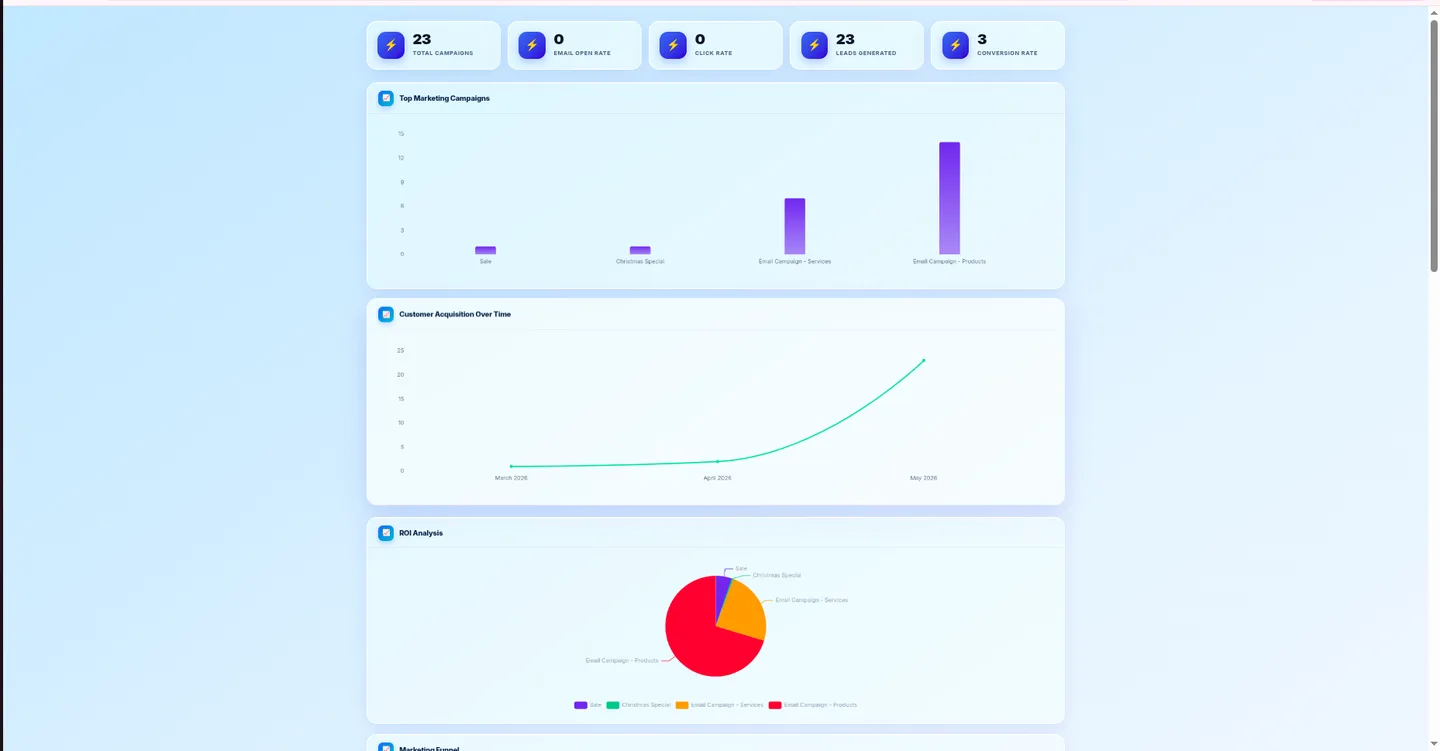
AI BI Dashboard removes that work. You type the question in plain English — “show top 10 customers by revenue this quarter” — and the module builds the board for you: KPI cards, the right charts, and a record list you can drill into. It’s an Odoo 19 module from TechUltra Solutions, and it’s live on the Odoo App Store.
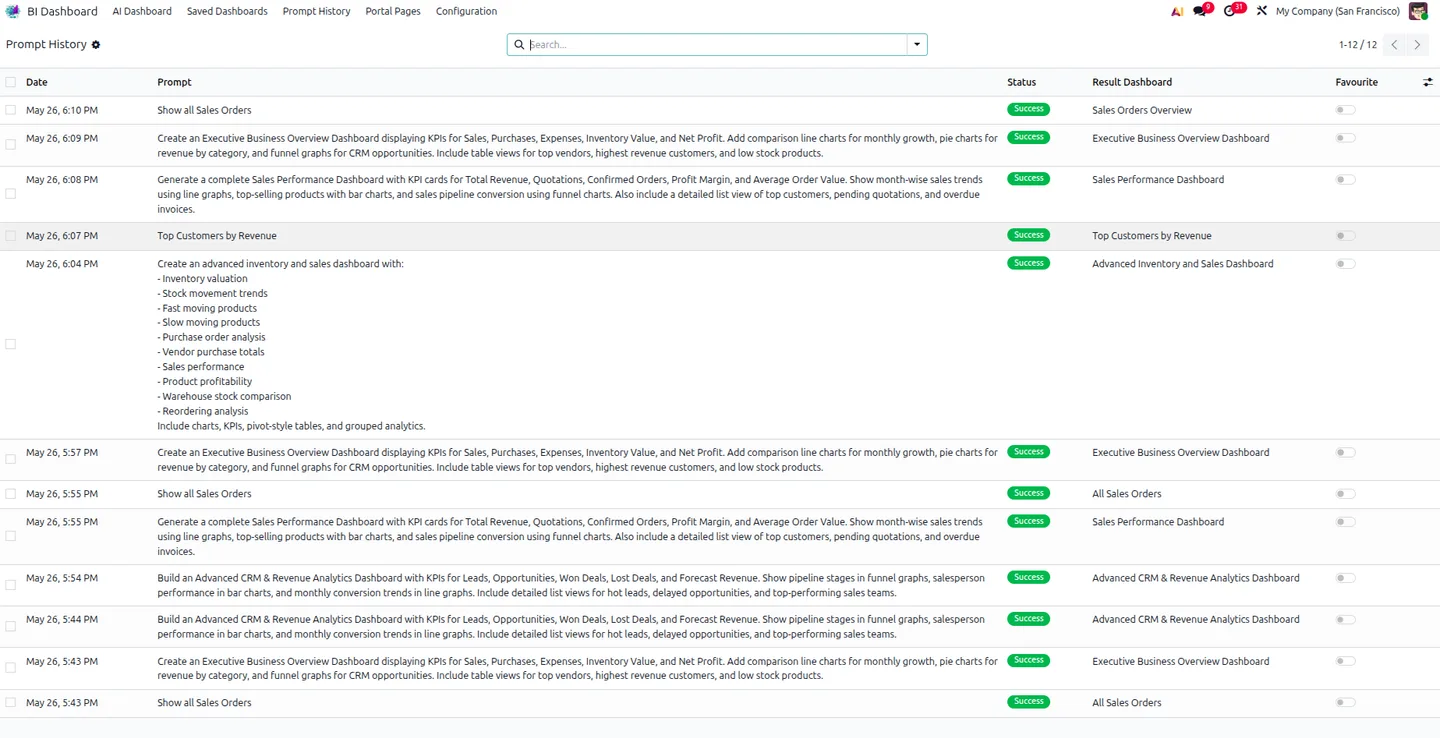
How does asking a question become a dashboard?
The flow is deliberately short. You type a business-intent question into the dashboard search bar. The module maps that prompt to the right Odoo data model — CRM, Sales, Purchase, Inventory, Project, Employees, Invoicing, Calendar, or Contacts — runs a query, and renders the result. No pivot configuration, no measure picking, no chart-type menu.
Because it’s grounded in your real Odoo models, the numbers are your numbers — not a copy in a separate BI tool that drifts out of date overnight.
What do you actually get back?
Every generated board is made of three things a decision-maker can use immediately:
- KPI cards — the headline figures for the question you asked.
- Charts — a tailored mix of bar, line, pie, donut, funnel, and area charts that respond to your filters.
- A backing record list — guaranteed on every dashboard, so you can drill from a KPI or a chart bar straight into the underlying Odoo records.
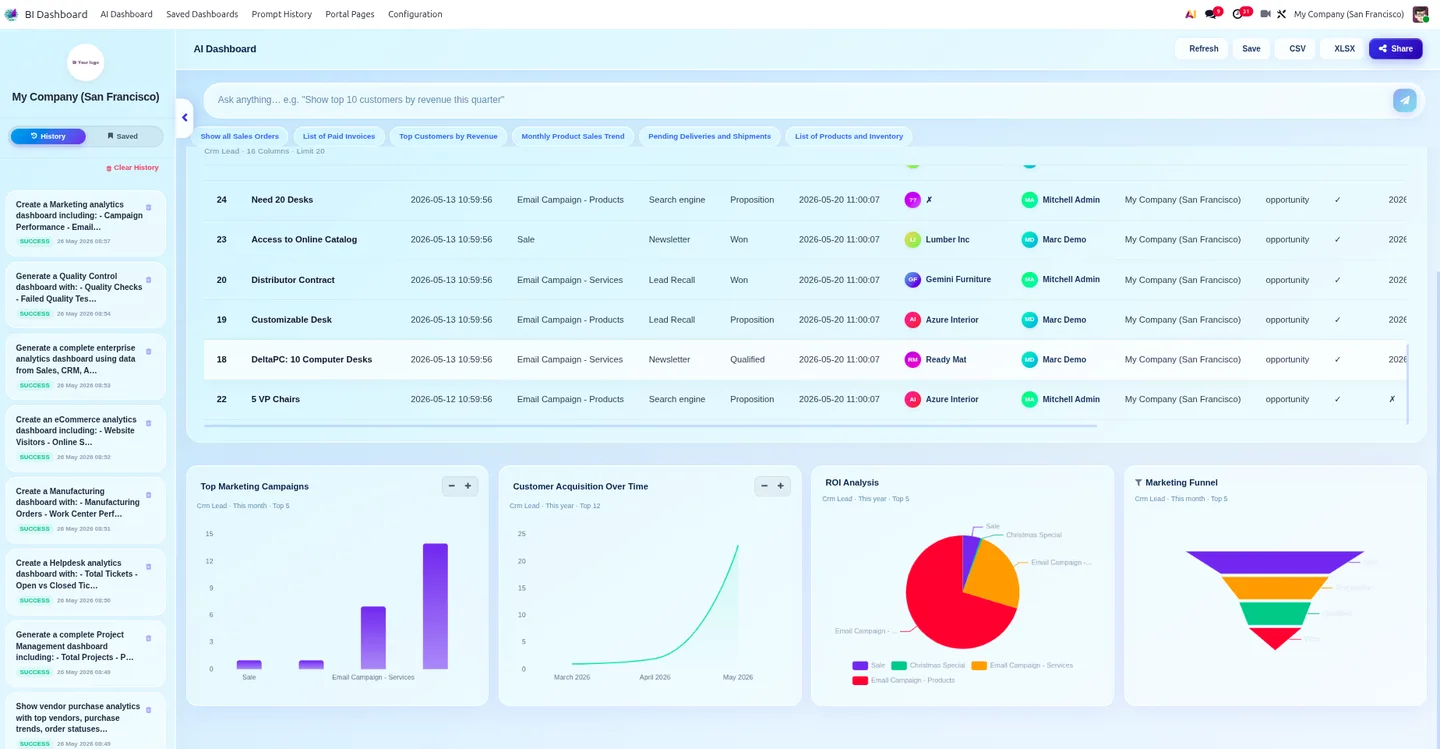
That last point matters more than it sounds. A number you can’t trace is a number you can’t trust. Here, every figure has a path back to the records that produced it.
What stops the AI from breaking a query?
This is the question every technical evaluator asks first, and it’s the right one. Large language models hallucinate field names. If a made-up field reached the database, the query would fail.
AI BI Dashboard ships with a self-healing query sanitiser that strips invalid or hallucinated field references before the AI-built query reaches Odoo. A malformed prompt produces a cleaned-up query, not a crash. Generation also runs on an asynchronous pipeline with a polling engine, so a large query builds in the background and your screen never locks up while it works.
Which AI provider does it use?
Your choice. The module is provider-agnostic: configure OpenAI, Claude, Google Gemini, or a custom endpoint from a single settings screen, paste your key, and go. Switching provider is a configuration change, not a code change — so you’re never locked to one vendor’s pricing or model.
Can I reuse a dashboard, and is anything audited?
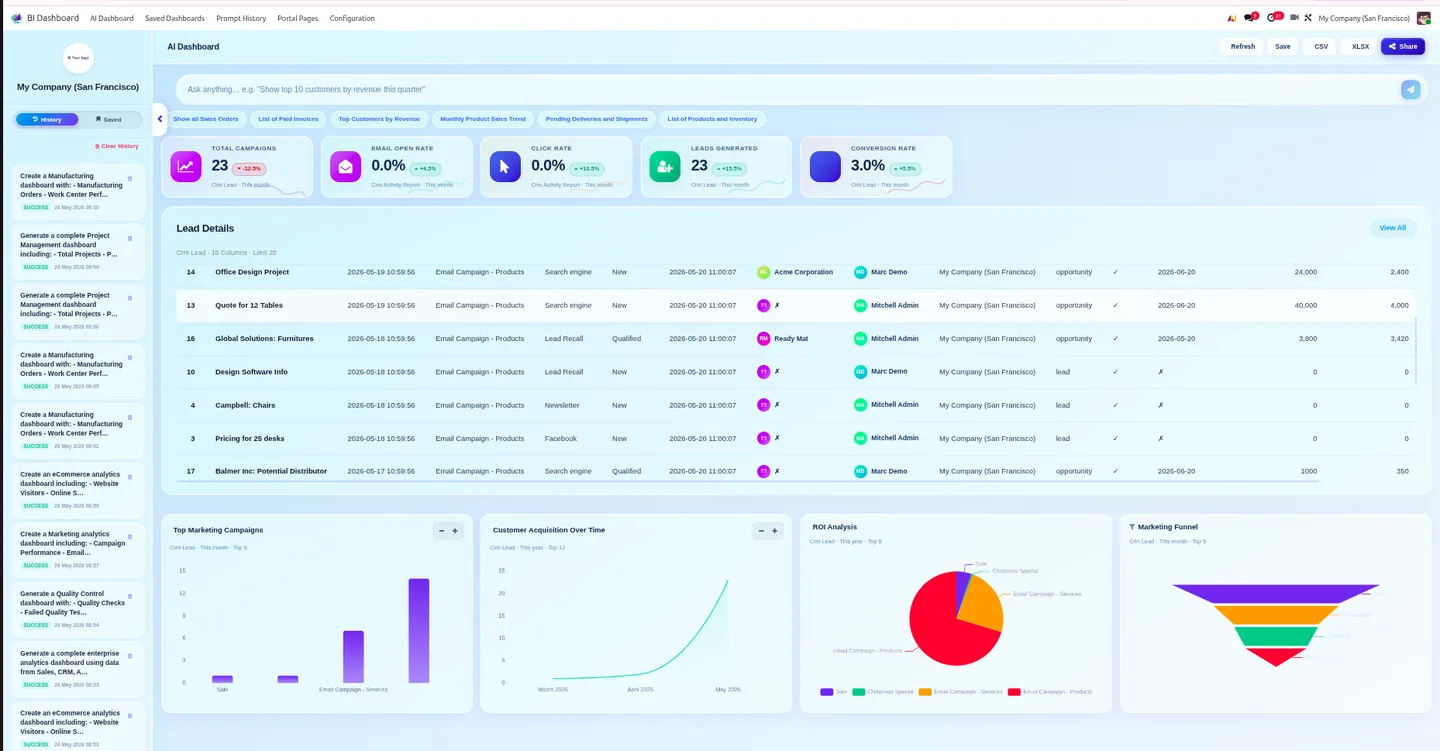
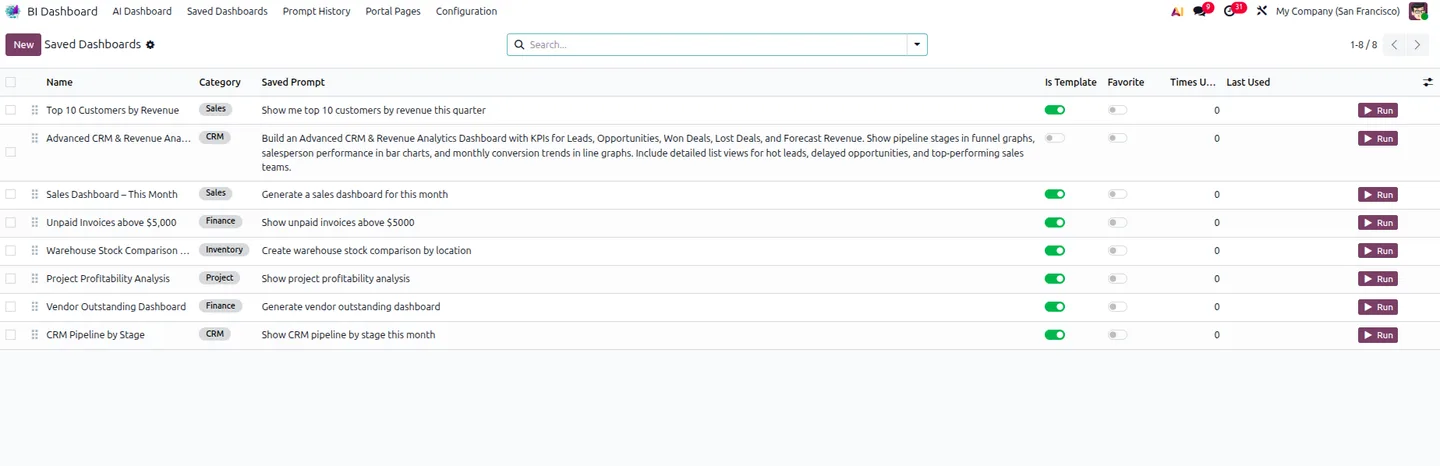
Yes to both. Generated dashboards are saved as re-openable templates under a Saved Dashboards menu, so a board you liked last week is one click away. And every prompt plus its generation log lands in a Prompt History view — useful for auditing what was asked and for tuning the AI configuration over time.
Who is it for?
Anyone who currently waits on someone else to build a report. Founders and CXOs who want a number now; operations and sales leads who live in dashboards; finance teams who need to trace a figure back to source. If your team knows the questions but not the pivot-view mechanics to answer them, this closes that gap.
It fits naturally alongside the rest of our AI & Agentic ERP work — productized AI you can install today, not a roadmap.
Getting started
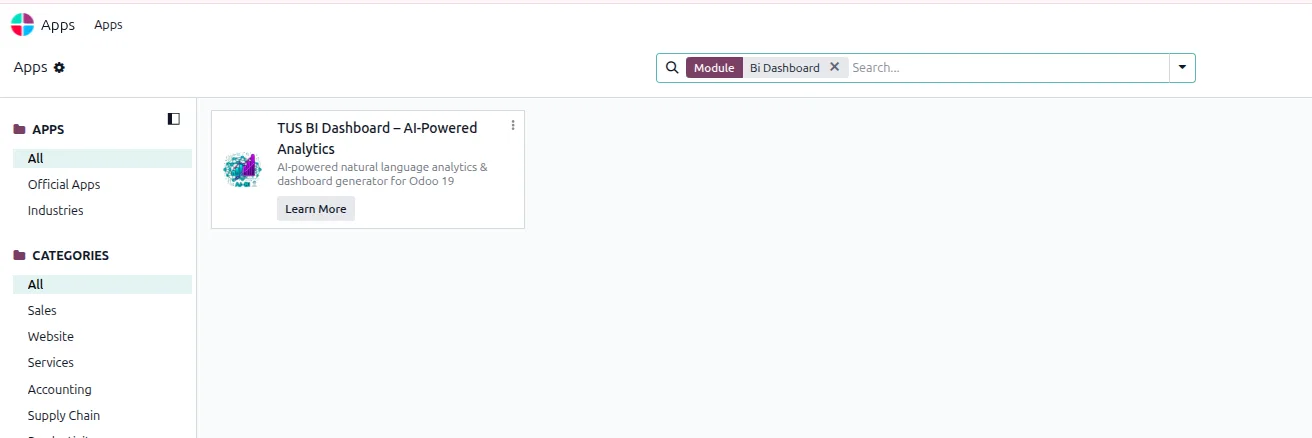
AI BI Dashboard installs on Odoo 19 (Community or Enterprise) from the Apps screen — search “TUS BI Dashboard”, install, pick your AI provider, and run your first prompt. Full setup steps, all twelve screenshots, and the spec sheet are on the app page, and you can buy it directly from the Odoo App Store listing.
Want to see it on your own data first? Book a short demo and we’ll run your real questions through it. And if analytics is only part of what you’re after, browse the rest of our Odoo App Store catalogue — from AI documentation to no-code automation.
Frequently asked questions
-
Which Odoo version does AI BI Dashboard support?
The module is built for Odoo 19.0, in both the Community and Enterprise editions, on Odoo Online, Odoo.sh, and on-premise deployments.
-
Which AI providers can I plug in?
OpenAI, Claude, and Google Gemini are supported out of the box, and you can point it at a custom AI endpoint. You switch provider from the settings screen — no code change required.
-
Which Odoo data can the prompts cover?
Prompts map to CRM, Sales, Purchase, Inventory, Project, Employees, Invoicing, Calendar, and Contacts — the module's standard dependencies and the data surface it understands today.
-
What stops a bad prompt from breaking a query?
A self-healing query sanitiser strips invalid or hallucinated field references before the AI-built query reaches Odoo, so a malformed prompt cannot crash a database query.
-
Can I see the records behind a chart?
Yes. Every generated dashboard includes a backing record list, so you can drill from a KPI or chart straight into the actual Odoo records that produced the number.
-
How much does it cost, and is support included?
AI BI Dashboard is a one-time $99 on the Odoo App Store. It includes 90 days of bug-fix support, Monday to Friday, 10:00–19:00 IST, via support@techultra.in. AI usage is billed by whichever provider you connect.
Related services & solutions
Put this into practice with TechUltra's senior Odoo consultants.
OCR AI Invoice Capture
Free Odoo OCR AI module for Odoo 16–19. AI reads PDF and image vendor bills and invoices and creates the matching Odoo journal entry in one click.
AI WhatsApp Chatbot
LLM-powered WhatsApp chatbot grounded in your Odoo data. Handles ordering, support, FAQs, and lead qualification with human-agent escalation.
Odoo Development Services
Innovative Odoo development by a Gold Partner — 100+ projects, certified senior engineers, transparent pricing, and end-to-end support. Free consultation.
AI & Agentic ERP services
OCR, AI assistants, and agentic automation productized on Odoo.