Odoo 3D Warehouse: an interactive digital twin for your inventory
TechUltra 3D Warehouse turns Odoo's static stock lists into an interactive 3D digital twin — with picking-route optimization, on-map barcode scanning, and an AI layout generator.
Open any Odoo Inventory database and your warehouse looks like a spreadsheet: rows of stock.quant records, location codes, on-hand numbers. That’s fine for accounting. It’s a poor way to run a floor — where the questions are spatial. Which aisle is that pick in? What’s the fastest route for this delivery? Is that rack over capacity?
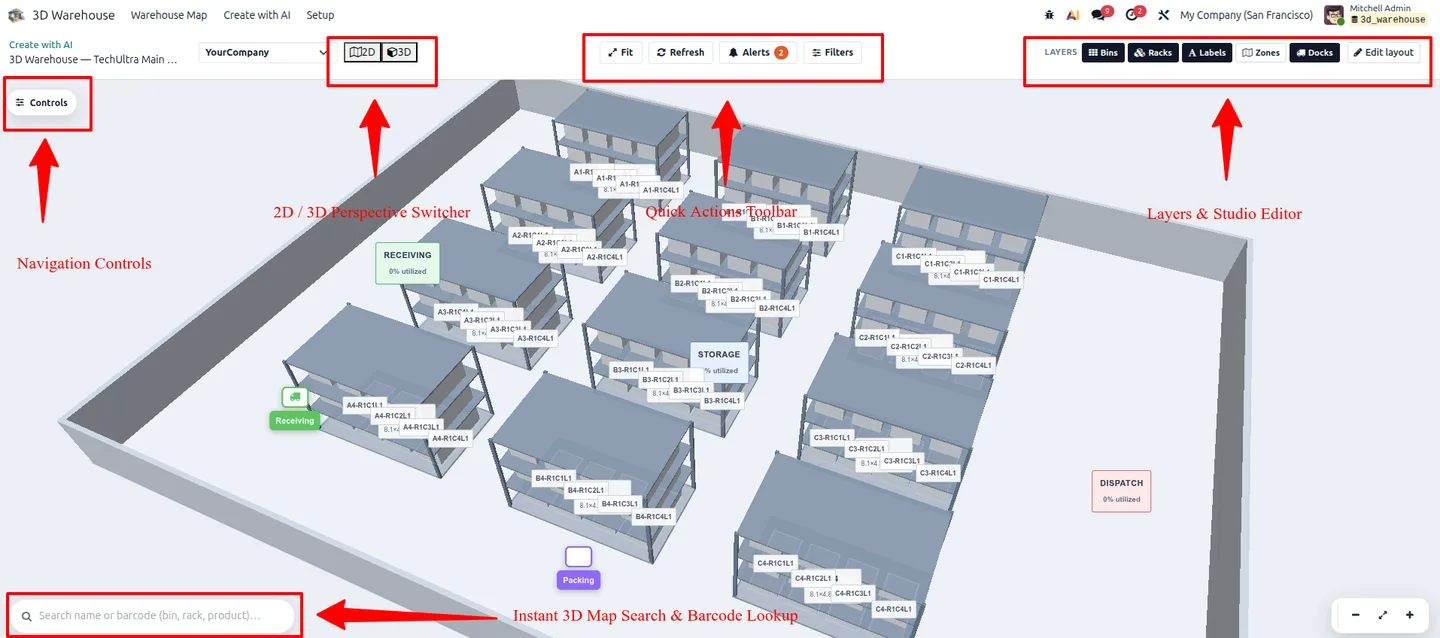
TechUltra 3D Warehouse answers those questions by turning the list into a picture: an interactive, live digital twin of your facility, running inside Odoo.
A short look at the 3D warehouse in motion. A full YouTube walkthrough is on the way.
What is a warehouse digital twin?
A digital twin is a live model of a physical thing. Here, the “thing” is your warehouse, and “live” means it’s wired to your real Odoo stock. Switch between a flat 2D floor plan and a fully rendered 3D model, and click any rack or bin to inspect live product quantities, reserved stock, lot numbers, and available capacity — the same data Odoo already holds, shown where it physically sits.
That single shift — from list to map — is what makes everything below possible.
How does 3D picking-route optimization work?
For every delivery order, the module computes the shortest, most efficient walking path across your aisles and draws it directly on the 3D map inside the picking view — a glowing route with a numbered pick sequence.
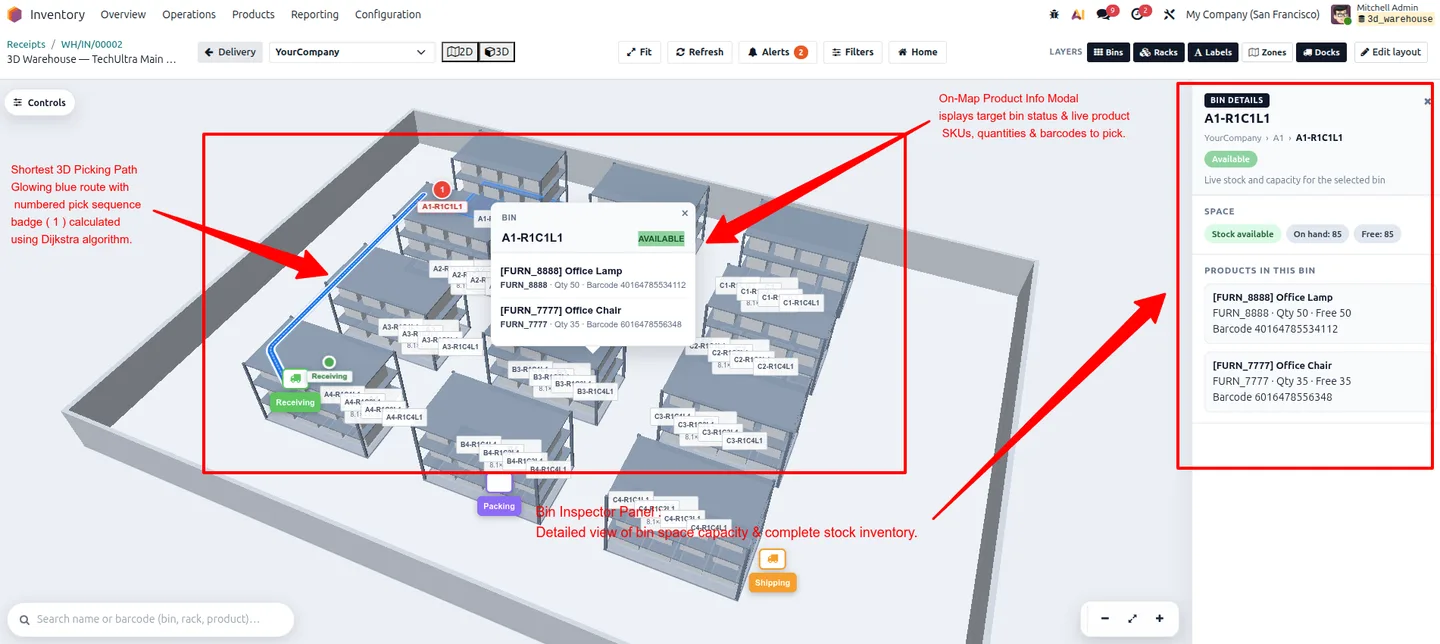
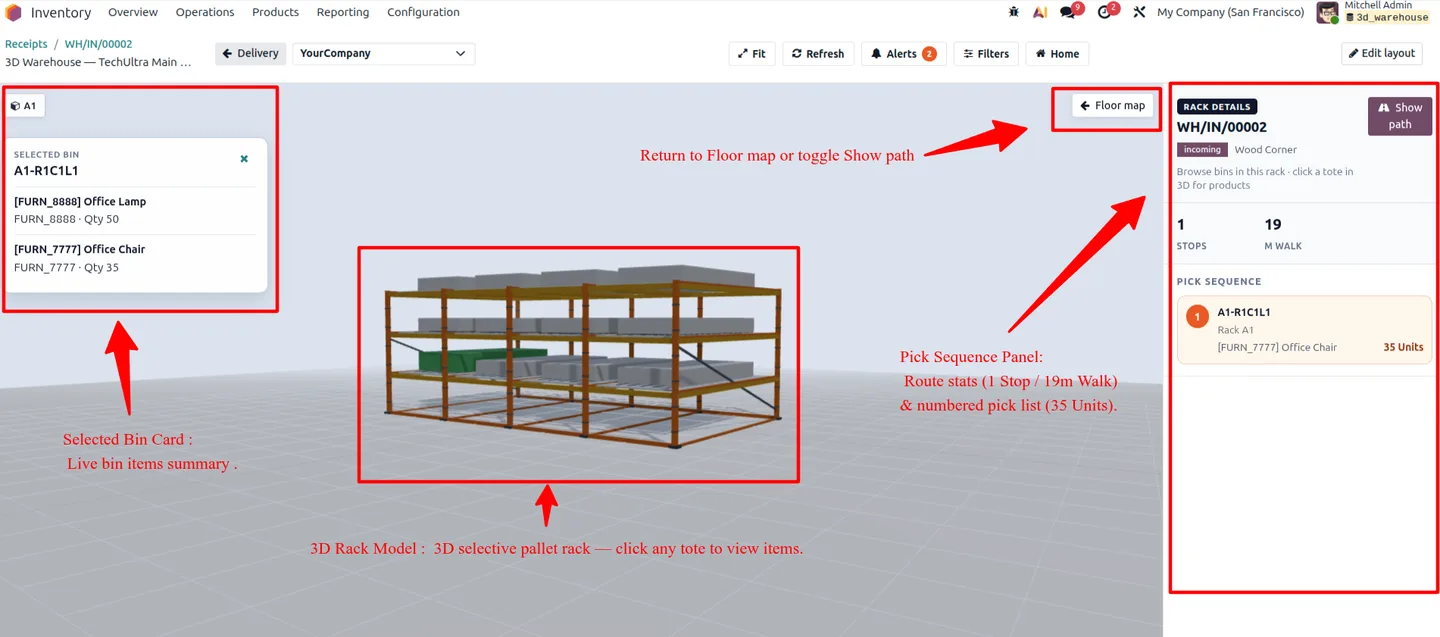
Pickers stop walking back and forth across the floor, which is where a surprising share of fulfilment time quietly disappears. The route panel shows the stats up front — number of stops, metres to walk — and a numbered pick list so there’s no guesswork about order.
Can I scan barcodes on the 3D map?
Yes — picking happens on the map, not in a separate screen. The workflow is deliberately boring, which is the point: scan the location or bin barcode, scan the product, enter the quantity, get immediate visual feedback. Because each scan is confirmed against the correct bin, operators pick from the right place every time and move lines update instantly. Fewer misplacements, higher accuracy, less rework downstream.
Live inventory and capacity heatmaps
Colour does a lot of work here. Racks and bins are shaded by stock availability, reserved levels, empty space, and operational risk — so an over-full aisle or a stock-out zone is obvious at a glance instead of buried in a report. Smart visual alerts surface low stock, bin over-capacity, and aisle congestion right on the map.
The AI layout generator
Setting up a warehouse layout by hand is tedious. So you can describe it instead. Type a plain-English prompt — “three aisles, four racks per aisle, three shelf levels, receiving on the left and dispatch on the right” — and the generator drafts a floor plan with zones, racks, and bins to preview and apply.
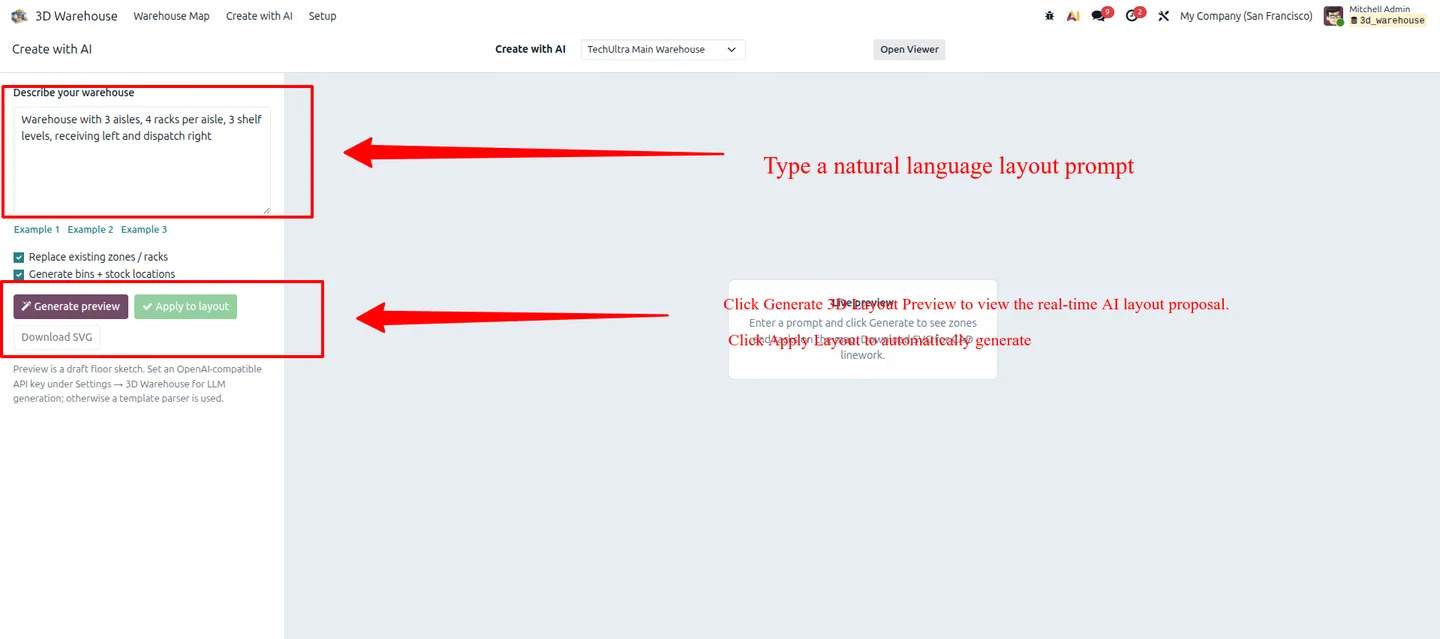
It runs offline with a built-in template parser, or against an OpenAI-compatible LLM when you add an API key — so the AI is optional, not a lock-in.
Drag-and-drop layout studio and CAD import
For fine control, there’s a visual editor: drag, rotate, resize, and reposition zones, racks, dock bays, and bins, with a side inspector for exact coordinates and dimensions.
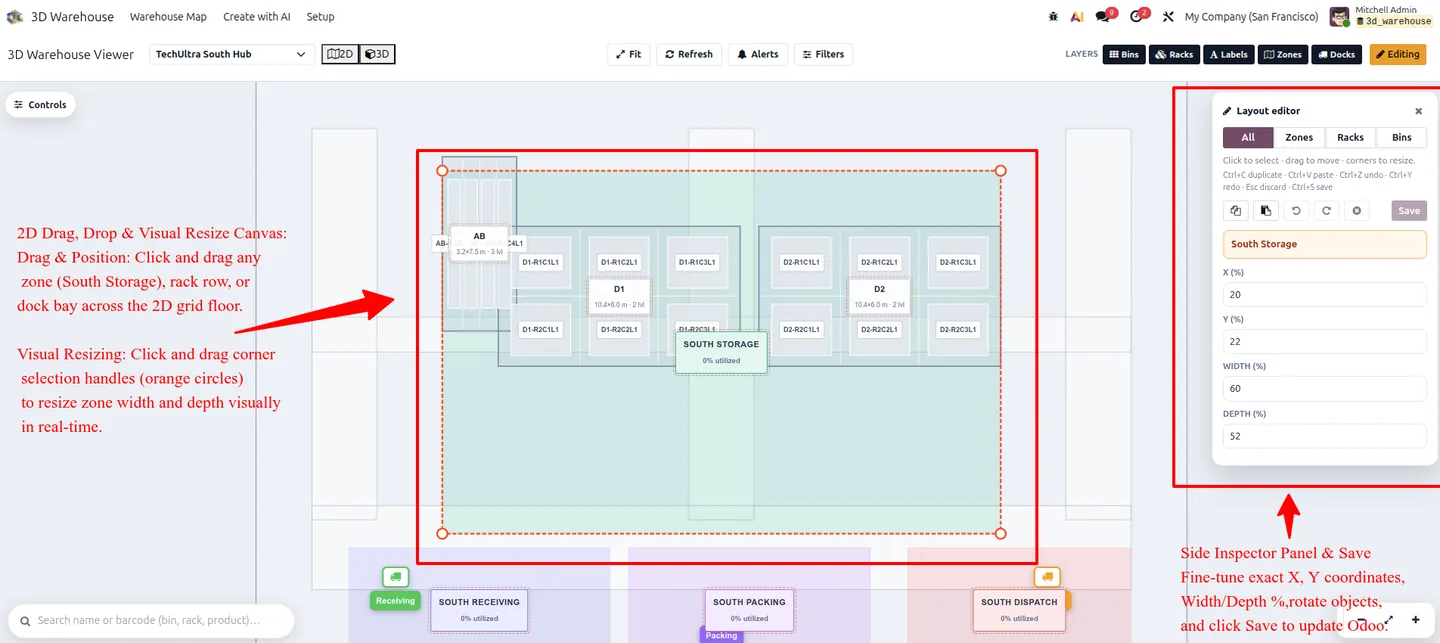
Already have architectural drawings? Import a floor-plan image or a CAD DXF file to align the 3D geometry with your real building — so the twin matches the facility, not a generic template.
Automated rack and bin generation
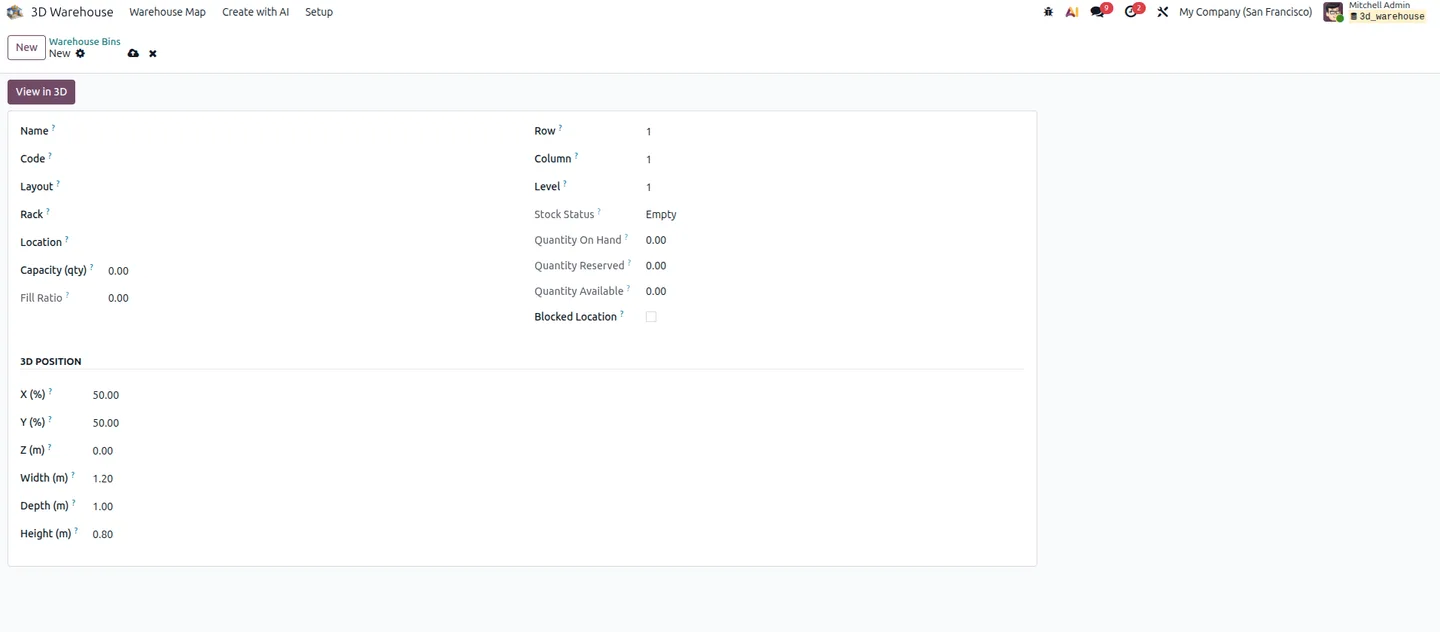
You don’t place thousands of bins by hand. Define a rack’s rows, columns, and shelf levels, and the generator bulk-creates the multi-level bin matrix, syncs the Odoo stock locations, and assigns barcodes automatically.
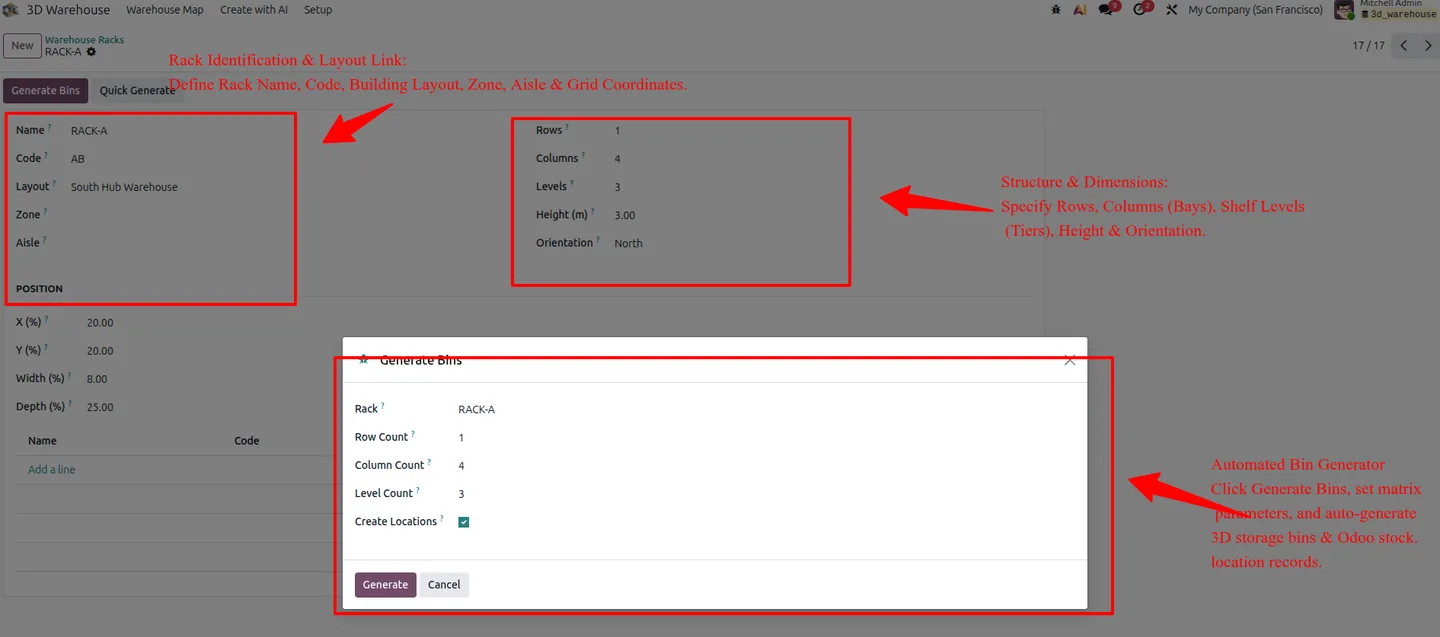
Every generated bin maps to a real stock.location, so the twin and your Odoo inventory never drift apart.
Who is it for?
If you manage a warehouse of any real size — multiple zones, selective pallet racking, a picking team walking the floor — this is built for you. Warehouse managers get spatial visibility and capacity control; logistics planners get layout tooling; fulfilment teams get faster, lower-error picking. It suits growing 3PLs, manufacturers with finished-goods stores, and distributors scaling past the point where a stock list is enough.
How it fits with Odoo
TechUltra 3D Warehouse isn’t a separate system to reconcile. It’s a layer on top of standard Odoo Inventory, aligned with the native models — stock.warehouse, stock.location, stock.quant, and stock.picking. Bins, racks, stock, receipts, and deliveries stay in one place, so the 3D view is always showing your real operation, not a copy of it.
We’re publishing the module to the Odoo App Store now. This post will carry the App Store link and a full YouTube walkthrough the moment they’re live — and if you’d rather see it on your own warehouse data first, we’re happy to run an early demo.
Frequently asked questions
-
What is a warehouse digital twin in Odoo?
A warehouse digital twin is a live, interactive 3D model of your physical facility that mirrors your Odoo inventory in real time. Instead of reading stock as rows in a list, you see the actual floor — zones, aisles, racks, and bins — and click any location to inspect live quantities, reserved stock, and capacity. TechUltra 3D Warehouse builds that twin directly on Odoo's standard inventory models.
-
How does 3D picking-route optimization work?
For each delivery order, the module computes the shortest, most efficient walking path across your aisles and draws it as a numbered route on the 3D map, right inside the picking view. It uses a shortest-path calculation over the warehouse layout, so pickers stop crossing back and forth and fulfil more orders per shift.
-
Can I scan barcodes on the 3D map?
Yes. Picking runs directly on the interactive map: scan the location or bin barcode, scan the product, and enter the quantity, with immediate visual feedback. Because each scan is confirmed against the correct bin, misplacements drop and move lines update instantly.
-
What does the AI layout generator do?
You describe your warehouse in plain English — for example, 'three aisles, four racks per aisle, three shelf levels, receiving on the left and dispatch on the right' — and the AI generates a draft floor plan with zones, racks, and bins you can preview and apply. It works with a built-in template parser offline, or with an OpenAI-compatible LLM when you provide an API key.
-
Which Odoo version does TechUltra 3D Warehouse support?
It targets Odoo 19 and installs on top of standard Odoo Inventory (stock). It is fully aligned with Odoo's native inventory models — stock.warehouse, stock.location, stock.quant, and stock.picking — so bins, racks, and stock stay in sync with your existing operations.
-
Where can I get the module?
TechUltra 3D Warehouse is being published to the Odoo App Store. This page will carry the App Store link and a full video walkthrough as soon as they are live. In the meantime, contact TechUltra Solutions for an early demo on your own warehouse data.
Related services & solutions
Put this into practice with TechUltra's senior Odoo consultants.
OCR AI Invoice Capture
Free Odoo OCR AI module for Odoo 16–19. AI reads PDF and image vendor bills and invoices and creates the matching Odoo journal entry in one click.
AI WhatsApp Chatbot
LLM-powered WhatsApp chatbot grounded in your Odoo data. Handles ordering, support, FAQs, and lead qualification with human-agent escalation.
Odoo Development Services
Innovative Odoo development by a Gold Partner — 100+ projects, certified senior engineers, transparent pricing, and end-to-end support. Free consultation.
AI & Agentic ERP services
OCR, AI assistants, and agentic automation productized on Odoo.