
Retail POS for India
POS billing software with GST for retail stores
Odoo Point of Sale bills at the counter, prints the GST tax invoice, takes UPI and card, and updates stock and accounting as you sell, across one shop or a chain.
Last reviewed:
What does Odoo POS do for an Indian retail shop?
GST tax invoice at the counter
Tax Invoice heading, HSN summary and CGST/SGST or IGST split on every receipt.
UPI and card terminals
Razorpay and Pine Labs terminals in Odoo 19; static UPI QR payment in Odoo 20.
Keeps selling offline
If the internet drops, the register keeps selling and syncs the orders when it reconnects.
Many stores, one stock
Every register draws on the same stock ledger, with pricing and promotions set once at head office.
Size and colour variants
Each variant has its own barcode and stock count, which garment and footwear shops need.
Loyalty and gift cards
Points, coupons, promotions and gift cards, redeemed on the bill.
Returns and refunds
Refund against the original order; the item returns to stock in the same step.
Cash control
Opening and closing counts, cash in and out, and the difference recorded per session.
Everything above is standard Odoo 19 or Odoo 20, described in Odoo's Point of Sale documentation. The module itself is covered on Odoo Point of Sale, and what changed in version 20 is in the Odoo 20 Sales, CRM and POS guide.
What does a day at the counter look like in Odoo?
Nine steps, from opening the register to filing GST, each with the Odoo feature that does the work. The screenshots are real Odoo screens.
-
Step 1: Open the register
Point of Sale session, Log in with Employees
The cashier opens the day's session and counts the opening cash. With Log in with Employees on, each person signs in under their own access level: Manager, Cashier, Restrictive, or Supervised in Odoo 20, where a senior employee must approve before a Supervised cashier can close a payment.
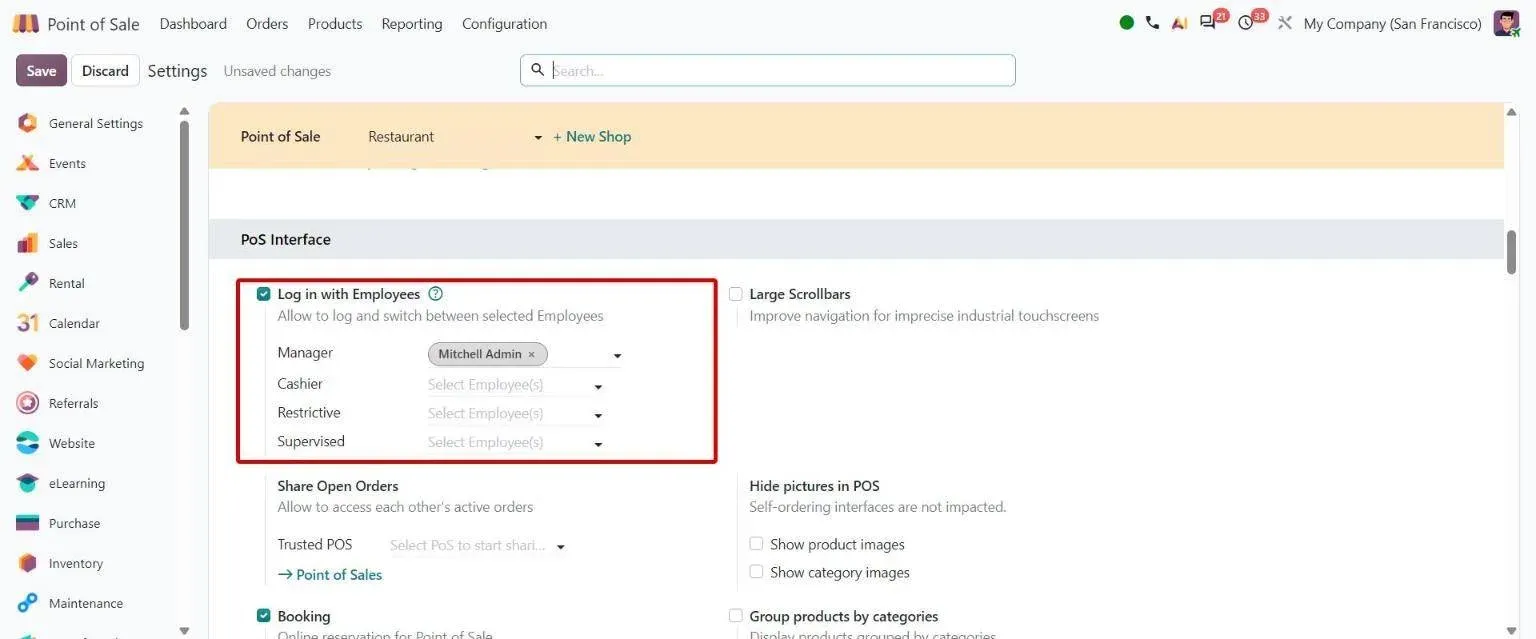
Odoo 20 POS settings: employee access levels, including the new Supervised level. -
Step 2: Scan the barcode, pick size and colour
Barcode scanning, product variants
The cashier scans the tag or taps the product. In a garment shop each size and colour is a product variant with its own barcode, so the bill line reads the exact item, such as a T-shirt in size S, and stock drops for that variant only. When separate lines match a combo product, Odoo 20 suggests the combo price.
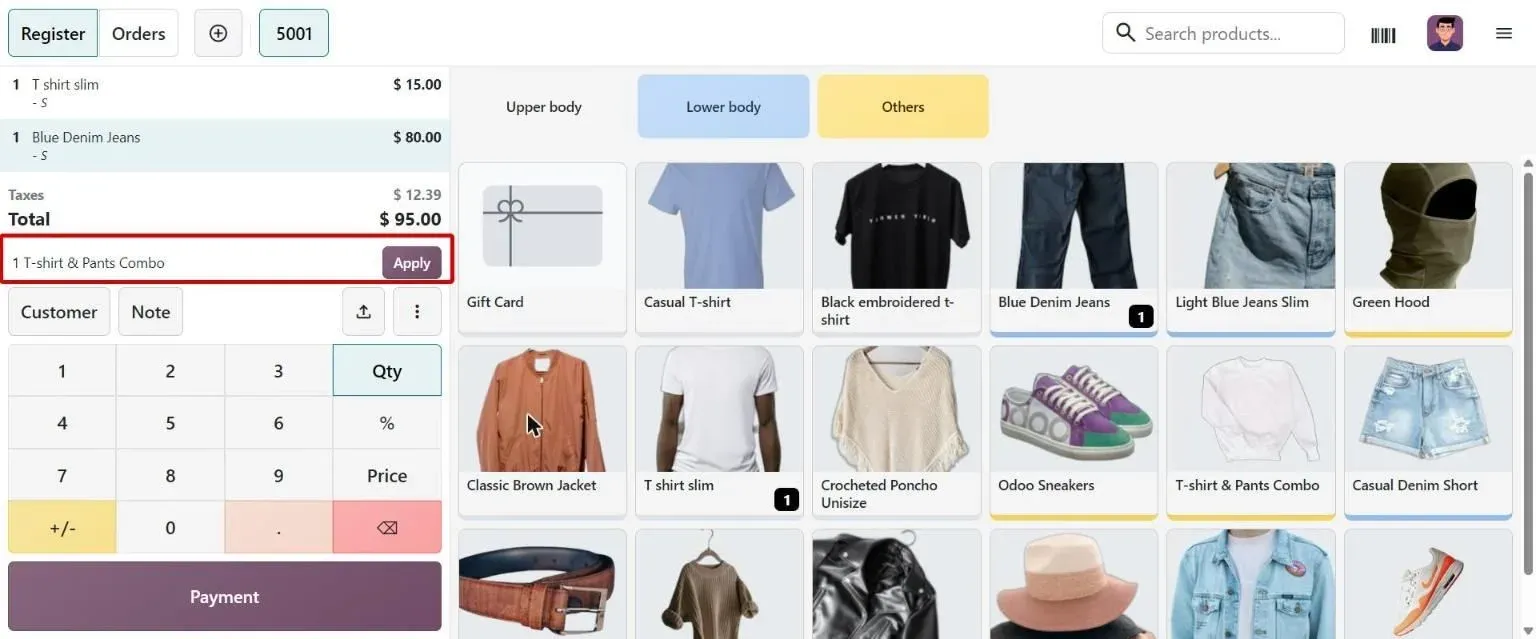
Odoo 20 POS register: size variants on the bill and a combo suggestion. Demo data, so amounts show in USD. -
Step 3: Find the customer, apply loyalty or a gift card
Promotions, Coupons, Gift Card and Loyalty Program
Search the customer by name or phone, or create them at the counter. Points, discounts, coupons, buy-X-get-Y promotions and gift cards are standard Odoo, and the reward applies on the bill before payment.
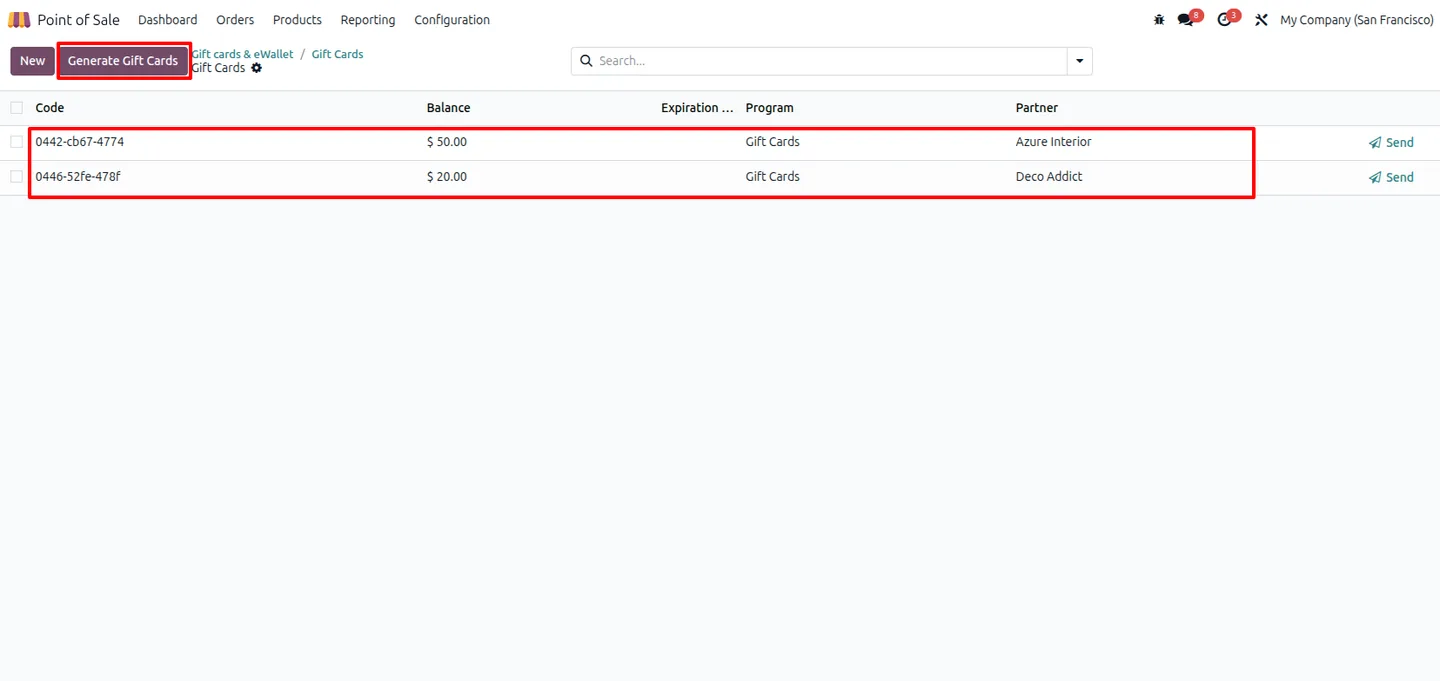
Gift cards in Odoo Point of Sale, from our POS Partial Gift Card Redeem module listing. -
Step 4: Take payment by cash, UPI or card
Payment methods, Razorpay and Pine Labs terminals, UPI QR
Odoo 19 connects to Razorpay and Pine Labs payment terminals, which take debit and credit cards (Visa, Mastercard, RuPay) and UPI. Odoo 20 adds payment through a static UPI QR code. One bill can be split across cash, UPI and card, and each payment method posts to its own journal.
Razorpay with Odoo -
Step 5: Print the GST tax invoice
Indian Point of Sale (l10n_in_pos)
With the India localisation installed, the receipt is headed Tax Invoice and carries an HSN summary table with the tax split by rate. HSN codes and GST rates come from the product, and CGST plus SGST or IGST follows the place of supply. Odoo 20 can also print a simplified receipt with totals and taxes only, or send the receipt instead of printing it.
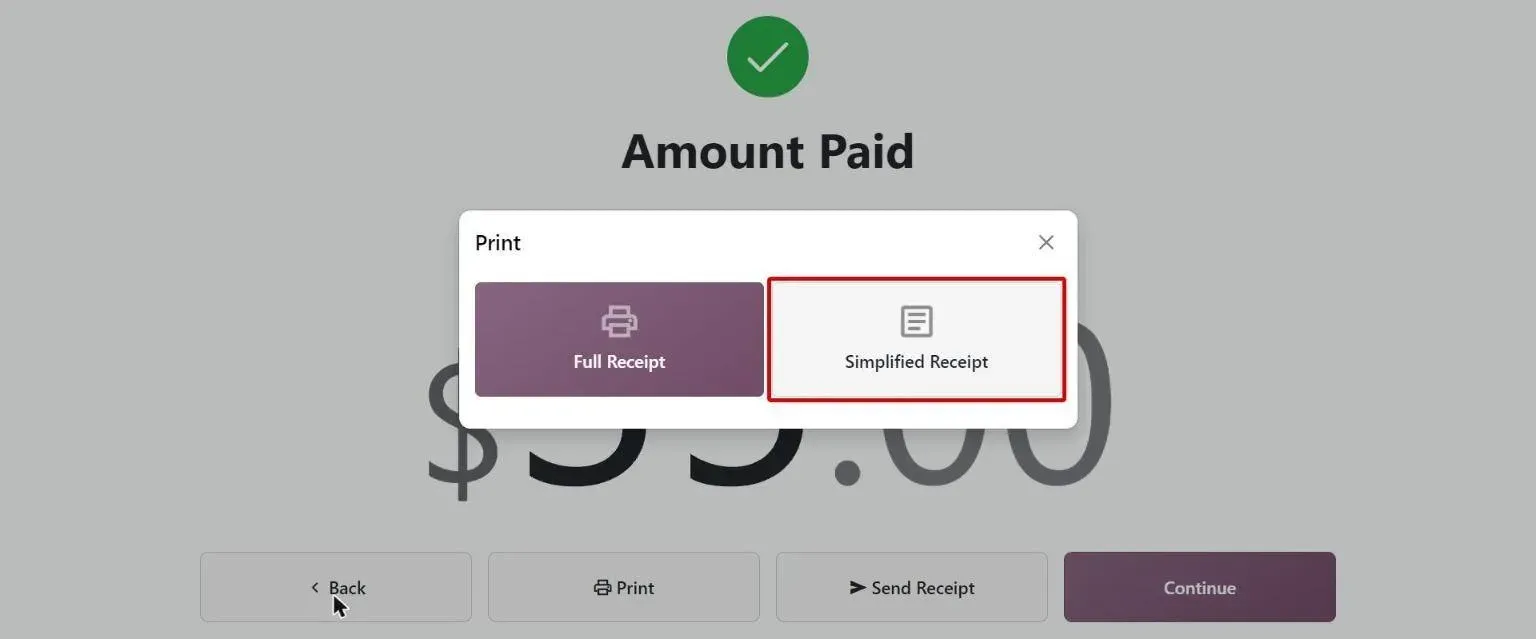
Odoo 20 POS after payment: full or simplified receipt, print or send. -
Step 6: Stock updates centrally
Inventory, one stock ledger for every store
Each store's register takes stock from that store's warehouse in Odoo. Head office sees what every branch has on hand, and replenishment rules can raise the transfer or purchase when a store runs low.
Odoo Inventory -
Step 7: Handle a return
POS Orders, refunds
The customer brings back an item. The cashier finds the original order (Odoo 20 searches by receipt or invoice number), refunds the line, and the item goes back into stock. The money goes back by the payment method the cashier picks.
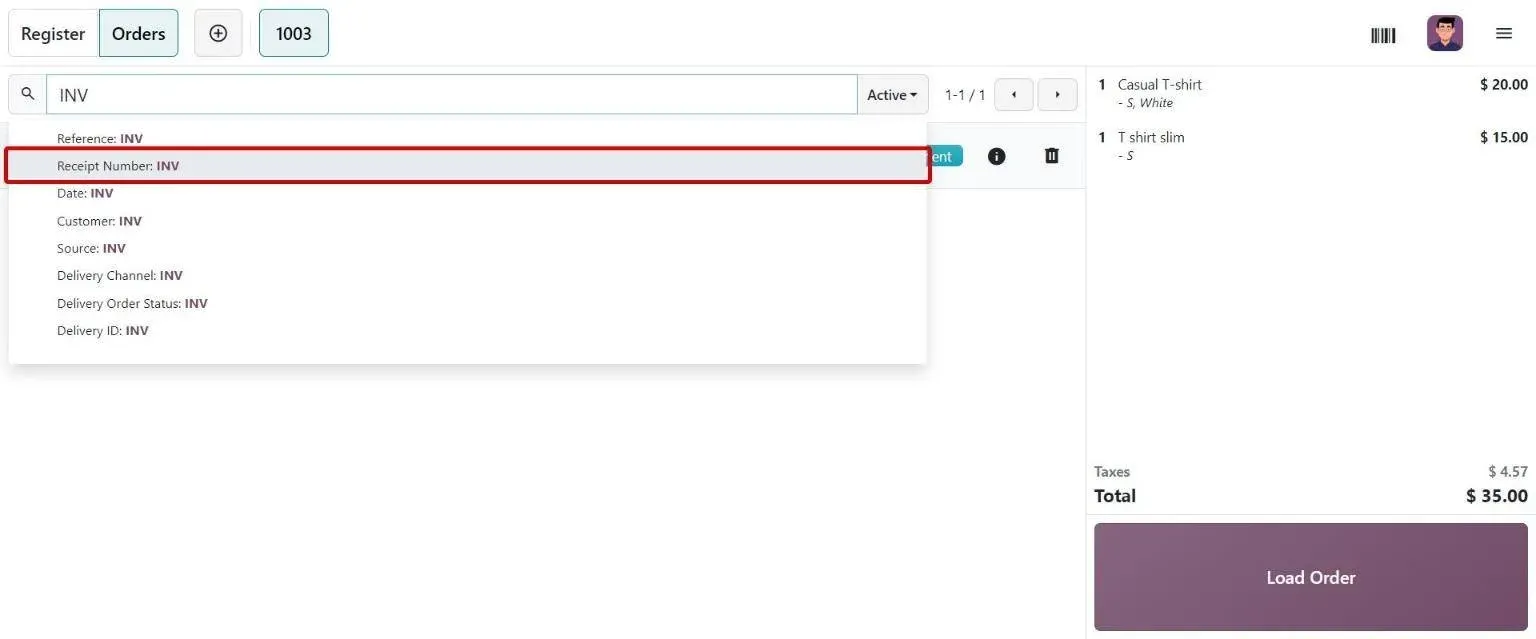
Odoo 20 POS Orders: find a past sale by receipt number. -
Step 8: Close the session with cash control
Closing control, closing entries
At the end of the day the cashier counts the drawer and Odoo shows the difference against expected cash. Closing the session posts the day's sales to Accounting. In Odoo 20 the payment entries can be created daily at a set hour or when the session closes.
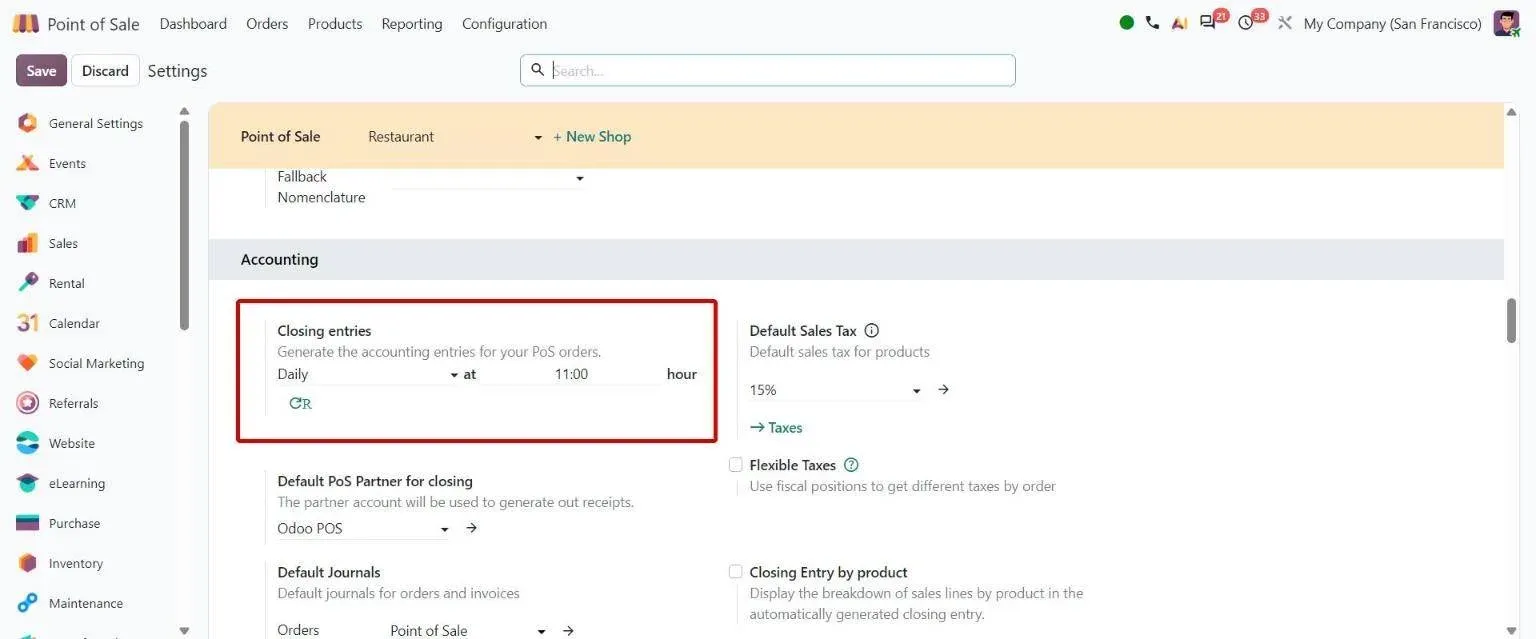
Odoo 20 POS accounting settings: when closing entries are generated. -
Step 9: Bill a business customer and file GST
Invoicing from POS, Indian E-invoicing
For a customer with a GSTIN, the cashier marks the order to invoice. It becomes an ordinary customer invoice in Accounting, so if e-invoicing applies to you, it goes to the Invoice Registration Portal and comes back with an IRN and QR code. POS sales are posted with their GST split, and GSTR-1 is filed from Odoo's GST reports.
GST e-invoicing and e-way bill in Odoo
Odoo POS or a standalone billing app?
Indian shops usually bill in one of three ways: desktop accounting software with billing (Tally, for example), a billing app built for shops (such as Marg or Vyapar), or an ERP with a point of sale. Each fits a different business. The question is how much sits around the bill.
Choose a standalone billing app if
- One shop, one counter, and billing is the main job.
- Your CA keeps the books in separate accounting software.
- You do not run an online store or a warehouse.
Choose odoo Point of Sale if
- Several stores, or a warehouse feeding the stores.
- You want stock, purchase, accounting and GST in the same system as billing.
- You also sell online or to businesses, and want one customer and stock record.
Moving off Tally? Read Tally Prime vs Odoo and the Tally to Odoo playbook.
Which retailers run Odoo POS with us?
Standard Odoo covers most shops. Chains often add rules on top, as Koskii did for price-band GST and loyalty checks. More on retail rollouts: Odoo for retail.
Which of our POS add-ons do Indian retailers use?
We publish these modules on the Odoo App Store. None is needed to bill with GST; each solves a specific counter problem.
- POS Access Management
Per-cashier rules for refunds, discounts, price changes, cash in and out, and closing the register.
- POS Partial Gift Card Redeem
Redeem part of a gift card at the counter and keep the remaining balance.
- WhatsApp for POS
Send the POS receipt to the customer on WhatsApp instead of paper.
- Product Barcode Generator
Generate EAN-13, Code128 or QR barcodes for one product or thousands.
- POS Close Session From Backend
Close a POS session and post its entries from the back office.
Getting Odoo POS set up with TechUltra
Our Ahmedabad team sets up GST, HSN codes, product variants and barcodes, payment terminals and each store's register, then tests a full day of billing, returns and session closing before the first store goes live. Every project gets a fixed price in writing before work begins; see how that works in our India packages. Back to the Odoo in India overview.
Odoo POS and GST billing: common questions
-
Is Odoo POS good billing software for a retail store in India?
Yes, if you want billing, stock and accounting in one system. Odoo Point of Sale prints a GST tax invoice with an HSN summary, takes UPI and card payments through Razorpay or Pine Labs terminals, keeps selling offline, and updates stock and accounting as you sell. A single shop that only needs bills may find a standalone billing app simpler.
-
Does Odoo POS print GST-compliant bills with HSN codes?
Yes. With the India localisation, the POS receipt is headed Tax Invoice and shows an HSN summary table with the tax split. HSN codes and GST rates are set on each product, and CGST plus SGST or IGST is applied from the place of supply. For a business customer, the order can be turned into a full customer invoice.
-
Can customers pay by UPI at an Odoo POS counter?
Yes. Odoo 19 integrates with Razorpay and Pine Labs payment terminals, which accept UPI as well as Visa, Mastercard and RuPay cards. Odoo 20 also supports payment through a static UPI QR code. Cash, UPI and card can be combined on one bill.
-
Does Odoo POS work without internet?
Yes. Once the register is open, it keeps taking sales if the connection drops and syncs the orders to Odoo when it returns. Terminal payments need the terminal's own connection, so test your card and UPI setup for an outage before a store depends on it.
-
Can we run several stores on one Odoo POS?
Yes. Each store gets its own point of sale and warehouse, all on the same Odoo database, so head office sees stock, sales and cash for every branch. Koskii runs 22+ stores across six cities on Odoo POS. See the Koskii case study.
-
Does Odoo POS handle sizes and colours for a garment shop?
Yes. Sizes and colours are product variants, each with its own barcode and stock count, so the bill shows the exact item and returns go back to the right variant. Where GST depends on the selling price band, as it did for Koskii, we set up the tax rules so the rate follows the price.
-
Do B2B sales from the POS need e-invoicing?
If your aggregate turnover is above the e-invoicing threshold, yes. An order invoiced to a GST-registered customer becomes an ordinary customer invoice, which Odoo sends to the Invoice Registration Portal for an IRN. See GST e-invoicing and e-way bill in Odoo.
Want to see Odoo POS billing for your store?
Chat on WhatsApp