Odoo App · Dashboard
AI BI Dashboard — Natural-Language Analytics for Odoo
Type an English question; get an interactive Odoo dashboard with KPI cards, charts, and a drill-down record list.
Overview
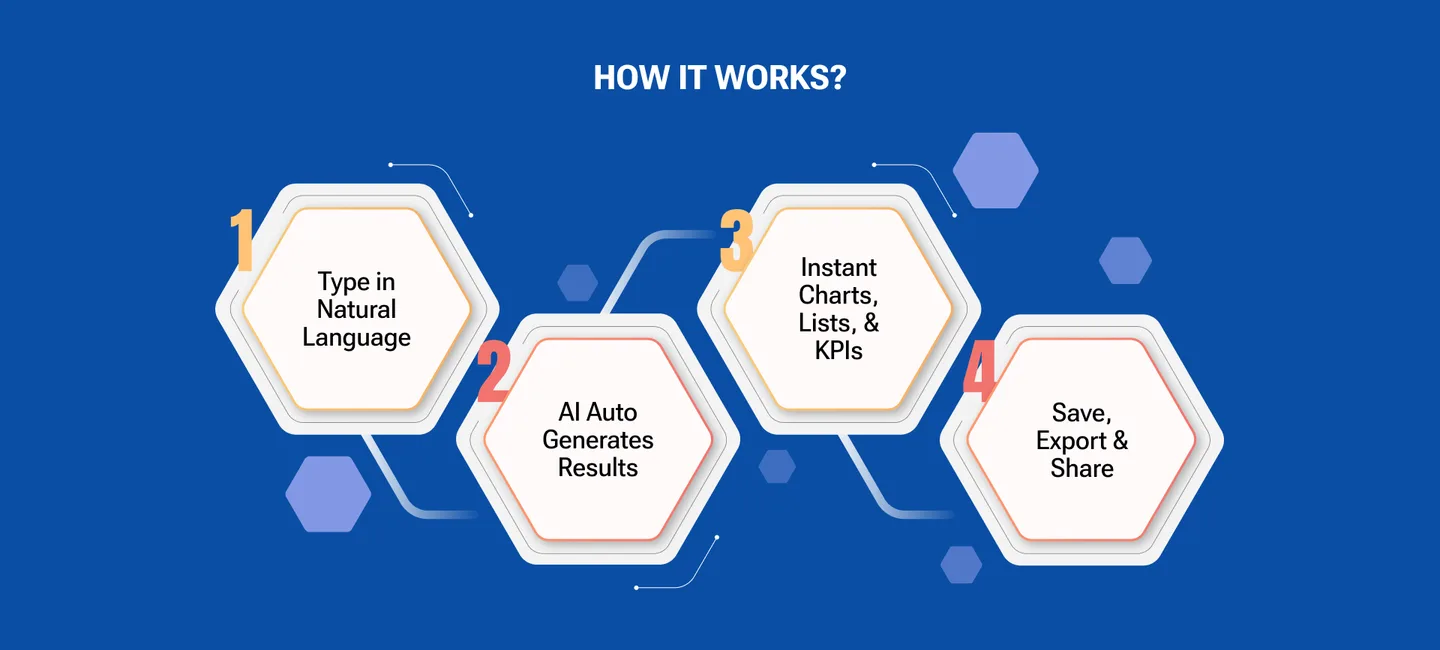
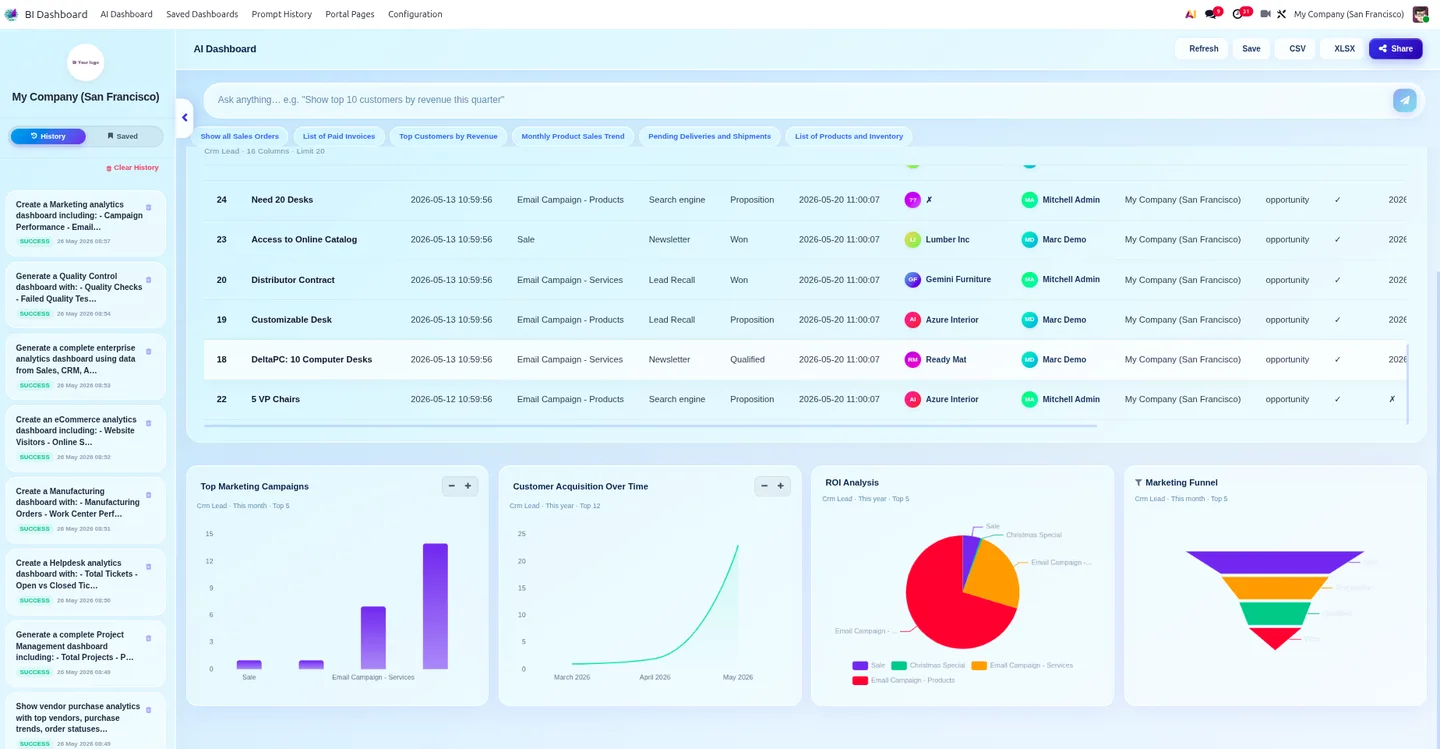
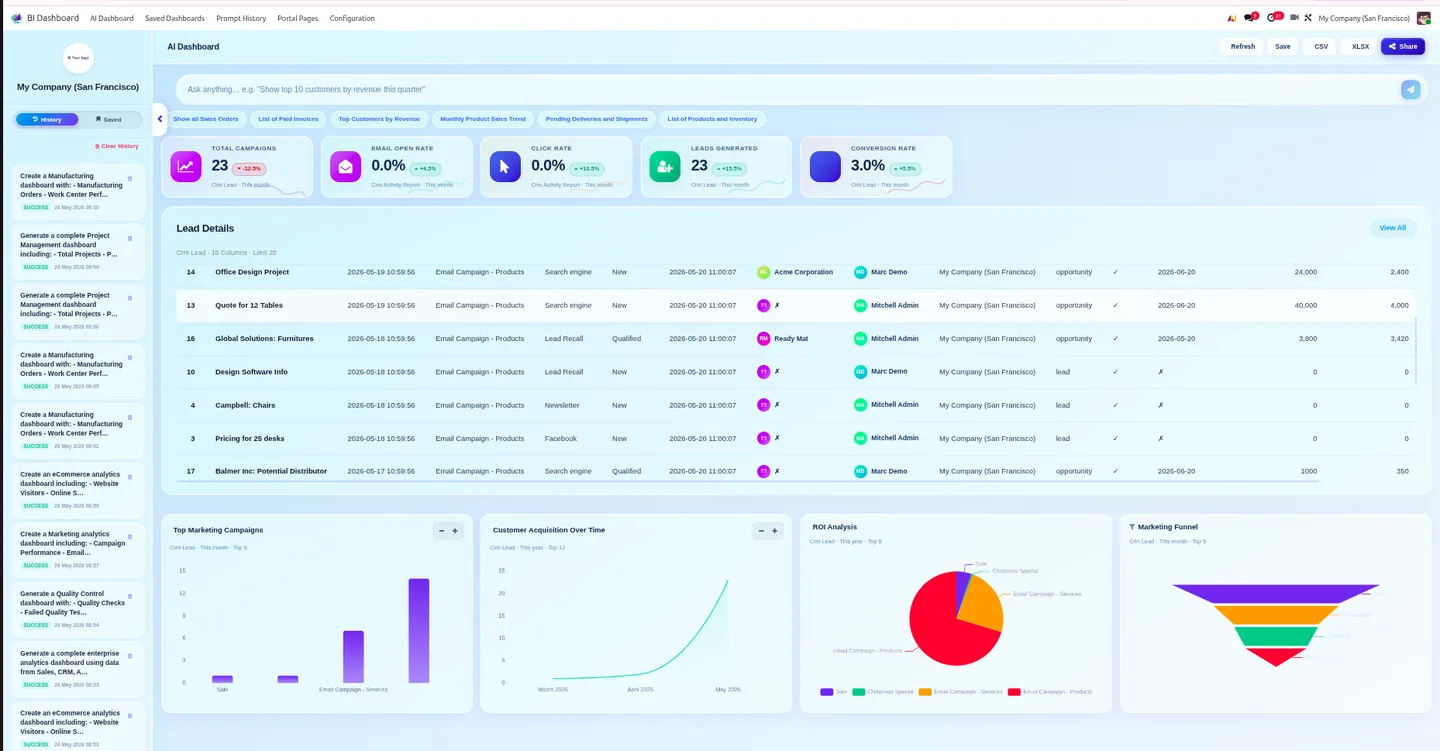
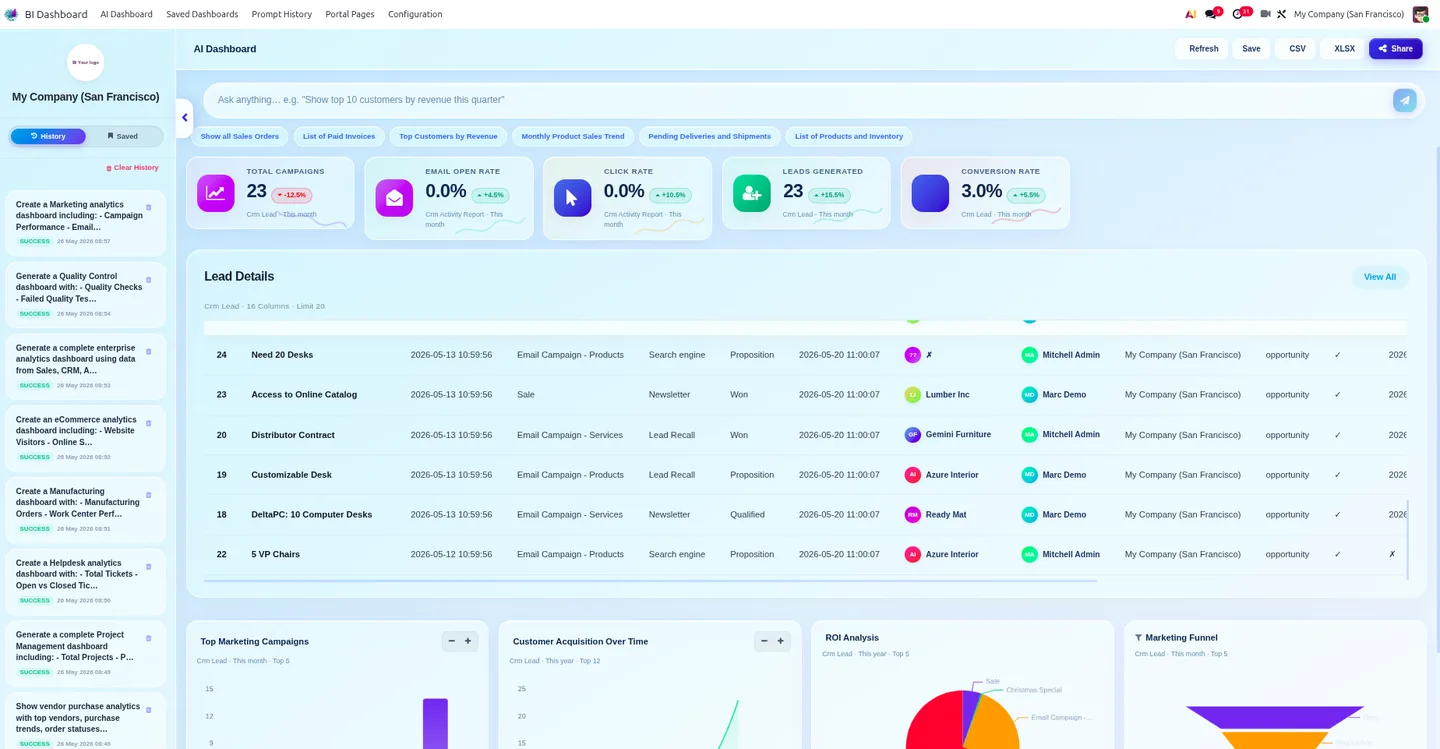
AI BI Dashboard removes the work of building Odoo dashboards by hand. The operator types a business-intent question in English — for example, “show top 10 customers by revenue this quarter” — and the module maps the request to the right Odoo data model, runs a query, and renders the result as KPI cards, charts, and a backing record list.
Built by TechUltra Solutions for Odoo 19, the module ships with a self-healing query sanitiser that strips invalid fields before they reach the database, so a malformed prompt cannot crash a query. An asynchronous pipeline and polling engine keep generation off the request thread, so the UI stays responsive while a dashboard is built.
The module is AI-provider-agnostic: configure OpenAI, Claude, Google Gemini, or a custom endpoint from a settings screen. Generated dashboards are saved as templates you can re-open, and every prompt + generation log is captured in a prompt-history view for audit and tuning.
Key features
-
Natural-language prompts
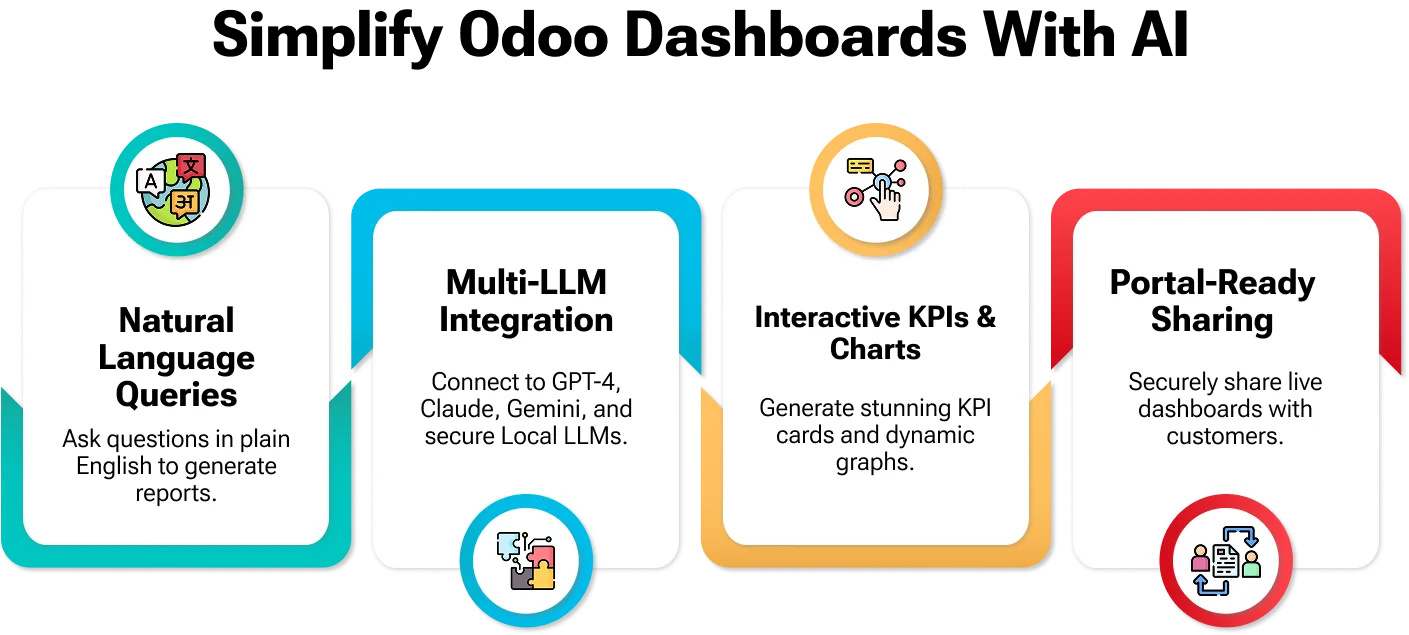
Type a business-intent English question; the module maps it to the right Odoo data models — CRM, Sales, Purchase, Inventory, Project, Employees, Invoicing, Calendar, Contacts.
-
Interactive KPI cards and charts
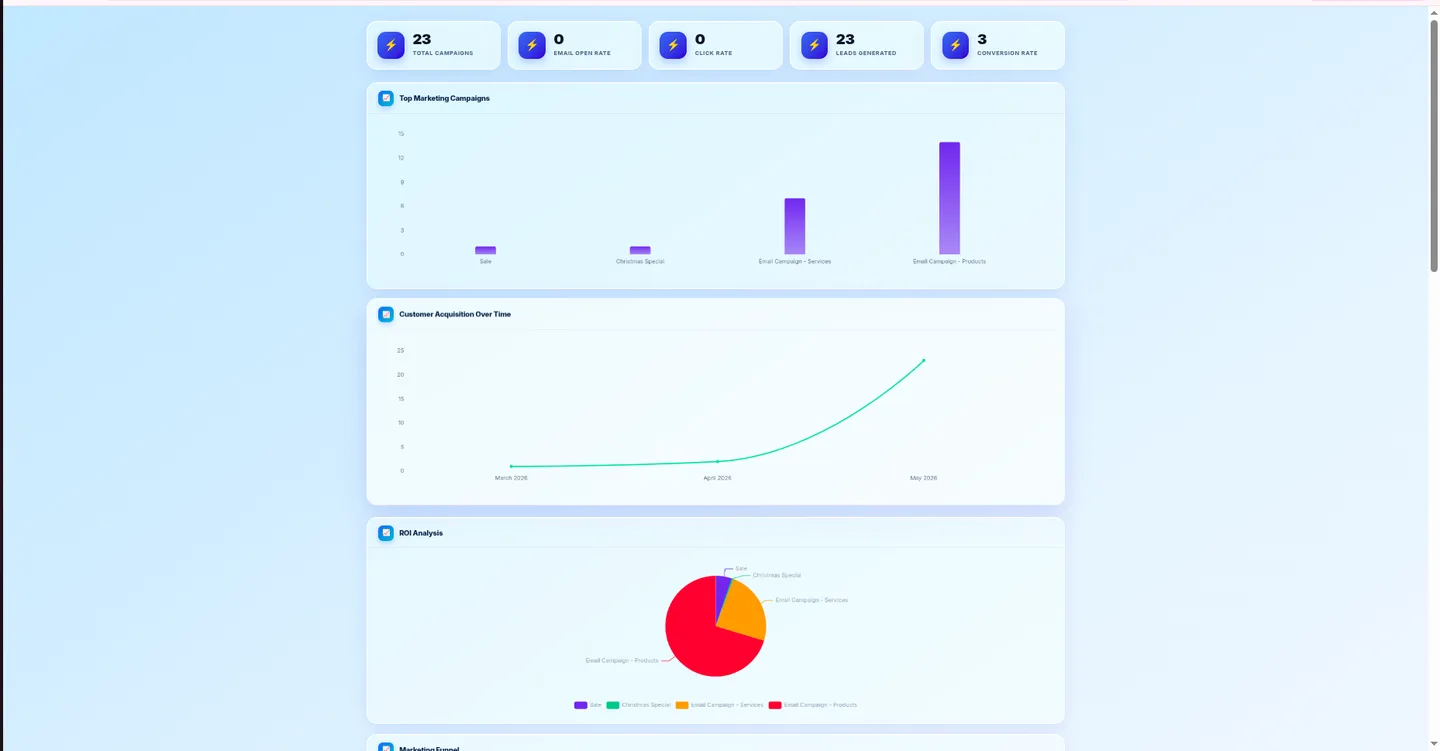
Each generated dashboard ships with tailored KPI cards plus a mix of bar, line, pie, donut, funnel, and area charts that respond to your filters.
-
Self-healing query sanitiser
Invalid or hallucinated field references are stripped from the AI-built query before it reaches Odoo, so a malformed prompt cannot crash a database query.
-
Async pipeline with polling
Dashboard generation runs on a background pipeline with a polling engine — the operator's screen never locks up while a large query is being built.
-
Guaranteed backing record list
Every generated dashboard includes a rich record list view, so you can drill from a KPI or chart into the actual Odoo records behind the number.
-
Pluggable AI provider
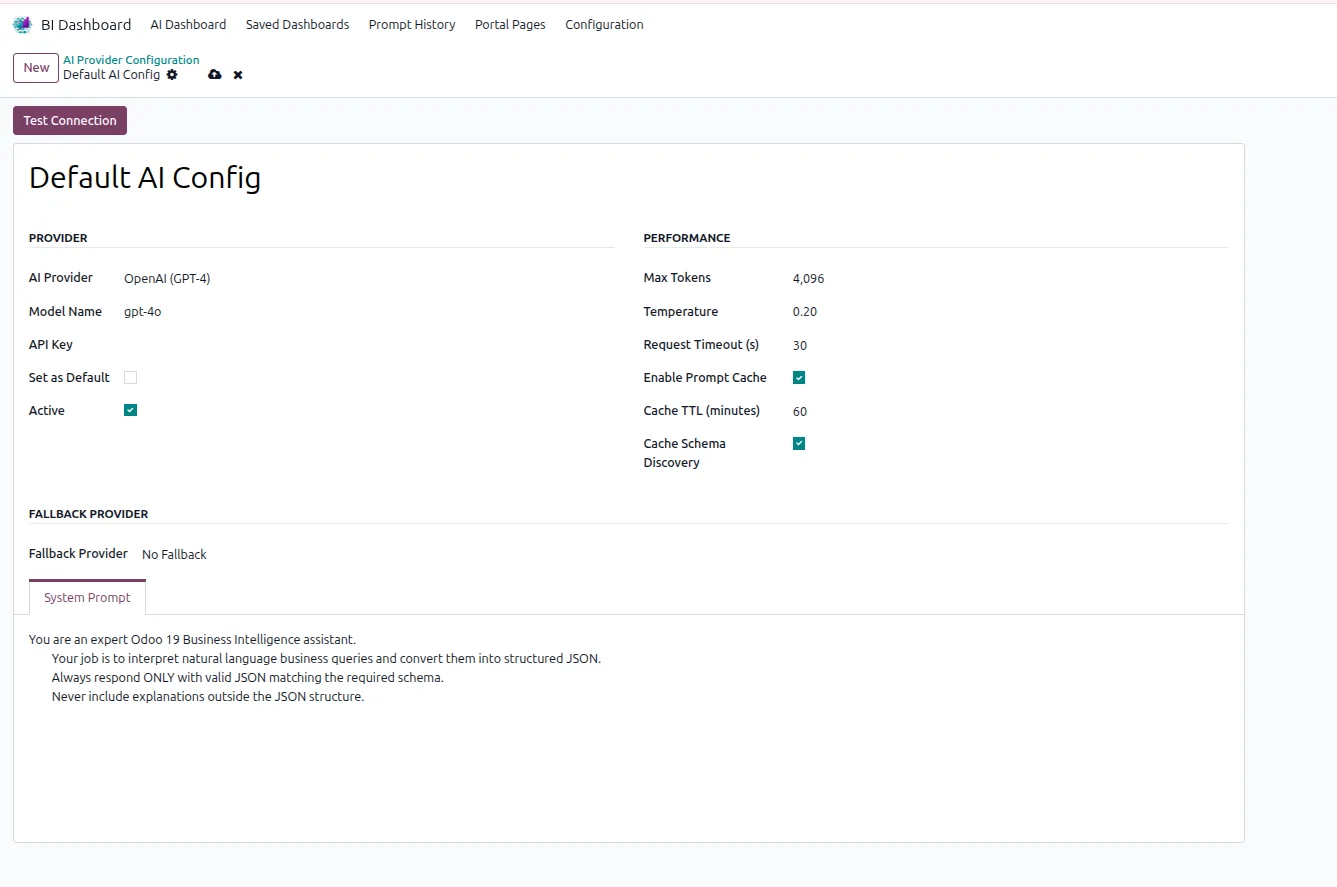
Connect OpenAI, Claude, Google Gemini, or a custom AI endpoint from a single configuration screen — no code change needed to switch provider.
-
Saved dashboards and prompt history
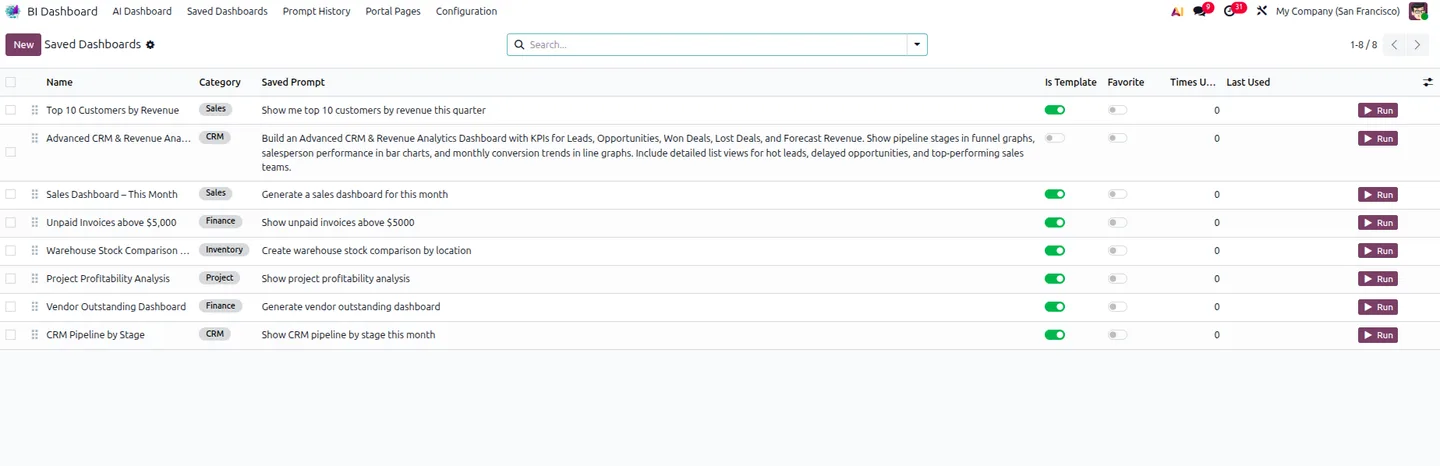
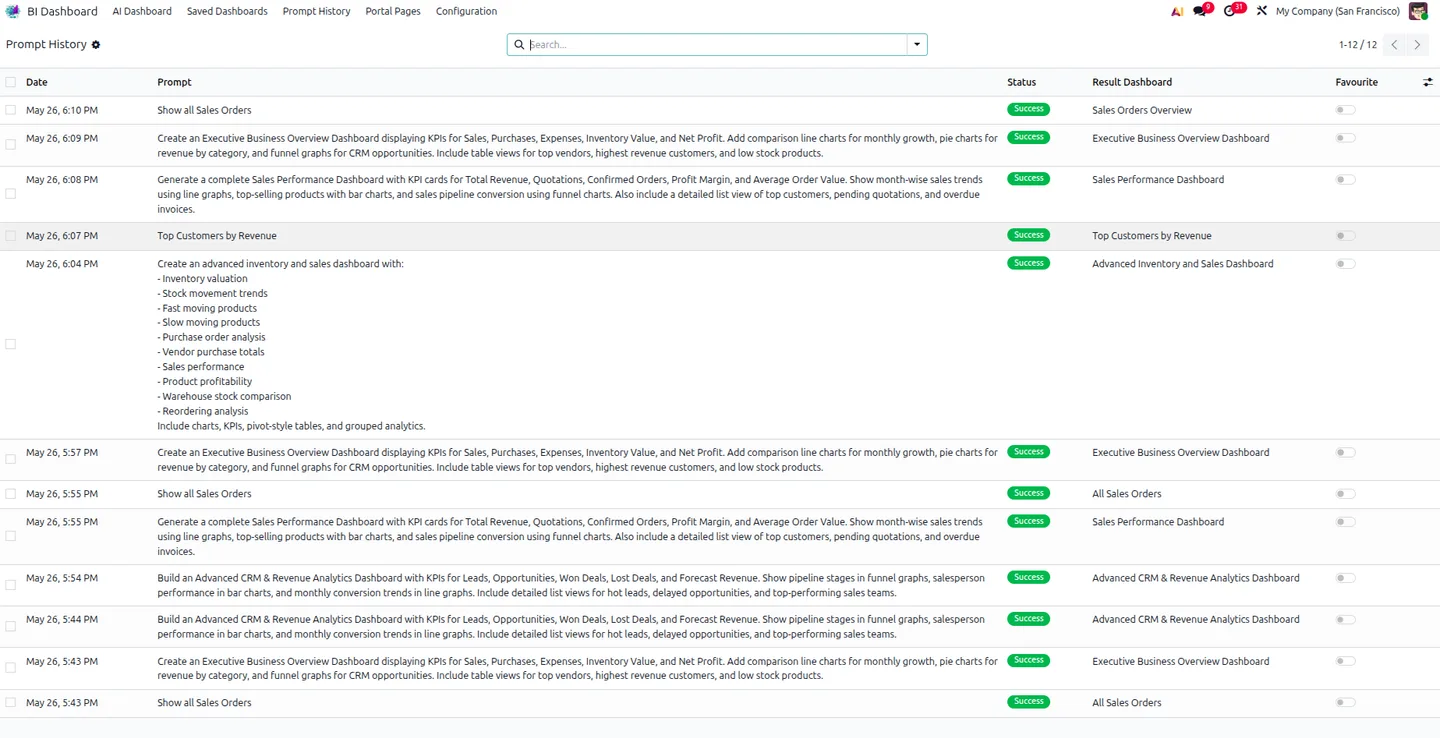
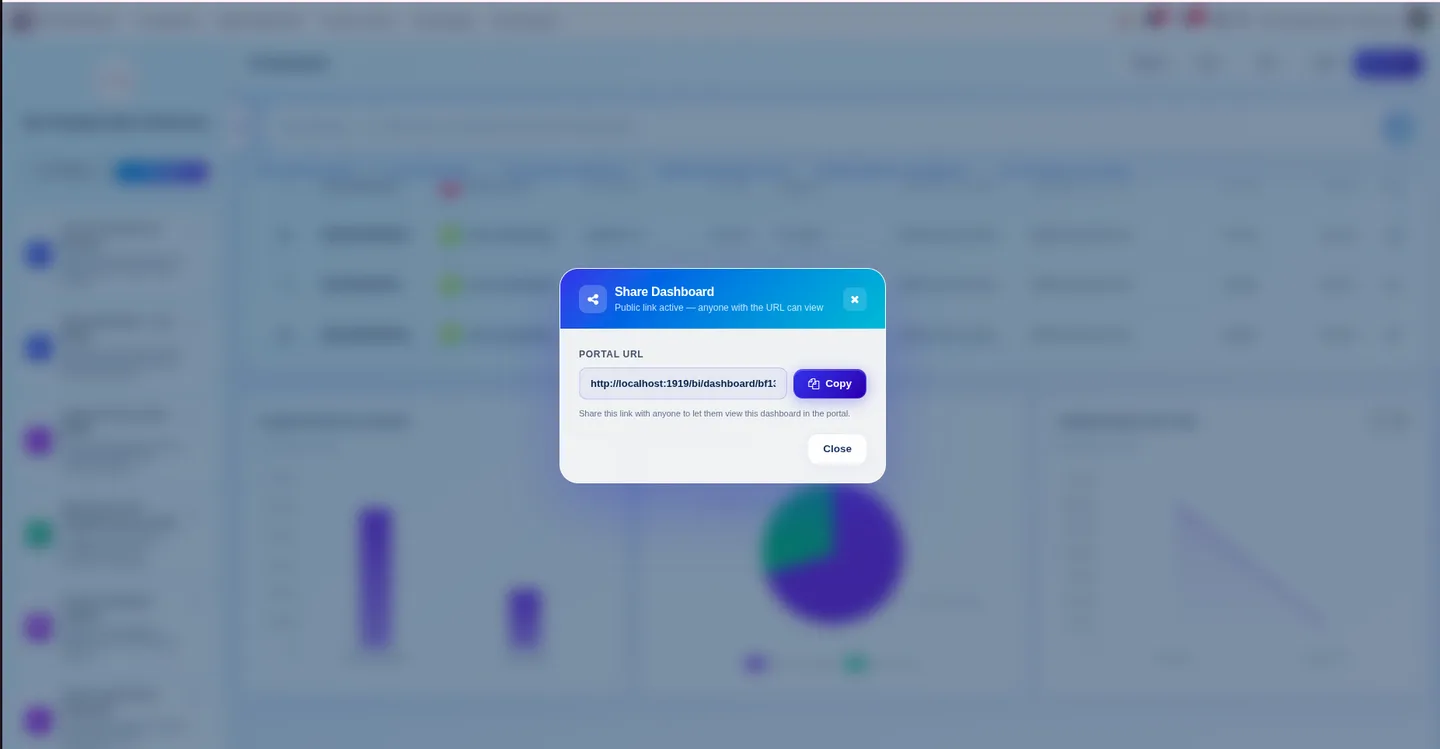
Generated dashboards are saved as re-openable templates. Every prompt and its generation log lands in a prompt-history view for audit and tuning.
AI BI Dashboard — Natural-Language Analytics for Odoo in Odoo
Every screen, in the order you meet it — configuration first, then the module in use.
Technical details
Specification
- Publisher
- TechUltra Solutions Private Limited
- Technical name
- tus_bi_dashboard
- Odoo versions
- 19.0
- Lines of code
- 8,784
- License
- Odoo Proprietary License v1.0 (OPL-1)
- Price
- $99 (one-time)
Deployment
- Odoo Online
- Odoo.sh
- On-premise
Odoo dependencies
- CRM
- Sales
- Purchase
- Inventory
- Project
- Employees
- Invoicing
- Calendar
- Contacts
- Discuss
Support
90 days of bug-fix support, Monday to Friday (10:00–19:00 IST). Raise a ticket at support@techultra.in.
Setup & configuration
From install to first call — here is the path.
- 1
Install the module
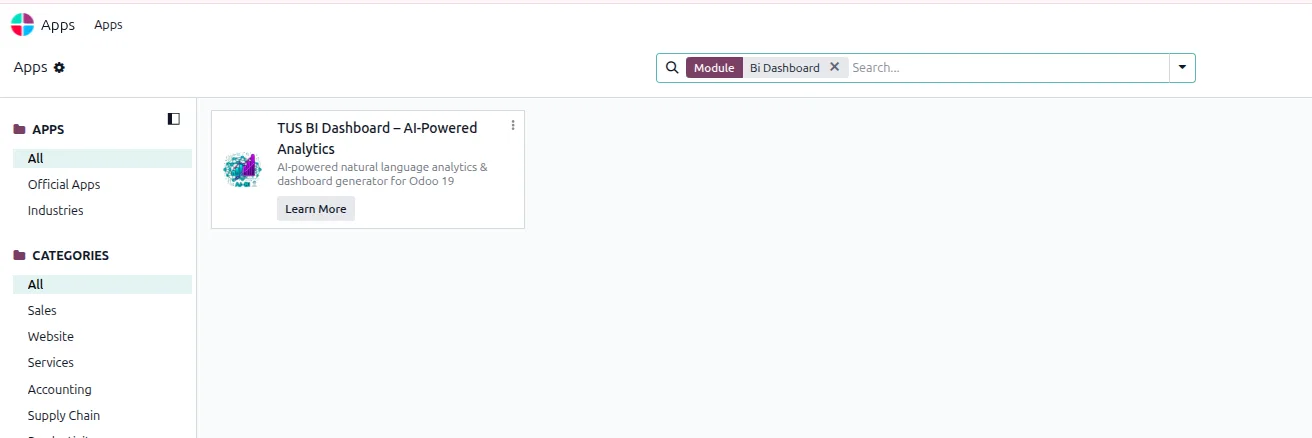
In Odoo 19, open Apps, remove the Apps filter, search for “TUS BI Dashboard”, and click Install.
- 2
Pick an AI provider
Open the module's configuration screen and choose your AI provider — OpenAI, Claude, Google Gemini, or a custom endpoint. Paste the provider's authentication key and, if you use a custom system prompt, save it here.
- 3
Open Saved Dashboards
The Saved Dashboards menu manages every dashboard template the module has generated. Open, rename, or delete templates from here.
- 4
Check Prompt History
The Prompt History view records every prompt and its generation log — useful for auditing what was asked and for tuning the AI configuration over time.
- 5
Run a prompt
Use the dashboard search bar and type a business-intent English question. The module maps the prompt to your Odoo data, runs the query, and renders the KPI cards, charts, and backing record list.
Frequently asked questions
-
Which Odoo version does the AI BI Dashboard support?
The module is built for Odoo 19.0, in both the Community and Enterprise editions, on Odoo Online, Odoo.sh, and on-premise deployments.
-
Which AI providers can I plug in?
The module supports OpenAI, Claude, and Google Gemini out of the box, and accepts a custom AI endpoint configuration. You change provider from the settings screen — no code change required.
-
Which Odoo data models can the prompts cover?
The module maps prompts to CRM, Sales, Purchase, Inventory, Project, Employees, Invoicing, Calendar, and Contacts — these are the module's standard dependencies and the data surface AI BI Dashboard understands today.
-
What stops a bad prompt from breaking a query?
A self-healing query sanitiser strips invalid or hallucinated field references before the AI-built query reaches Odoo, so a malformed prompt cannot crash a database query.
-
Will dashboard generation freeze my Odoo UI?
No. Generation runs on a background pipeline with a polling engine, so the operator's screen stays responsive while a large query is being built.
-
Can I see the underlying records behind a chart?
Yes. Every generated dashboard includes a backing record list view, so you can drill from a KPI or chart into the actual Odoo records that produced the number.
-
Are my prompts saved?
Yes. Every prompt and its generation log lands in a Prompt History view, and dashboards you generate are saved as templates under the Saved Dashboards menu for re-use.
-
Is support included?
Yes. The module includes 90 days of bug-fix support, Monday to Friday, 10:00–19:00 IST, via support@techultra.in.
Related services
Get the most out of this module with senior TechUltra consultants.
Odoo Customization Services
Tailored Odoo customizations from a Gold Partner — 200+ projects, upgrade-safe patterns, fixed-scope quotes, senior consultants. Free demo consultation.
Hire Odoo Developers
Hire certified Odoo developers from a Gold Partner — 400+ implementations, 92% satisfaction, Odoo since 2016. Silver / Gold / Platinum packages, free trial.
Odoo Support & Maintenance
Odoo Gold Partner support — 24/7 functional, technical, and server coverage for Enterprise and Community editions. Fast turnaround, free consultation.