Odoo App · HR & Attendance
Attendance Break Time Pro
Lunch, coffee, rest and prayer breaks tracked inside Odoo Attendances, with policy limits, compliance flags and net worked hours.
Overview
Standard Odoo Attendances records check-in and check-out, but not what happens in between. If an employee checks out for lunch, the shift is split; if they don't, HR has no record of the break. This module adds breaks as their own records, linked to the open attendance.
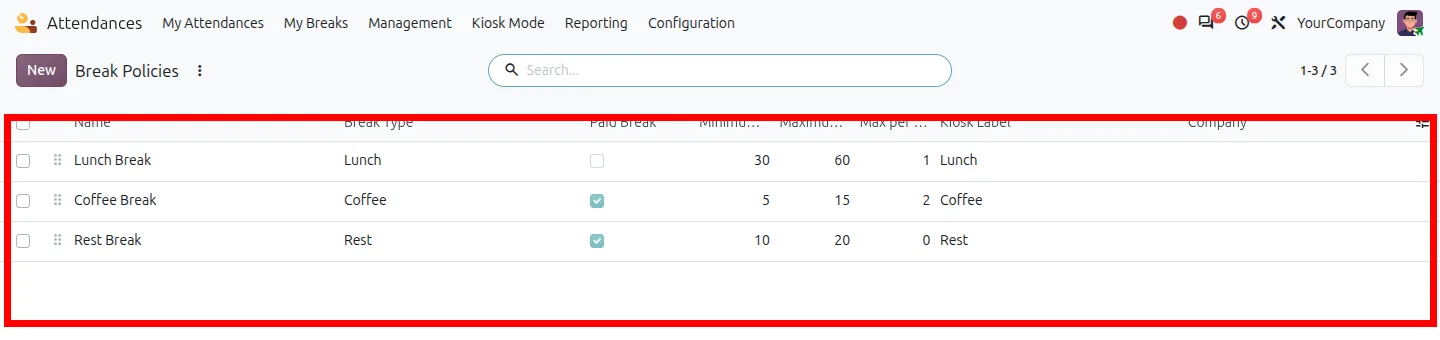
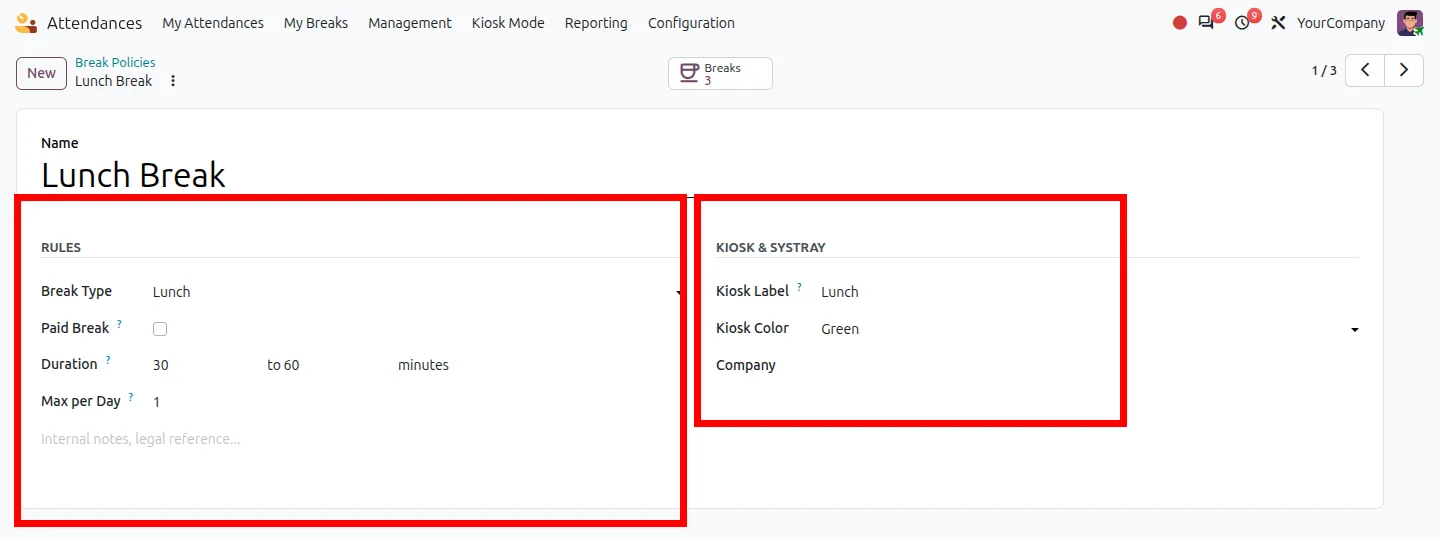
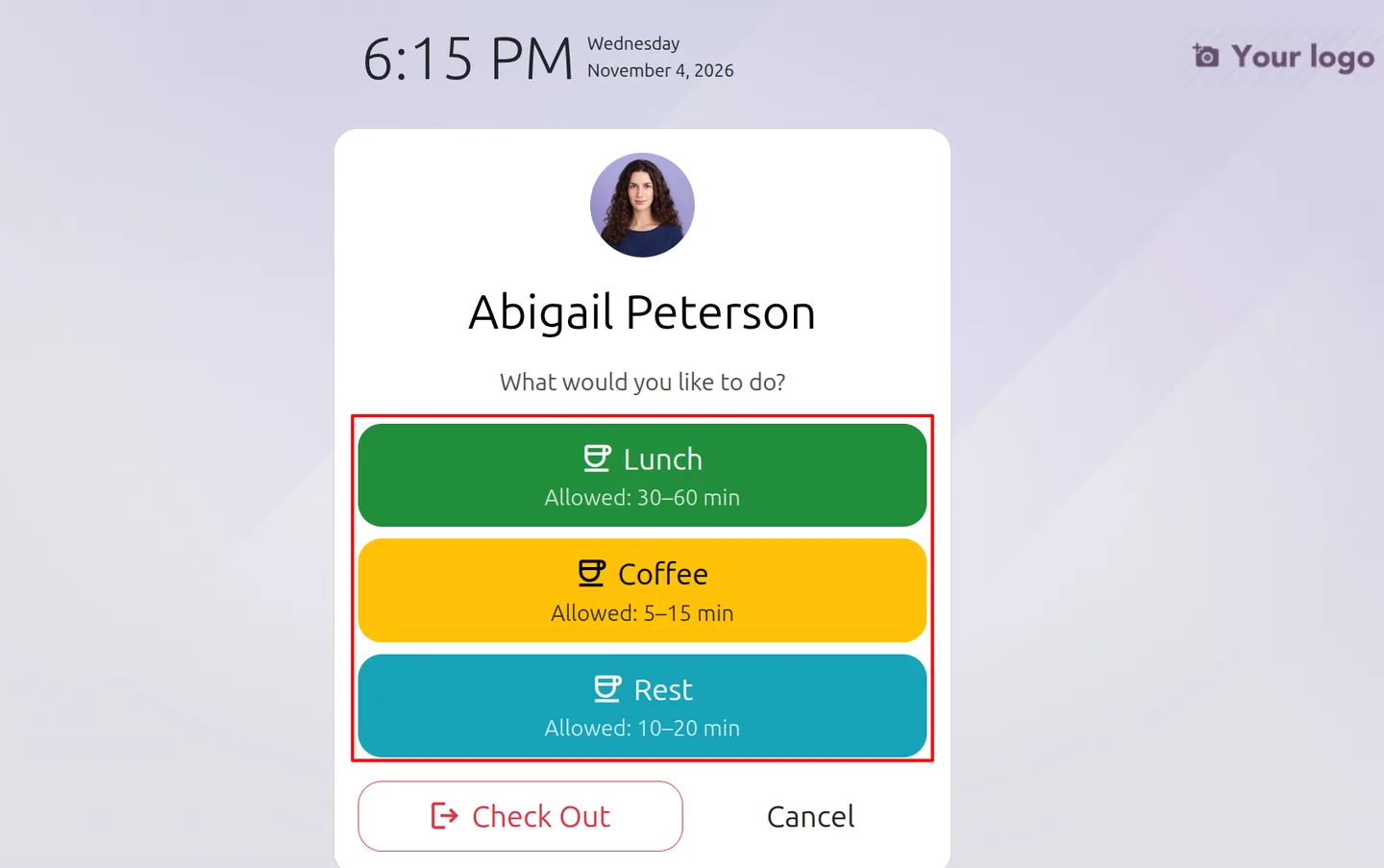
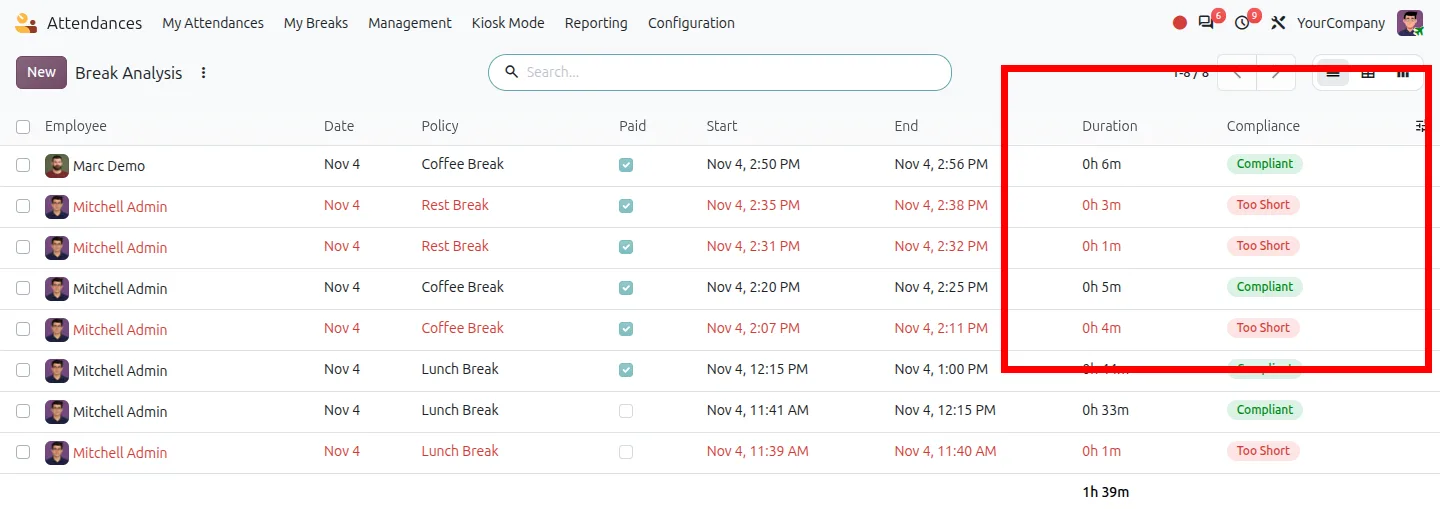
You define break policies for lunch, coffee, rest, prayer or a custom type. Each policy sets paid or unpaid status, a minimum and maximum duration, a daily limit, and the label and colour of its kiosk button. Ready-made Lunch, Coffee and Rest policies ship with the module. When a break ends, its length is compared with the policy and flagged Compliant, Too Short or Too Long.
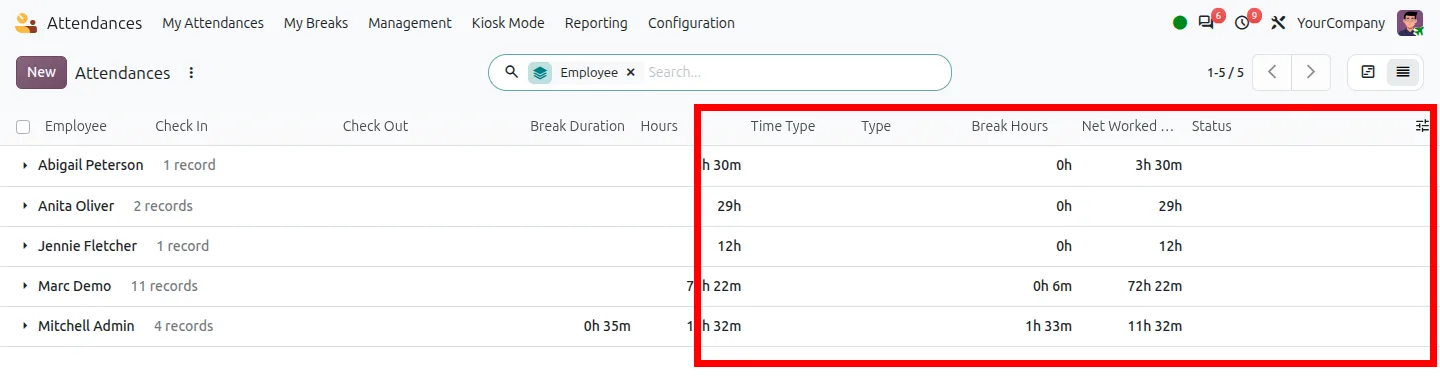
For payroll, attendance lists show break hours and net worked hours next to check-in and check-out. You can also copy unpaid break time into Odoo's native Break Duration, so worked hours, overtime and work entries follow it. Forgotten breaks end at check-out or through a scheduled action, and managers get a to-do activity when a break falls outside policy.
Key features
-
One-click start and end
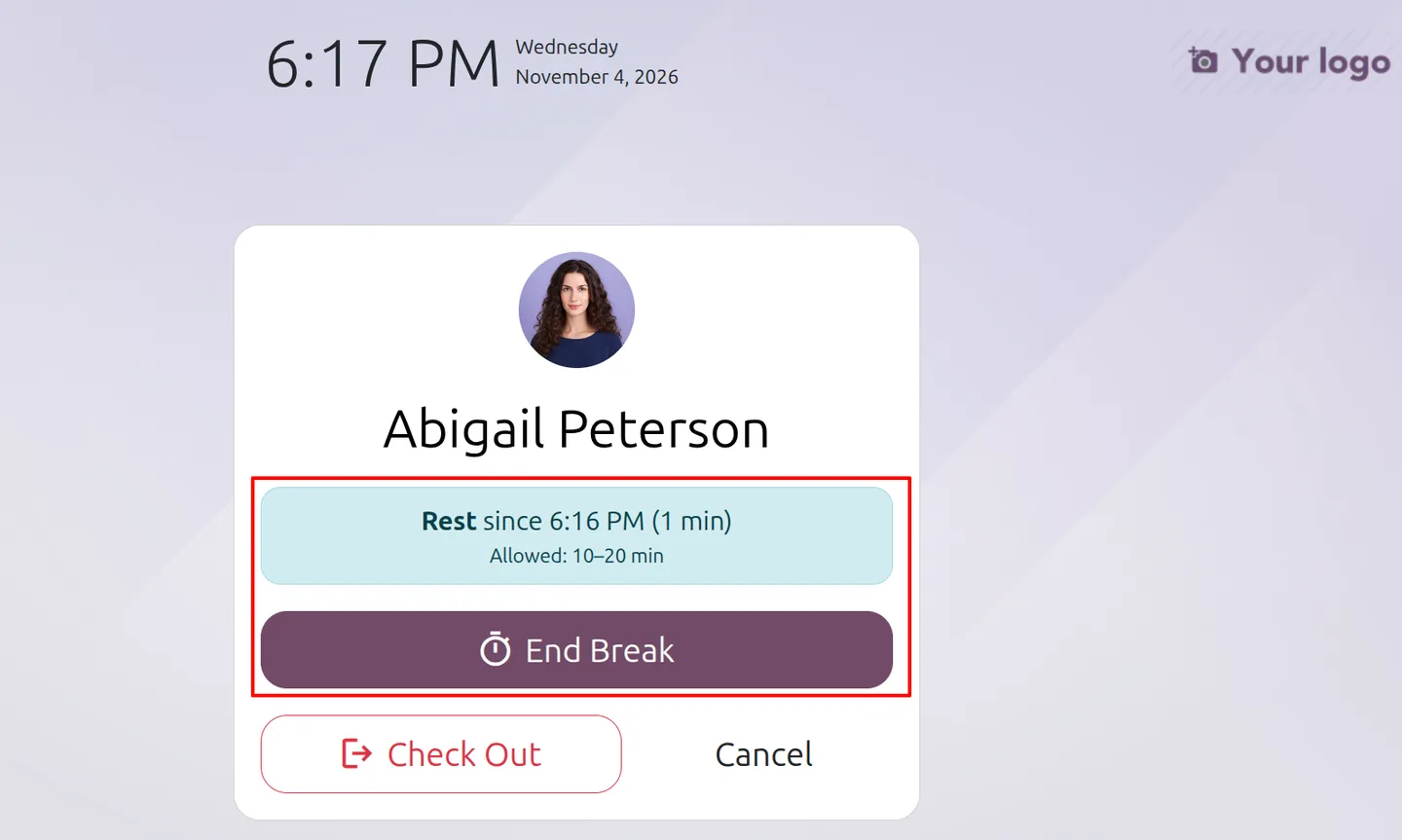
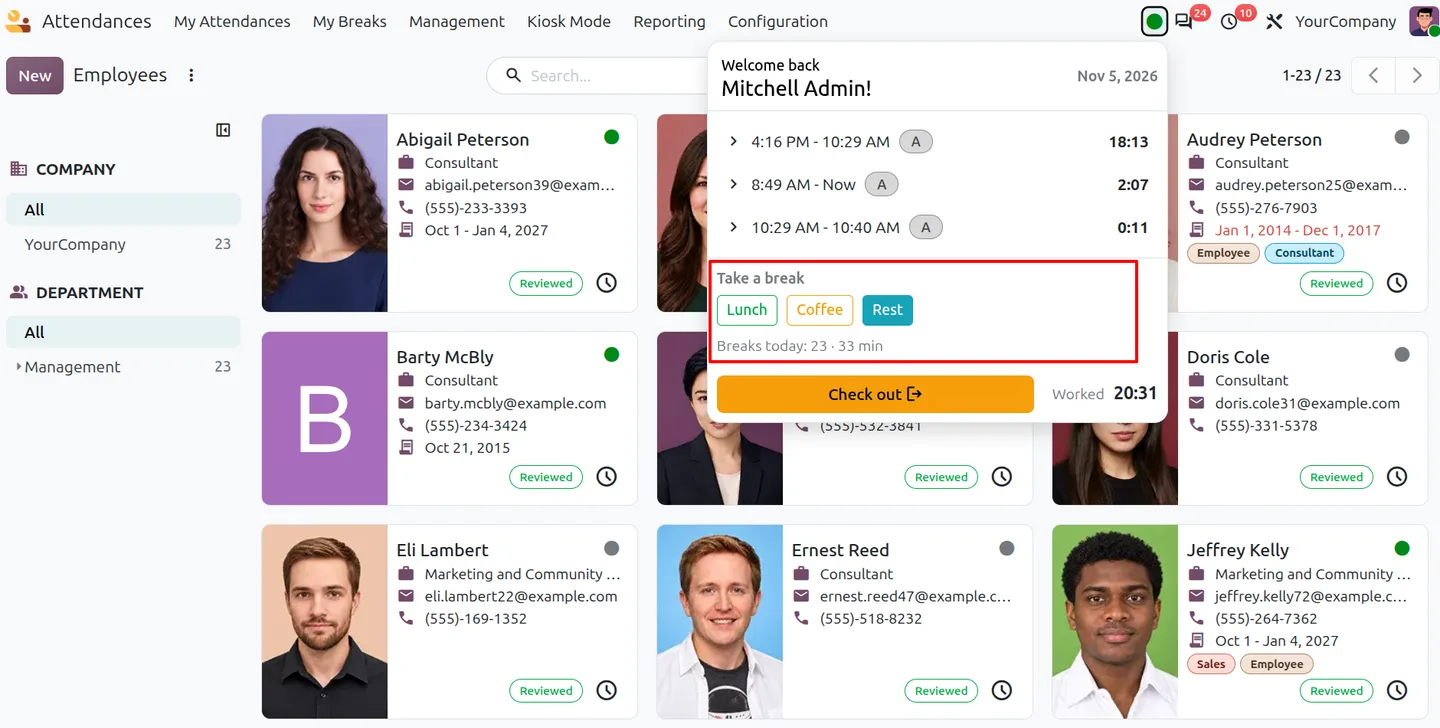
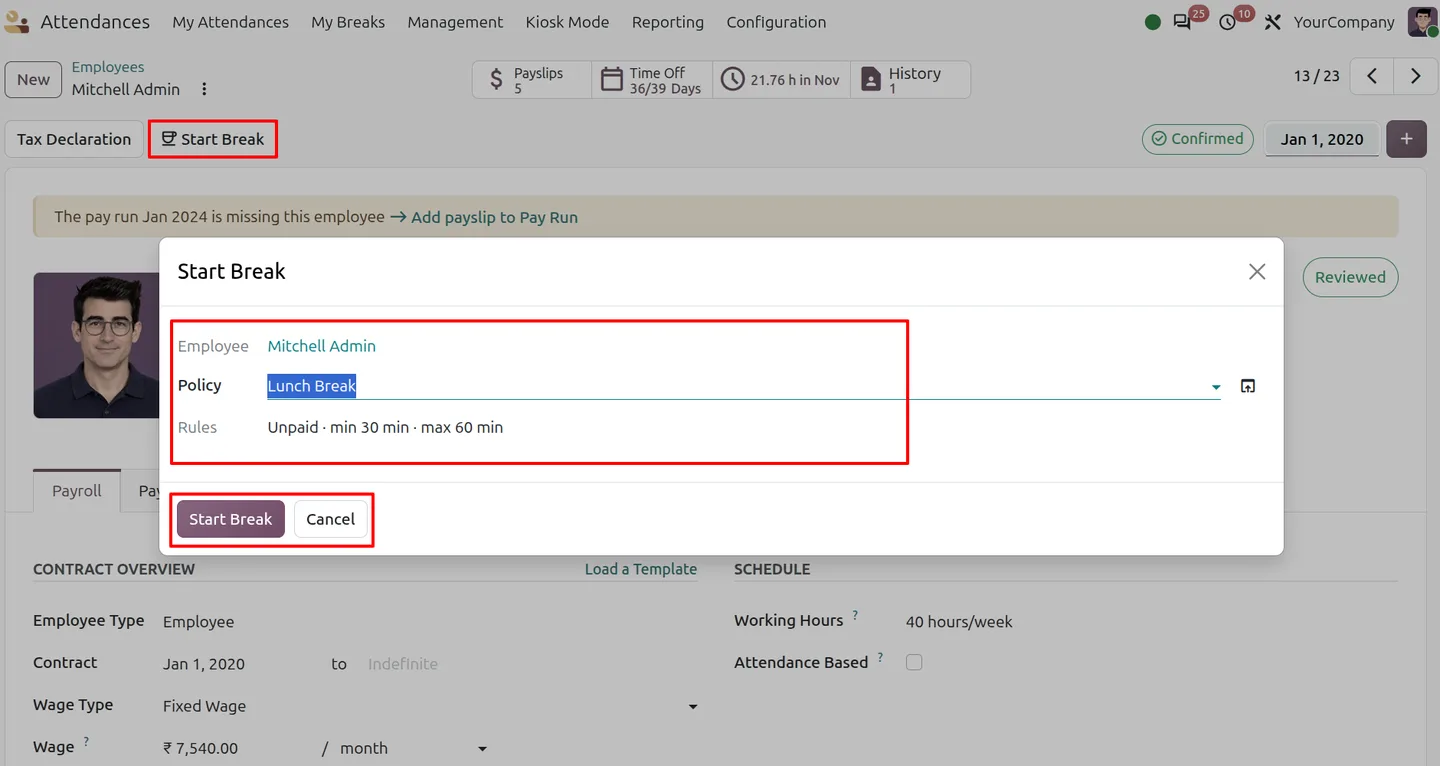
Employees start and end breaks from the attendance kiosk, the systray attendance menu or the employee form, and stay checked in.
-
Break policies
Lunch, Coffee, Rest, Prayer or Custom policies with paid or unpaid rules, minimum and maximum minutes, a daily limit, kiosk label and button colour.
-
Several breaks per shift
Log more than one break on the same attendance, each with its own policy, duration, compliance status and start or end mode. Only one break runs at a time.
-
Compliance flags
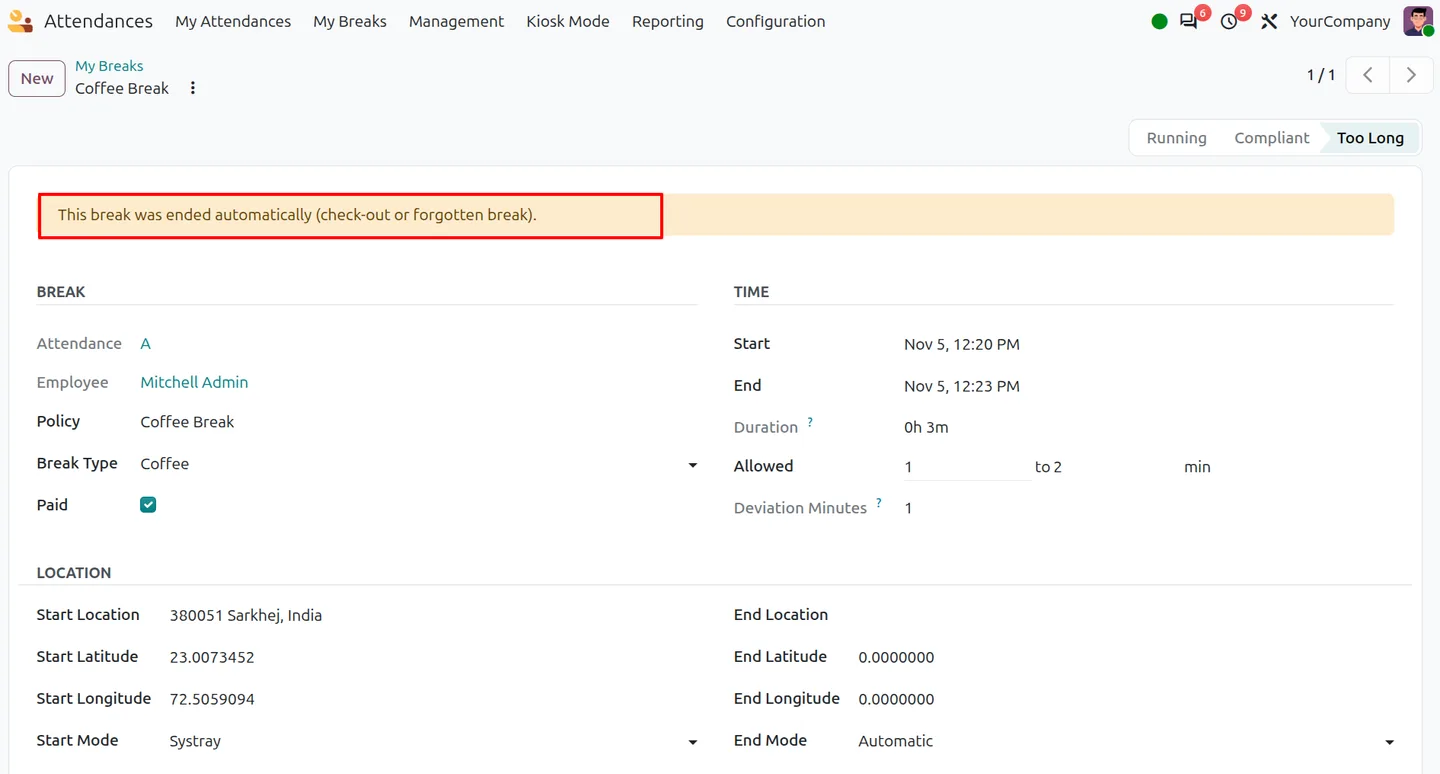
Every finished break is marked Compliant, Too Short or Too Long against the policy limits, with deviation minutes.
-
Net worked hours
Gross hours, paid and unpaid break time and net worked hours on each attendance, with expected hours and day variance from the schedule.
-
Sync to native Break Duration
Optionally copy unpaid break hours into Odoo's Break Duration so worked hours, overtime and work entries exclude them.
-
Auto-end forgotten breaks
Running breaks end at check-out, and a scheduled action closes breaks that pass the policy maximum plus a grace period.
-
Manager violation alerts
A to-do activity is created for the employee's attendance manager when a break ends too short or too long.
-
Break Analysis and Break Sheet
List, pivot and graph views filtered by violations, paid status, auto-ended breaks and team, plus a printable Break Sheet PDF.
-
Optional location capture
Store the start and end location, latitude and longitude of each break when company settings require it.
Watch Attendance Break Time Pro in use
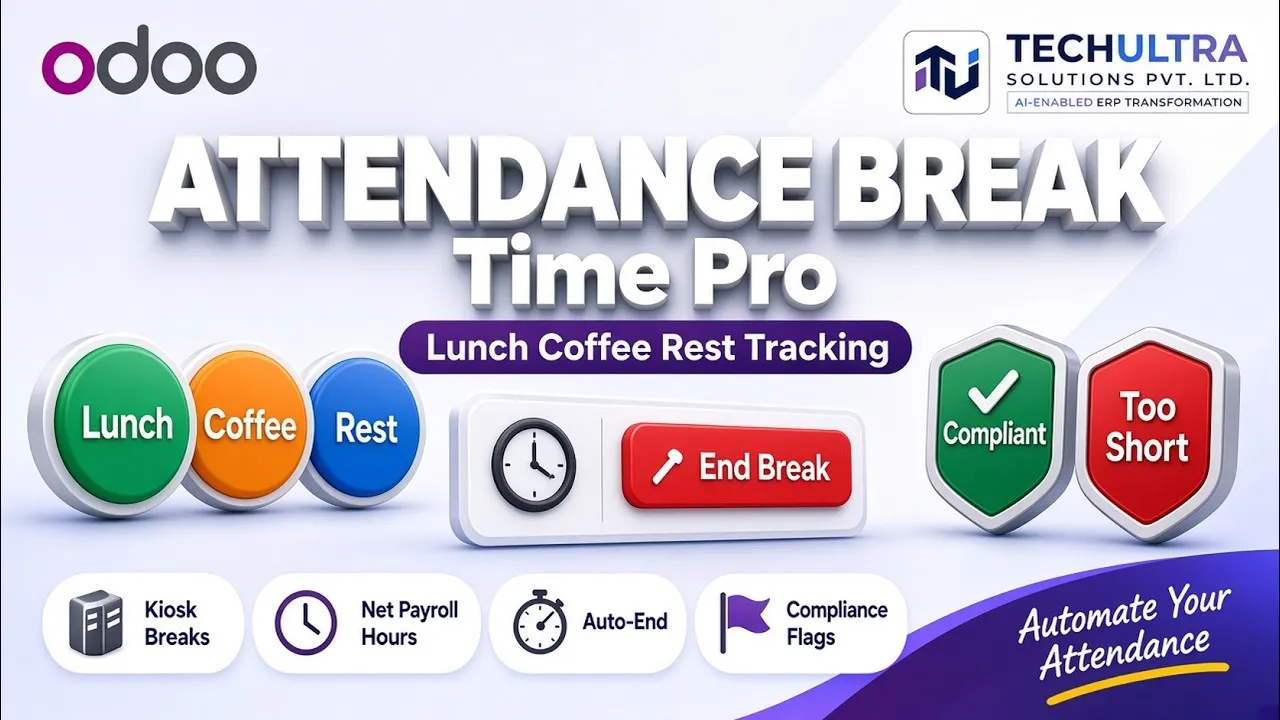
Video walkthrough of Attendance Break Time Pro for Odoo from the TechUltra Solutions YouTube channel. Adds break tracking to Odoo Attendances. Employees start and end lunch, coffee and rest breaks from the kiosk, systray or employee form without checking out, and each break is checked against a paid or unpaid policy.
Attendance Break Time Pro in Odoo
Every screen, in the order you meet it — configuration first, then the module in use.
Technical details
Specification
- Publisher
- TechUltra Solutions Private Limited
- Technical name
- tus_hr_attendance_break
- Odoo versions
- 16.0, 17.0, 18.0, 19.0, 20.0
- Lines of code
- 1,518
- Break types
- Lunch, Coffee, Rest, Prayer, Custom
- Break entry points
- Attendance kiosk, systray attendance menu, employee form
- License
- Odoo Proprietary License v1.0 (OPL-1)
- Price
- $26.01 (one-time)
Deployment
- Odoo Online
- Odoo.sh
- On-premise
Odoo dependencies
- Attendances
- Employees
- Discuss
Support
90 days of bug-fix support plus 5 hours of free configuration help (additional hours billable), Monday to Friday (10:00–19:00 IST). Raise a ticket at support@techultra.in.
Setup & configuration
From install to first call — here is the path.
- 1
Review the break policies
Open Attendances › Configuration › Break Policies. Adjust the ready-made Lunch, Coffee and Rest policies, or add Prayer and Custom ones, with paid status, duration limits, daily limit, kiosk label and colour.
- 2
Enable Break Tracking
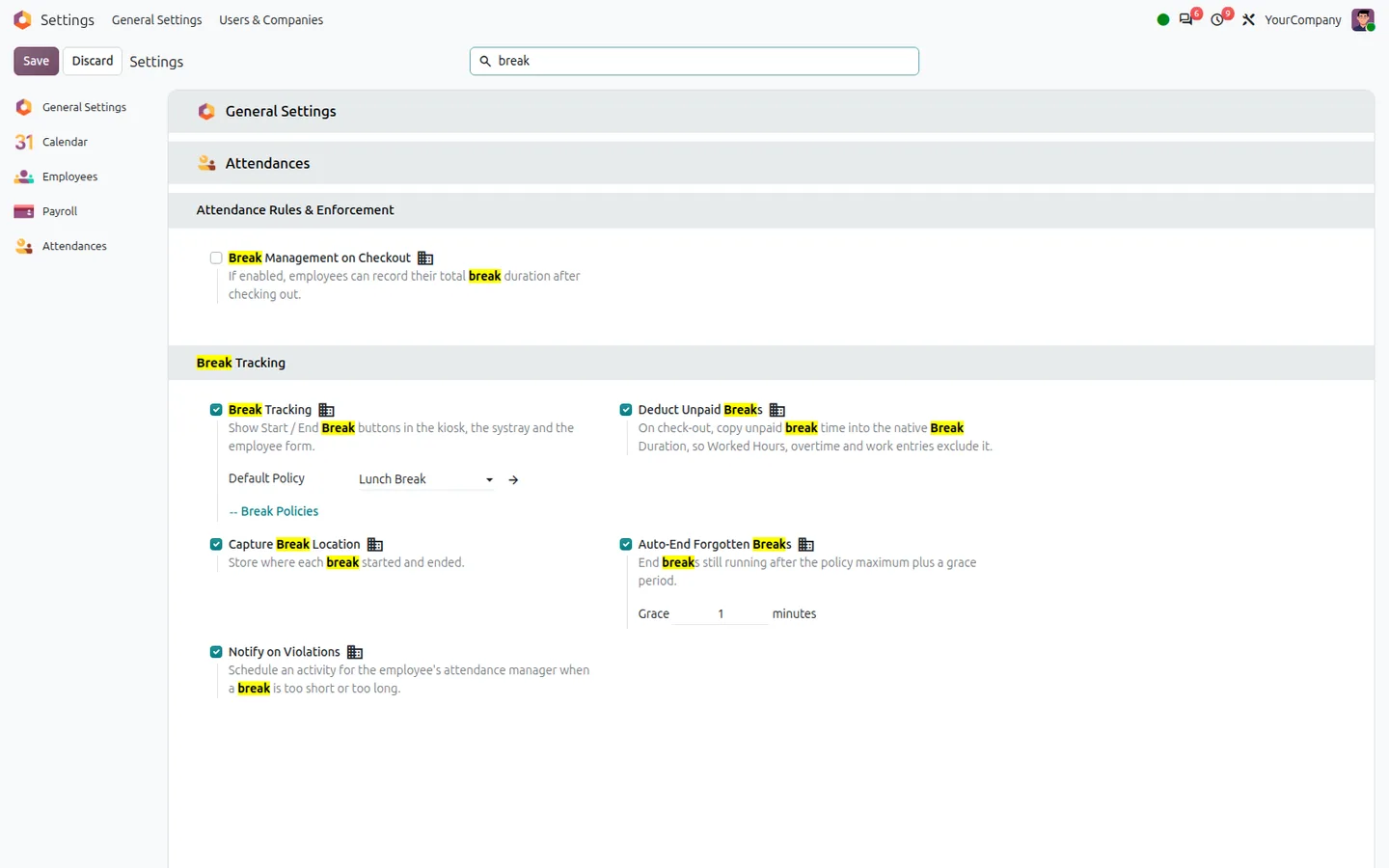
In Settings › Attendances, turn on Break Tracking and choose a default policy. This adds the Start and End Break buttons to the kiosk, systray and employee form.
- 3
Choose the payroll behaviour
Turn on Deduct Unpaid Breaks if unpaid time should flow into Odoo's native Break Duration. Leave it off to use the separate Net Worked Hours field instead.
- 4
Set automation and alerts
Enable Auto-End Forgotten Breaks with a grace period, Notify on Violations for manager activities, and Capture Break Location if you need geo data.
- 5
Check the scheduled action
Attendance: Auto-End Forgotten Breaks runs every 15 minutes under Settings › Technical › Scheduled Actions. Use Run Manually while testing.
Frequently asked questions
-
How do employees start and end a break?
The employee must be checked in and Break Tracking must be on for the company. They then start or end a break from the attendance kiosk, the systray attendance menu, or HR starts it from the employee form.
-
Can an employee take more than one break in a shift?
Yes. Several breaks can sit on the same attendance, each linked to a policy. Only one break can run at a time, overlapping breaks are blocked, and a daily limit can cap how often a policy is used.
-
What is the difference between paid and unpaid breaks?
Paid breaks stay part of worked time. Unpaid breaks are deducted when net worked hours are calculated. With Deduct Unpaid Breaks on, unpaid time also syncs into Odoo's native Break Duration for overtime and payroll work entries.
-
What happens if someone forgets to end a break?
Running breaks end automatically at check-out. With Auto-End Forgotten Breaks enabled, a scheduled action also closes any break that passes the policy maximum plus the grace period, and marks its end mode as Automatic.
-
Does the module change Odoo's Worked Hours?
Only when Deduct Unpaid Breaks is on. Otherwise use the separate Net Worked Hours field on the attendance. Validated attendances are not updated automatically when approval is required.
-
Who can see break records?
Employees see their own breaks under My Breaks. Attendance Officers see their team, and Attendance Administrators see all breaks, the Break Analysis reports and the printable Break Sheets. For wider attendance reporting, see Attendance Reports & Analytics.
-
Is location captured for every break?
Only when Capture Break Location is enabled in company settings. Breaks ended by the scheduled action have no end location, because the server has no employee GPS.
Listing verified against the Odoo App Store:
Related solutions
Whole-platform solutions that complement Attendance Break Time Pro.
Related services
Get the most out of this module with senior TechUltra consultants.
-
Odoo Customization Services
Odoo customization from a Gold Partner: custom modules, workflows, reports and Studio changes, upgrade-safe and quoted at a fixed scope. Free scoping call.
-
Hire Odoo Developers
Hire Odoo developers from a Gold Partner: an AI Engineering Pod from USD 1,800 a month, or a dedicated developer for 70–160 hours. Request a proposal today.
-
Odoo Support Services & Maintenance
Odoo support services from a Gold Partner: functional and technical support plus server cover for Enterprise and Community, 30-minute P1 response, 24/7 option.