
Odoo App · Inventory
Stock By Location
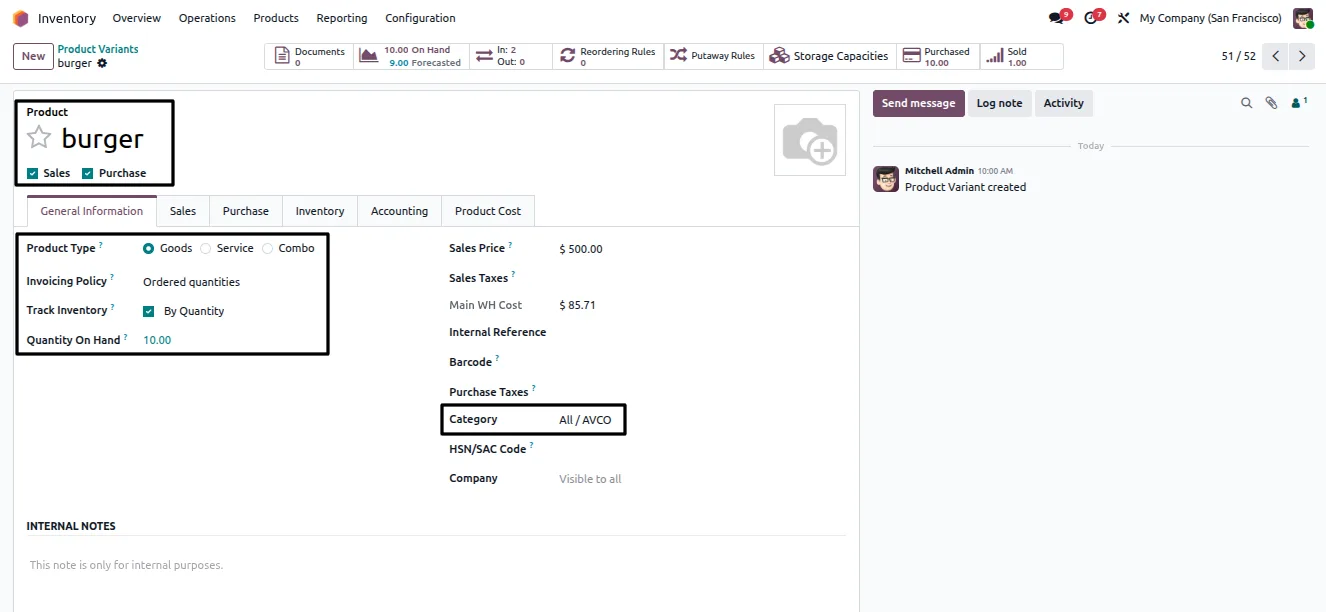
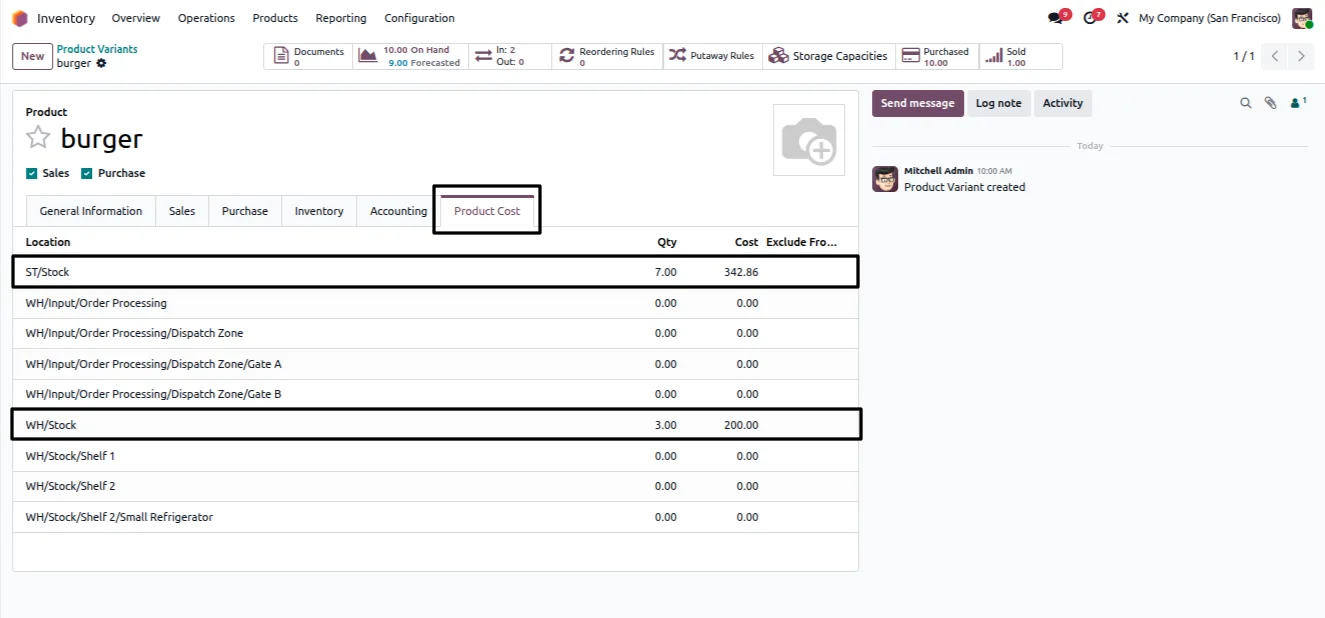
Track stock and average cost per warehouse location, and price sales orders from the chosen location.

Overview
Stock By Location extends Odoo's inventory so businesses running several warehouses or internal locations can see exactly what is on hand, and what it cost, at each one. Standard Odoo costing works at the company level; this module breaks that down to the location.
Built by TechUltra Solutions, the module calculates Average Cost (AVCO) per location and keeps it correct after internal transfers, purchases, and landed costs. Quantities are derived from completed stock moves, so the figure on screen reflects real warehouse activity.
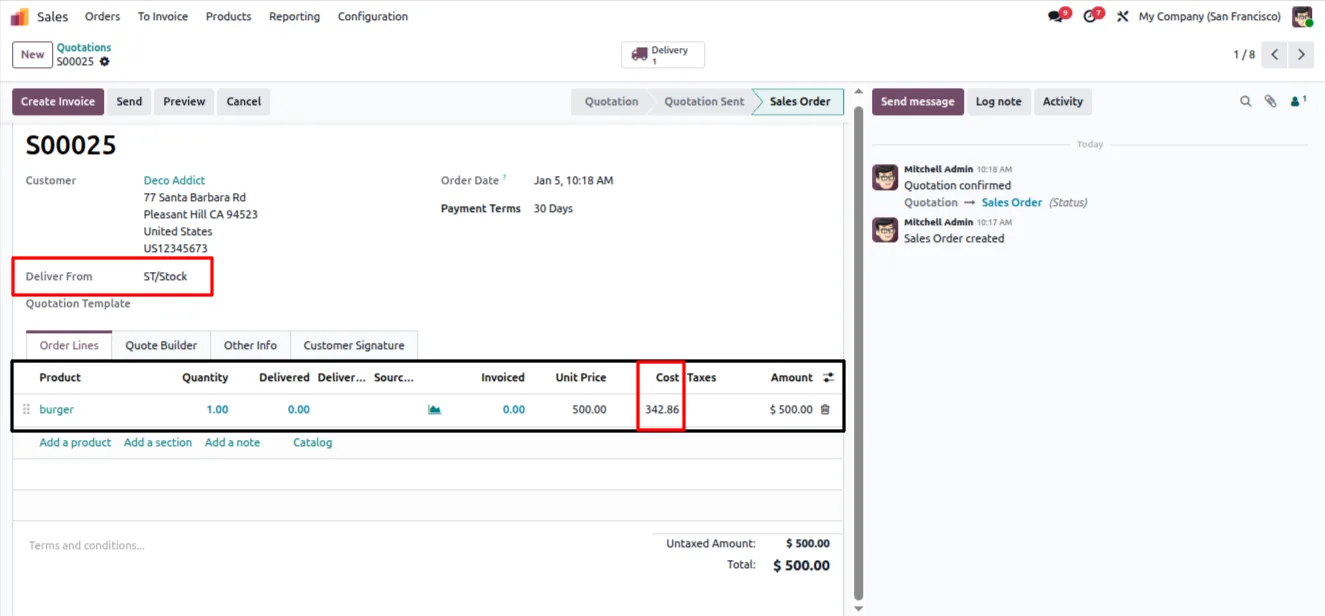
The location cost then flows into the sales process. When a salesperson picks a stock location on an order, the product cost and available quantity come from that location — so margin and profitability reflect the warehouse the goods actually ship from.
Key features
-
On-hand quantity per location
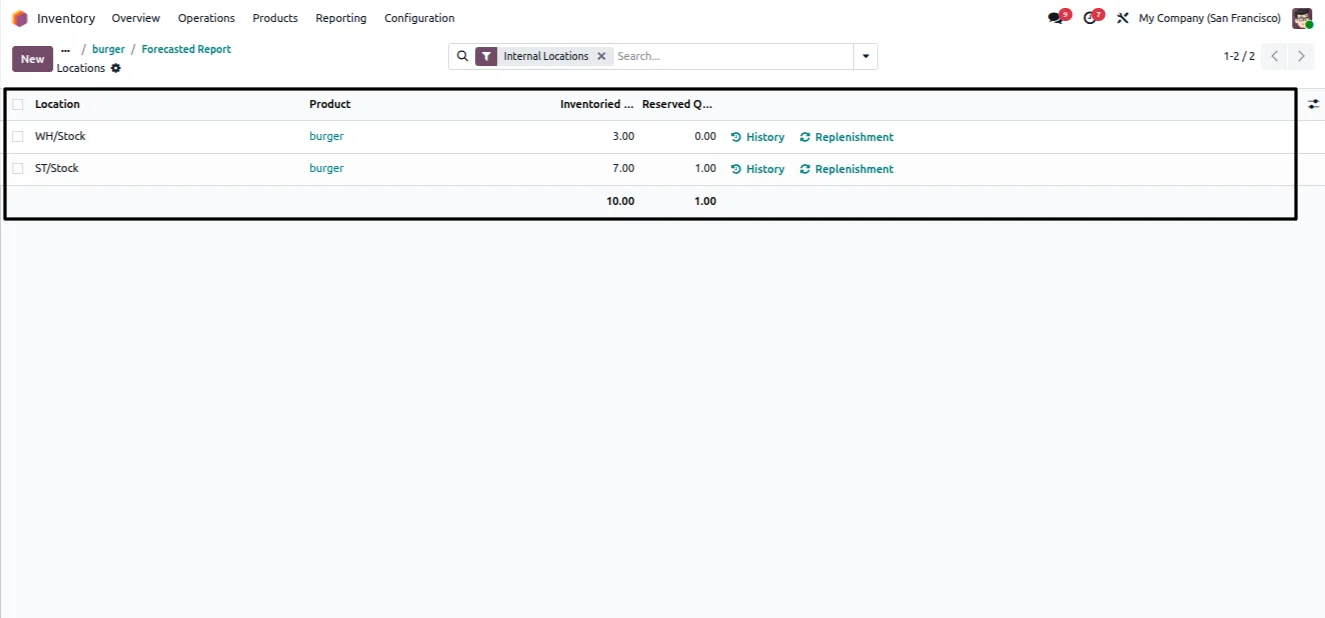
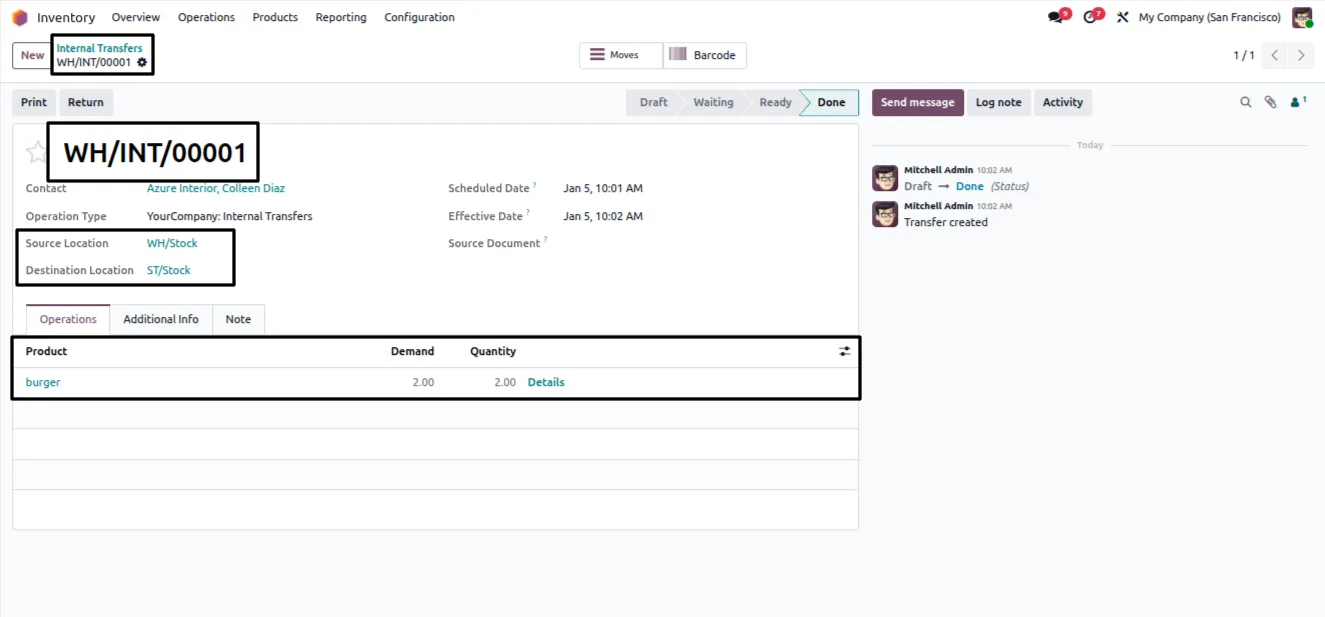
Shows available quantity for each internal location, calculated from completed stock moves. Internal transfers between locations are included in the figure.
-
Average cost (AVCO) per location
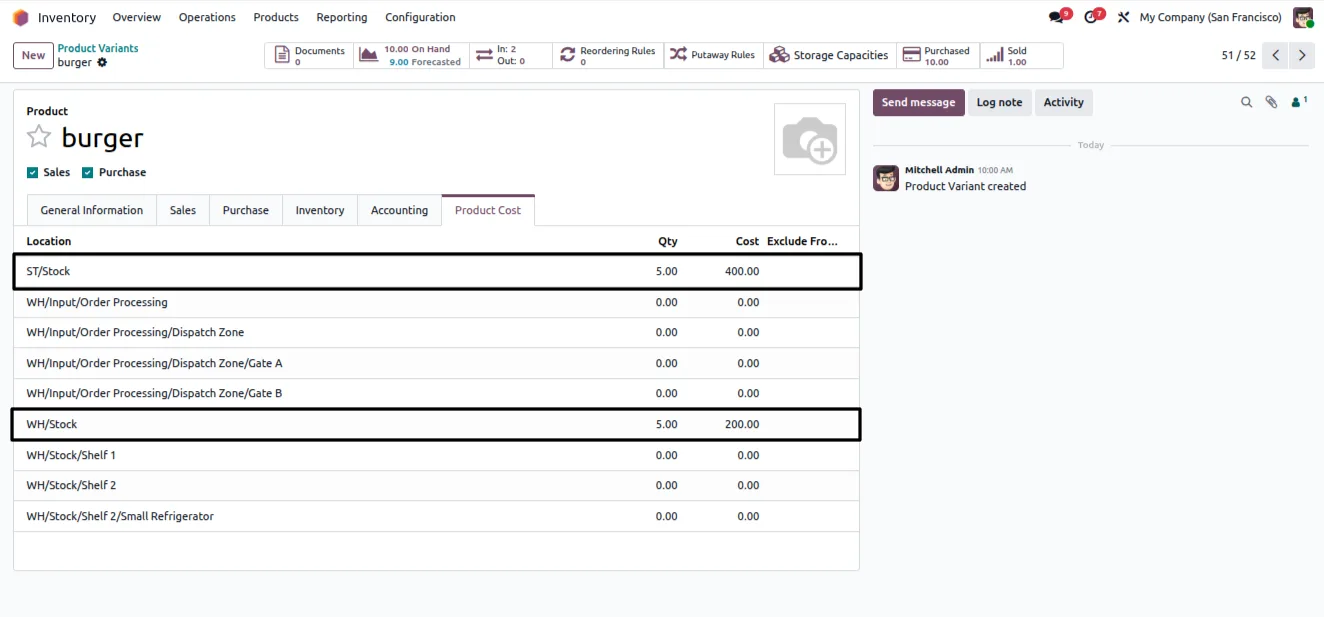
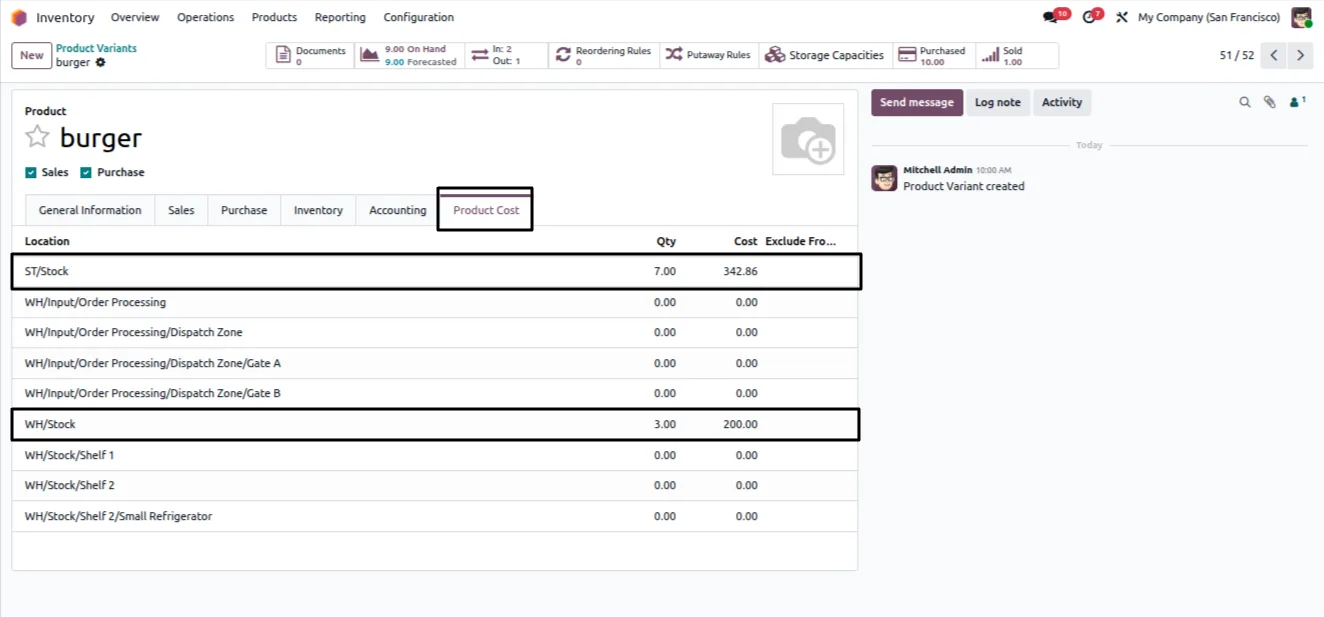
Calculates the Average Cost of each product separately for every location, rather than a single company-wide cost.
-
Cost stays correct after transfers
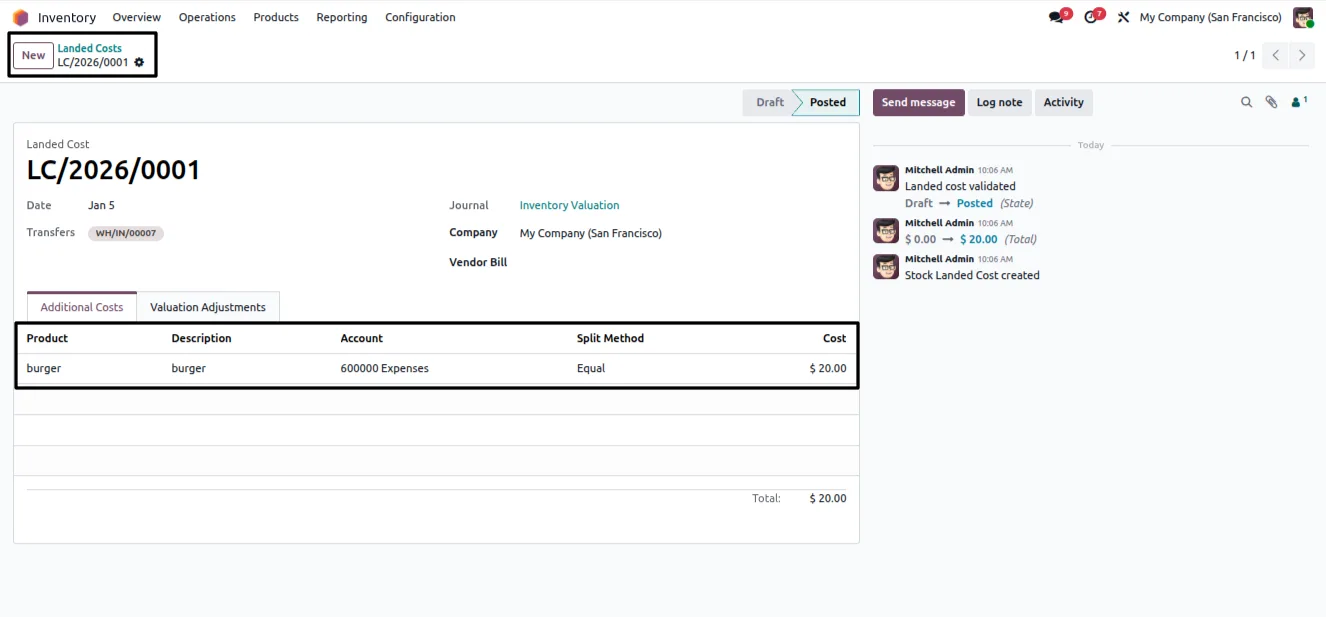
Per-location AVCO updates correctly after internal transfers, purchase receipts, and landed cost adjustments, so each location's cost reflects its own movements.
-
Stock location on sales orders
Adds a stock location field directly on the sales order, so the order is tied to the warehouse location it will be fulfilled from.
-
Location-based cost on orders
Product cost on a sales order is taken from the chosen stock location instead of the global standard cost, so margin reflects the real source of the goods.
-
Multi-warehouse support
Works across multiple warehouses and any number of internal stock locations, so the same logic applies whether you run two locations or twenty.
-
Landed cost handling
Landed costs applied through Odoo's Inventory operations are reflected in the per-location average cost of the affected products.
-
Product cost history
Keeps a historical record of product cost by location under Settings, so you can review how a location's cost changed over time.
Stock By Location in Odoo
Every screen, in the order you meet it — configuration first, then the module in use.
Technical details
Specification
- Publisher
- TechUltra Solutions Private Limited
- Technical name
- stock_by_locations
- Odoo versions
- 16.0, 17.0, 18.0, 19.0
- Lines of code
- 1,190
- License
- Odoo Proprietary License v1.0 (OPL-1)
- Price
- $45 (one-time)
Deployment
- Odoo Online
- Odoo.sh
- On-premise
Odoo dependencies
- Inventory
- Sales
- Purchase
- Invoicing
- Discuss
Support
90 days of bug-fix support, Monday to Friday (10:00–19:00 IST). Raise a ticket at support@techultra.in.
Setup & configuration
From install to first call — here is the path.
- 1
Install the module
In Odoo, open Apps, remove the Apps filter, search for “Stock By Location”, and click Install.
- 2
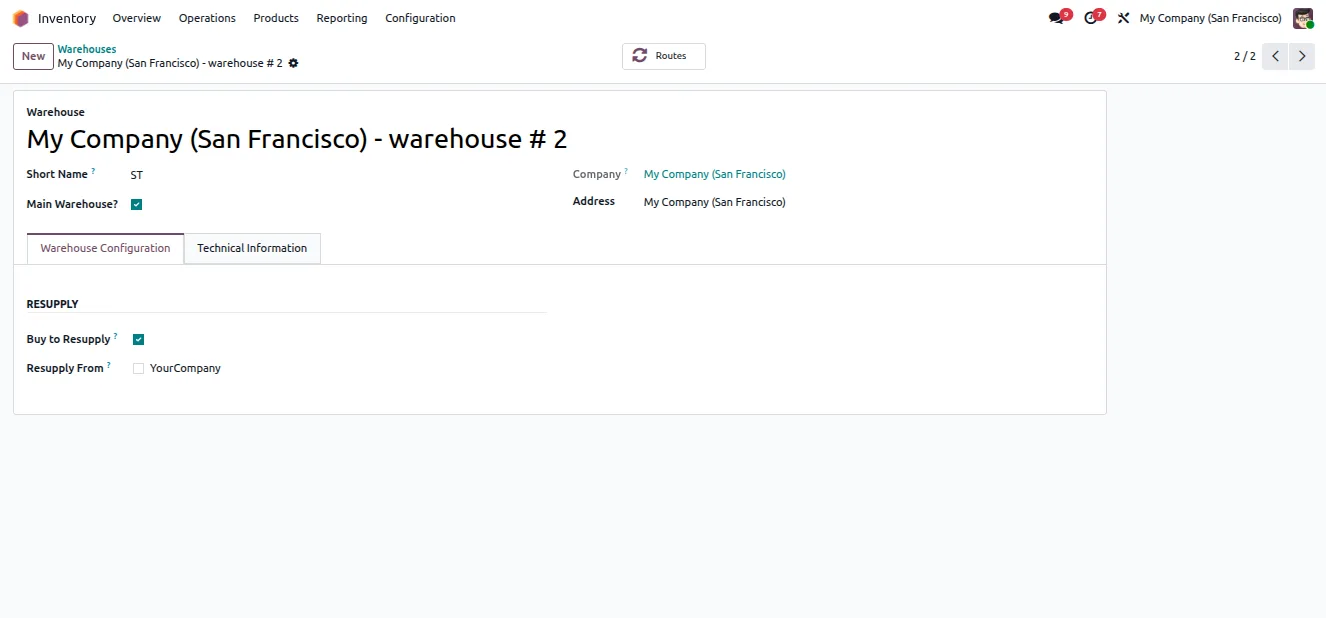
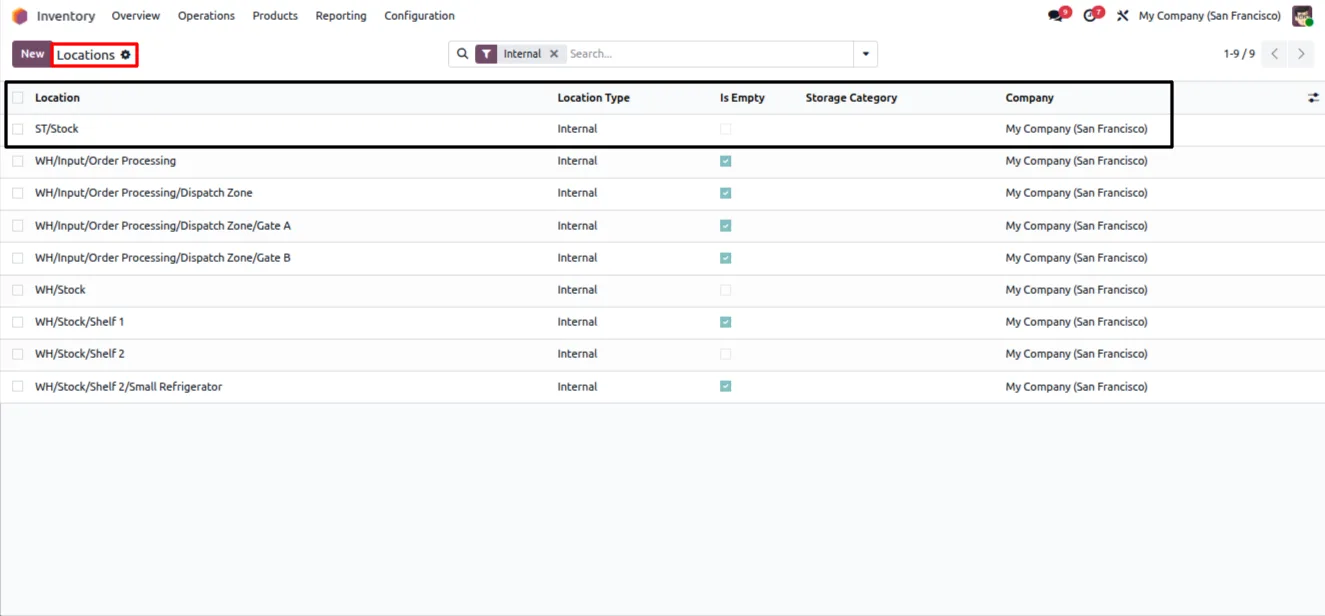
Set up warehouses and locations
Under Inventory → Configuration → Warehouse, create your warehouses with the parent set to the Main Warehouse. Locations are generated automatically for each new warehouse under Inventory → Configuration → Locations.
- 3
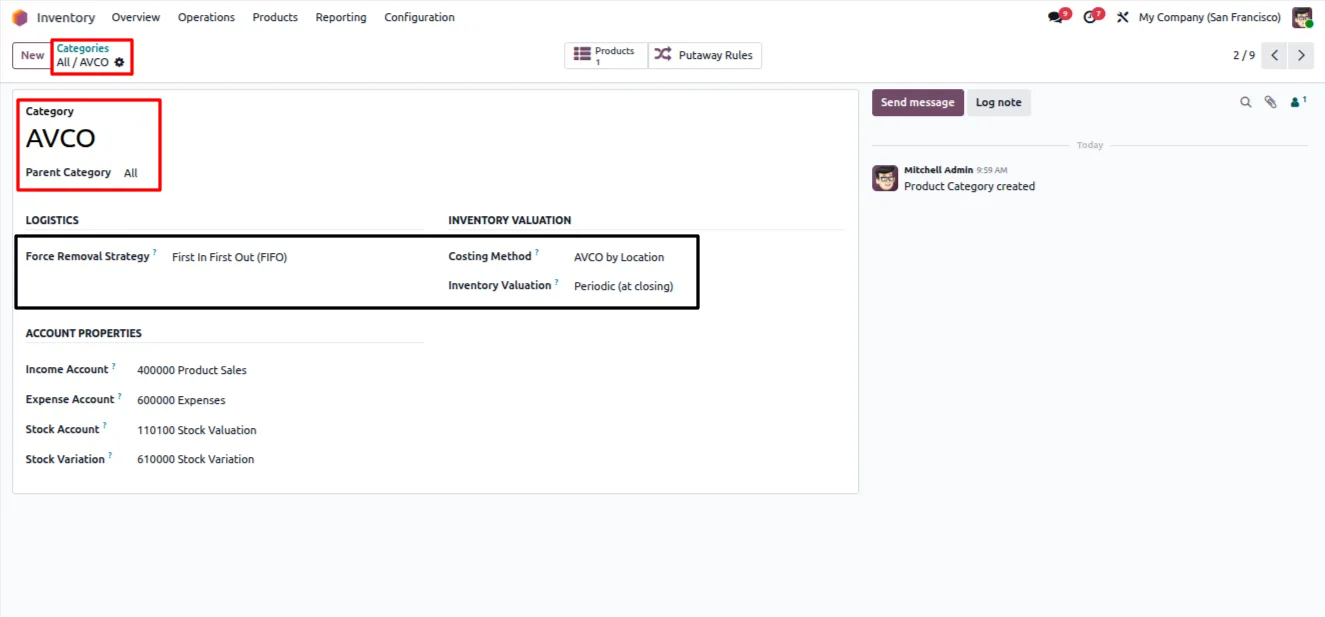
Set the costing method
Open Inventory → Configuration → Product Category, choose or create a category, and set its costing method to “AVCO by Location”. Assign your tracked products to that category.
- 4
Receive stock at each location
Create purchase orders for the products at different locations and varying costs, then validate the receipts. The product cost section then shows quantity and cost broken down by location.
- 5
Enable locations for sales orders
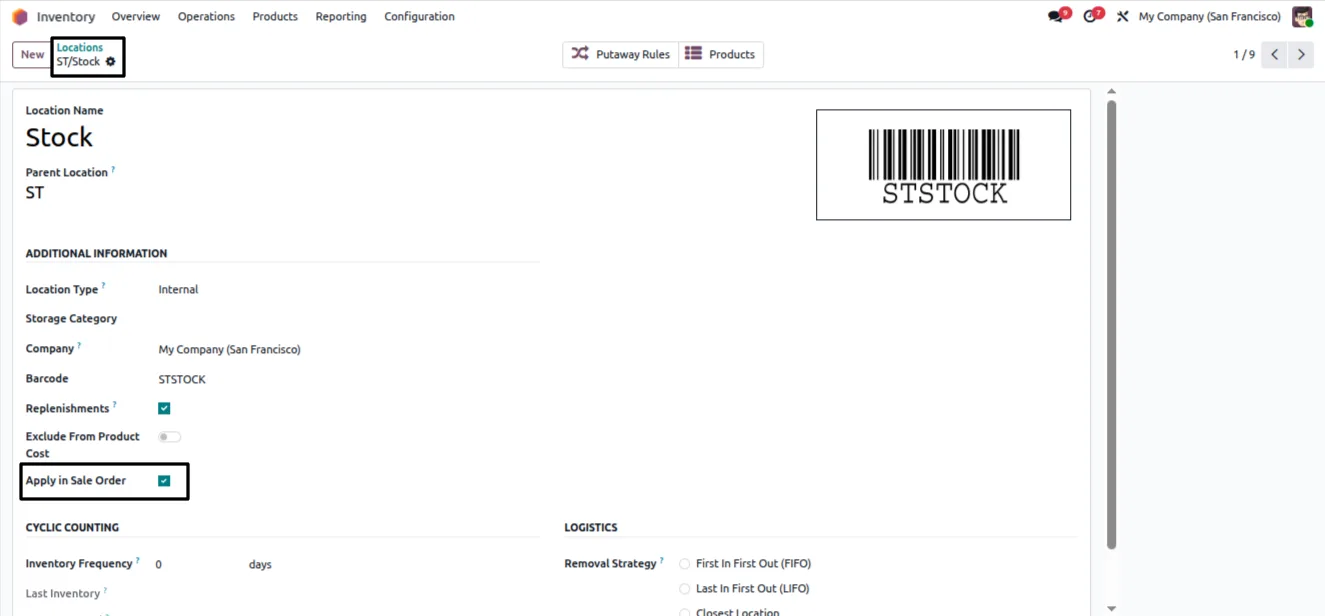
Under Inventory → Configuration → Locations, enable the “apply on sale order” option for the locations you want available when creating orders.
- 6
Create a location-based sales order
On a new sales order, select the delivery location and add products. The cost is pulled from that location; validate the delivery to complete the flow.
Frequently asked questions
-
How is per-location quantity calculated?
On-hand quantity for each location is derived from completed stock moves, including internal transfers. The figure reflects real warehouse activity rather than a forecast.
-
What costing method does the module use?
It uses Average Cost (AVCO) calculated separately for each internal location. You set a product category's costing method to “AVCO by Location” and assign your products to it.
-
Does the cost stay correct after internal transfers?
Yes. Per-location AVCO is recalculated after internal transfers, purchase receipts, and landed cost adjustments, so each location's cost reflects its own movements.
-
How does location affect a sales order's margin?
When you pick a stock location on a sales order, the product cost comes from that location instead of the global standard cost. Margin and profitability then reflect the warehouse the goods ship from.
-
Does it work with multiple warehouses?
Yes. The module supports multiple warehouses and any number of internal stock locations, applying the same per-location costing logic to all of them.
-
Can I see how a location's cost changed over time?
Yes. The module keeps a product cost history by location, available under Settings → Technical → Product Cost History, so you can review past values.
-
Which Odoo versions are supported?
Stock By Location supports Odoo 16.0, 17.0, 18.0, and 19.0, in both the Community and Enterprise editions.
-
Is support included?
Yes. The module includes 90 days of bug-fix support, Monday to Friday, 10:00–19:00 IST.
Related solutions
Whole-platform solutions that complement Stock By Location.
Odoo Inventory + Warehouse Management
Odoo Inventory module — multi-warehouse, batch/serial, putaway, barcode, replenishment, cross-docking, dropship, consignment. Full WMS in your ERP.
Odoo Purchase
Odoo Purchase module — RFQ, PO, supplier portal, three-way match, blanket PO, drop-ship, sub-contracting. Integrated with Inventory + MRP + Accounting.
Related services
Get the most out of this module with senior TechUltra consultants.
Odoo Customization Services
Tailored Odoo customizations from a Gold Partner — 200+ projects, upgrade-safe patterns, fixed-scope quotes, senior consultants. Free demo consultation.
Hire Odoo Developers
Hire certified Odoo developers from a Gold Partner — 400+ implementations, 92% satisfaction, Odoo since 2016. Silver / Gold / Platinum packages, free trial.
Odoo Support & Maintenance
Odoo Gold Partner support — 24/7 functional, technical, and server coverage for Enterprise and Community editions. Fast turnaround, free consultation.







