

Odoo App · Reporting & PDF
QWeb Report Font Manager
Upload custom fonts and apply them to Odoo QWeb PDF reports — no code needed.

Overview
Matching Odoo's PDF reports to a brand's typeface normally means editing CSS and report templates. QWeb Report Font Manager removes that work: you upload a font file through the Odoo interface and apply it from settings, with no developer involved.
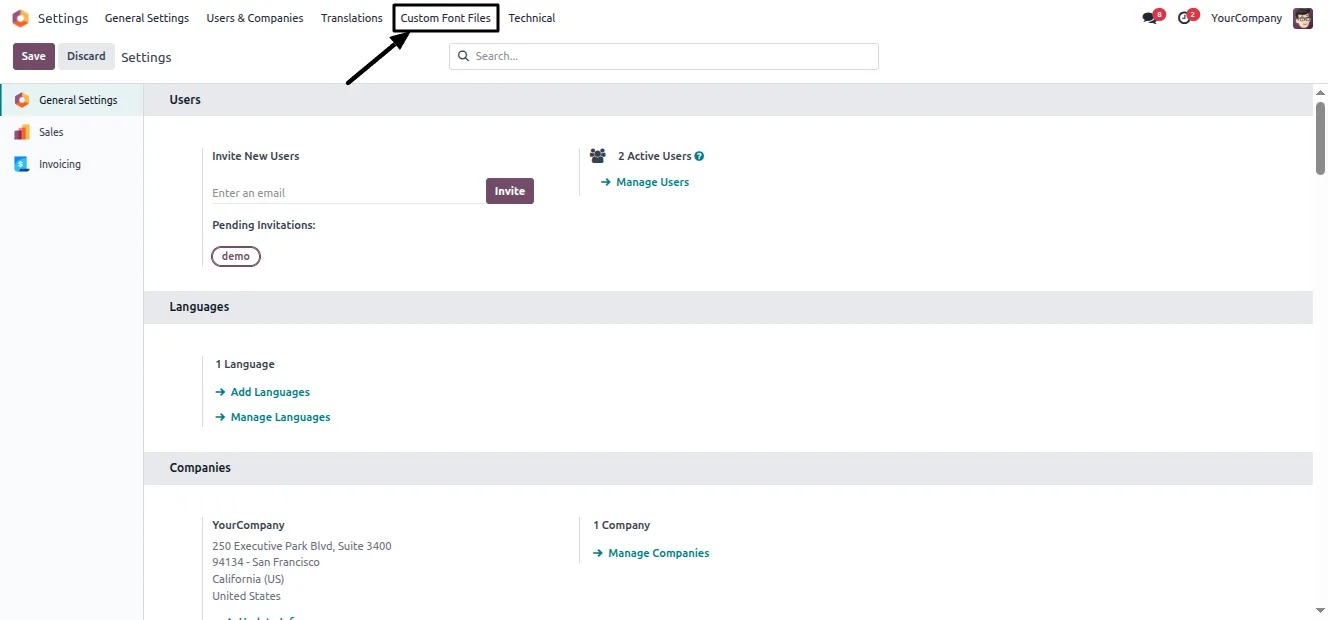
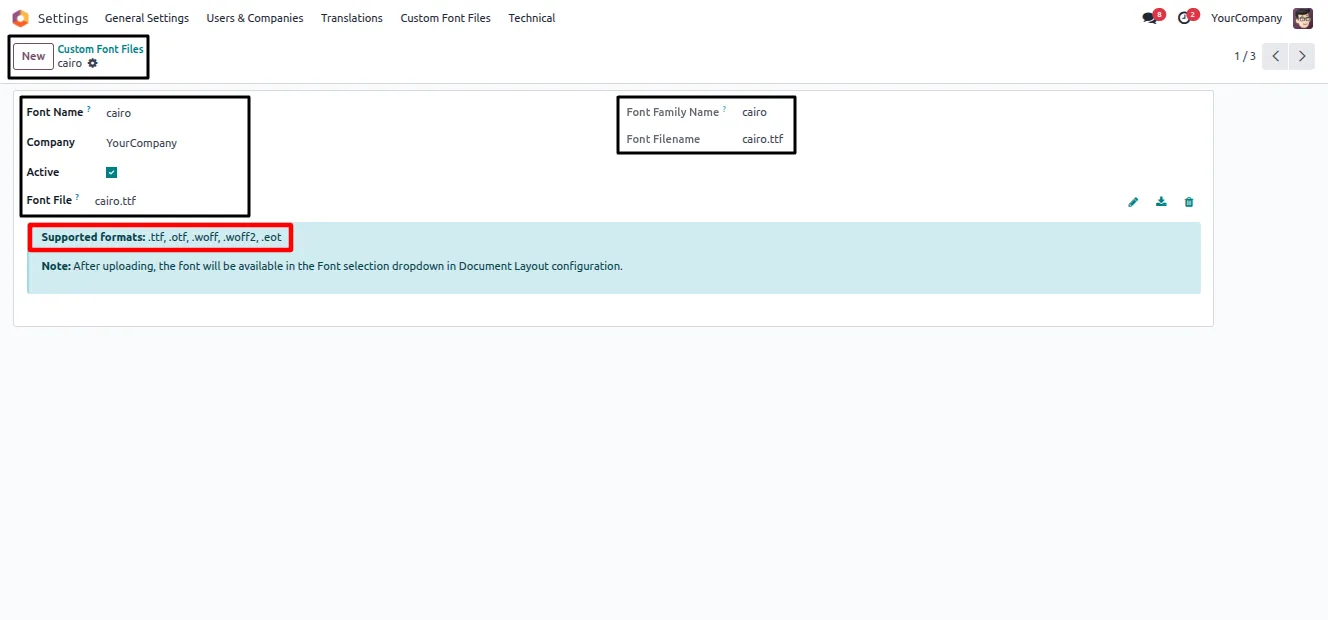
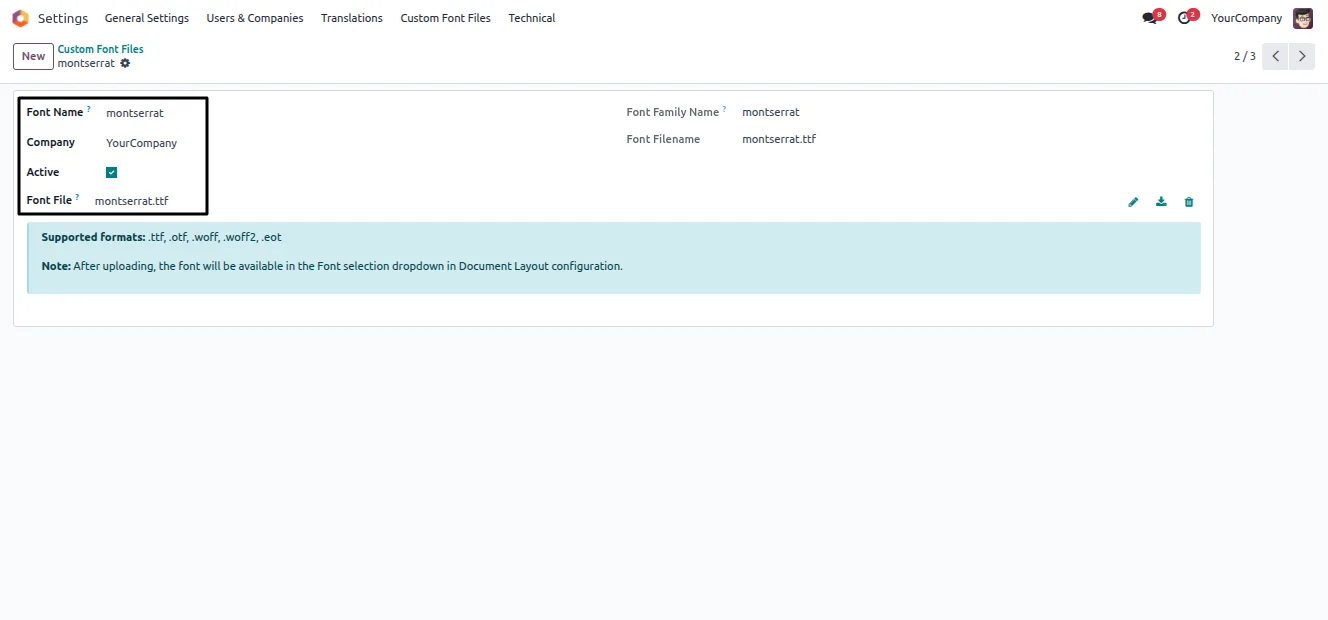
Built by TechUltra Solutions, the module adds a Custom Font Files menu in Settings where you create a font record, attach the file, and assign it to a company. It accepts TTF, OTF, WOFF, WOFF2, and EOT files, so most brand fonts are supported as-is.
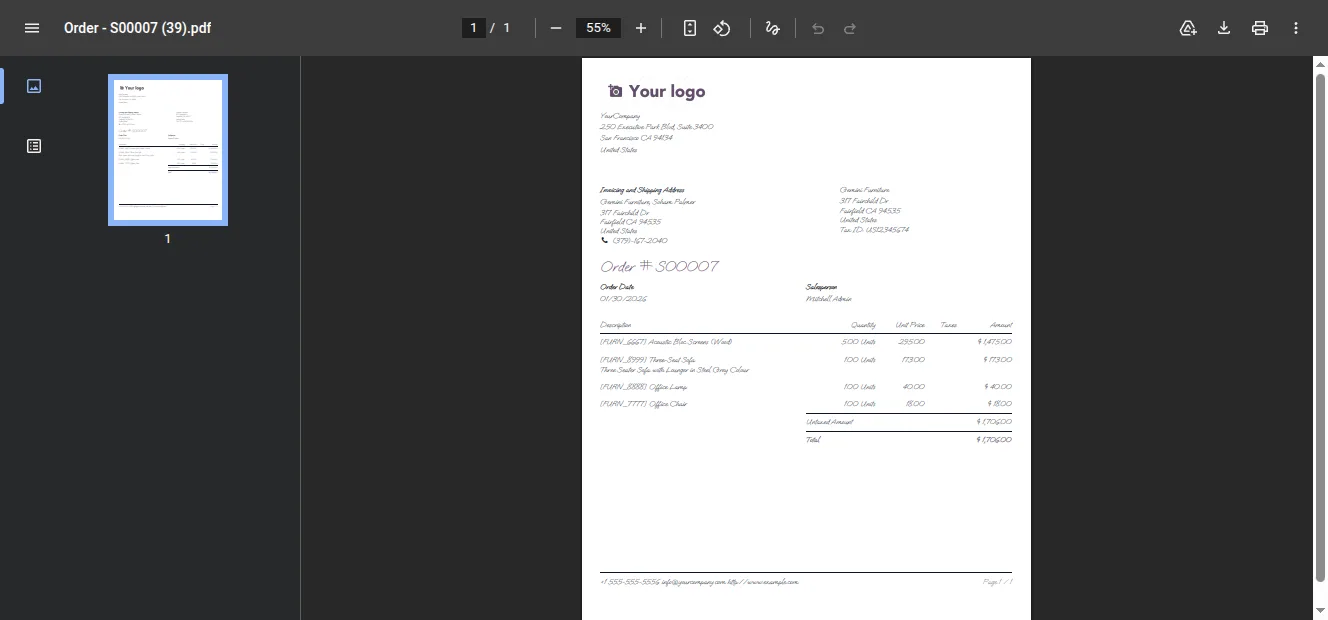
Once a font is selected in the Document Layout configuration, it applies to every QWeb PDF report that uses the external layout — quotations, invoices, purchase orders, and the rest. Fonts are managed per company, so a multi-company database can give each entity its own report typeface.
Key features
-
Upload fonts from Odoo Settings
Add custom font files directly through the Odoo interface, with no server access or file-system work needed.
-
Multiple font formats
The module accepts TTF, OTF, WOFF, WOFF2, and EOT files, so most brand fonts can be used without conversion.
-
Apply via Document Layout
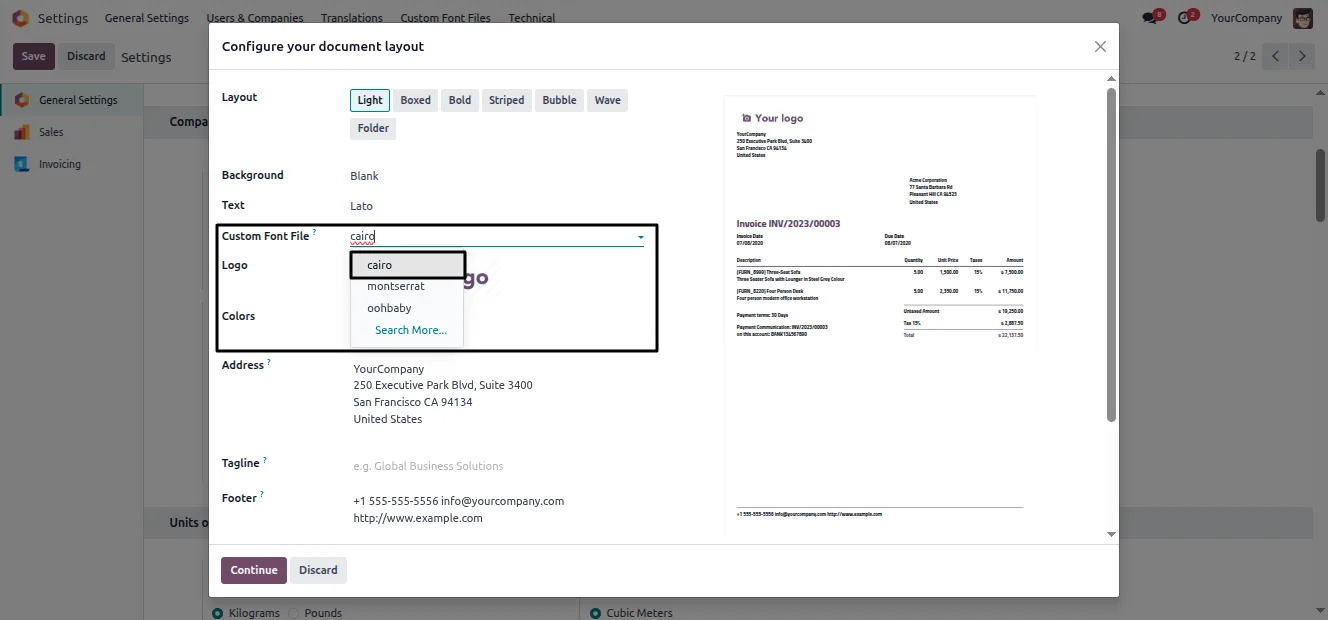
Choose the uploaded font in the Document Layout configuration, and it applies to reports without touching any template.
-
Company-specific fonts
Each font record is tied to a company, so a multi-company database can give every entity its own report typeface.
-
No code or CSS
Font customization needs no coding and no manual CSS, removing the technical barrier to branded PDF reports.
-
Applies across all QWeb reports
Once set, the font is used by every QWeb PDF report built on the external layout — quotations, invoices, purchase orders, and more.
-
Consistent branding
Using one chosen typeface across documents keeps reports on-brand and professional with no per-report adjustment.
QWeb Report Font Manager in Odoo
Every screen, in the order you meet it — configuration first, then the module in use.
Technical details
Specification
- Publisher
- TechUltra Solutions Private Limited
- Technical name
- tus_qweb_custom_fonts_pdf_reports
- Odoo versions
- 16.0, 17.0, 18.0, 19.0
- Lines of code
- 747
- License
- Odoo Proprietary License v1.0 (OPL-1)
- Price
- $14.90 (one-time)
Deployment
- Odoo Online
- Odoo.sh
- On-premise
Odoo dependencies
- Settings
Support
90 days of bug-fix support, Monday to Friday (10:00–19:00 IST). Raise a ticket at support@techultra.in.
Setup & configuration
From install to first call — here is the path.
- 1
Install the module
In Odoo, open Apps, remove the Apps filter, search for “QWeb Report Font Manager”, and click Install.
- 2
Open Custom Font Files
Go to Settings and find the Custom Font Files menu, added by the module after activation.
- 3
Create a font record
In Custom Font Files, click New, enter a Font Name, select the Company, upload the font file (TTF, OTF, WOFF, WOFF2, or EOT), and Save.
- 4
Apply it in Document Layout
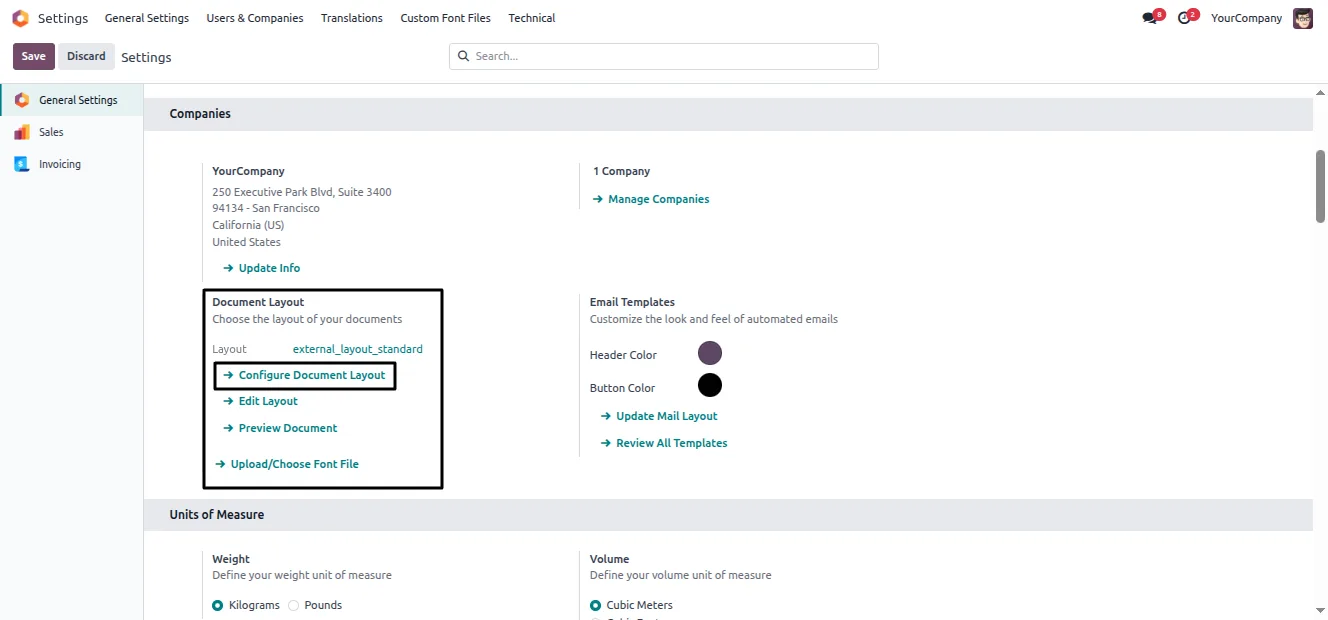
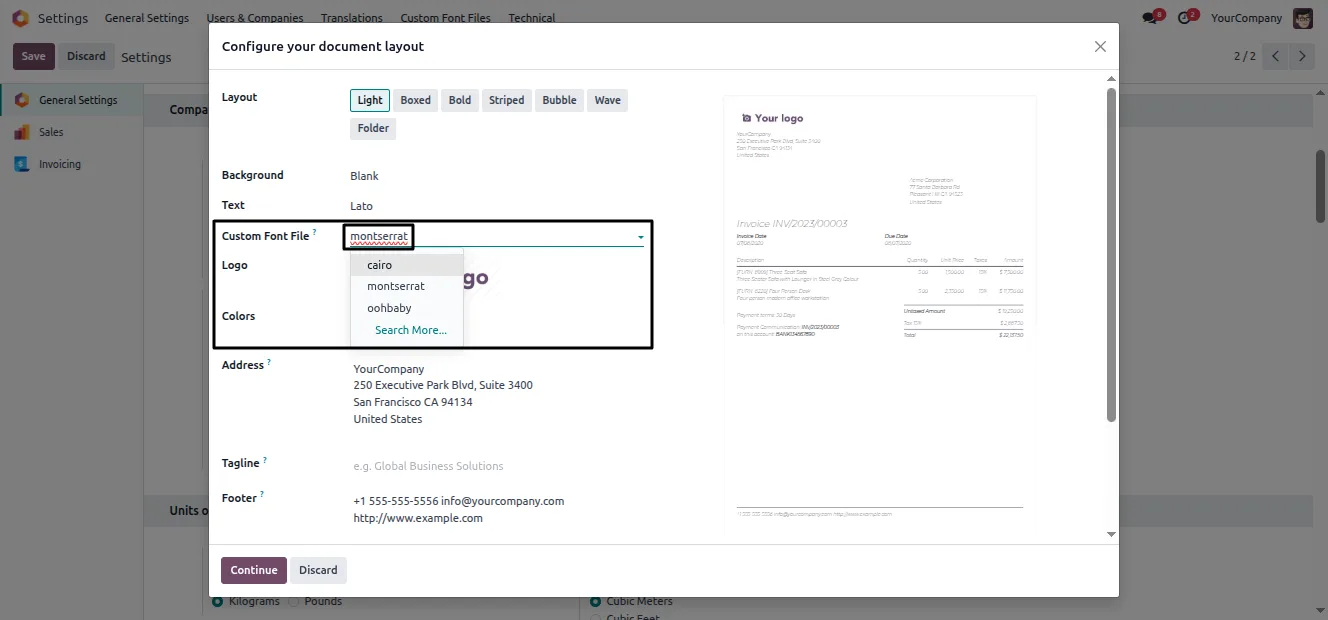
Open Settings → Companies and choose Configure Document Layout. In the popup, select the uploaded font and click Continue to apply it.
- 5
Verify the output
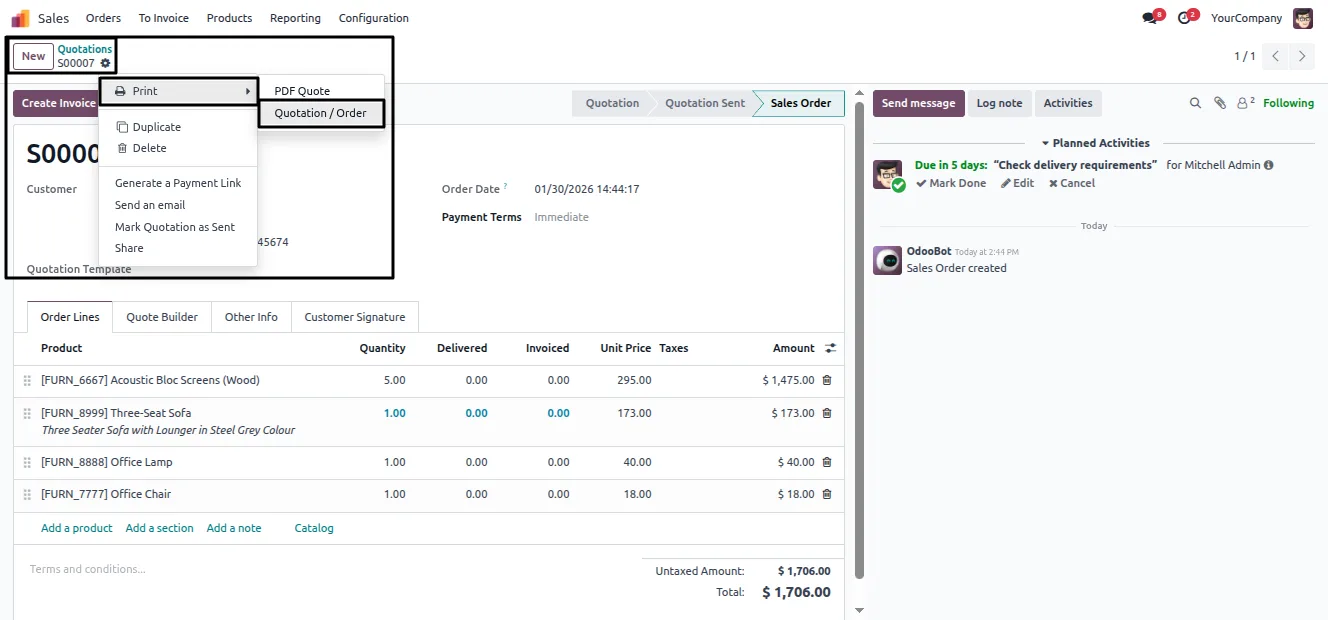
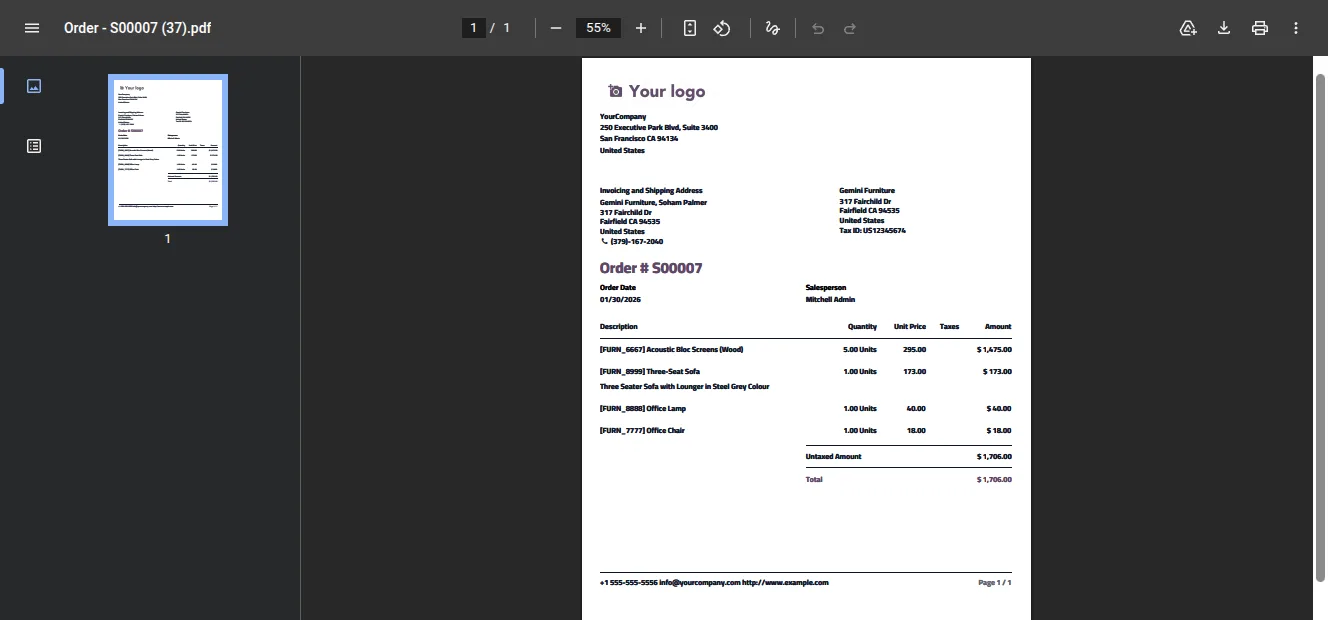
Generate reports — a quotation, an invoice, a purchase order — and confirm the custom font renders correctly in the PDF.
Frequently asked questions
-
Do I need a developer to change report fonts?
No. The module lets you upload a font file and apply it from Odoo Settings. There is no code or CSS to edit and no developer required.
-
Which font file formats are supported?
TTF, OTF, WOFF, WOFF2, and EOT files. Most brand fonts can be uploaded as-is without conversion.
-
Which reports does the custom font apply to?
Every QWeb PDF report that uses the external layout — quotations, invoices, purchase orders, and the rest. Set the font once and all of them follow.
-
Can different companies use different fonts?
Yes. Each font record is assigned to a company, so a multi-company database can give every entity its own report typeface.
-
How do I apply a font after uploading it?
Open Settings → Companies → Configure Document Layout, choose the uploaded font in the popup, and click Continue. It then applies across reports.
-
Where do I manage uploaded fonts?
The module adds a Custom Font Files menu in Settings where you create, upload, and manage font records.
-
Which Odoo versions are supported?
The module supports Odoo 16.0, 17.0, 18.0, and 19.0, in both the Community and Enterprise editions.
-
Is support included?
Yes. The module includes 90 days of bug-fix support, Monday to Friday, 10:00–19:00 IST.
Related services
Get the most out of this module with senior TechUltra consultants.
Odoo Customization Services
Tailored Odoo customizations from a Gold Partner — 200+ projects, upgrade-safe patterns, fixed-scope quotes, senior consultants. Free demo consultation.
Hire Odoo Developers
Hire certified Odoo developers from a Gold Partner — 400+ implementations, 92% satisfaction, Odoo since 2016. Silver / Gold / Platinum packages, free trial.
Odoo Support & Maintenance
Odoo Gold Partner support — 24/7 functional, technical, and server coverage for Enterprise and Community editions. Fast turnaround, free consultation.







