Odoo App · Project Management
Project Hill Chart — Scope Progress & Trajectory
Track where each piece of work sits on the hill — still figuring it out, or making it happen — instead of guessing at a percentage.

Overview
A percentage-complete field cannot tell the difference between the two halves of a piece of work. Something reported at 50% might be halfway through a problem nobody has solved yet, or halfway through executing a plan that is fully understood — and those two states carry completely different risk.
A hill chart separates them. Work climbs the left slope while the unknowns are still being resolved, crosses the peak when the approach is settled, and runs down the right slope during execution. A dot stuck on the uphill side for three weeks is a signal a percentage bar would have hidden.
This module puts that chart inside Odoo Project. Scopes are created per project, positioned by dragging or with the arrow keys, and linked to the tasks that carry them, so the chart is a view of real work rather than a separate status document that drifts.
Key features
-
Interactive hill chart
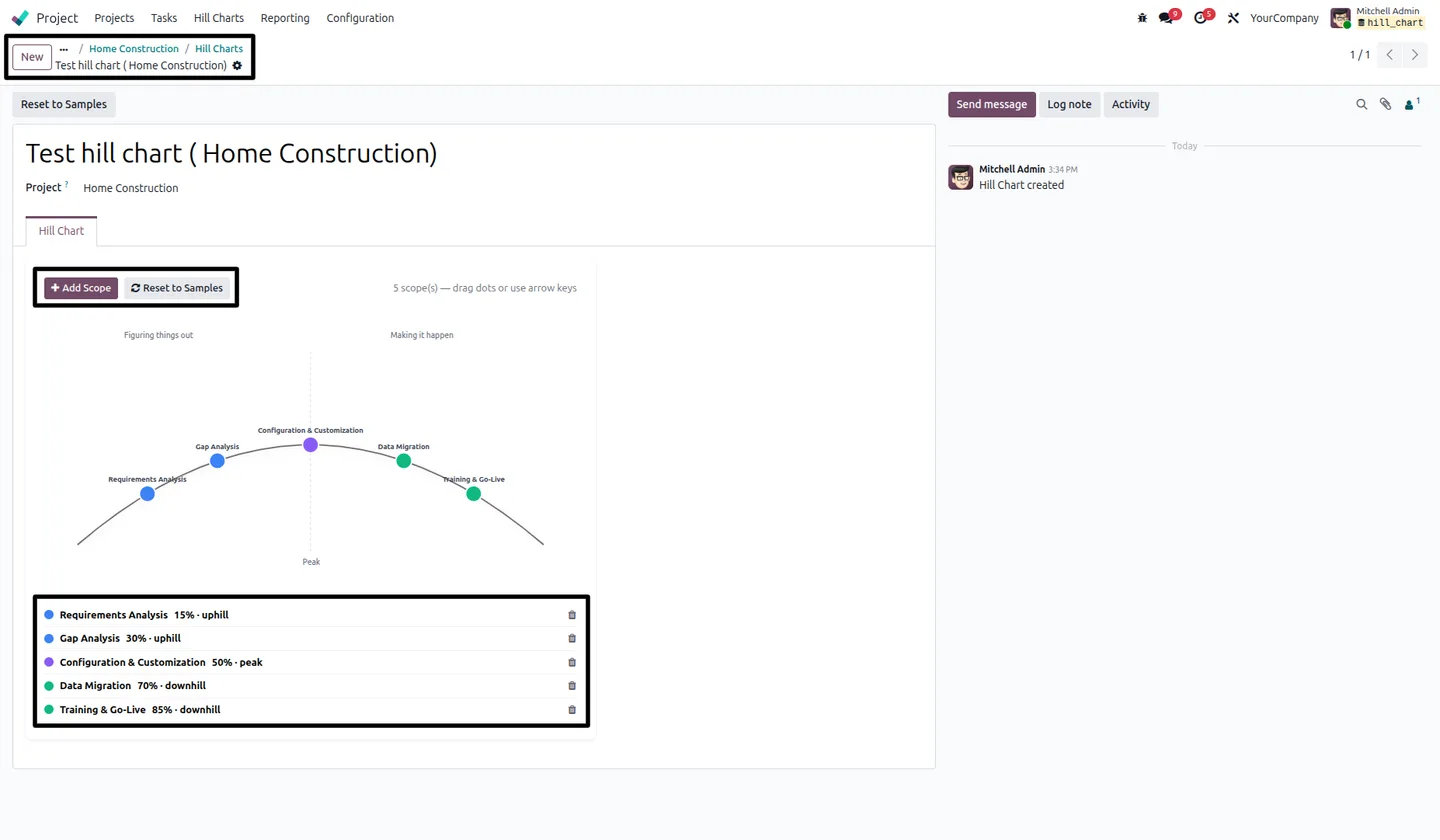
Each scope is a dot on the curve, moved by dragging or with the arrow keys, with the labelled halves — figuring things out, and making it happen — either side of the peak.
-
Custom scopes per project
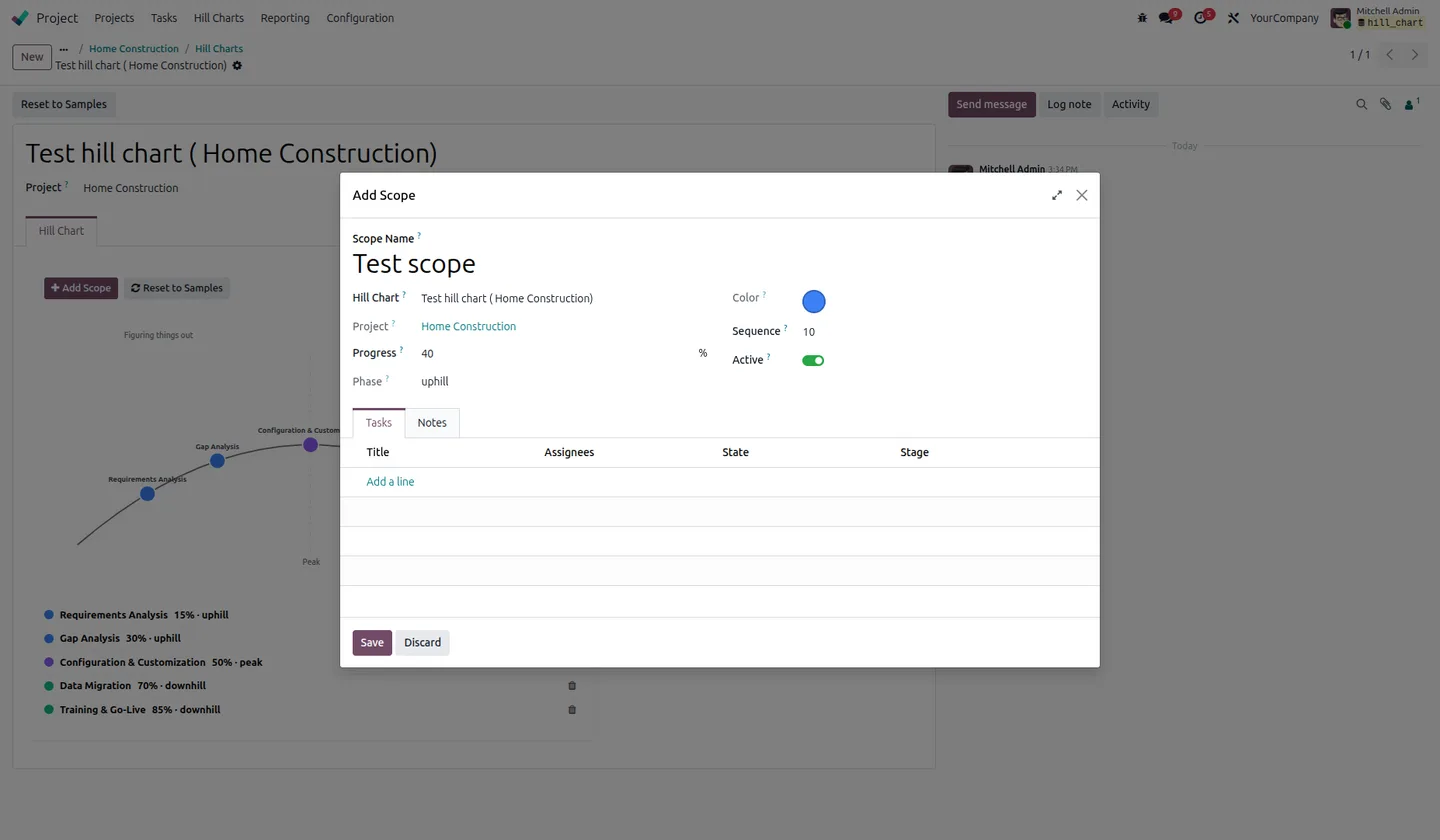
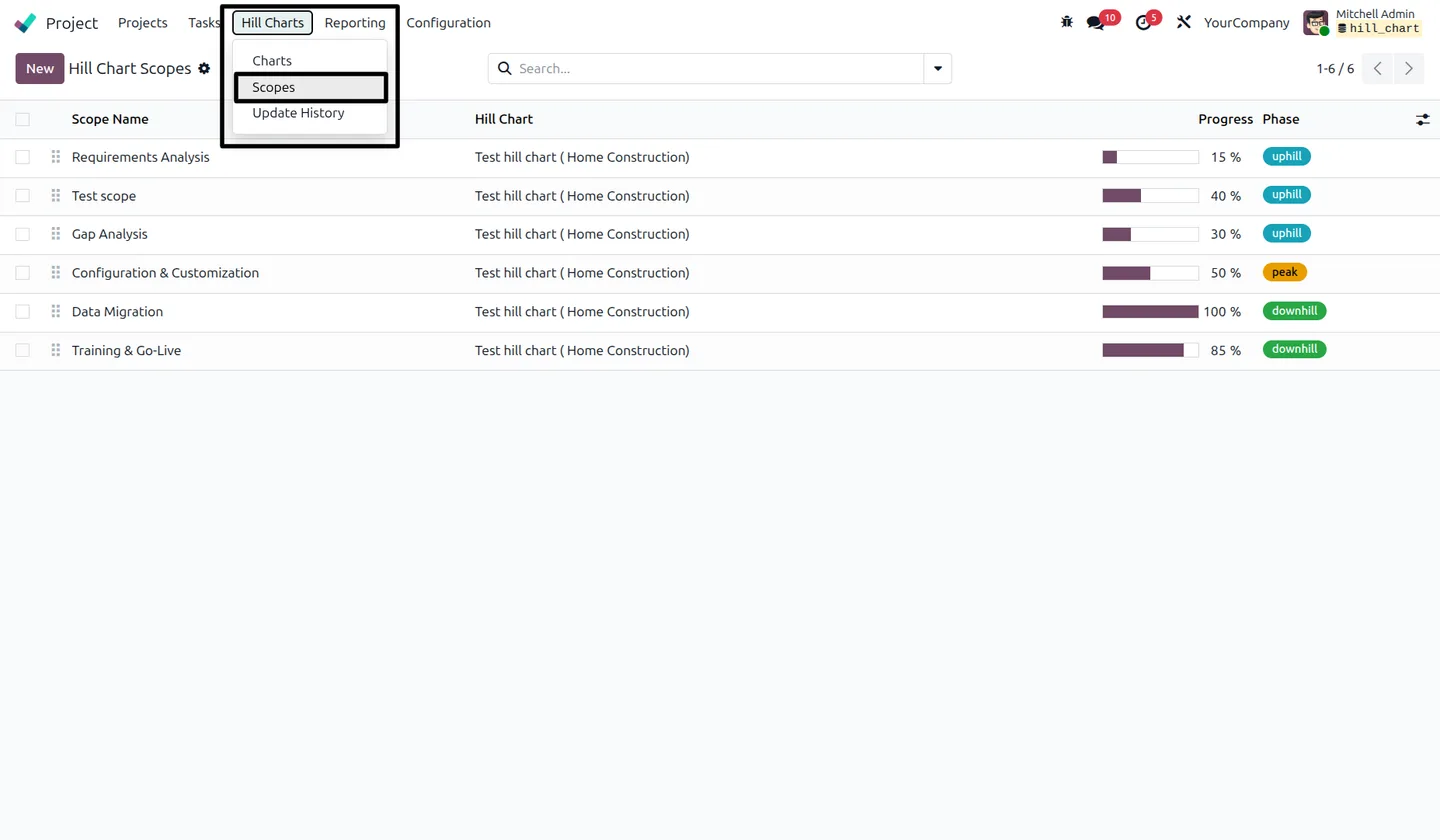
Create your own scopes, or start from a set of sample scopes and rename them. Each carries a position percentage and a phase reading of uphill, peak, or downhill.
-
Scope-to-task linking
Link a scope to the Odoo tasks that deliver it, so the chart reflects work already tracked in the project rather than a parallel list.
-
Clickable scope dots
Selecting a dot on the chart opens the tasks behind that scope, so the chart is a way into the work rather than a static picture of it.
-
Multiple charts per task
More than one hill chart can be attached to a single task, for work that spans several distinct scopes.
-
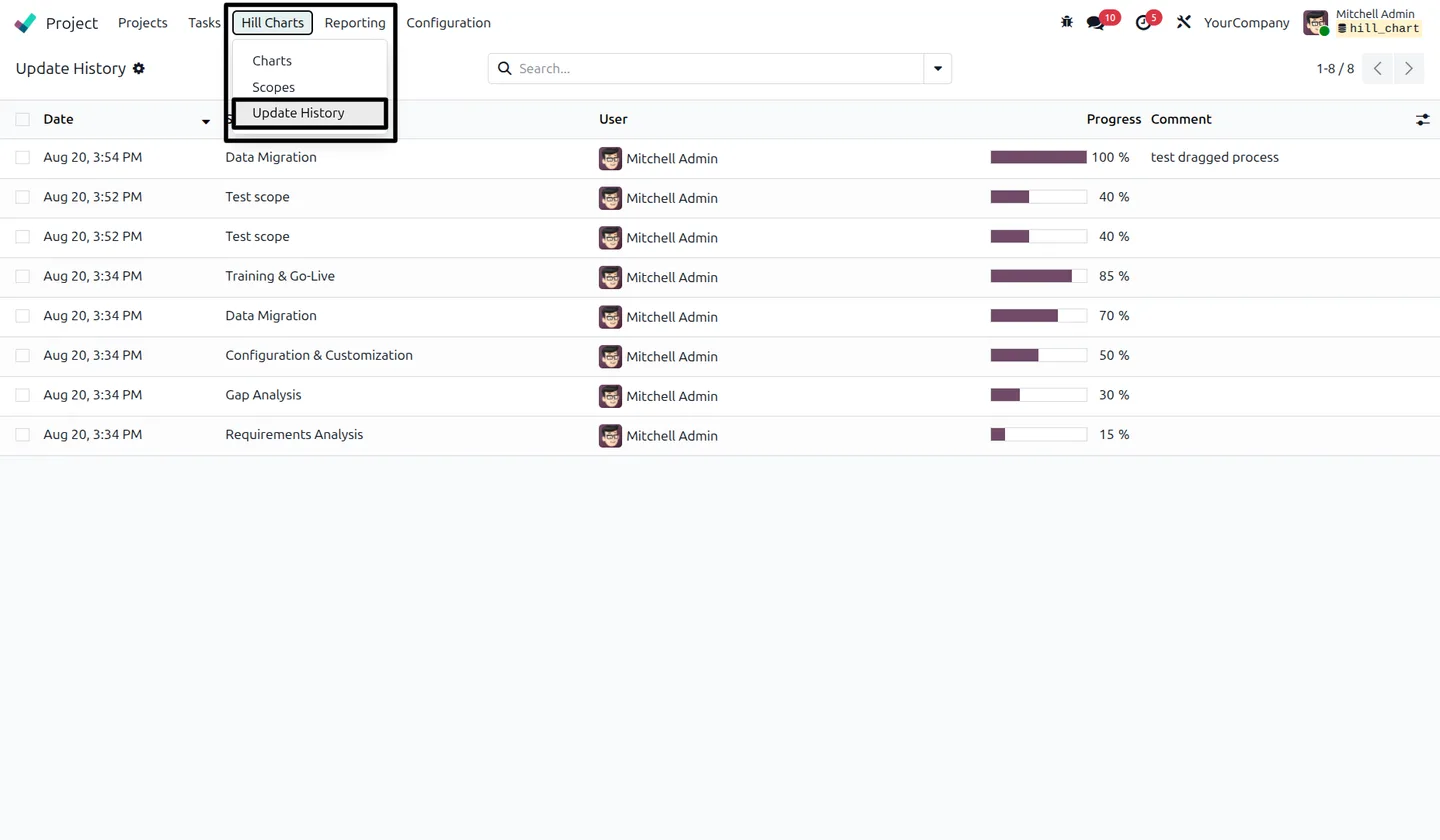
Update history
Every scope move is recorded, so the question of when something crossed the peak — or slid back down — has an answer.
-
Enabled per project
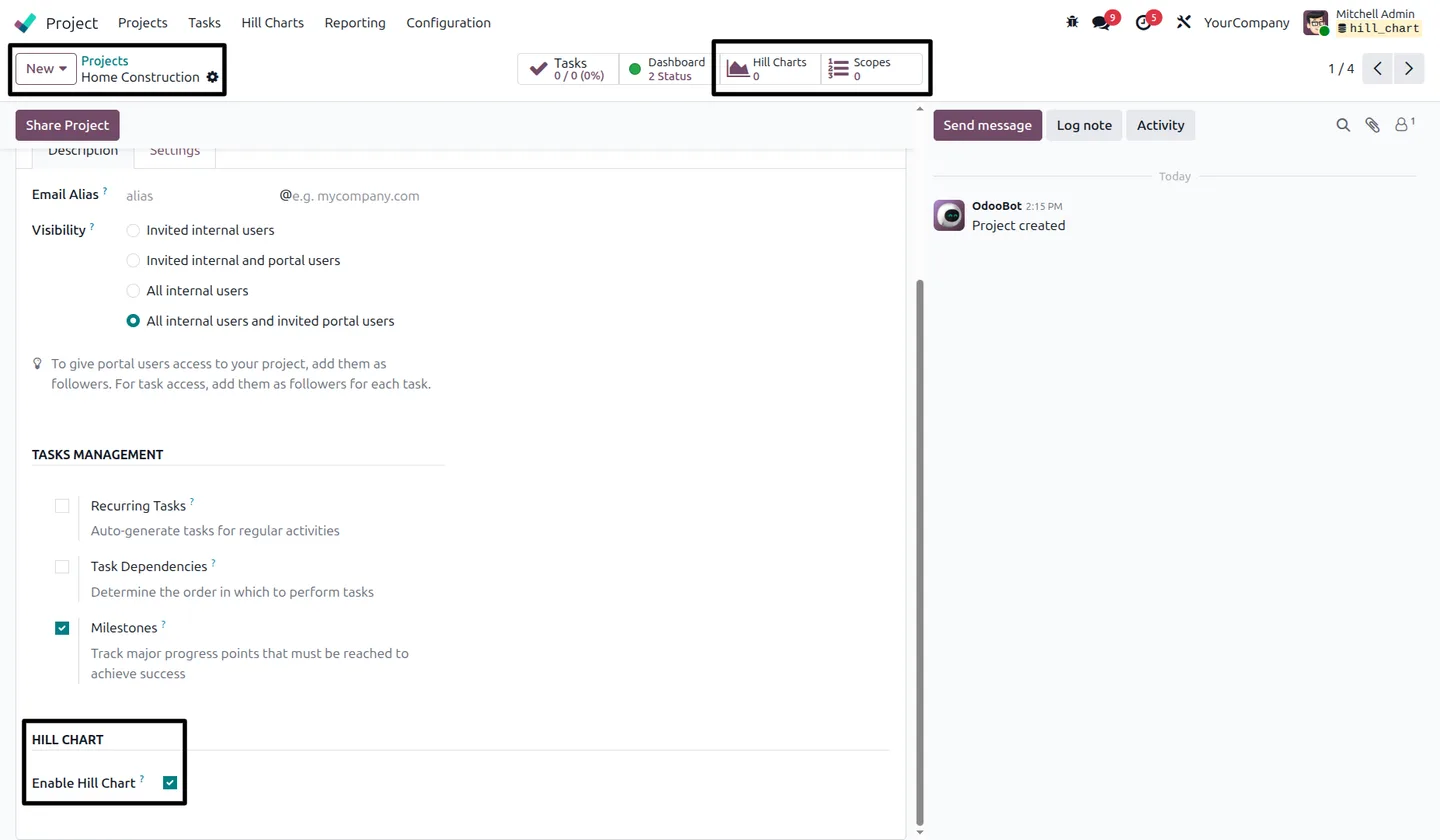
Turn Hill Chart on for the projects that need it from Projects → Configuration → Projects; the rest of your projects are untouched.
Project Hill Chart — Scope Progress & Trajectory in Odoo
Every screen, in the order you meet it — configuration first, then the module in use.
Technical details
Specification
- Publisher
- TechUltra Solutions Private Limited
- Technical name
- hill_chart_widget
- Odoo versions
- 19.0
- Lines of code
- 1667
- Scope positioning
- Drag or arrow keys, recorded as a percentage
- License
- Odoo Proprietary License v1.0 (OPL-1)
- Price
- $24.89 (one-time)
Deployment
- Odoo Online
- Odoo.sh
- On-premise
Odoo dependencies
- Project
- Discuss
Support
90 days of bug-fix support and 5 hours of free configuration assistance, Monday to Friday, 10:00–19:00 IST. Raise a ticket at support@techultra.in.
Setup & configuration
From install to first call — here is the path.
- 1
Enable Hill Chart on a project
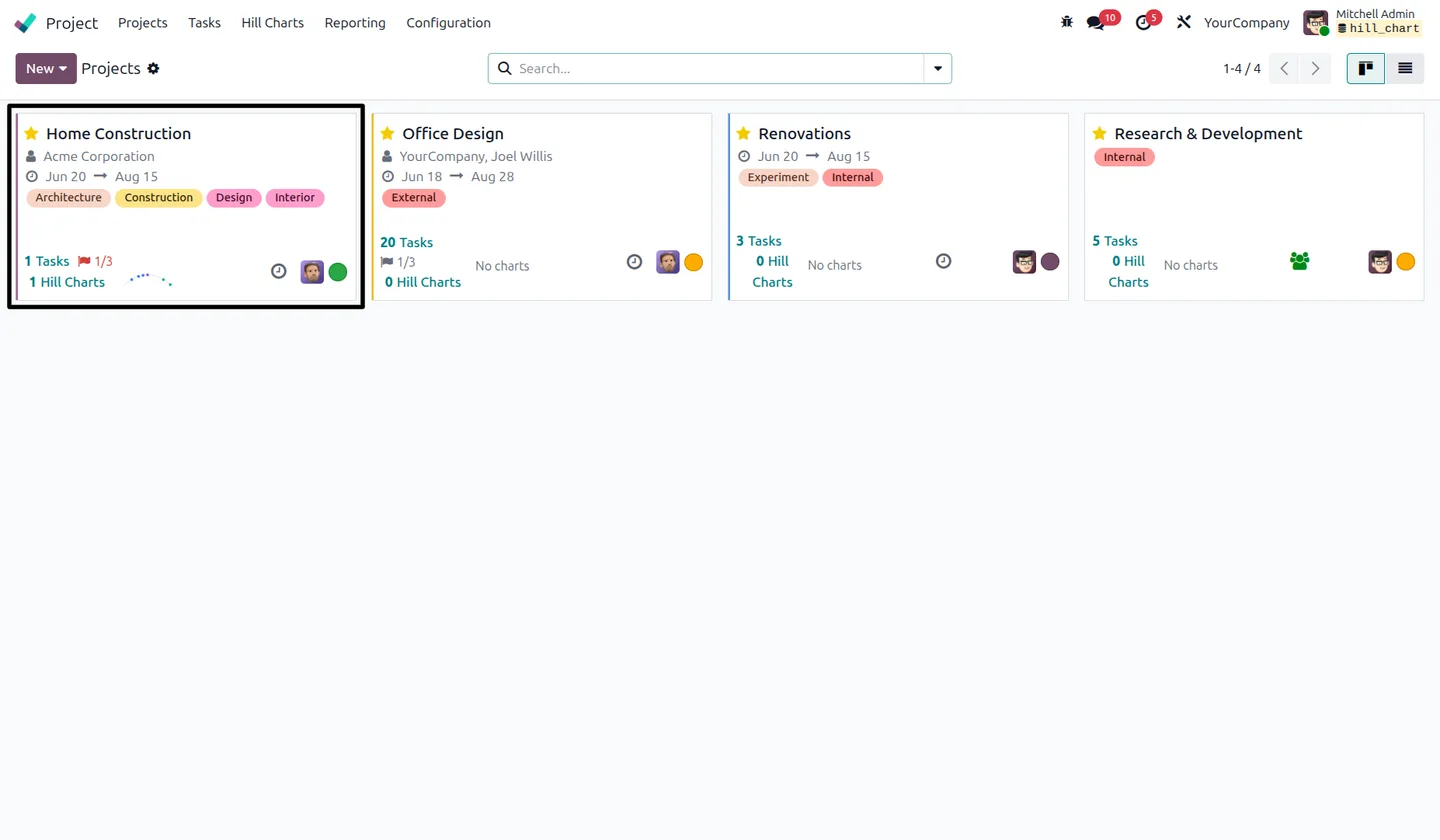
Go to Projects → Configuration → Projects, open the project, and tick Enable Hill Chart under the Hill Chart section. The Hill Charts and Scopes counters appear on the project.
- 2
Create the chart
Open Hill Charts on the project and create one. Use Reset to Samples to start from a worked example, or Add Scope to build your own.
- 3
Position each scope
Drag a dot along the curve or select it and use the arrow keys. The list beneath the chart shows each scope's percentage and whether it reads as uphill, peak, or downhill.
- 4
Link scopes to tasks
Attach the tasks that deliver each scope so the dots point at real work, then check the update history after a week to see which scopes have actually moved.
Frequently asked questions
-
What is a hill chart, and why not just use percentage complete?
A hill chart splits progress into two halves: the uphill side where the unknowns are still being worked out, and the downhill side where a settled approach is being executed. A single percentage cannot tell those apart, which is why work reported at 50% so often turns out to be nowhere near half done.
-
Which Odoo versions does it support?
Odoo 19 only, on Odoo Online, Odoo.sh and on-premise. It depends on the standard Project and Discuss apps.
-
Does it replace Odoo's project stages or milestones?
No. Stages and milestones still do their job; the hill chart sits alongside them and answers a different question — not which column a task is in, but whether the thinking behind it is finished.
-
Can I link a scope to the tasks that deliver it?
Yes. Scopes link to Odoo tasks, and clicking a dot on the chart opens the tasks behind it, so the chart stays connected to work you already track rather than becoming a separate status document.
-
Can one task have more than one hill chart?
Yes. Multiple charts can be attached to a single task, which is useful when one task covers several distinct scopes that are progressing at different rates.
-
Is there a record of how a scope moved over time?
Every scope update is written to an update history, so you can see when a scope crossed the peak — or slid back down, which is the more interesting case.
Related solutions
Whole-platform solutions that complement Project Hill Chart — Scope Progress & Trajectory.
Related services
Get the most out of this module with senior TechUltra consultants.
Odoo Customization Services
Tailored Odoo customizations from a Gold Partner — 200+ projects, upgrade-safe patterns, fixed-scope quotes, senior consultants. Free demo consultation.
Hire Odoo Developers
Hire certified Odoo developers from a Gold Partner — 400+ implementations, 92% satisfaction, Odoo since 2016. Silver / Gold / Platinum packages, free trial.
Odoo Support & Maintenance
Odoo Gold Partner support — 24/7 functional, technical, and server coverage for Enterprise and Community editions. Fast turnaround, free consultation.