Odoo App · Project Management
Project Advanced Gantt
An interactive Gantt chart for Odoo Project tasks, with drag-and-drop dates, dependencies, auto-reschedule and critical path, without the Enterprise Gantt app.
Overview
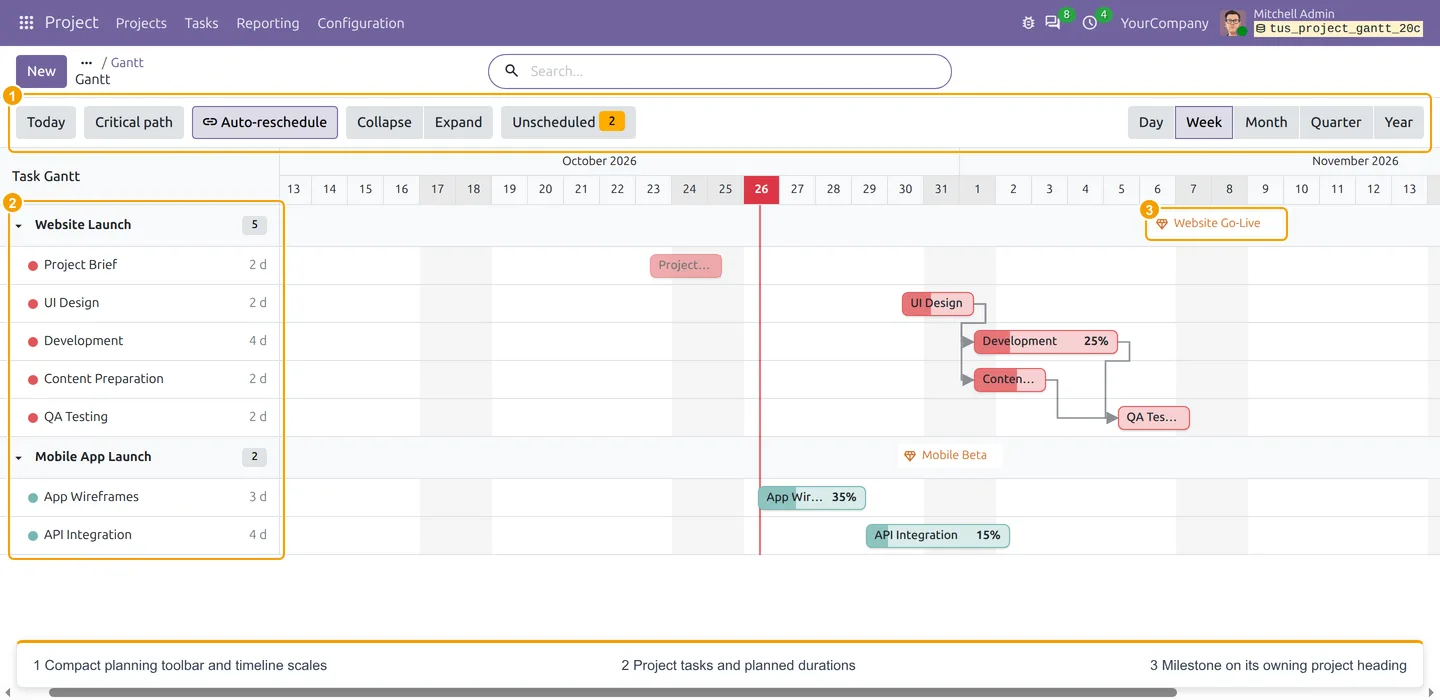
Odoo Project lists tasks well, but checking a schedule task by task is slow. This module adds a Gantt view under Project > Tasks > Gantt. Planned dates, durations, progress, dependency arrows, milestones and overdue work all sit on one timeline. It ships its own Gantt view, so the Enterprise Gantt app is not needed.
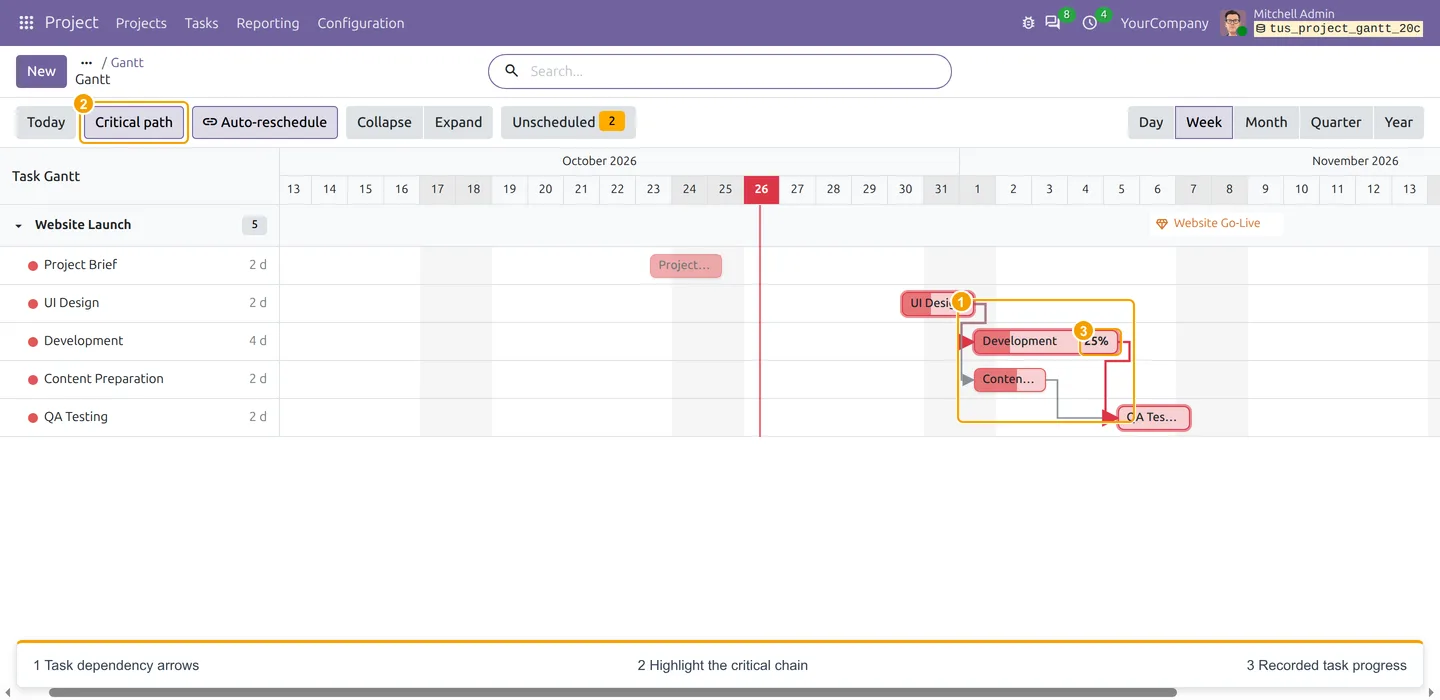
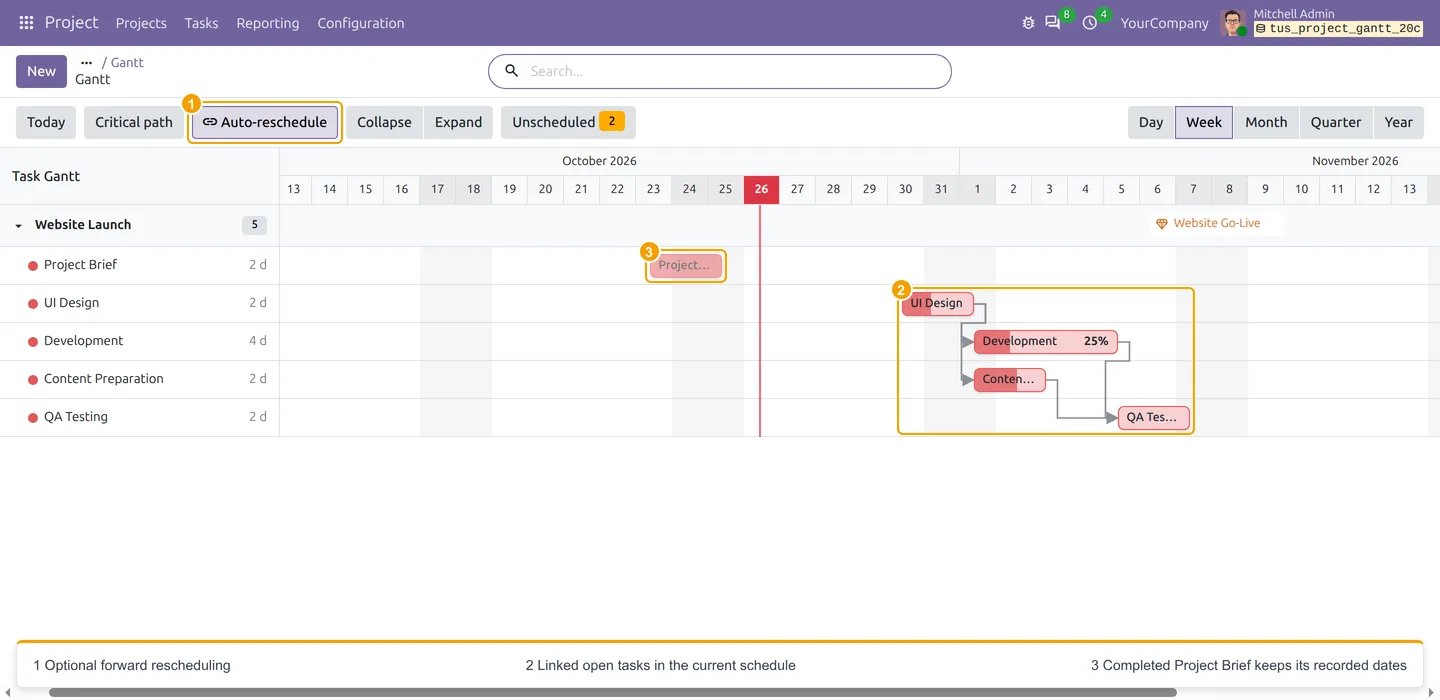
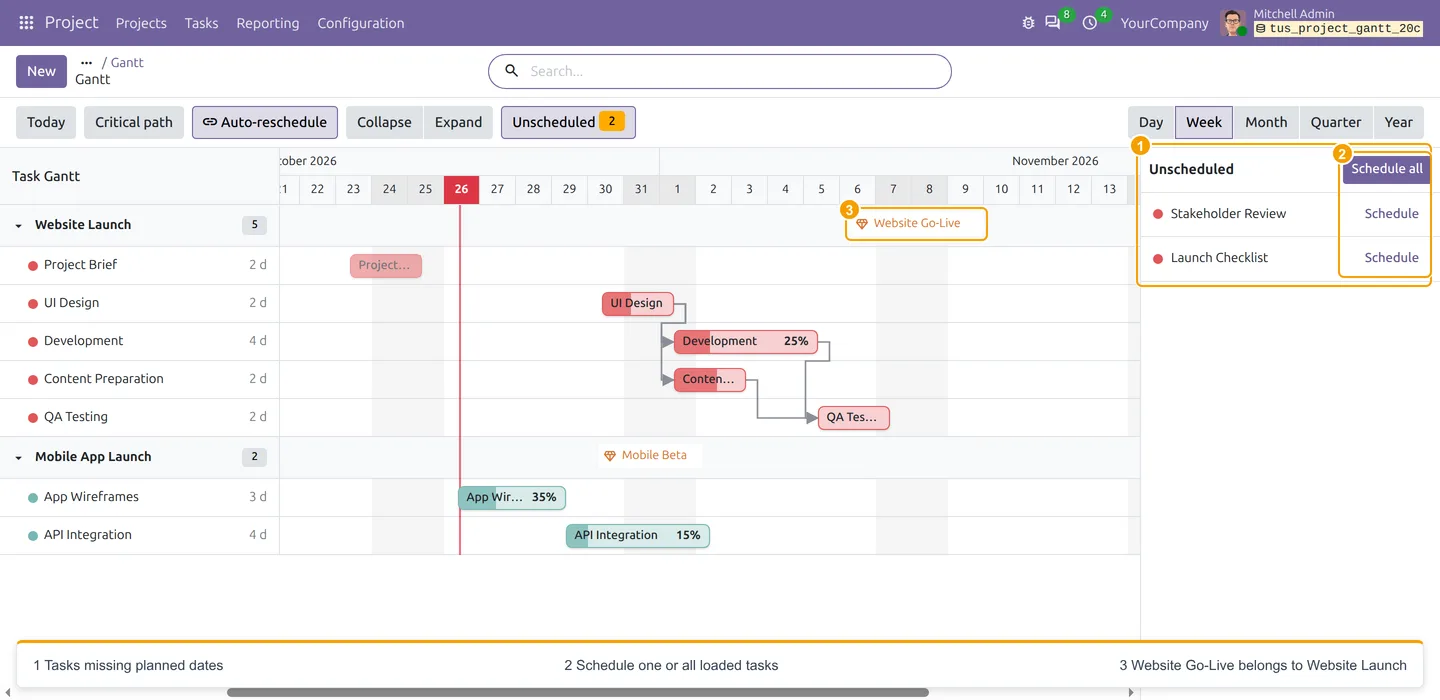
Planning happens on the chart. Drag a bar to move a task, resize its edges to change the duration, or double-click the timeline to create a task with planning defaults. Link a predecessor to its dependent task with the blue handle. With Auto-reschedule on, moving or extending a predecessor pushes overlapping open dependents forward and keeps their durations. Completed and cancelled tasks keep their dates. Critical path highlighting shows the chain that sets the overall duration.
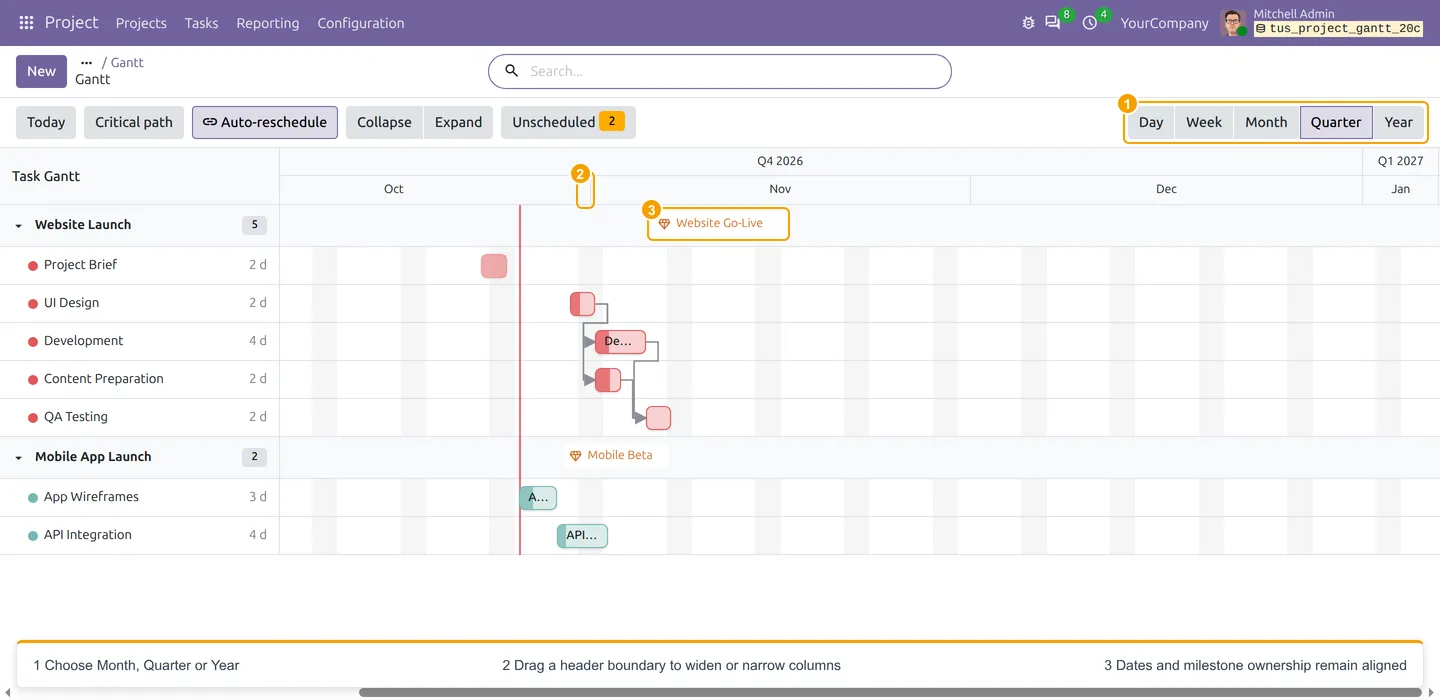
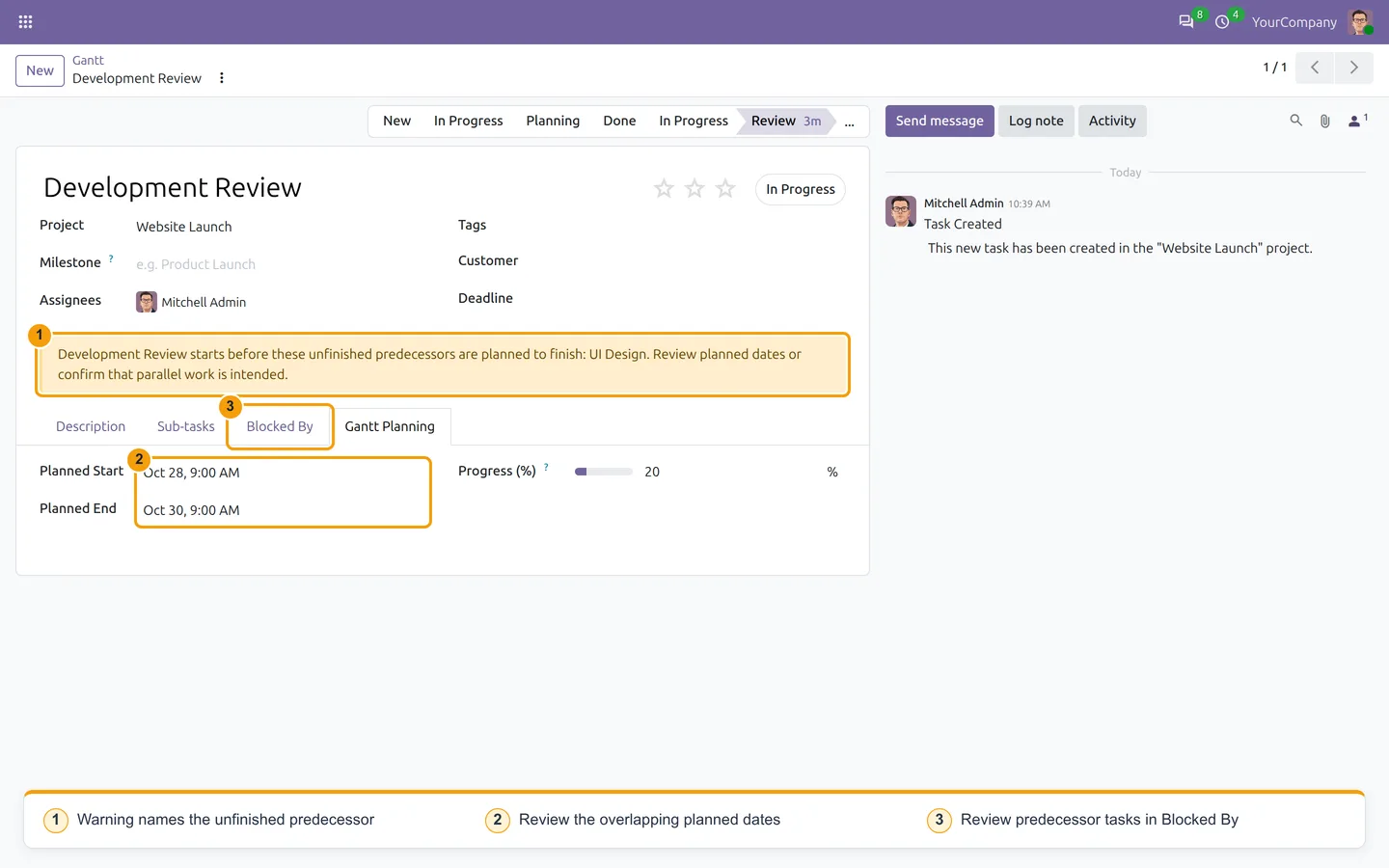
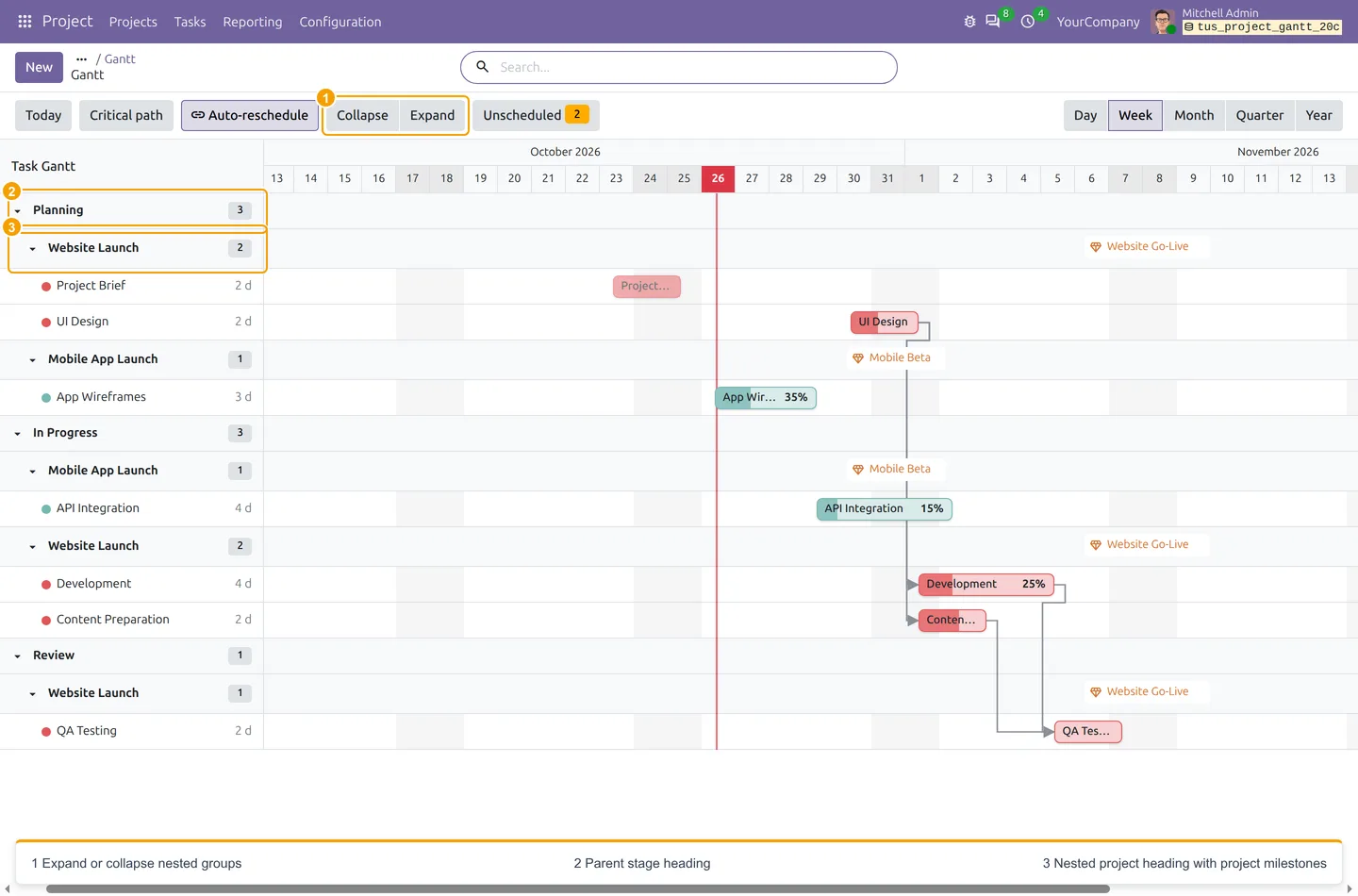
Group the chart by Stage, Project and Assignees in any order, and expand or collapse each level. Switch between Day, Week, Month, Quarter and Year scales, or drag a header boundary to widen columns without changing any task dates. Tasks with no planned dates wait in the Unscheduled panel until you plan them. Warnings flag open tasks still at 100% progress and tasks planned to start before an unfinished predecessor ends. The warnings are advisory, so deliberate parallel work can still be saved.
Key features
-
Interactive project Gantt chart
Project tasks on a timeline with task names and planned durations alongside the bars. Click a bar to open the task, or hover to see its dates and details.
-
Drag-and-drop scheduling
Drag bars to move tasks and resize their edges to change duration, with hourly or daily snap steps.
-
Dependencies and auto-reschedule
Link tasks with dependency arrows; circular links are rejected. With Auto-reschedule on, open dependents move forward and keep their durations, while completed and cancelled tasks keep their dates.
-
Critical path highlighting
Highlight the tasks with no scheduling slack in each dependency chain, based on planned durations, and refresh it after schedule changes.
-
Nested grouping
Group tasks by Stage, Project and Assignees in the order you choose, and expand or collapse each level separately.
-
Progress, milestones and overdue tasks
Progress shows as a fill inside each bar. Project milestones appear on their project heading, with today markers, weekend shading and alerts for open tasks still at 100%.
-
Unscheduled task panel
Find tasks missing planned dates in one panel, then schedule them one at a time or all loaded entries at once.
-
Five timeline scales
Switch between Day, Week, Month, Quarter and Year, and widen or narrow columns by dragging a header boundary without editing dates.
-
Overlap warnings
A task that starts before an unfinished predecessor finishes shows a warning that names the predecessor, on the form and on the chart.
Watch Project Advanced Gantt in use
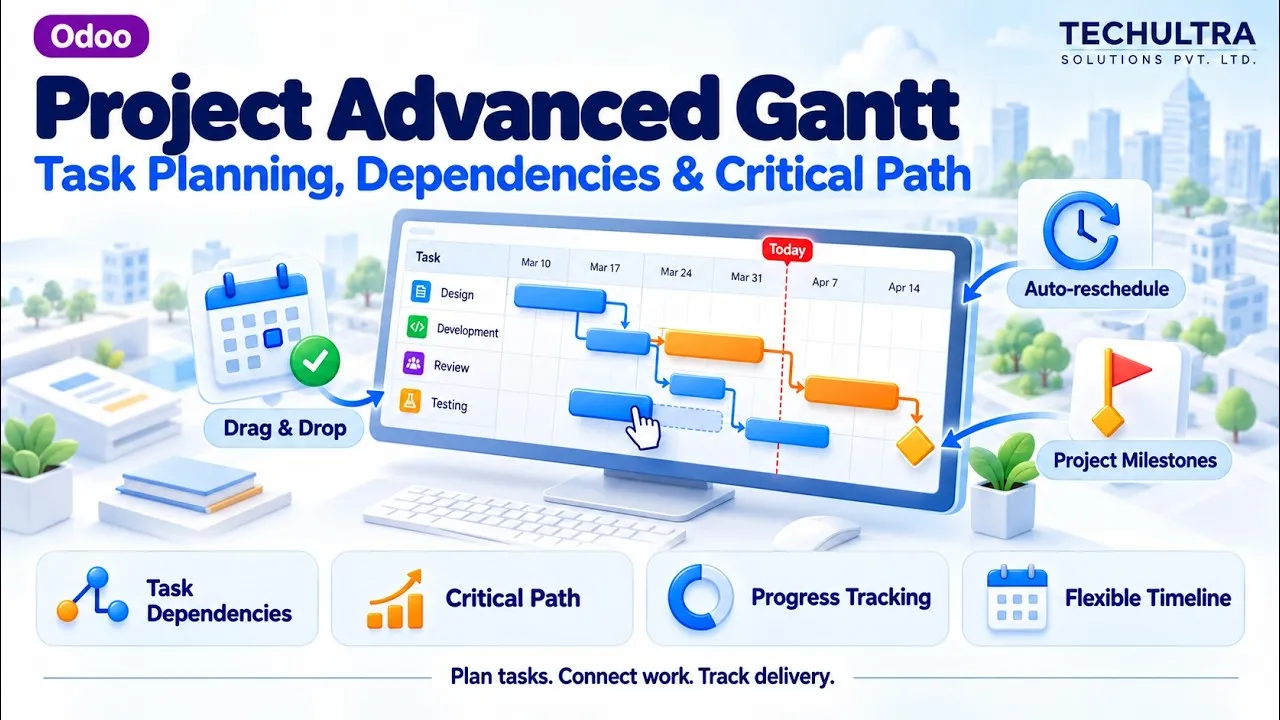
Video walkthrough of Project Advanced Gantt for Odoo from the TechUltra Solutions YouTube channel. A Gantt view for the Odoo Project app: plan tasks on a timeline, drag and resize bars, link dependent tasks, push open dependents forward automatically and highlight the critical path. It does not need the Enterprise Gantt app.
Watch “Odoo Project Advanced Gantt | Task Planning | Dependencies & Critical Path” on YouTube
Project Advanced Gantt in Odoo
Every screen, in the order you meet it — configuration first, then the module in use.
Technical details
Specification
- Publisher
- TechUltra Solutions Private Limited
- Technical name
- tus_project_gantt
- Odoo versions
- 16.0, 17.0, 18.0, 19.0, 20.0
- Lines of code
- 1,687
- Enterprise Gantt app
- Not required
- Timeline scales
- Day, Week, Month, Quarter, Year
- Load limits
- Up to 1,000 scheduled tasks on the timeline; up to 100 in the Unscheduled panel
- License
- Odoo Proprietary License v1.0 (OPL-1)
- Price
- $26.01 (one-time)
Deployment
- Odoo Online
- Odoo.sh
- On-premise
Odoo dependencies
- Project
- Discuss
Support
90 days of bug-fix support plus 5 hours of free configuration help, Monday to Friday, 10:00–19:00 IST. Raise a ticket at support@techultra.in.
Setup & configuration
From install to first call — here is the path.
- 1
Install the module
Install Project Advanced Gantt. It works inside the standard Project app and adds a Gantt view under Project > Tasks > Gantt.
- 2
Plan tasks
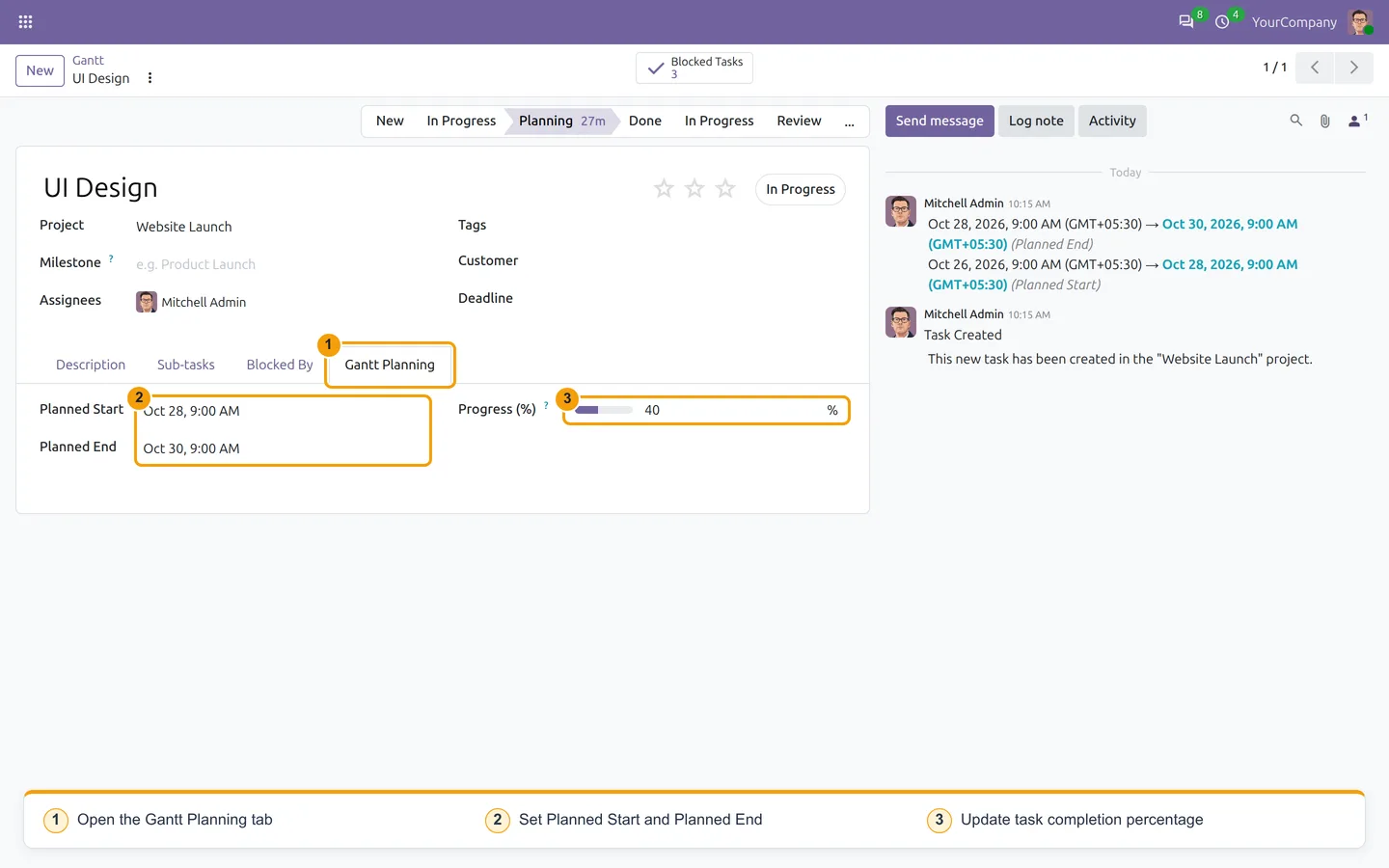
Open a task and use the Gantt Planning tab to set Planned Start, Planned End and Progress (%). A task needs both dates to show as a bar.
- 3
Turn on dependencies and milestones
Enable Task Dependencies in the project settings to link tasks, and enable Milestones to show project deadline markers on the chart.
- 4
Link and reschedule
Drag a task's blue link handle onto its dependent task. Turn on Auto-reschedule if moving a predecessor should push open dependents forward.
- 5
Clear the Unscheduled panel
Open Unscheduled to find tasks without planned dates, click Schedule or Schedule all, then refine the default plan on the timeline.
Frequently asked questions
-
Does this module need the Enterprise Gantt app?
No. It depends on the standard Odoo Project app and supplies its own Gantt view. Open Project > Tasks > Gantt and set Planned Start, Planned End and Progress (%) in each task's Gantt Planning tab.
-
How do dependencies and auto-rescheduling work?
Enable Task Dependencies for the project and drag the blue link handle from a predecessor onto its dependent. With Auto-reschedule on, moving or extending the predecessor pushes overlapping open dependents forward and keeps their durations. Completed and cancelled dependents are skipped. Linking alone does not change dates, and moving a predecessor earlier does not pull dependents back.
-
Can I group the Gantt by stage and project?
Yes. Pick grouping fields in the order you want, such as Stage > Project or Project > Assignees, and expand or collapse each level. A task with several assignees appears under each one but stays a single task. Grouping organises the view; it does not calculate resource availability or workload.
-
Does scheduling respect working hours and weekends?
No. Schedule uses an existing planned start, an assignment date or the current hour, and takes the end from a deadline or from allocated hours (eight hours count as one calendar day, minimum one day). It does not skip weekends or apply working calendars, even though weekends are shaded on the chart.
-
What does the critical path show?
It highlights tasks with no scheduling slack in each connected dependency chain, based on planned durations. It shows which tasks drive the schedule, not how complete they are.
-
What happens when a completed task is reopened?
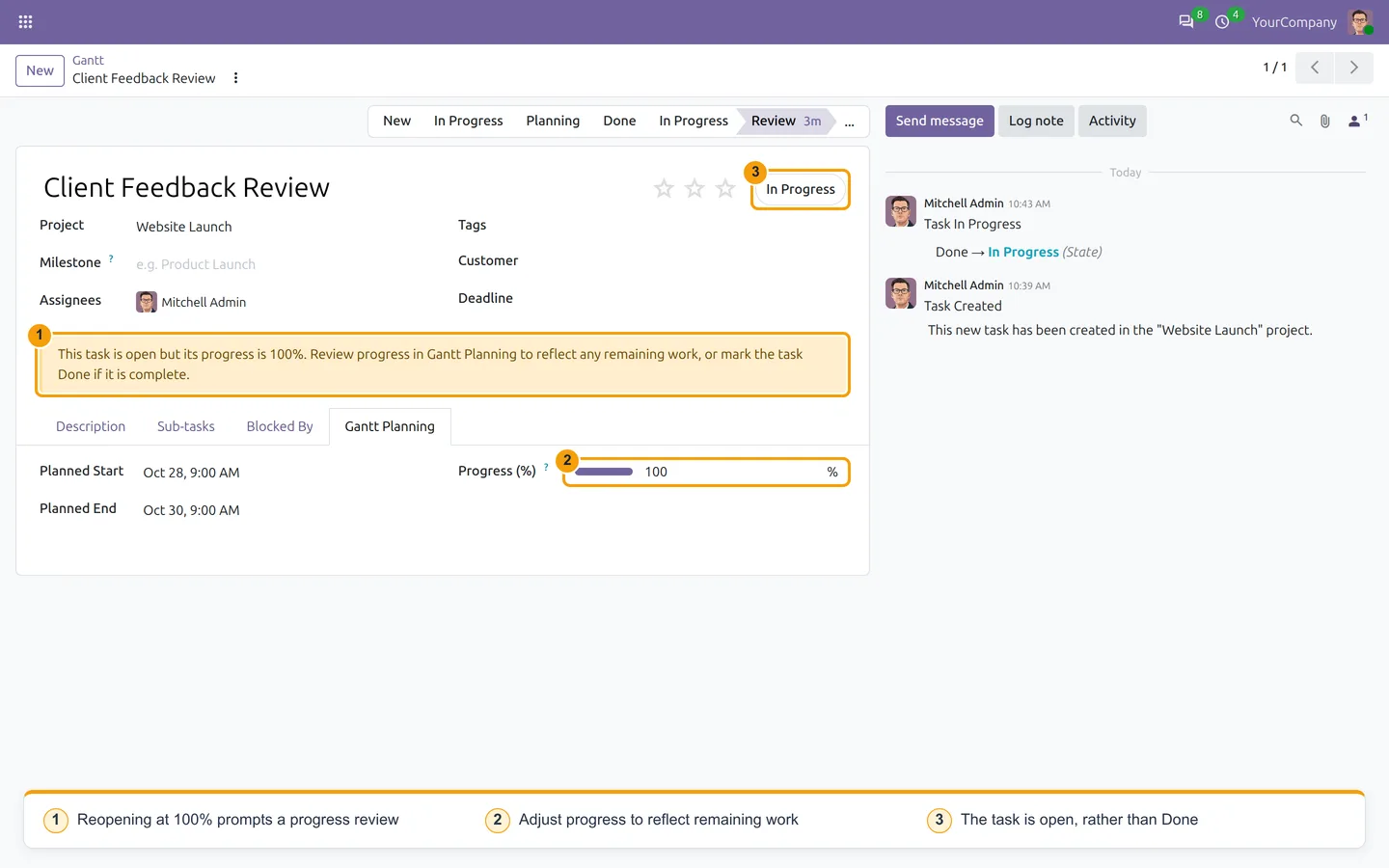
Closing a task sets progress to 100%. If the task is reopened while still at 100%, a banner asks you to review progress. The value is kept, not reset, until you enter the remaining work or mark the task Done.
-
How many tasks can the chart show?
The timeline loads up to 1,000 scheduled tasks, so use search filters to focus larger lists. The Unscheduled panel loads up to 100 tasks, and Schedule all applies only to those loaded entries.
Listing verified against the Odoo App Store:
Related solutions
Whole-platform solutions that complement Project Advanced Gantt.
Related services
Get the most out of this module with senior TechUltra consultants.
-
Odoo Customization Services
Odoo customization from a Gold Partner: custom modules, workflows, reports and Studio changes, upgrade-safe and quoted at a fixed scope. Free scoping call.
-
Hire Odoo Developers
Hire Odoo developers from a Gold Partner: an AI Engineering Pod from USD 1,800 a month, or a dedicated developer for 70–160 hours. Request a proposal today.
-
Odoo Support Services & Maintenance
Odoo support services from a Gold Partner: functional and technical support plus server cover for Enterprise and Community, 30-minute P1 response, 24/7 option.