
Odoo App · Point of Sale
POS Orderline Location
Assign a stock location to each POS order line and generate location-wise pickings.

Overview
When a product sits across several stock locations, a POS cashier has no easy way to say which location an item should ship from. POS Orderline Location adds that choice directly to the order line.
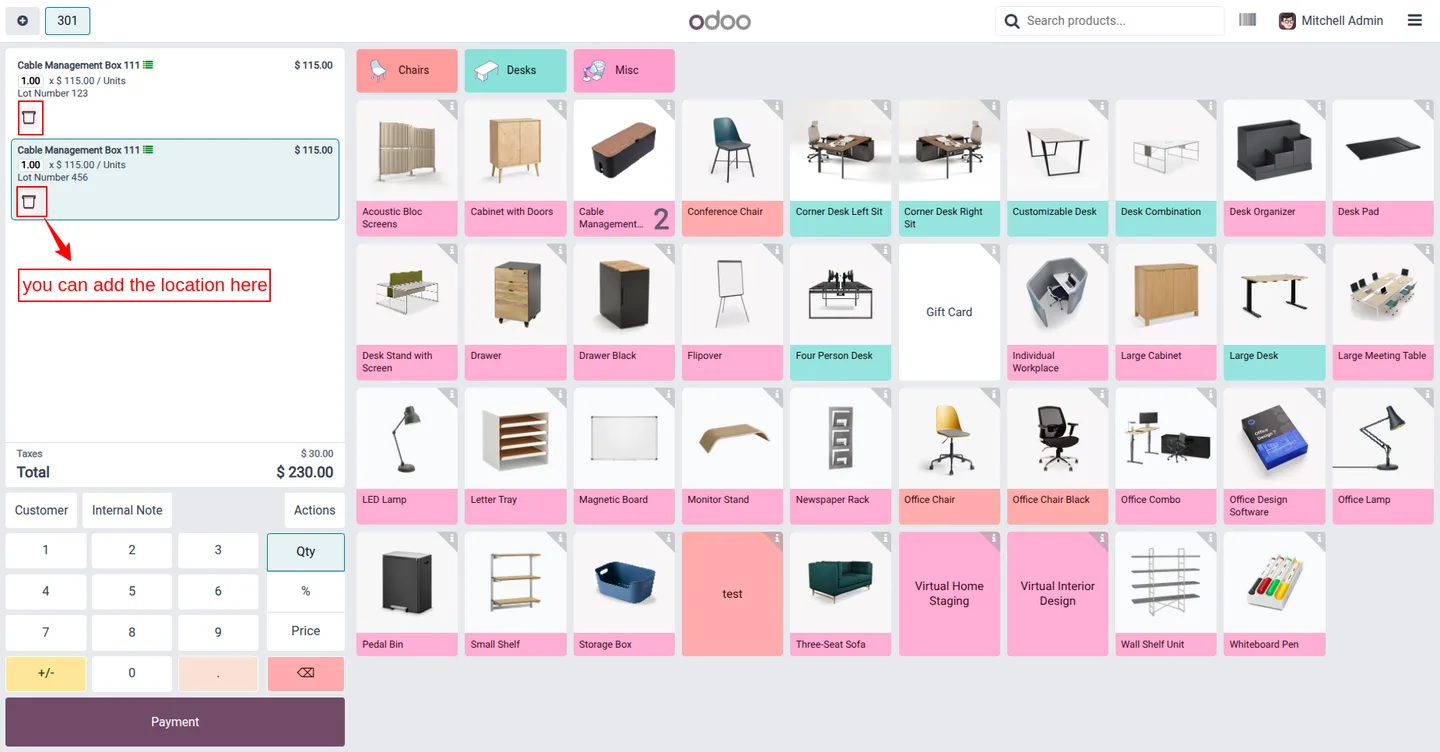
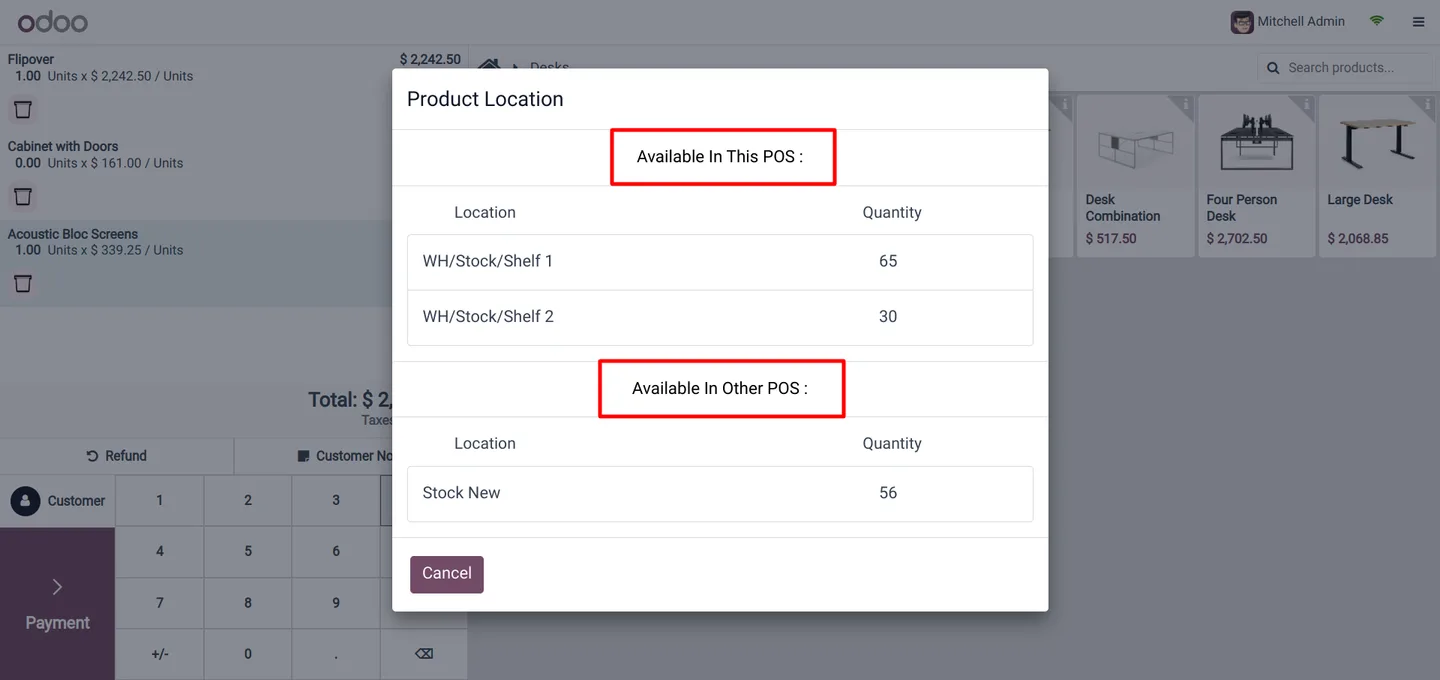
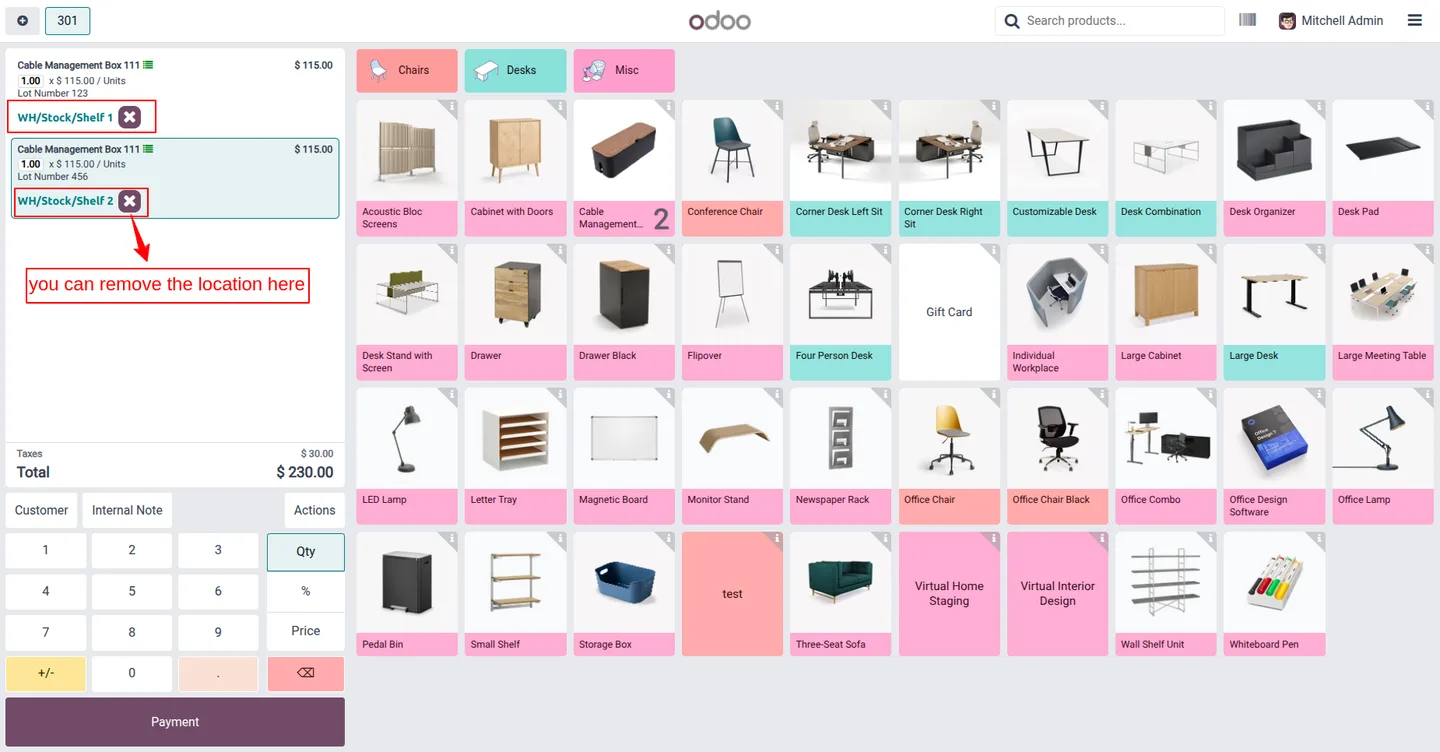
Built by TechUltra Solutions, the module puts a location button under each product line in the POS. Tapping it opens a popup listing the alternate locations that hold the product, with the quantity on hand at each, so the cashier can pick the right source — useful when one location is short and stock has to come from another.
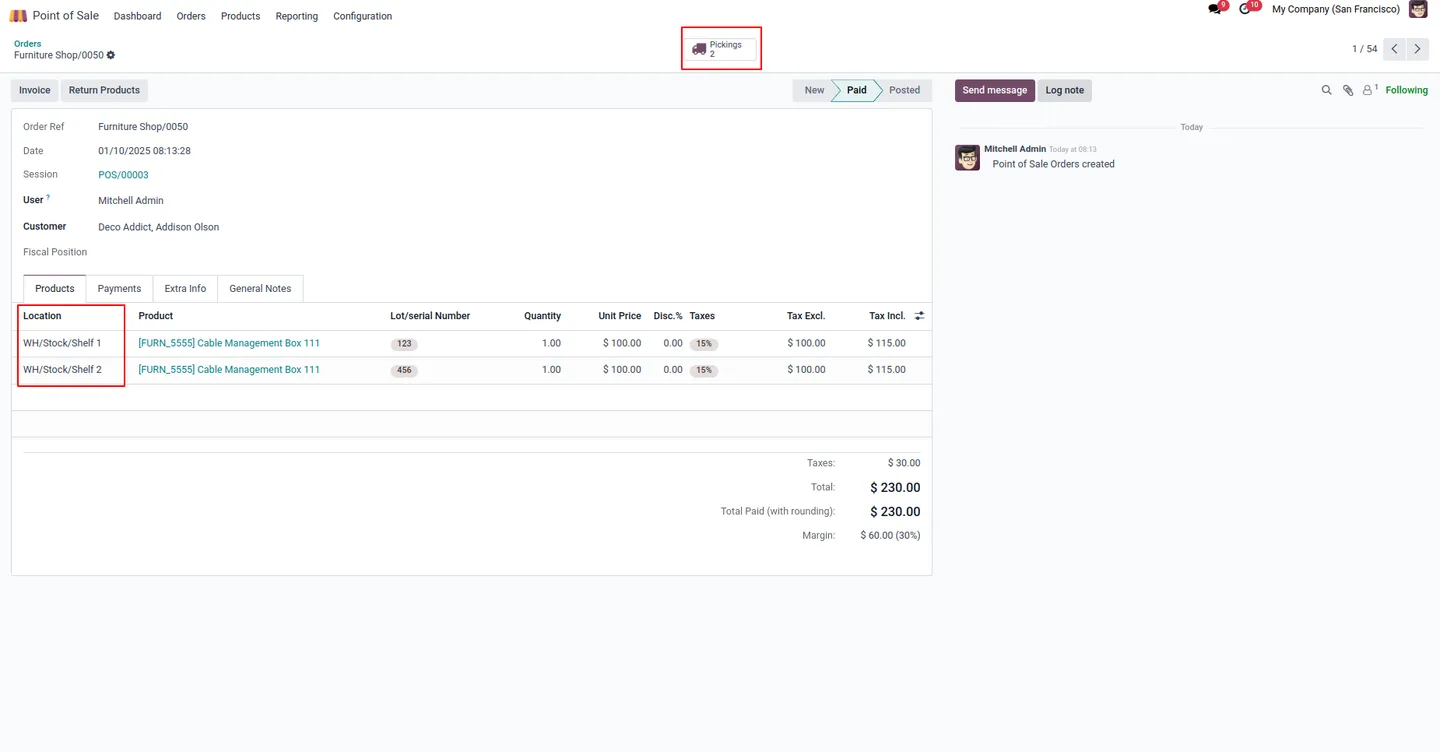
Once the order is paid and invoiced, Odoo generates a location-wise picking for each product, using the source location chosen on the order line. A wrong choice can be cleared and reselected before payment, and assigned locations are visible afterwards under POS Orders.
Key features
-
Per-order-line location selection
Cashiers can choose a different stock location for each order line through a popup, so every product on a ticket can ship from the right place.
-
Alternate location visibility
The popup lists the alternate locations that hold the product along with the quantity available at each — no guessing where stock sits.
-
Location-wise picking generation
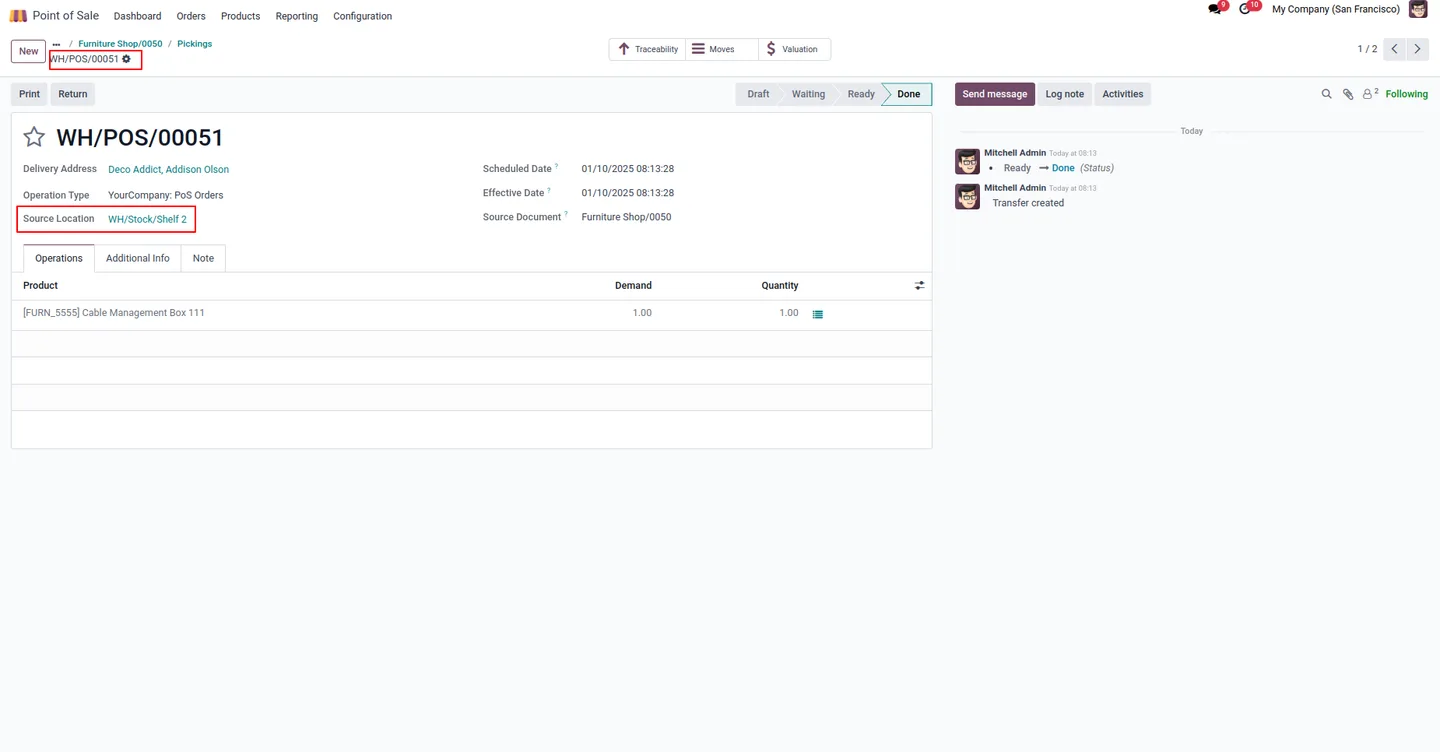
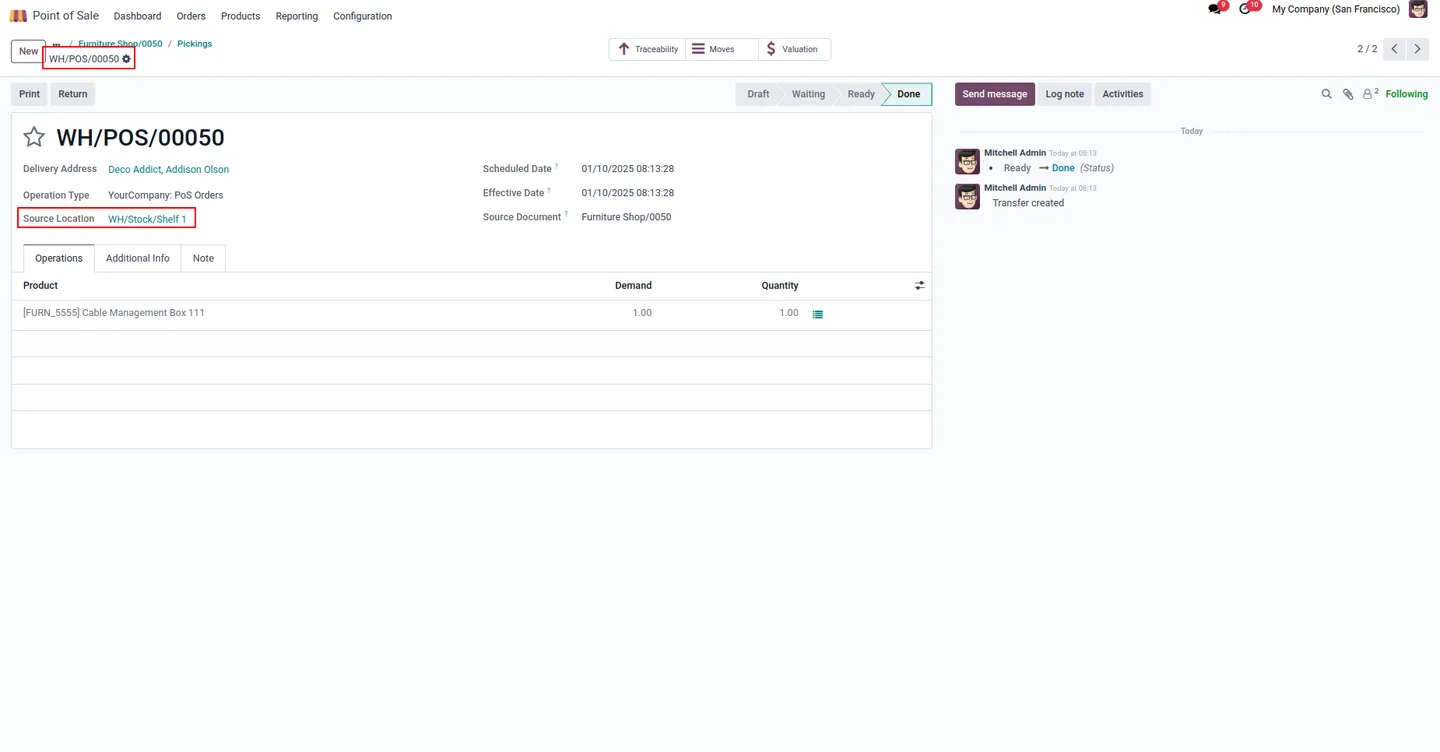
After the order is paid and invoiced, Odoo generates a picking per product based on the source location chosen on each order line.
-
Clear and reselect a location
A cross icon removes an incorrect location choice so the cashier can pick a different one, without having to start the line again.
-
Real-time stock by location
Available quantities shown in the popup come from current inventory, helping cashiers handle urgent picking requests when a location runs short.
-
Simple activation
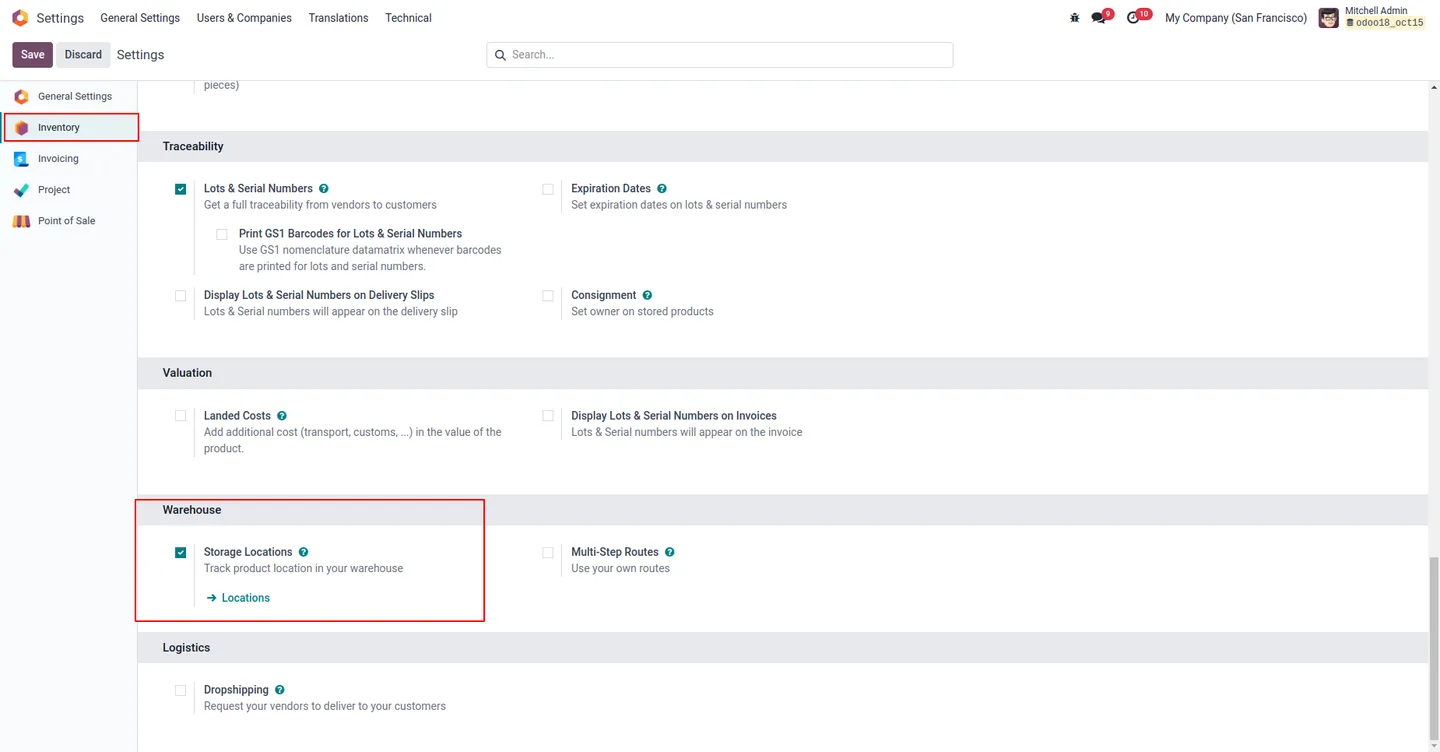
The feature works once Storage Locations are enabled in the Inventory settings — there is no separate, lengthy configuration.
-
Backend location visibility
After payment, the location assigned to each order line is visible in the backend under POS Orders for review and follow-up.
-
Community and Enterprise support
The module works in both the Odoo Community and Enterprise editions, with no edition-specific setup.
POS Orderline Location in Odoo
Every screen, in the order you meet it — configuration first, then the module in use.
Technical details
Specification
- Publisher
- TechUltra Solutions Private Limited
- Technical name
- odoo_pos_orderline_location
- Odoo versions
- 16.0, 17.0, 18.0, 19.0
- Lines of code
- 666
- License
- Odoo Proprietary License v1.0 (OPL-1)
- Price
- $36.99 (one-time)
Deployment
- Odoo Online
- Odoo.sh
- On-premise
Odoo dependencies
- Point of Sale
- Inventory
- Invoicing
- Discuss
Support
90 days of bug-fix support, Monday to Friday (10:00–19:00 IST). Raise a ticket at support@techultra.in.
Setup & configuration
From install to first call — here is the path.
- 1
Install the module
In Odoo, open Apps, remove the Apps filter, search for “POS Orderline Location”, and click Install.
- 2
Enable Storage Locations
Go to Inventory → Configuration → Settings and turn on Storage Locations, so products can be tracked across multiple locations.
- 3
Open a POS session
Start a Point of Sale session and add products to an order. A location button appears under each product line.
- 4
Select a location per line
Click the location button on a line to open the popup, review the alternate locations and their available quantities, and choose a source location.
- 5
Take payment and check pickings
Complete payment and invoicing. Odoo generates a location-wise picking for each product, and the assigned locations are visible under POS → Orders.
Frequently asked questions
-
What does POS Orderline Location do?
It lets a POS cashier choose a stock location for each order line. A popup shows the alternate locations holding the product and the quantity at each, and Odoo generates a location-wise picking per product after the order is paid.
-
What setup is required before it works?
You need to enable Storage Locations under Inventory → Configuration → Settings. Once that is on, the location button appears on POS order lines.
-
When are the pickings generated?
After the order has been paid and invoiced, Odoo generates a separate picking for each product based on the source location chosen on its order line.
-
Can a cashier correct a wrong location?
Yes. A cross icon clears the selected location so the cashier can pick a different one before completing the order.
-
Does the popup show stock quantities?
Yes. The popup lists the alternate locations that hold the product together with the quantity available at each, so the cashier can pick from a location that actually has stock.
-
Does it work in Odoo Community?
Yes. The module works in both the Odoo Community and Enterprise editions, and supports Odoo 16.0, 17.0, 18.0, and 19.0.
-
Where can I see the assigned locations later?
After payment, the location assigned to each order line is visible in the backend under POS Orders.
-
Is support included?
Yes. The module includes 90 days of bug-fix support, Monday to Friday, 10:00–19:00 IST.
Related solutions
Whole-platform solutions that complement POS Orderline Location.
Related services
Get the most out of this module with senior TechUltra consultants.
Odoo Customization Services
Tailored Odoo customizations from a Gold Partner — 200+ projects, upgrade-safe patterns, fixed-scope quotes, senior consultants. Free demo consultation.
Hire Odoo Developers
Hire certified Odoo developers from a Gold Partner — 400+ implementations, 92% satisfaction, Odoo since 2016. Silver / Gold / Platinum packages, free trial.
Odoo Support & Maintenance
Odoo Gold Partner support — 24/7 functional, technical, and server coverage for Enterprise and Community editions. Fast turnaround, free consultation.







