

Odoo App · Inventory
Inter-Company Stock Transfer
Move stock between companies in one Odoo database with auto-generated delivery orders.

Overview
Inter-Company Stock Transfer handles inventory movement between separate companies inside one Odoo database — subsidiaries, group companies, or a central warehouse feeding regional branches. It replaces the manual back-and-forth of creating matching pickings by hand.
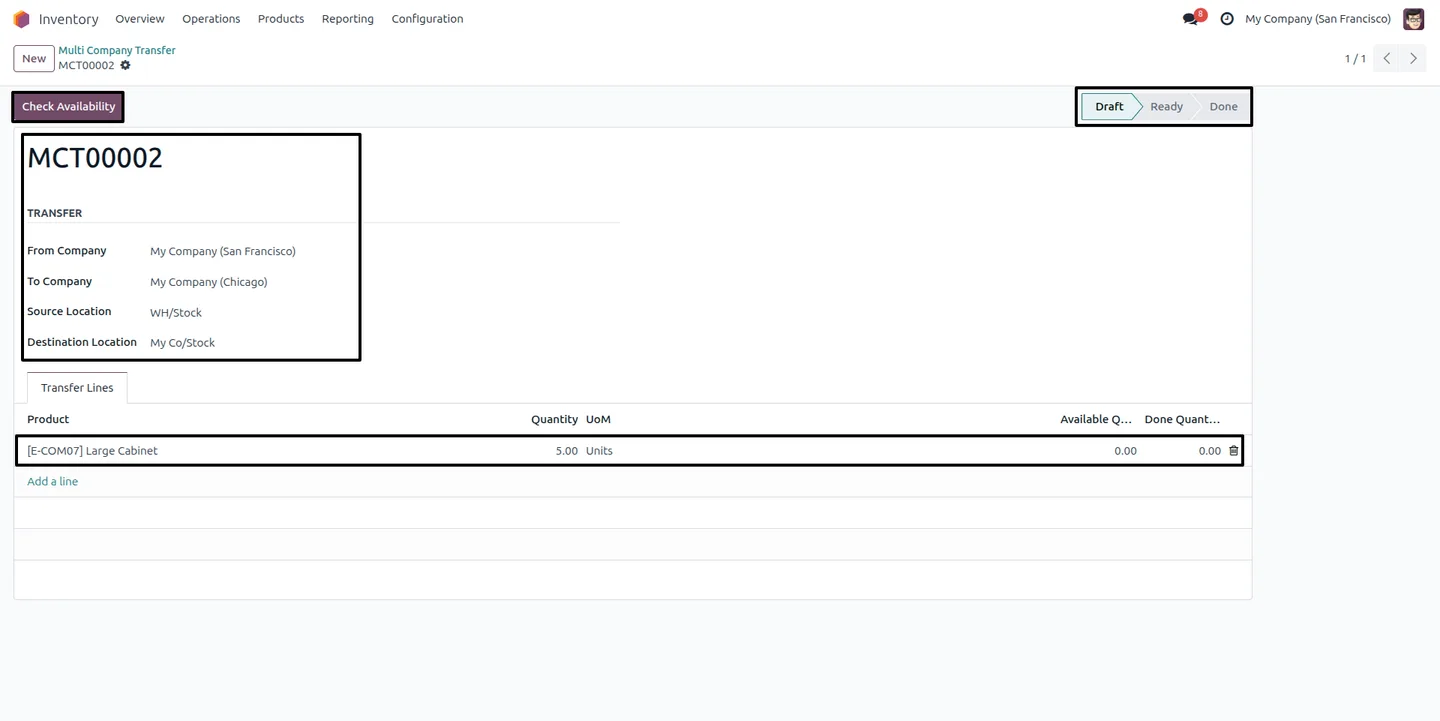
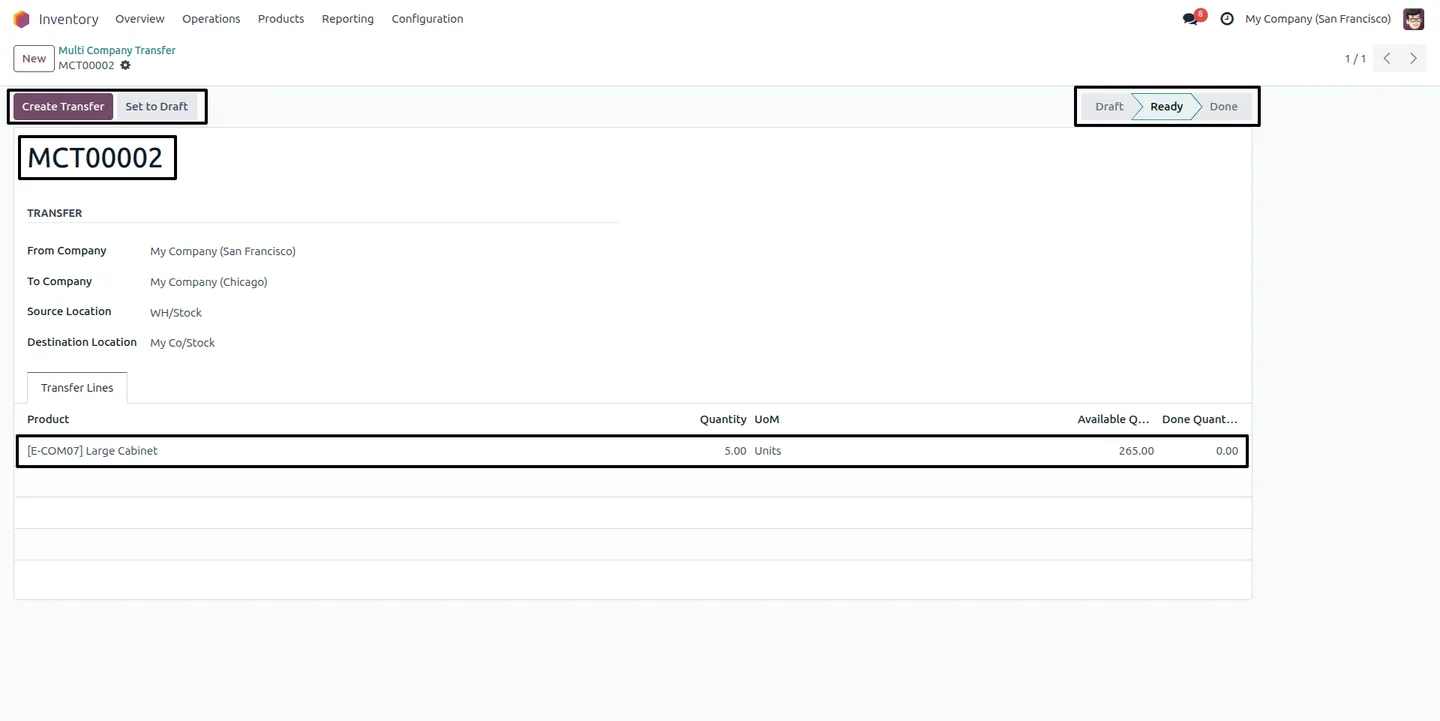
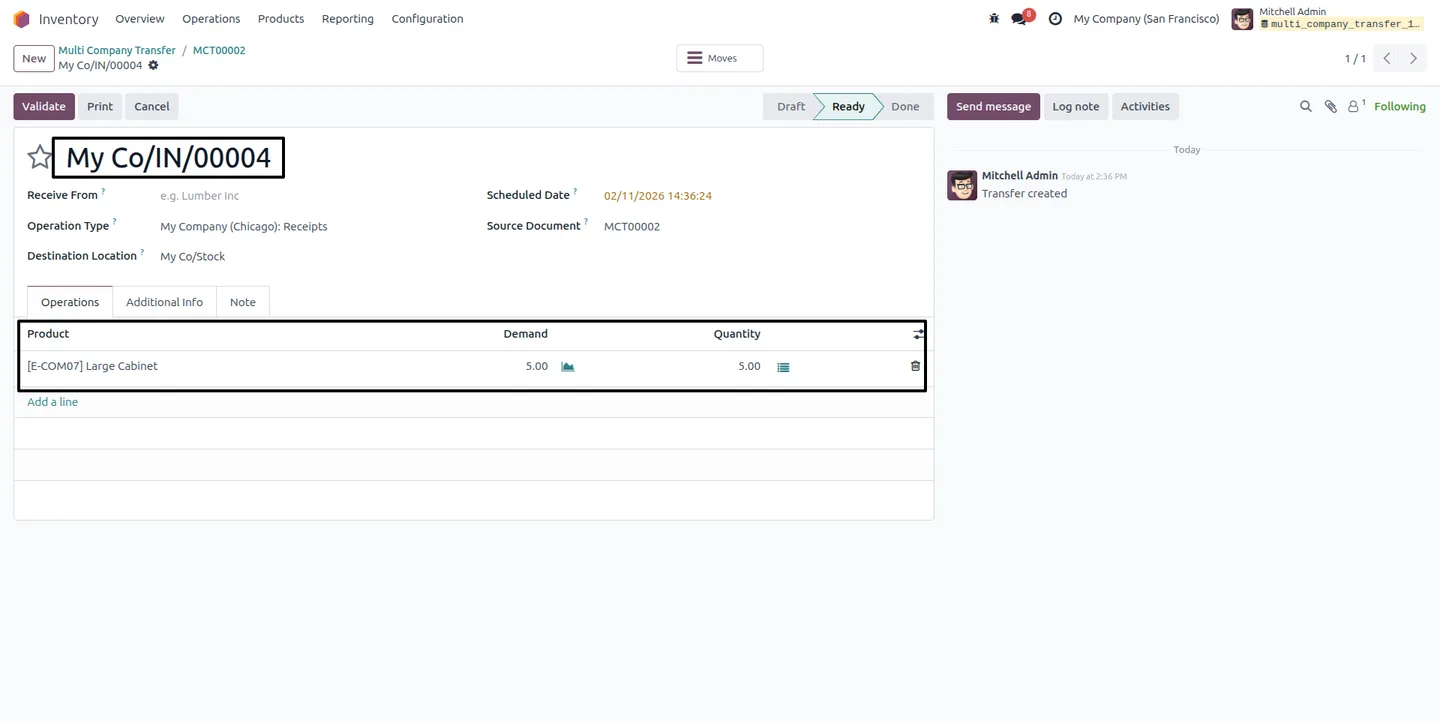
Built by TechUltra Solutions, the module adds a Multi Company Transfer operation. You select the source and destination companies and locations, add the products and quantities, and run Check Availability to confirm there is enough stock at the source. Create Transfer then generates the outgoing and incoming delivery orders automatically and reserves the stock.
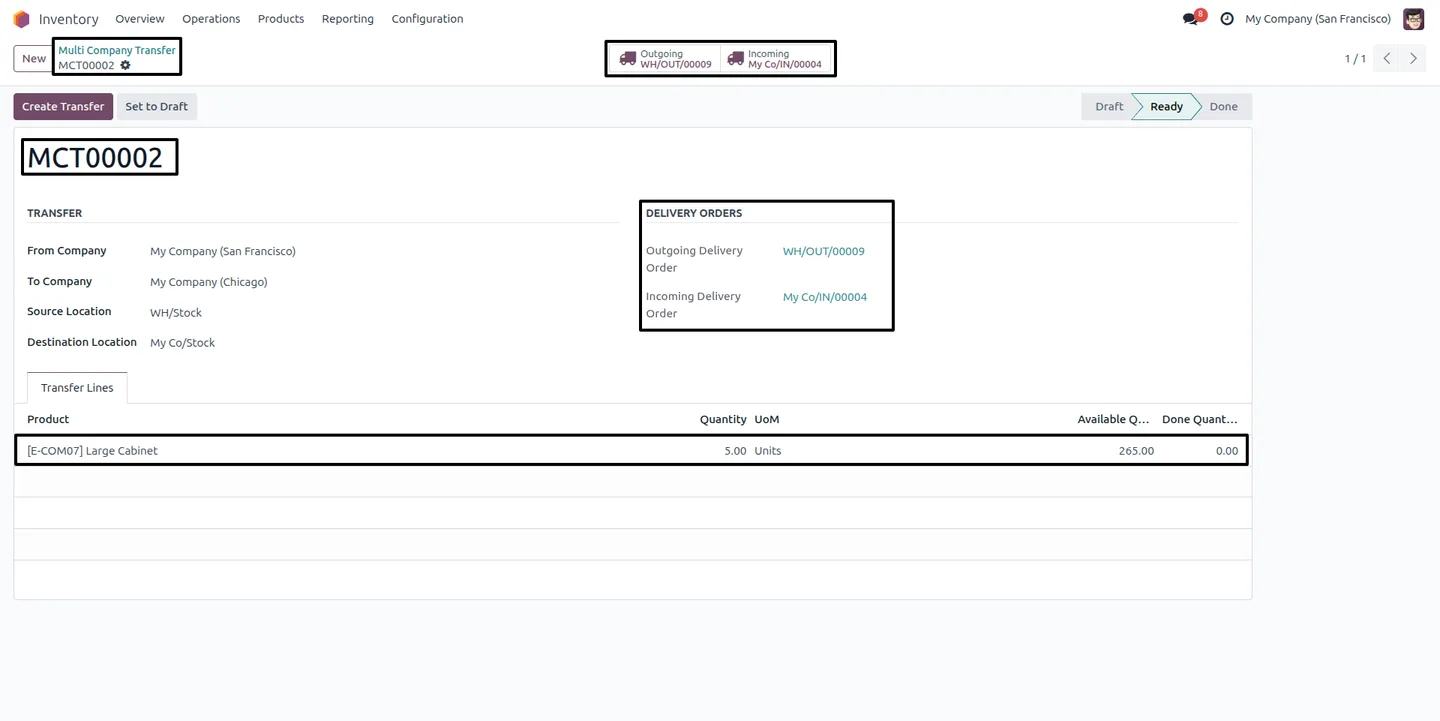
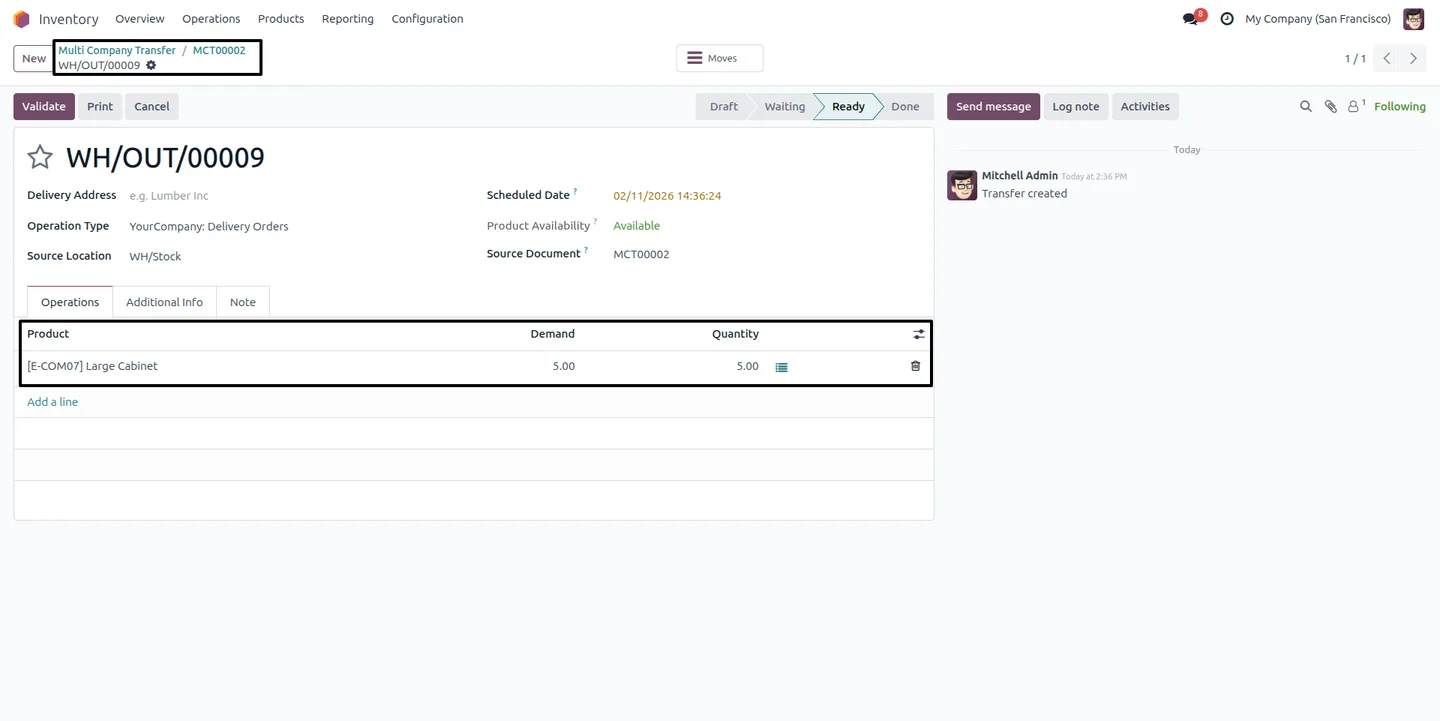
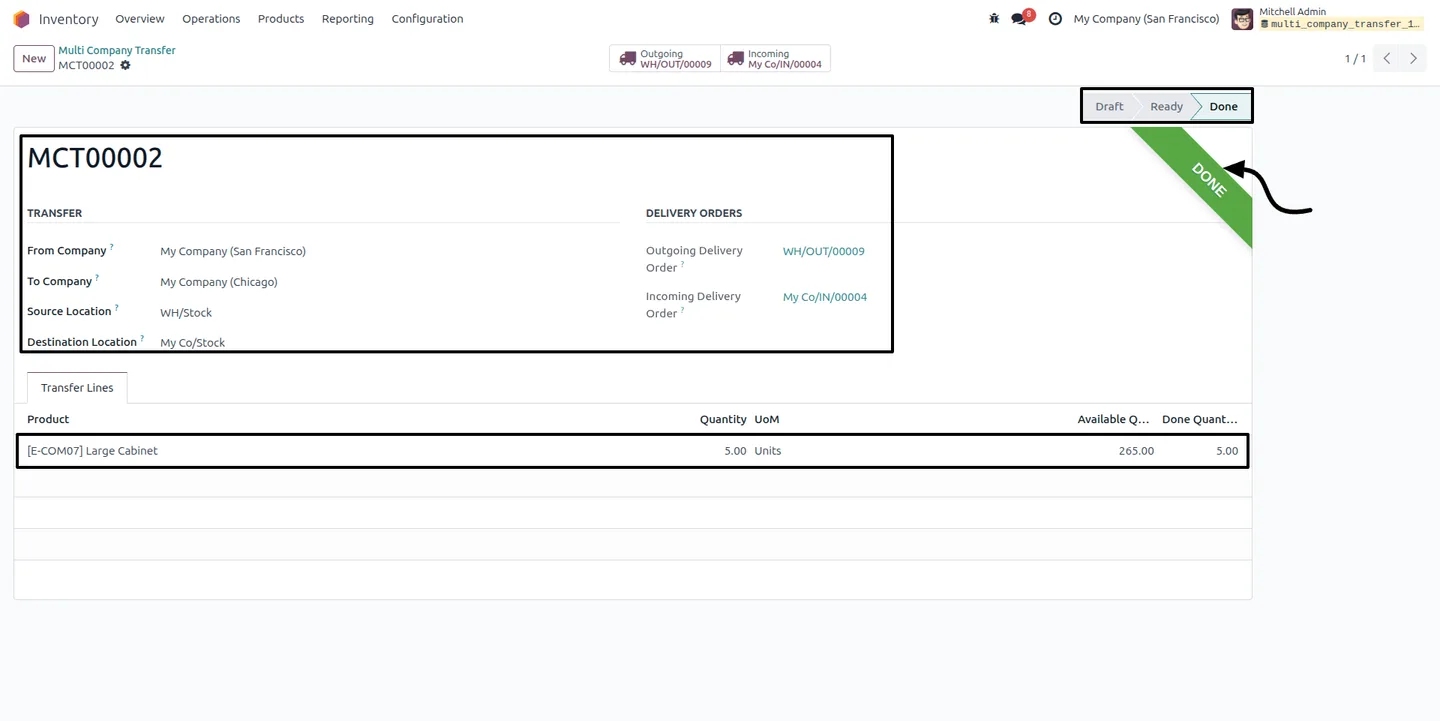
Smart buttons on the transfer link straight to the related pickings, so warehouse staff validate the deliveries without hunting for them. Once both pickings are validated, the quantities land at the destination company and the transfer status becomes Done — a clear, traceable record on both sides.
Key features
-
Multi-company transfers
Move inventory between different companies that share the same Odoo database, with a clear record of stock leaving one company and arriving at the other.
-
Multi-warehouse support
Works across subsidiaries, group companies, and multiple warehouses, so a central warehouse can supply branches in different legal entities.
-
Stock availability check
Check Availability verifies that the source location holds enough stock and marks the transfer as Ready before any delivery orders are created.
-
Automatic delivery orders
Create Transfer generates the matching outgoing and incoming delivery orders automatically and reserves the stock — no manual picking creation on either side.
-
Smart-button navigation
Smart buttons on the transfer give one-click access to the related outgoing and incoming pickings, so staff can validate them without searching.
-
Automatic status updates
The transfer status updates on its own as the pickings progress and becomes Done once both the outgoing and incoming deliveries are completed.
-
User-level access control
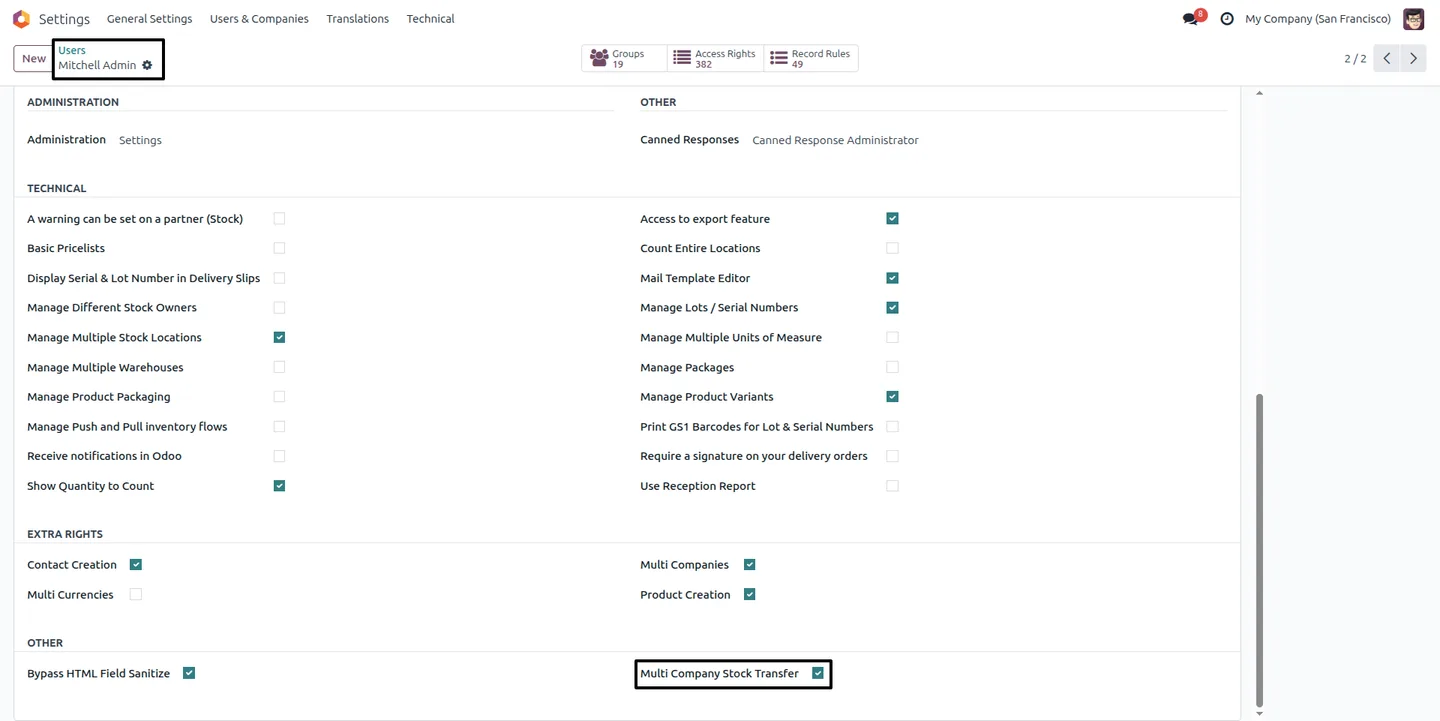
The Multi-Company Stock Transfer permission is enabled per user, so only designated staff can move inventory across companies.
-
Full transfer traceability
Source and destination companies, locations, products, and linked pickings are all recorded on the transfer, giving an auditable history of every movement.
Inter-Company Stock Transfer in Odoo
Every screen, in the order you meet it — configuration first, then the module in use.
Technical details
Specification
- Publisher
- TechUltra Solutions Private Limited
- Technical name
- multi_company_transfer
- Odoo versions
- 16.0, 17.0, 18.0, 19.0
- Lines of code
- 438
- License
- Odoo Proprietary License v1.0 (OPL-1)
- Price
- $24.90 (one-time)
Deployment
- Odoo Online
- Odoo.sh
- On-premise
Odoo dependencies
- Inventory
- Discuss
Support
90 days of bug-fix support, Monday to Friday (10:00–19:00 IST). Raise a ticket at support@techultra.in.
Setup & configuration
From install to first call — here is the path.
- 1
Install the module
In Odoo, open Apps, remove the Apps filter, search for “Inter-Company Stock Transfer”, and click Install.
- 2
Grant user access
Go to Settings → Users & Companies → Users and enable Multi-Company Stock Transfer for the users who should move stock between companies.
- 3
Review warehouses and locations
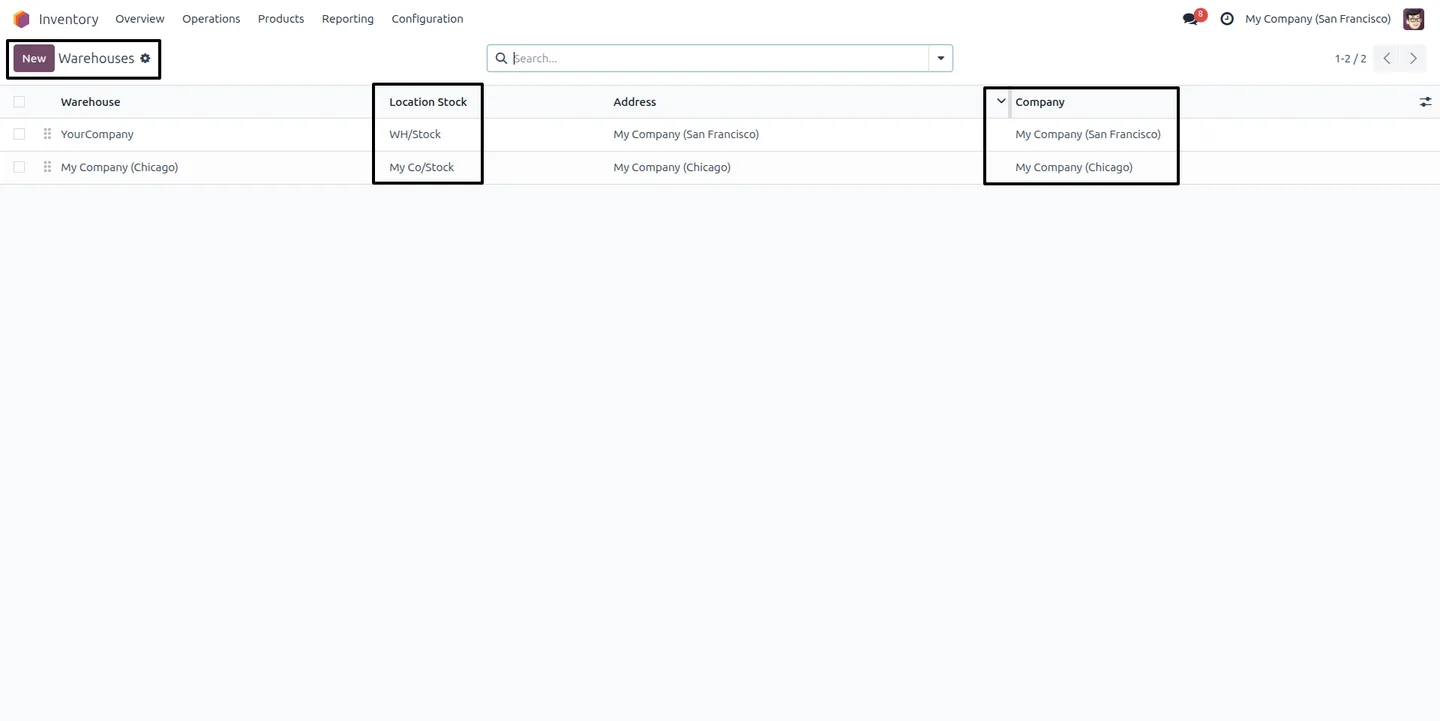
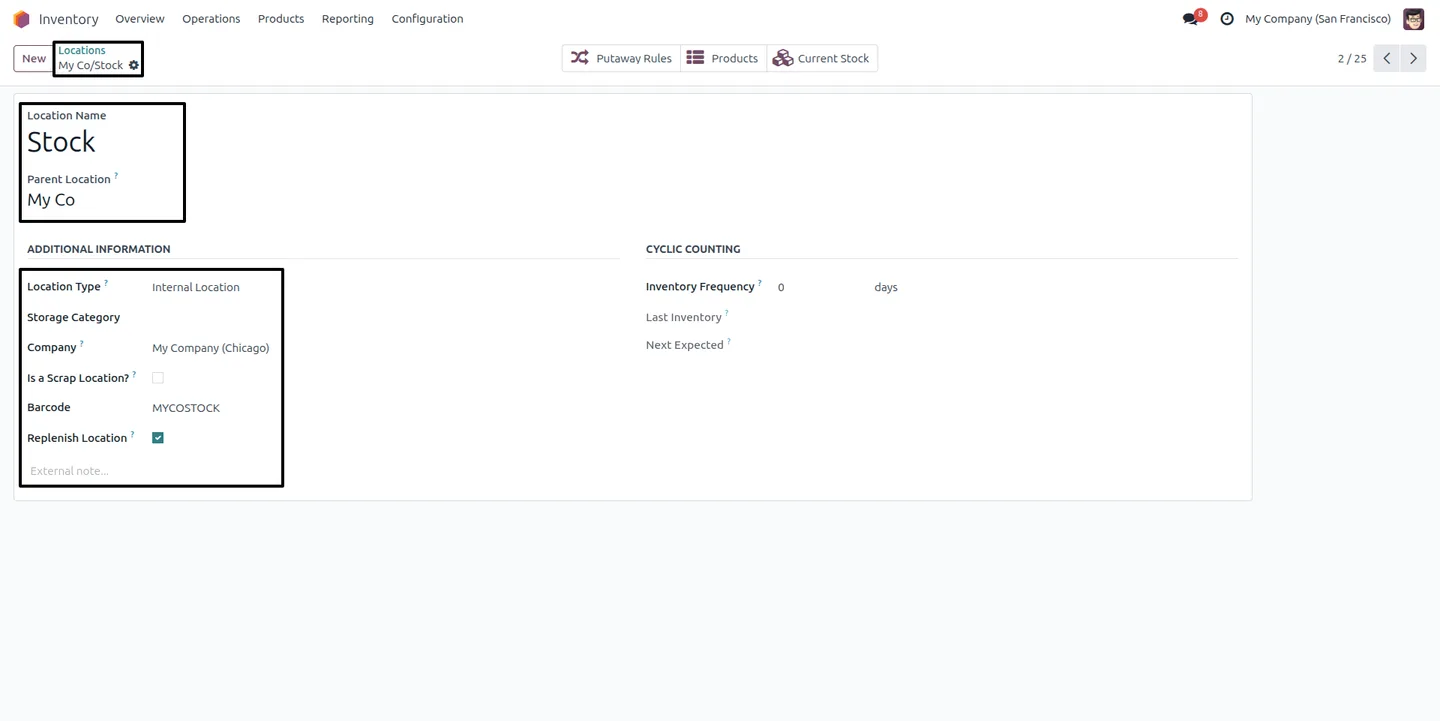
In Inventory → Configuration, check that each warehouse and location is linked to the correct company, and create or update locations as needed.
- 4
Create a transfer
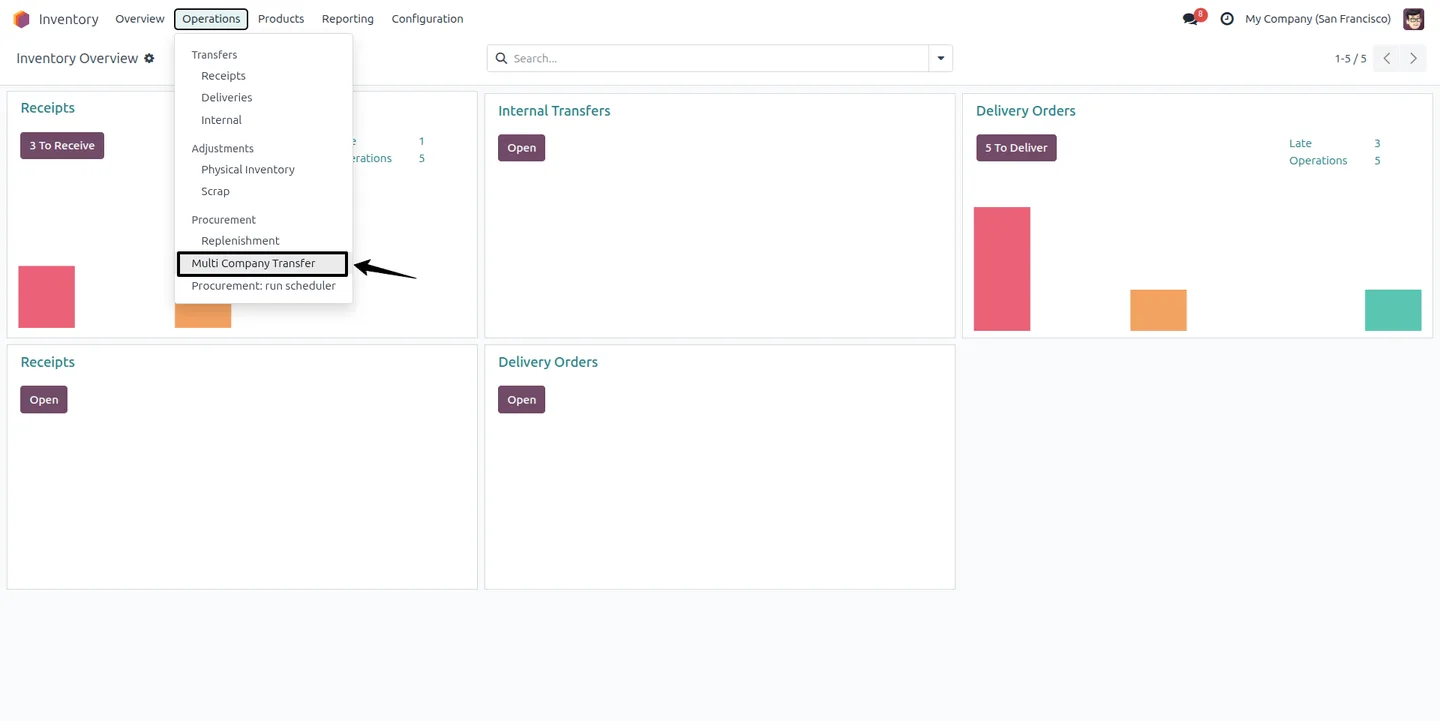
Open Inventory → Operations → Multi Company Transfer, click New, choose the From and To companies, set the source and destination locations, add products with quantities, and save.
- 5
Check availability and create the transfer
Click Check Availability to confirm source stock, then Create Transfer to generate the outgoing and incoming delivery orders.
- 6
Validate both deliveries
Open the outgoing and incoming pickings from their smart buttons and validate them. Once both are done, the transfer status becomes Done.
Frequently asked questions
-
What does this module do?
It moves inventory between two companies in the same Odoo database. You record a transfer, and the module generates the matching outgoing and incoming delivery orders so stock leaves one company and arrives at the other.
-
Do I have to create the delivery orders myself?
No. After you run Check Availability, the Create Transfer action generates both the outgoing and the incoming delivery orders automatically and reserves the stock.
-
How do I know if there is enough stock to transfer?
Check Availability verifies that the source location holds enough stock and marks the transfer as Ready. You only create the delivery orders once availability is confirmed.
-
When is a transfer marked as Done?
The transfer status updates automatically as the pickings progress and becomes Done once both the outgoing and incoming delivery orders have been validated.
-
Does it work with multiple warehouses?
Yes. The module works across subsidiaries, group companies, and multiple warehouses, so a central warehouse can supply branches that belong to different companies.
-
Can I restrict who can move stock between companies?
Yes. The Multi-Company Stock Transfer permission is granted per user, so only the staff you designate can create inter-company transfers.
-
Which Odoo versions are supported?
The module supports Odoo 16.0, 17.0, 18.0, and 19.0, in both the Community and Enterprise editions.
-
Is support included?
Yes. The module includes 90 days of bug-fix support, Monday to Friday, 10:00–19:00 IST.
Related solutions
Whole-platform solutions that complement Inter-Company Stock Transfer.
Odoo Inventory + Warehouse Management
Odoo Inventory module — multi-warehouse, batch/serial, putaway, barcode, replenishment, cross-docking, dropship, consignment. Full WMS in your ERP.
Odoo Purchase
Odoo Purchase module — RFQ, PO, supplier portal, three-way match, blanket PO, drop-ship, sub-contracting. Integrated with Inventory + MRP + Accounting.
Related services
Get the most out of this module with senior TechUltra consultants.
Odoo Customization Services
Tailored Odoo customizations from a Gold Partner — 200+ projects, upgrade-safe patterns, fixed-scope quotes, senior consultants. Free demo consultation.
Hire Odoo Developers
Hire certified Odoo developers from a Gold Partner — 400+ implementations, 92% satisfaction, Odoo since 2016. Silver / Gold / Platinum packages, free trial.
Odoo Support & Maintenance
Odoo Gold Partner support — 24/7 functional, technical, and server coverage for Enterprise and Community editions. Fast turnaround, free consultation.







