
Odoo App · Email & Productivity
Email Client & Unified Inbox
Gmail, Outlook, Yahoo and IMAP/SMTP mailboxes in one Odoo inbox, with shared assignment, schedule send and an email analytics dashboard.
Overview
Odoo's Discuss handles messages tied to records, but most teams still read their actual mailboxes in Gmail or Outlook, outside Odoo. This module brings those mailboxes into Odoo as a dedicated Email Client app.
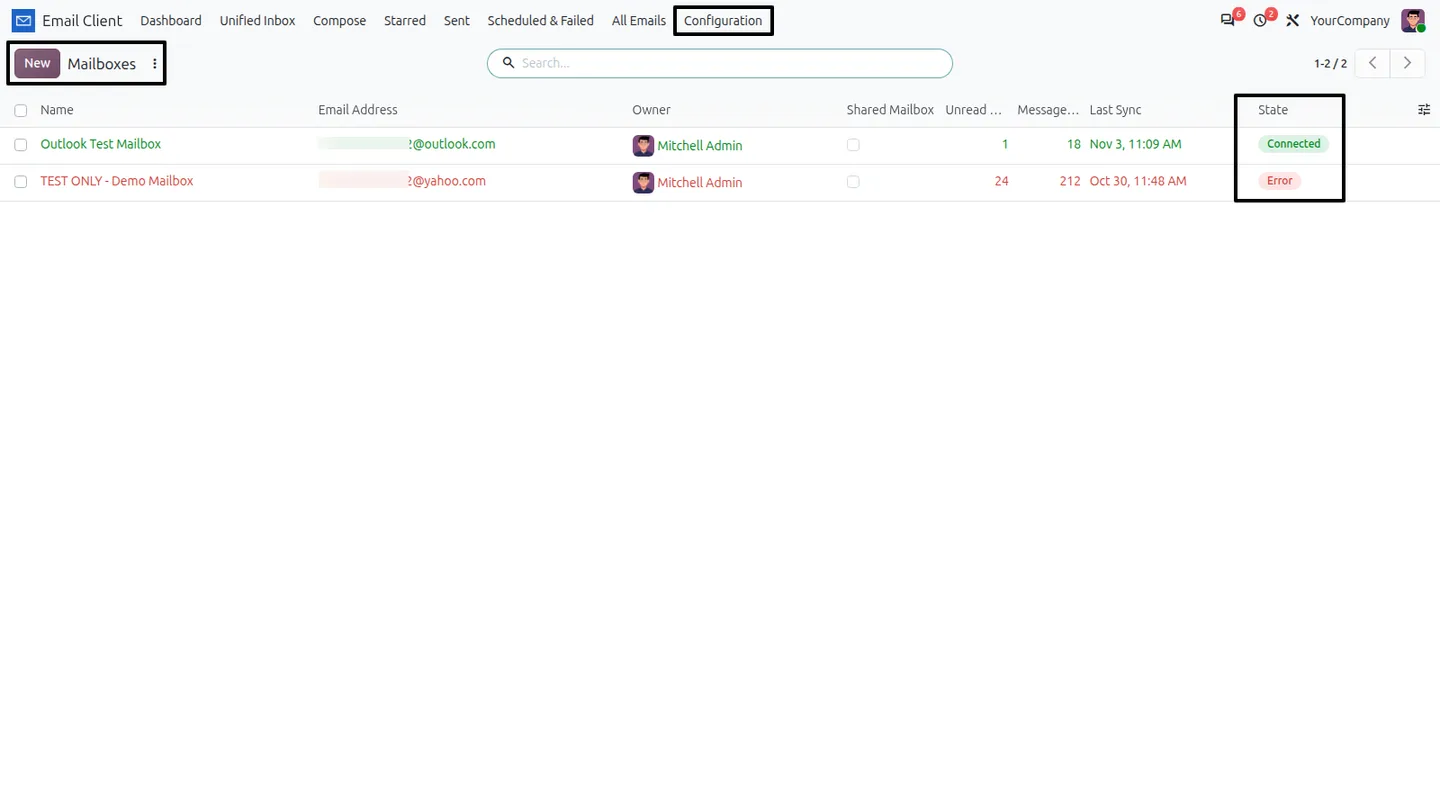
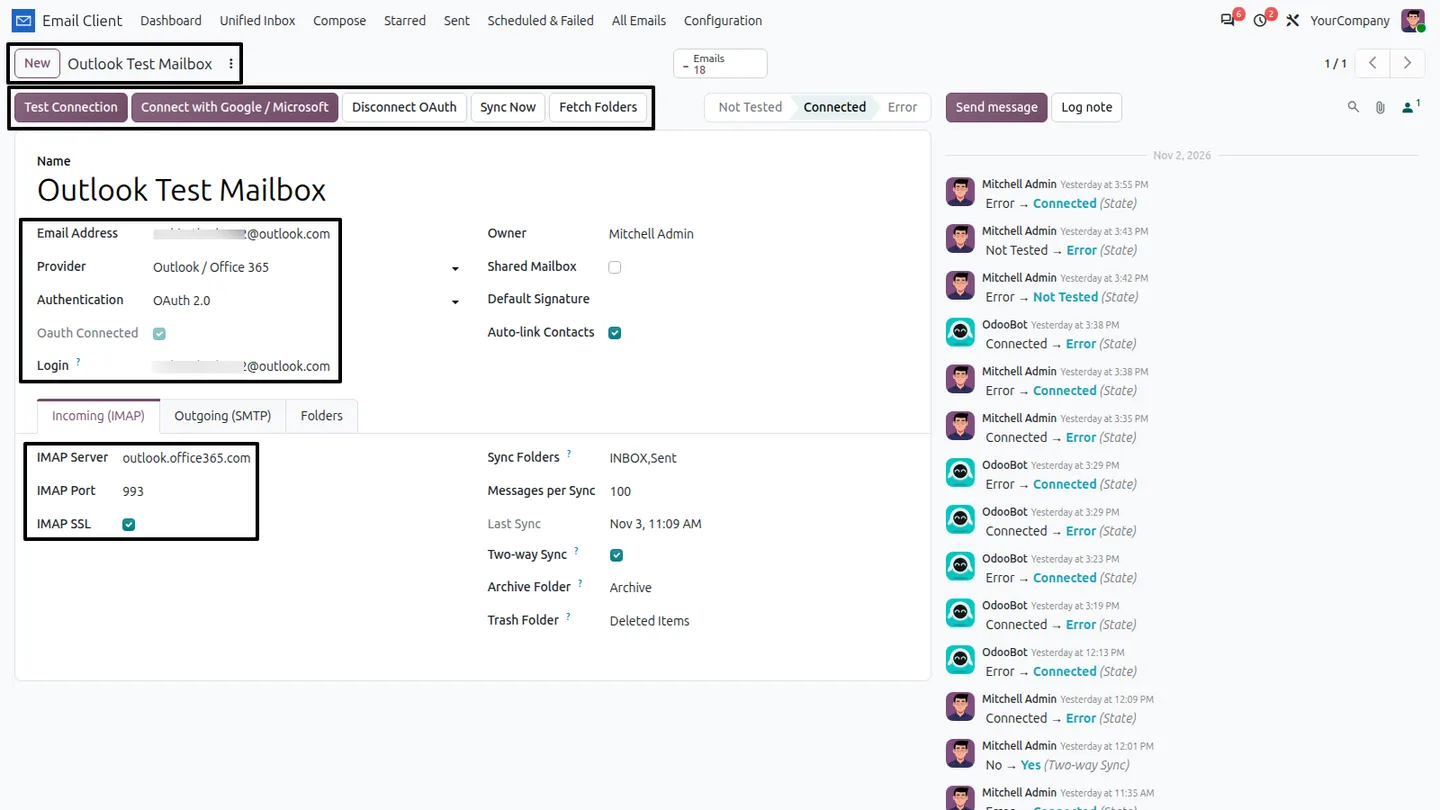
You connect each mailbox once. Gmail and Outlook / Office 365 sign in through OAuth 2.0; Yahoo and custom servers use IMAP/SMTP with an app password. Credentials are stored encrypted, sync runs on a schedule using incremental UID sync, and Test Connection and Sync Now let you check a mailbox at any time. Two-way sync can optionally push read, star, archive and delete back to the server.
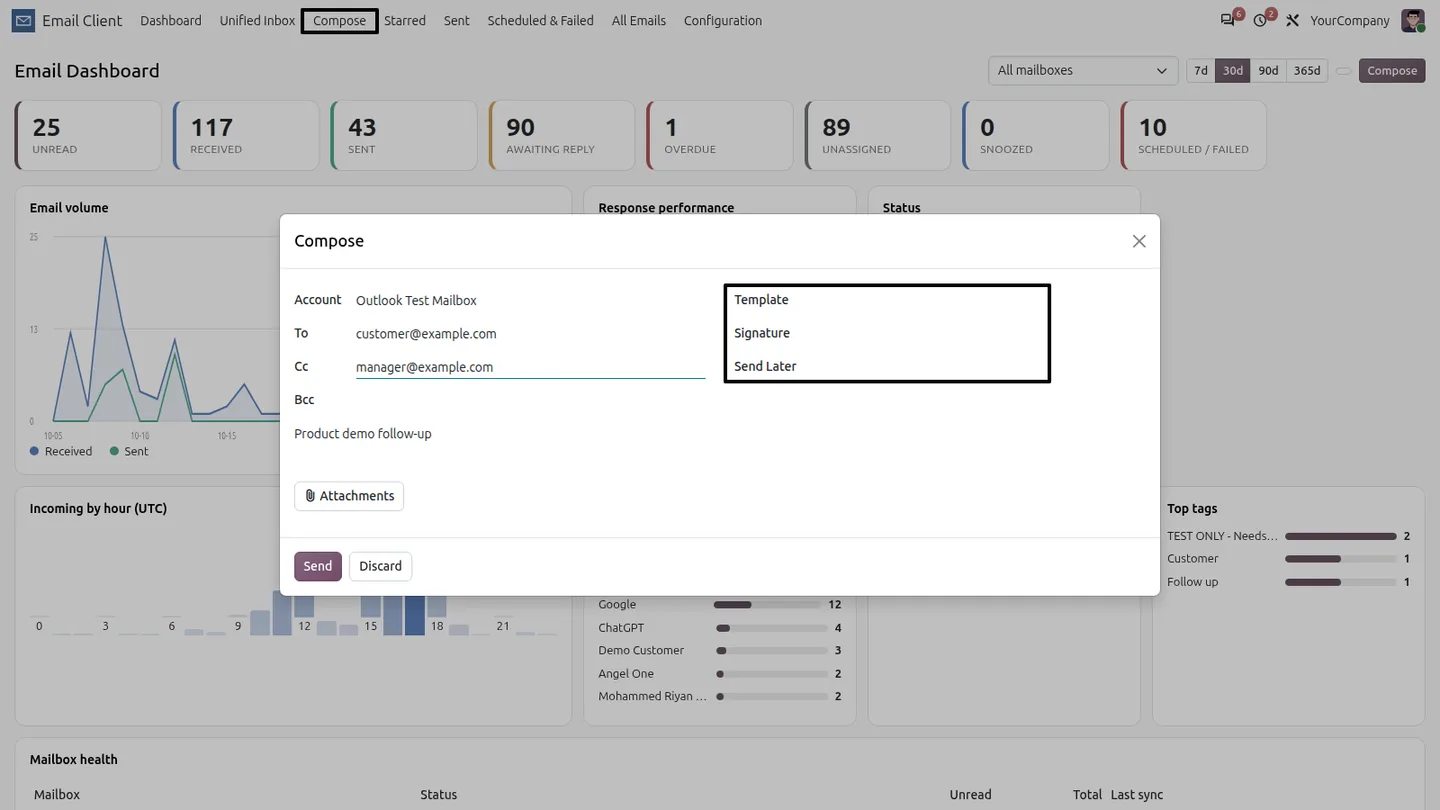
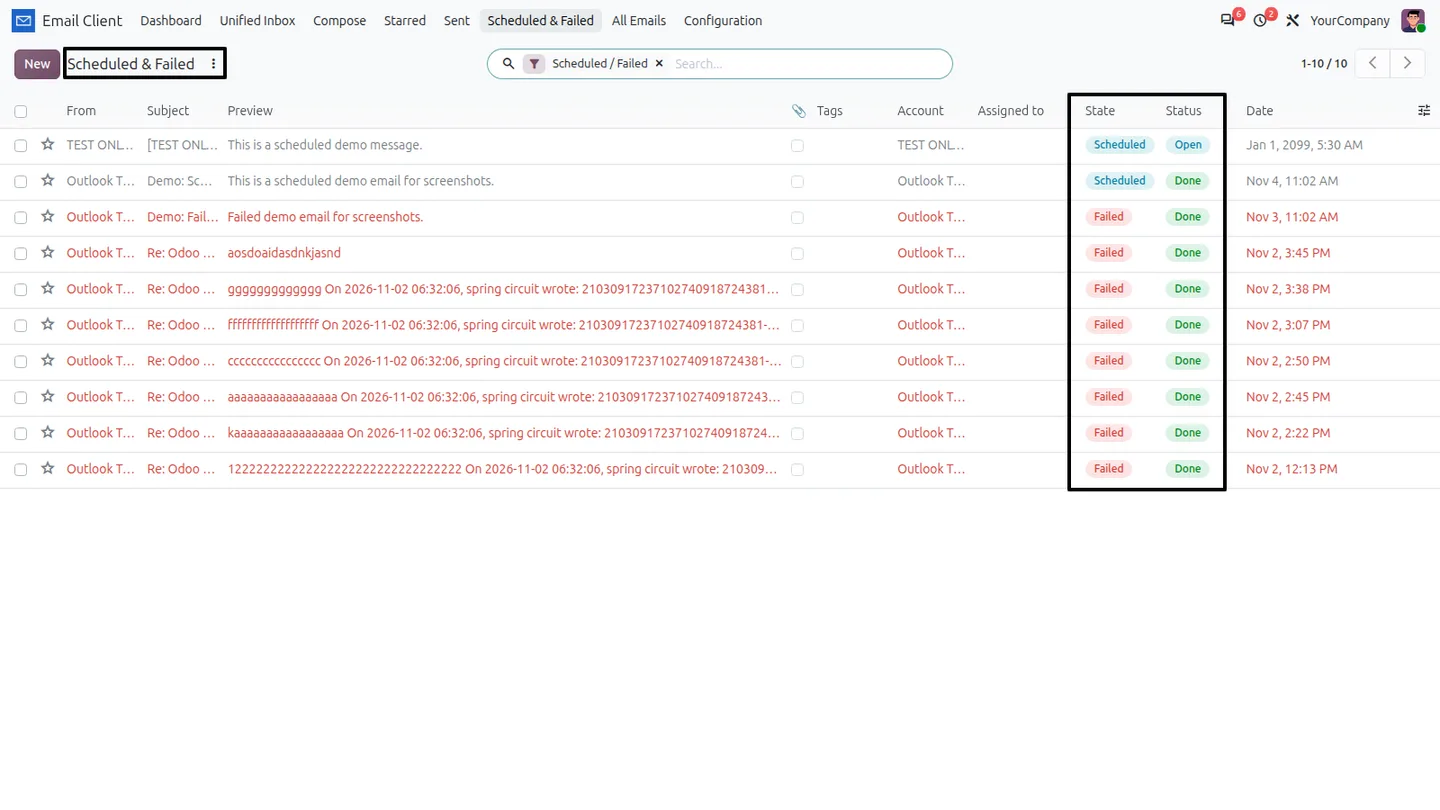
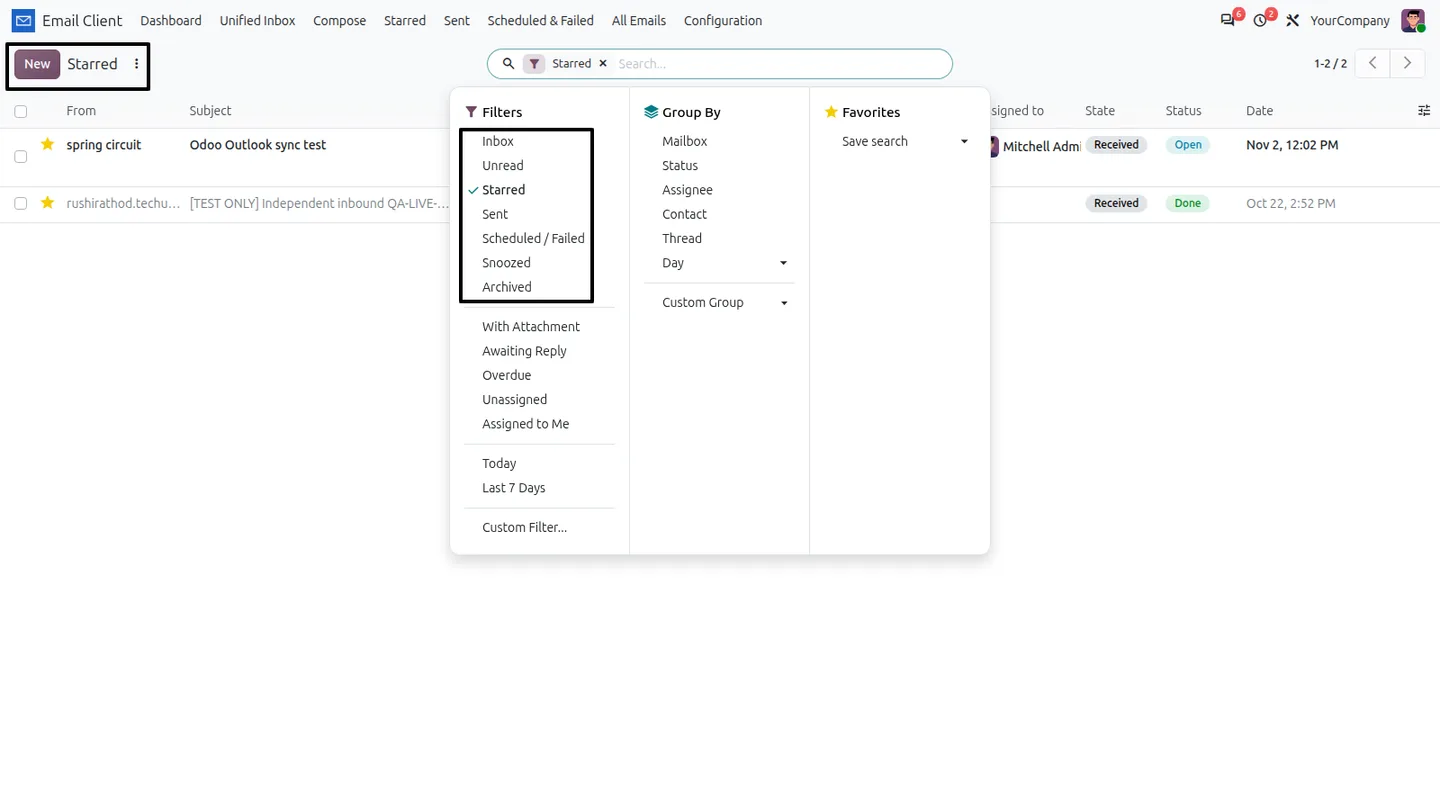
Every connected mailbox feeds one unified inbox. You can filter by unread, awaiting reply, assigned to me, snoozed or tagged, or switch to a kanban by status. Shared mailboxes let a team assign messages with due dates and Open, Waiting or Done status. Compose and reply use templates and signatures, and Send Later queues mail with a Scheduled & Failed view for retries. Contacts are linked from email addresses, and with CRM installed you can turn a message into a lead.
Key features
-
Multi-provider mailboxes
Connect Gmail, Outlook / Office 365, Yahoo or any IMAP/SMTP mailbox, with OAuth 2.0 for Google and Microsoft or an app password, and encrypted credentials.
-
Unified inbox
Read mail from every connected mailbox in one list, filter by unread, awaiting reply, assigned to me, snoozed or tagged, or view it as a kanban by status.
-
Compose, reply and schedule send
Compose, reply, reply-all and forward with To, Cc, Bcc, templates, signatures and attachments. Schedule sends and retry failed ones from Scheduled & Failed.
-
Shared inbox and assignment
Share mailboxes with teammates, assign messages, and set Open, Waiting or Done status with due dates.
-
Two-way sync, tags and snooze
Optionally push read, star, archive and delete back to the mail server. Organise with colour tags, starred views and snooze.
-
Templates and signatures
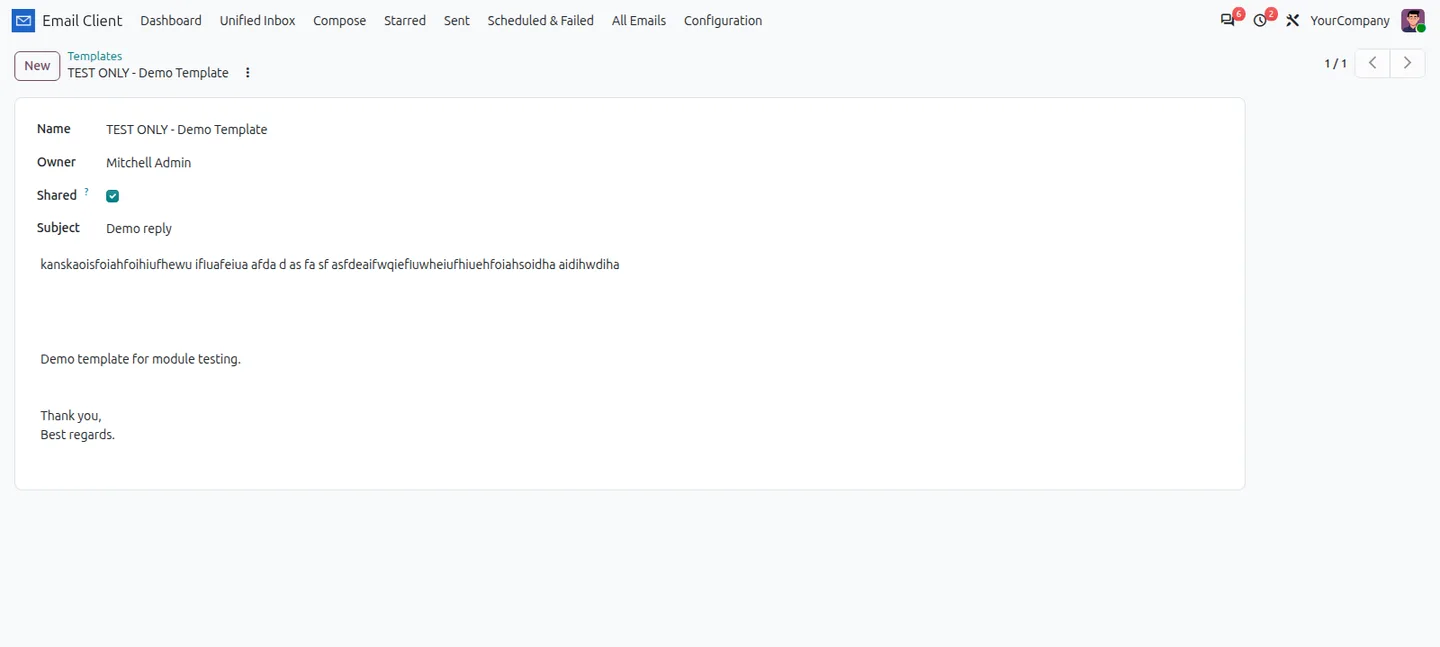
Reusable reply templates and personal or shared signatures, selected while composing.
-
Contacts and CRM leads
Contacts are auto-linked from message addresses. When CRM is installed, create a lead straight from a message.
-
Email analytics dashboard
Unread, received, sent, awaiting reply, overdue and mailbox health, plus volume trends, hourly activity, response performance, top senders and tags with click-through filters.
Watch Email Client & Unified Inbox in use
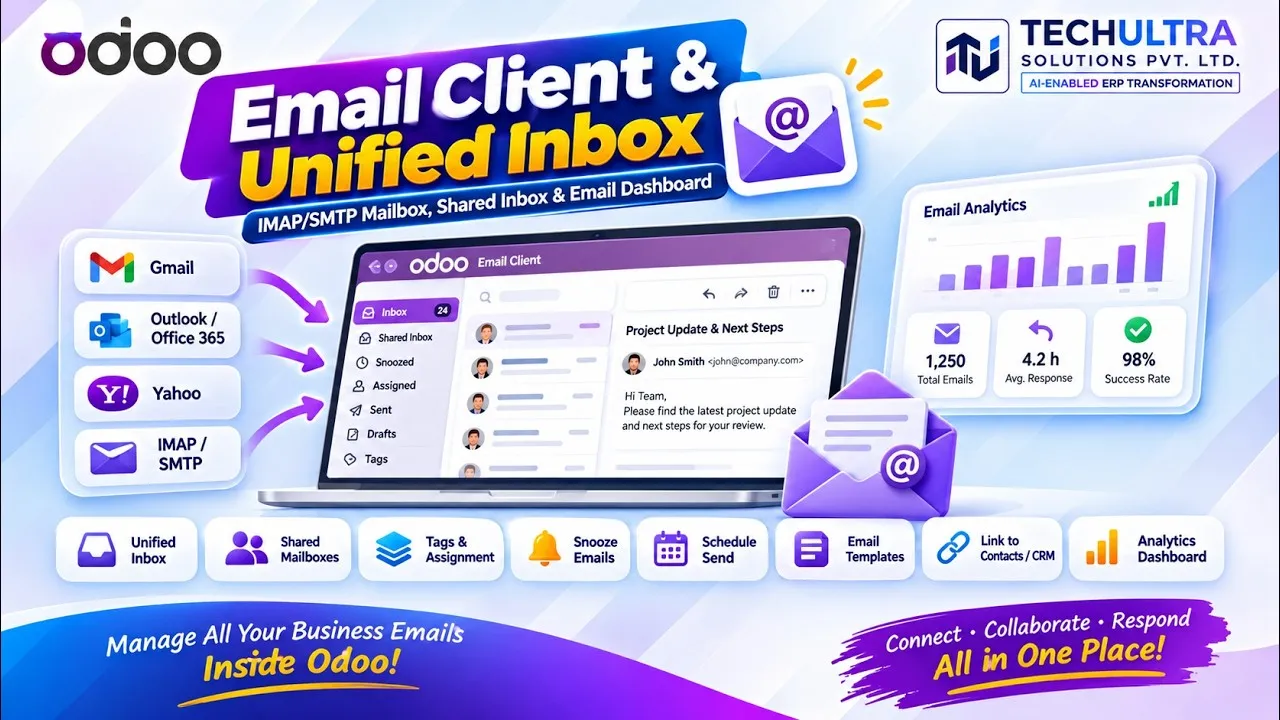
Video walkthrough of Email Client & Unified Inbox for Odoo from the TechUltra Solutions YouTube channel. A full email client inside Odoo. Connect Gmail, Outlook / Office 365, Yahoo and custom IMAP/SMTP mailboxes, work them from one unified inbox, assign messages to teammates and track response times on a dashboard.
Watch “Odoo Email Client & Unified Inbox | All-in-One Email Management | CRM Integration” on YouTube
Email Client & Unified Inbox in Odoo
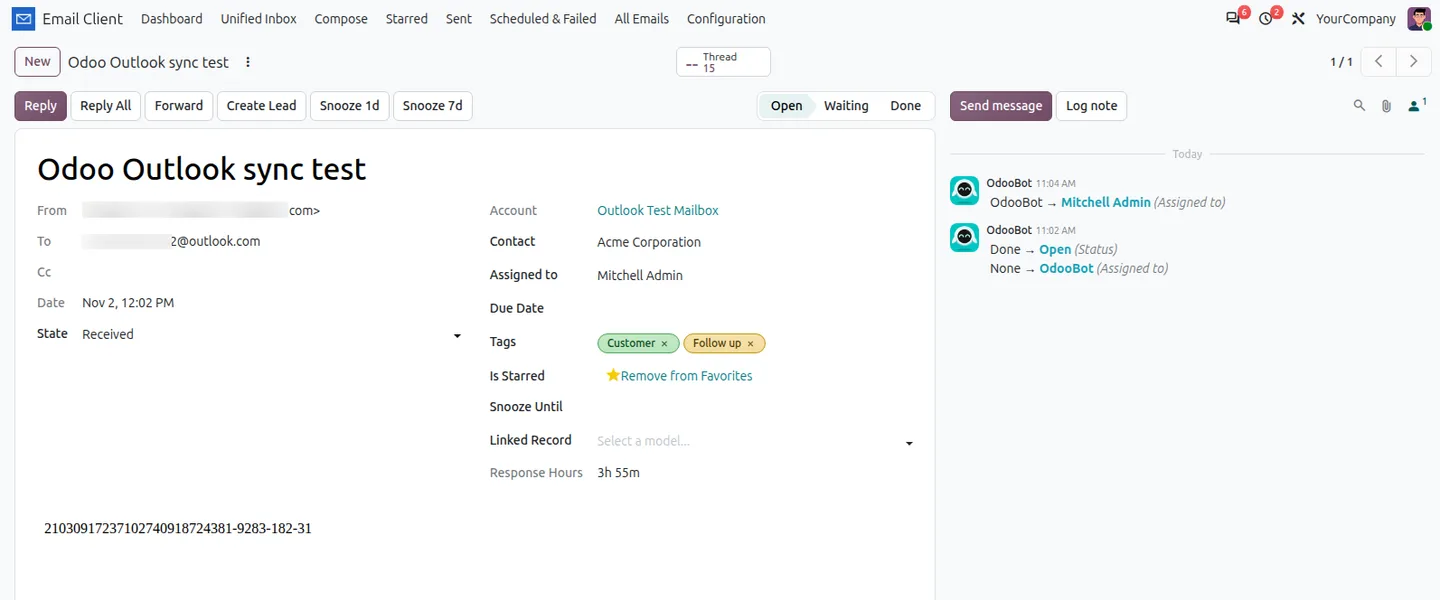
Every screen, in the order you meet it — configuration first, then the module in use.
Technical details
Specification
- Publisher
- TechUltra Solutions Private Limited
- Technical name
- email_client_unified_inbox
- Odoo versions
- 16.0, 17.0, 18.0, 19.0, 20.0
- Lines of code
- 2,117
- Providers
- Gmail, Outlook / Office 365, Yahoo, custom IMAP/SMTP
- Authentication
- OAuth 2.0 (Google, Microsoft) or app password
- License
- Odoo Proprietary License v1.0 (OPL-1)
- Price
- $45.10 (one-time)
Deployment
- Odoo Online
- Odoo.sh
- On-premise
Odoo dependencies
- Contacts
- Discuss
Support
90 days of bug-fix support plus 5 hours of free configuration help (additional hours billable), Monday to Friday (10:00–19:00 IST). Raise a ticket at support@techultra.in.
Setup & configuration
From install to first call — here is the path.
- 1
Set a public base URL
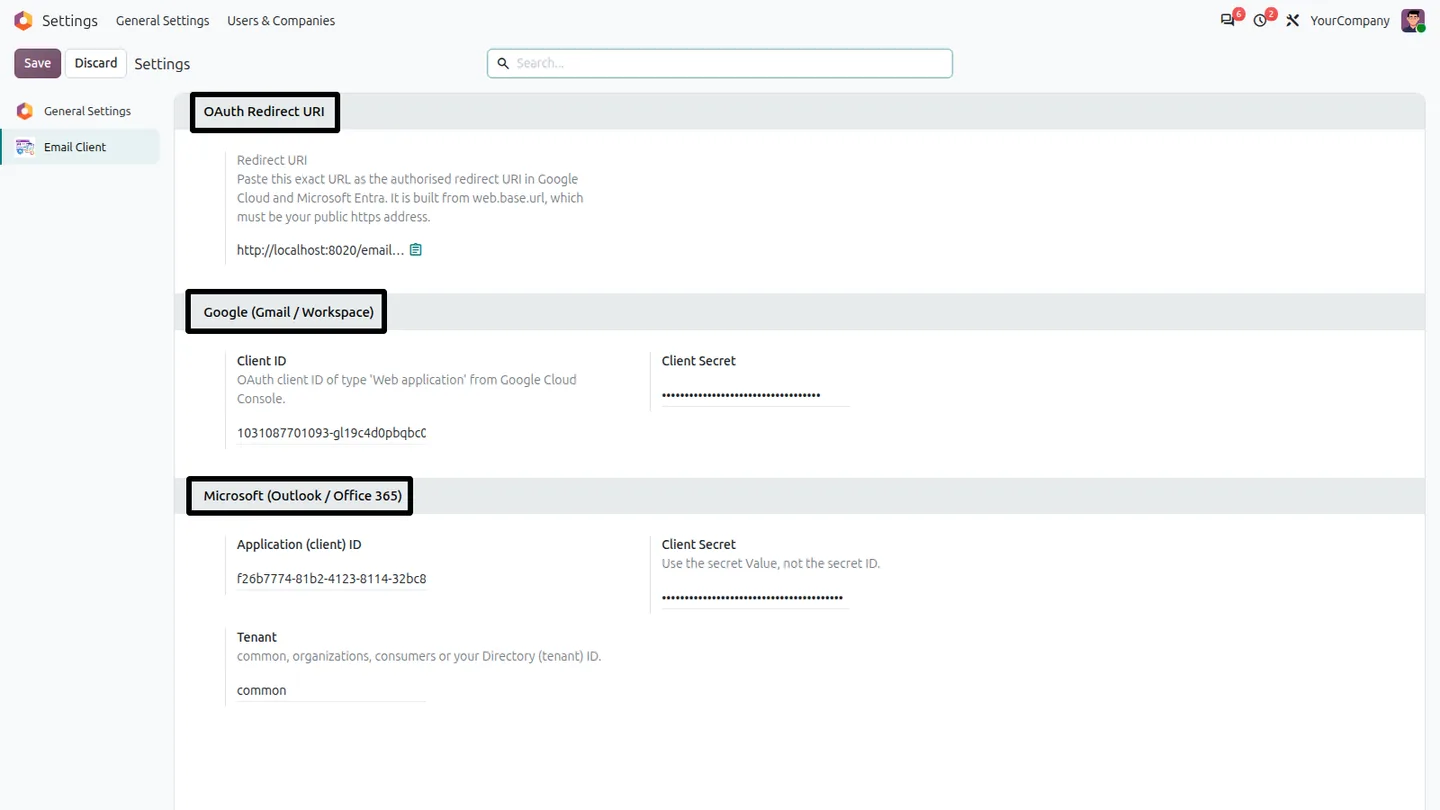
Make sure web.base.url is your public HTTPS address. The OAuth redirect URI is built from it.
- 2
Register the OAuth apps
In Settings › Email Client, copy the Redirect URI into Google Cloud and Microsoft Entra, then enter the Google client ID and secret and the Microsoft application ID, secret and tenant.
- 3
Add a mailbox
Go to Email Client › Configuration › Mailboxes, create a mailbox, choose the provider, and either Connect with Google / Microsoft or enter an app password.
- 4
Test and sync
Use Test Connection and Sync Now, choose the sync folders and decide whether to turn on two-way sync and set archive and trash folders.
- 5
Check the scheduled jobs
Make sure the sync and scheduled-send scheduled actions are running, then share mailboxes and add templates and signatures for the team.
Frequently asked questions
-
Which mailboxes can we connect?
Gmail, Outlook / Office 365, Yahoo and any custom IMAP/SMTP mailbox. Google and Microsoft accounts can use OAuth 2.0; other accounts use an app password.
-
How do I connect a mailbox?
Go to Email Client › Configuration › Mailboxes, create a mailbox, choose the provider, then Connect with Google / Microsoft for OAuth or enter an app password. Use Test Connection and Sync Now to confirm it works.
-
What configuration does OAuth need?
Set web.base.url to your public HTTPS address. Then in Settings › Email Client, paste the Redirect URI into Google Cloud and Microsoft Entra and enter the client IDs and secrets. The sync and scheduled-send scheduled actions must be running.
-
Can a personal Outlook.com account send mail?
Yes. Personal Outlook.com mailboxes often block SMTP AUTH, so the module sends those OAuth accounts through Microsoft Graph Mail.Send and keeps IMAP for incoming mail.
-
Why does Yahoo need an app password?
The module does not offer OAuth for Yahoo. With two-step verification on, IMAP and SMTP need a Yahoo app password. If Create app password is disabled on the Yahoo Security page, that account cannot be connected until Yahoo enables it.
-
Can a team share one mailbox?
Yes. Share a mailbox with teammates, then assign messages, set Open, Waiting or Done status and add due dates so ownership stays clear.
-
Do actions in Odoo change the mail server?
Only if you enable two-way sync on the mailbox. Then read, star, archive and delete are pushed back to the server.
Listing verified against the Odoo App Store:
Related services
Get the most out of this module with senior TechUltra consultants.
-
Odoo Customization Services
Odoo customization from a Gold Partner: custom modules, workflows, reports and Studio changes, upgrade-safe and quoted at a fixed scope. Free scoping call.
-
Hire Odoo Developers
Hire Odoo developers from a Gold Partner: an AI Engineering Pod from USD 1,800 a month, or a dedicated developer for 70–160 hours. Request a proposal today.
-
Odoo Support Services & Maintenance
Odoo support services from a Gold Partner: functional and technical support plus server cover for Enterprise and Community, 30-minute P1 response, 24/7 option.