

Odoo App · AI & eCommerce
AI Product Image Search
Let shoppers find products on your Odoo store by uploading an image.

Overview
AI Product Image Search adds a visual search option to the Odoo eCommerce shop. A customer who cannot describe a product in words can upload a photo instead, and the module returns the products in your catalog that look most similar.
Built by TechUltra Solutions, the module uses machine-learning image recognition that runs inside Odoo. It compares an uploaded image against your existing product photos — there are no external API keys to manage and no images sent to a third-party cloud service, so product data stays on your own server.
Image search appears as an icon in the shop's search bar and works on phones, tablets, and desktops. It is most useful for catalogs where appearance drives the buying decision — fashion, furniture, electronics — and helps shoppers reach a matching product without knowing its name.
Key features
-
Image-based product search
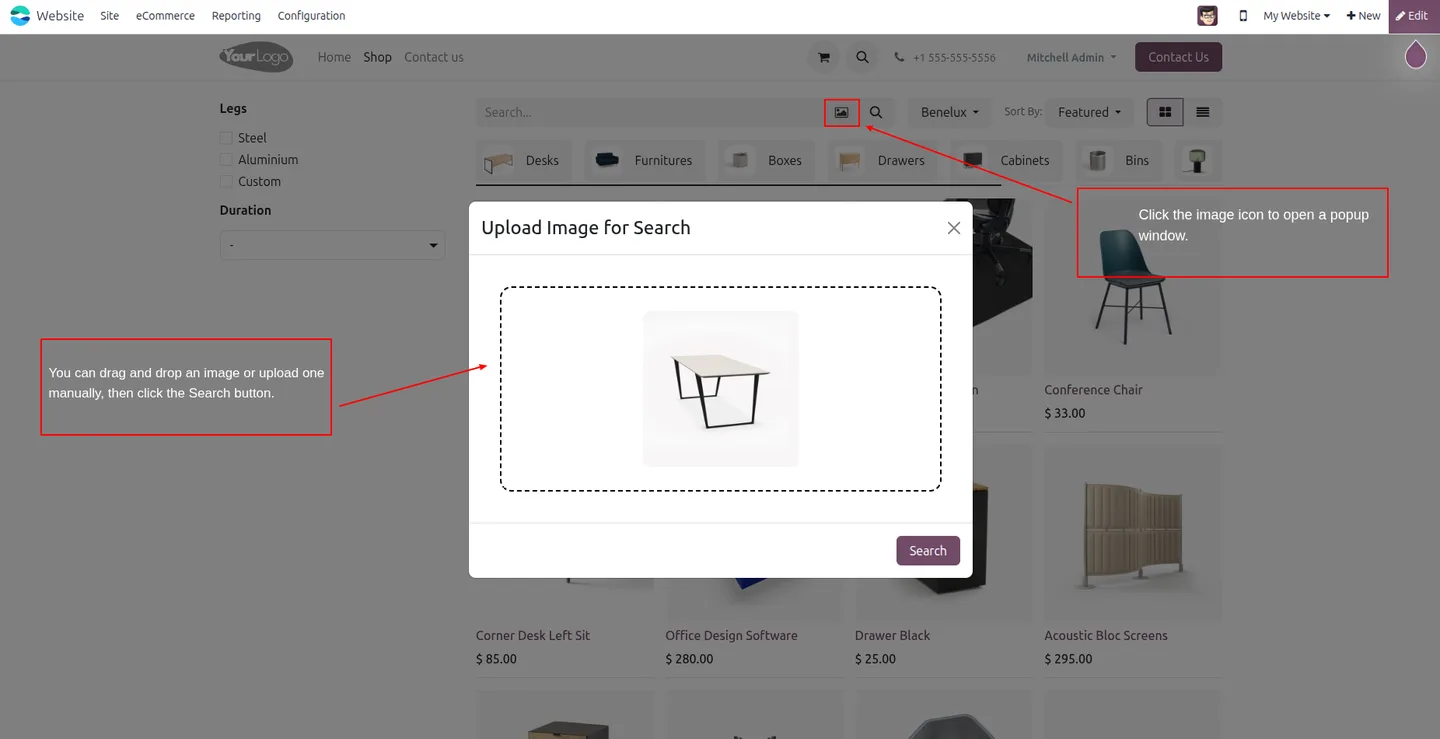
Customers search by uploading a photo instead of typing a name or description. The shop instantly shows products that look similar to the uploaded image.
-
Machine-learning image matching
A machine-learning model analyzes the uploaded image and compares it against your store's product photos to return fast, accurate visual matches.
-
Runs entirely inside Odoo
All image processing happens within Odoo. There are no external API keys and no cloud dependencies, so product images never leave your server.
-
Mobile and desktop ready
The search is fully responsive. Shoppers can upload an image and search from a smartphone, tablet, or desktop with the same experience.
-
Built into the website shop
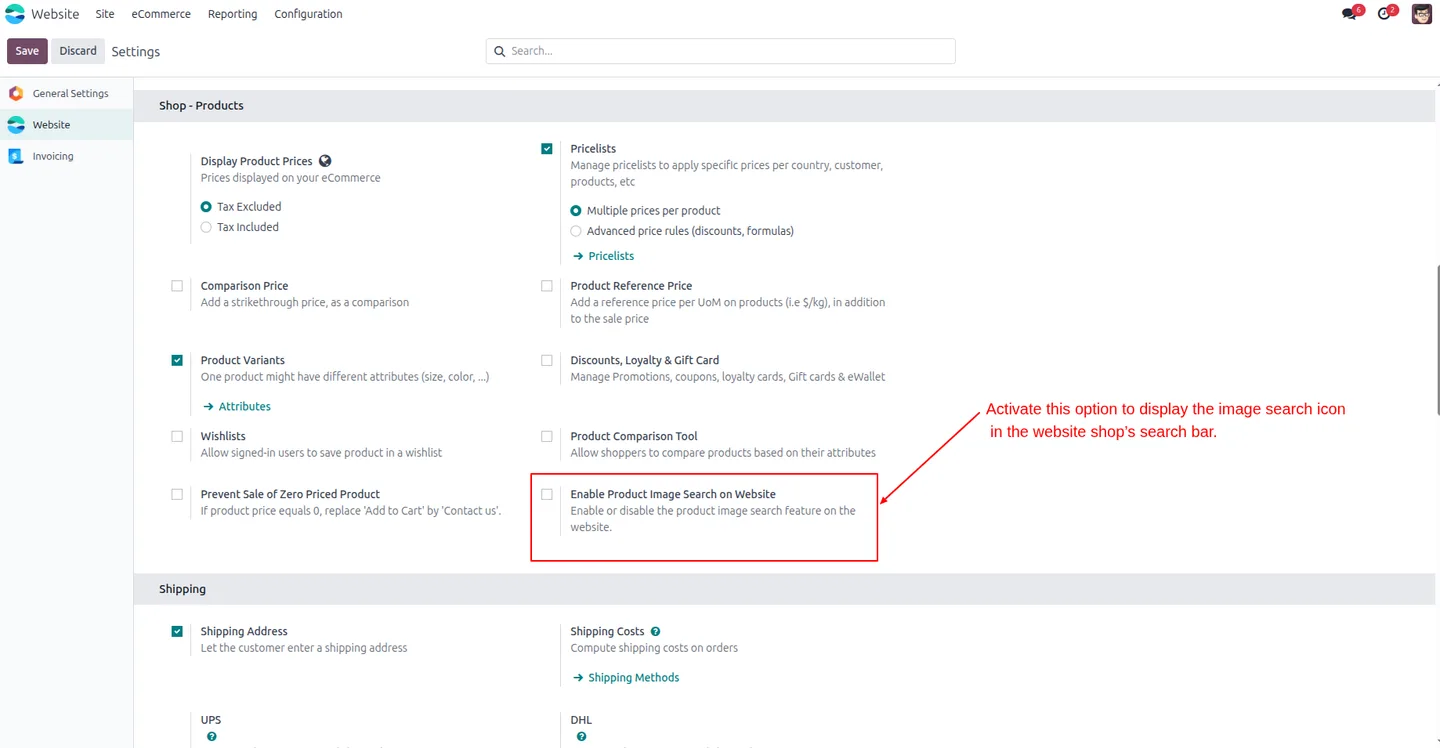
The image search icon sits in the shop's existing search bar and works with your current product catalog out of the box — no separate tools required.
-
Adjustable result accuracy
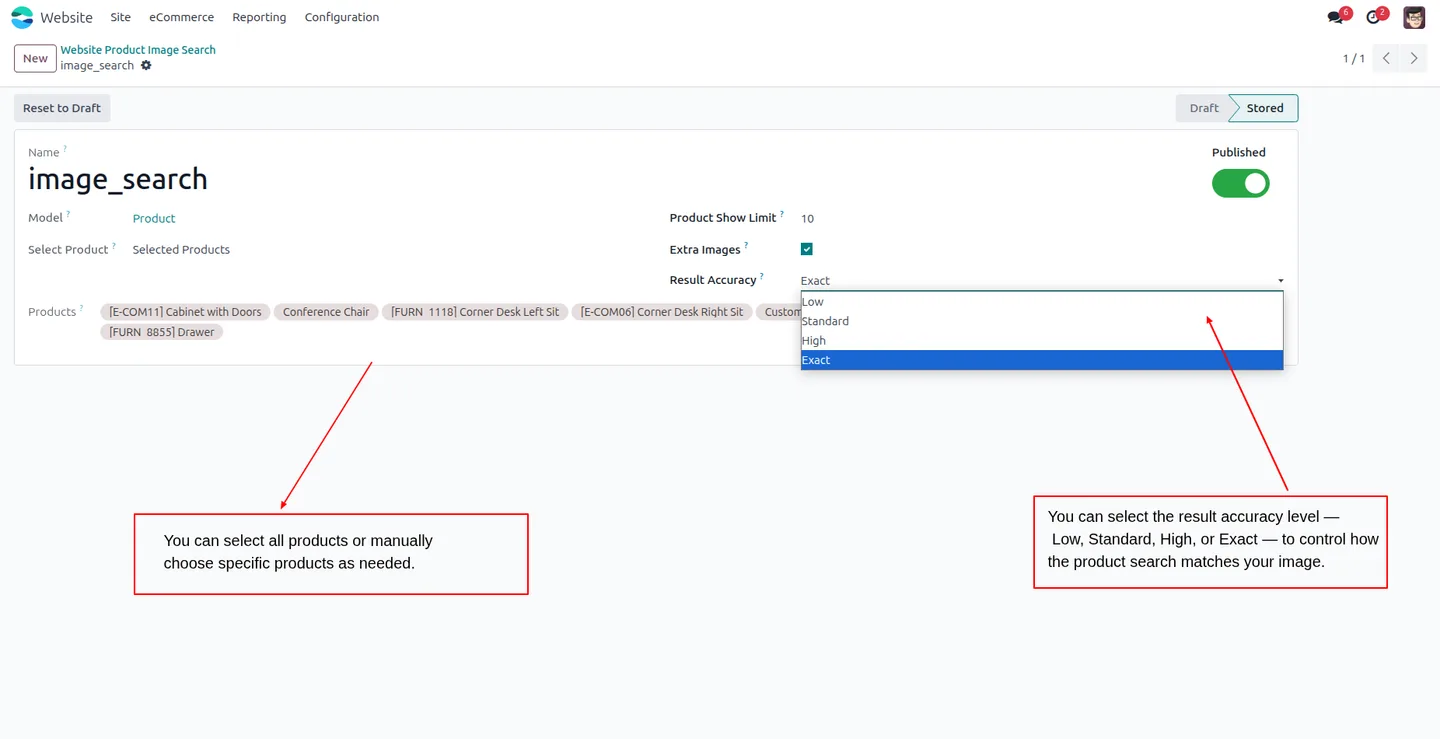
Choose a matching level — Low, Standard, High, or Exact — to control how closely returned products must resemble the uploaded image.
-
Selective product coverage
Include your whole catalog in image search or add only specific products, so visual search covers exactly the range you want.
-
Faster product discovery
Visual search shortens the path to a matching product for shoppers who do not know its exact name, which helps reduce bounce on the shop.
AI Product Image Search in Odoo
Every screen, in the order you meet it — configuration first, then the module in use.
Technical details
Specification
- Publisher
- TechUltra Solutions Private Limited
- Technical name
- ai_odoo_website_product_image_search
- Odoo versions
- 17.0, 18.0, 19.0
- Lines of code
- 477
- License
- Odoo Proprietary License v1.0 (OPL-1)
- Price
- $99 (one-time)
Deployment
- Odoo Online
- Odoo.sh
- On-premise
Odoo dependencies
- eCommerce
- Website
- Invoicing
- Discuss
Support
90 days of bug-fix support, Monday to Friday (10:00–19:00 IST). Raise a ticket at support@techultra.in.
Setup & configuration
From install to first call — here is the path.
- 1
Install the module
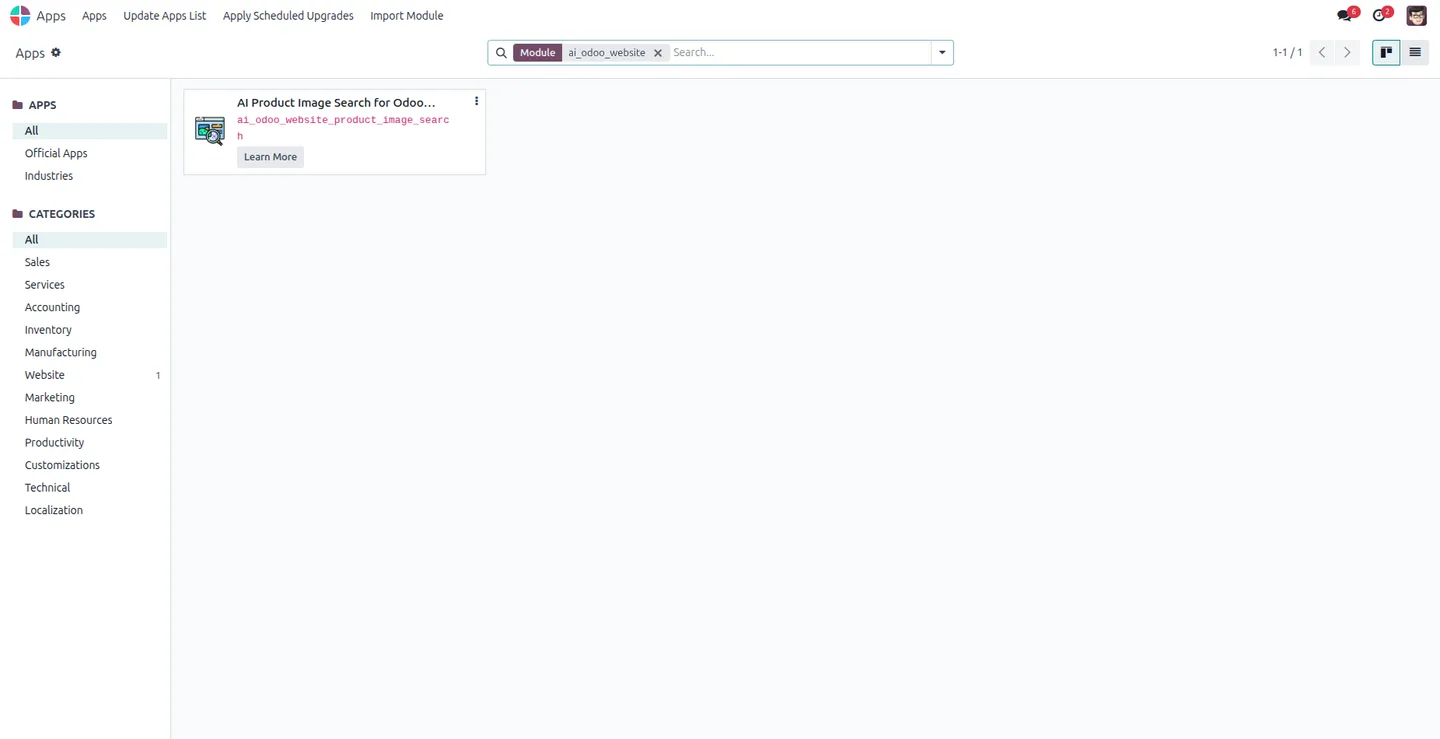
In Odoo, open Apps, remove the Apps filter, search for “AI Product Image Search”, and click Install.
- 2
Install the Python libraries
On the Odoo server, install the required libraries with pip: TensorFlow and Pillow. These power the image analysis.
- 3
Enable the feature
Go to Website → Configuration → Settings and turn on “Product Image Search on Website” to add the image search icon to the shop's search bar.
- 4
Choose products and accuracy
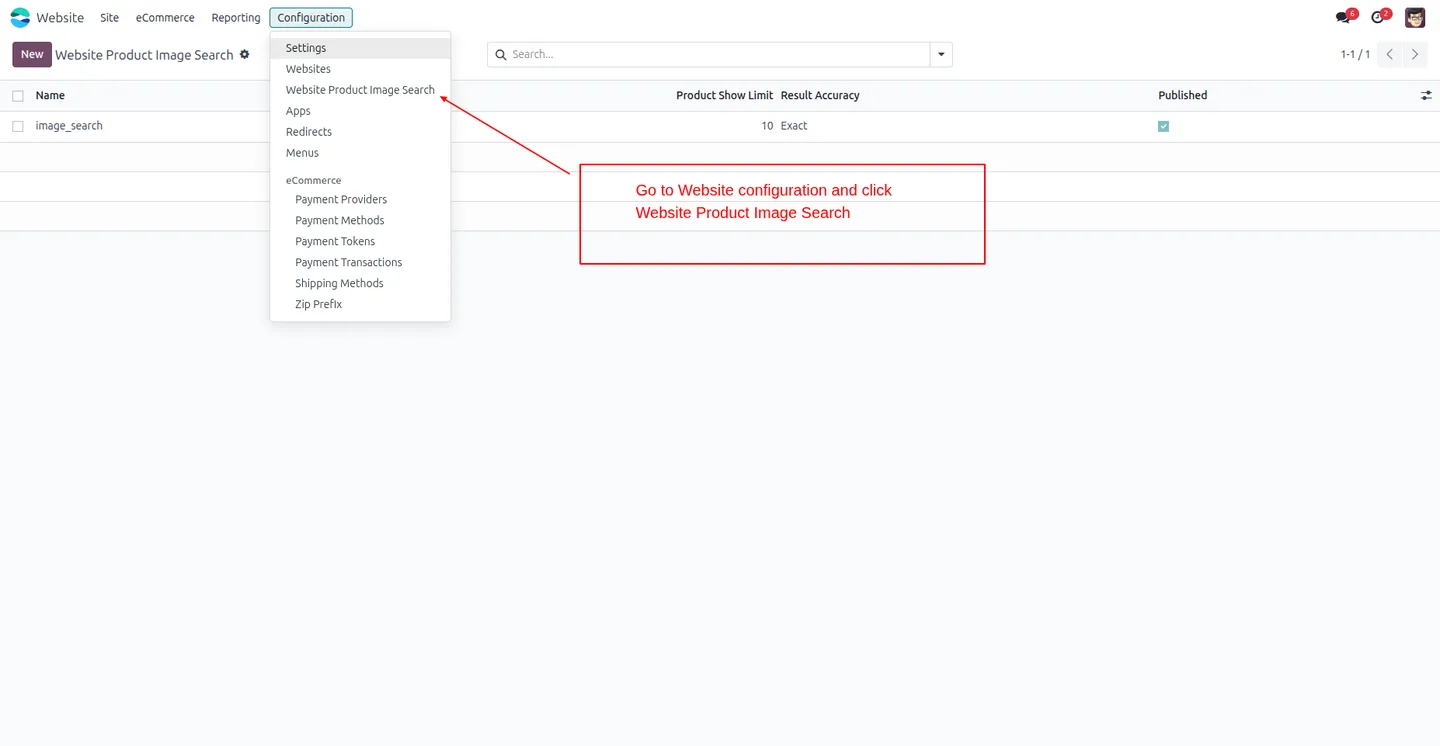
Open Website → Configuration → Website Product Image Search. Select all products or add specific ones, and set the result accuracy to Low, Standard, High, or Exact.
- 5
Run a search
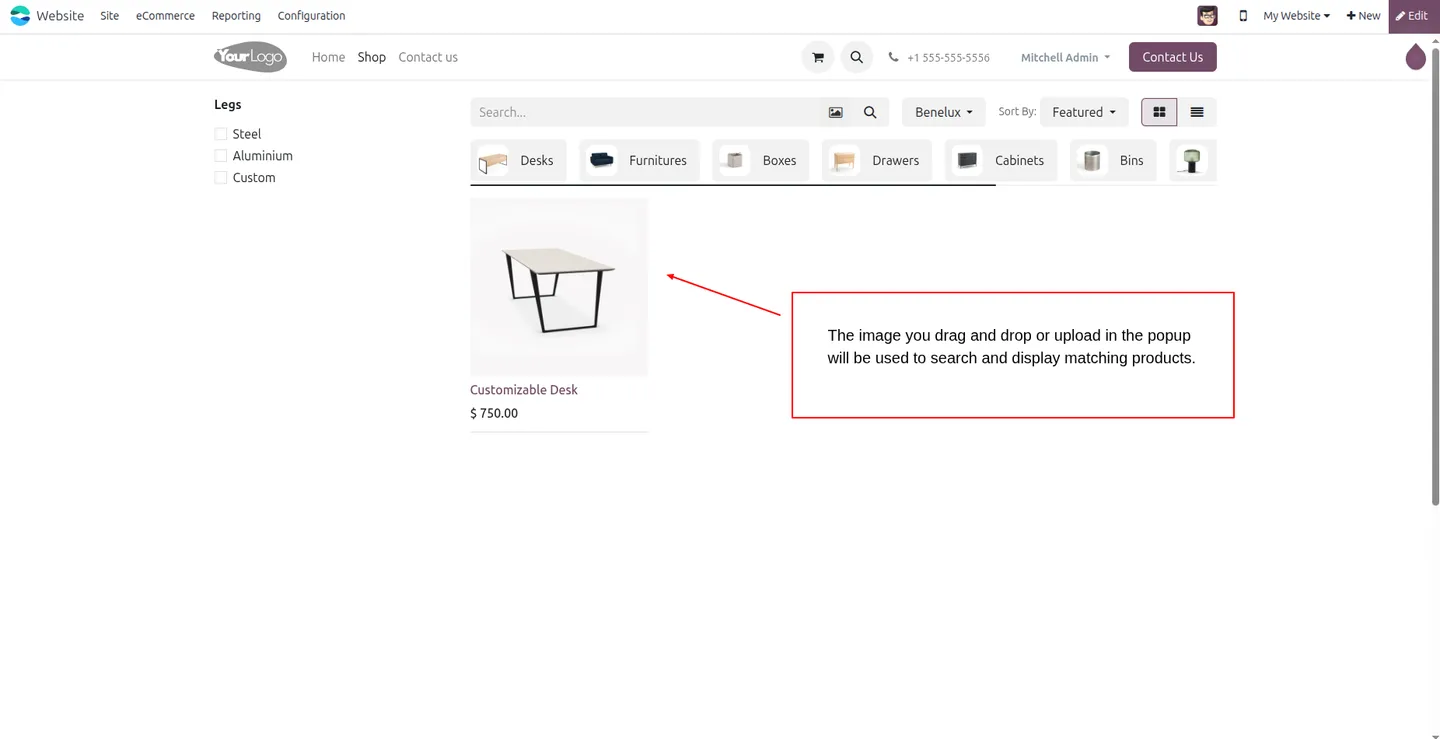
On the shop, click the image icon in the search bar, drag and drop or upload an image, and click Search to see visually similar products.
Frequently asked questions
-
How does image search work for shoppers?
A shopper clicks the image icon in the shop's search bar, uploads a photo, and the module returns the products in your catalog that look most similar to that image.
-
Does the module send images to an external service?
No. All image processing runs inside Odoo. There are no external API keys and no cloud dependencies, so uploaded and product images stay on your server.
-
What do I need to install on the server?
The module needs two Python libraries on the Odoo server — TensorFlow and Pillow — installed with pip. They handle the image analysis.
-
Can I control how close the matches are?
Yes. In the Result Accuracy setting you choose Low, Standard, High, or Exact, which controls how closely returned products must resemble the uploaded image.
-
Does it work on mobile devices?
Yes. The search is fully responsive, so shoppers can upload an image and search from smartphones, tablets, or desktops.
-
Which products are included in image search?
You decide. In the configuration screen you can include the whole catalog or add only specific products to visual search.
-
Which Odoo versions are supported?
The module supports Odoo 17.0, 18.0, and 19.0, and works with the standard Odoo Website and eCommerce apps.
-
Is support included?
Yes. The module includes 90 days of bug-fix support, Monday to Friday, 10:00–19:00 IST.
Related services
Get the most out of this module with senior TechUltra consultants.
Odoo Customization Services
Tailored Odoo customizations from a Gold Partner — 200+ projects, upgrade-safe patterns, fixed-scope quotes, senior consultants. Free demo consultation.
Hire Odoo Developers
Hire certified Odoo developers from a Gold Partner — 400+ implementations, 92% satisfaction, Odoo since 2016. Silver / Gold / Platinum packages, free trial.
Odoo Support & Maintenance
Odoo Gold Partner support — 24/7 functional, technical, and server coverage for Enterprise and Community editions. Fast turnaround, free consultation.







