
Odoo App · Documents & Files
Cloud Storage & SFTP Sync
A folder-based file manager for Odoo attachments, synchronised with your own SFTP server in both directions.

Overview
Some businesses need their Odoo documents on their own server rather than a public cloud, for retention, backup or a downstream system that reads files over SFTP. This module adds a Cloud Storage file manager to Odoo and synchronises it with an SFTP server you configure.
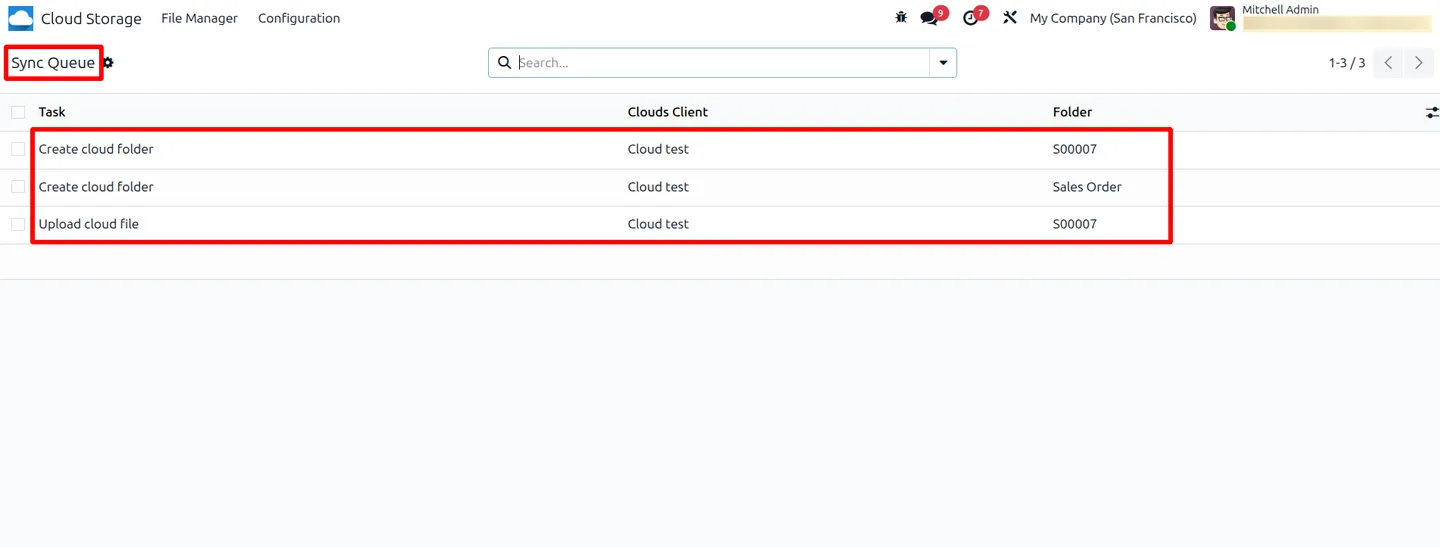
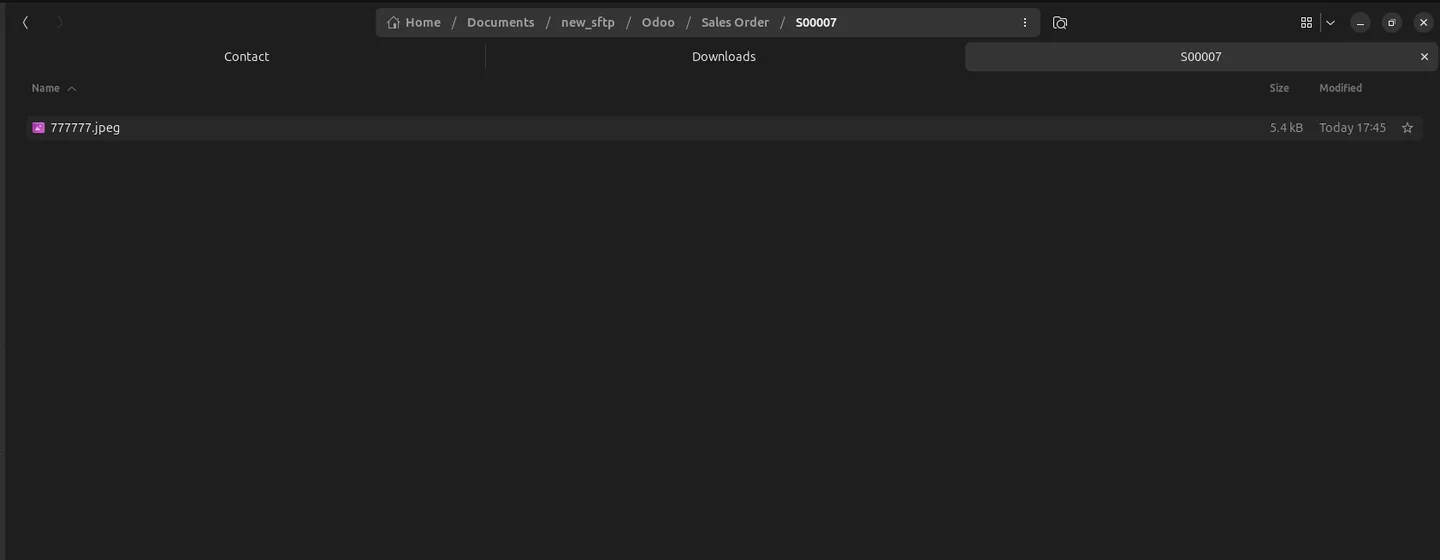
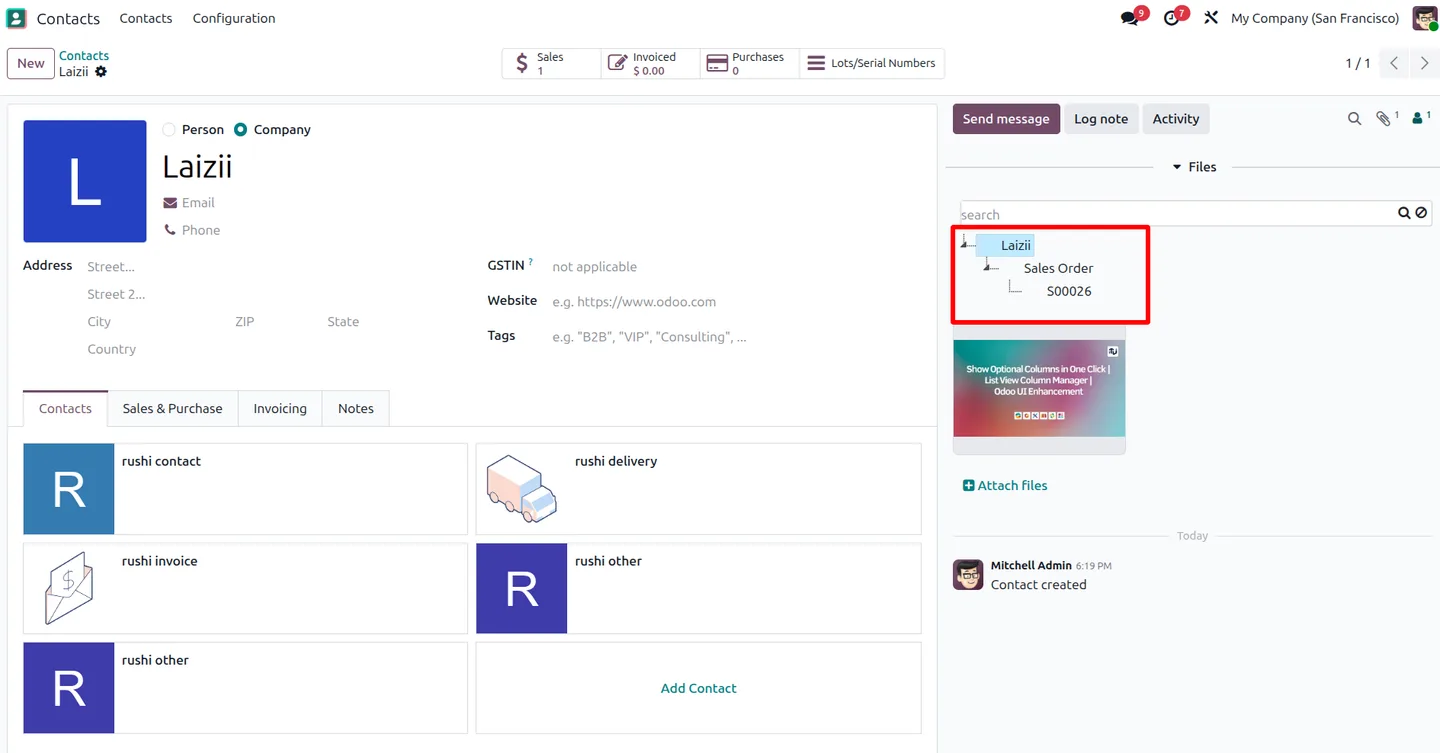
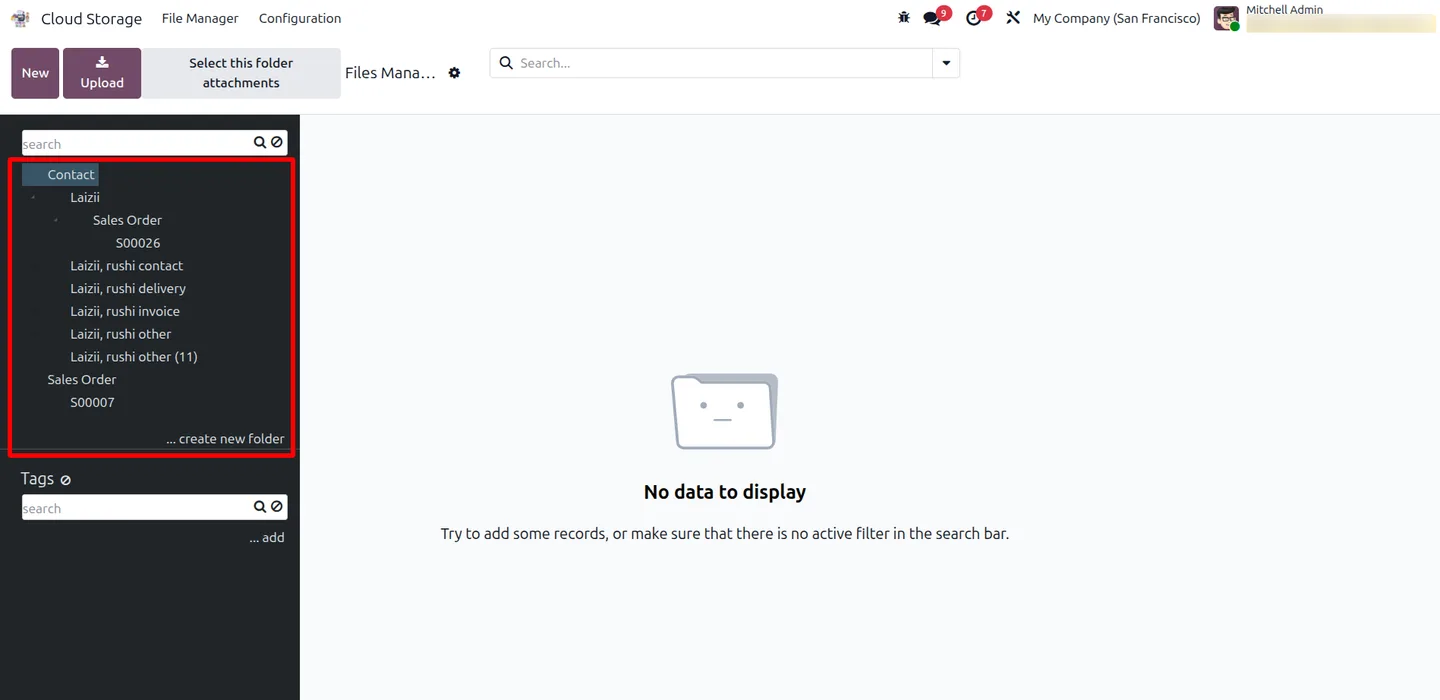
Folder rules turn Odoo records into folders: one per Sale Order, nested under its Contact, for example. Attachments on those records are written to the matching remote path through a sync queue with retries and logs, and the Odoo-side file manager shows the same hierarchy for browsing.
Sync runs both ways on scheduled jobs, with a manual Pull from SFTP Now for immediate reverse sync. The listing is explicit about how backward pull behaves: remote paths identify files, so a rename counts as a delete plus a new file, replacing a file's contents at the same path isn't pulled into an already linked attachment, and incremental checks need SSH shell access with a compatible find command.
Key features
-
SFTP connection
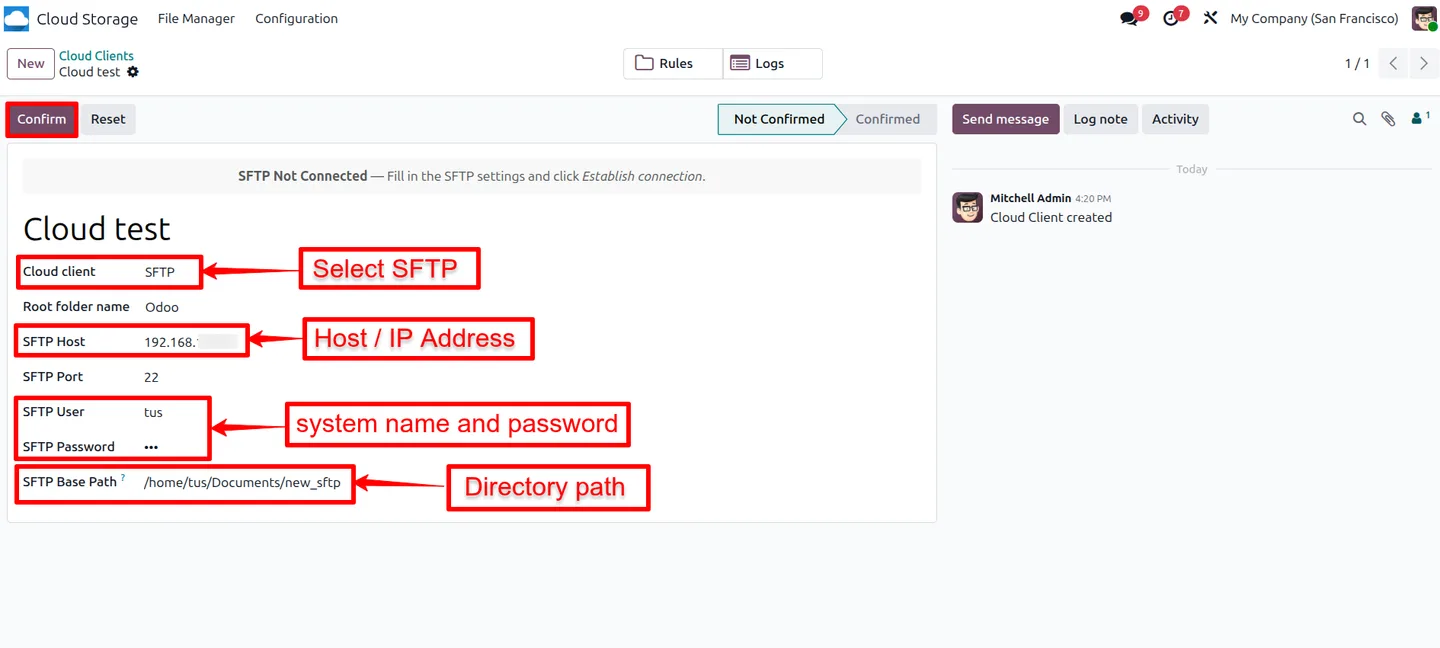
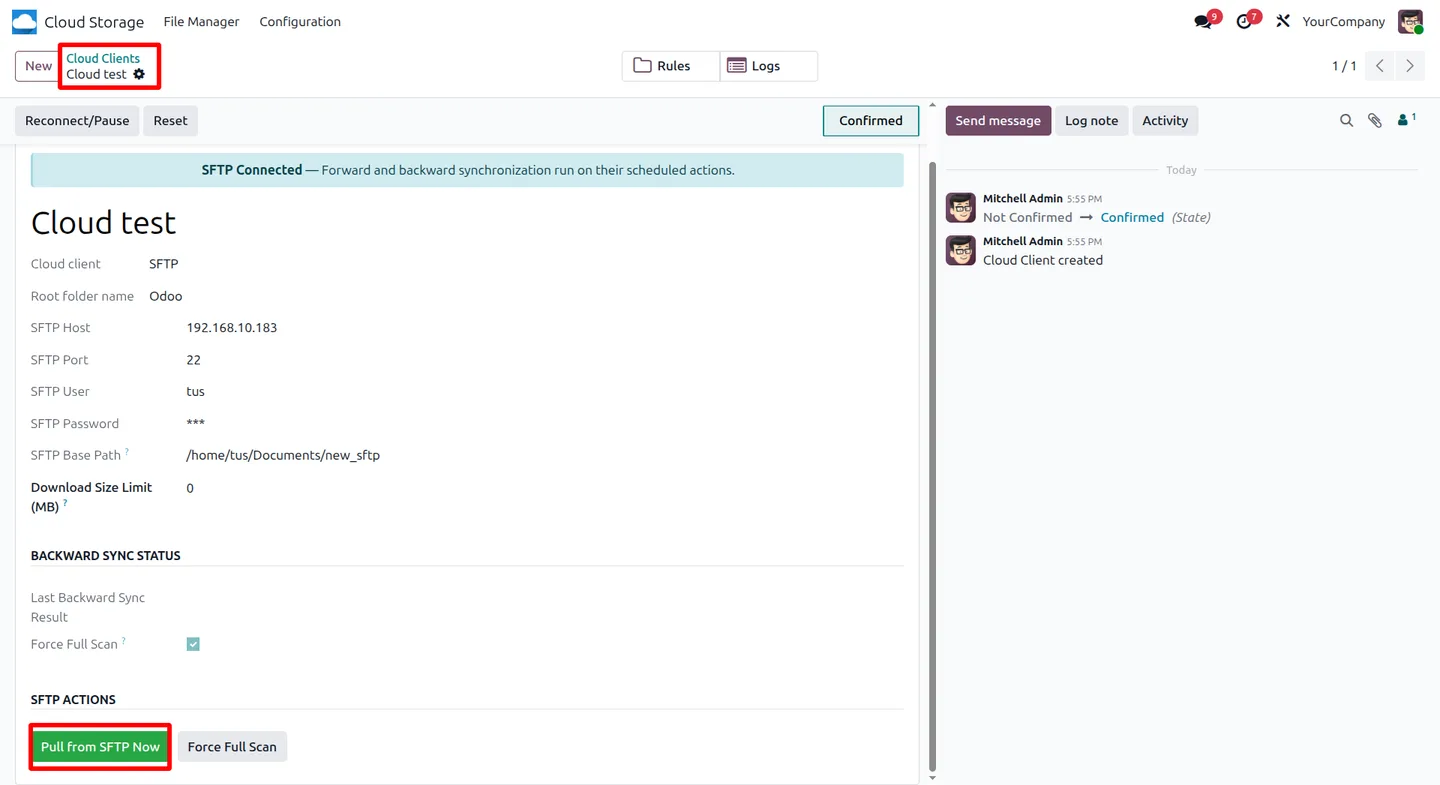
Connect an SFTP host, port (22 by default), user, password and base path using a Paramiko-based client.
-
Folder rules from Odoo records
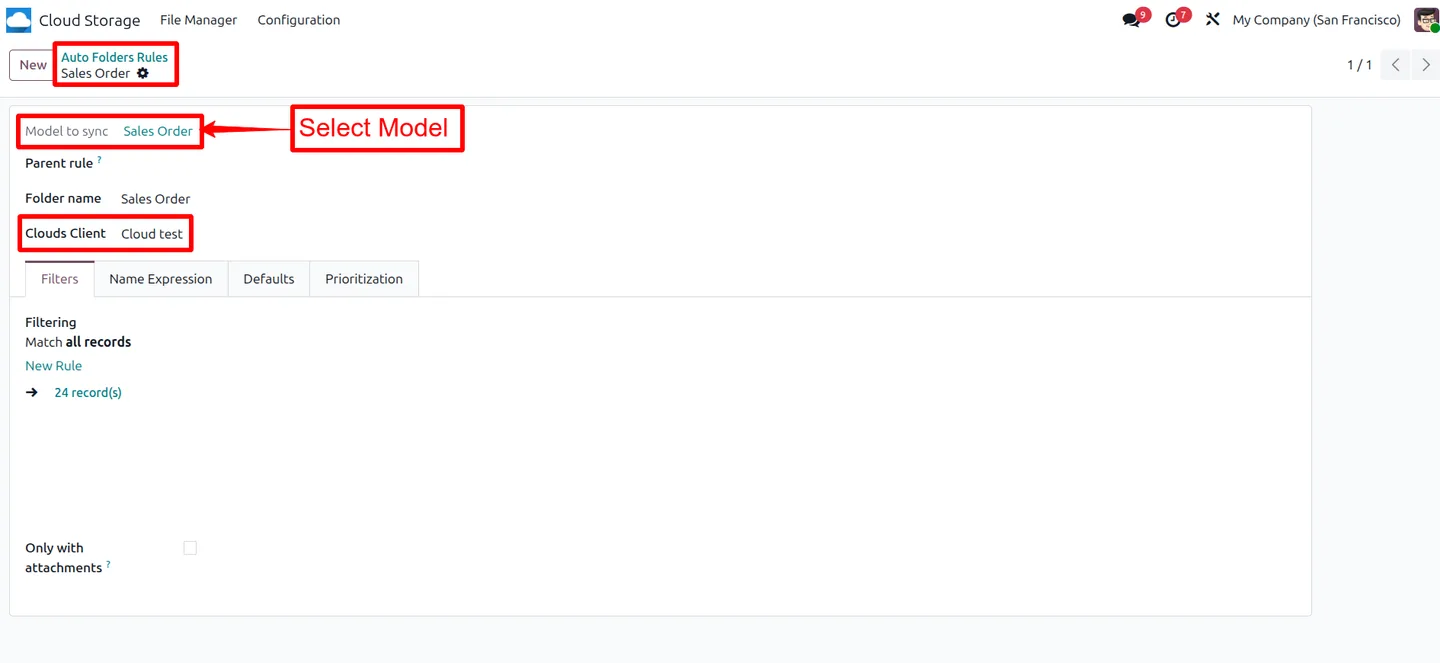
Build folder structures from models, domains, parent rules and naming expressions, such as Contact folders holding their Sale Order folders.
-
Forward and backward sync
Odoo changes are sent to SFTP and supported remote changes are reconciled back into Odoo on dedicated scheduled jobs.
-
Manual pull
Pull from SFTP Now triggers an immediate reverse sync from a confirmed client.
-
Force Full Scan
Tell the next backward sync to re-examine every folder after the remote tree was moved or renamed outside Odoo. Interrupted scans resume where they stopped.
-
Download size limit and folder access
Refuse remote downloads above a size you set, and restrict folders by Odoo record permissions plus user or group rules.
Cloud Storage & SFTP Sync in Odoo
Every screen, in the order you meet it — configuration first, then the module in use.
Technical details
Specification
- Publisher
- TechUltra Solutions Private Limited
- Technical name
- tus_odoo_sftp_integration
- Odoo versions
- 19.0
- Lines of code
- 15,714
- Modules
- cloud_base (file manager) + tus_sftp (SFTP connector)
- Protocol
- SFTP (Paramiko), port 22 by default
- License
- Odoo Proprietary License v1.0 (OPL-1)
- Price
- $99.00 (one-time)
Deployment
- Odoo Online
- Odoo.sh
- On-premise
Odoo dependencies
- Discuss
Support
90 days of bug-fix support plus 5 hours of free configuration help, Monday to Friday, 10:00–19:00 IST. Raise a ticket at support@techultra.in.
Setup & configuration
From install to first call — here is the path.
- 1
Create the SFTP client
Enter the SFTP host, port, user, password and base path, set a Download Size Limit if needed, and confirm the client.
- 2
Add folder rules
Create a rule for each model that should get folders, for example Sale Orders with Contacts as the parent, and set the naming and domain.
- 3
Give users access
Assign File Manager access to users who work with documents, and administration access to those who manage clients, rules and the sync queue.
- 4
Run and schedule sync
Attach files on the records, process the queue, and use the scheduled forward and backward jobs or Pull from SFTP Now to keep both sides aligned.
Frequently asked questions
-
What is the difference between cloud_base and tus_sftp?
cloud_base is the file manager: folders, rules, sync queue and logs. tus_sftp adds the SFTP connection and file synchronisation. For Google Drive instead of SFTP, see Google Drive Integration, which uses the same file manager.
-
Is SFTP sync real-time?
No. Forward and backward sync run on scheduled jobs. Pull from SFTP Now triggers an immediate reverse sync when you need one.
-
Which SFTP details are required?
Host, port, user, password and base path. Port 22 is used by default.
-
How does the first backward sync work?
It scans all tracked folders to discover remote files. Later runs can check only changed entries when the server allows SSH shell access with a compatible find command; otherwise every tracked folder is scanned, which takes longer on large archives.
-
What happens if a remote file is renamed or replaced?
Remote paths identify files, so a rename or move is treated as a removed file plus a new one. Replacing a file's contents at the same path is not pulled into an Odoo attachment that is already linked.
-
Can we limit the size of files downloaded from SFTP?
Yes. Set Download Size Limit (MB) on the SFTP client. 0 means no limit, and large downloads use worker memory.
-
Will an interrupted full scan start over?
No. The scan records its progress and resumes from the saved folder on a later run, so large archives can finish within Odoo's cron time limits.
Listing verified against the Odoo App Store:
Related solutions
Whole-platform solutions that complement Cloud Storage & SFTP Sync.
Related services
Get the most out of this module with senior TechUltra consultants.
Odoo Customization Services
Odoo customization from a Gold Partner: custom modules, workflows, reports and Studio changes, written upgrade-safe and quoted at a fixed scope. Free scoping call.
Hire Odoo Developers
Hire certified Odoo developers from a Gold Partner: one developer or a team, full-time or part-time, 70–160 hours a month. Silver, Gold or Platinum plan, free trial.
Odoo Support Services & Maintenance
Odoo support services from a Gold Partner: functional and technical support plus server cover for Enterprise and Community, 30-minute P1 response, 24/7 option.