
Odoo App · WhatsApp & Messaging
WhatsApp Push Notification (Enterprise)
Browser and mobile push notifications for WhatsApp messages — with customer names instead of phone numbers.

Overview
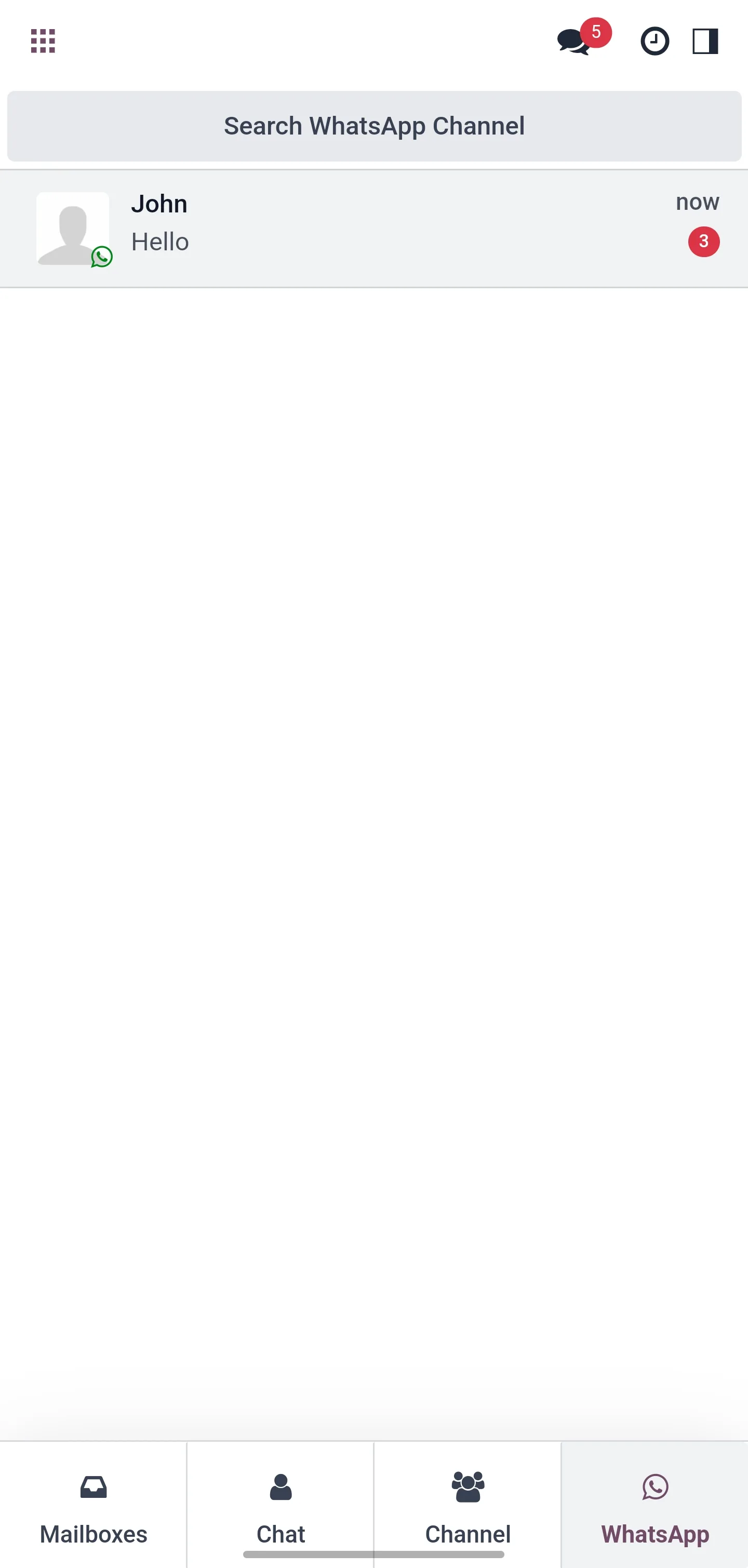
WhatsApp Push Notification closes a real gap in Odoo 17 and 18 Enterprise: out of the box, WhatsApp messages arrive in Discuss but do not fire browser or mobile push notifications, and the sender shows up as a raw phone number rather than the customer name.
Built by TechUltra Solutions, this module wires WhatsApp messages into the same notification channel Odoo already uses for Discuss — so alerts land in the Odoo Android app, the Odoo iOS app, and in Chrome, Firefox, and Safari the moment a customer message comes in.
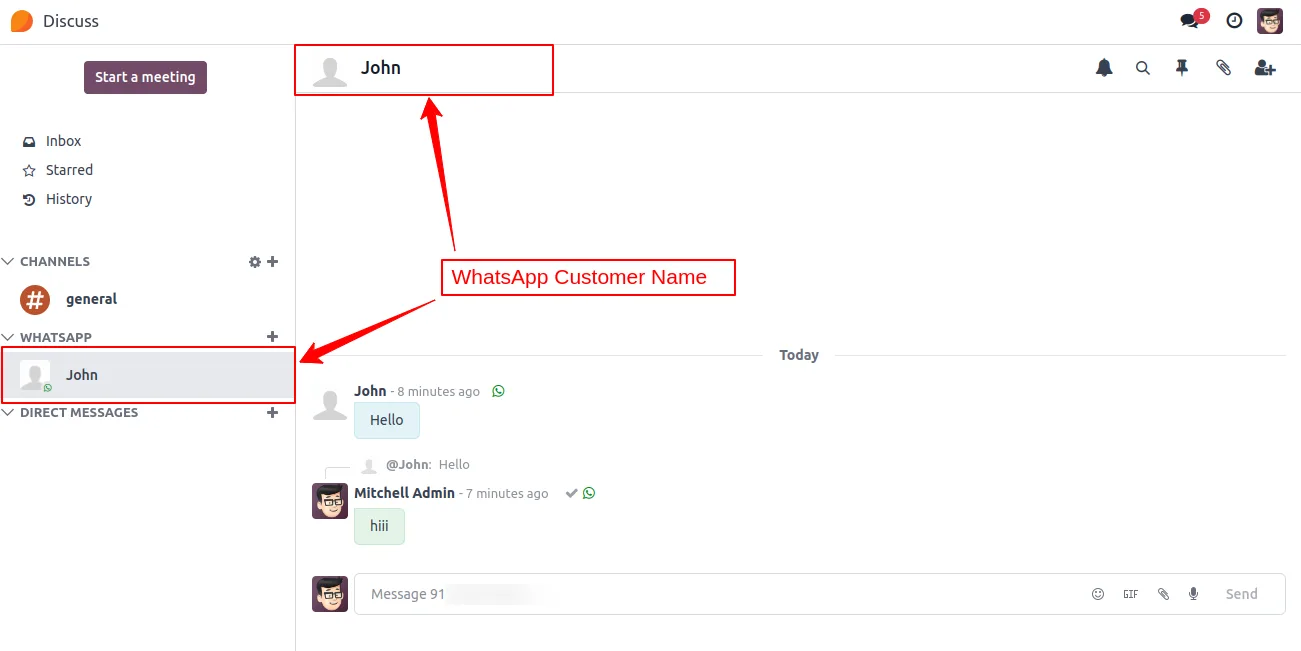
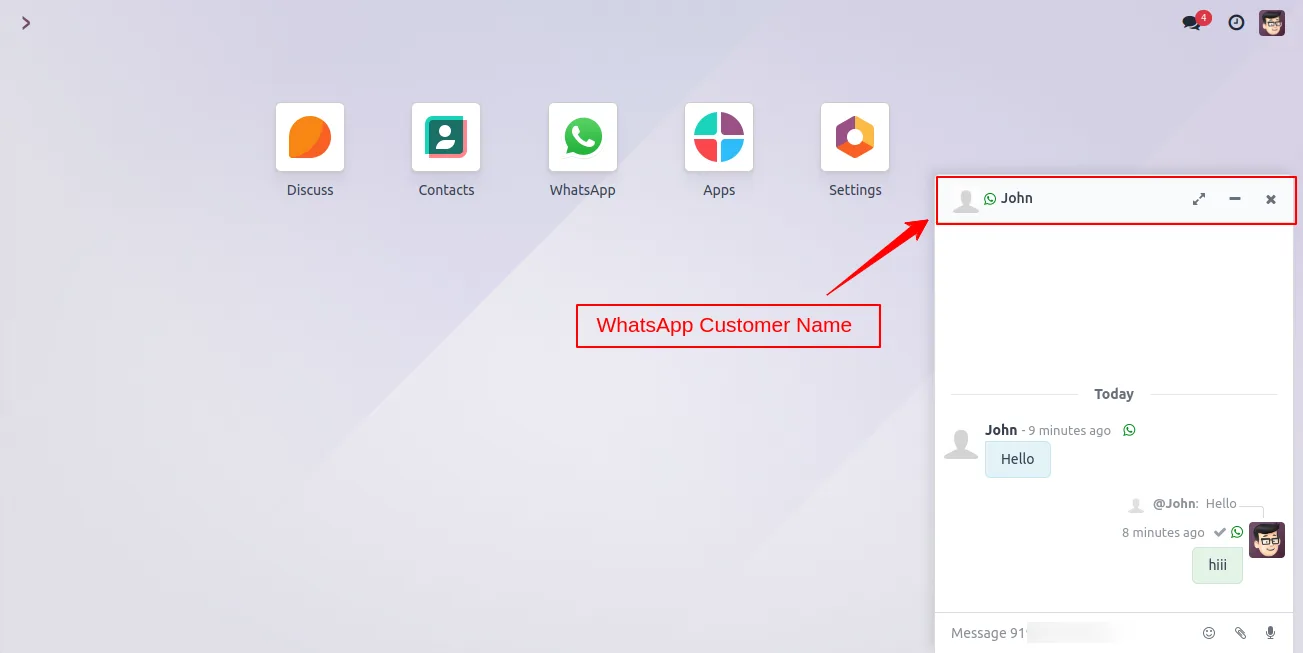
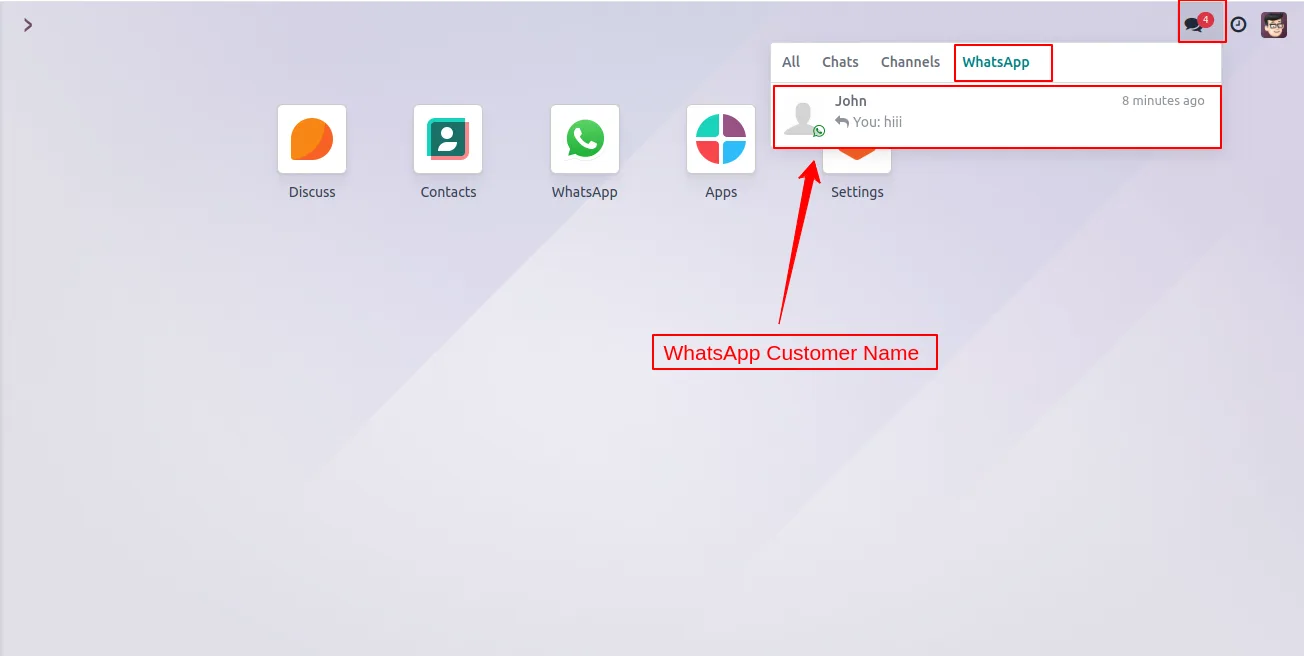
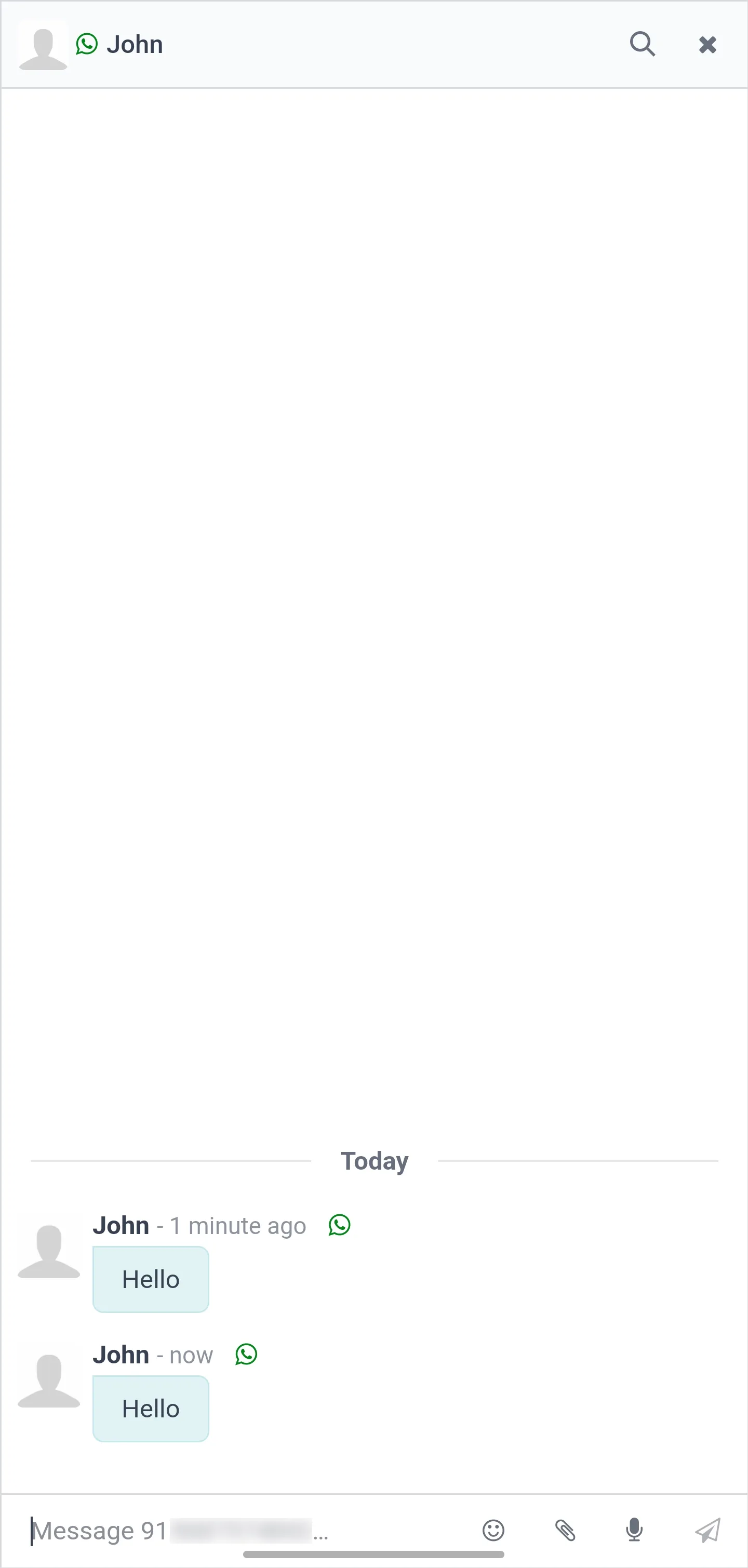
On top of that, it swaps the mobile number displayed in Discuss, chatter, and the notification toast for the matching contact's name. Sales and support agents see exactly who is messaging without having to copy a number across to look it up.
Key features
-
WhatsApp notifications in the Odoo mobile apps
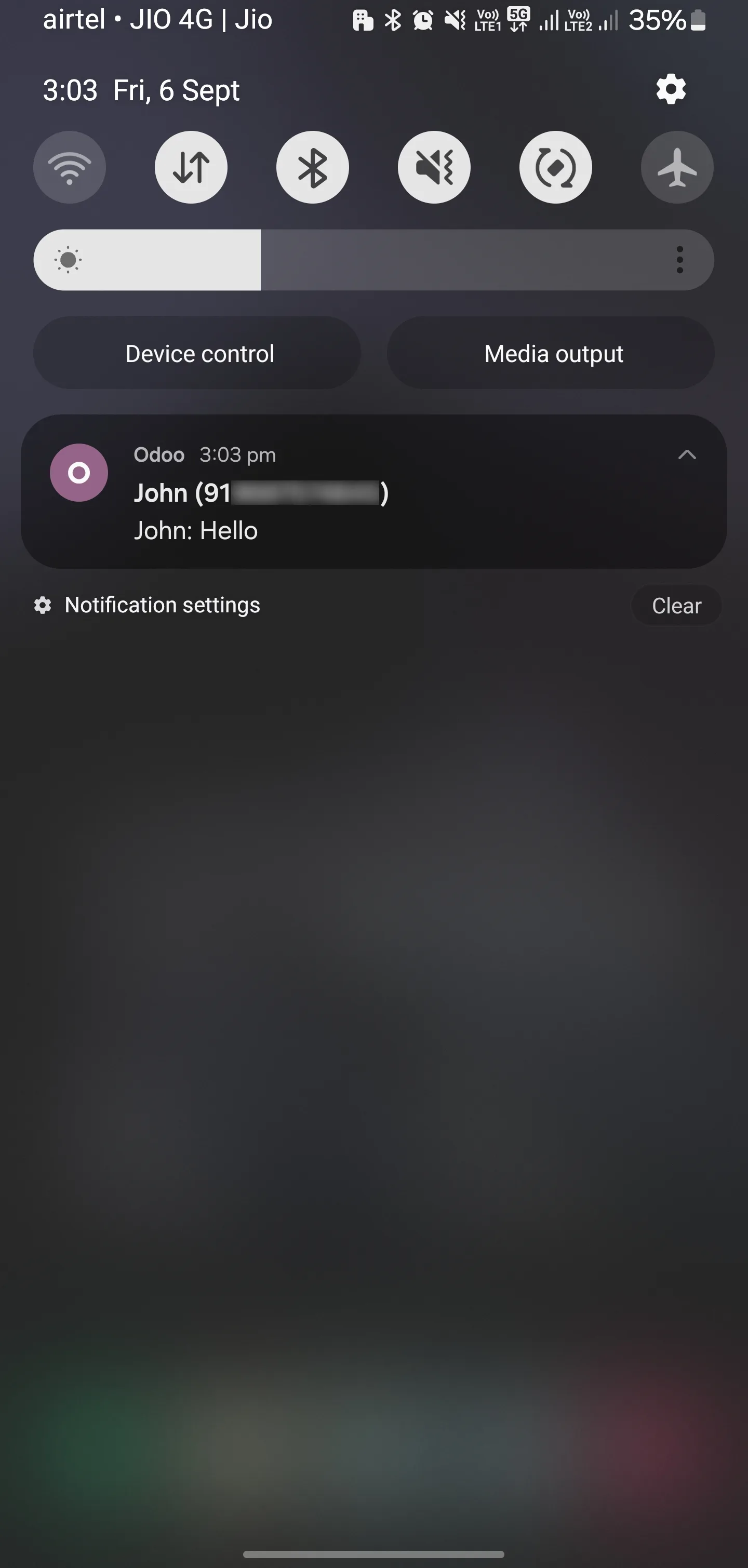
Receive alerts in the Odoo Android and iOS mobile applications the moment a WhatsApp message lands — no separate WhatsApp Business app needed to stay in the loop.
-
Browser push notifications
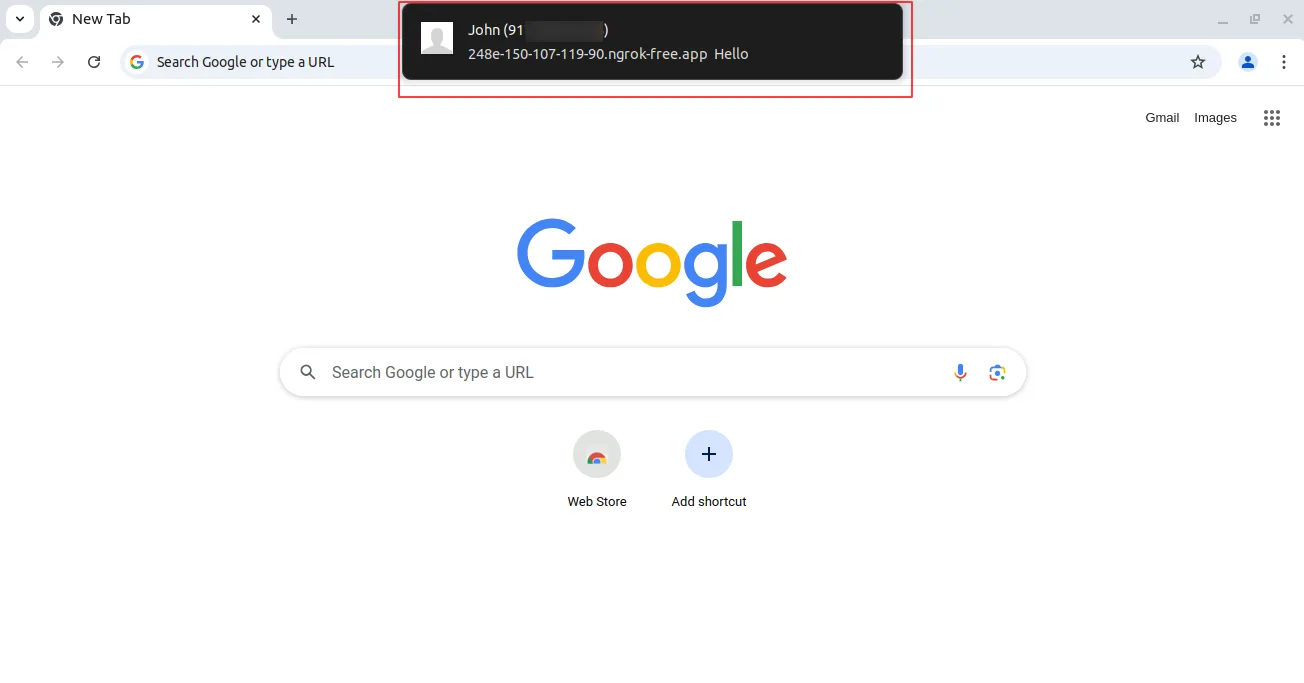
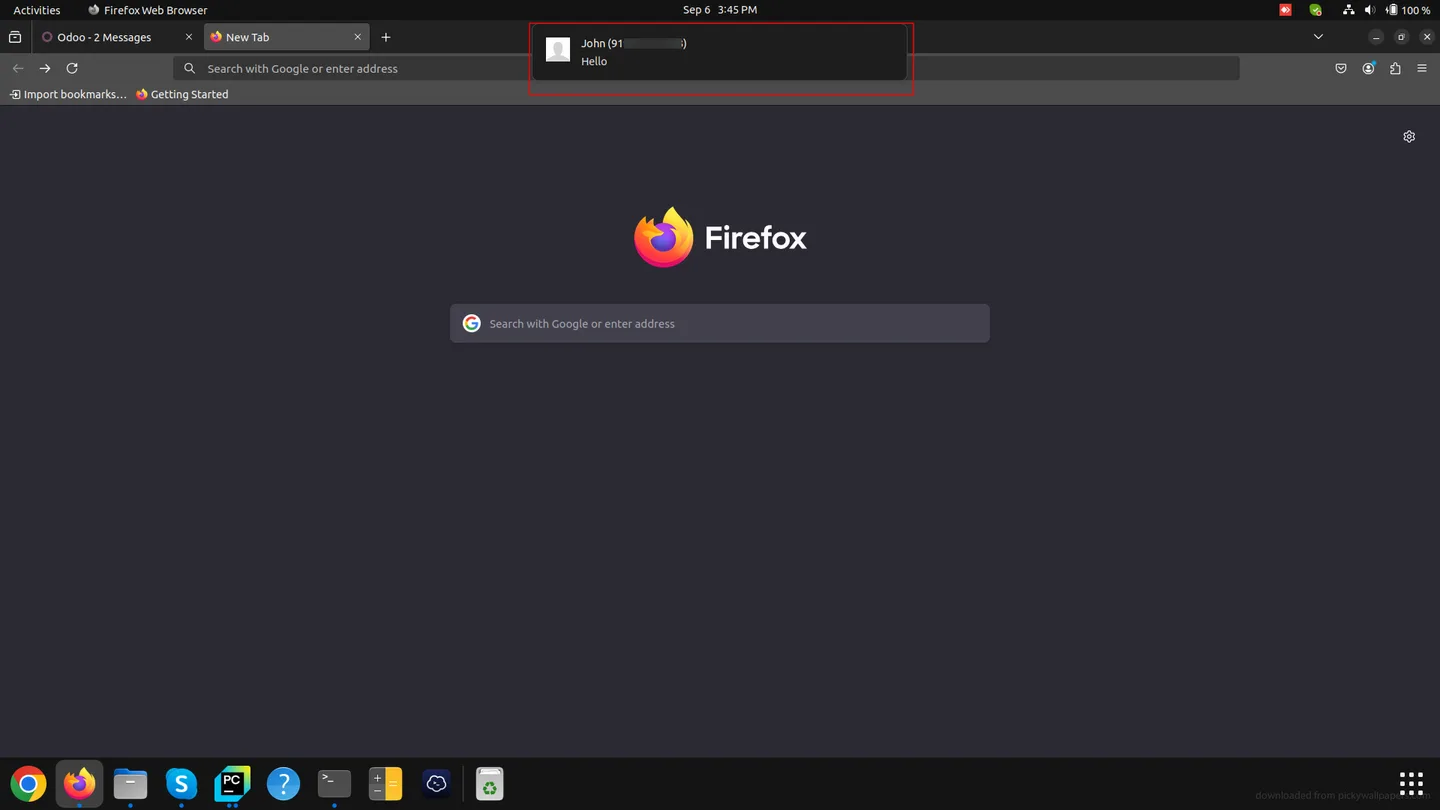
Notifications fire inside Google Chrome, Mozilla Firefox, and Safari so desktop users stay aware of new WhatsApp threads even when Odoo is in a background tab.
-
Customer name in Discuss and chatter
The module replaces the default mobile-number label shown in Discuss, chatter, and notification toasts with the matching contact's customer name — much faster to triage.
-
Built on the official WhatsApp module
Plugs into Odoo Enterprise's native WhatsApp Messaging app — no parallel messaging channel, no duplicate inboxes, no extra integration to maintain.
-
Cross-platform consistency
The same notification rules apply across mobile and web, so an alert that fires on a phone also fires on the desktop browser session.
-
Works with existing user accounts
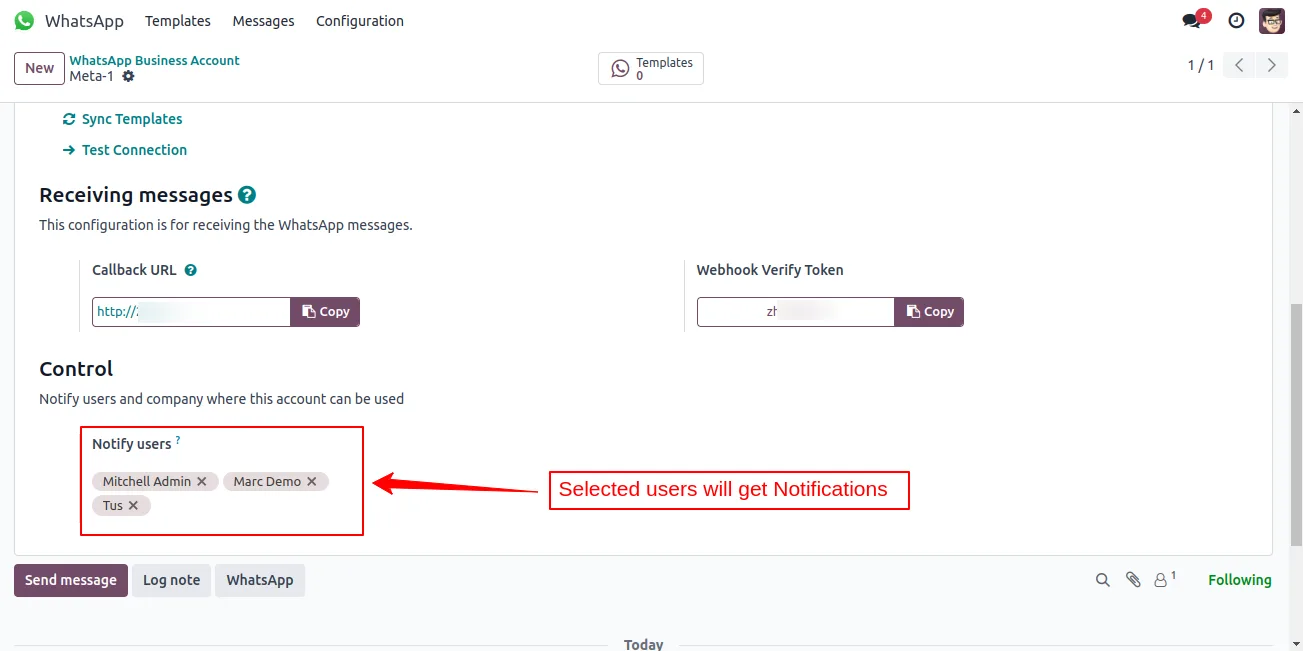
No per-agent licensing dance — every Odoo user who already has access to Discuss starts getting WhatsApp notifications on day one.
-
Lightweight, low-risk install
A compact 136-line module with only two dependencies (WhatsApp Messaging and Discuss), built specifically against Odoo 17 and 18 Enterprise.
WhatsApp Push Notification (Enterprise) in Odoo
Every screen, in the order you meet it — configuration first, then the module in use.
Technical details
Specification
- Publisher
- TechUltra Solutions Private Limited
- Technical name
- odoo_whatsapp_push_notification
- Odoo versions
- 17.0, 18.0
- Edition
- Enterprise only (requires the WhatsApp Messaging app)
- Lines of code
- 136
- License
- Odoo Proprietary License v1.0 (OPL-1)
- Price
- $19 (one-time)
Deployment
- Odoo Online
- Odoo.sh
- On-premise
Odoo dependencies
- WhatsApp Messaging
- Discuss
Support
90 days of bug-fix support, Monday to Friday (10:00–19:00 IST). Raise a ticket at support@techultra.in.
Setup & configuration
From install to first call — here is the path.
- 1
Install the module
In Odoo, open Apps, remove the Apps filter, search for “WhatsApp Push Notification”, and click Install. The Enterprise WhatsApp Messaging and Discuss apps must already be installed.
- 2
Enable notifications in your browser
On the first Odoo session after install, the browser prompts to allow notifications. Click Allow in Chrome, Firefox, or Safari so push alerts can fire while Odoo is in a background tab.
- 3
Install or update the Odoo mobile apps
Install the Odoo app on Android or iOS, sign in to the same database, and accept the system notification prompt so WhatsApp alerts route to the phone.
- 4
Send a test WhatsApp message
Send a message from a test customer number. The assigned Odoo user should receive a browser push and a mobile notification, with the contact's customer name displayed instead of the number.
- 5
Tune notification preferences per user
Each user can manage browser-level notification permissions and Odoo Discuss preferences as needed — for example, muting specific channels while leaving WhatsApp alerts live.
Frequently asked questions
-
Which Odoo versions and editions are supported?
The module supports Odoo 17.0 and 18.0 Enterprise. It depends on the official WhatsApp Messaging app, which ships only with Enterprise — so a Community-only deployment cannot run it.
-
Do I need to install a separate WhatsApp Business app?
No. Notifications flow through the same WhatsApp Business API account you already use with Odoo Enterprise's native WhatsApp Messaging module — there is no extra inbox to monitor.
-
Which browsers receive push notifications?
Push notifications fire in Google Chrome, Mozilla Firefox, and Safari. Each browser asks the user to allow notifications the first time the Odoo session loads after install.
-
Will alerts reach me on my phone?
Yes. If you have the Odoo Android or iOS app installed and signed in to the same database, WhatsApp messages trigger the standard Odoo push notification on the device.
-
Why is the customer name shown instead of the phone number?
By default, Odoo Discuss shows the raw mobile number for incoming WhatsApp messages. This module looks up the matching contact and displays the customer name in Discuss, chatter, and notification toasts so agents can triage faster.
-
What happens if the phone number is not in my contacts?
If no contact matches, Odoo falls back to its default behaviour and shows the mobile number. Add the customer to Contacts and the name appears on the next message.
-
Is any configuration required after install?
No in-module configuration. The only one-time steps are allowing browser notifications and signing into the Odoo mobile app — both standard Odoo prompts the first time you use the database.
-
Is support included?
Yes. The module includes 90 days of bug-fix support from TechUltra, Monday to Friday, 10:00–19:00 IST.
Listing verified against the Odoo App Store:
Related solutions
Whole-platform solutions that complement WhatsApp Push Notification (Enterprise).
WhatsApp ↔ Odoo Integration
Connect WhatsApp to Odoo: two-way WhatsApp Business API sync, order and invoice messages, payment links and one shared team inbox. Free demo from a Gold Partner.
AI WhatsApp Chatbot
LLM-powered WhatsApp chatbot grounded in your Odoo data. Handles ordering, support, FAQs, and lead qualification with human-agent escalation.
Odoo WhatsApp Push Notifications
Real-time WhatsApp push notifications in Odoo — web, Android, iOS. Customer names in Discuss instead of phone numbers. Compatible with Odoo 17 and 18.
Related services
Get the most out of this module with senior TechUltra consultants.
Odoo Customization Services
Odoo customization from a Gold Partner: custom modules, workflows, reports and Studio changes, written upgrade-safe and quoted at a fixed scope. Free scoping call.
Hire Odoo Developers
Hire certified Odoo developers from a Gold Partner: one developer or a team, full-time or part-time, 70–160 hours a month. Silver, Gold or Platinum plan, free trial.
Odoo Support Services & Maintenance
Odoo support services from a Gold Partner: functional and technical support plus server cover for Enterprise and Community, 30-minute P1 response, 24/7 option.







