
Odoo App · Project Management
Task Stage Duration Tracker
Track how long project tasks sit in each stage and log every transition.

Overview
Running projects well means knowing how tasks move through your stages. Task Stage Duration Tracker records that movement automatically: every time a task changes stage, the module logs the transition and calculates the time spent in the stage it left.
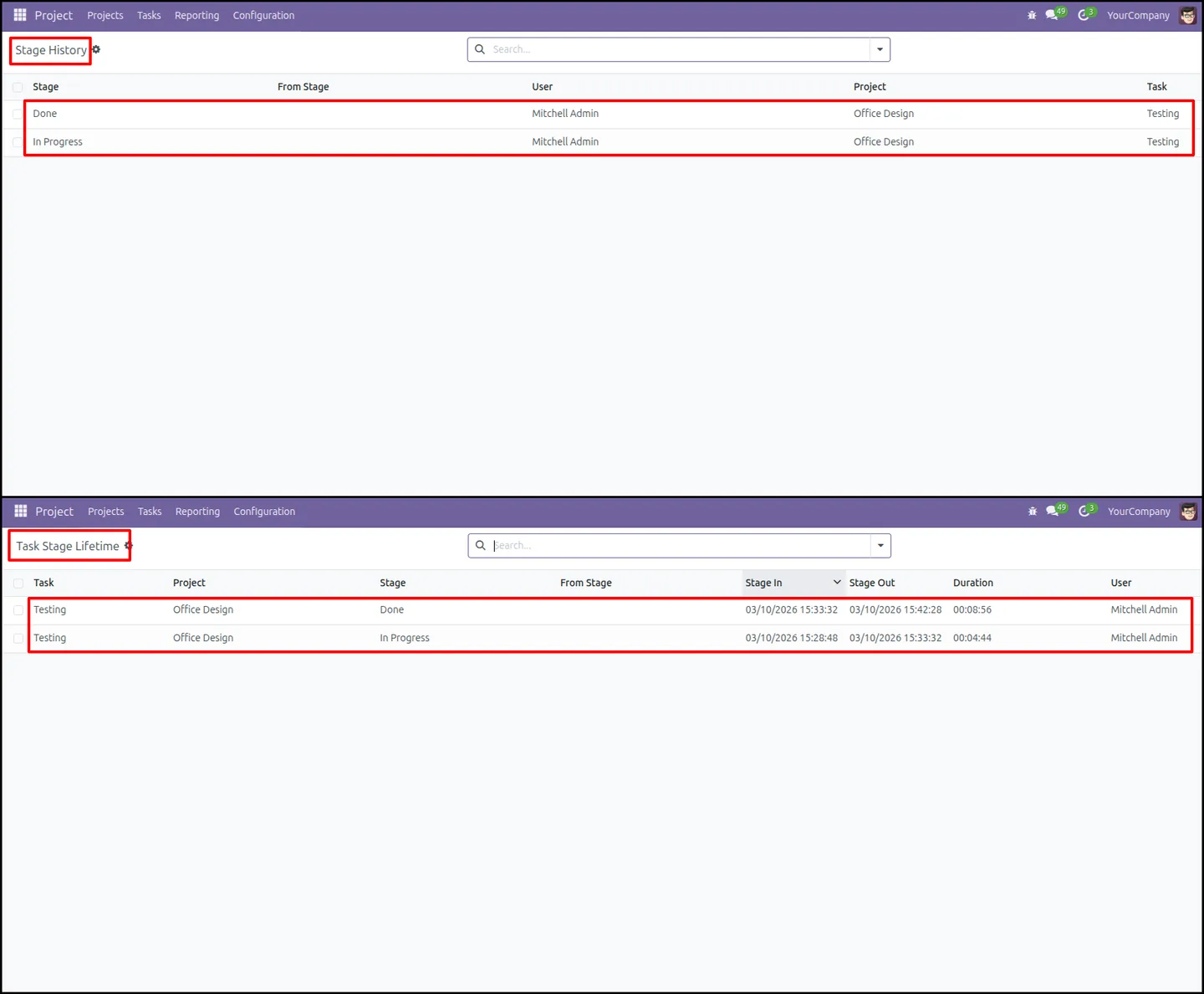
Built by TechUltra Solutions, the module captures entry and exit timestamps, the user who made each change, and the duration per stage. That history sits on the task itself and feeds two reports — a stage-transition log and a task-stage lifetime view — so managers can spot bottlenecks and analyse stage performance.
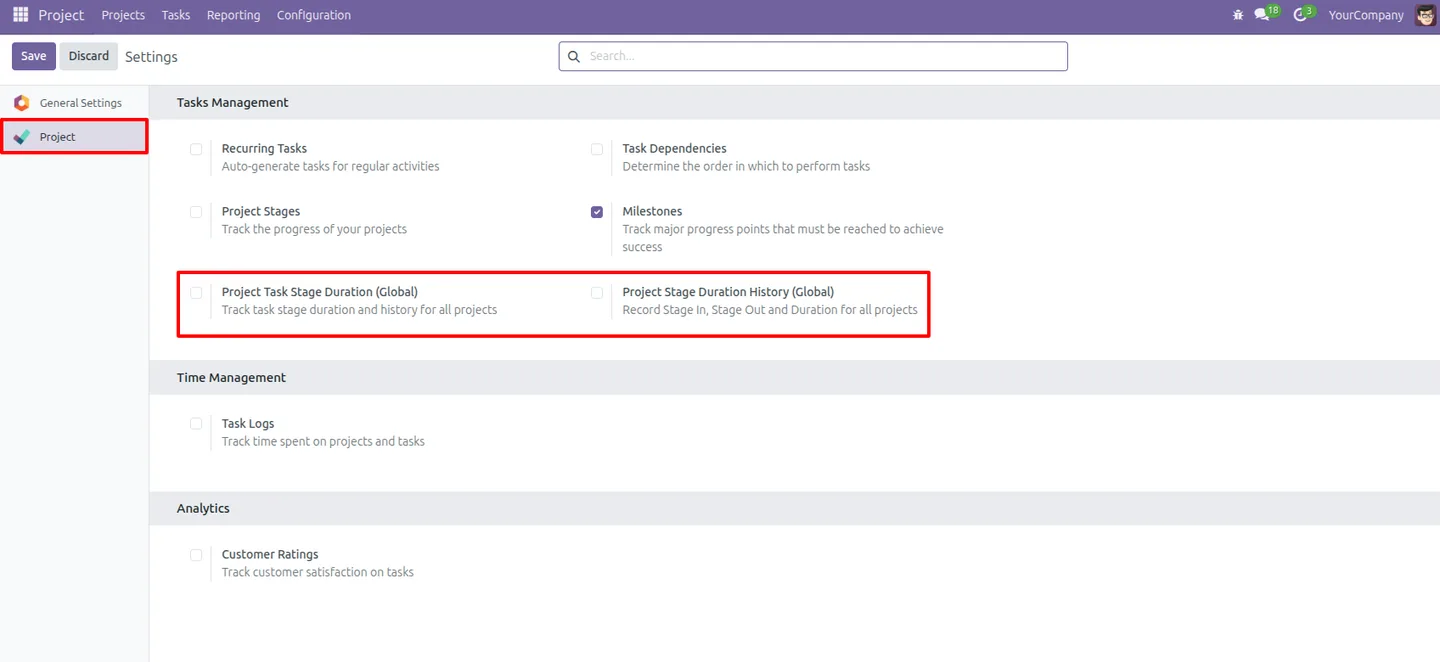
Tracking can be turned on globally for every project or enabled project by project. Stage templates let you decide which stages count and which are excluded, so the audit trail stays focused on the workflow steps that matter. The module supports Odoo 16, 17, 18, 19, and 20.
Key features
-
Automatic stage-duration tracking
The module records the time a task spends in a stage automatically whenever it transitions, with no manual timers or stopwatch entries.
-
Complete stage transition history
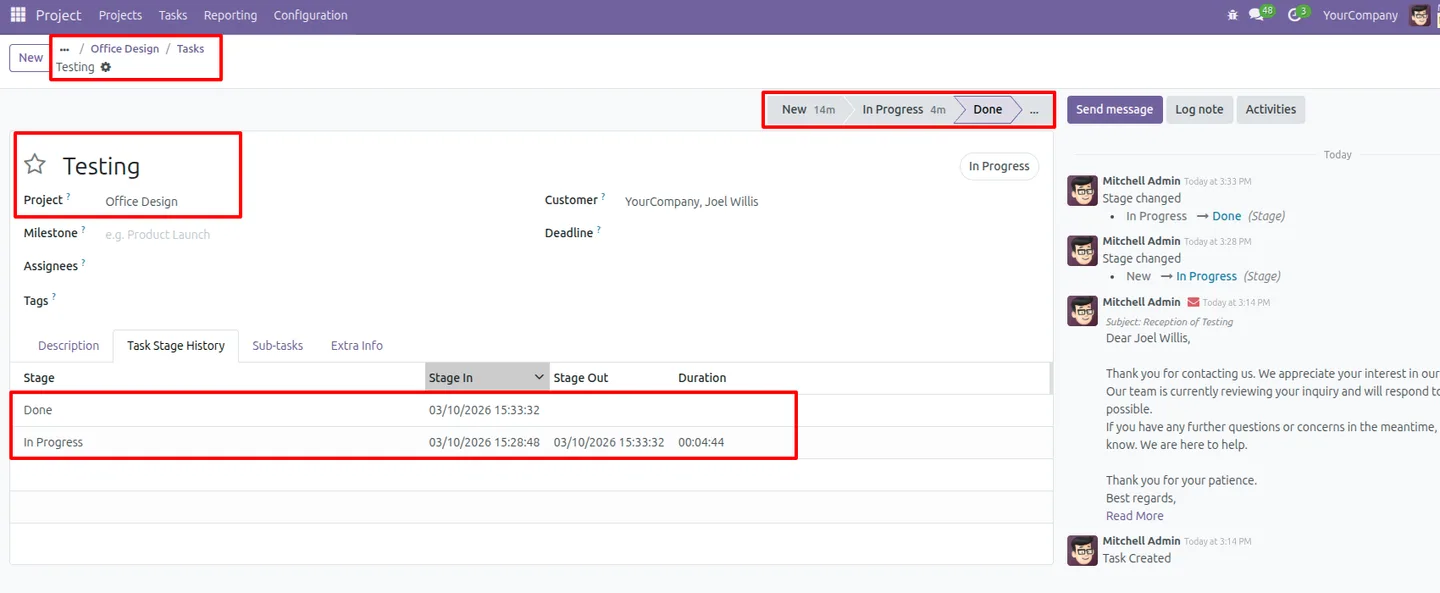
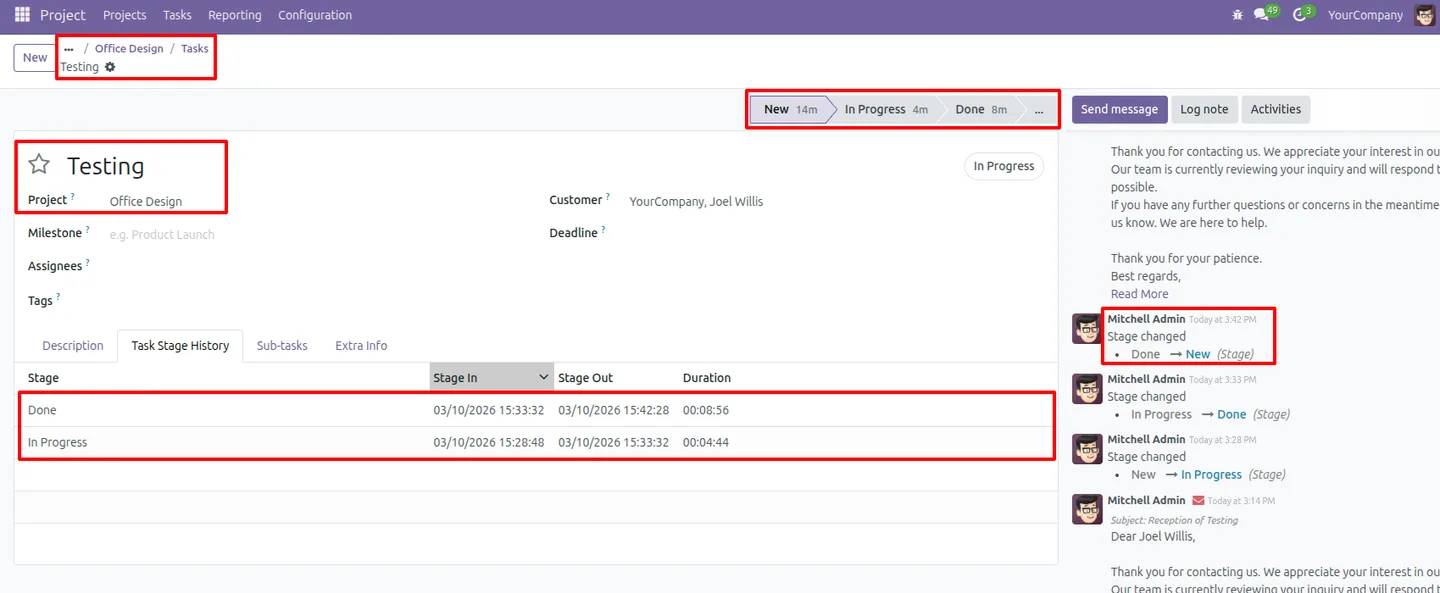
Every stage change is logged with its metadata, giving each task a full record of how it moved through the workflow.
-
Per-project configuration
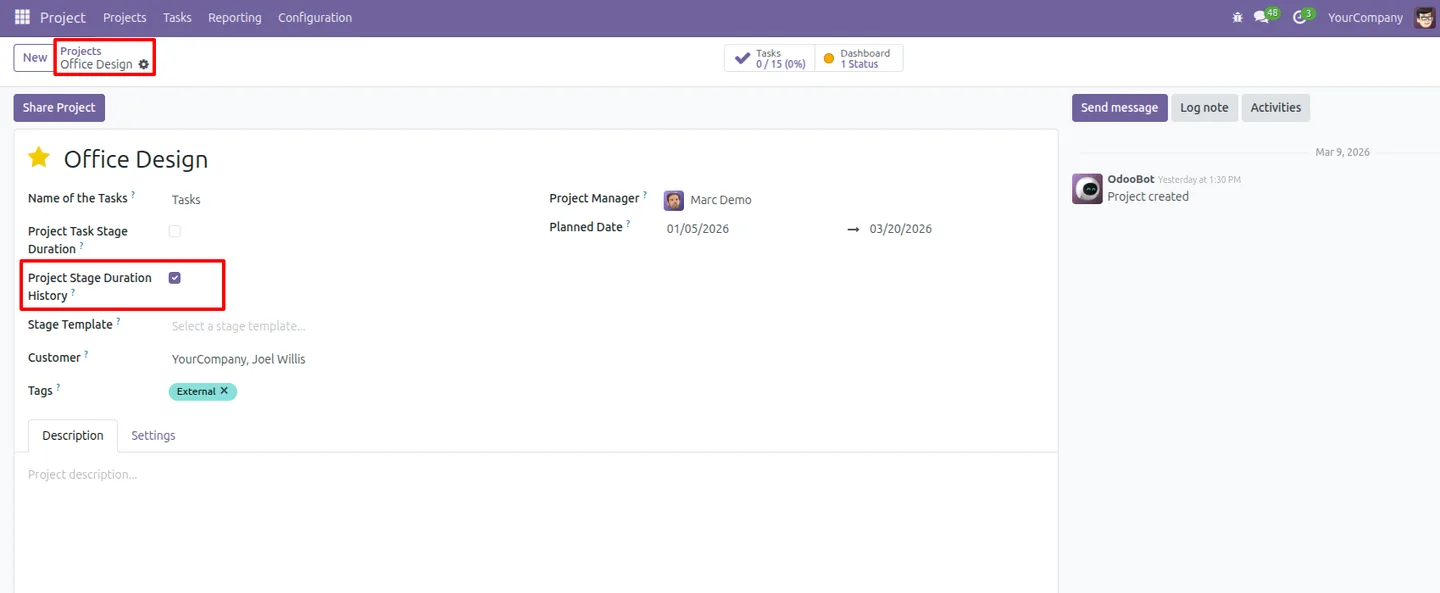
Each project can switch stage-duration tracking and history on or off independently, so teams adopt it where it adds value.
-
Global configuration
Administrators can activate tracking across all projects at once from the system settings, instead of configuring each project by hand.
-
Stage entry and exit timestamps
The module records the precise time a task enters and leaves each stage, the basis for accurate duration calculations.
-
User tracking on every transition
Each stage change records the user who made it, so the history shows not just what moved but who moved it.
-
Stage templates
Stage templates, defined under Project → Configuration, set which task stages are tracked and which are excluded, then apply to projects in one step.
-
Task lifecycle visibility
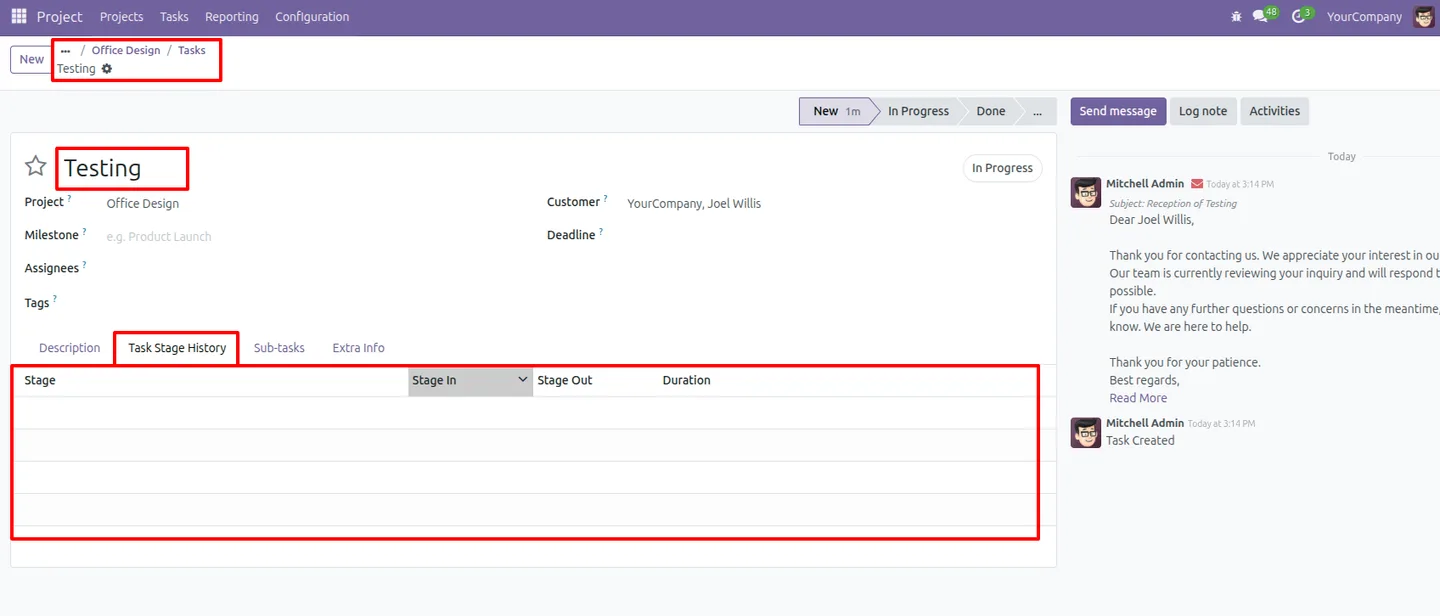
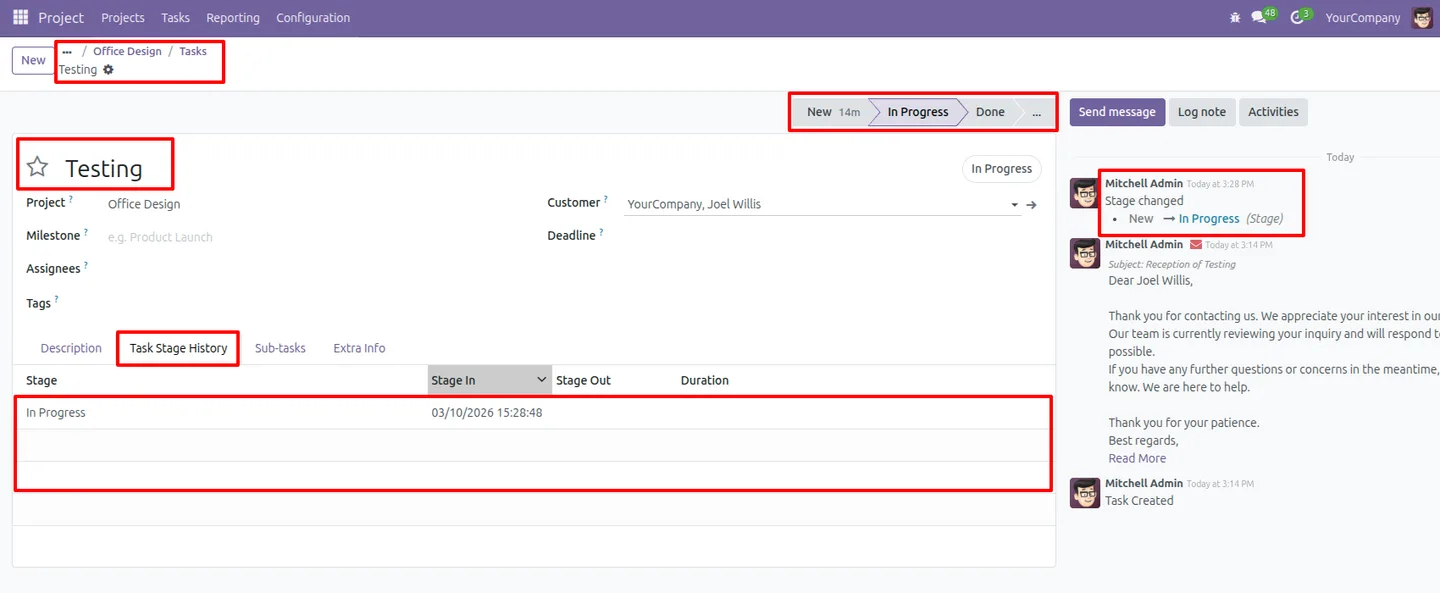
The Task Stage History section on each task gives a complete view of its progression from creation through to completion.
-
Stage-history and lifetime reports
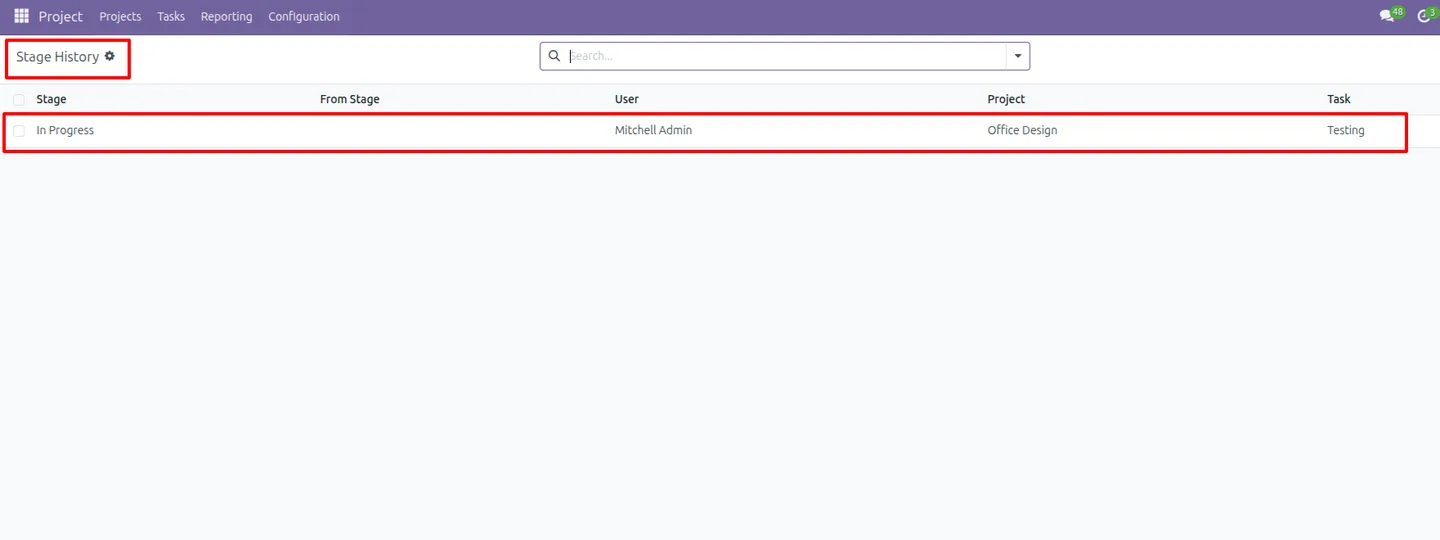
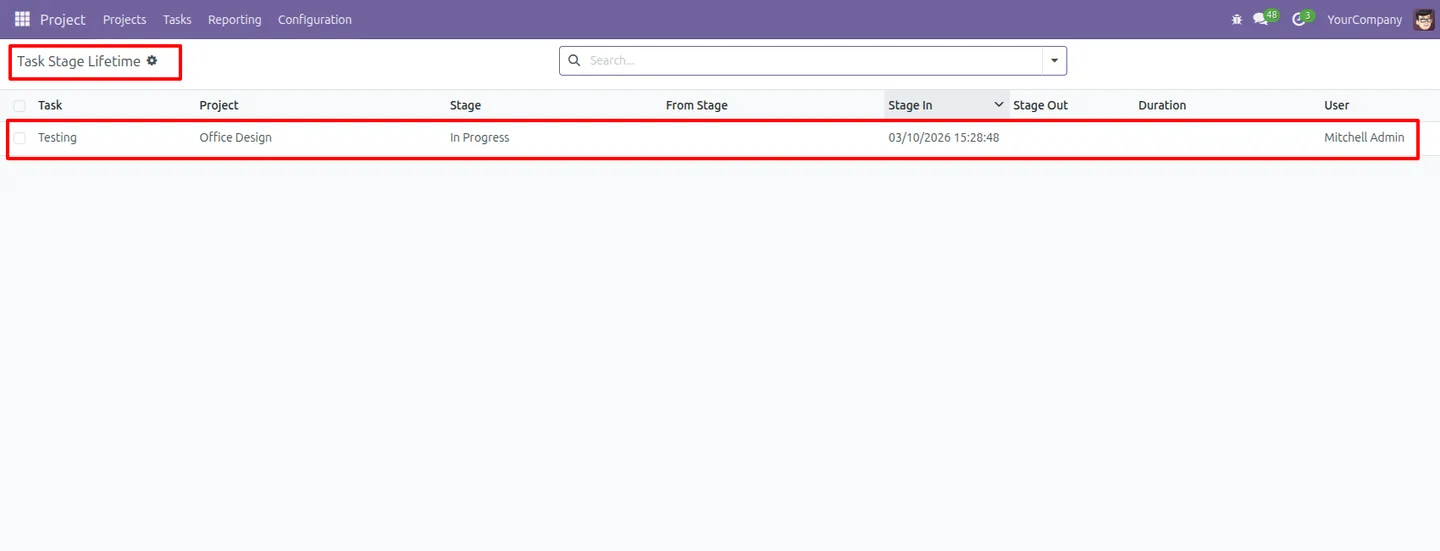
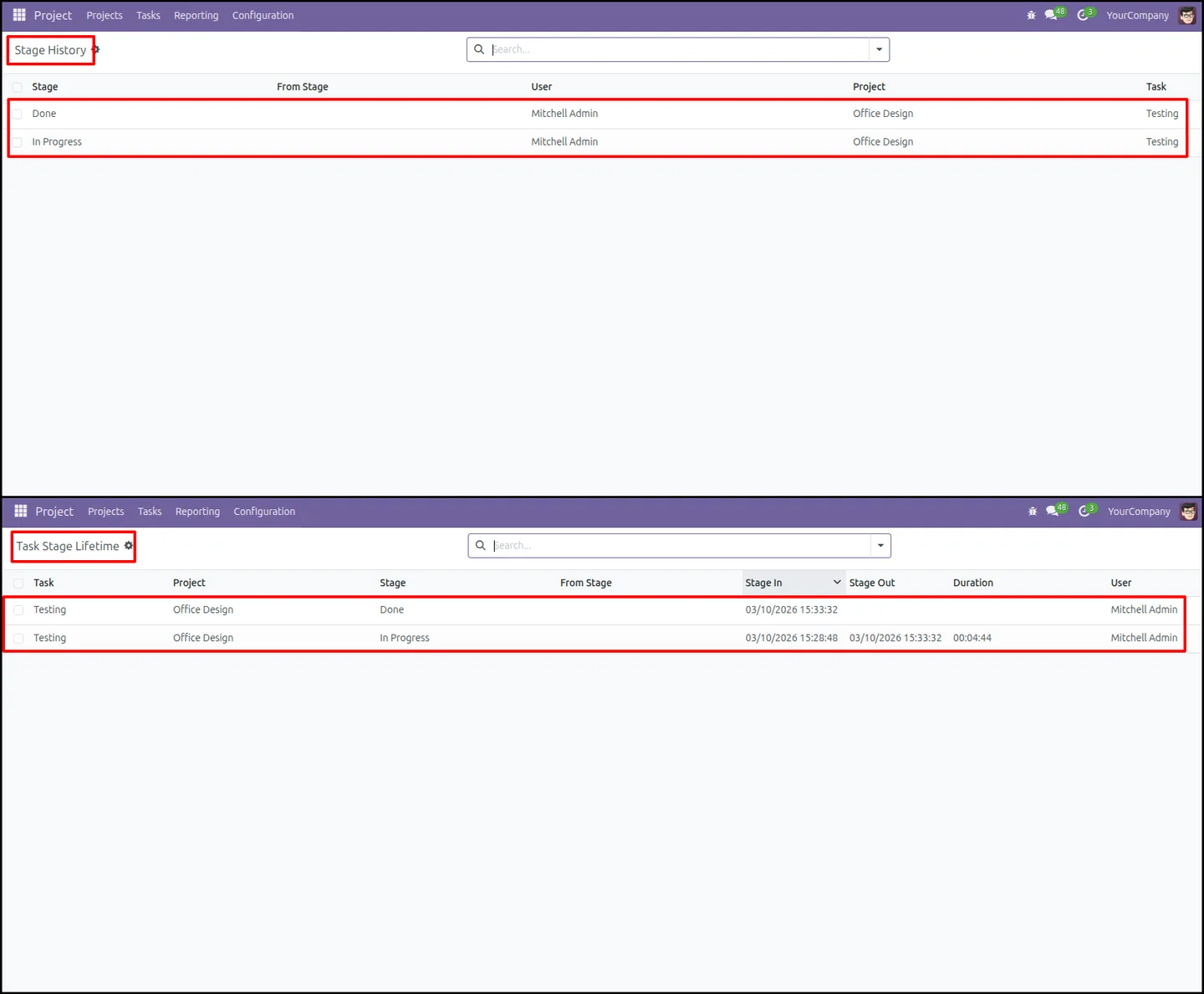
Project → Reporting includes a Stages History view of transition records and a Task Stage Lifetime view for stage-duration analytics.
-
Workflow audit trail
The transparent record of every stage movement supports compliance reviews and post-project workflow analysis.
Task Stage Duration Tracker in Odoo
Every screen, in the order you meet it — configuration first, then the module in use.
Technical details
Specification
- Publisher
- TechUltra Solutions Private Limited
- Technical name
- project_task_stage_duration
- Odoo versions
- 16.0, 17.0, 18.0, 19.0, 20.0
- Lines of code
- 514
- License
- Odoo Proprietary License v1.0 (OPL-1)
- Price
- $16 (one-time)
Deployment
- Odoo Online
- Odoo.sh
- On-premise
Odoo dependencies
- Project
- Discuss
Support
90 days of bug-fix support, Monday to Friday (10:00–19:00 IST). Raise a ticket at support@techultra.in.
Setup & configuration
From install to first call — here is the path.
- 1
Install the module
In Odoo, open Apps, remove the Apps filter, search for “Project Task Stage Duration”, and click Install.
- 2
Set the global configuration
Open the system-wide settings to enable stage-duration tracking for all projects and tasks at once, if you want it everywhere.
- 3
Configure individual projects
On a project, turn on Project Task Stage Duration to record stage changes, Project Stage Duration History to track time per stage, and pick a Stage Template if you use one.
- 4
Build stage templates
Go to Project → Configuration → Stage Templates to define which task stages are tracked versus excluded, then apply the template to your projects.
- 5
Tune individual stages
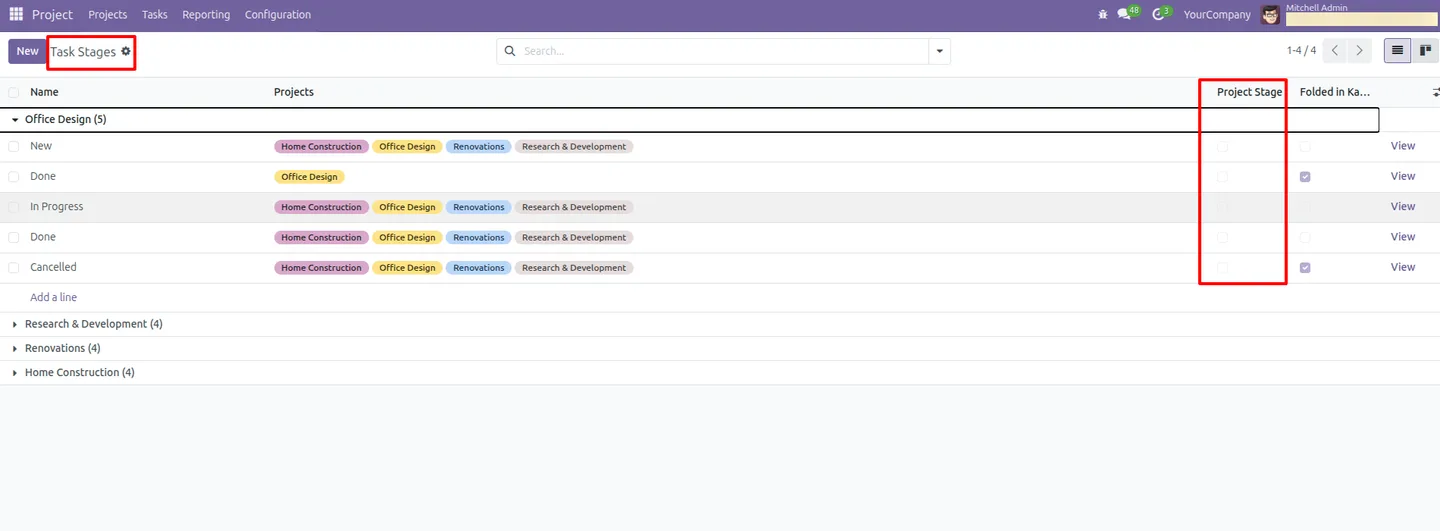
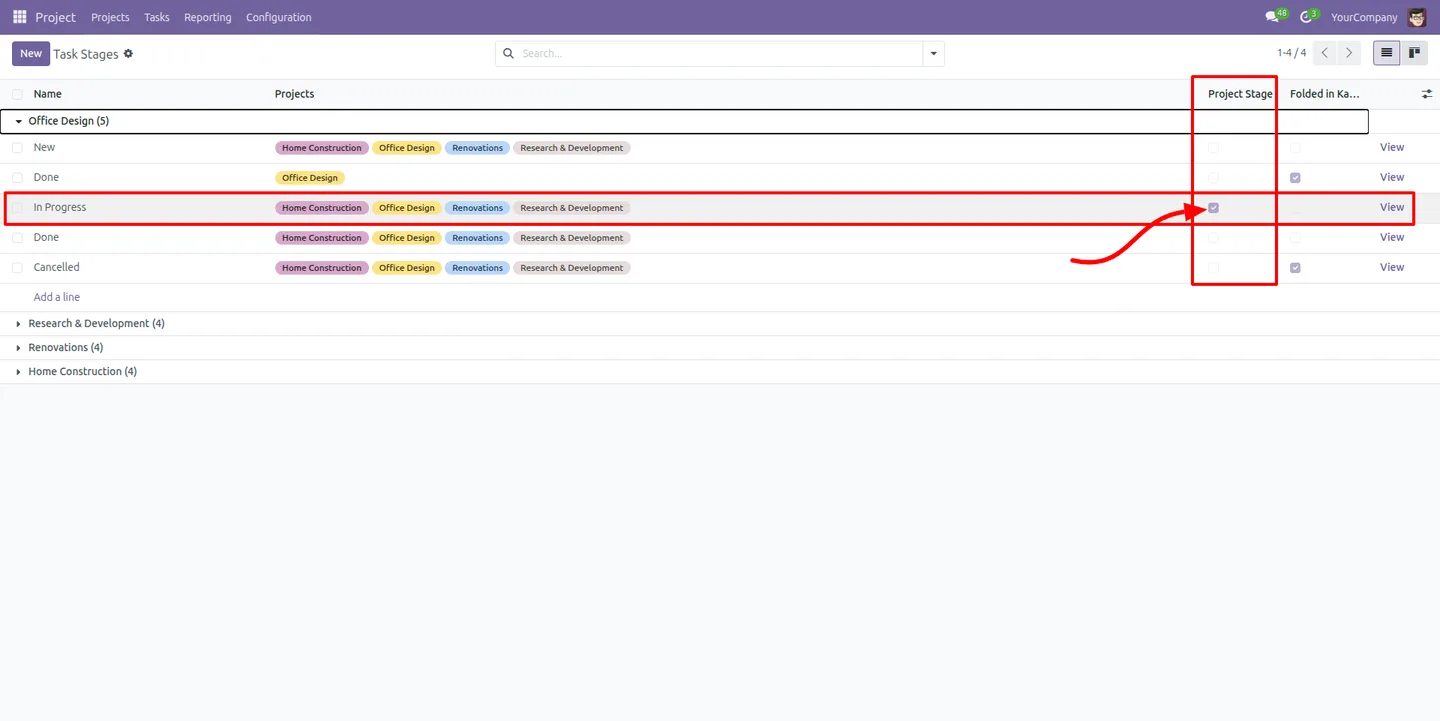
Open your task stages and toggle the Project Stage option per stage to include or exclude it from tracking.
- 6
Review tasks and reports
Open a task to see the Task Stage History section, and use Project → Reporting for Stages History and Task Stage Lifetime analytics.
Frequently asked questions
-
How does the module measure stage duration?
It records the timestamp each task enters and exits a stage. When a task moves on, the module calculates how long it spent in the stage it left — automatically, with no manual timers.
-
What does the transition history record?
Each stage change logs the from and to stages, entry and exit times, the duration in the stage, and the user who made the move. The history appears in the Task Stage History section on the task.
-
Can I enable tracking for only some projects?
Yes. Tracking can be switched on project by project, or activated globally for every project from the system settings.
-
What are stage templates for?
Stage templates, set under Project → Configuration, define which task stages should be tracked and which are excluded. Applying a template keeps the audit trail focused on the stages that matter.
-
What reports does the module add?
Project → Reporting gains a Stages History view for transition records and a Task Stage Lifetime view for stage-duration analytics, so managers can spot bottlenecks.
-
Does it work with existing projects and tasks?
Yes. Once tracking is enabled on a project, the module logs stage changes from that point forward across all of the project's tasks.
-
Which Odoo versions are supported?
The module supports Odoo 16.0, 17.0, 18.0, 19.0, and 20.0, in both the Community and Enterprise editions.
-
Is support included?
Yes. The module includes 90 days of bug-fix support, Monday to Friday, 10:00–19:00 IST.
Listing verified against the Odoo App Store:
Related solutions
Whole-platform solutions that complement Task Stage Duration Tracker.
Related services
Get the most out of this module with senior TechUltra consultants.
Odoo Customization Services
Odoo customization from a Gold Partner: custom modules, workflows, reports and Studio changes, written upgrade-safe and quoted at a fixed scope. Free scoping call.
Hire Odoo Developers
Hire certified Odoo developers from a Gold Partner: one developer or a team, full-time or part-time, 70–160 hours a month. Silver, Gold or Platinum plan, free trial.
Odoo Support Services & Maintenance
Odoo support services from a Gold Partner: functional and technical support plus server cover for Enterprise and Community, 30-minute P1 response, 24/7 option.







