Odoo App · Shipping & Logistics
ShipBob Integration | Order Fulfillment & Inventory Sync
Sync orders, products, inventory, and shipment tracking between Odoo and the ShipBob fulfillment platform — automatically.

Overview
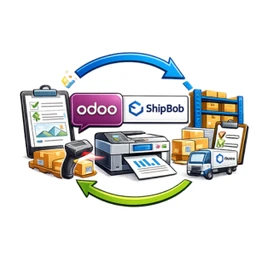
ShipBob Integration lets businesses that outsource fulfillment to ShipBob run the whole flow from Odoo — orders, products, and inventory stay in sync, and shipment status flows back automatically.
Built by TechUltra Solutions, the connector exports confirmed sales orders to ShipBob for processing, matches products by SKU, and keeps stock levels aligned across both platforms so you're not reconciling spreadsheets.
Warehouse-to-fulfillment-center mapping, delivery-carrier mapping, and webhook-based updates give you real-time visibility across ShipBob's fulfillment network without leaving Odoo, and an API log makes troubleshooting straightforward.
Key features
-
Product synchronization
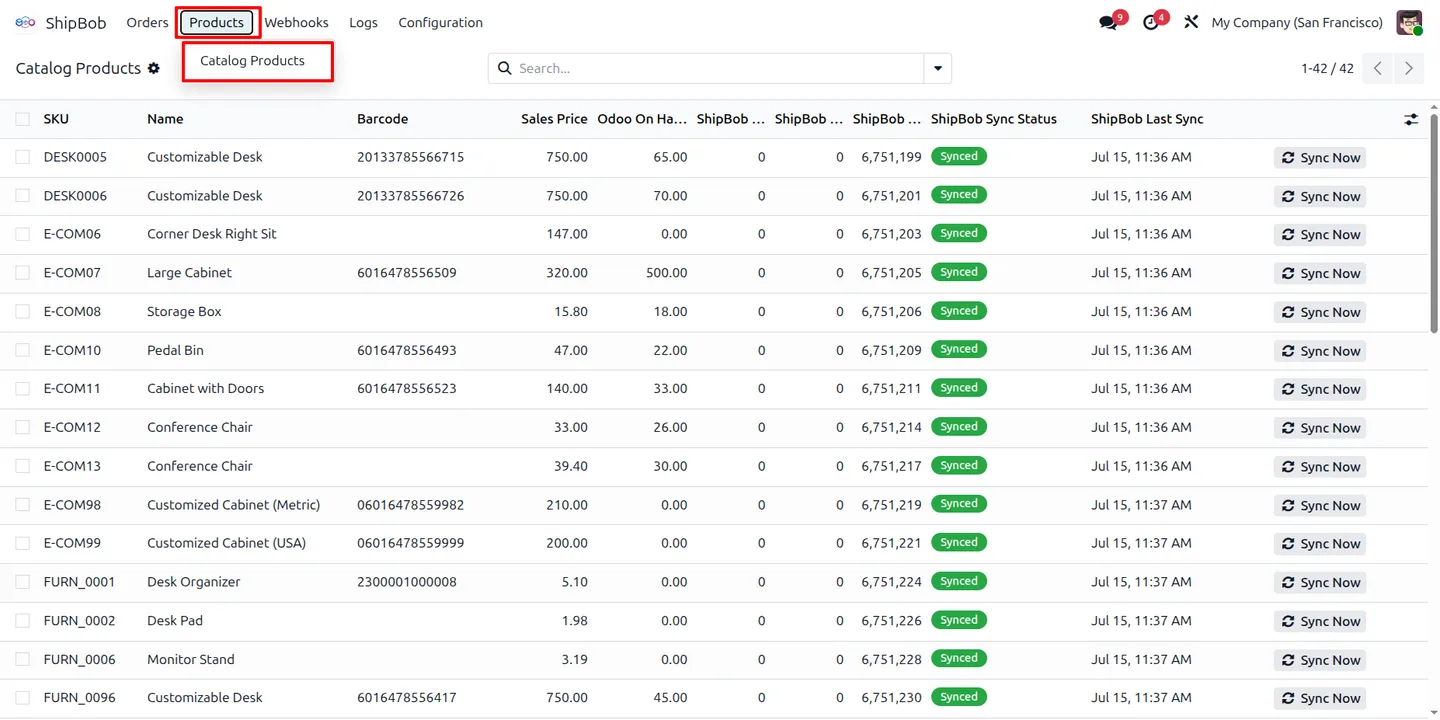
Sync Odoo products with the ShipBob catalog, matched by SKU, so both systems share one product list.
-
Sales-order fulfillment
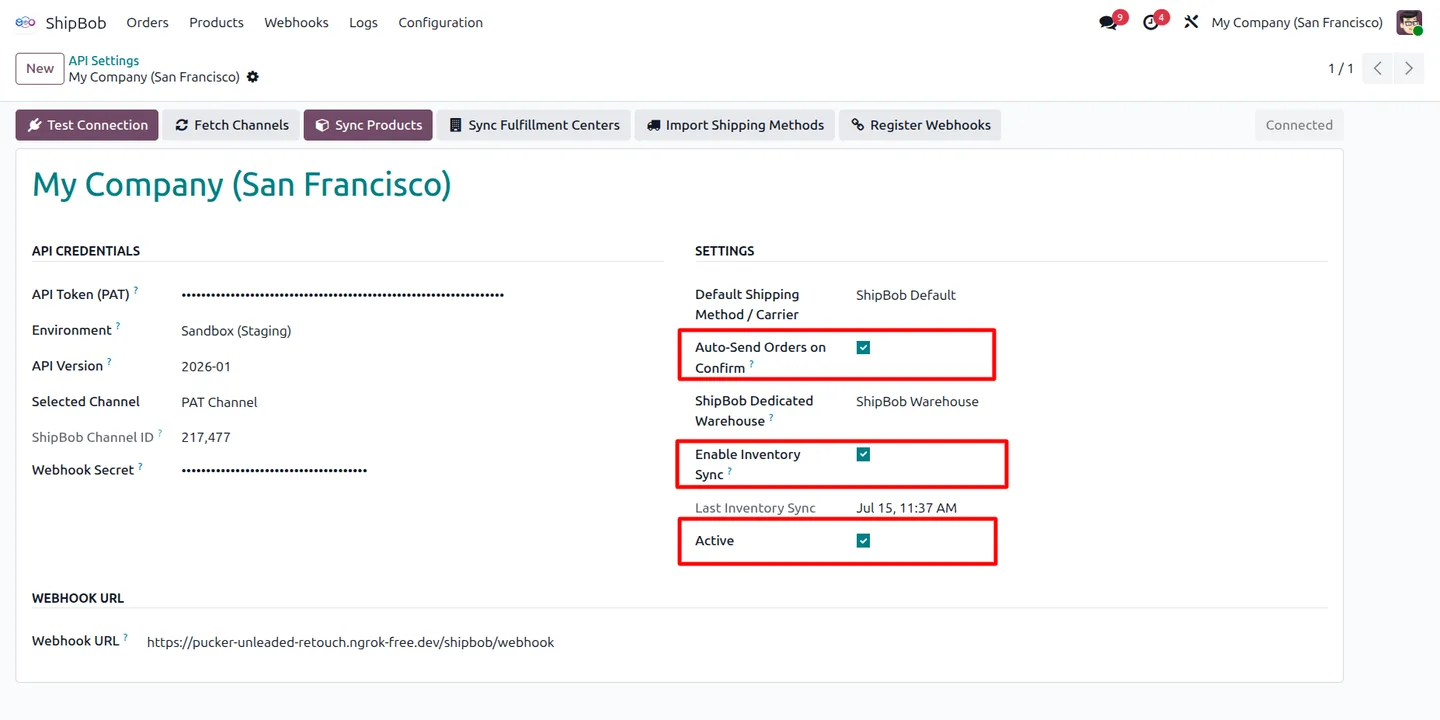
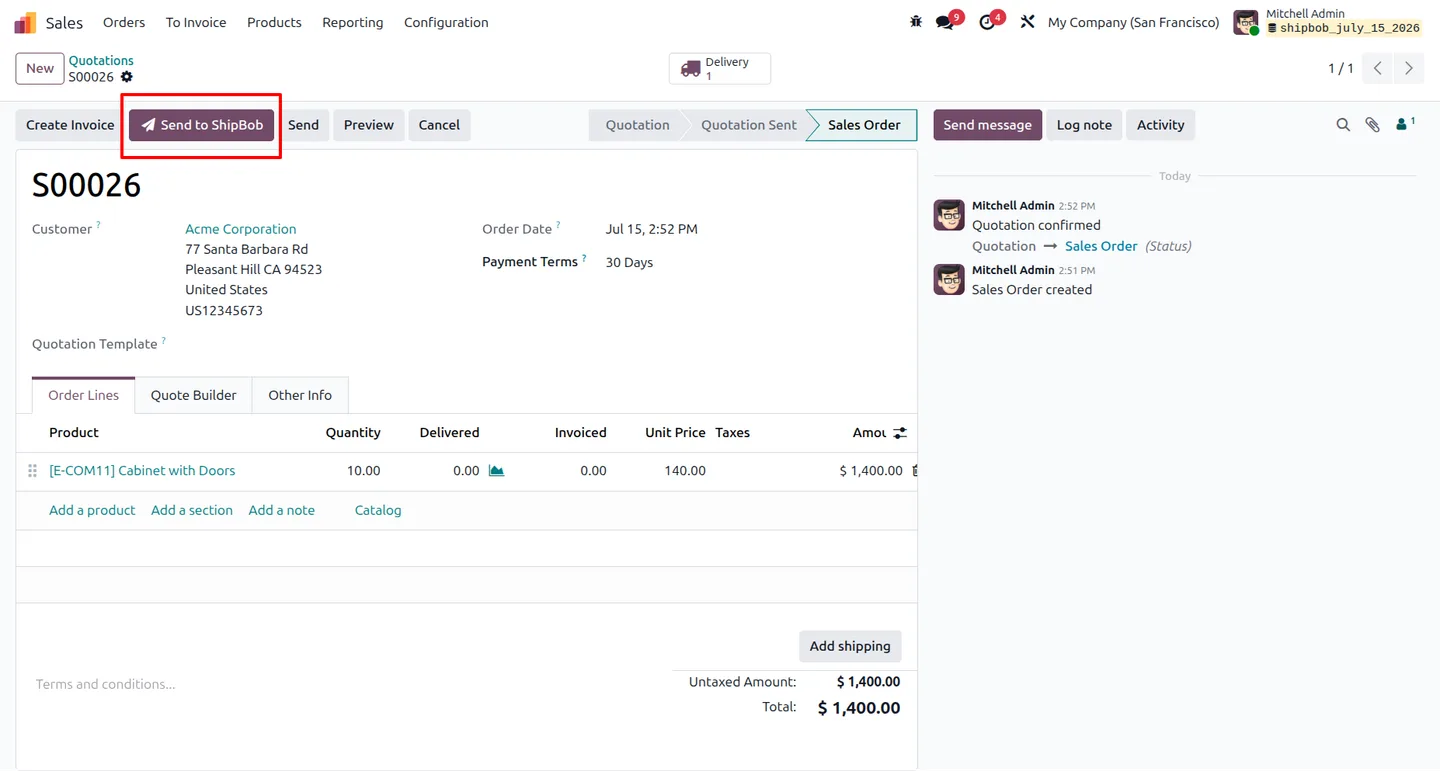
Send confirmed Odoo sales orders to ShipBob for processing, with optional auto-send on confirmation.
-
Inventory synchronization
Keep stock levels aligned across Odoo and ShipBob so availability figures stay accurate.
-
Shipment tracking
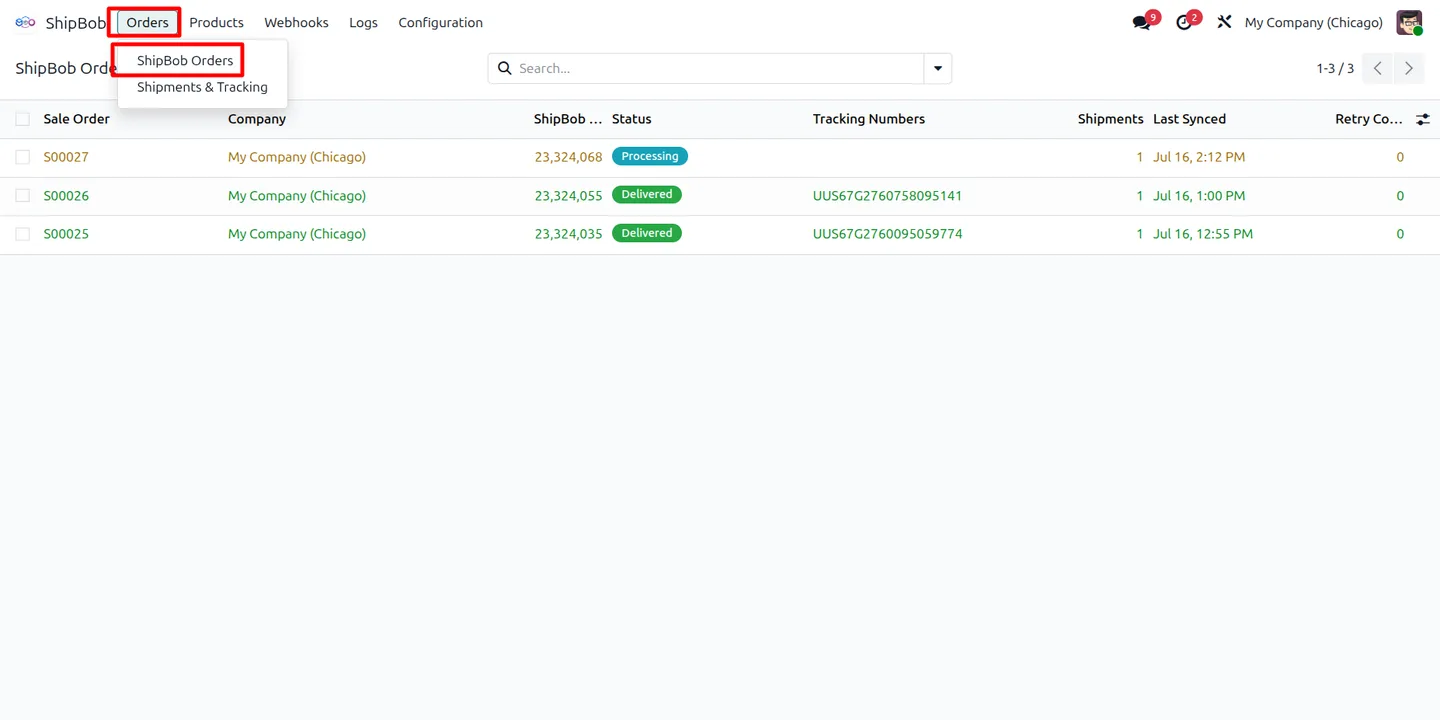
Monitor real-time shipment status and tracking information from within Odoo.
-
Warehouse mapping
Link Odoo warehouses to the corresponding ShipBob fulfillment centers.
-
Sales-channel management
Configure and manage ShipBob sales channels directly from Odoo.
-
Delivery-carrier mapping
Match shipping carriers between Odoo and ShipBob so the right carrier is used for each shipment.
-
Webhook integration
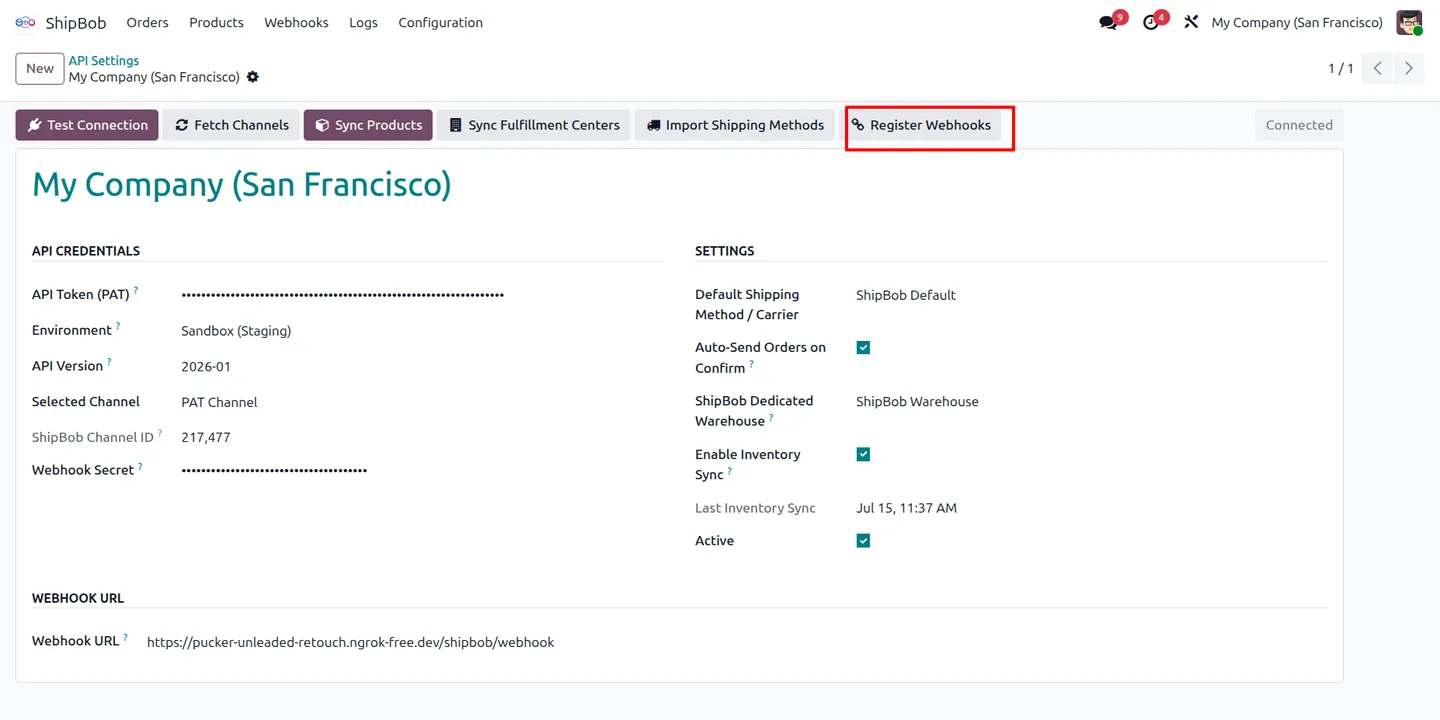
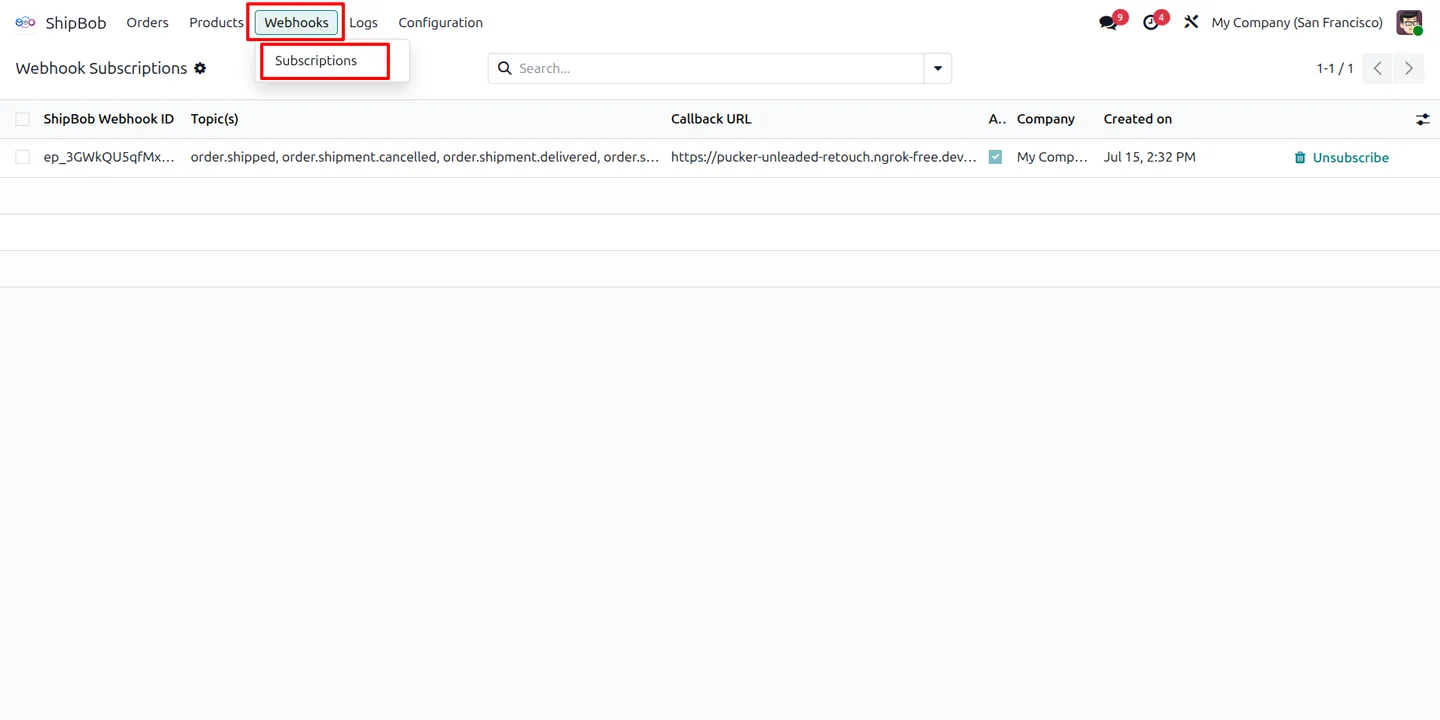
Receive automatic fulfillment and inventory updates via webhooks, with one-click registration.
ShipBob Integration | Order Fulfillment & Inventory Sync in Odoo
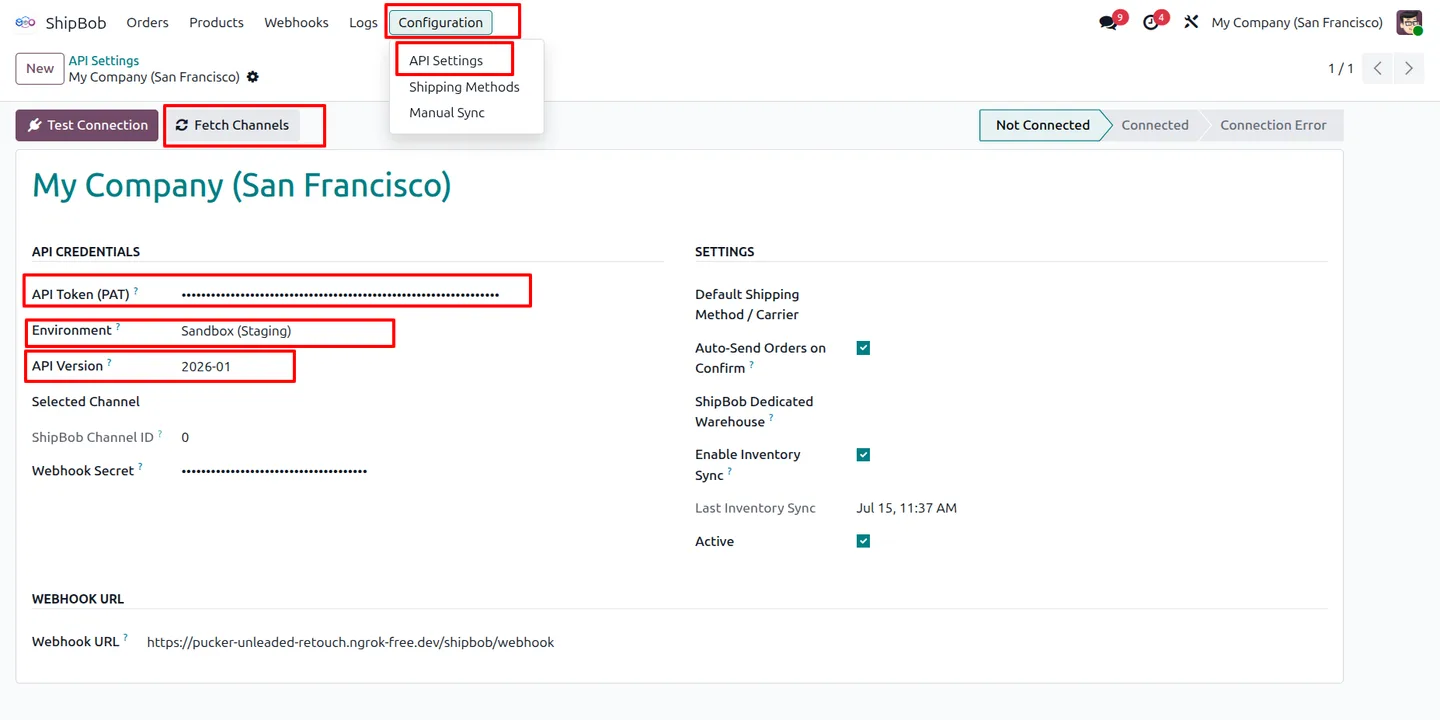
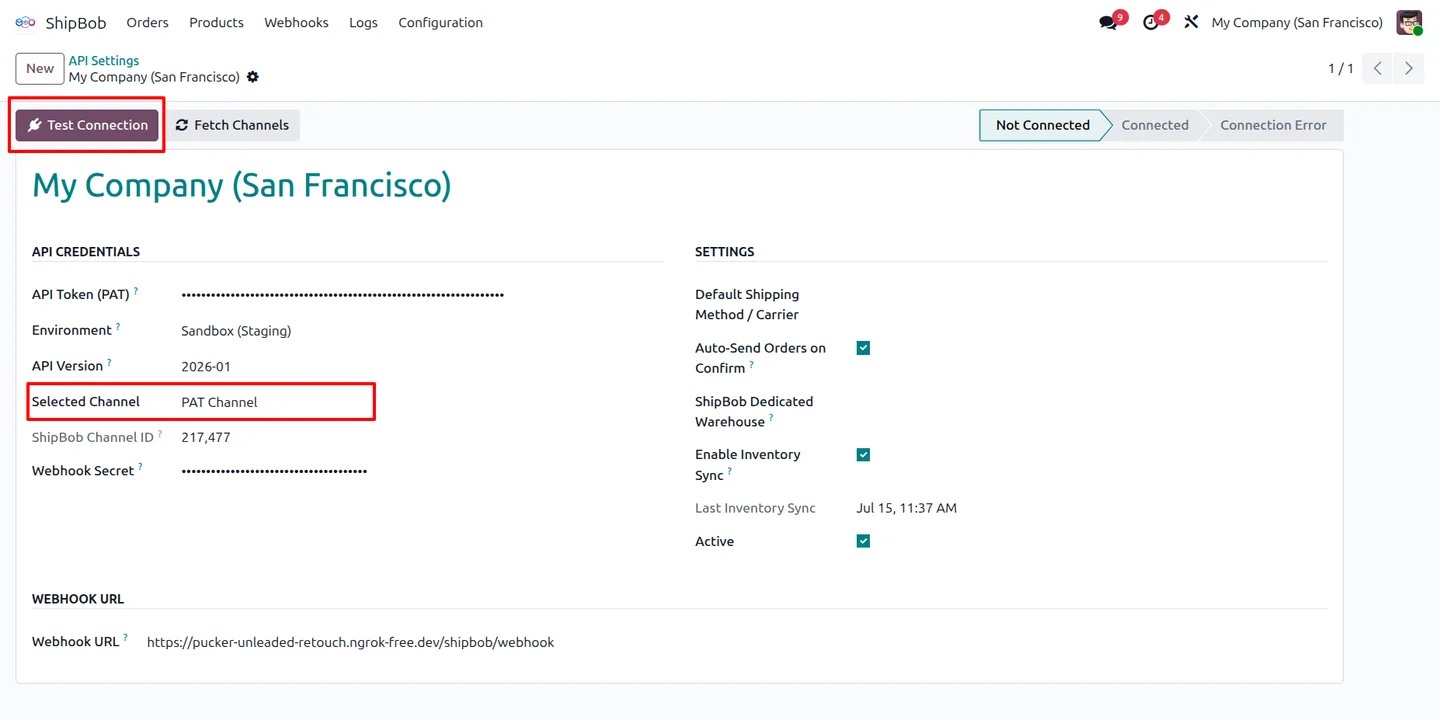
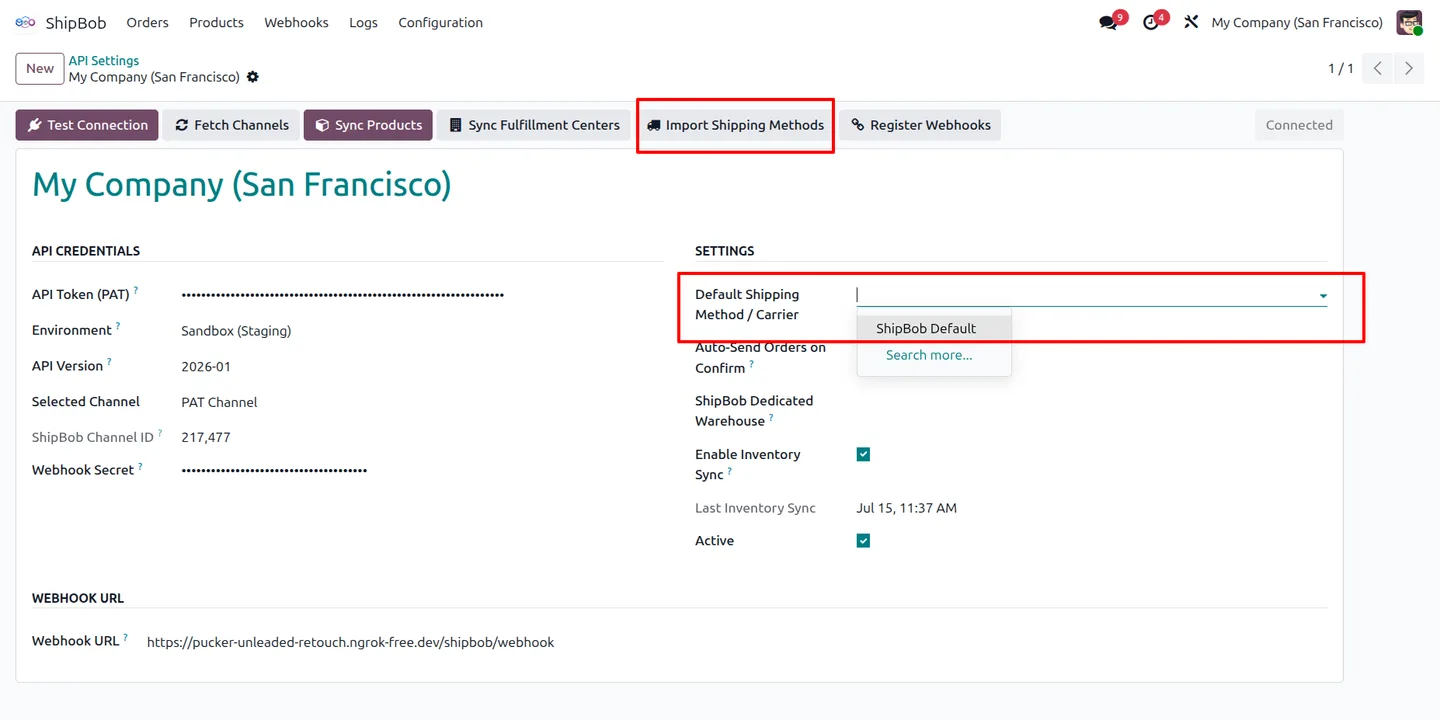
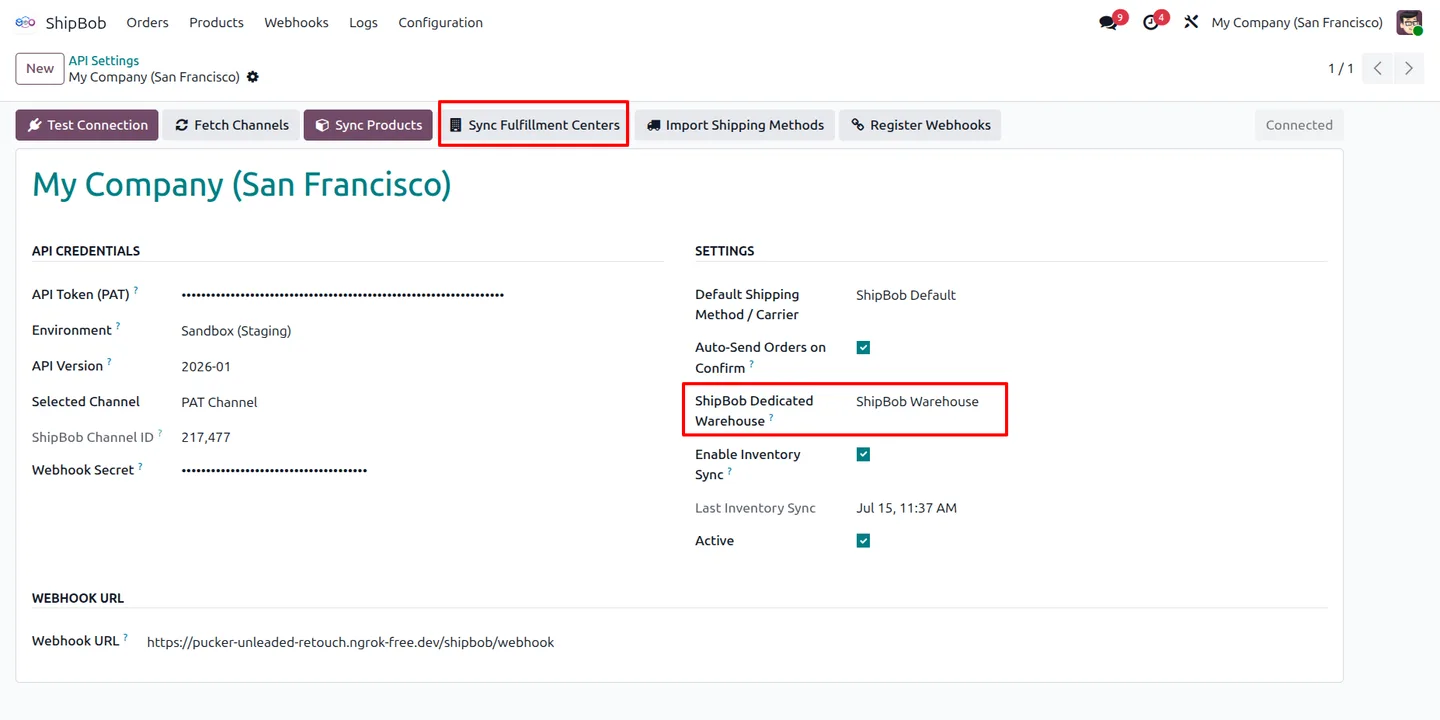
Every screen, in the order you meet it — configuration first, then the module in use.
Technical details
Specification
- Publisher
- TechUltra Solutions Private Limited
- Technical name
- shipbob
- Odoo versions
- 16.0, 17.0, 18.0, 19.0, 20.0
- License
- Odoo Proprietary License v1.0 (OPL-1)
- Price
- $89 (one-time)
Deployment
- Odoo Online
- Odoo.sh
- On-premise
Odoo dependencies
- Sales
- Inventory
Support
90 days of bug-fix support, Monday to Friday (10:00–19:00 IST). Raise a ticket at support@techultra.in.
Setup & configuration
From install to first call — here is the path.
- 1
Install the module
In Odoo, open Apps, remove the Apps filter, search for “ShipBob”, and click Install.
- 2
Connect your account
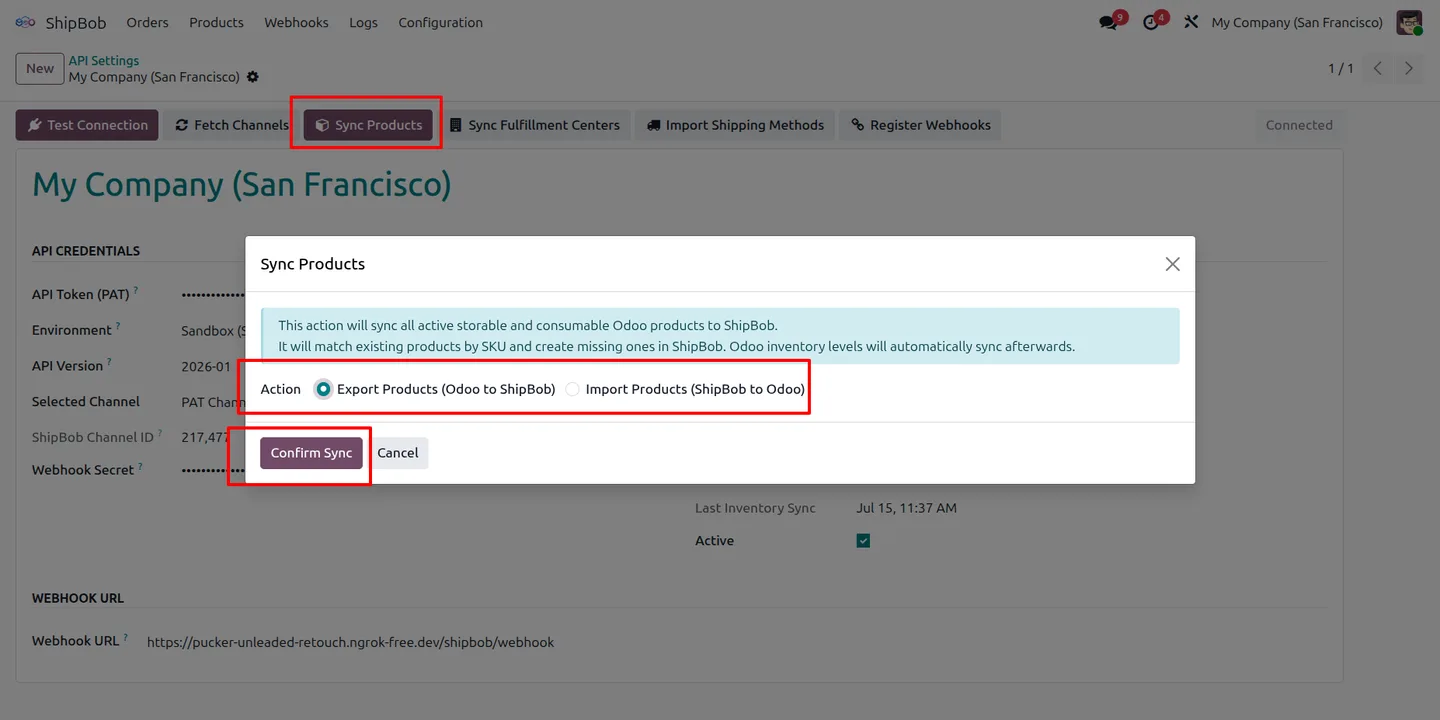
Enter your ShipBob API credentials under Configuration → API Settings, then fetch your sales channels.
- 3
Map warehouses and carriers
Link your Odoo warehouses to ShipBob fulfillment centers and match delivery carriers between the two systems.
- 4
Sync products
Click Sync Products to export and import items, matched by SKU, so both catalogs align.
- 5
Enable auto-send (optional)
Turn on “Auto-Send Orders on Confirm” so confirmed sales orders are transmitted to ShipBob automatically.
- 6
Register webhooks
Use the one-click setup to register webhooks so fulfillment and inventory updates flow back into Odoo automatically.
Frequently asked questions
-
How do I connect Odoo to ShipBob?
Enter your ShipBob API credentials under Configuration → API Settings and fetch your channels. Products are matched by SKU when you run a sync.
-
Can orders be sent to ShipBob automatically?
Yes. Enable “Auto-Send Orders on Confirm” and each confirmed sales order is transmitted to ShipBob for fulfillment without manual steps.
-
Does inventory stay in sync?
Yes. The connector keeps stock levels aligned across Odoo and ShipBob, and webhooks push inventory updates back into Odoo as they change.
-
Can I see shipment tracking in Odoo?
Yes. Real-time shipment status and tracking information are available directly inside Odoo.
-
How do I troubleshoot a failed request?
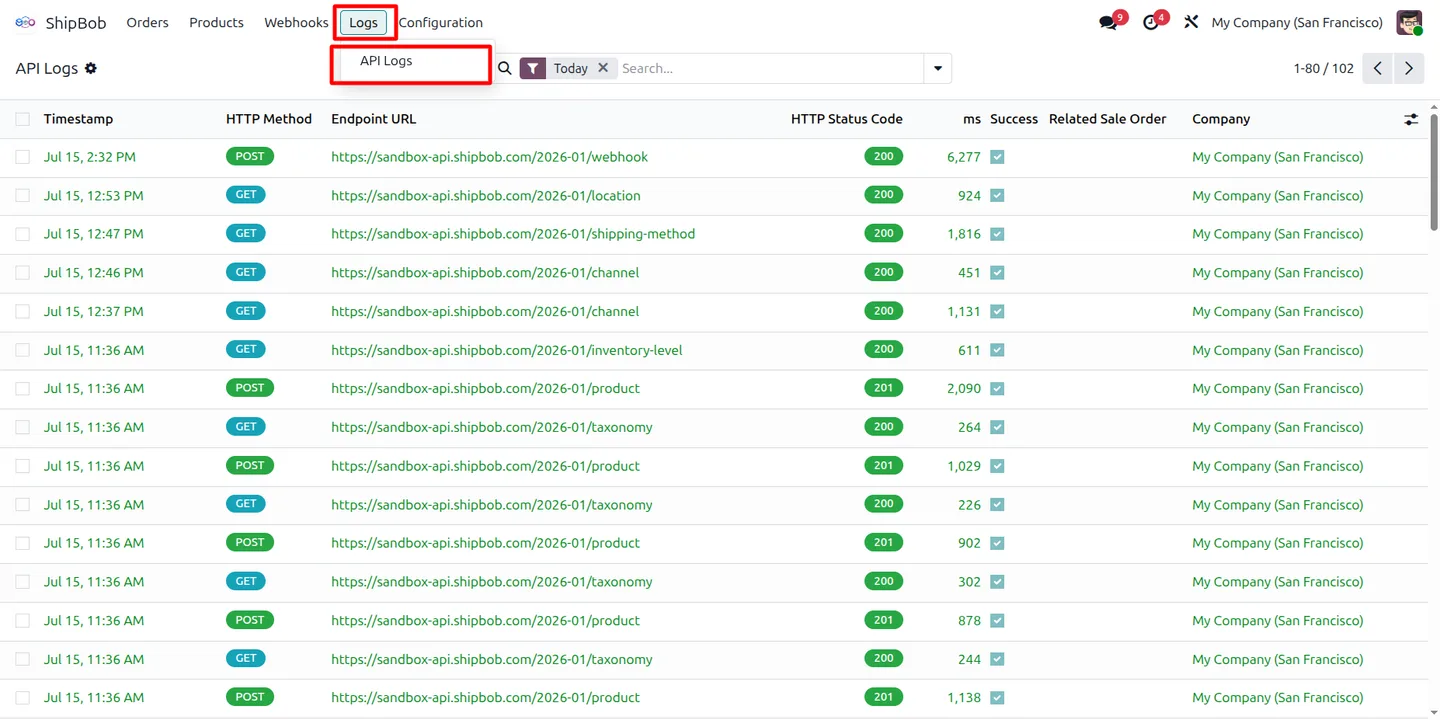
Open Logs → API Logs to review the request history and inspect any failed calls.
-
Which Odoo versions are supported?
The module supports Odoo 16.0, 17.0, 18.0, 19.0, and 20.0.
Listing verified against the Odoo App Store:
Related services
Get the most out of this module with senior TechUltra consultants.
Odoo Customization Services
Odoo customization from a Gold Partner: custom modules, workflows, reports and Studio changes, written upgrade-safe and quoted at a fixed scope. Free scoping call.
Hire Odoo Developers
Hire certified Odoo developers from a Gold Partner: one developer or a team, full-time or part-time, 70–160 hours a month. Silver, Gold or Platinum plan, free trial.
Odoo Support Services & Maintenance
Odoo support services from a Gold Partner: functional and technical support plus server cover for Enterprise and Community, 30-minute P1 response, 24/7 option.