
Odoo App · Reporting & PDF
QWeb Reports in Password-Protected ZIP
Bulk-export Odoo QWeb reports — quotations, orders, invoices, deliveries, MOs — into one password-protected ZIP.
Overview
QWeb Reports in Password-Protected ZIP solves a tedious, repetitive job: instead of downloading PDFs one by one from Odoo and zipping them locally, the module exports a batch of selected records into a single password-protected ZIP, ready to store or share.
Built by TechUltra Solutions, it spans every document type a typical Odoo install ships every day — Customer Invoices, Vendor Bills, Credit Notes, Sales Orders, Quotations, Delivery Orders, Purchase Orders, Manufacturing Orders, Workorders, and Payments. Reports are grouped in an organised folder structure inside the archive and compressed to keep transfer size down.
Each report type is enabled per user in Settings, so administrators control who can bulk-export and over which Odoo apps. The output is a standard ZIP, openable in any extraction tool with the configured password.
Key features
-
Export many QWeb reports into one ZIP
Export multiple selected QWeb reports simultaneously into one ZIP file, replacing dozens of one-off PDF downloads with a single archive.
-
Password-protected archive
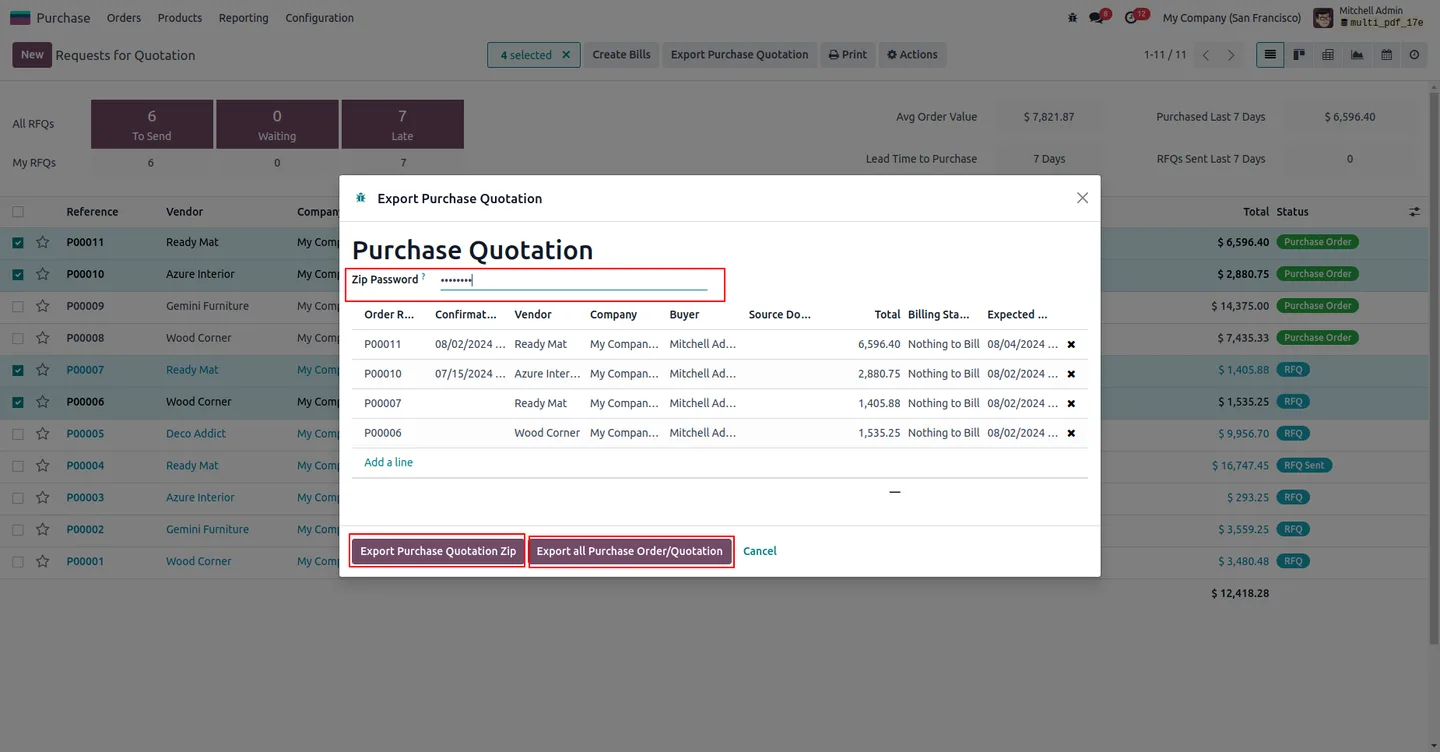
Password protection restricts access to authorised personnel only, so the ZIP can move over email or shared drives without exposing sensitive document data.
-
Organised folder structure
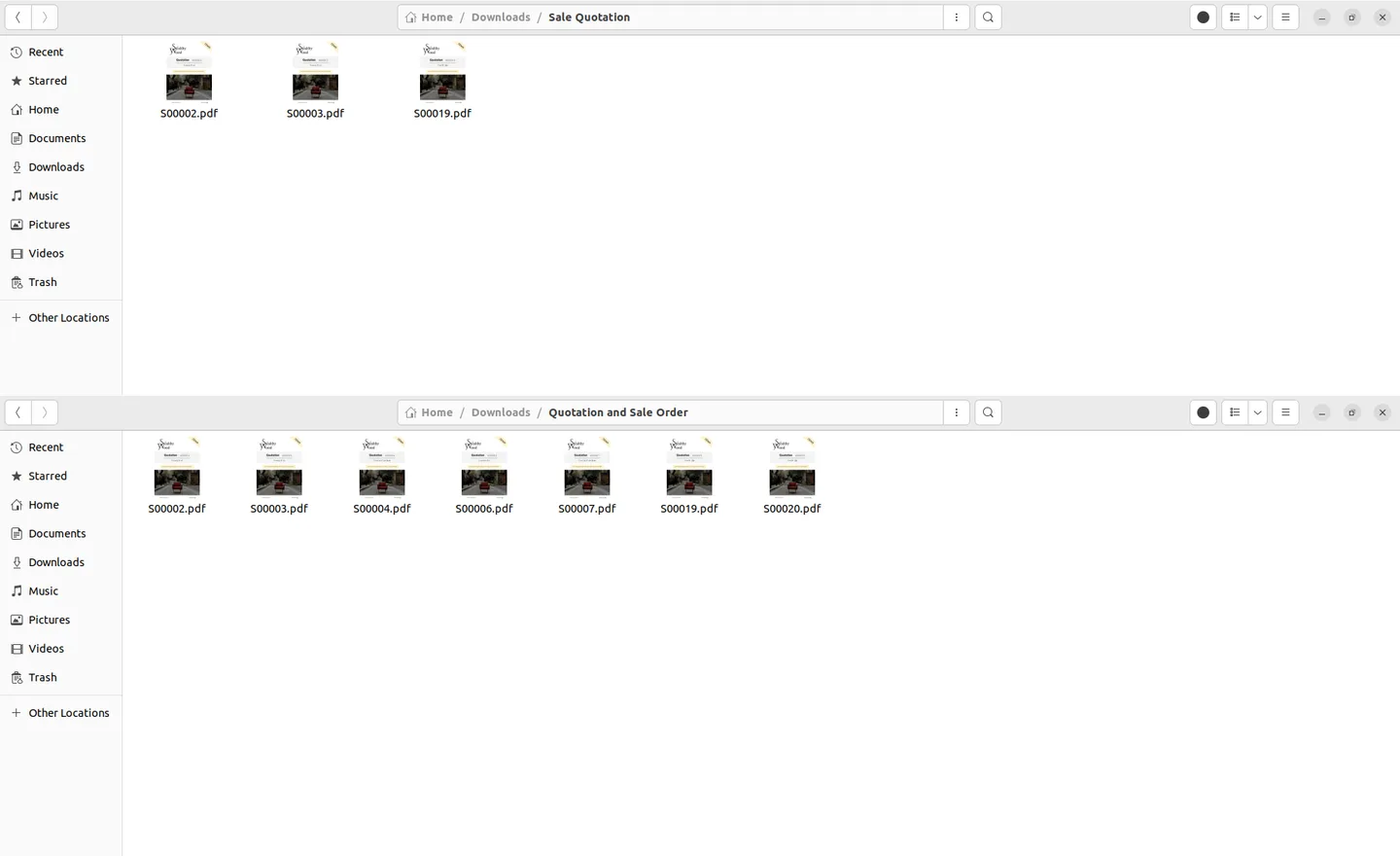
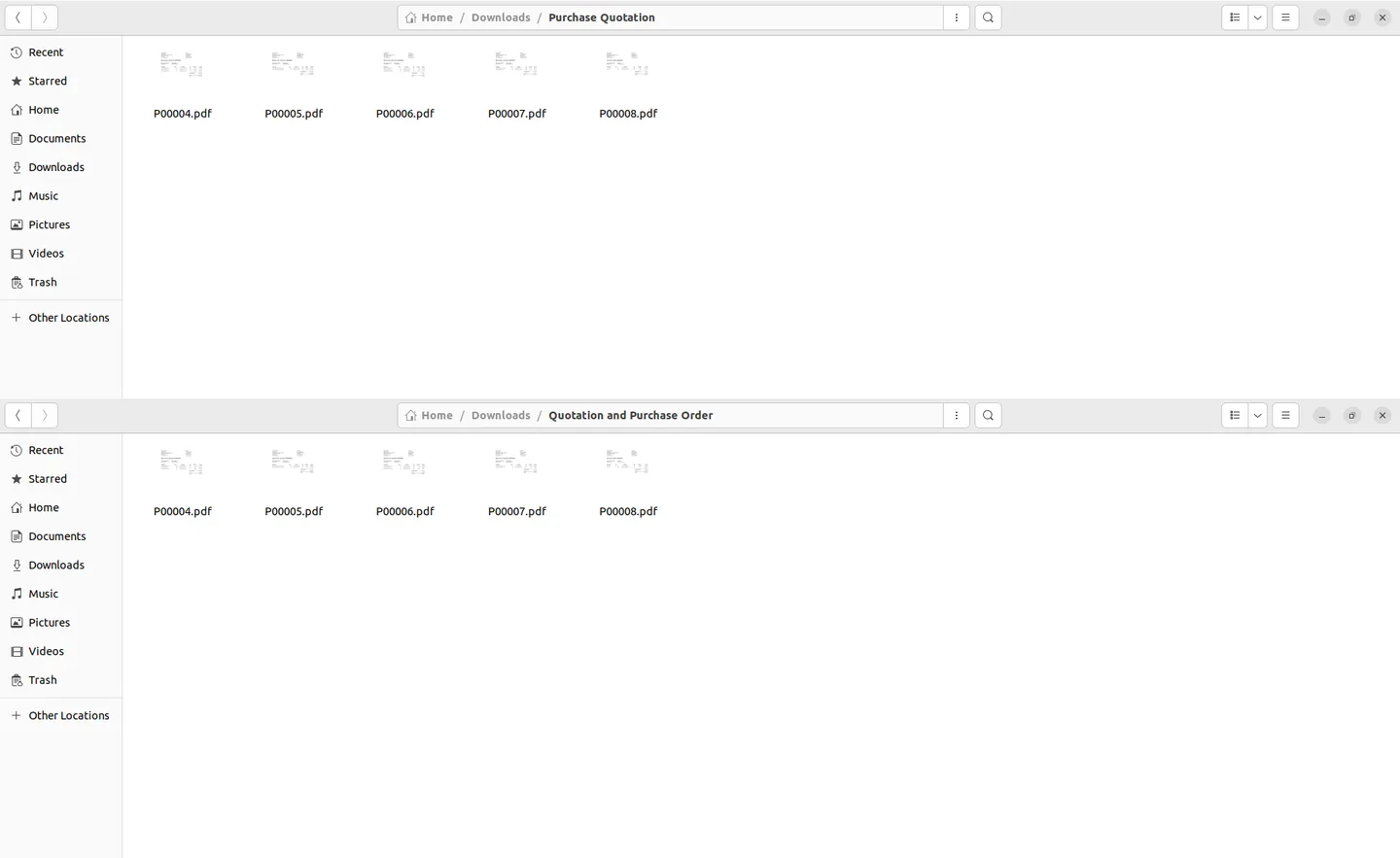
The archive uses an organised folder structure to categorise different report types, so recipients can find invoices, sales orders, deliveries, or MOs without searching.
-
Compression to cut transfer size
File compression reduces overall download size and transfer time, which matters when you're packaging hundreds of PDFs into one archive.
-
Covers Sales — quotations and sales orders
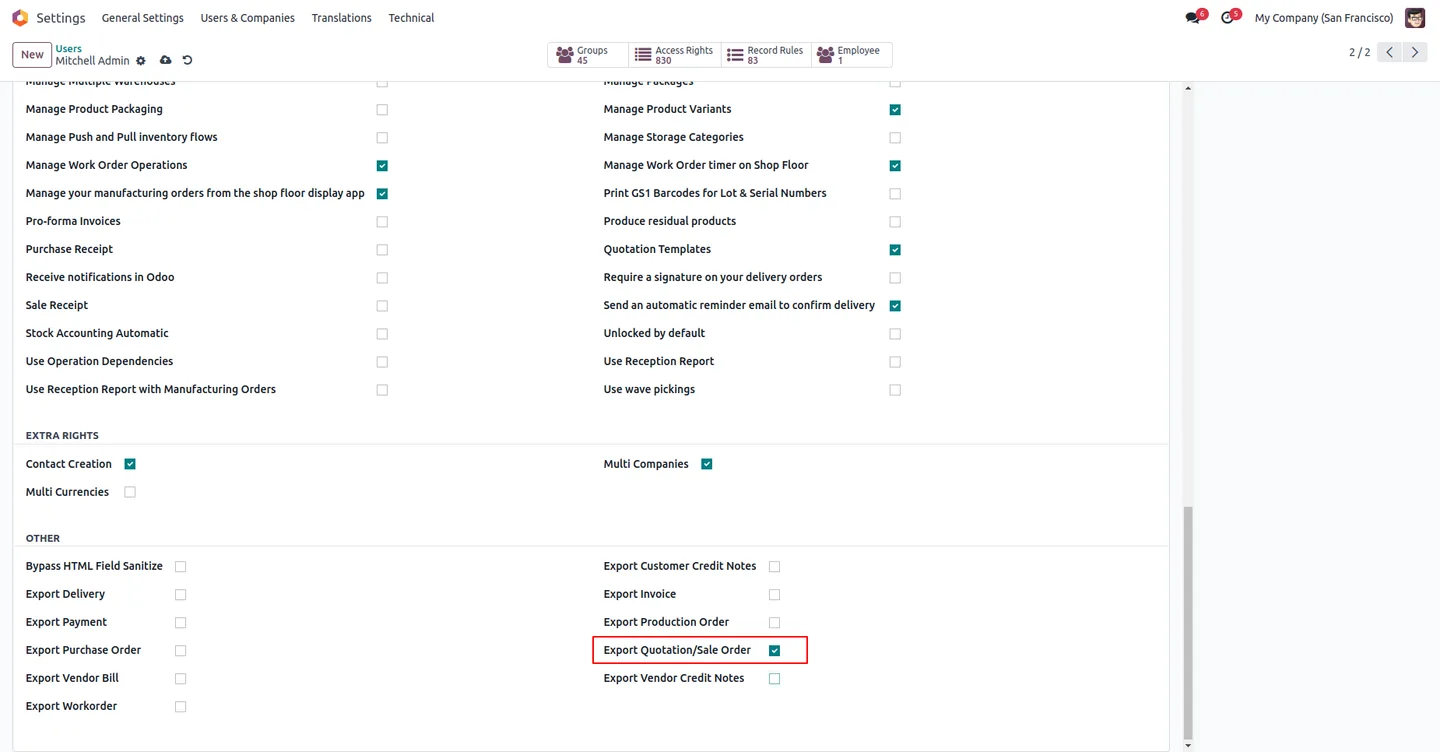
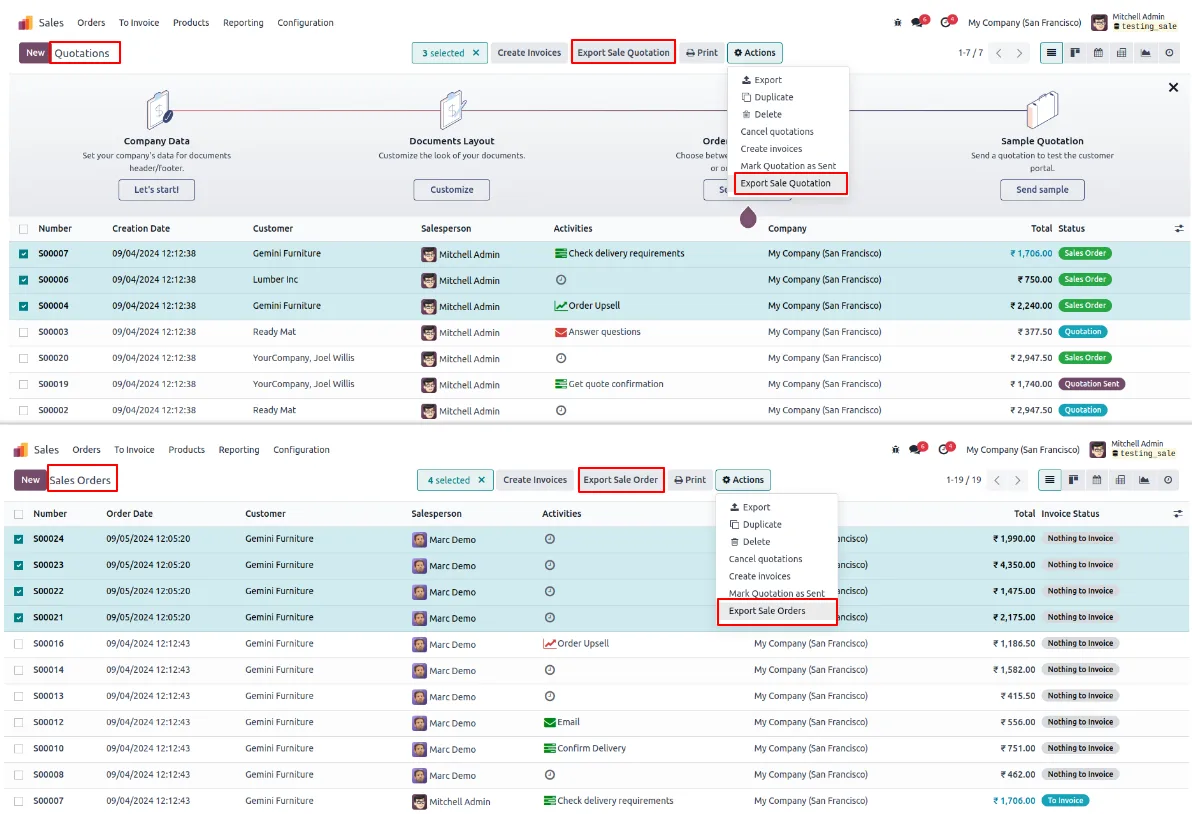
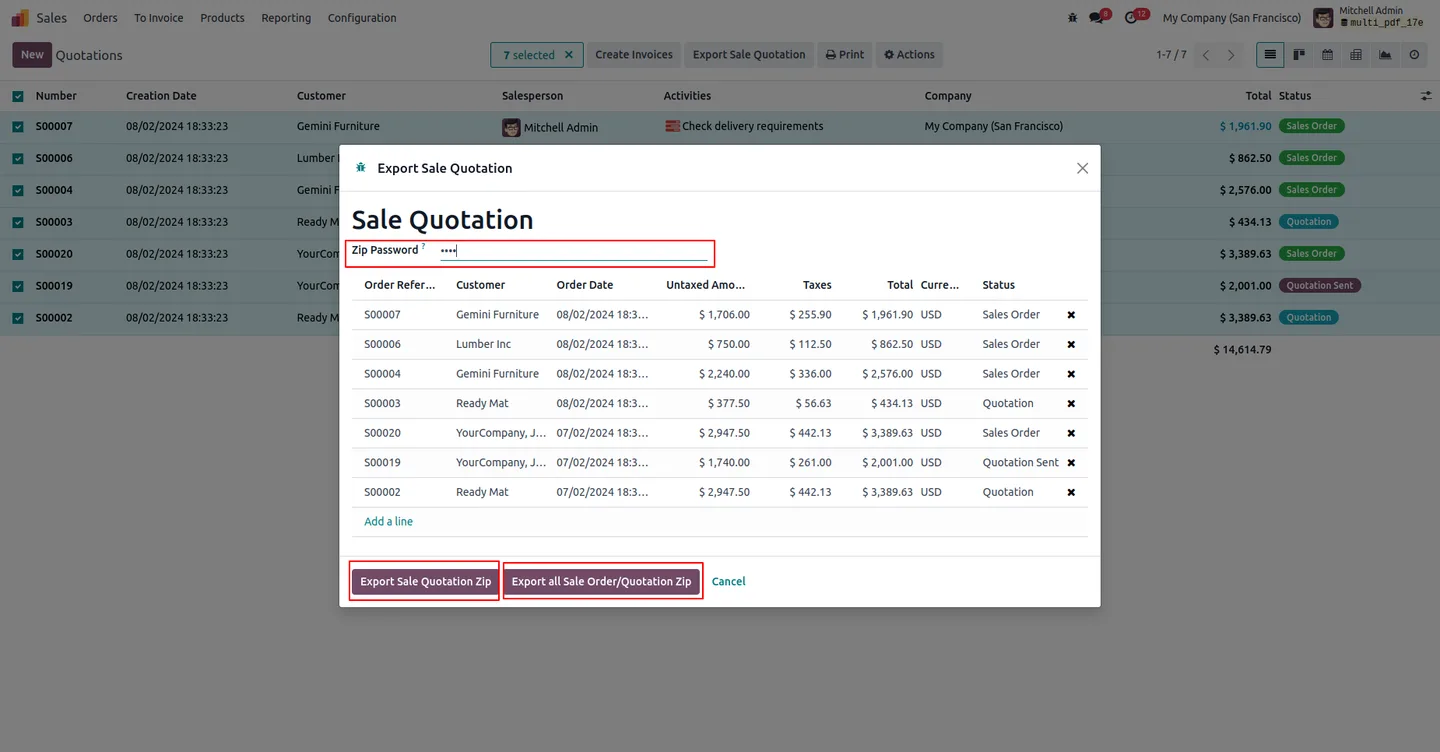
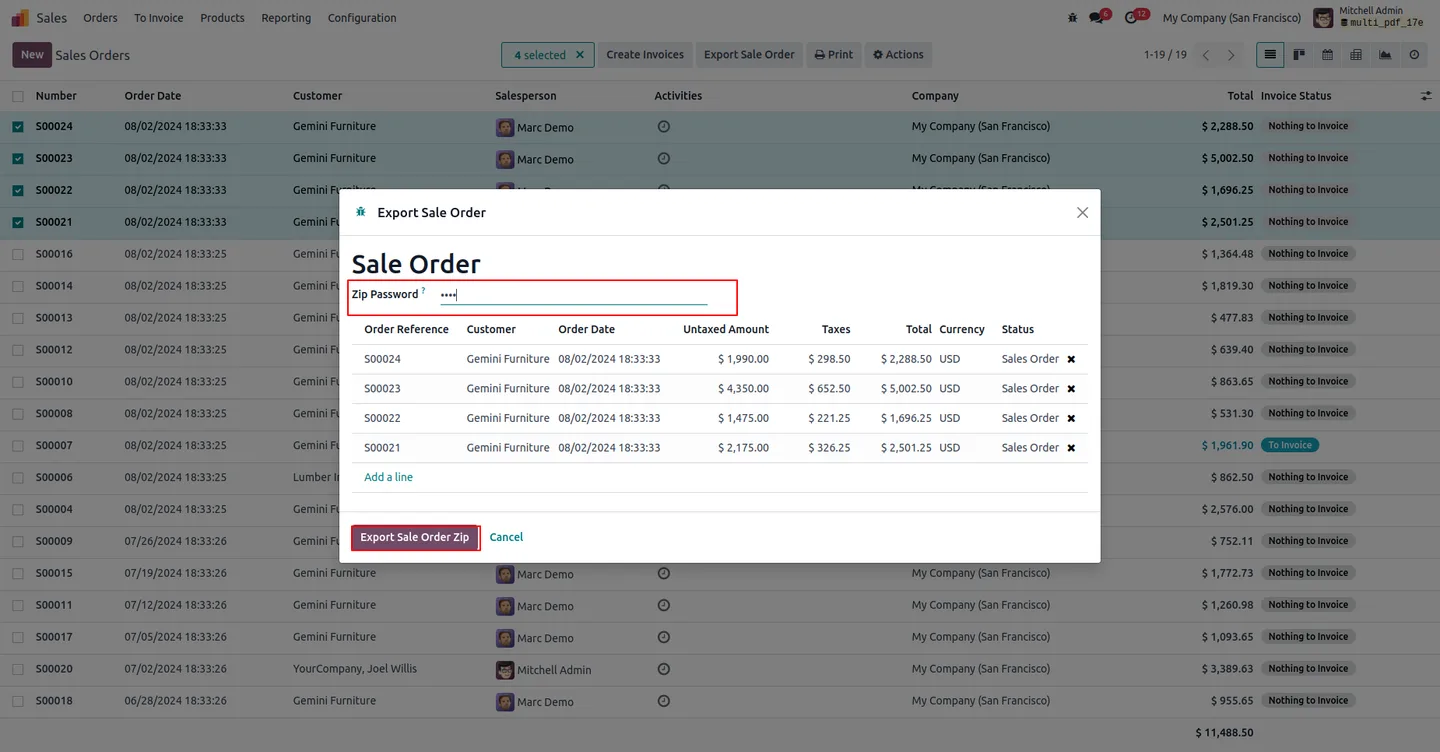
Enable the Export Quotation and Export Sale Order options in Settings → Users and the bulk-export buttons appear in the quotation and sales order tree views and server actions.
-
Covers Purchase — RFQs and purchase orders
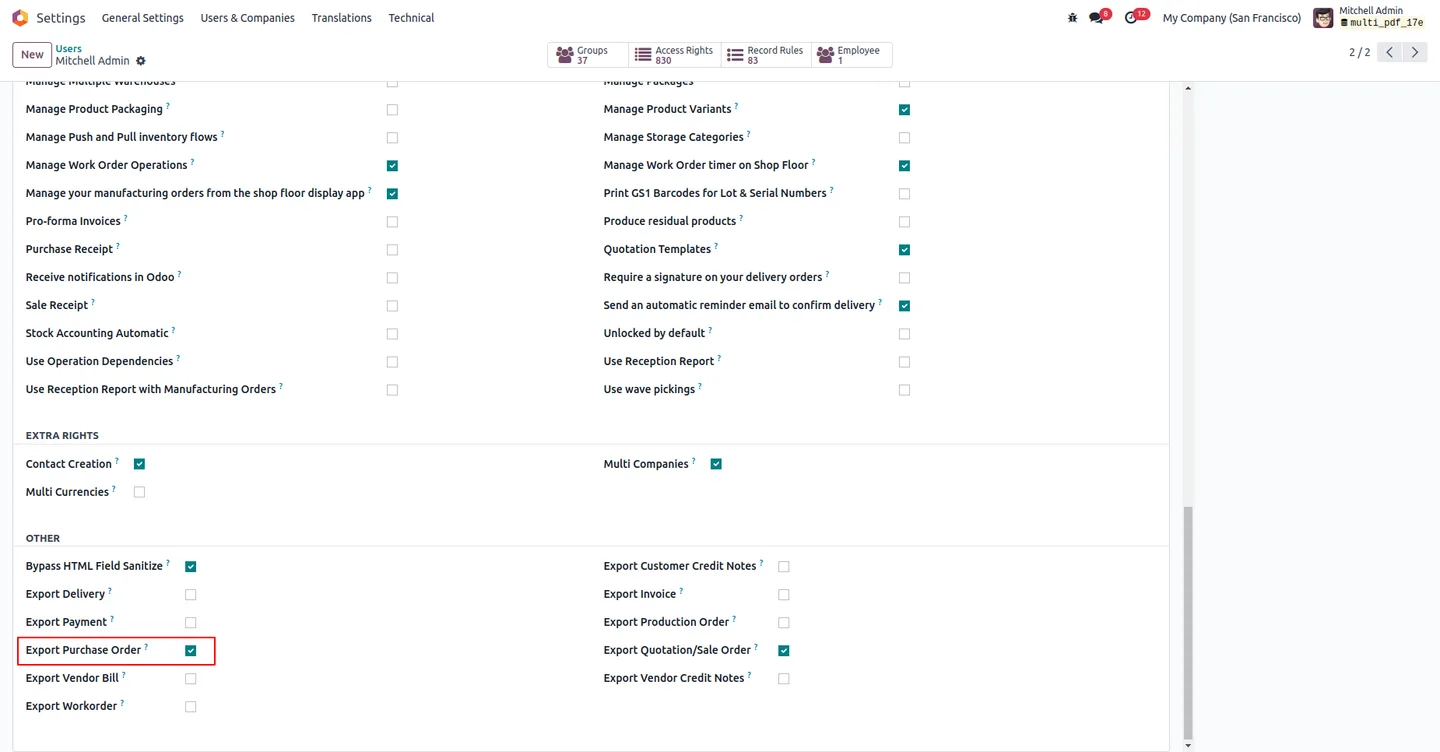
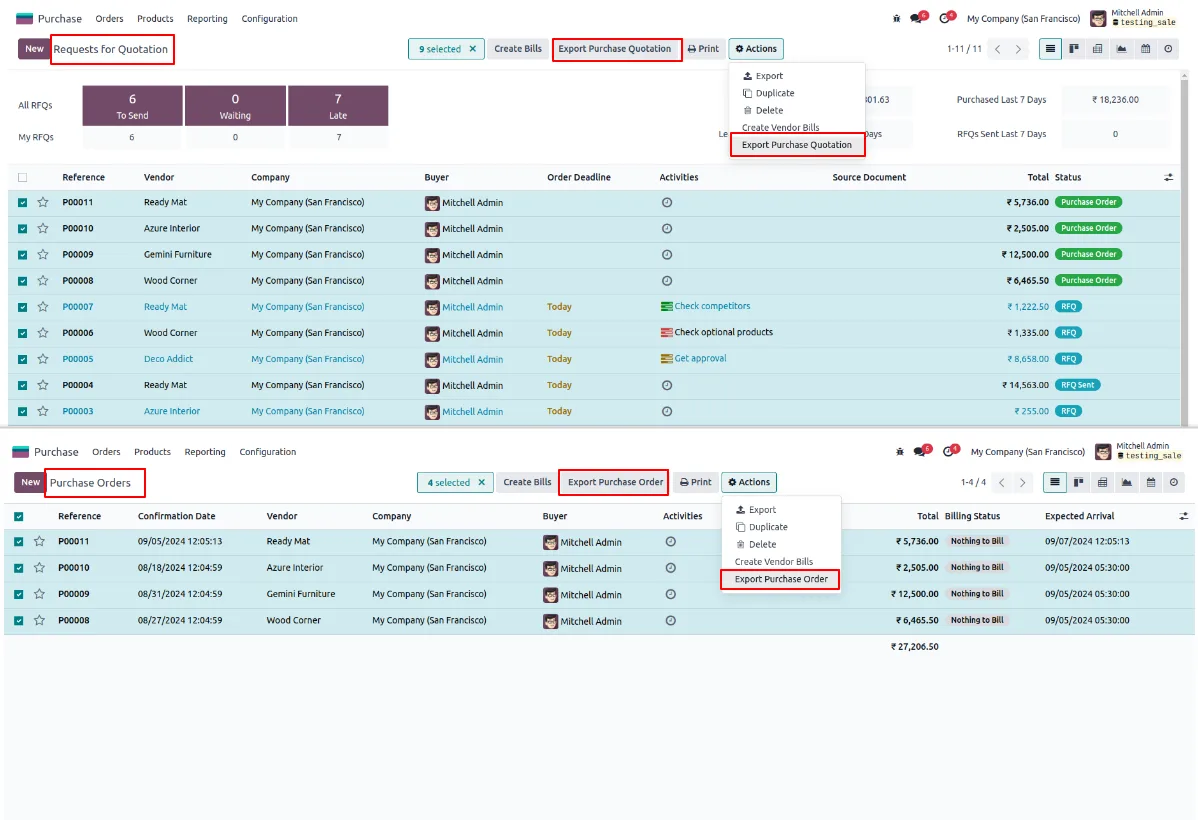
Enable the Export Purchase Order option and the bulk-export buttons appear in the Requests for Quotation and Purchase Order views.
-
Covers Inventory — receipts and deliveries
Enable the Export Delivery Order option and the bulk-export buttons appear in the Receipts and Deliveries tree views in Inventory.
-
Covers Accounting — invoices, credit notes, payments, vendor bills
Separate Settings flags drive the buttons in Customer Invoices, Customer and Vendor Credit Notes, Customer and Vendor Payments, and Vendor Bills.
-
Covers Manufacturing — MOs and workorders
Enable Export Production Order and Export Workorder and the bulk-export buttons appear in the Manufacturing Order and Workorder views.
-
Standard ZIP — works with any extractor
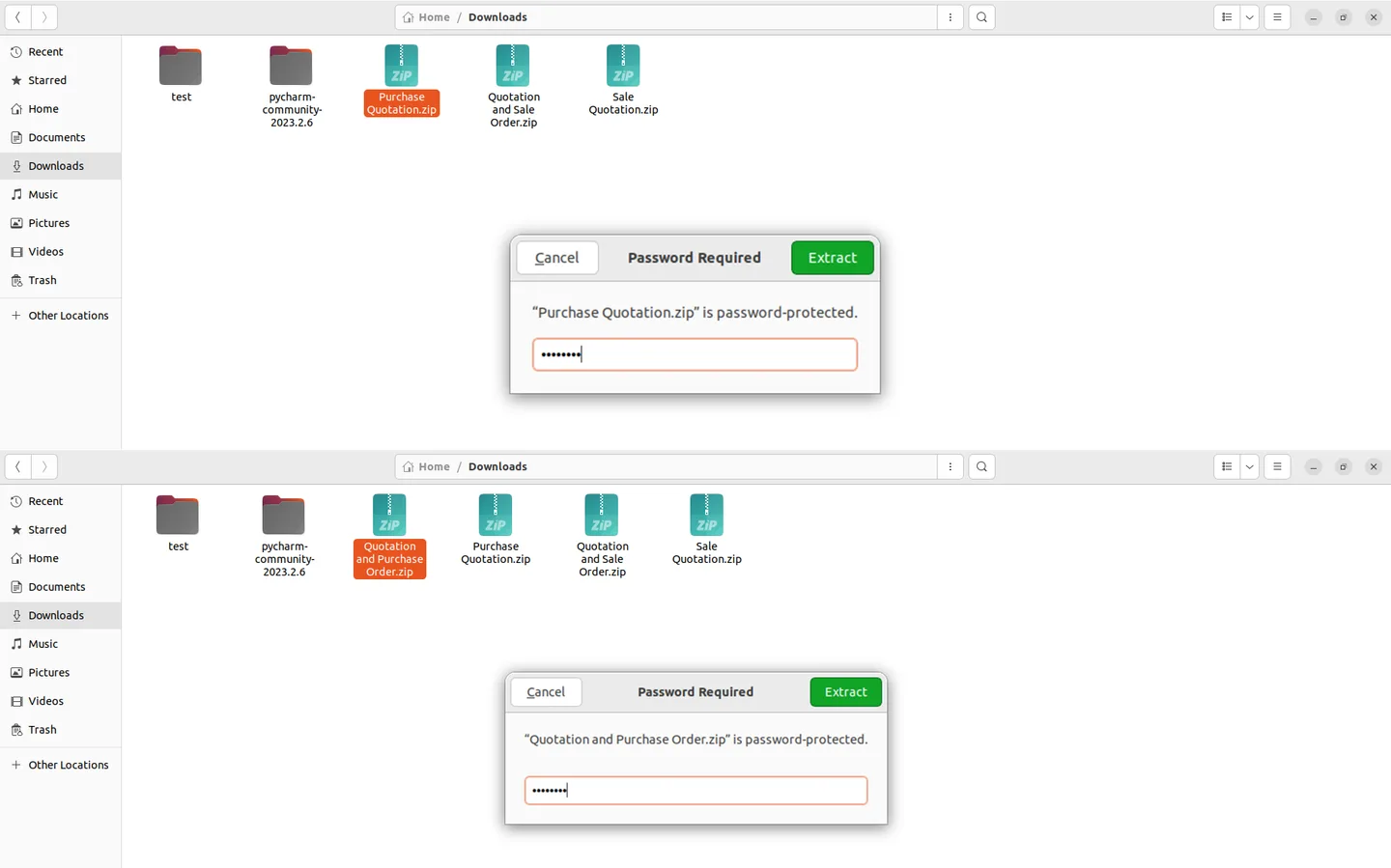
The archive is a standard ZIP, so recipients can open it with any extraction tool that supports password-protected archives — no custom client to install.
QWeb Reports in Password-Protected ZIP in Odoo
Every screen, in the order you meet it — configuration first, then the module in use.
Technical details
Specification
- Publisher
- TechUltra Solutions Private Limited
- Technical name
- tus_multiple_pdf_download
- Odoo versions
- 14.0, 15.0, 16.0, 17.0, 18.0, 19.0, 20.0
- Lines of code
- 971
- License
- Odoo Proprietary License v1.0 (OPL-1)
- Price
- $34.94 (one-time)
Deployment
- Odoo Online
- Odoo.sh
- On-premise
Odoo dependencies
- Sales
- Purchase
- Inventory
- Invoicing
- Manufacturing
- Discuss
Support
90 days of bug-fix support, Monday to Friday (10:00–19:00 IST). Raise a ticket at support@techultra.in.
Setup & configuration
From install to first call — here is the path.
- 1
Install the module
In Odoo, open Apps, remove the Apps filter, search for “QWeb Reports in Password-Protected ZIP”, and click Install.
- 2
Enable export options per user
Open Settings → Users & Companies → Users and, on each user record, enable the document types they should be allowed to bulk-export: Quotation, Sale Order, Purchase Order, Delivery Order, Invoice, Customer and Vendor Credit Notes, Payment, Vendor Bill, Production Order, and Workorder.
- 3
Refresh Odoo to surface the buttons
Refresh the browser. The bulk-export buttons now appear in the corresponding tree views and server actions — for example, in Sales → Quotations and Orders, Purchase → RFQs and POs, Inventory → Receipts and Deliveries, Accounting → Invoices and Payments, and Manufacturing → MOs and Workorders.
- 4
Select records and export
In any of the supported tree views, tick the records you want to export, run the export action, and the module generates a single password-protected ZIP containing the corresponding QWeb PDFs.
- 5
Open the ZIP
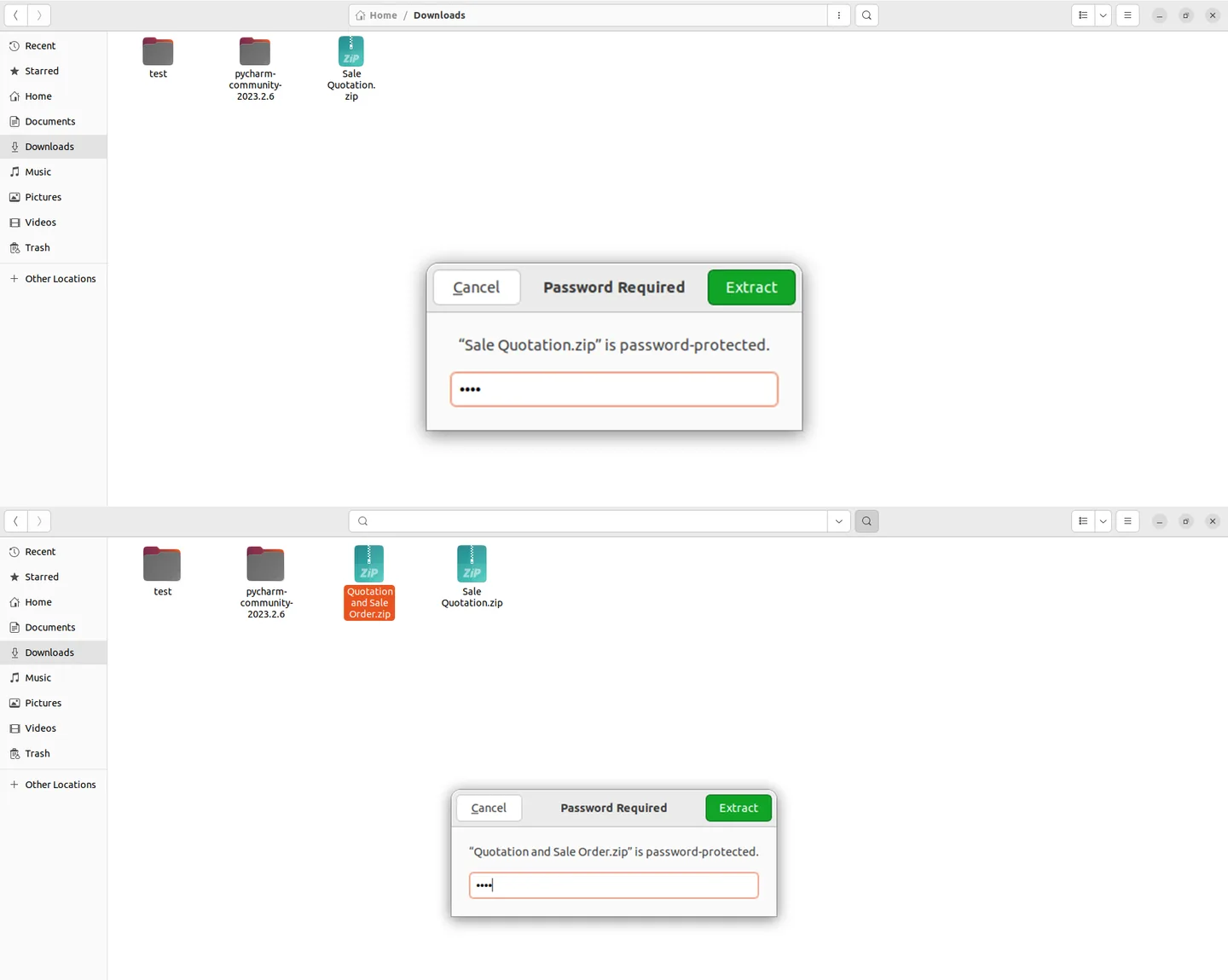
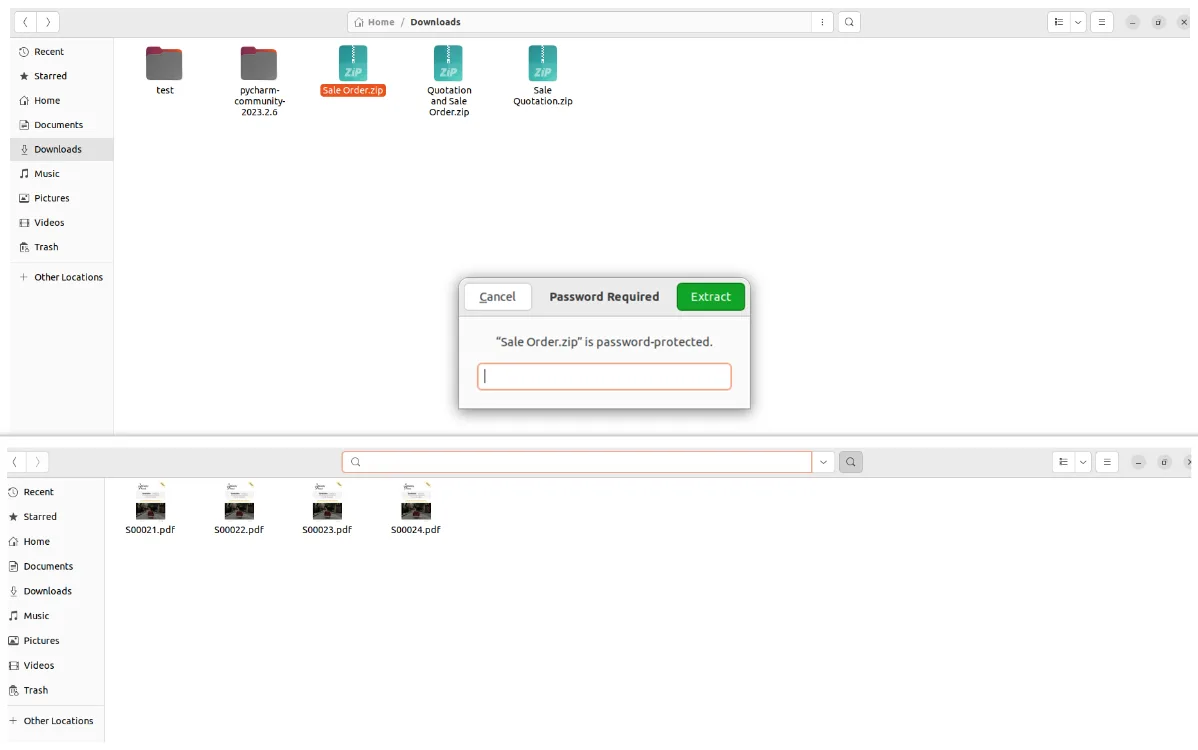
Open the downloaded ZIP in any extraction tool that supports password-protected archives — enter the configured password to access the organised PDF folders inside.
Frequently asked questions
-
Which document types can I bulk-export?
Customer Invoices, Vendor Bills, Customer and Vendor Credit Notes, Customer and Vendor Payments, Sales Orders, Quotations, Purchase Orders, Requests for Quotation, Delivery Orders, Receipts, Manufacturing Orders, and Workorders — every document type comes with its own per-user enablement flag.
-
Which Odoo versions are supported?
The module supports Odoo 14.0, 15.0, 16.0, 17.0, 18.0, 19.0, and 20.0, in both Community and Enterprise editions.
-
How do I control who can bulk-export?
Open Settings → Users & Companies → Users and, on each user, tick the export options the user should be allowed to use — there is one flag per document type, so access is granular.
-
Where do the export buttons appear?
In the tree views and server actions for each enabled document type — for example, in Sales → Quotations and Sales Orders, Purchase → RFQs and POs, Inventory → Receipts and Deliveries, Accounting → Invoices, Credit Notes, and Payments, and Manufacturing → MOs and Workorders.
-
What does the ZIP look like inside?
Reports are grouped in an organised folder structure by report type, so recipients can find the right batch of invoices, sales orders, deliveries, or MOs without searching the archive.
-
Do recipients need special software to open the ZIP?
No. The archive is a standard password-protected ZIP, openable in any extractor that supports password-protected archives.
-
Does the export include the standard Odoo QWeb PDFs?
Yes. The module exports the same QWeb reports Odoo prints individually — invoices, sales orders, delivery slips, purchase orders, manufacturing orders, and so on — bundled into one archive.
-
Is support included with the purchase?
Yes. The module includes 90 days of bug-fix support, Monday to Friday, 10:00–19:00 IST.
Listing verified against the Odoo App Store:
Related services
Get the most out of this module with senior TechUltra consultants.
Odoo Customization Services
Odoo customization from a Gold Partner: custom modules, workflows, reports and Studio changes, written upgrade-safe and quoted at a fixed scope. Free scoping call.
Hire Odoo Developers
Hire certified Odoo developers from a Gold Partner: one developer or a team, full-time or part-time, 70–160 hours a month. Silver, Gold or Platinum plan, free trial.
Odoo Support Services & Maintenance
Odoo support services from a Gold Partner: functional and technical support plus server cover for Enterprise and Community, 30-minute P1 response, 24/7 option.







