

Odoo App · Productivity
Quick Chatter Notes
Save reusable note templates and drop them into any Odoo chatter by index number.

Overview
Quick Chatter Notes removes the repetition from chatter messaging in Odoo. Teams that send the same status updates, follow-up lines, or standard replies dozens of times a day can save those phrases once and reuse them everywhere the chatter appears.
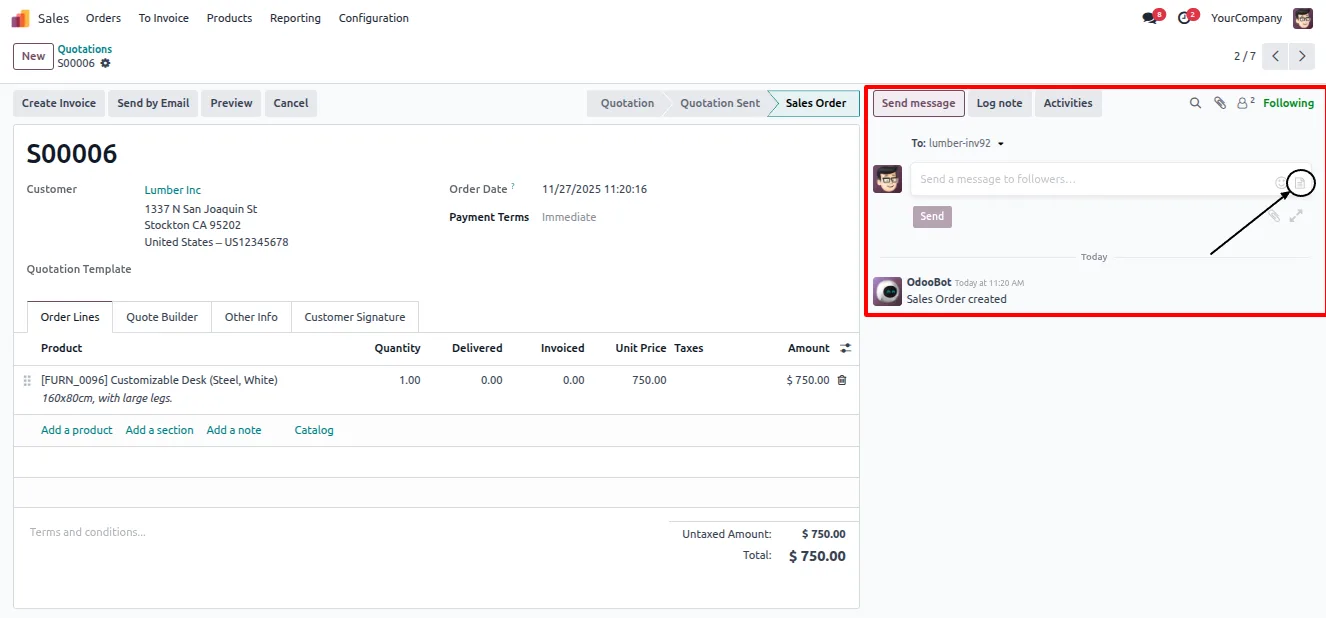
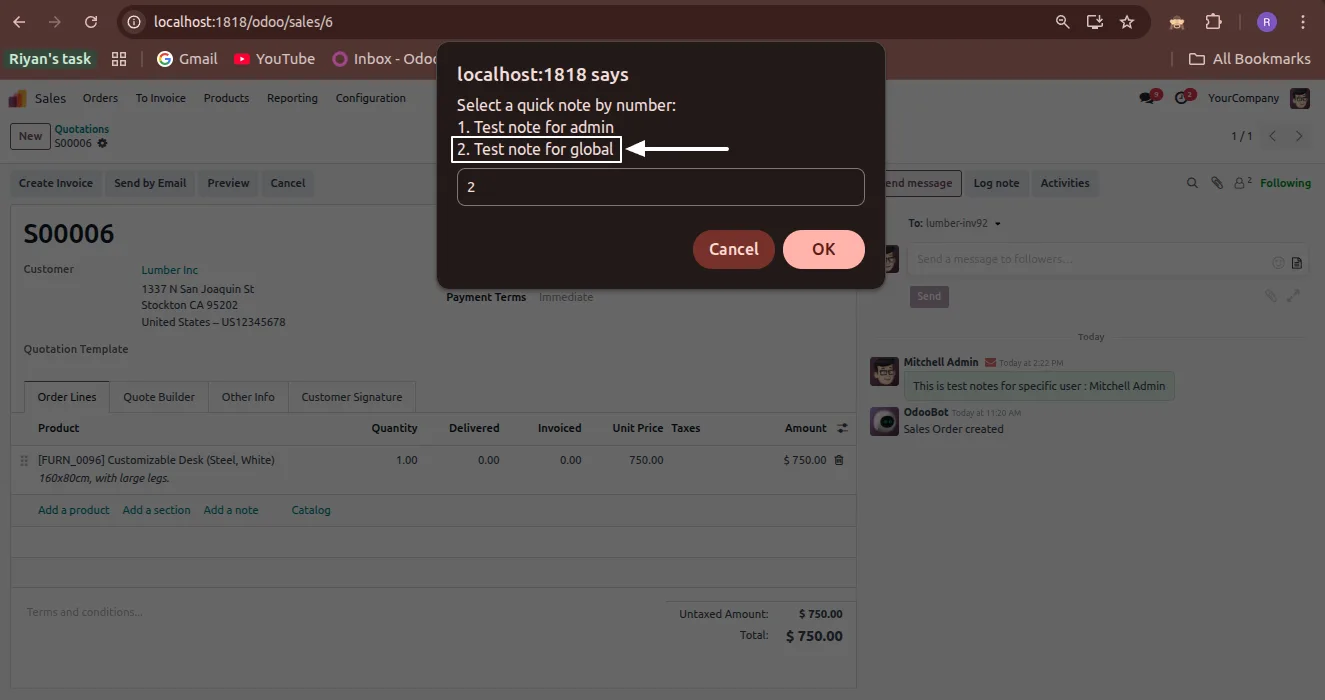
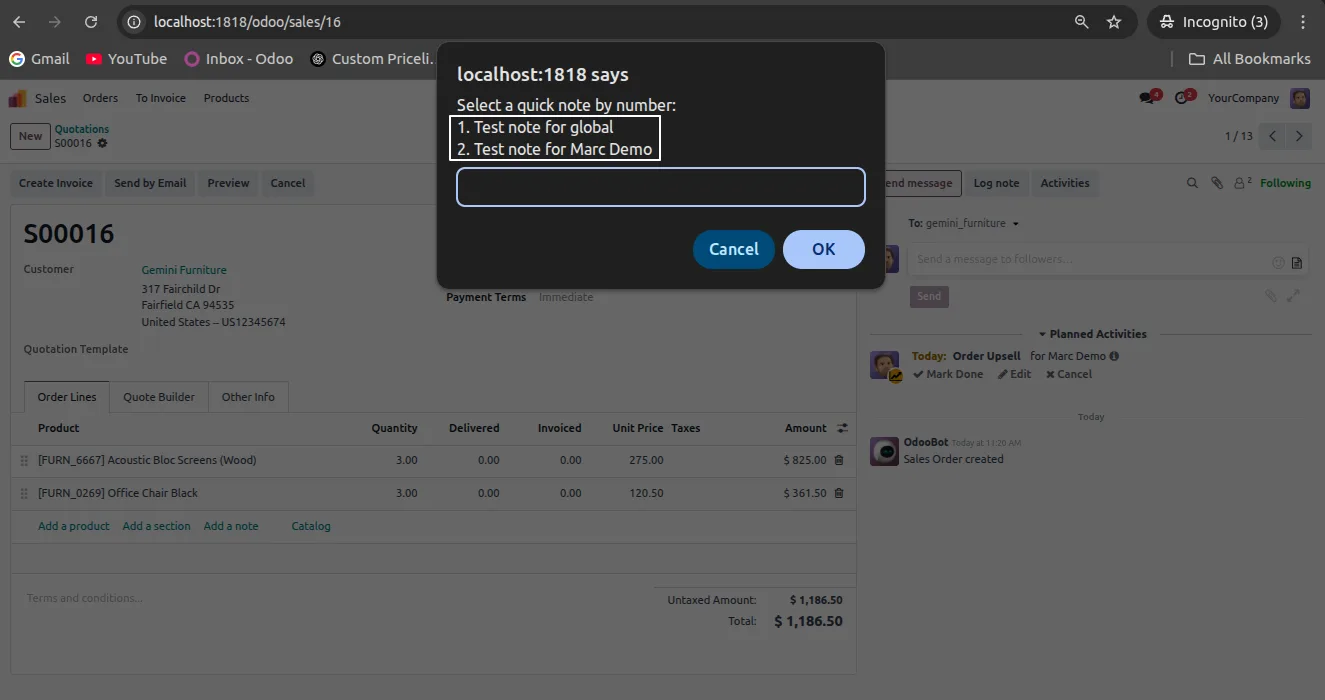
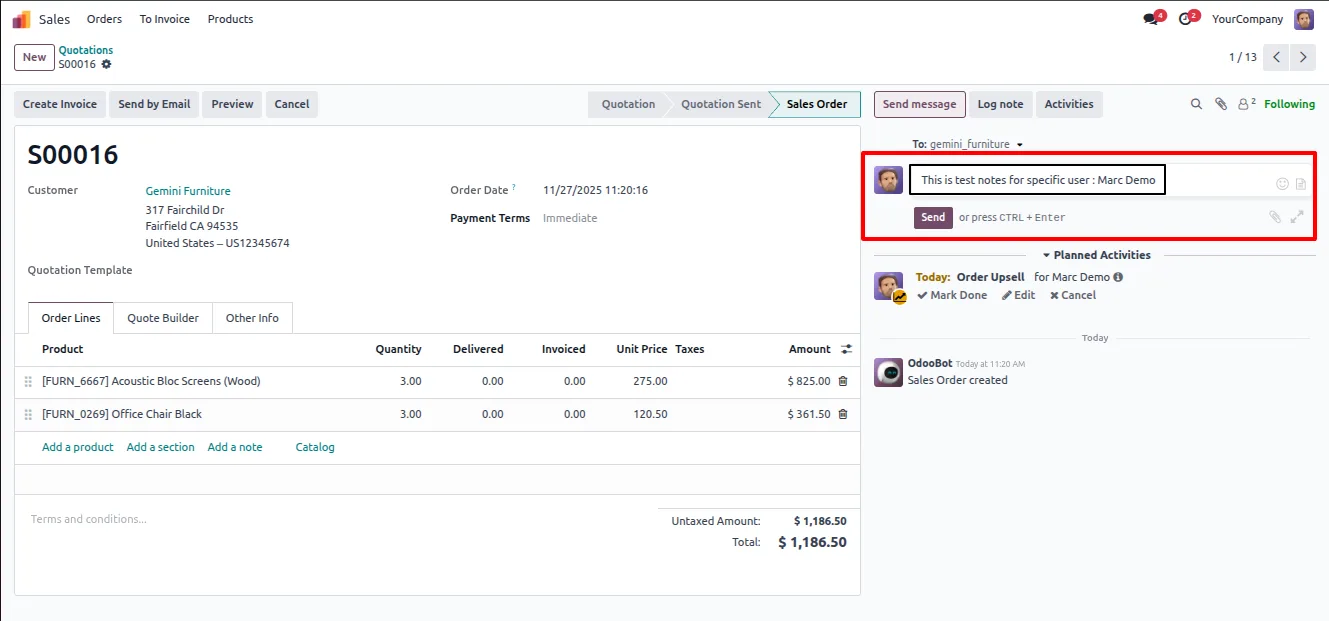
Built by TechUltra Solutions, the module adds a notes icon next to the emoji button in every chatter window. Clicking it opens a popup that lists each saved note with an index number. Type the index, confirm, and the note content is typed into the message automatically — no copy-paste between tabs.
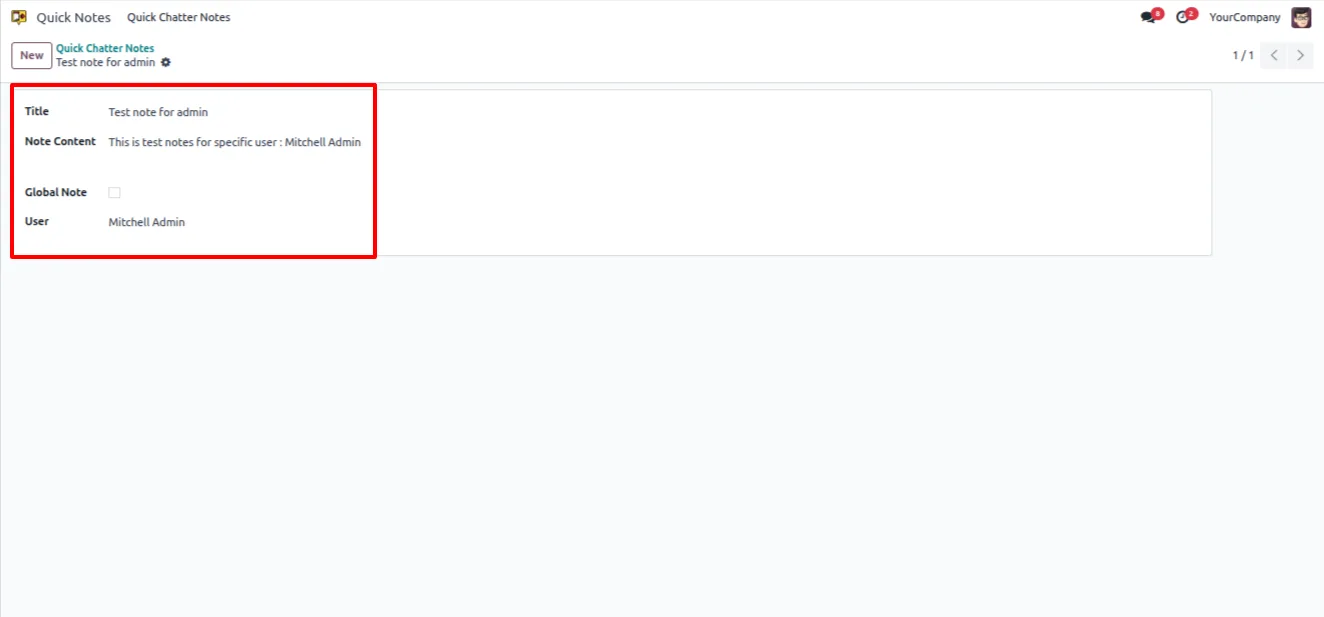
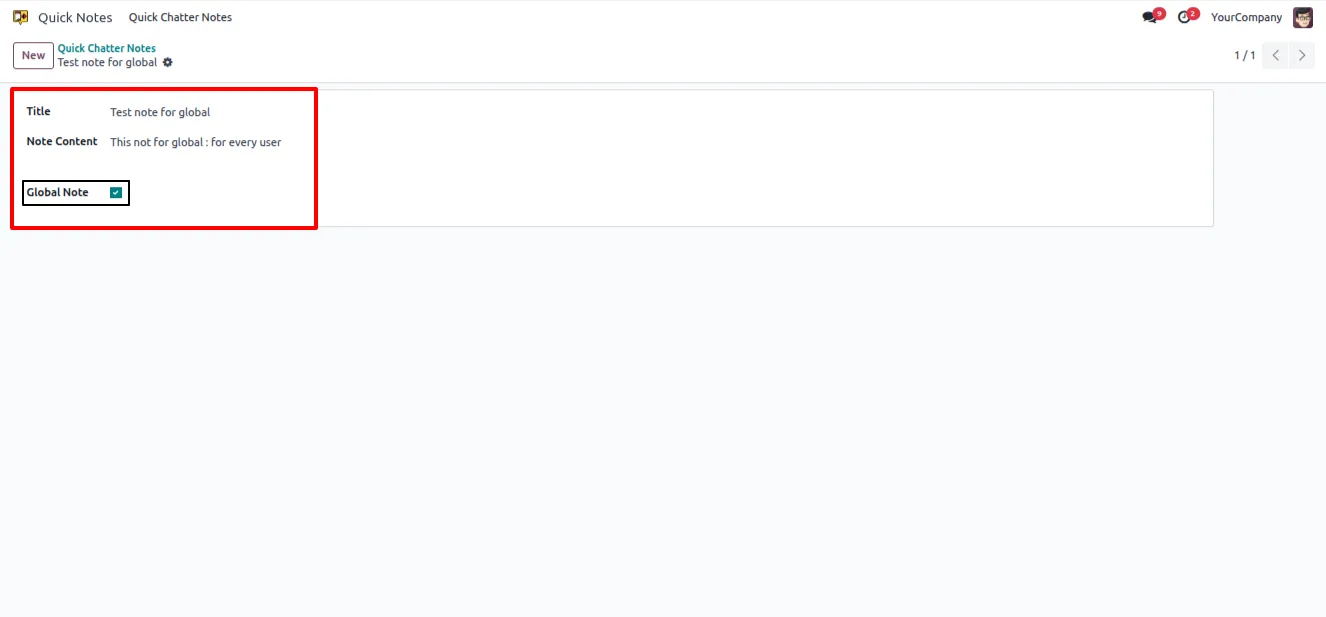
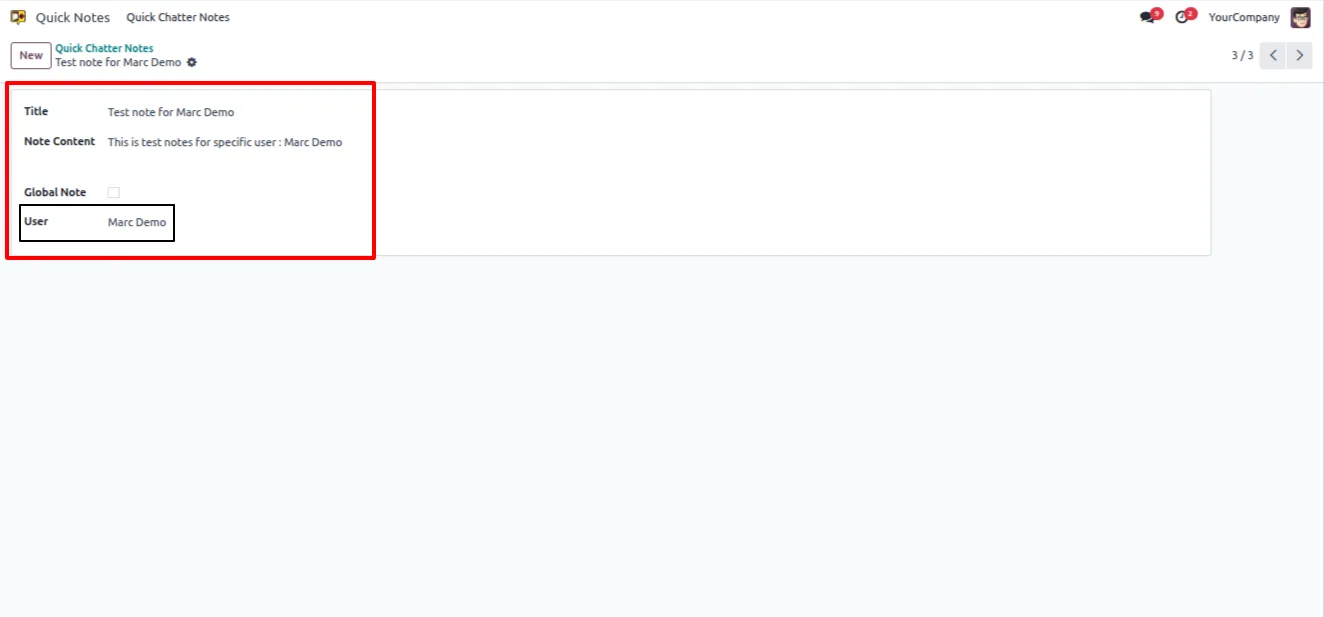
Each note carries a title and body. Notes can be global, so the whole organisation sees them, or assigned to specific users, so private snippets stay private. Administrators control who can view and use each note, keeping the list relevant for every team.
Key features
-
Reusable note templates
Create predefined notes with a title and content, then reuse them across every chatter in Odoo instead of retyping the same lines.
-
Insert by index number
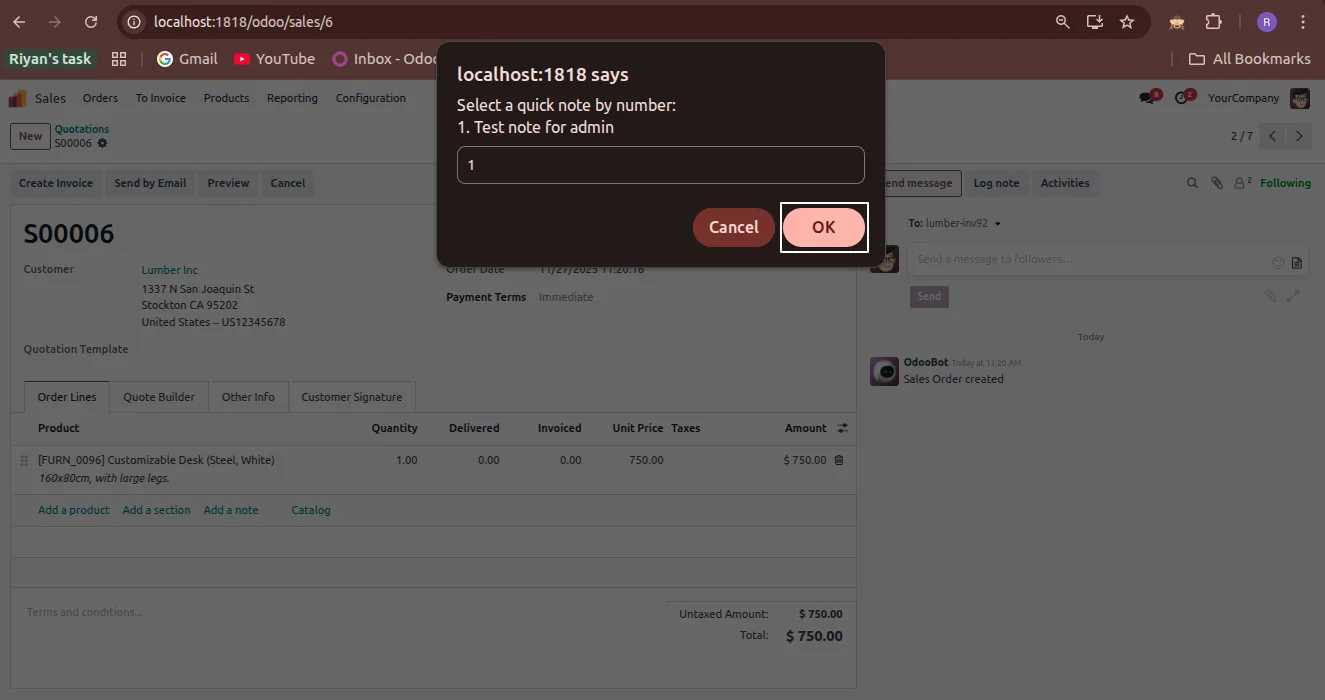
Each saved note is listed with an index. Type the index in the popup, confirm, and the note drops into the chatter message.
-
Automatic content typing
The selected note's content is typed into the chatter message automatically, so a multi-line snippet lands in one step.
-
Global and user-specific notes
Mark a note global so everyone sees it, or assign it to specific users so personal snippets stay limited to the right people.
-
User-wise access control
Administrators decide who can view and use each note, keeping every team's note list focused and uncluttered.
-
Indexed note listing
The popup shows all available notes in an indexed list, so the right template is easy to find and select at a glance.
-
Notes icon in the chatter
A dedicated notes icon sits beside the emoji button in any chatter window — one click to open the note picker.
-
Consistent communication
Standard phrasing for follow-ups, status updates, and replies keeps chatter messages consistent across the whole team.
Quick Chatter Notes in Odoo
Every screen, in the order you meet it — configuration first, then the module in use.
Technical details
Specification
- Publisher
- TechUltra Solutions Private Limited
- Technical name
- quick_chatter_notes
- Odoo versions
- 16.0, 17.0, 18.0, 19.0, 20.0
- Lines of code
- 163
- License
- Odoo Proprietary License v1.0 (OPL-1)
- Price
- $12 (one-time)
Deployment
- Odoo Online
- Odoo.sh
- On-premise
Odoo dependencies
- Discuss
Support
90 days of bug-fix support, Monday to Friday (10:00–19:00 IST). Raise a ticket at support@techultra.in.
Setup & configuration
From install to first call — here is the path.
- 1
Install the module
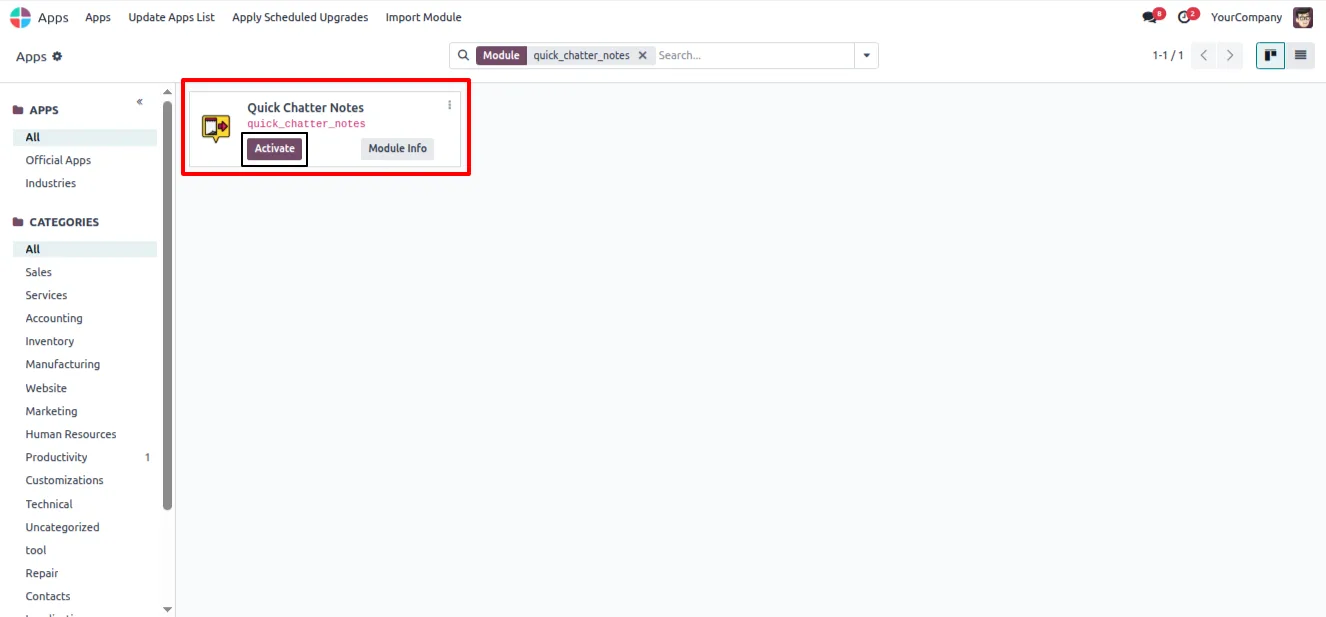
In Odoo, open Apps, remove the Apps filter, search for “Quick Chatter Notes”, and click Install.
- 2
Create your notes
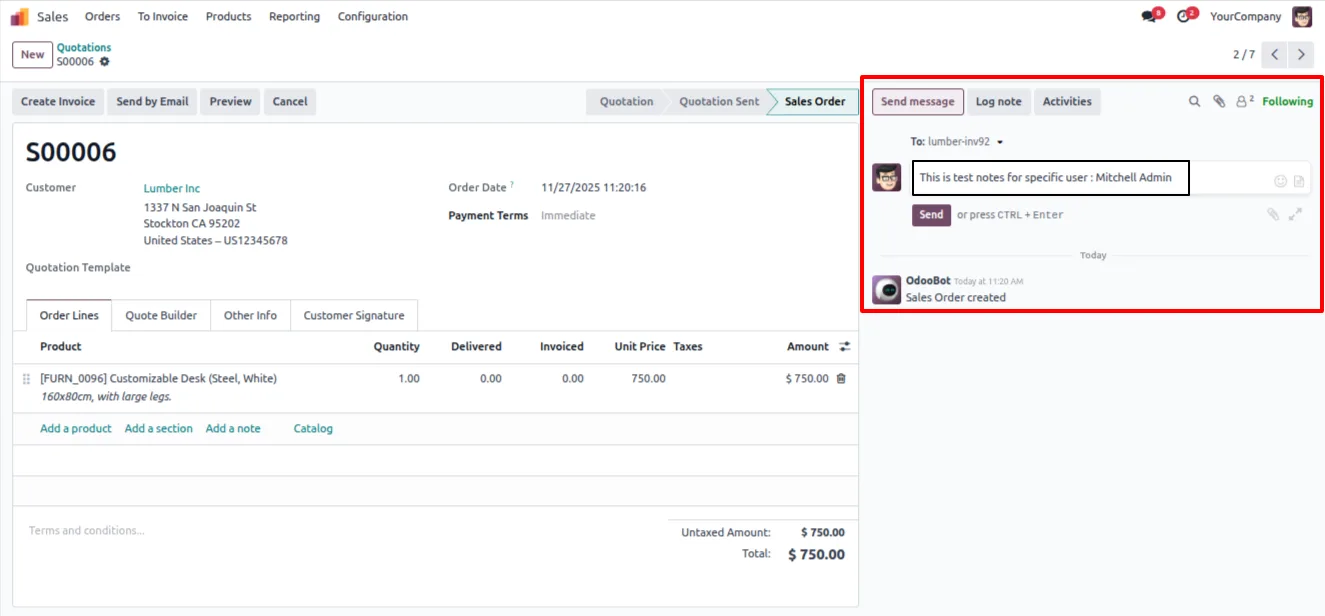
Open Quick Chatter Note and add new notes, each with a title and content. Set every note as global or assign it to specific users.
- 3
Open the note picker
On any record with a chatter, click the notes icon next to the emoji button to open the indexed note popup.
- 4
Insert a note
Enter the index number of the note you want and confirm with OK. The note's content is typed into the chatter message automatically.
Frequently asked questions
-
How do I add a note to a chatter message?
Click the notes icon beside the emoji button in the chatter, type the index number of the note you want in the popup, and confirm. The note's content is typed into the message automatically.
-
What is the difference between global and user-specific notes?
Global notes are available to everyone in the organisation. User-specific notes are assigned to selected users, so personal snippets stay limited to the people who need them.
-
Can I control who sees each note?
Yes. Administrators set user-wise access on every note, deciding who can view and use it. This keeps each team's note list relevant and uncluttered.
-
What does each note contain?
Each note has a title for quick identification and a content body. The content is what gets inserted into the chatter when you select the note.
-
Which Odoo versions are supported?
Quick Chatter Notes supports Odoo 16.0, 17.0, 18.0, 19.0, and 20.0, in both the Community and Enterprise editions.
-
Does the module need any configuration after install?
No setup beyond creating your notes. Once installed, the notes icon appears in every chatter window — you only need to add the notes you want to reuse.
-
Where does the notes icon appear?
The notes icon appears in the chatter toolbar, directly beside the emoji button, on any Odoo record that has a chatter.
-
Is support included?
Yes. The module includes 90 days of bug-fix support, Monday to Friday, 10:00–19:00 IST.
Listing verified against the Odoo App Store:
Related services
Get the most out of this module with senior TechUltra consultants.
Odoo Customization Services
Odoo customization from a Gold Partner: custom modules, workflows, reports and Studio changes, written upgrade-safe and quoted at a fixed scope. Free scoping call.
Hire Odoo Developers
Hire certified Odoo developers from a Gold Partner: one developer or a team, full-time or part-time, 70–160 hours a month. Silver, Gold or Platinum plan, free trial.
Odoo Support Services & Maintenance
Odoo support services from a Gold Partner: functional and technical support plus server cover for Enterprise and Community, 30-minute P1 response, 24/7 option.







