
Odoo App · Reporting & PDF
Purchase Order Report Secure ZIP
Bulk-export Purchase Orders and RFQs into one password-protected ZIP file.

Overview
Purchase Order Report Secure ZIP turns Odoo's one-PDF-at-a-time download into a true bulk export. Procurement teams select the Purchase Orders or Requests for Quotation they need, click one button, and Odoo packages every QWeb-generated PDF into a single ZIP file — ready to share or archive.
Built by TechUltra Solutions, the module adds an export action to both the Purchase Order and Request for Quotation tree views, plus matching server actions. Users can lock the archive with a password directly from the wizard, so sensitive supplier pricing and terms stay protected in transit.
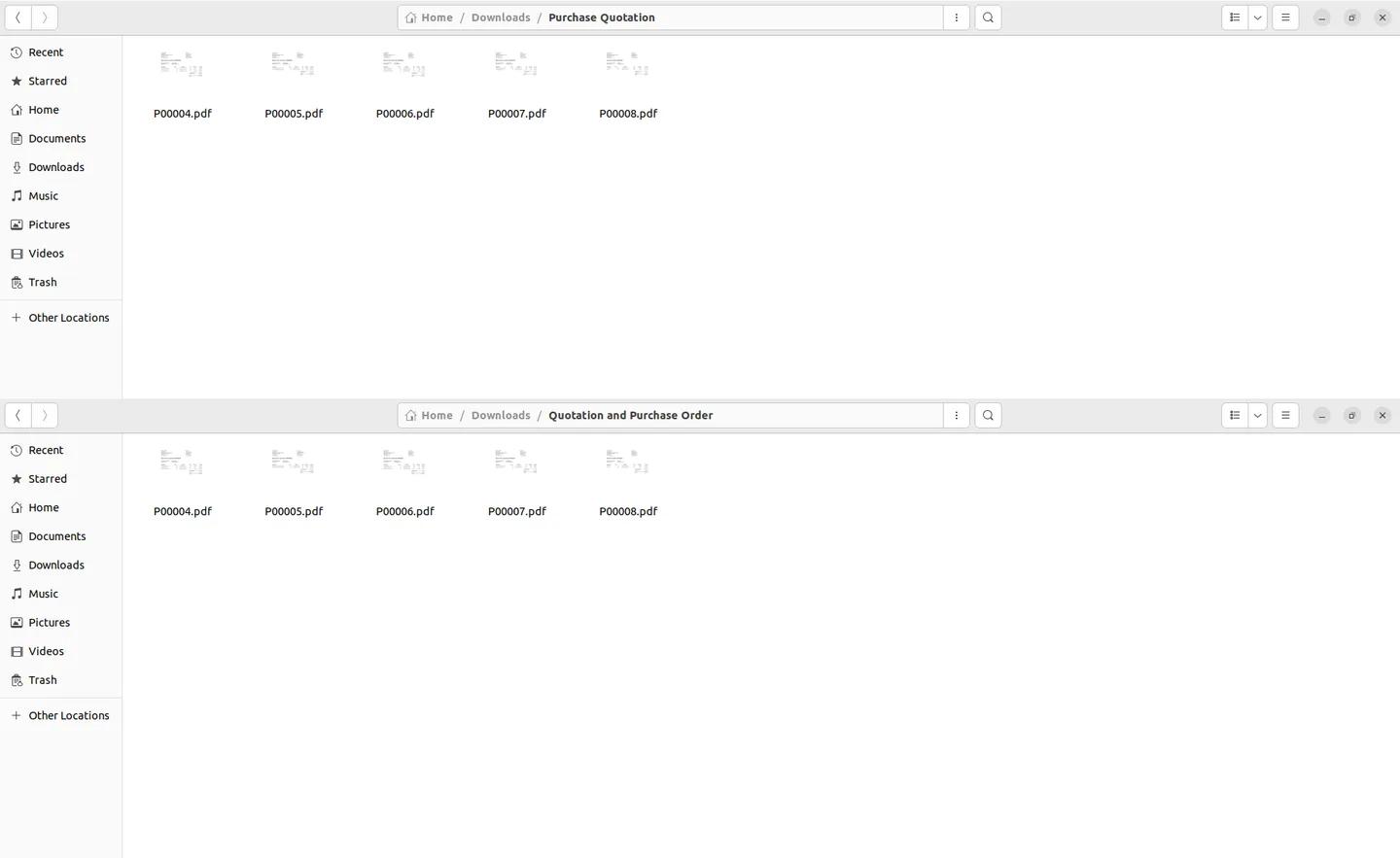
Because the bulk export uses Odoo's existing QWeb reports, the PDFs inside the ZIP are identical to what each record produces individually — no separate template to maintain, no formatting drift between single and batch downloads.
Key features
-
Bulk export in one click
Select multiple Purchase Orders or RFQs in the tree view and export every QWeb PDF in a single operation — no record-by-record downloads.
-
Optional password protection
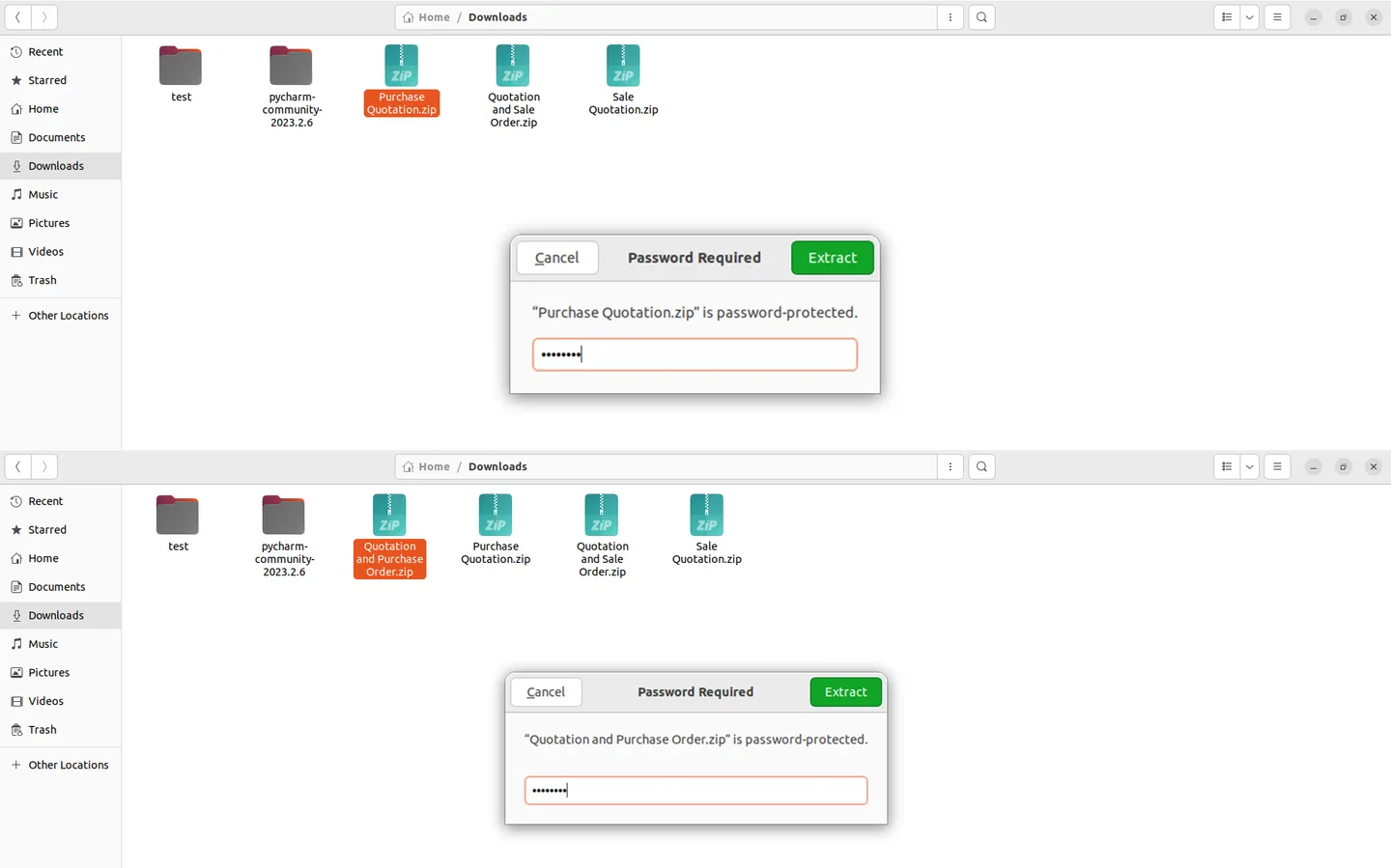
Add a password from the export wizard to lock the ZIP, ensuring secure document access for sensitive supplier data; leave it blank for an open archive.
-
Works on POs and RFQs
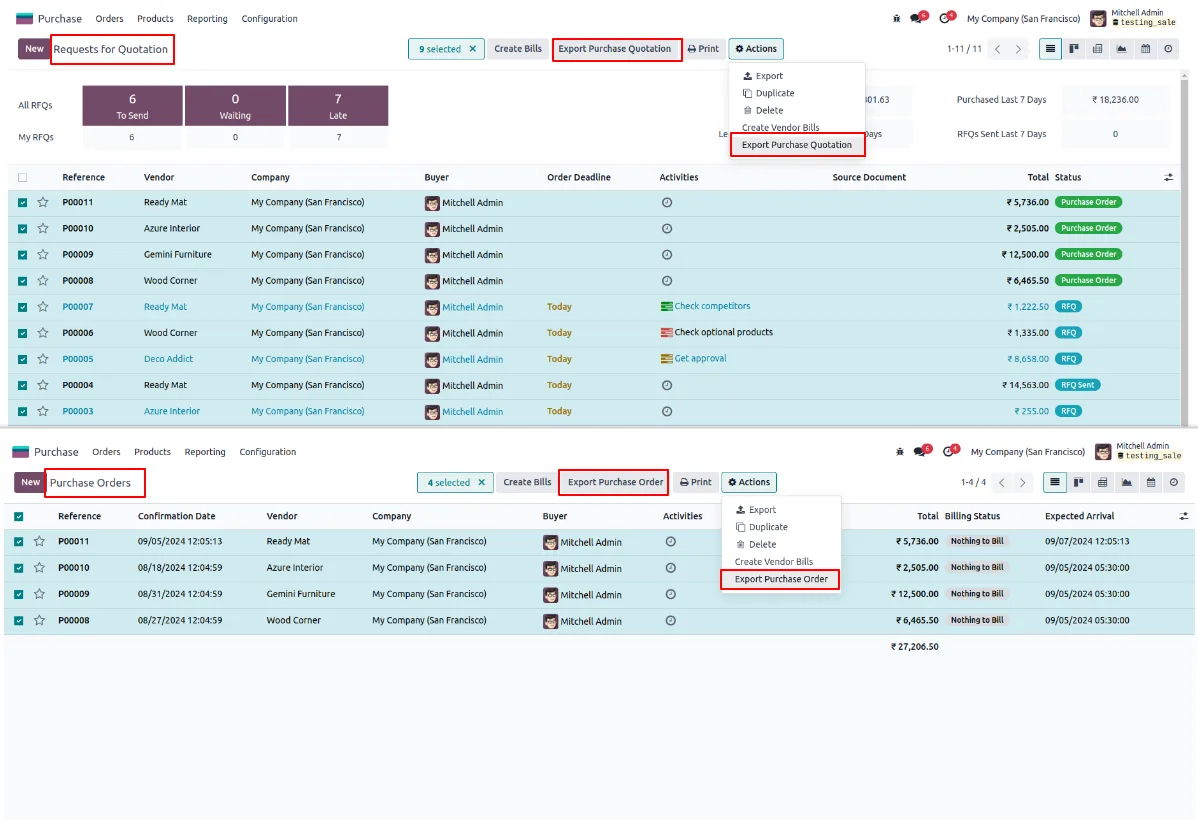
Adds export actions to both the Purchase Order tree view and the Request for Quotation tree view, with separate Export Purchase Order and Export Purchase Quotation buttons.
-
QWeb-based output
Uses Odoo's standard QWeb report templates for Purchase Orders and RFQs, so bundled PDFs match the single-record output exactly.
-
Single compressed archive
Gathers multiple reports into one convenient, compressed ZIP file — easier to attach to an email, post to a shared drive, or send to an auditor.
-
Server-action access
After enabling the feature, the bulk export shows up both as a tree-view button and in the standard Odoo server-actions menu, so power users can trigger it from anywhere.
-
Eliminates manual downloads
Replaces the slow, error-prone process of downloading PDFs one at a time and zipping them by hand on the desktop.
-
Easy stakeholder distribution
Distribute a single, password-protected ZIP file to stakeholders or team members instead of sending dozens of individual PDF attachments.
Purchase Order Report Secure ZIP in Odoo
Every screen, in the order you meet it — configuration first, then the module in use.
Technical details
Specification
- Publisher
- TechUltra Solutions Private Limited
- Technical name
- purchase_order_report_zip_secure
- Odoo versions
- 14.0, 15.0, 16.0, 17.0, 18.0, 19.0, 20.0
- Lines of code
- 249
- License
- Odoo Proprietary License v1.0 (OPL-1)
- Price
- $17.47 (one-time)
Deployment
- Odoo Online
- Odoo.sh
- On-premise
Odoo dependencies
- Purchase
- Invoicing
- Discuss
Support
90 days of bug-fix support, Monday to Friday (10:00–19:00 IST). Raise a ticket at support@techultra.in.
Setup & configuration
From install to first call — here is the path.
- 1
Install the module
In Odoo, open Apps, remove the Apps filter, search for “Purchase Order Report ZIP Export with Password Protection”, and click Install.
- 2
Enable the export field on your user
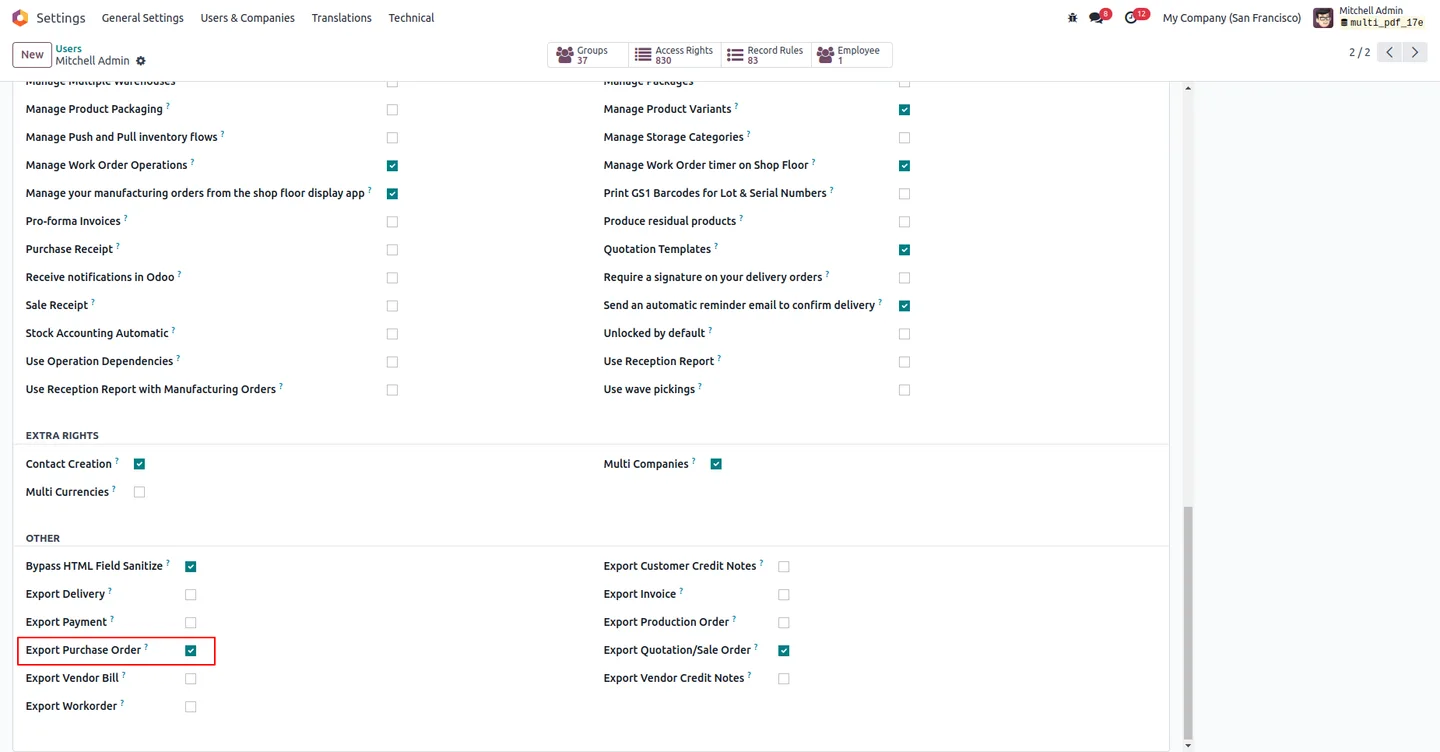
Open Settings → Users, edit the users who need access, tick the Export Purchase Order field, then refresh the page so the new buttons load.
- 3
Find the export actions
Open Purchase → Requests for Quotation and Purchase → Orders. With the field enabled, an Export Purchase Quotation button appears on the RFQ list and an Export Purchase Order button appears on the PO list. Both also show up in the server-actions menu.
- 4
Select records and launch the wizard
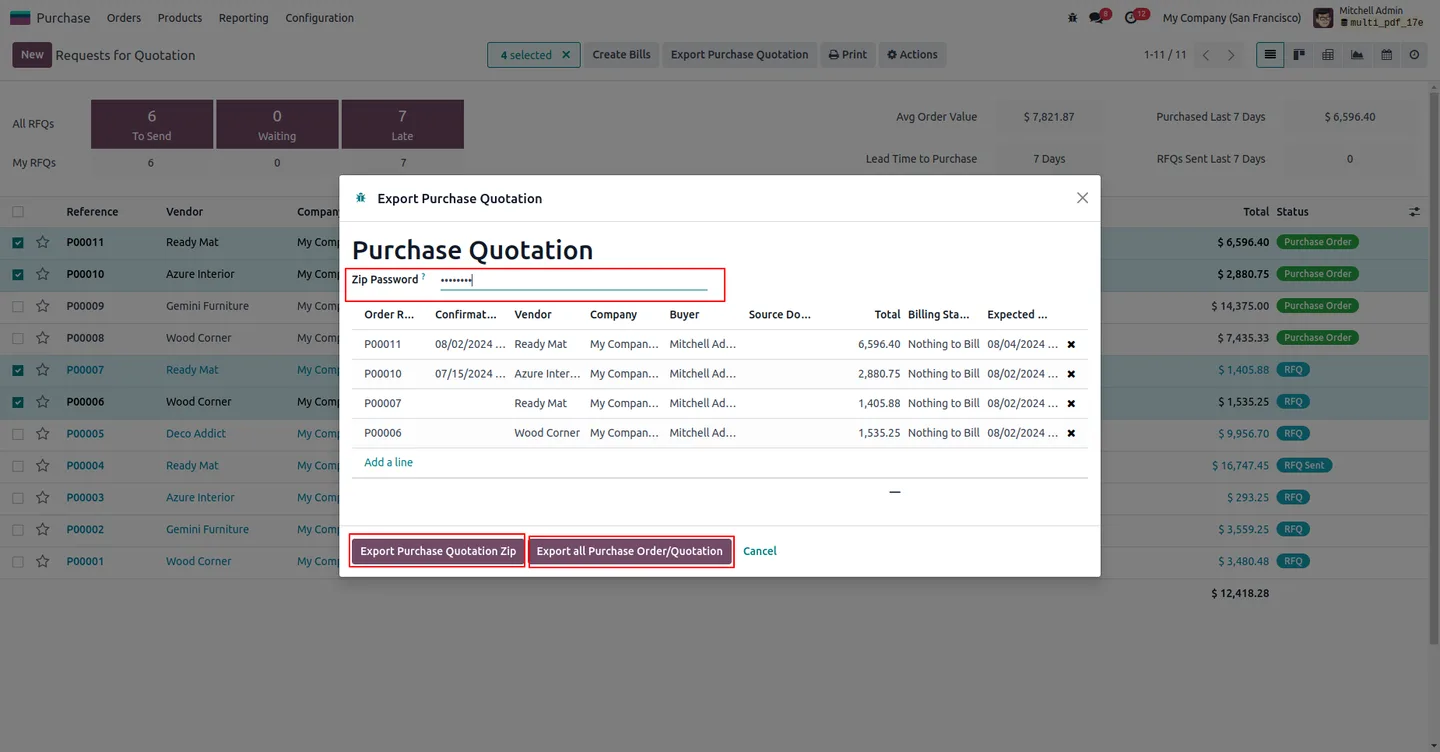
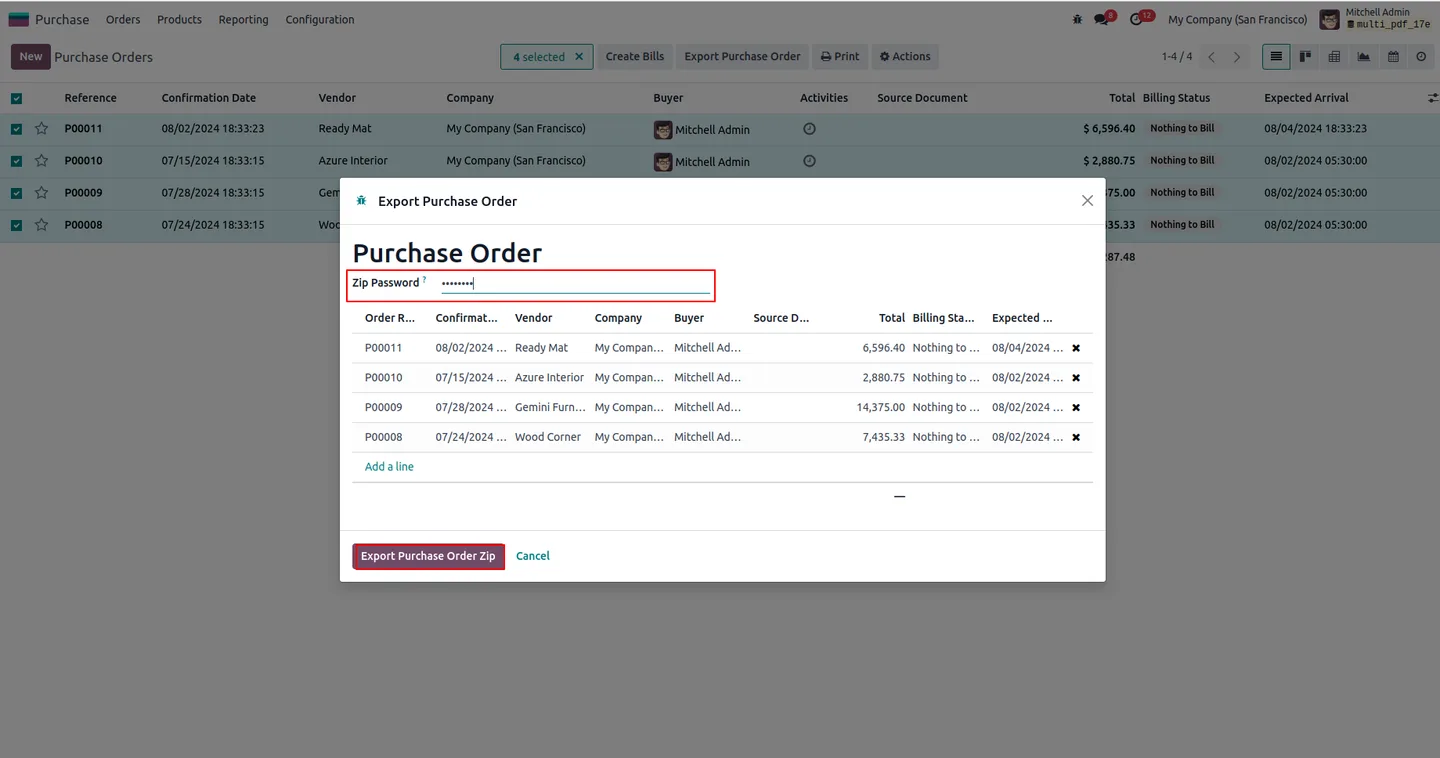
Tick the rows you want to export, click the matching Export button, and the wizard opens with the selected records listed for confirmation.
- 5
Choose a password and export
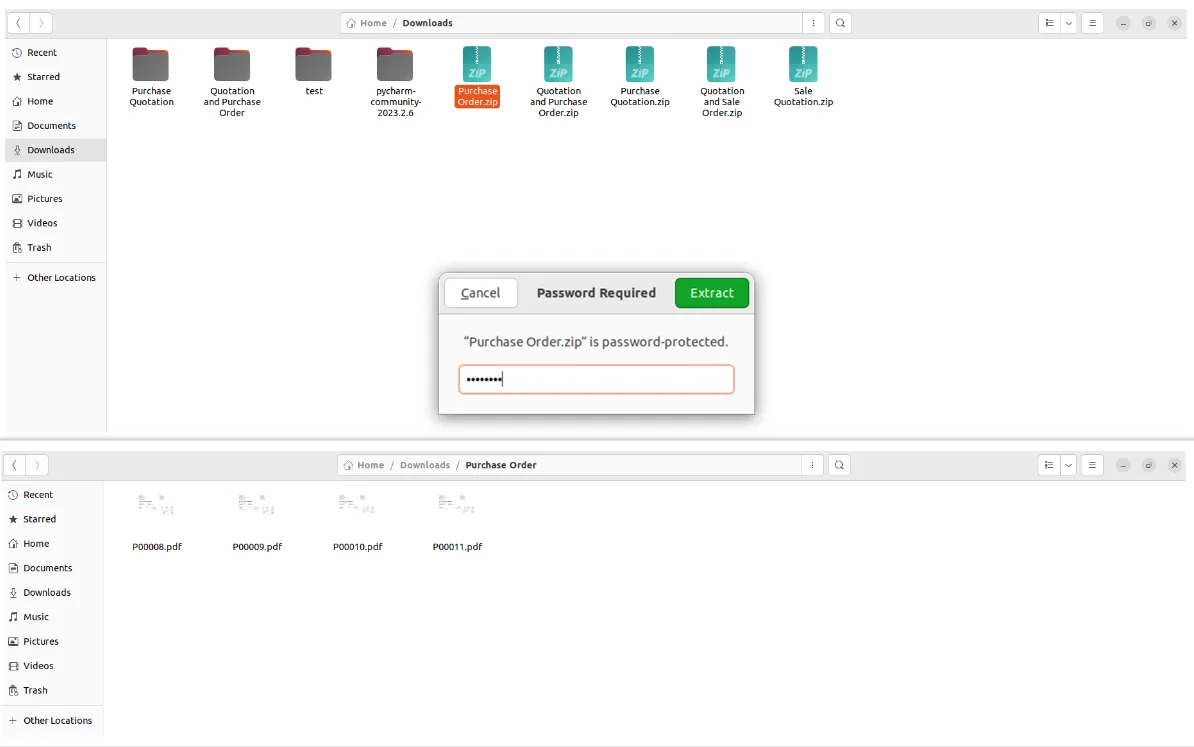
Enter a value in the ZIP Password field to lock the archive, or leave it blank for an unprotected ZIP. Click the export button — Odoo bundles every QWeb PDF and triggers the download.
Frequently asked questions
-
Which Odoo versions does this module support?
The module supports Odoo 14.0, 15.0, 16.0, 17.0, 18.0, 19.0, and 20.0 in both the Community and Enterprise editions.
-
Can I export Requests for Quotation as well as Purchase Orders?
Yes. The module adds two separate actions — Export Purchase Quotation on the RFQ tree view and Export Purchase Order on the PO tree view — so both document types can be bundled into ZIP archives.
-
Is the password mandatory?
No. The ZIP Password field in the export wizard is optional. Leave it blank to produce an unprotected ZIP, or enter a password to lock the archive before download.
-
Are the bundled PDFs the same as the ones I download individually?
Yes. The ZIP contains the exact QWeb-generated PDFs that Odoo produces from each record, so layouts, fields, and branding match the single-record output one for one.
-
Where does the export button appear?
Once the Export Purchase Order field is enabled on your user, the button shows up directly in the Purchase Order and Request for Quotation tree views, and also in Odoo's standard server-actions menu.
-
Why don't I see the export button after installing?
The action is gated by the per-user Export Purchase Order field under Settings → Users. Tick it on the relevant users and refresh the page — the buttons will appear in the tree views immediately.
-
How do I open a password-protected ZIP file?
Any standard ZIP tool that supports password-protected archives — including the built-in extractors on Windows 11, macOS (via The Unarchiver or similar), and Linux — will prompt for the password before unpacking the PDFs.
-
Is support included with the purchase?
Yes. The module includes 90 days of bug-fix support, Monday to Friday, 10:00–19:00 IST. Raise a ticket at support@techultra.in.
Listing verified against the Odoo App Store:
Related services
Get the most out of this module with senior TechUltra consultants.
Odoo Customization Services
Odoo customization from a Gold Partner: custom modules, workflows, reports and Studio changes, written upgrade-safe and quoted at a fixed scope. Free scoping call.
Hire Odoo Developers
Hire certified Odoo developers from a Gold Partner: one developer or a team, full-time or part-time, 70–160 hours a month. Silver, Gold or Platinum plan, free trial.
Odoo Support Services & Maintenance
Odoo support services from a Gold Partner: functional and technical support plus server cover for Enterprise and Community, 30-minute P1 response, 24/7 option.







