
Odoo App · Sales & Pricing
Product Sale Price History
Per-product sales history tab — quantities, unit prices, and order dates from quotations to invoices.

Overview
Product Sale Price History gives sales teams the answer they want when they open a product record: who bought it, in what quantity, at what unit price, and when.
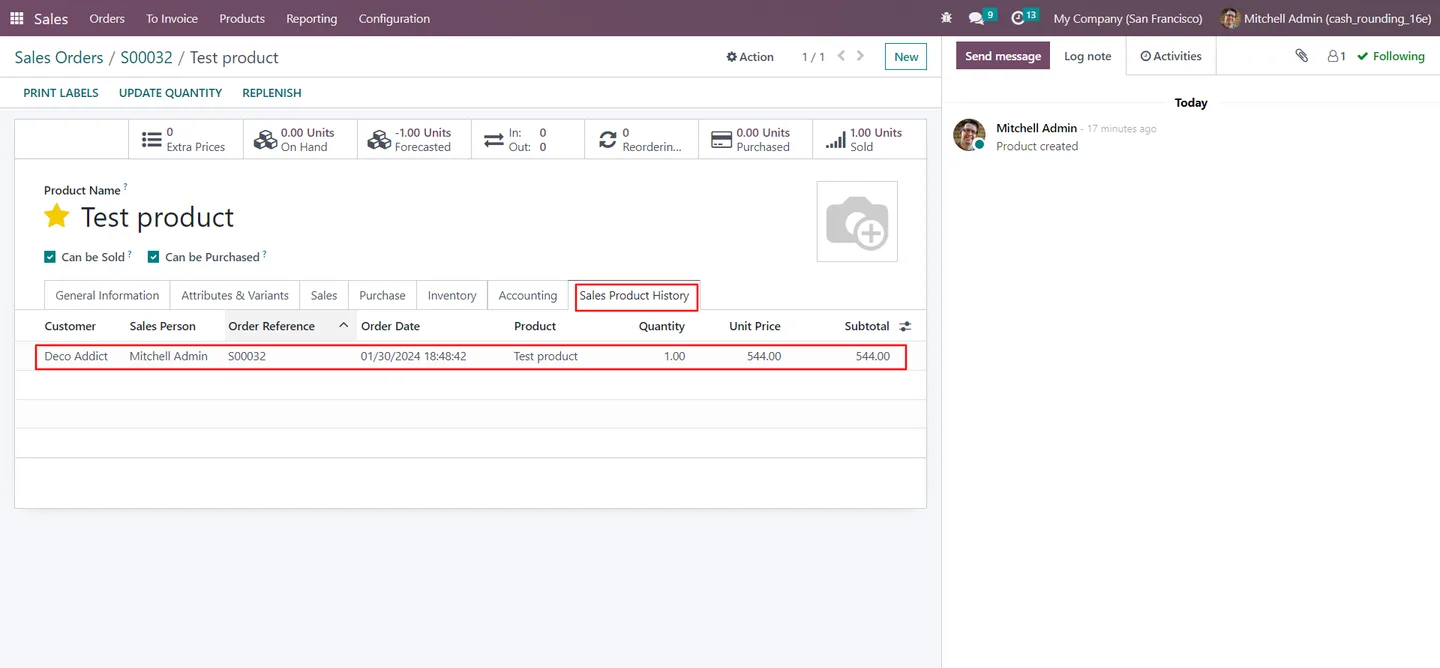
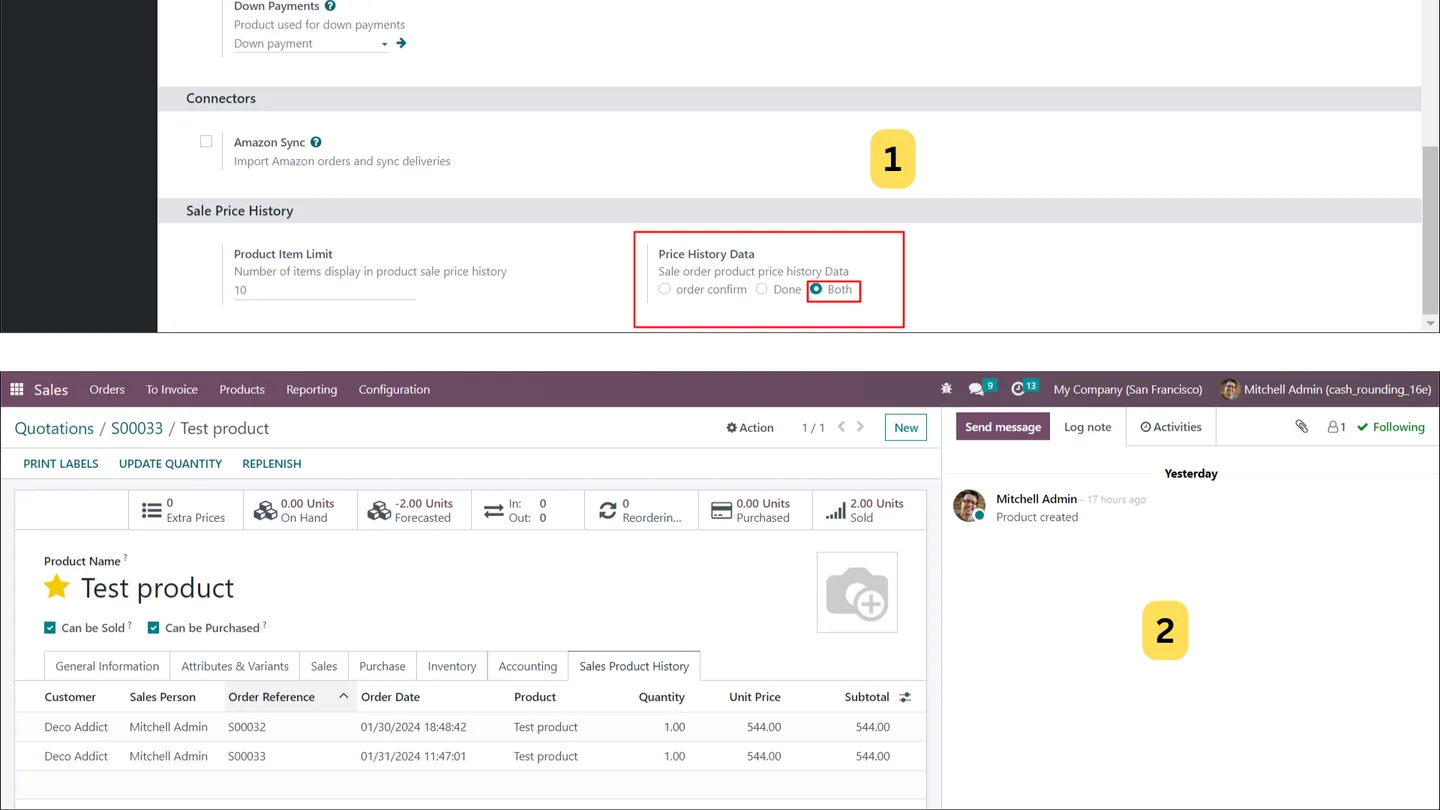
Built by TechUltra Solutions, the module adds a Sales product history tab to the standard product form. The tab lists past transactions for that product with the product name, quantity, unit price, total price, and order date, so reps can spot price drift and reuse winning offers without leaving the record.
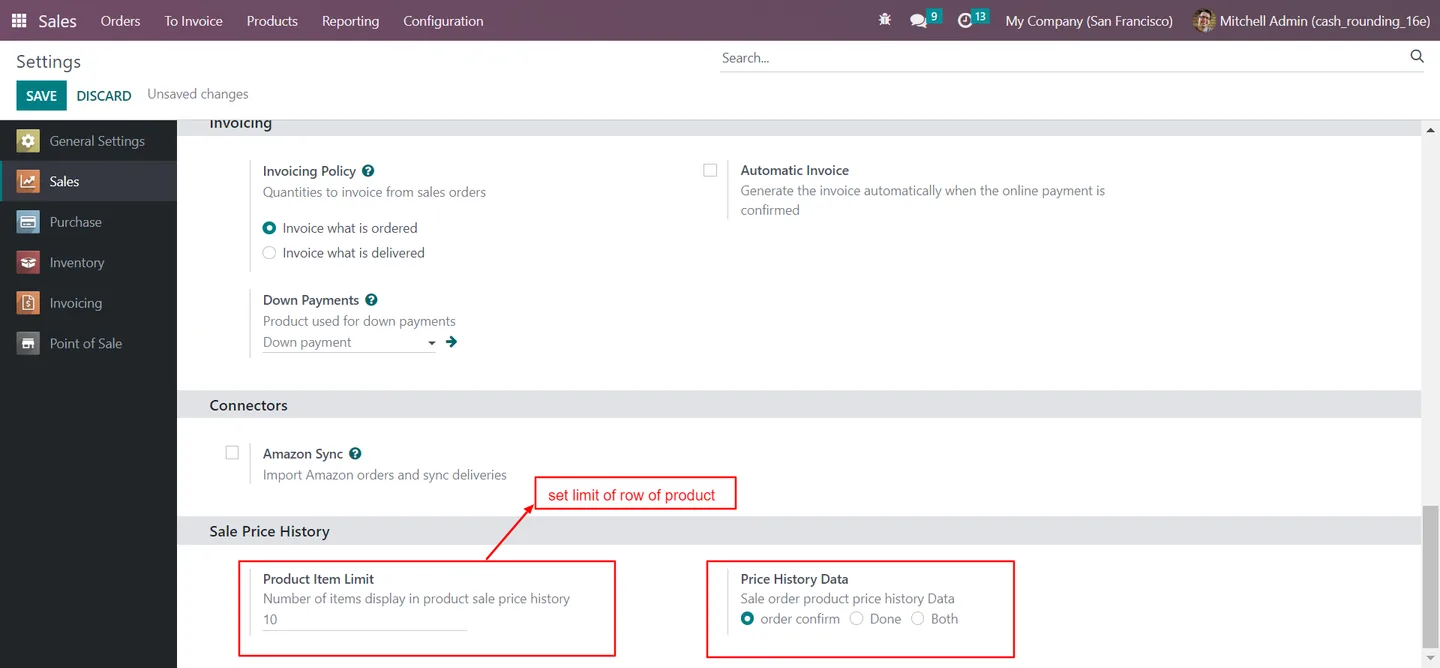
Administrators control what the tab shows. A simple settings screen toggles between Quotation, Sale Order, or Both, and a row-limit field caps how many lines appear at once. A second filter narrows the view further — confirmed sale orders only, fully invoiced sales only, or both — so the same module serves sales reps, sales managers, and finance.
Key features
-
Sale-order history per product
Display the history of sale orders for individual products in a dedicated tab on the product form, so sales reps see past activity in context.
-
Configurable row limit
Configure the table to show a specified number of rows at once, so very active products stay readable instead of dumping thousands of lines on screen.
-
Dedicated history tab
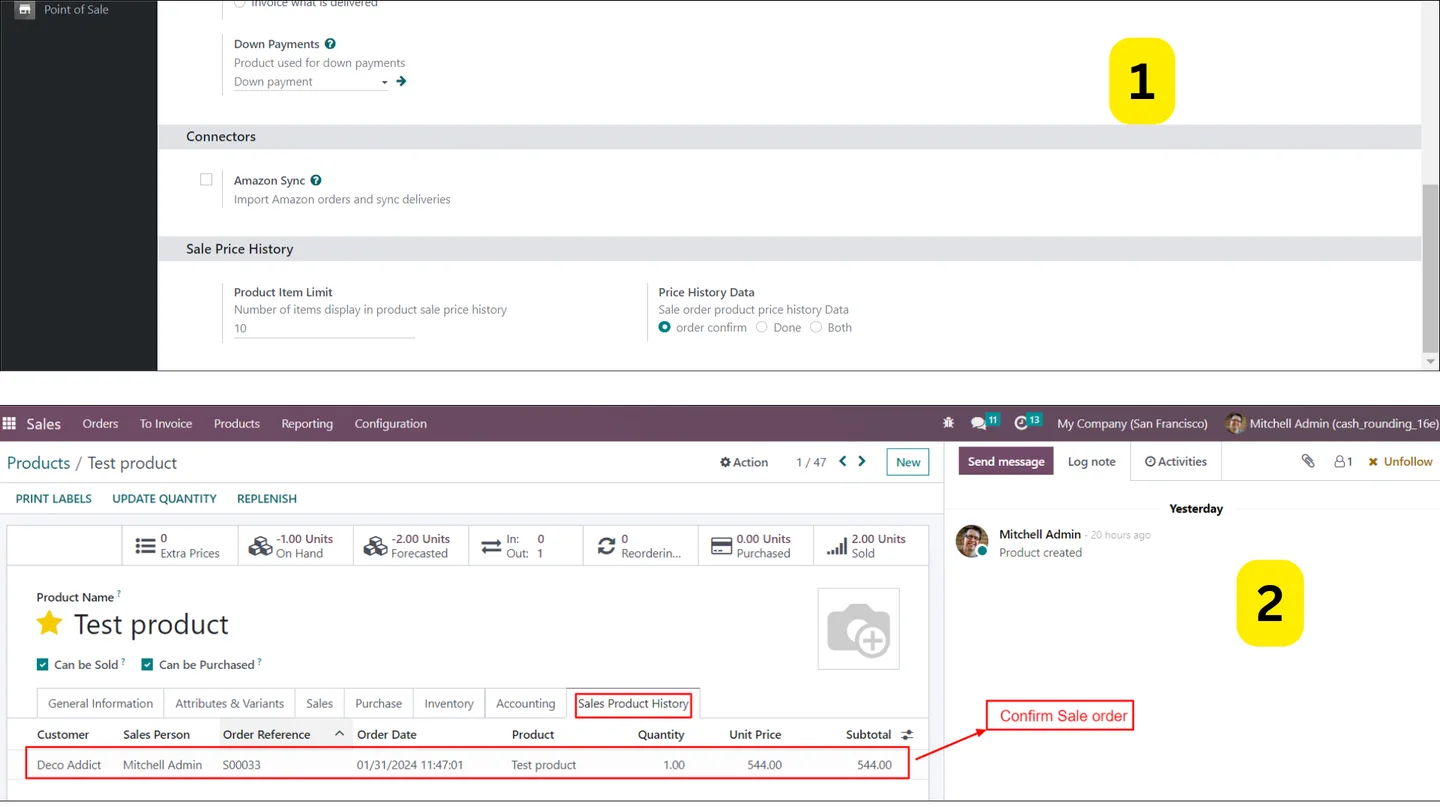
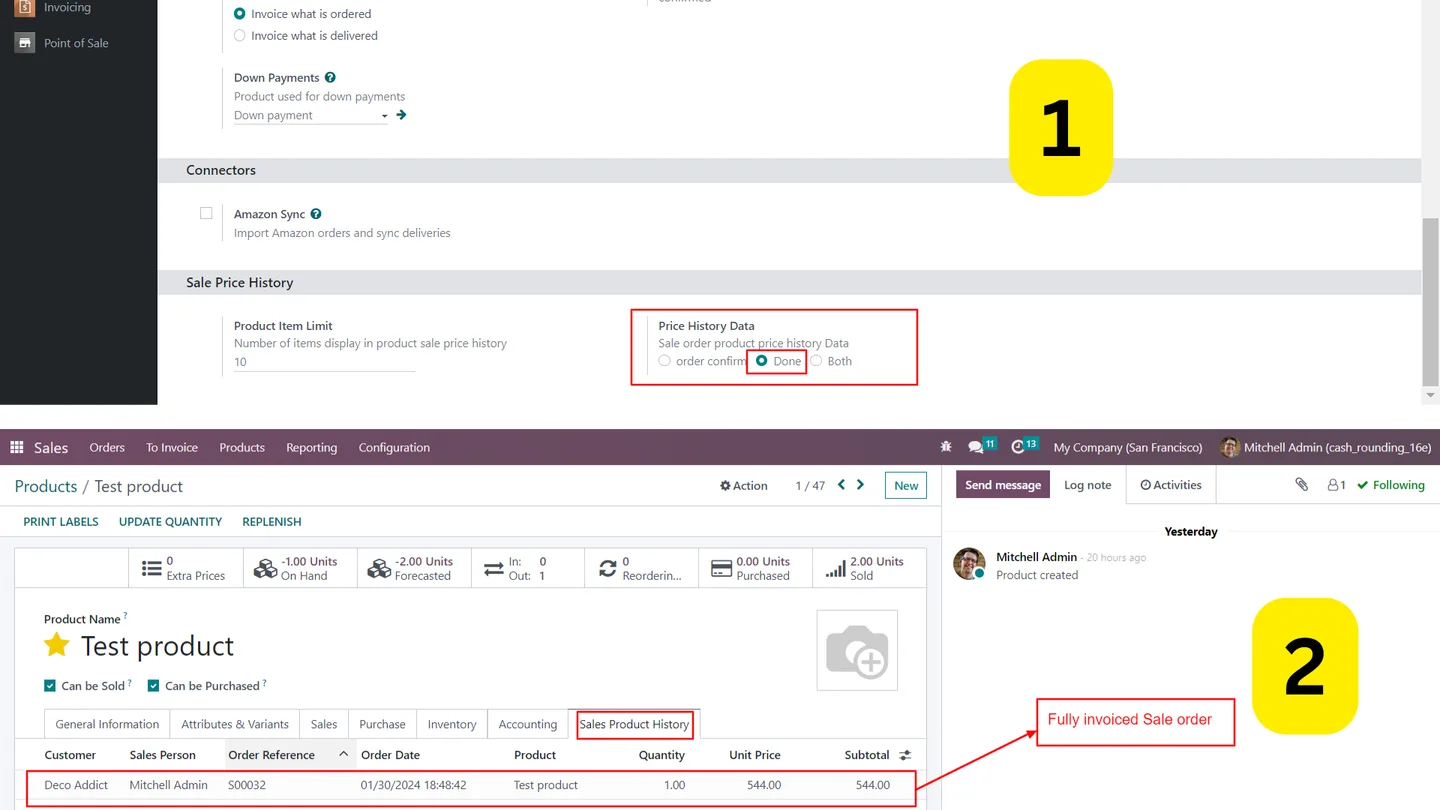
A dedicated Sales product history tab sits inside the product form (next to the Accounting tab), so users do not need to leave the record to inspect activity.
-
Rich column set
Includes columns for product name, quantity, unit price, total price, and order date — the figures a salesperson actually wants when re-pricing or negotiating.
-
Confirmed-only filter
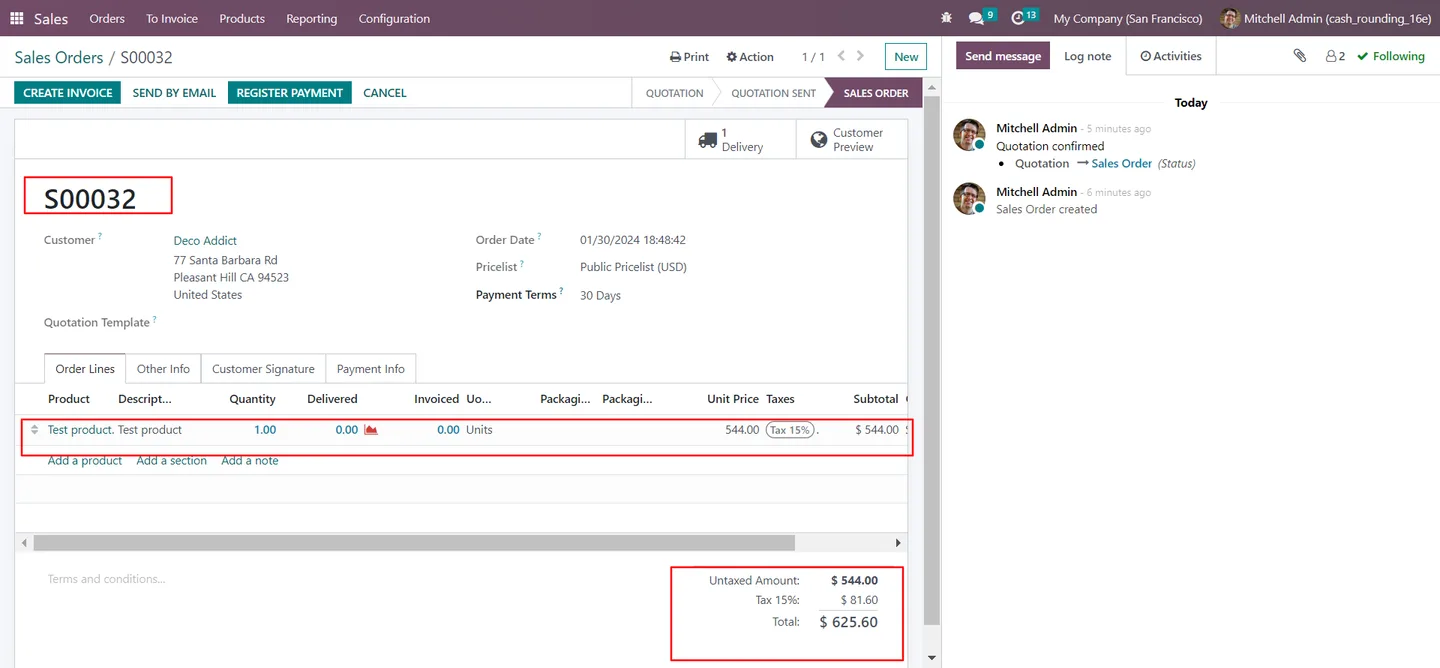
Filter pricing-history data to display only confirmed sale-order lines, so sales managers can focus on commercial reality and ignore in-progress quotations.
-
Fully invoiced filter
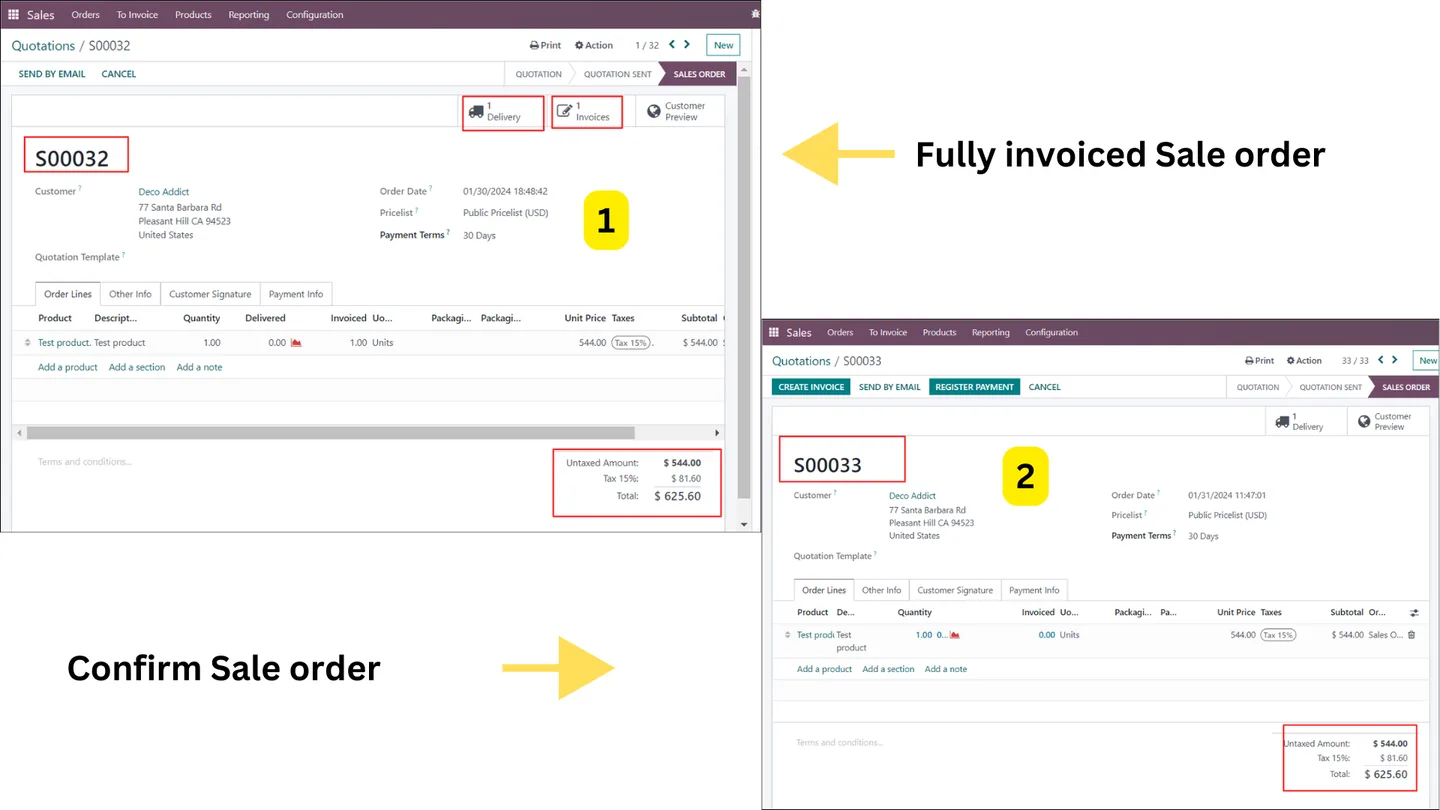
Filter pricing-history data to display only fully invoiced sale-order lines, giving finance a clean view of revenue actually booked against the product.
-
Both filters together
See all data — fully invoiced as well as confirmed sale orders — by using both filter options at once, useful for full-funnel pricing analysis on a single product.
-
Quotation / Sale Order / Both modes
Choose whether the history feeds from quotations, sale orders only, or both — a simple radio-button setting in the sales configuration.
-
User-level access control
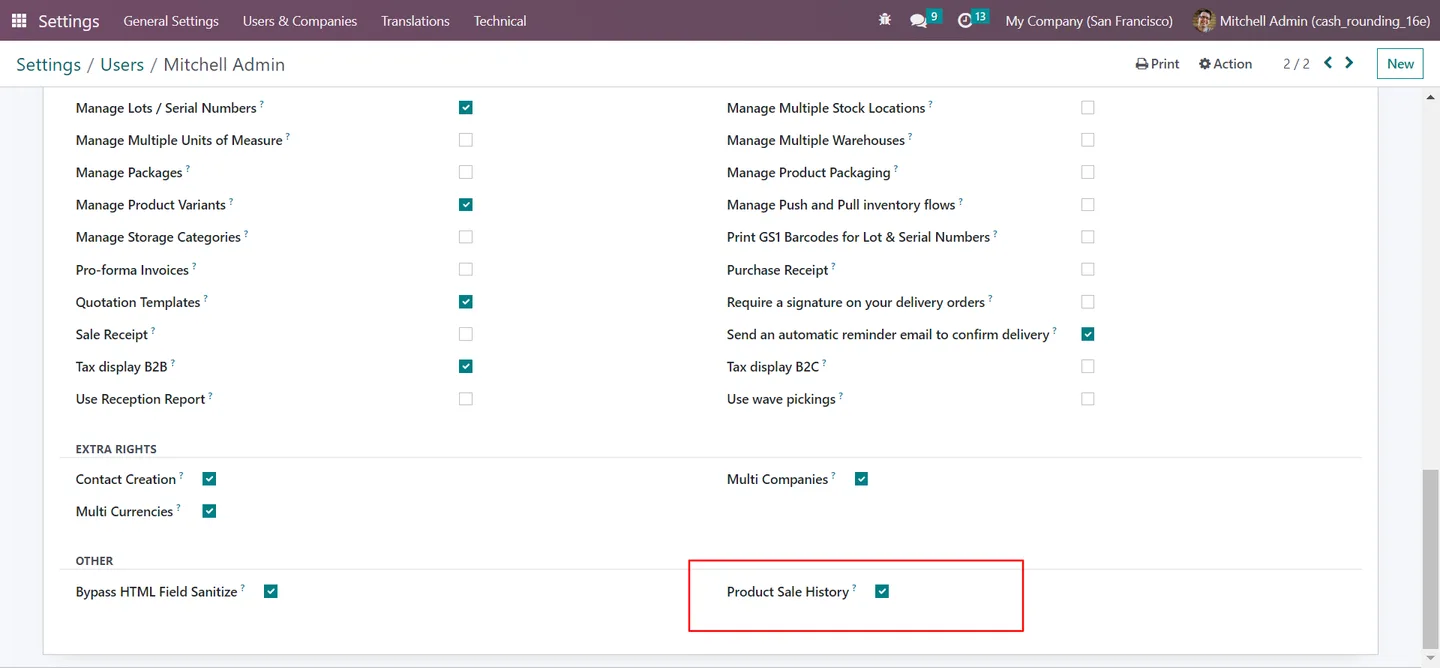
Enable the Product sale history view per user in Settings → Users, so only the right roles see historical price data on each product.
Product Sale Price History in Odoo
Every screen, in the order you meet it — configuration first, then the module in use.
Technical details
Specification
- Publisher
- TechUltra Solutions Private Limited
- Technical name
- tus_sale_price_history
- Odoo versions
- 16.0, 17.0, 18.0, 19.0, 20.0
- Lines of code
- 154
- License
- Odoo Proprietary License v1.0 (OPL-1)
- Price
- $17.47 (one-time)
Deployment
- Odoo Online
- Odoo.sh
- On-premise
Odoo dependencies
- Discuss
- Invoicing
Support
90 days of bug-fix support, Monday to Friday (10:00–19:00 IST). Raise a ticket at support@techultra.in.
Setup & configuration
From install to first call — here is the path.
- 1
Install the module
In Odoo, open Apps, remove the Apps filter, search for “Product Sale Price History”, and click Install.
- 2
Enable the user feature
Go to Settings → Users and turn on Product sale history for the users who should see the tab on product records.
- 3
Configure scope and row limit
Open the Sales configuration. Set the Product Item Limit (rows shown in the history tab) and choose Price History Data: Quotation, Sale Order, or Both.
- 4
Open a product
Pick any product and switch to the Sales product history tab (just after the Accounting tab) to see the configured historical data.
- 5
Apply confirmed or invoiced filters
Use the confirmed-only or fully-invoiced filters to narrow the table — or enable both to see the full view across draft, confirmed, and invoiced sales.
Frequently asked questions
-
Where does the sales history appear?
On every product record, in a new Sales product history tab placed just after the Accounting tab. Open the product and the tab is there — no separate menu or report to launch.
-
Which columns does the history table show?
The table includes product name, quantity, unit price, total price, and order date — the figures sales reps and managers actually need when reviewing past pricing.
-
Can I limit how many rows appear at once?
Yes. A Product Item Limit setting controls how many rows the history tab loads, so very active products stay readable instead of overwhelming the screen.
-
Can I show only confirmed or only invoiced sales?
Yes. Filters let you display only confirmed sale-order lines, only fully invoiced sale-order lines, or both at the same time — useful for finance and sales-manager views.
-
Does the tab include quotations or only sale orders?
It is configurable. Set Price History Data to Quotation, Sale Order, or Both in the sales configuration. The tab then mirrors that choice across every product.
-
Who can see the history tab?
Only users with the Product sale history option enabled in Settings → Users. Administrators choose which roles get the visibility.
-
Which Odoo versions are supported?
The module supports Odoo 16.0, 17.0, 18.0, 19.0, and 20.0, in both the Community and Enterprise editions.
Listing verified against the Odoo App Store:
Related solutions
Whole-platform solutions that complement Product Sale Price History.
Odoo Sales
Odoo Sales module — quotations, pricing rules, sales orders, deliveries, returns. CRM-Inventory-Accounting integrated. Quote-to-cash unified.
Odoo CRM
Odoo CRM module — leads, opportunities, kanban pipeline, quotation, forecasting, email integration. Native with ERP. Mid-market alternative to Salesforce.
Related services
Get the most out of this module with senior TechUltra consultants.
Odoo Customization Services
Odoo customization from a Gold Partner: custom modules, workflows, reports and Studio changes, written upgrade-safe and quoted at a fixed scope. Free scoping call.
Hire Odoo Developers
Hire certified Odoo developers from a Gold Partner: one developer or a team, full-time or part-time, 70–160 hours a month. Silver, Gold or Platinum plan, free trial.
Odoo Support Services & Maintenance
Odoo support services from a Gold Partner: functional and technical support plus server cover for Enterprise and Community, 30-minute P1 response, 24/7 option.







