

Odoo App · Product Management
Product Image Import
Bulk-import product images from a ZIP file and match them automatically in Odoo.

Overview
Odoo has no built-in way to import product images in bulk. For a catalogue of any size, that means opening each product form and uploading an image one at a time — slow, repetitive work that is easy to get wrong.
Product Image Import replaces that with a single upload. Built by TechUltra Solutions, the module takes a ZIP file of images from inside the Inventory app and distributes each picture to the product it belongs to.
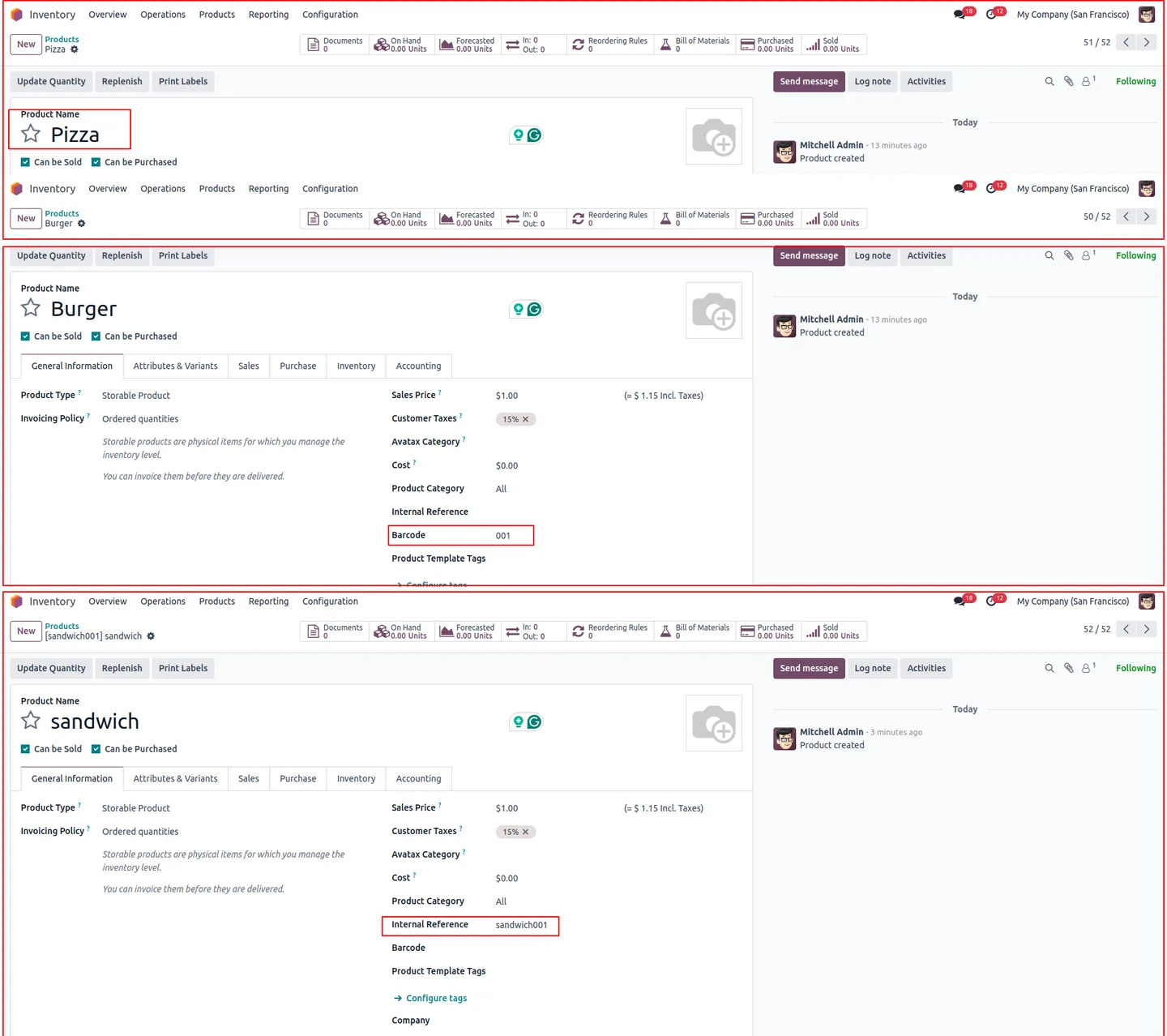
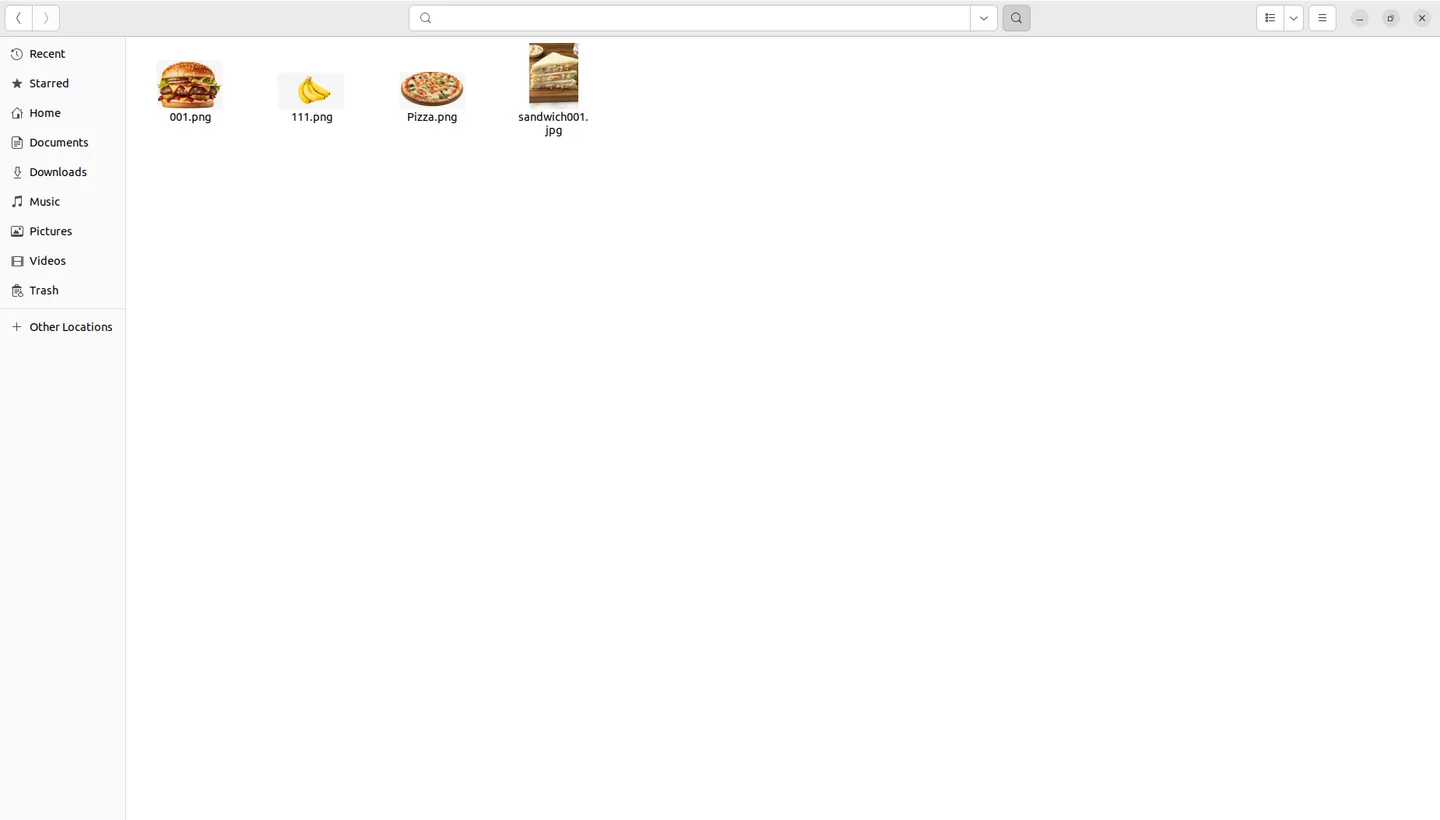
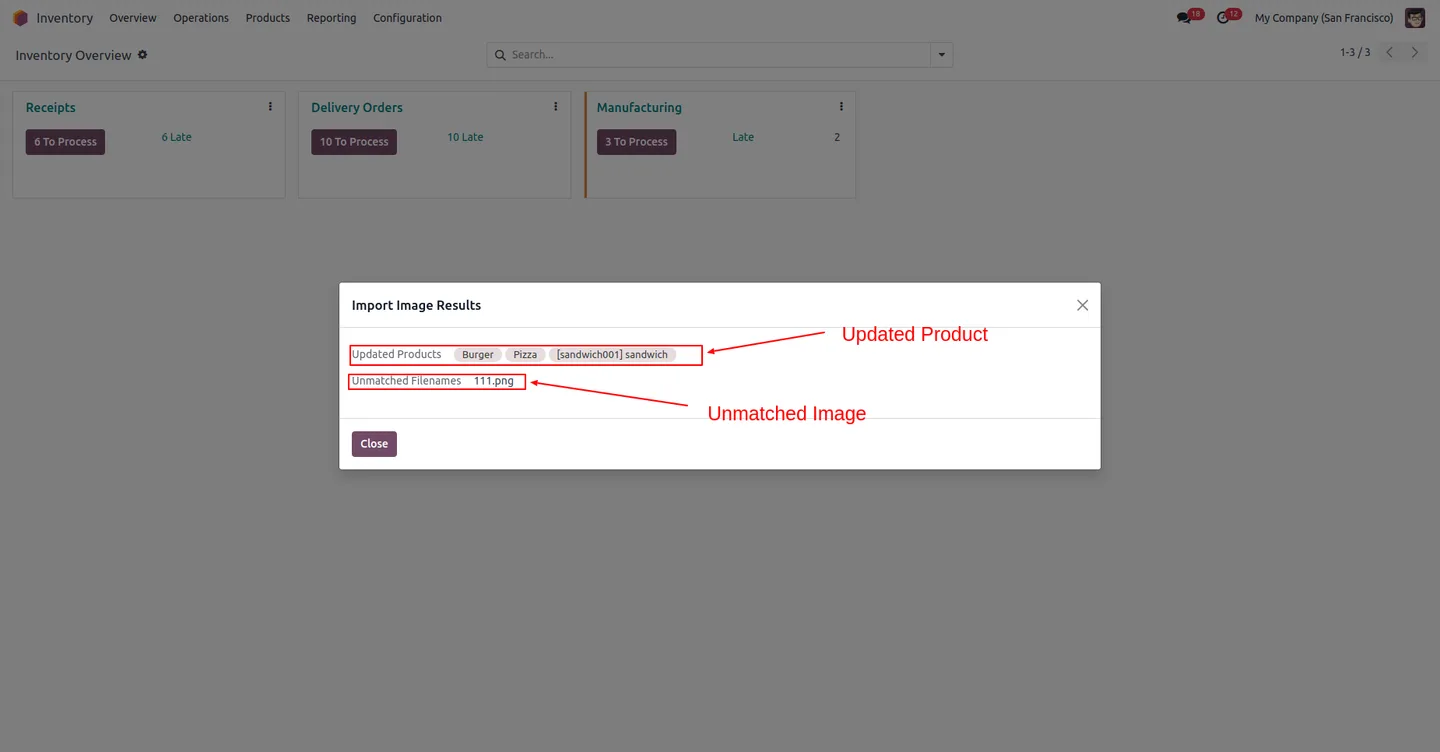
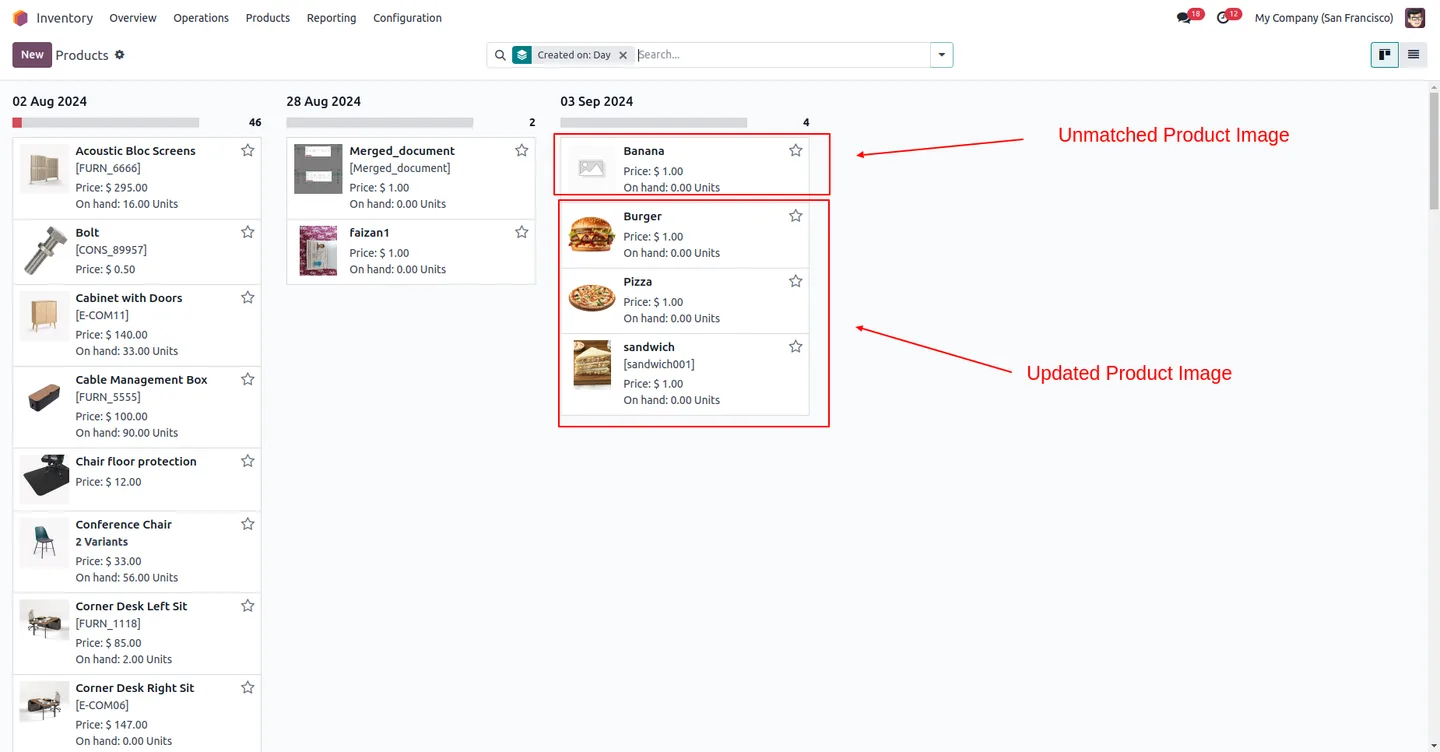
Matching runs on the file name against a product's display name, barcode, or internal reference. Images that match update the product record automatically; images that do not match are collected under an Unmatched Filenames list so you can spot naming problems and fix them. The module accepts PNG, JPG, and JPEG files.
Key features
-
Bulk image upload via ZIP
Upload one ZIP file containing many product images directly from the Inventory module, instead of attaching pictures product by product.
-
Automatic product matching
Each image is matched to a product by display name, barcode, or internal reference, so the right picture lands on the right record.
-
Automatic record updates
Successfully matched images update the relevant product image fields without any further manual step.
-
Unmatched filenames list
Files the module cannot match are listed under Unmatched Filenames, making it easy to spot naming mismatches and correct them.
-
PNG, JPG, and JPEG support
The importer accepts PNG, JPG, and JPEG image files, covering the formats most product photos are saved in.
-
Faster catalogue updates
Importing a whole batch of images at once cuts the time and effort of keeping product photos current across a large catalogue.
-
Fewer matching errors
Matching on name, barcode, or reference reduces the chance of attaching an image to the wrong product compared with manual uploads.
-
Straightforward import wizard
A simple wizard handles the upload and matching, with clear navigation so the import is quick to run.
Product Image Import in Odoo
Every screen, in the order you meet it — configuration first, then the module in use.
Technical details
Specification
- Publisher
- TechUltra Solutions Private Limited
- Technical name
- tus_product_image_bulk_import
- Odoo versions
- 14.0, 15.0, 16.0, 17.0, 18.0, 19.0, 20.0
- Lines of code
- 286
- License
- Odoo Proprietary License v1.0 (OPL-1)
- Price
- $19.79 (one-time)
Deployment
- Odoo Online
- Odoo.sh
- On-premise
Odoo dependencies
- Inventory
- Discuss
Support
90 days of bug-fix support, Monday to Friday (10:00–19:00 IST). Raise a ticket at support@techultra.in.
Setup & configuration
From install to first call — here is the path.
- 1
Install the module
In Odoo, open Apps, remove the Apps filter, search for “Product Image Import”, and click Install.
- 2
Prepare the image ZIP
Name each PNG, JPG, or JPEG file to match the product's display name, barcode, or internal reference, then pack the images into one ZIP file.
- 3
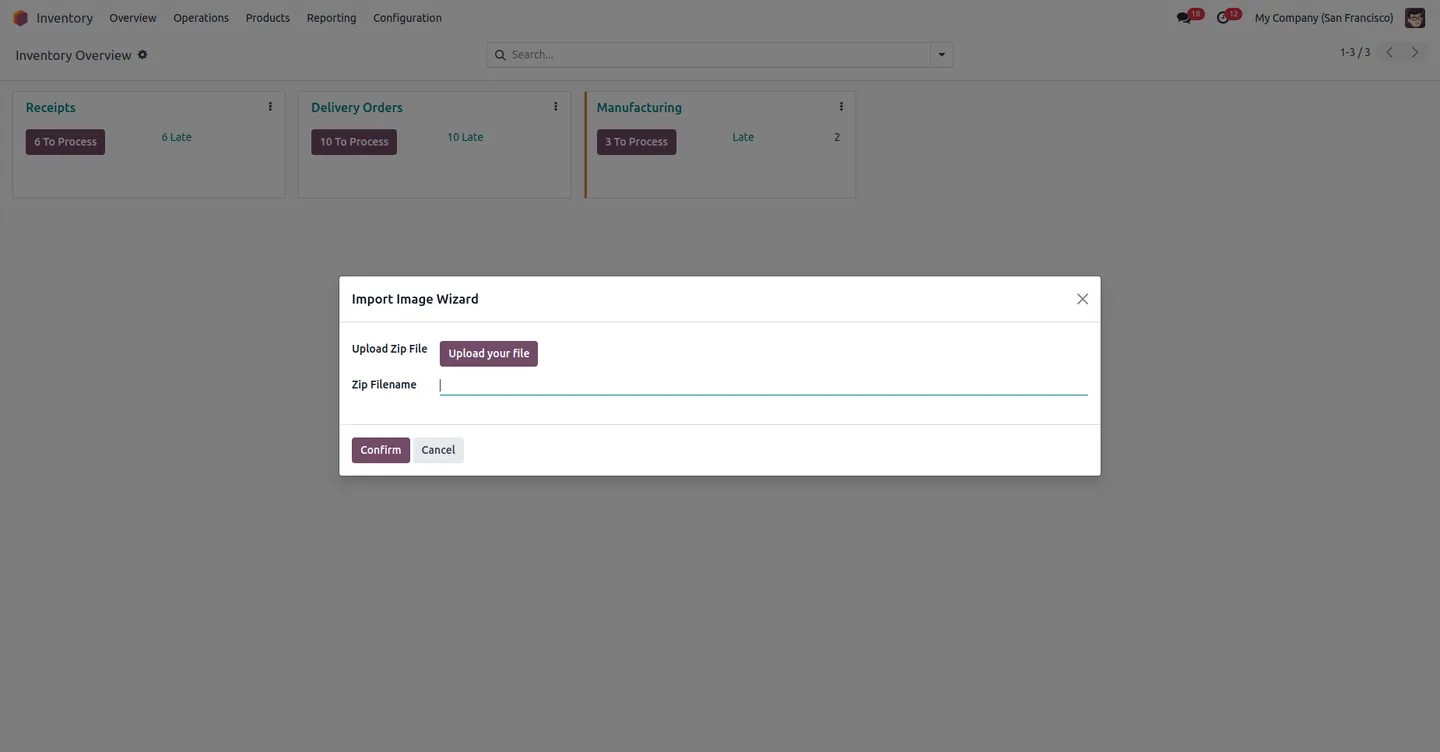
Open the import wizard
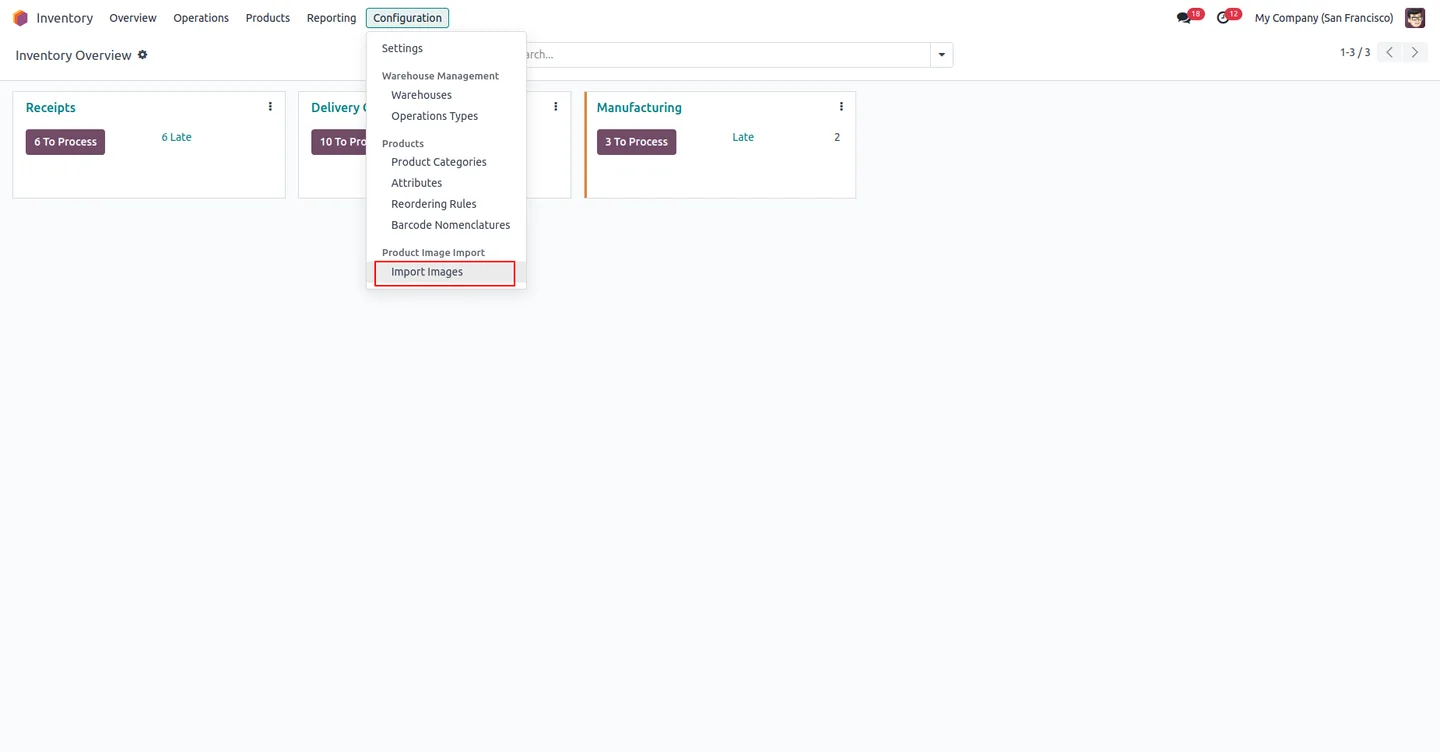
Go to Inventory → Configuration → Product Image Import → Import Images to open the upload wizard.
- 4
Upload and set matching criteria
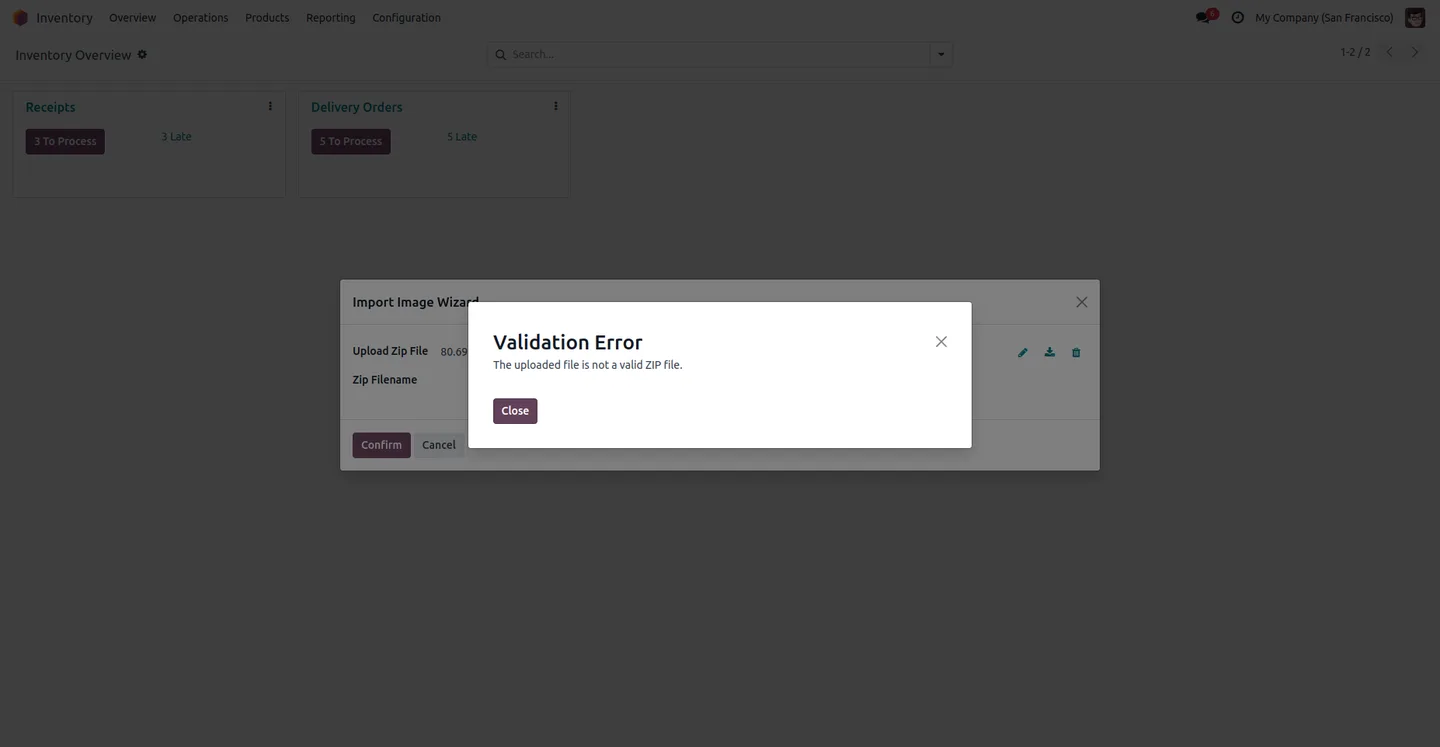
Select the ZIP file in the wizard and choose the matching criterion — display name, barcode, or internal reference — then run the import.
- 5
Review the results
Matched images update the product records automatically. Check the Unmatched Filenames list, rename any files that did not match, and re-import them.
Frequently asked questions
-
How does the module decide which product an image belongs to?
It matches each image's file name against a product's display name, barcode, or internal reference. You choose which criterion to match on when you run the import.
-
What image formats are supported?
The importer accepts PNG, JPG, and JPEG files. All images are packed into a single ZIP file for the upload.
-
What happens to images that don't match a product?
Unmatched files are listed under Unmatched Filenames. You can review that list, rename the files to match a product, and import them again.
-
Where do I run the import?
Go to Inventory → Configuration → Product Image Import → Import Images. That opens a wizard where you upload the ZIP and set the matching criteria.
-
Does it update existing product images?
Yes. Matched images update the relevant product image fields, so the import keeps your catalogue photos current.
-
Which Odoo versions are supported?
The module supports Odoo 14.0, 15.0, 16.0, 17.0, 18.0, 19.0, and 20.0, in both the Community and Enterprise editions.
-
Is support included?
Yes. The module includes 90 days of bug-fix support, Monday to Friday, 10:00–19:00 IST.
Listing verified against the Odoo App Store:
Related services
Get the most out of this module with senior TechUltra consultants.
Odoo Customization Services
Odoo customization from a Gold Partner: custom modules, workflows, reports and Studio changes, written upgrade-safe and quoted at a fixed scope. Free scoping call.
Hire Odoo Developers
Hire certified Odoo developers from a Gold Partner: one developer or a team, full-time or part-time, 70–160 hours a month. Silver, Gold or Platinum plan, free trial.
Odoo Support Services & Maintenance
Odoo support services from a Gold Partner: functional and technical support plus server cover for Enterprise and Community, 30-minute P1 response, 24/7 option.







