
Odoo App · Point of Sale
POS Price Display Control
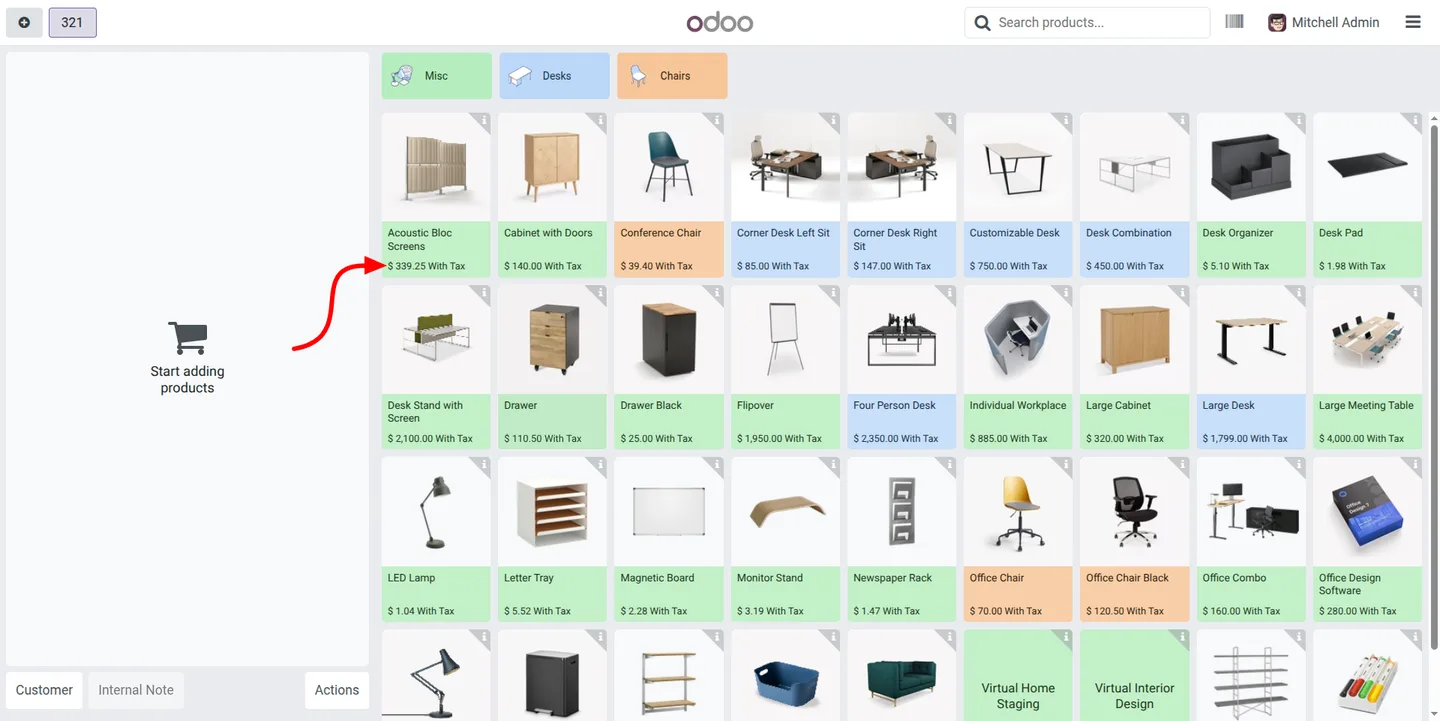
Show accurate, tax-aware product prices on POS product cards.

Overview
Cashiers and customers need to see the correct price before an item is added to a sale. POS Price Display Control extends the Odoo Point of Sale interface so each product card shows an accurate price that matches your backend pricing configuration.
Built by TechUltra Solutions, the module respects how products are taxed. Prices display as tax-inclusive or tax-exclusive in line with your Odoo settings, and they stay current, so the figure on the card is the figure that applies at checkout.
Showing the right price up front cuts the confusion caused by outdated or incorrect figures, reduces the manual price checks cashiers would otherwise make, and supports clearer pricing for customers. The module is turned on with a single setting and supports Odoo 16, 17, 18, 19, and 20.
Key features
-
Accurate prices on product cards
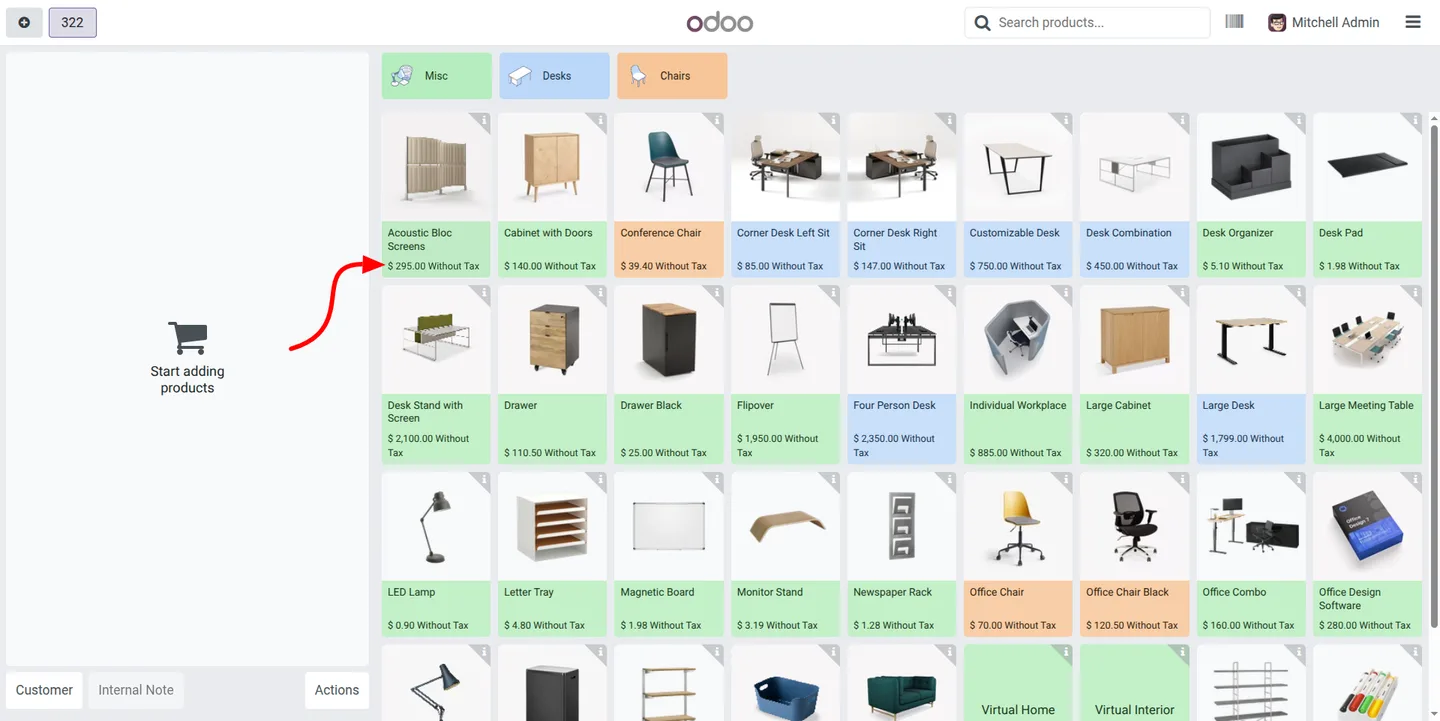
Each product card in the POS interface shows an accurate price, so cashiers and customers see the correct figure before an item is rung up.
-
Tax-inclusive or tax-exclusive display
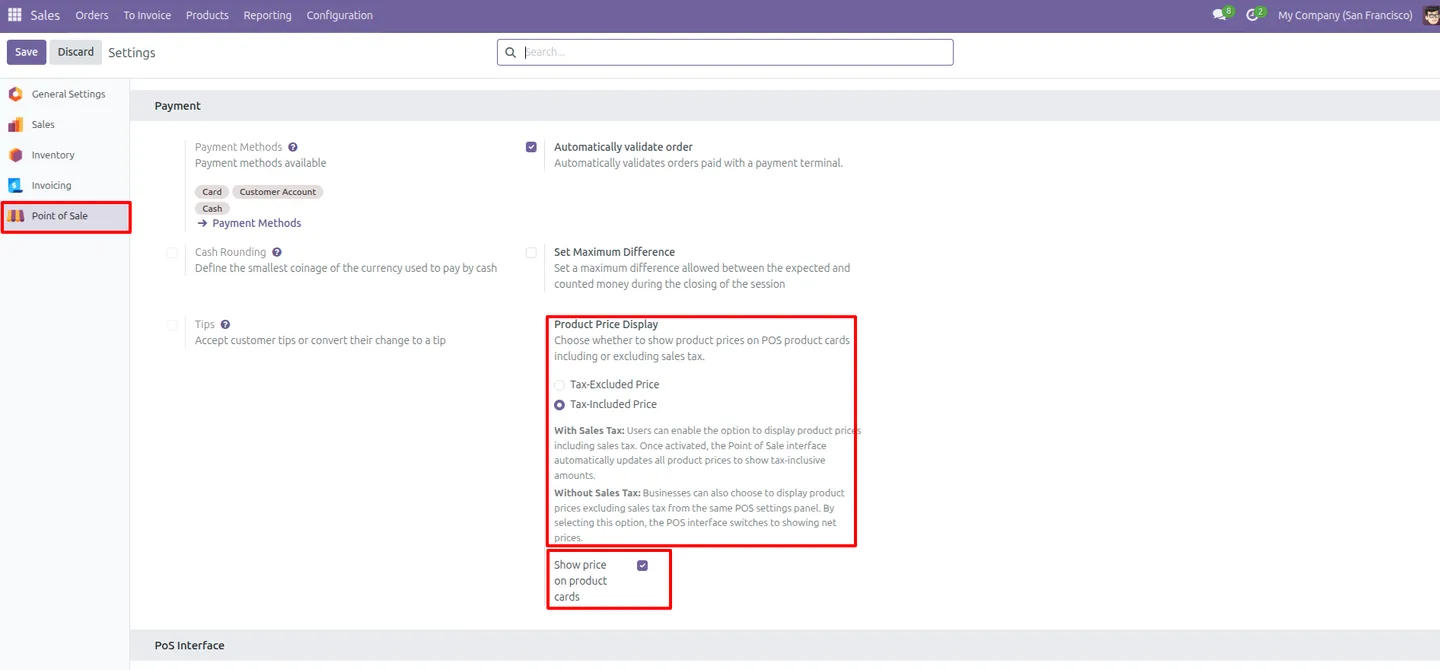
Prices display as tax-inclusive or tax-exclusive in line with how each product is configured in the Odoo backend.
-
Real-time price synchronisation
Displayed prices stay current, so the amount shown on a product card matches the price applied at checkout.
-
POS-level configuration control
The price display is controlled from the Point of Sale settings, so administrators decide where product-card prices appear.
-
Dynamic product card rendering
Product cards render the price dynamically, keeping the POS grid consistent with the current pricing setup.
-
Improved cashier accuracy
With the correct price visible on every card, cashiers ring up items with fewer mistakes during a busy session.
-
Less manual price verification
Clear on-screen prices reduce the manual checks staff would otherwise make against a separate price list.
-
Clearer pricing for customers
Showing accurate prices up front supports pricing transparency and builds customer trust at the counter.
POS Price Display Control in Odoo
Every screen, in the order you meet it — configuration first, then the module in use.
Technical details
Specification
- Publisher
- TechUltra Solutions Private Limited
- Technical name
- pos_product_price_display_pro
- Odoo versions
- 16.0, 17.0, 18.0, 19.0, 20.0
- Lines of code
- 299
- License
- Odoo Proprietary License v1.0 (OPL-1)
- Price
- $12 (one-time)
Deployment
- Odoo Online
- Odoo.sh
- On-premise
Odoo dependencies
- Point of Sale
- Inventory
- Invoicing
- Discuss
Support
90 days of bug-fix support, Monday to Friday (10:00–19:00 IST). Raise a ticket at support@techultra.in.
Setup & configuration
From install to first call — here is the path.
- 1
Install the module
In Odoo, open Apps, remove the Apps filter, search for “POS Product Price Display”, and click Install.
- 2
Open the Point of Sale settings
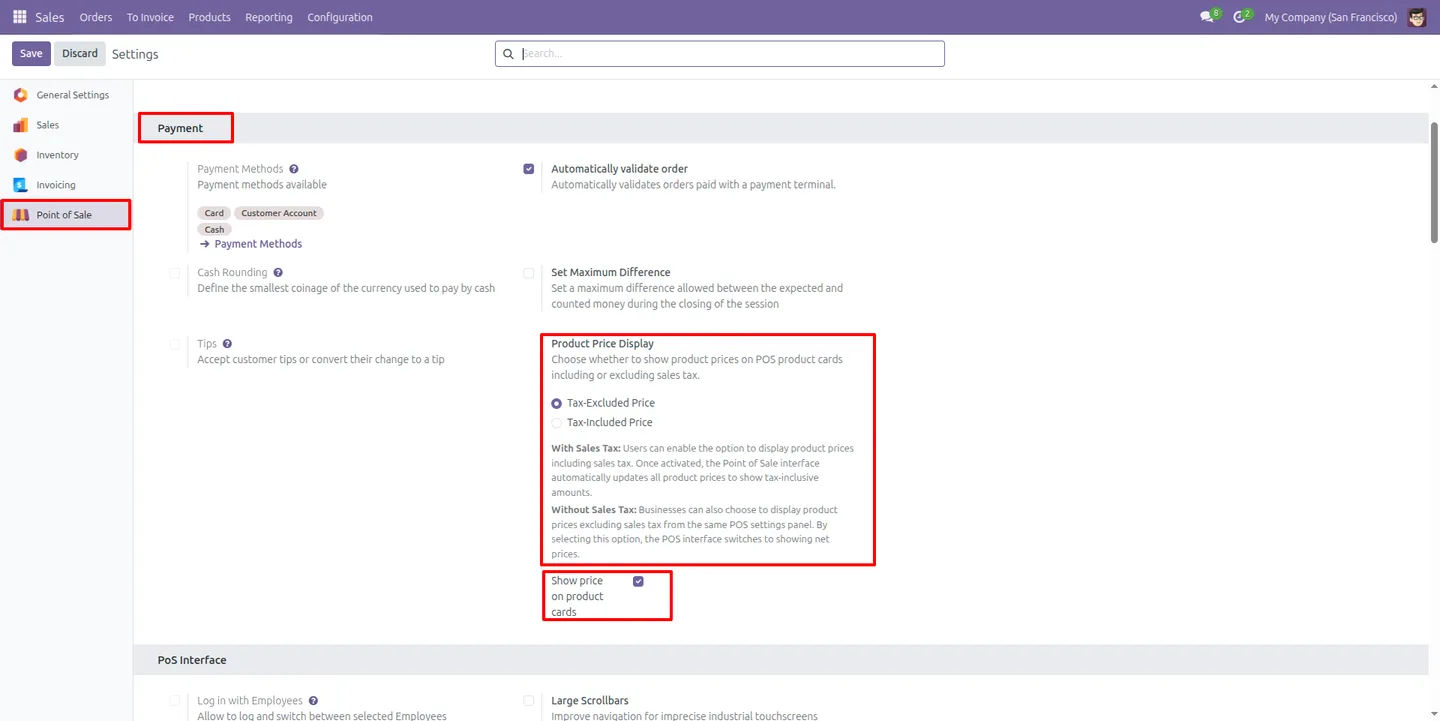
Go to Settings → Point of Sale and scroll to the Payment section.
- 3
Enable price display
Turn on the Show Price on Product Cards option for the relevant point of sale.
- 4
Check tax configuration
Confirm your products are set as tax-inclusive or tax-exclusive as intended, since the card price follows that setting.
- 5
Open a POS session
Start a session and check that each product card shows the correct price in the chosen tax format.
Frequently asked questions
-
What does this module change in the POS?
It shows an accurate product price on each product card in the POS interface, so cashiers and customers see the correct figure before an item is added to a sale.
-
Does it show tax-inclusive or tax-exclusive prices?
Both. The displayed price follows how each product is configured in the Odoo backend — tax-inclusive or tax-exclusive — so it matches your existing setup.
-
How do I turn the price display on?
Go to Settings → Point of Sale, find Show Price on Product Cards in the Payment section, and enable it for the point of sale you want.
-
Will the displayed price match checkout?
Yes. Prices stay synchronised, so the figure on the product card is the price applied when the item is rung up.
-
Does it change my backend pricing?
No. The module only controls how prices are displayed on POS product cards. It respects your existing backend pricing and tax configuration.
-
Can I enable it for some points of sale only?
Yes. The price display is controlled from the Point of Sale settings, so you can switch it on per point of sale.
-
Which Odoo versions are supported?
The module supports Odoo 16.0, 17.0, 18.0, 19.0, and 20.0, in both the Community and Enterprise editions.
-
Is support included?
Yes. The module includes 90 days of bug-fix support, Monday to Friday, 10:00–19:00 IST.
Listing verified against the Odoo App Store:
Related solutions
Whole-platform solutions that complement POS Price Display Control.
Related services
Get the most out of this module with senior TechUltra consultants.
Odoo Customization Services
Odoo customization from a Gold Partner: custom modules, workflows, reports and Studio changes, written upgrade-safe and quoted at a fixed scope. Free scoping call.
Hire Odoo Developers
Hire certified Odoo developers from a Gold Partner: one developer or a team, full-time or part-time, 70–160 hours a month. Silver, Gold or Platinum plan, free trial.
Odoo Support Services & Maintenance
Odoo support services from a Gold Partner: functional and technical support plus server cover for Enterprise and Community, 30-minute P1 response, 24/7 option.







