

Odoo App · Point of Sale
POS Orderline Cashier
Assign a specific cashier to each product line in an Odoo POS order.

Overview
POS Orderline Cashier adds a cashier field to each line of an Odoo Point of Sale order. In a single transaction, different products can be credited to different staff members, which is useful when one counter sells across several departments.
Built by TechUltra Solutions, the module is designed for shops where staff specialize — one person on clothing, another on electronics, another on produce. By recording the cashier on each order line, it makes per-staff sales tracking possible from the order itself.
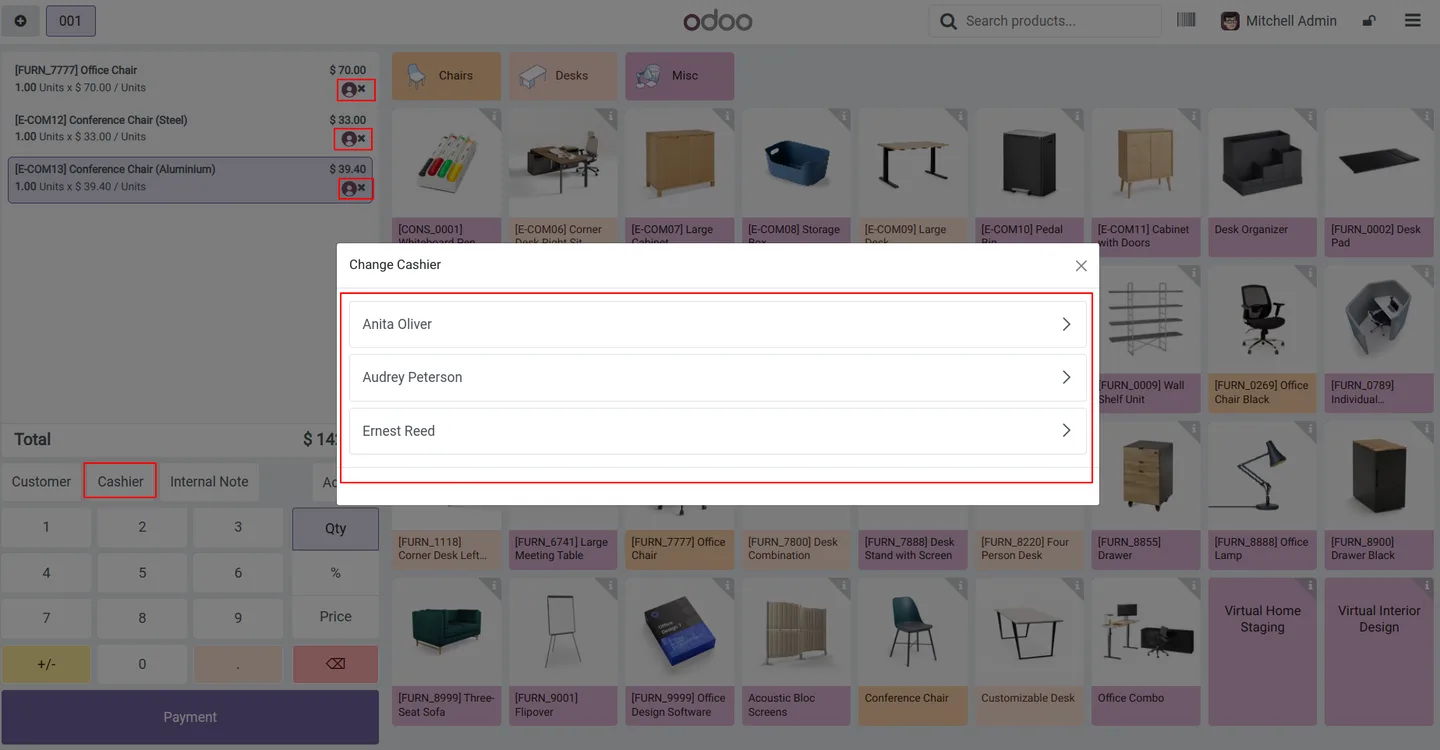
Once enabled per POS, cashiers are assigned from a popup as products are added to the order. The assigned name appears when you hover over the product, in the order details, and on the receipt, and an assignment can be removed or reassigned at any time before payment.
Key features
-
Assign cashiers to products
Assign a specific cashier to each product line while building the order, so individual items in one transaction are credited to the right staff member.
-
Remove or reassign a cashier
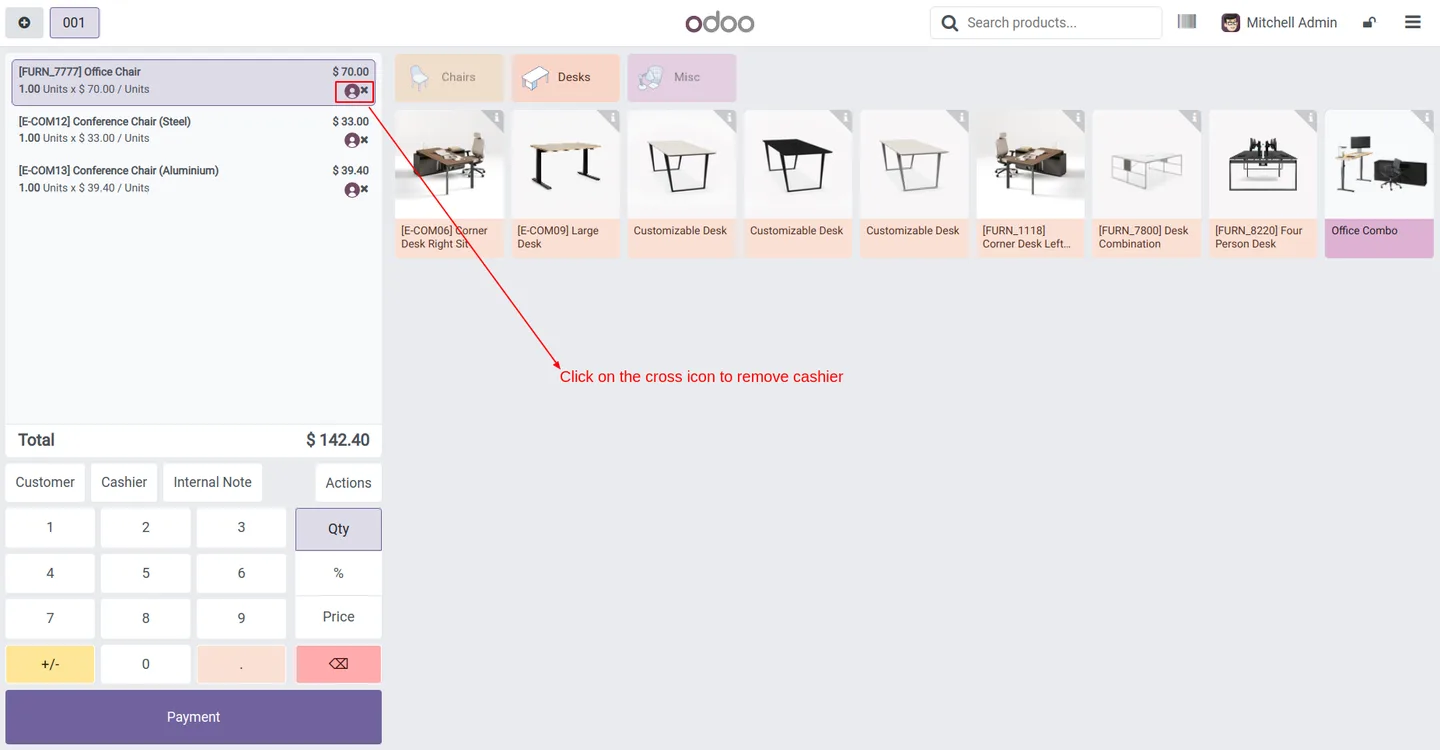
Change a cashier assignment whenever needed. Use the red cross to clear an assignment and pick a different cashier instead.
-
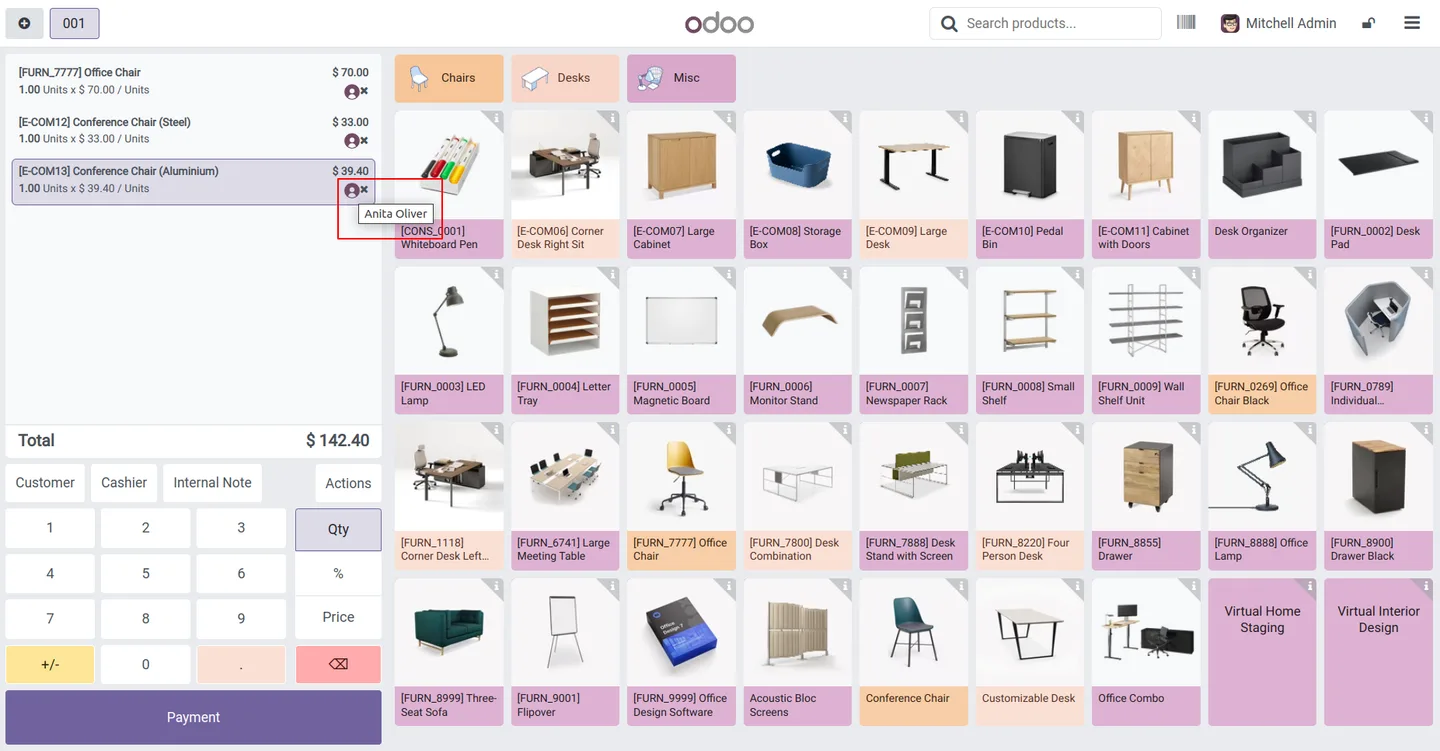
Cashier name on hover
Hover over a product in the order to see which cashier is assigned to that line, so the assignment is easy to verify at the counter.
-
Cashier shown in order details
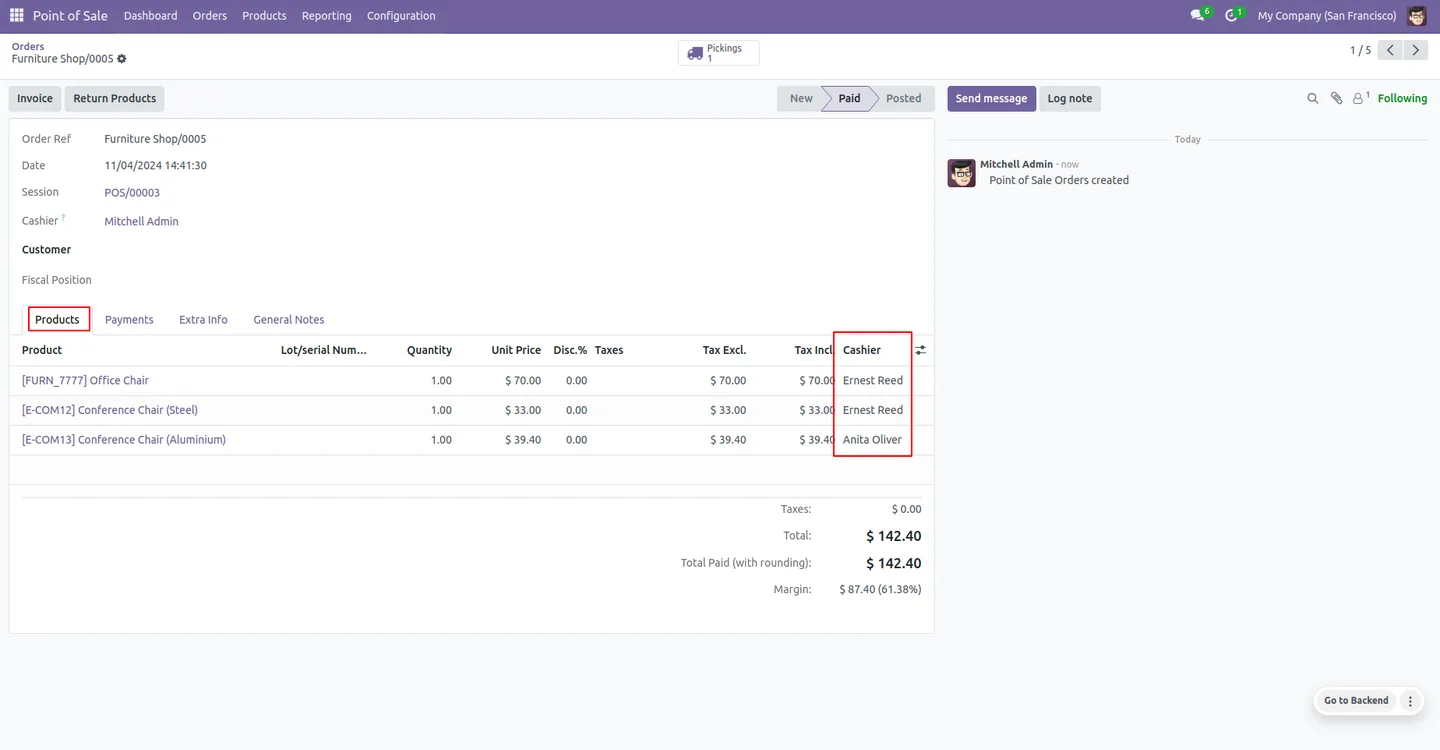
Order line listings include the assigned cashier name, which gives a clear per-item record for tracking who processed what.
-
Cashier name on the receipt
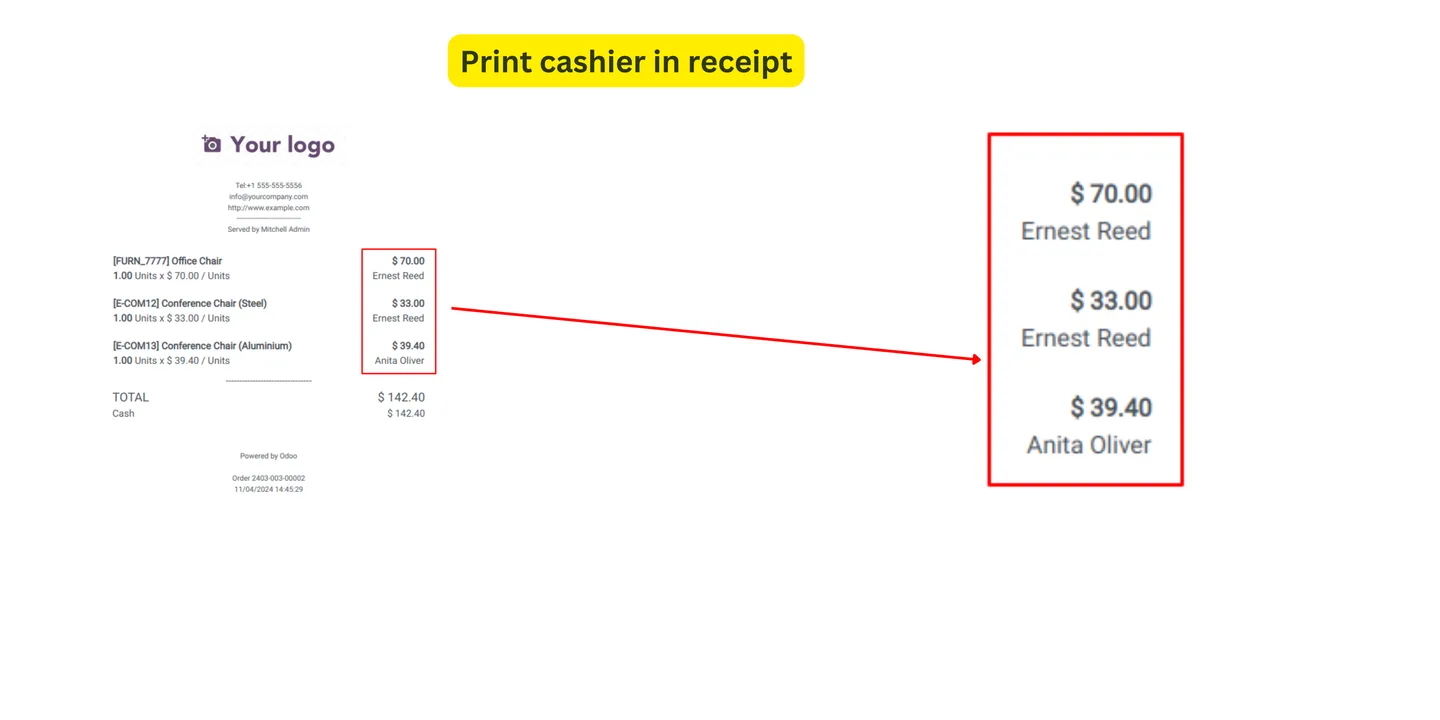
The assigned cashier name is printed on the customer receipt, keeping the record visible after the sale is complete.
-
Choose who can bill
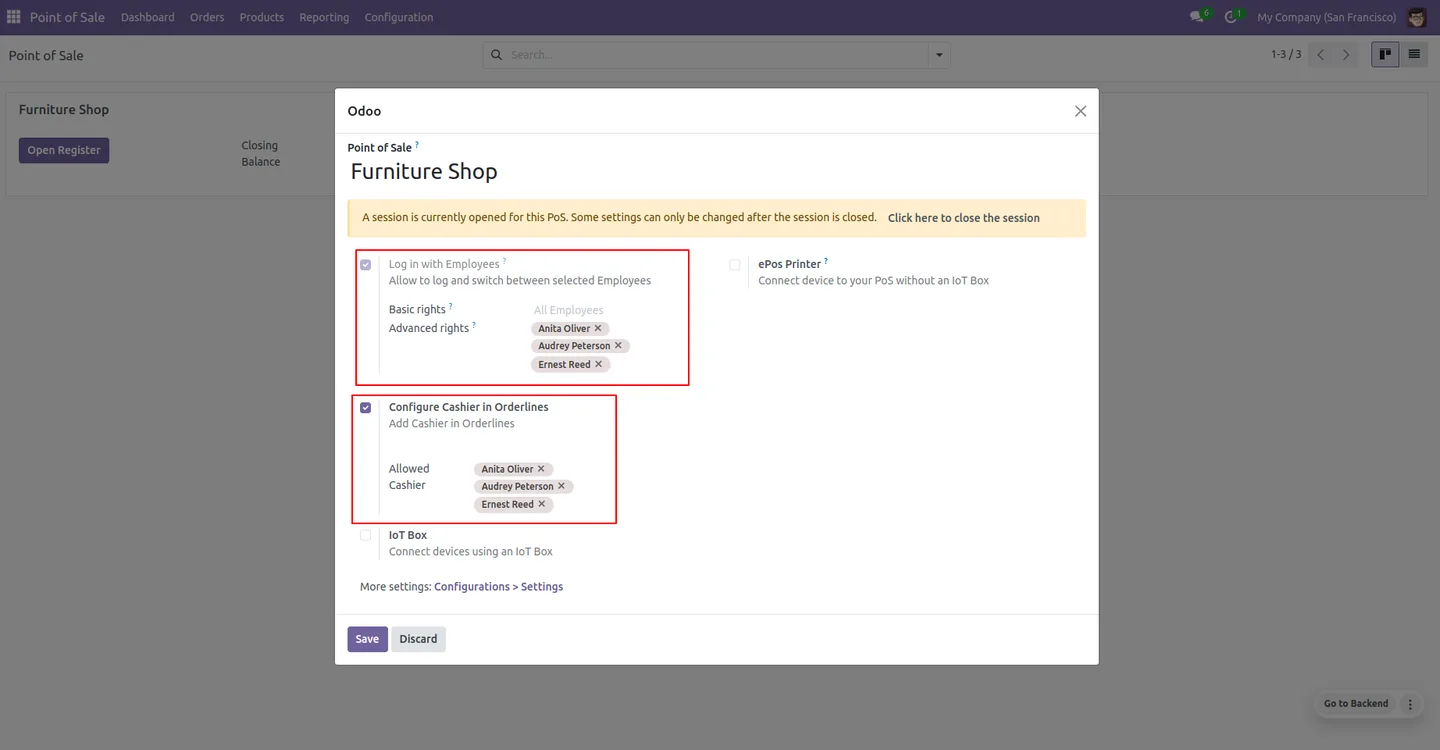
When enabling the feature on a POS, select which cashiers are allowed to be assigned for billing, so only the right staff appear in the popup.
-
Simple per-POS configuration
The feature is turned on from the POS settings with a single option and needs no technical expertise to set up.
POS Orderline Cashier in Odoo
Every screen, in the order you meet it — configuration first, then the module in use.
Technical details
Specification
- Publisher
- TechUltra Solutions Private Limited
- Technical name
- tus_pos_orderline_cashier
- Odoo versions
- 16.0, 17.0, 18.0, 19.0, 20.0
- Lines of code
- 349
- License
- Odoo Proprietary License v1.0 (OPL-1)
- Price
- $13 (one-time)
Deployment
- Odoo Online
- Odoo.sh
- On-premise
Odoo dependencies
- Point of Sale
- Employees
- Inventory
- Invoicing
- Discuss
Support
90 days of bug-fix support, Monday to Friday (10:00–19:00 IST). Raise a ticket at support@techultra.in.
Setup & configuration
From install to first call — here is the path.
- 1
Install the module
In Odoo, open Apps, remove the Apps filter, search for “POS Orderline Cashier”, and click Install.
- 2
Open the POS settings
Go to the Point of Sale dashboard, select the shop or restaurant, click the three dots, and choose Edit.
- 3
Enable the feature
Turn on “Configure Cashier in Orderlines”, then select which cashiers are permitted for billing operations.
- 4
Assign cashiers in a session
Start a new POS session, add products to the order, and click a product to assign a cashier from the popup.
- 5
Check and complete the order
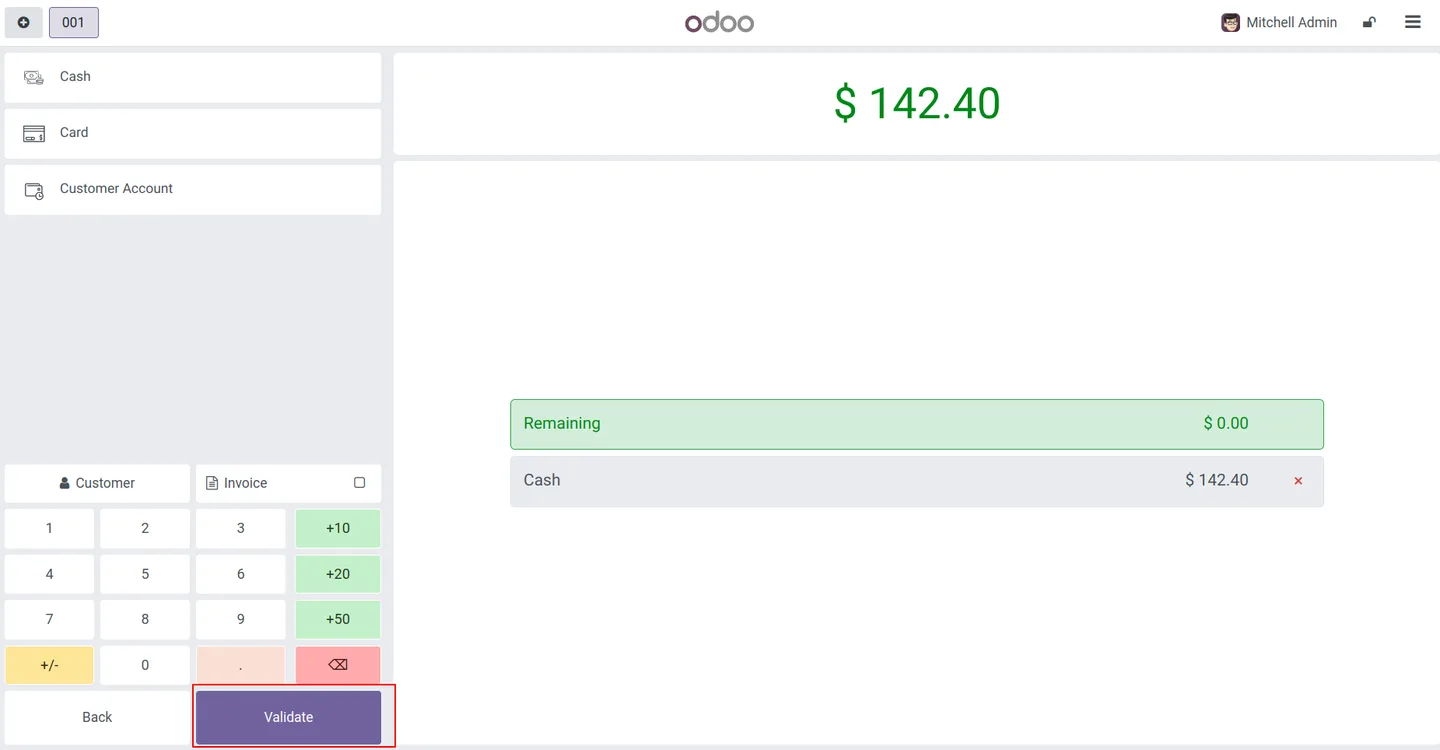
Hover over a product to verify the cashier name, remove an assignment with the red cross if needed, then proceed to payment and validation.
Frequently asked questions
-
What does this module add to Odoo POS?
It lets you assign a specific cashier to each product line in a Point of Sale order, so individual items in one transaction can be credited to different staff members.
-
Why would a shop need per-line cashiers?
It suits shops where staff specialize by department — for example clothing, electronics, or produce — so each item can be tracked against the cashier who handled it.
-
Where does the cashier name appear?
The assigned cashier name shows when you hover over a product, in the order line details, and on the printed customer receipt.
-
Can I change a cashier assignment?
Yes. You can remove an assignment with the red cross and assign a different cashier at any time before payment.
-
Can I control which staff can be assigned?
Yes. When you enable the feature on a POS, you select which cashiers are permitted for billing, so only those staff appear in the assignment popup.
-
Is it hard to set up?
No. The feature is turned on from the POS settings with a single option — “Configure Cashier in Orderlines” — and needs no technical expertise.
-
Which Odoo versions are supported?
The module supports Odoo 16.0, 17.0, 18.0, 19.0, and 20.0, in both the Community and Enterprise editions.
-
Is support included?
Yes. The module includes 90 days of bug-fix support, Monday to Friday, 10:00–19:00 IST.
Listing verified against the Odoo App Store:
Related solutions
Whole-platform solutions that complement POS Orderline Cashier.
Related services
Get the most out of this module with senior TechUltra consultants.
Odoo Customization Services
Odoo customization from a Gold Partner: custom modules, workflows, reports and Studio changes, written upgrade-safe and quoted at a fixed scope. Free scoping call.
Hire Odoo Developers
Hire certified Odoo developers from a Gold Partner: one developer or a team, full-time or part-time, 70–160 hours a month. Silver, Gold or Platinum plan, free trial.
Odoo Support Services & Maintenance
Odoo support services from a Gold Partner: functional and technical support plus server cover for Enterprise and Community, 30-minute P1 response, 24/7 option.







