

Odoo App · Point of Sale
POS Combo & Bundle Products
Sell combos and bundles in the Odoo POS with a guided item-selection popup.

Overview
POS Combo & Bundle Products lets retail and food-service businesses sell combo deals — a burger meal, a gift set, a fixed-price bundle — directly through the Odoo Point of Sale. Instead of ringing items up separately, the cashier adds one combo product and the module walks them through the choices.
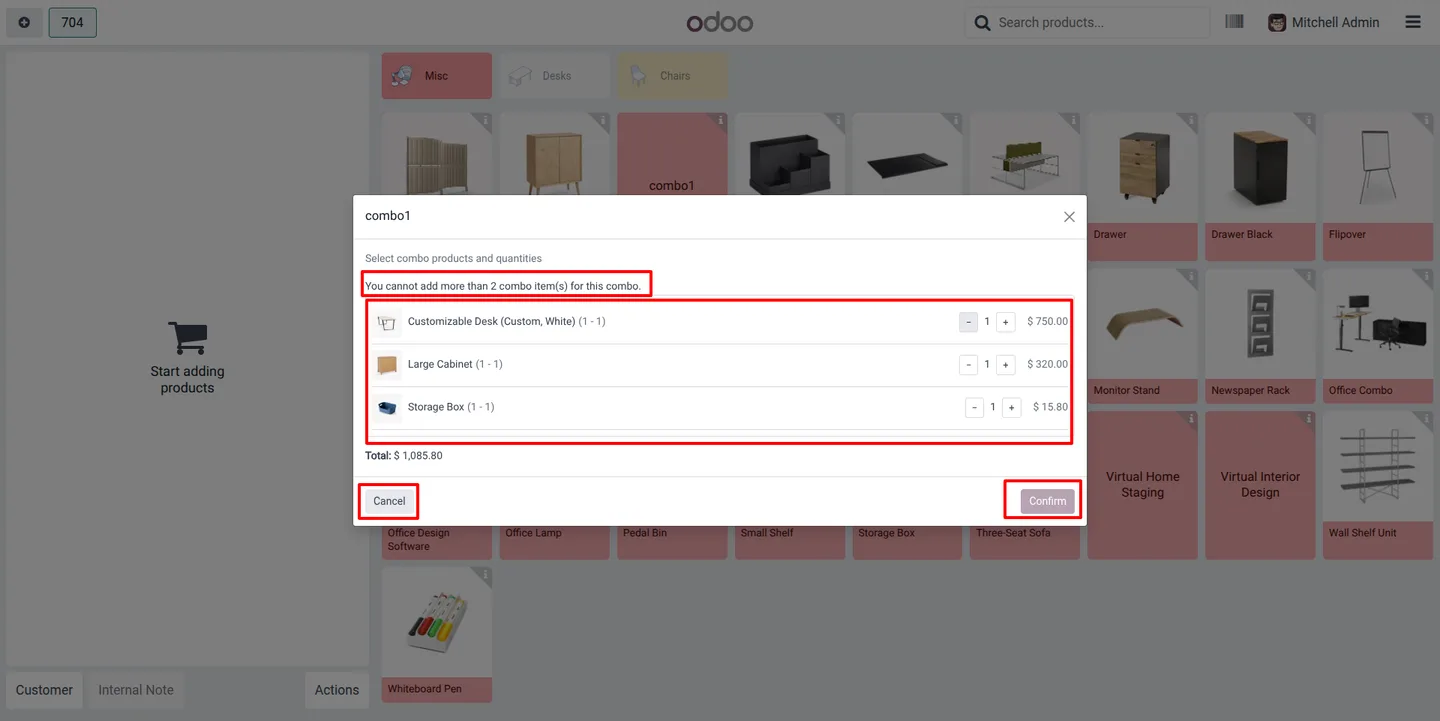
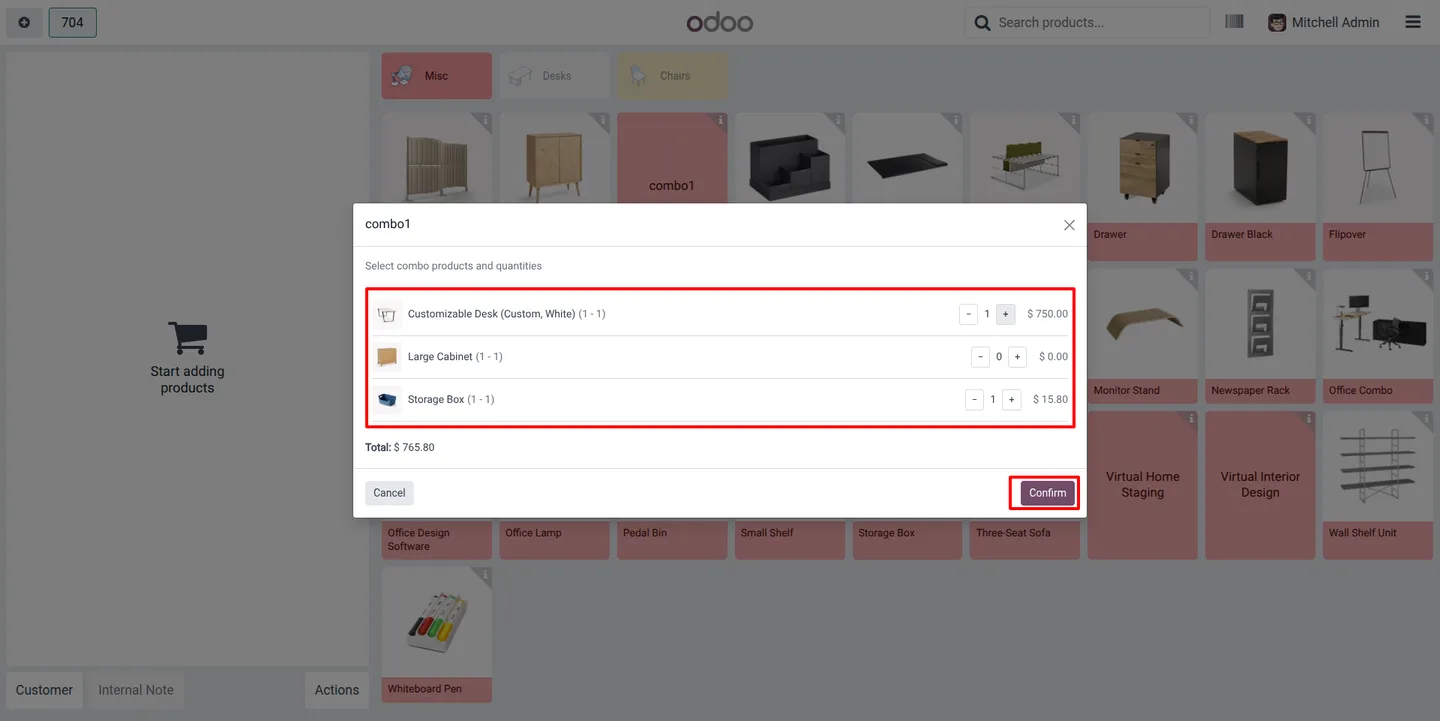
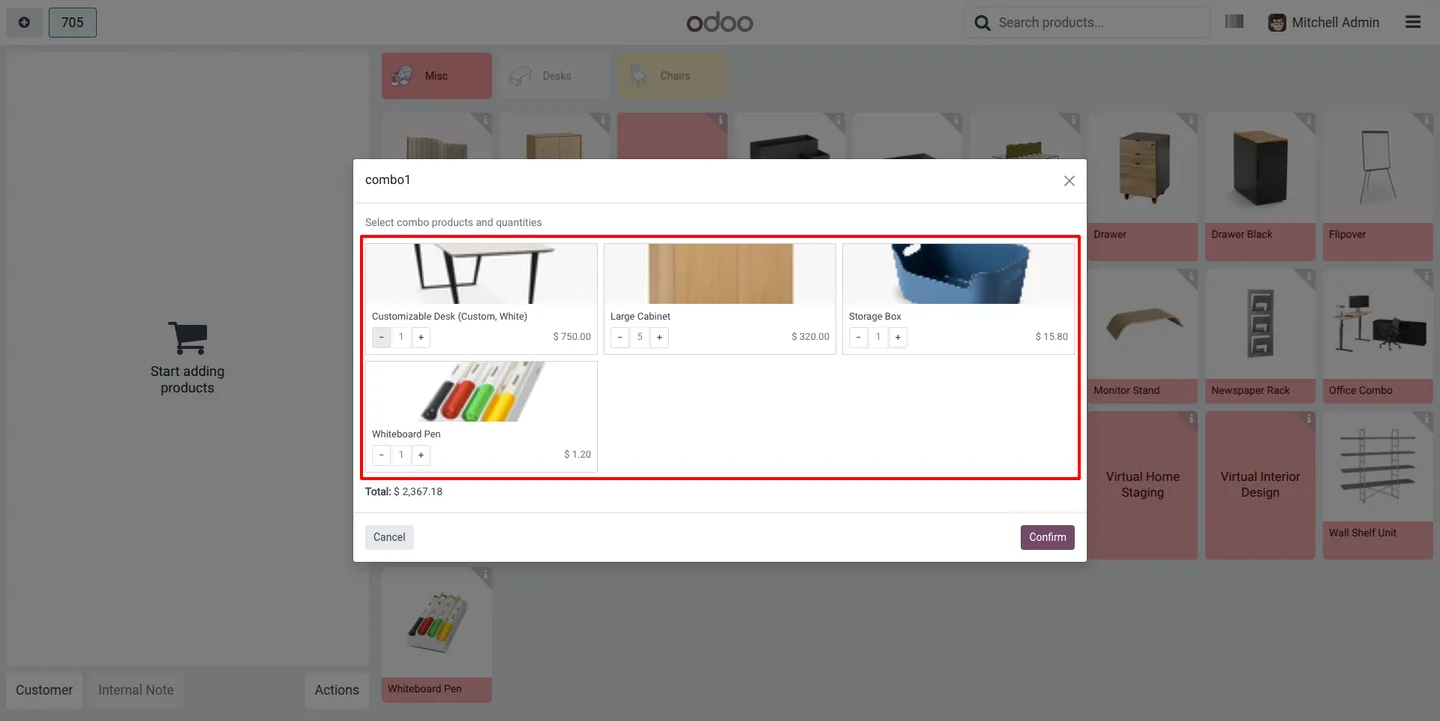
Built by TechUltra Solutions, the module adds reusable combo groups and a per-product combo configuration. When a combo product is added at the till, a selection popup opens; the cashier picks the included items from each group within the minimum, maximum, and default quantity limits you set. The combo is added to the cart only after the selection is confirmed.
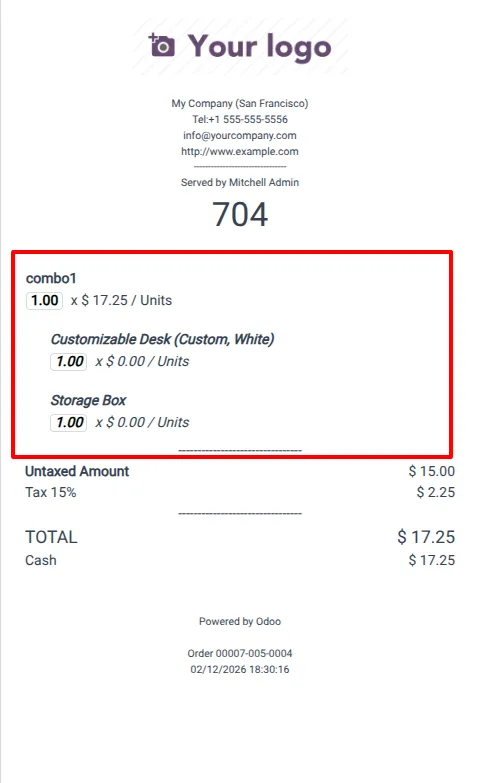
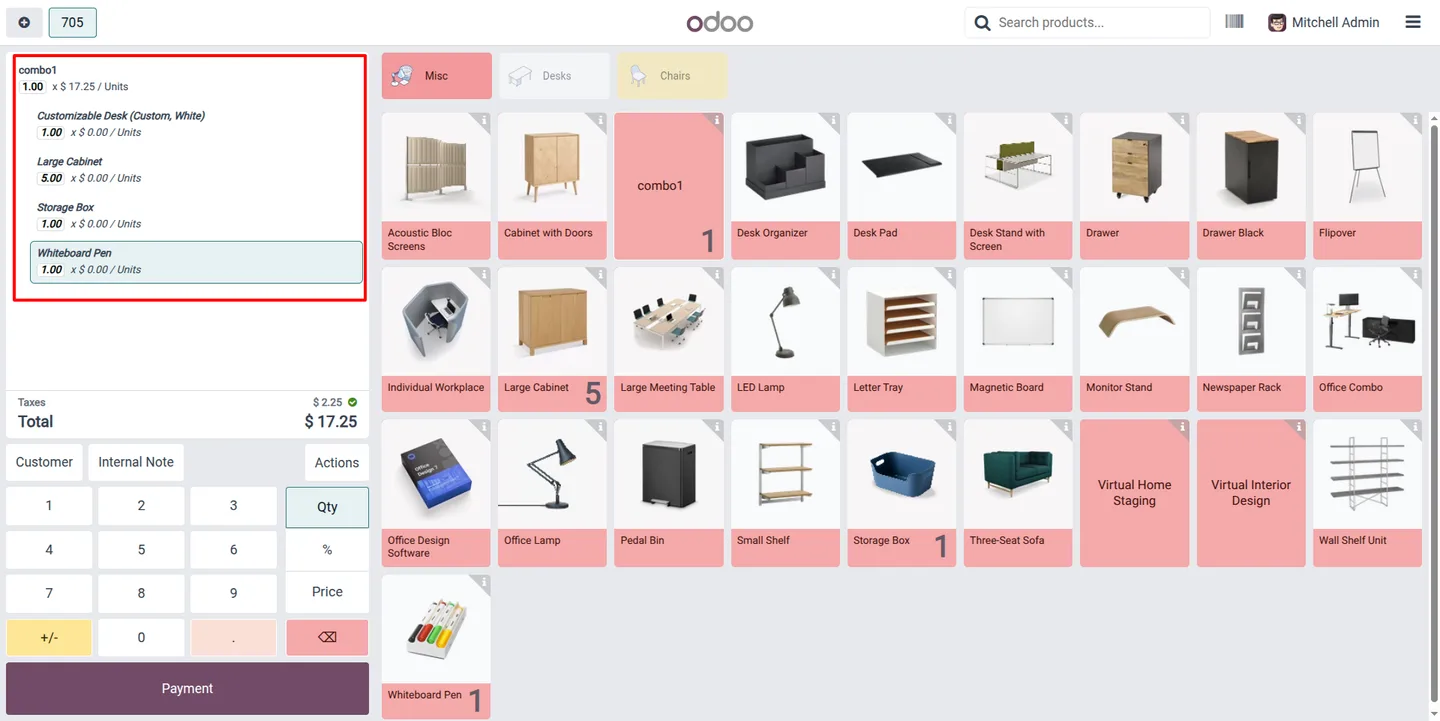
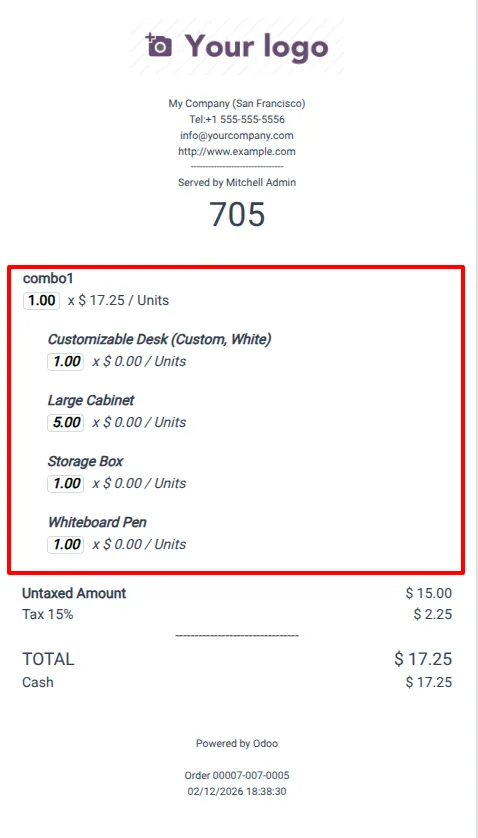
Selected items are stored on the order line and printed clearly on the POS receipt, so customers and staff both see exactly what is in the bundle. Each point of sale can default to a list or grid selection layout, keeping the popup fast on whatever hardware your counter runs.
Key features
-
Combo product creation
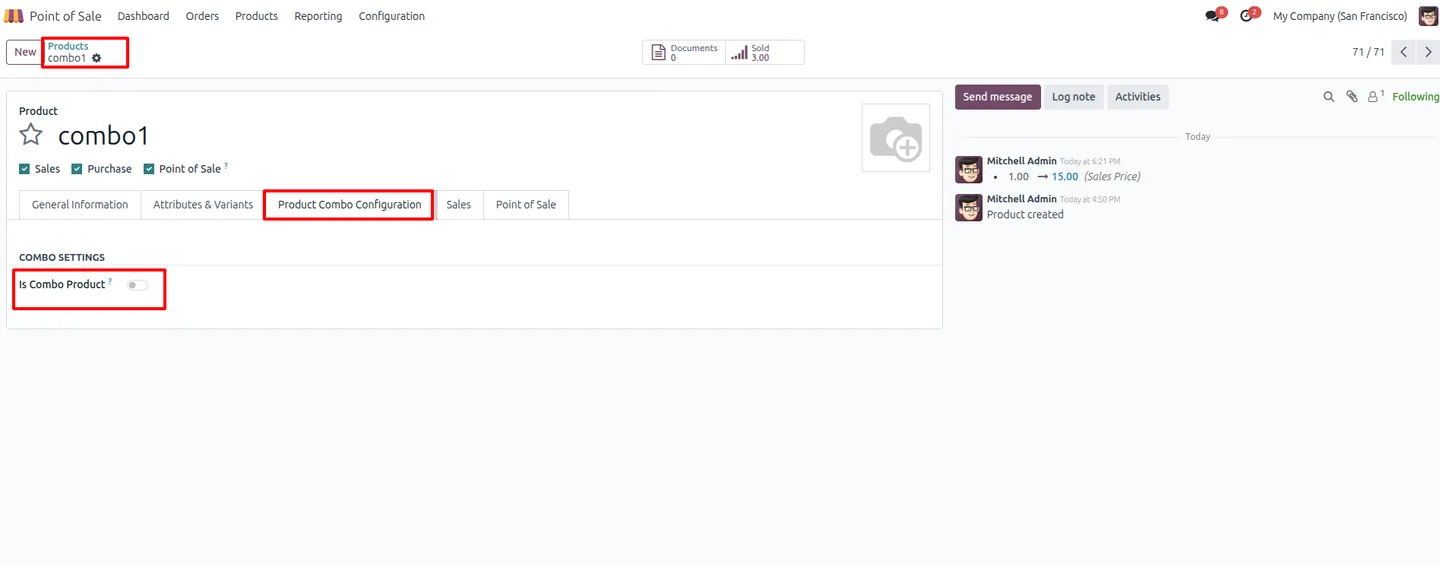
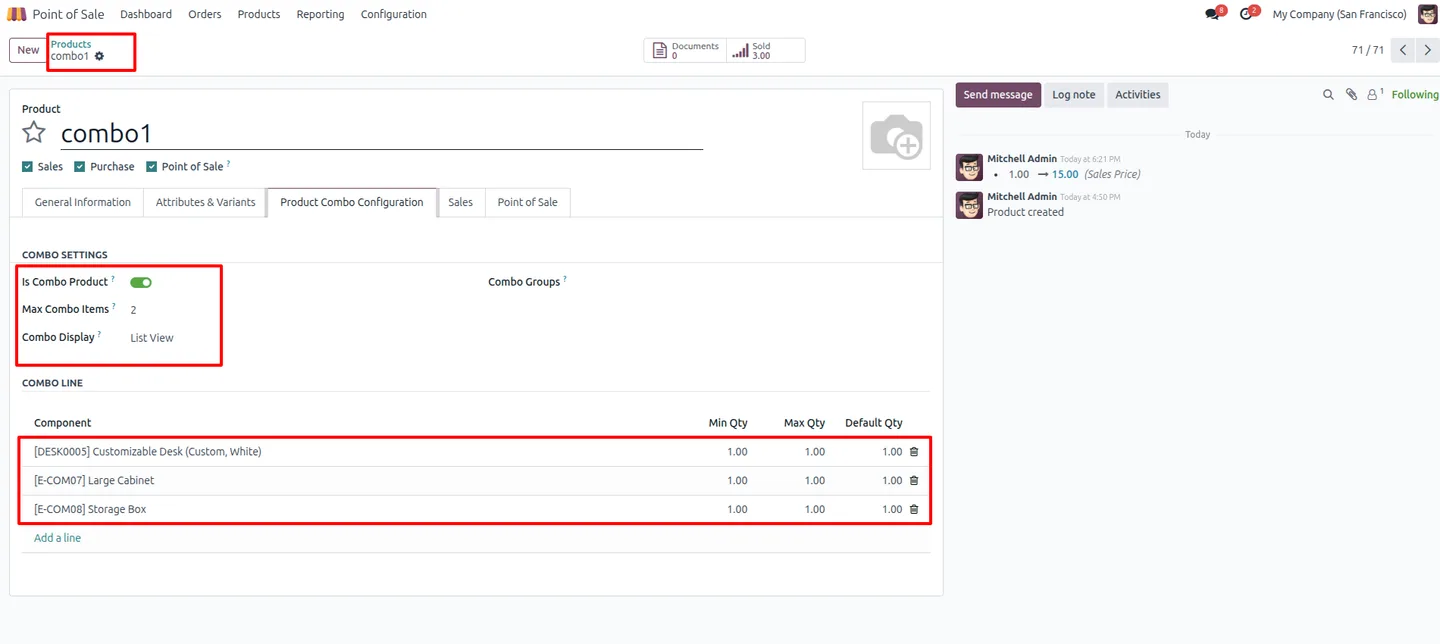
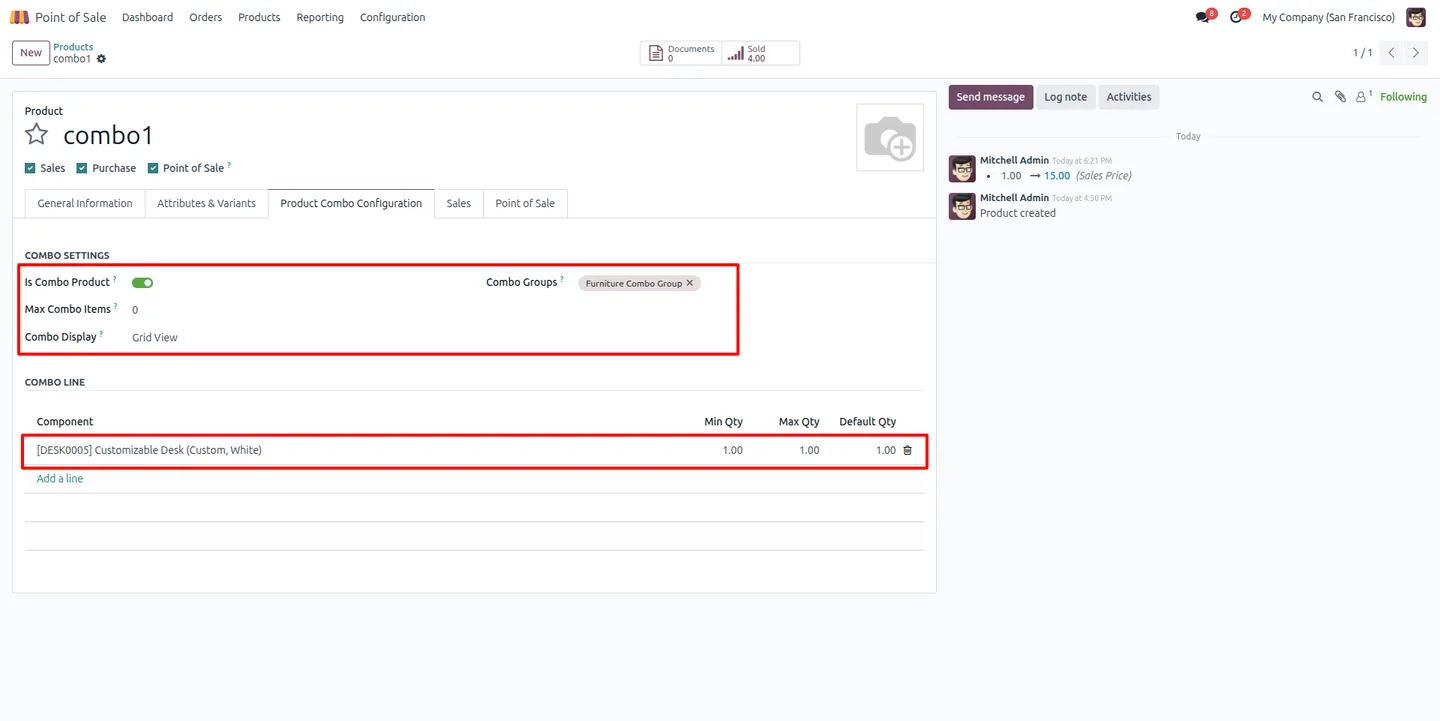
Mark any product as a combo and set a maximum number of items it can include. Combo-specific fields appear on the product form once the option is enabled.
-
Reusable combo groups
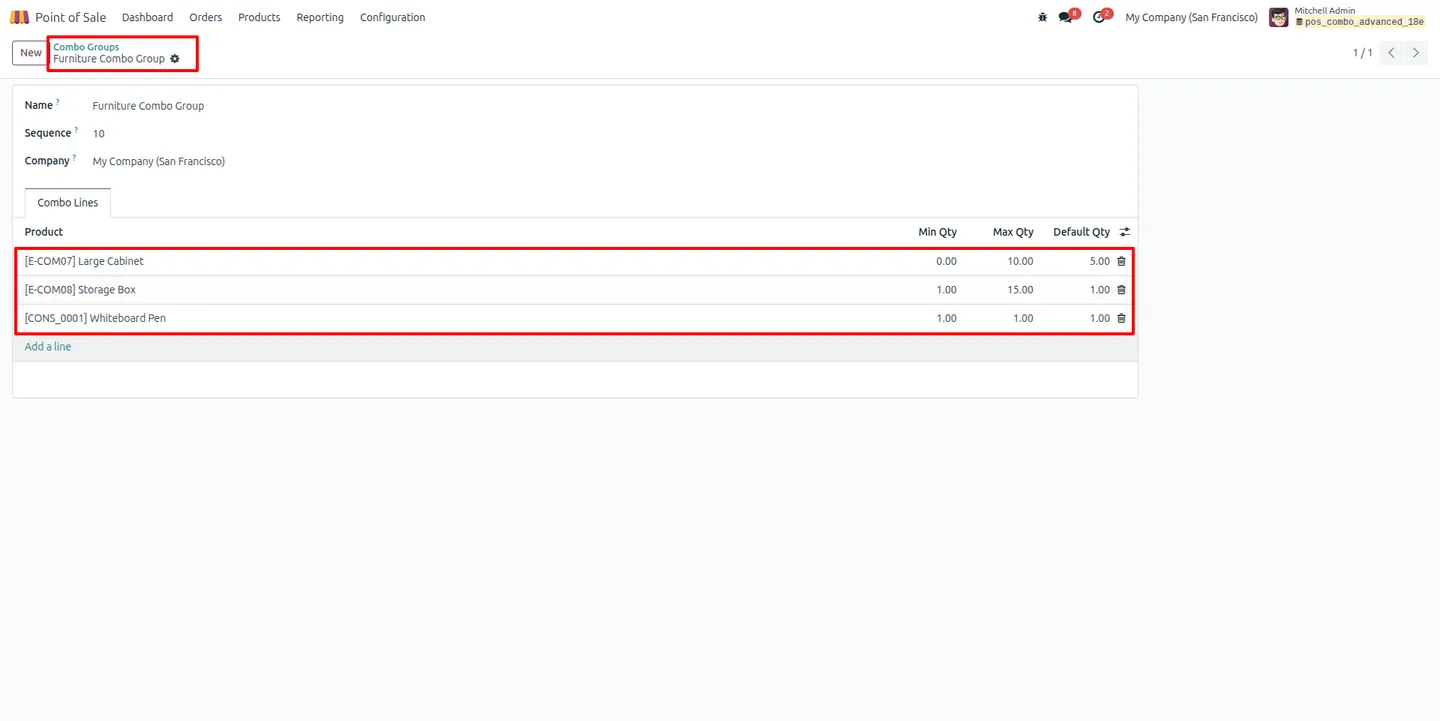
Organise combo items into combo groups that can be reused across multiple combo products, so a shared set of choices is configured only once.
-
Minimum, maximum, and default quantities
Set minimum, maximum, and default quantities per group or per item, so the cashier cannot under- or over-select what the combo allows.
-
Guided POS selection popup
Adding a combo product opens an interactive popup for choosing the included items. The combo reaches the cart only after the selection is confirmed.
-
List or grid layout
The selection popup can show items as a list or a grid, so the layout suits both small touchscreens and larger counter displays.
-
Per-POS display mode
Each point of sale has a configurable default combo display mode, so different counters can run the layout that works best for them.
-
Editable item quantities
Quantities for each combo item can be adjusted in the POS popup within the limits you defined, handling extras and substitutions at the till.
-
Combo items on receipts
The selected combo items are printed clearly on the POS receipt, giving customers and staff a full breakdown of what the bundle contains.
POS Combo & Bundle Products in Odoo
Every screen, in the order you meet it — configuration first, then the module in use.

Technical details
Specification
- Publisher
- TechUltra Solutions Private Limited
- Technical name
- pos_combo_advanced
- Odoo versions
- 16.0, 17.0, 18.0, 19.0, 20.0
- Lines of code
- 884
- License
- Odoo Proprietary License v1.0 (OPL-1)
- Price
- $19.89 (one-time)
Deployment
- Odoo Online
- Odoo.sh
- On-premise
Odoo dependencies
- Point of Sale
- Inventory
- Invoicing
- Discuss
Support
90 days of bug-fix support, Monday to Friday (10:00–19:00 IST). Raise a ticket at support@techultra.in.
Setup & configuration
From install to first call — here is the path.
- 1
Install the module
In Odoo, open Apps, remove the Apps filter, search for “POS Combo & Bundle Products”, and click Install.
- 2
Create combo groups
Set up reusable combo groups, listing the products available in each group along with their minimum, maximum, and default quantities.
- 3
Turn a product into a combo
On the product form, enable the “Is Combo Product” option to unlock the combo fields, then set the maximum number of combo items.
- 4
Configure the combo lines
Choose the display mode — List or Grid — and add combo lines that link the combo groups or products and their quantities to the product.
- 5
Sell the combo at the POS
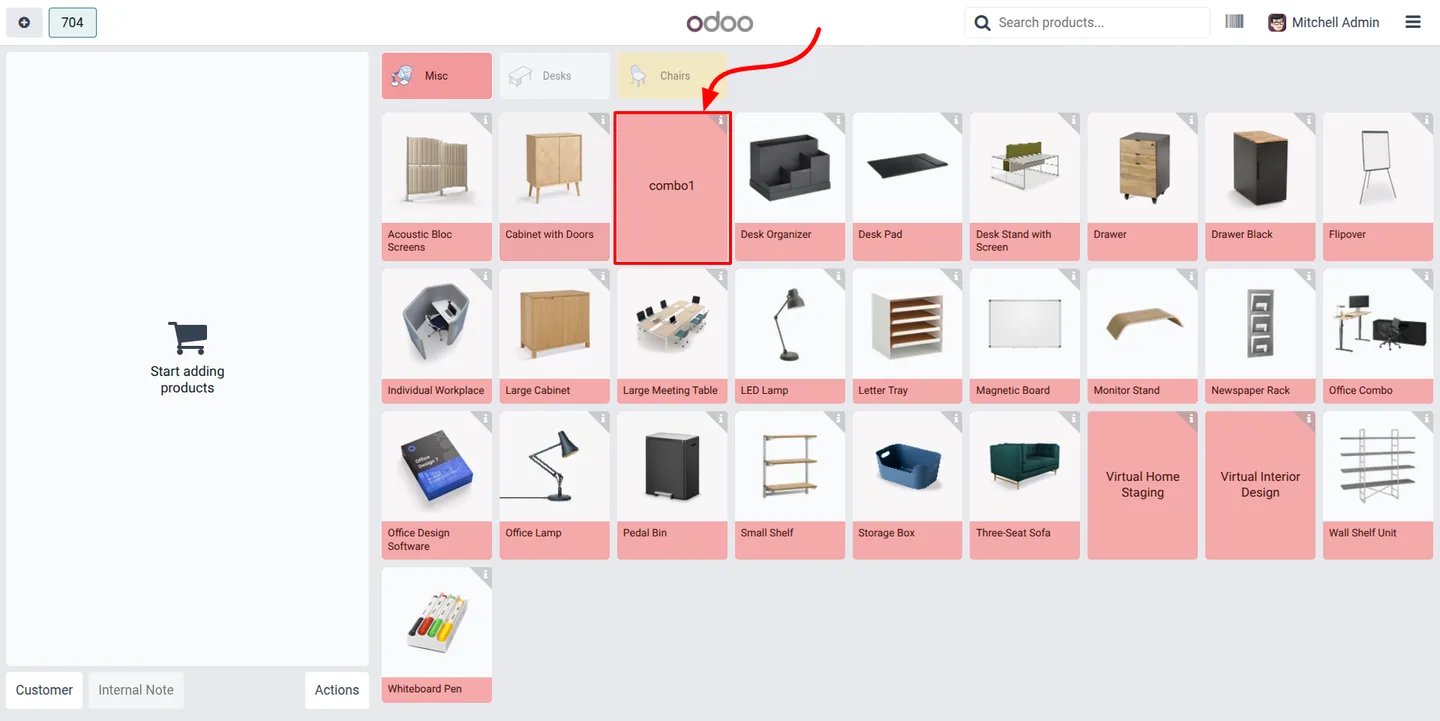
Open a POS session and add the combo product. The selection popup opens; pick the included items and confirm to add the combo to the cart.
Frequently asked questions
-
What happens when a cashier adds a combo product?
Instead of going straight into the cart, a selection popup opens. The cashier picks the included items from the combo groups, and the combo is added only after the selection is confirmed.
-
Can one set of choices be reused across several combos?
Yes. Combo groups are reusable. You define the products and quantity limits once, then attach the same group to as many combo products as you need.
-
Can I limit how many items a combo includes?
Yes. You set a maximum number of combo items per product, plus minimum, maximum, and default quantities per group or item, so selections always stay within the rules.
-
Do the chosen items show on the receipt?
Yes. The combo items the cashier selected are printed clearly on the POS receipt, so the customer sees a full breakdown of the bundle.
-
Can the selection popup look different on each till?
Yes. The popup can display items as a list or a grid, and each point of sale has its own default display mode, so every counter can run the layout that suits its hardware.
-
Can quantities be changed at the till?
Yes. The quantity of each combo item is editable in the POS popup, within the minimum and maximum limits you configured for that group or item.
-
Which Odoo versions are supported?
The module supports Odoo 16.0, 17.0, 18.0, 19.0, and 20.0, in both the Community and Enterprise editions.
-
Is support included?
Yes. The module includes 90 days of bug-fix support, Monday to Friday, 10:00–19:00 IST.
Listing verified against the Odoo App Store:
Related solutions
Whole-platform solutions that complement POS Combo & Bundle Products.
Related services
Get the most out of this module with senior TechUltra consultants.
Odoo Customization Services
Odoo customization from a Gold Partner: custom modules, workflows, reports and Studio changes, written upgrade-safe and quoted at a fixed scope. Free scoping call.
Hire Odoo Developers
Hire certified Odoo developers from a Gold Partner: one developer or a team, full-time or part-time, 70–160 hours a month. Silver, Gold or Platinum plan, free trial.
Odoo Support Services & Maintenance
Odoo support services from a Gold Partner: functional and technical support plus server cover for Enterprise and Community, 30-minute P1 response, 24/7 option.







