
Odoo App · Point of Sale
POS Cashier Password Reset
Self-service PIN reset for POS cashiers — no admin ticket needed.

Overview
POS Cashier Password Reset solves a small but constant friction in busy stores: a cashier forgets their PIN, the lane stalls, and an administrator has to be tracked down to unlock the session.
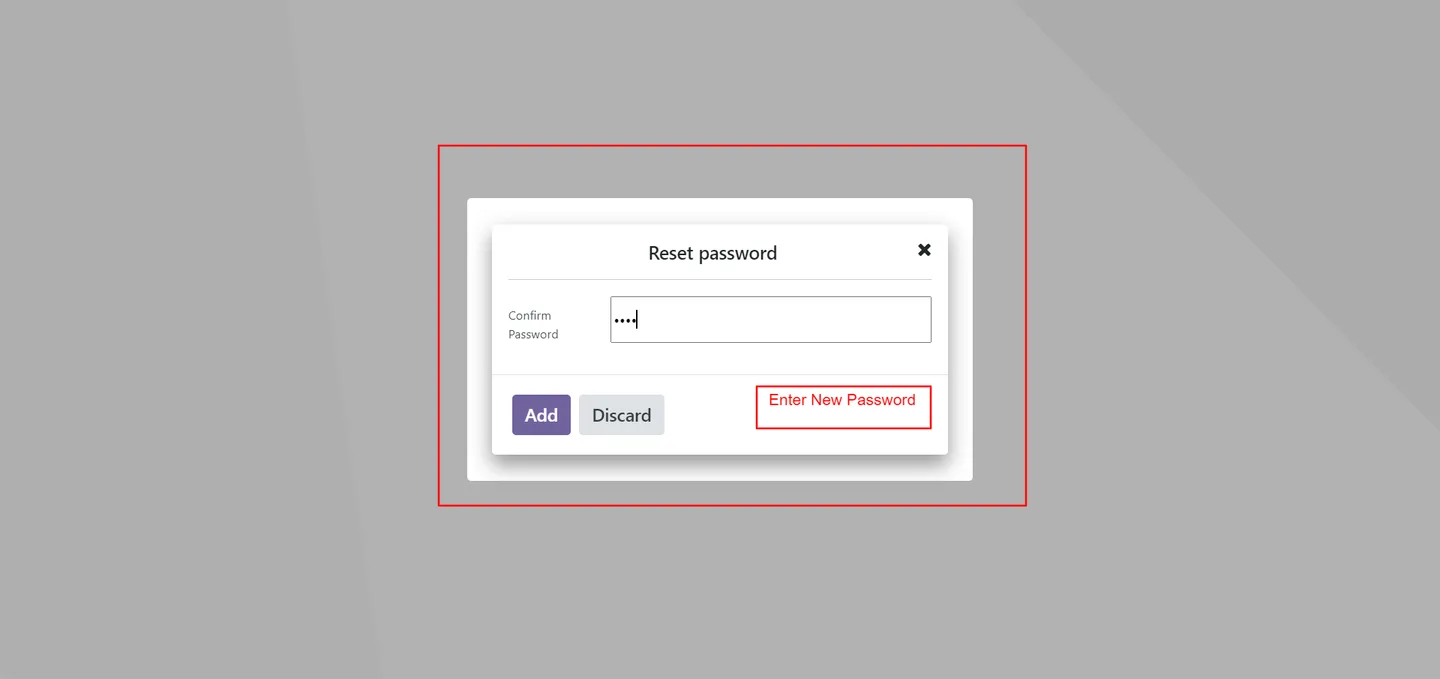
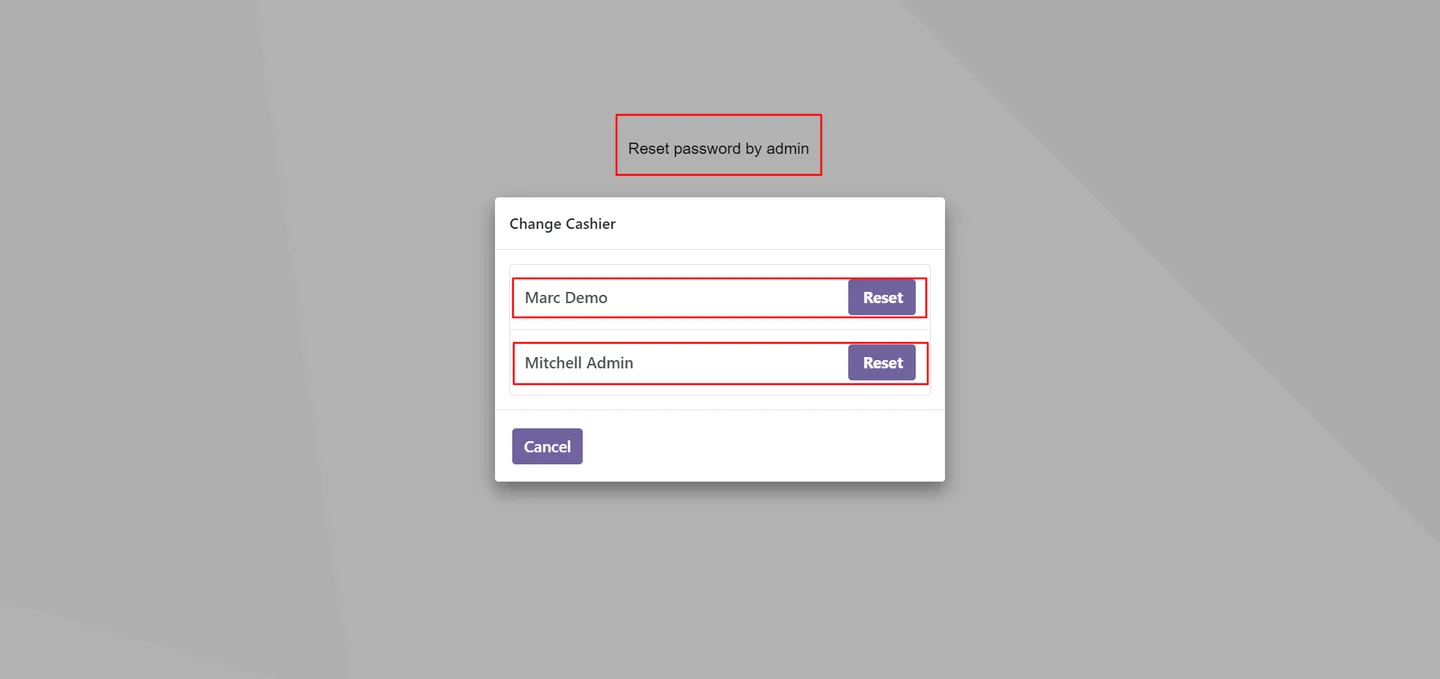
Built by TechUltra Solutions, the module adds a Reset button to the cashier login screen so the currently selected cashier can set a new PIN themselves. Administrators keep full control — they can reset the PIN of any cashier from the same screen.
Updated passwords are written straight back to the matching Employee record, so HR data stays in sync. A confirmation message appears after each reset, and the cashier can log in again with their new PIN immediately, with no support call needed.
Key features
-
Self-service PIN reset
Cashiers reset their own login PIN from inside the Point of Sale, removing the need for an administrator to step in for every forgotten password.
-
Admin reset for any cashier
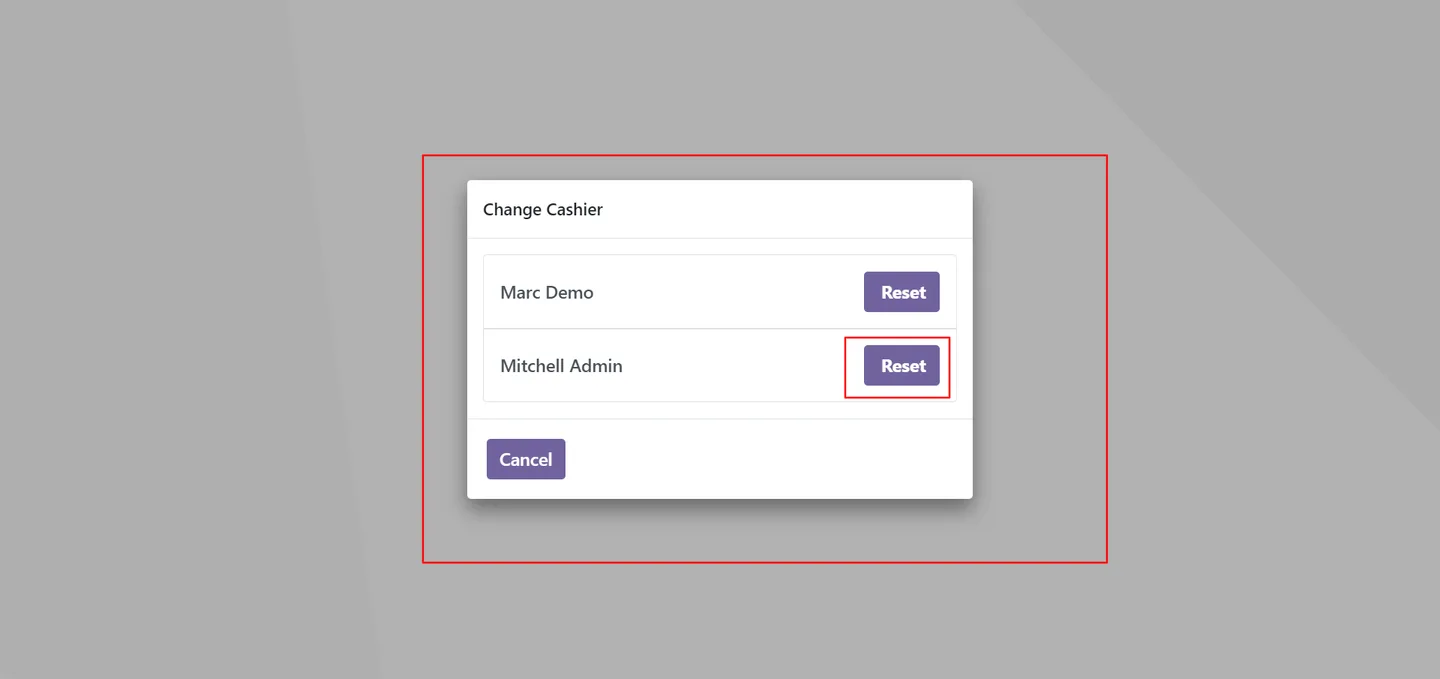
Administrators can select any cashier and reset their PIN from the same login screen — useful when staff turnover or shift changes leave accounts orphaned.
-
Tighter cashier access control
Only the currently selected, non-admin cashier sees the reset button for their own account, so cashiers cannot reset each other's PINs from the lane.
-
Auto-sync to Employee profile
When a PIN is reset, the new value is written straight back to the matching Employee record so HR data and the POS login stay consistent.
-
Confirmation message
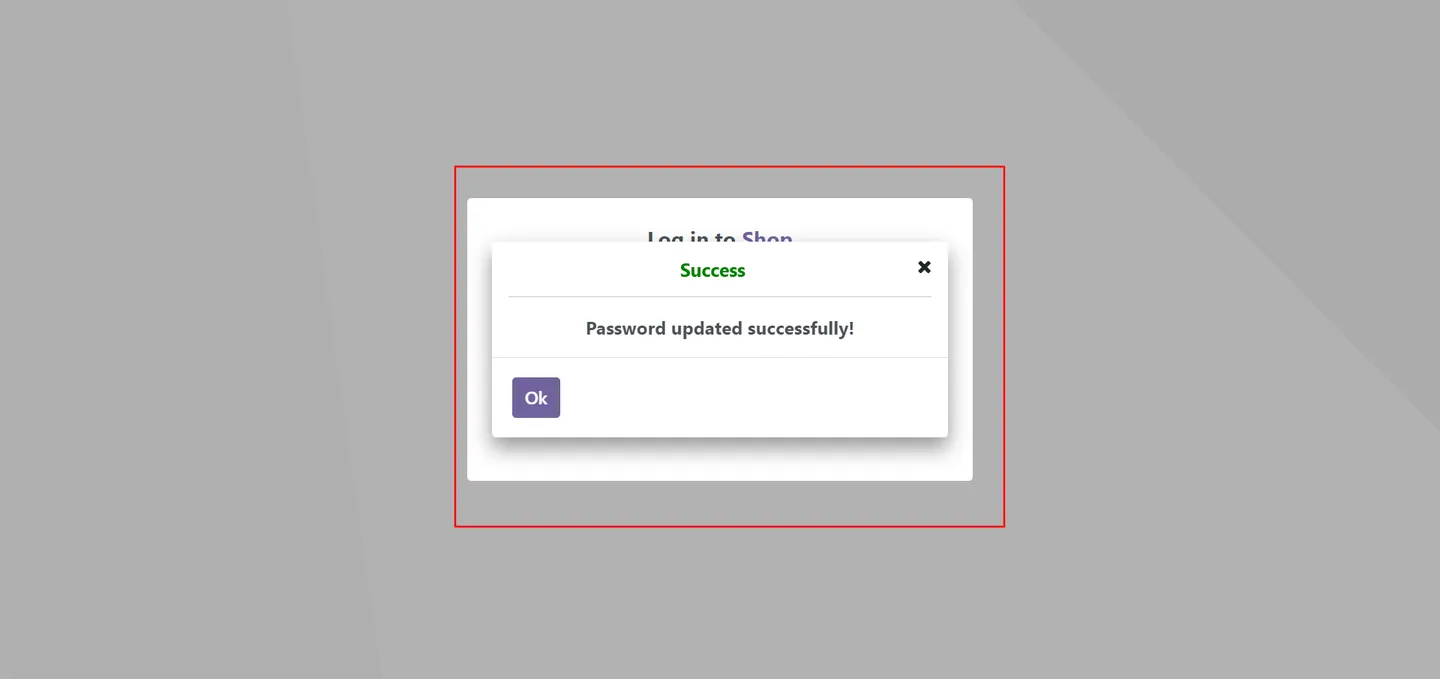
A Password updated message pops up after every successful reset, so cashiers know the new PIN has been saved before they try to log in again.
-
Immediate re-login
Once the PIN is updated the cashier can log into the POS with the new password right away — no waiting on a manager or a back-office unlock.
-
Community and Enterprise
Works in both the Community and Enterprise editions of Odoo Point of Sale, so single-store and multi-site retailers can both use it.
-
Fast configuration
Setup is limited to assigning a PIN on each employee record and enabling multiple cashiers on the POS session — minutes, not hours.
POS Cashier Password Reset in Odoo
Every screen, in the order you meet it — configuration first, then the module in use.
Technical details
Specification
- Publisher
- TechUltra Solutions Private Limited
- Technical name
- pos_password_reset
- Odoo versions
- 16.0, 17.0, 18.0, 19.0, 20.0
- Lines of code
- 169
- License
- Odoo Proprietary License v1.0 (OPL-1)
- Price
- $10.01 (one-time)
Deployment
- Odoo Online
- Odoo.sh
- On-premise
Odoo dependencies
- Employees
- Point of Sale
- Discuss
- Inventory
- Invoicing
Support
90 days of bug-fix support, Monday to Friday (10:00–19:00 IST). Raise a ticket at support@techultra.in.
Setup & configuration
From install to first call — here is the path.
- 1
Install the module
In Odoo, open Apps, remove the Apps filter, search for “POS Cashier Password Reset”, and click Install.
- 2
Set a PIN on each employee
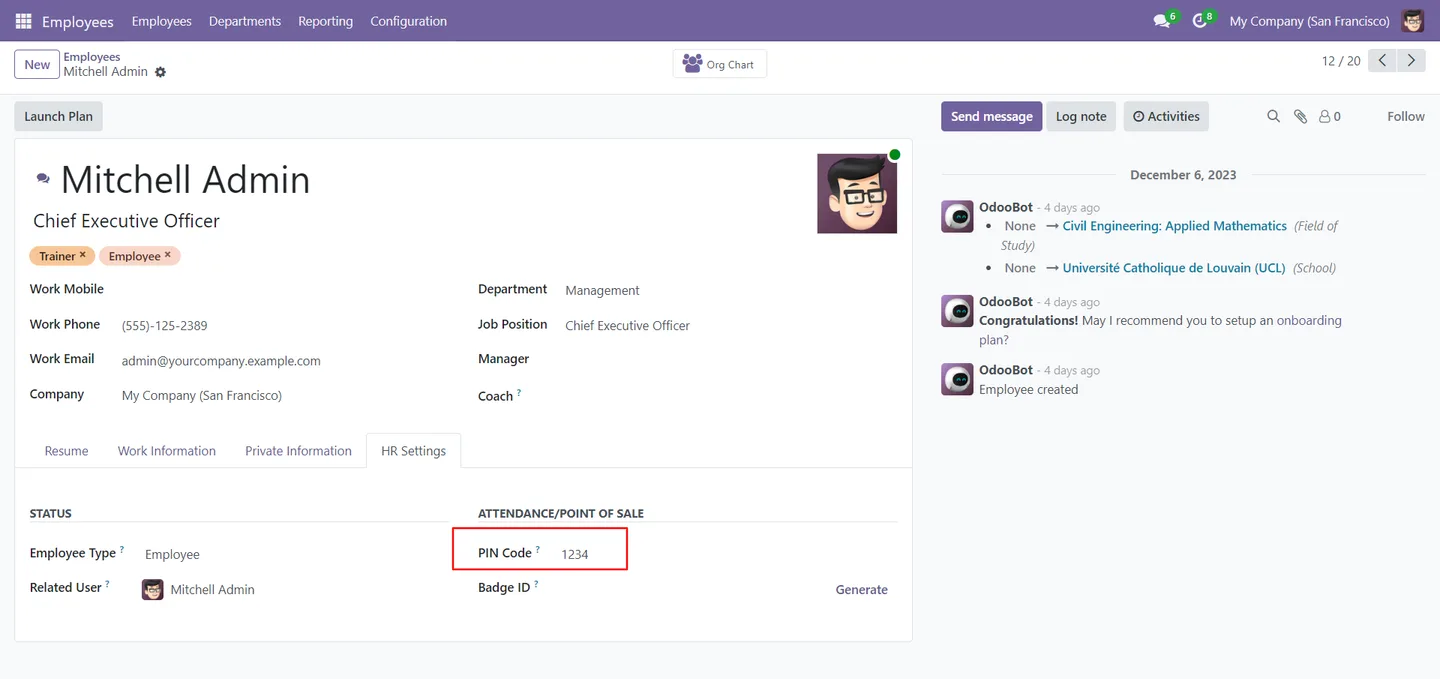
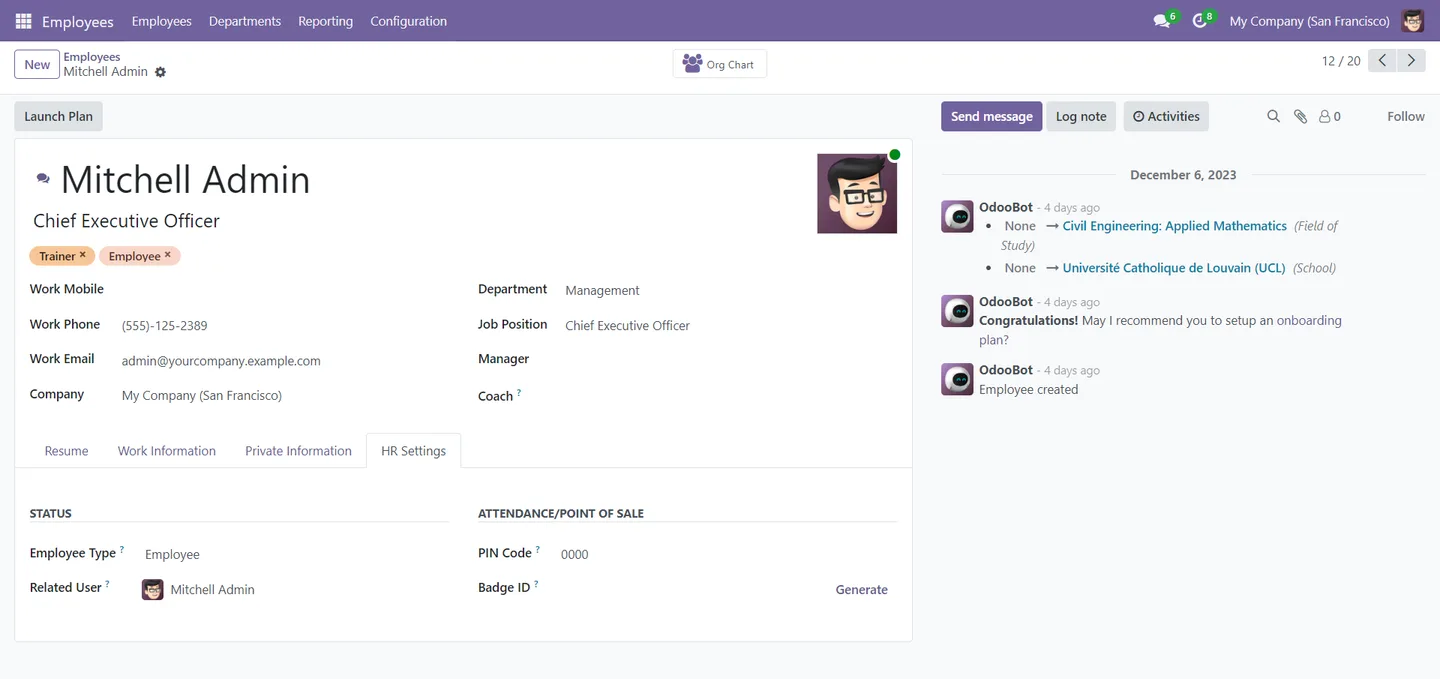
Open Employees, edit each cashier record, go to HR Settings, and set a PIN code. This PIN is the cashier's POS login password.
- 3
Allow multiple cashiers on the session
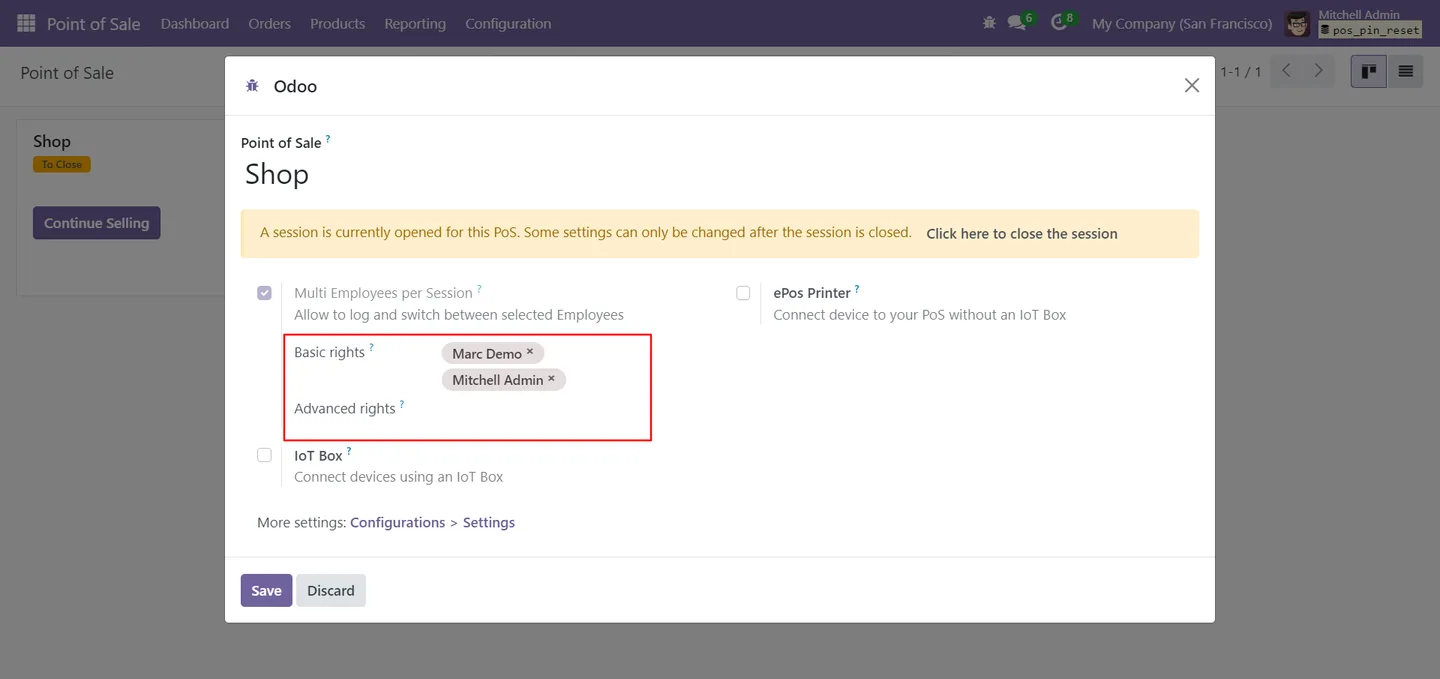
From the POS dashboard, create a new session, open the three-dot menu, choose Edit, and add the relevant employees in the Allowed Employees field.
- 4
Select a cashier
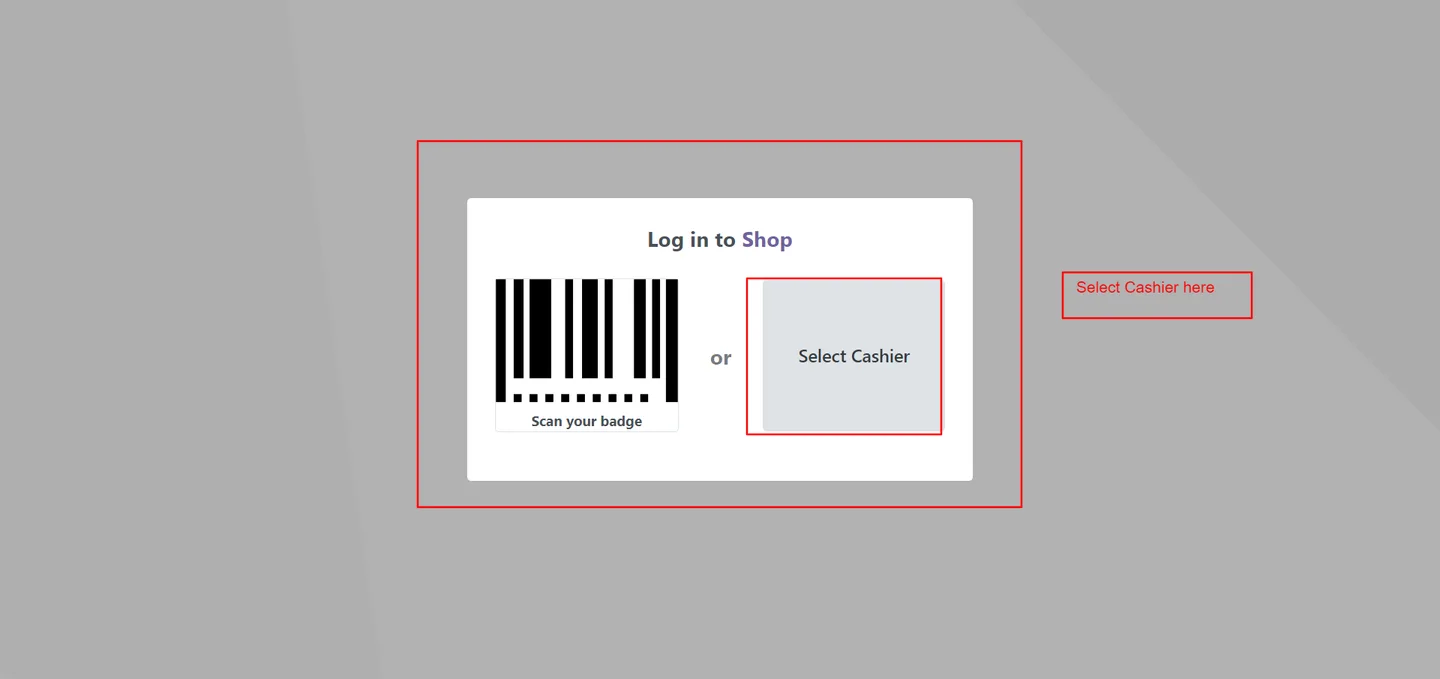
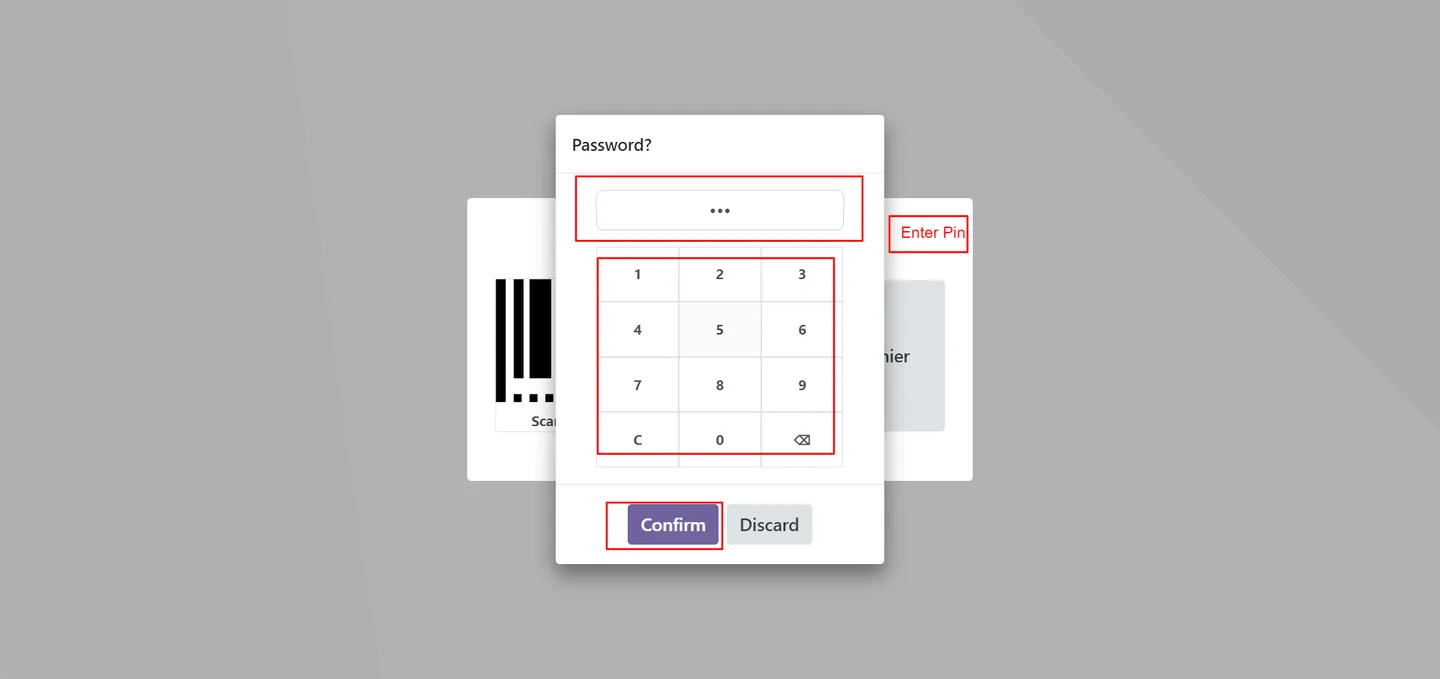
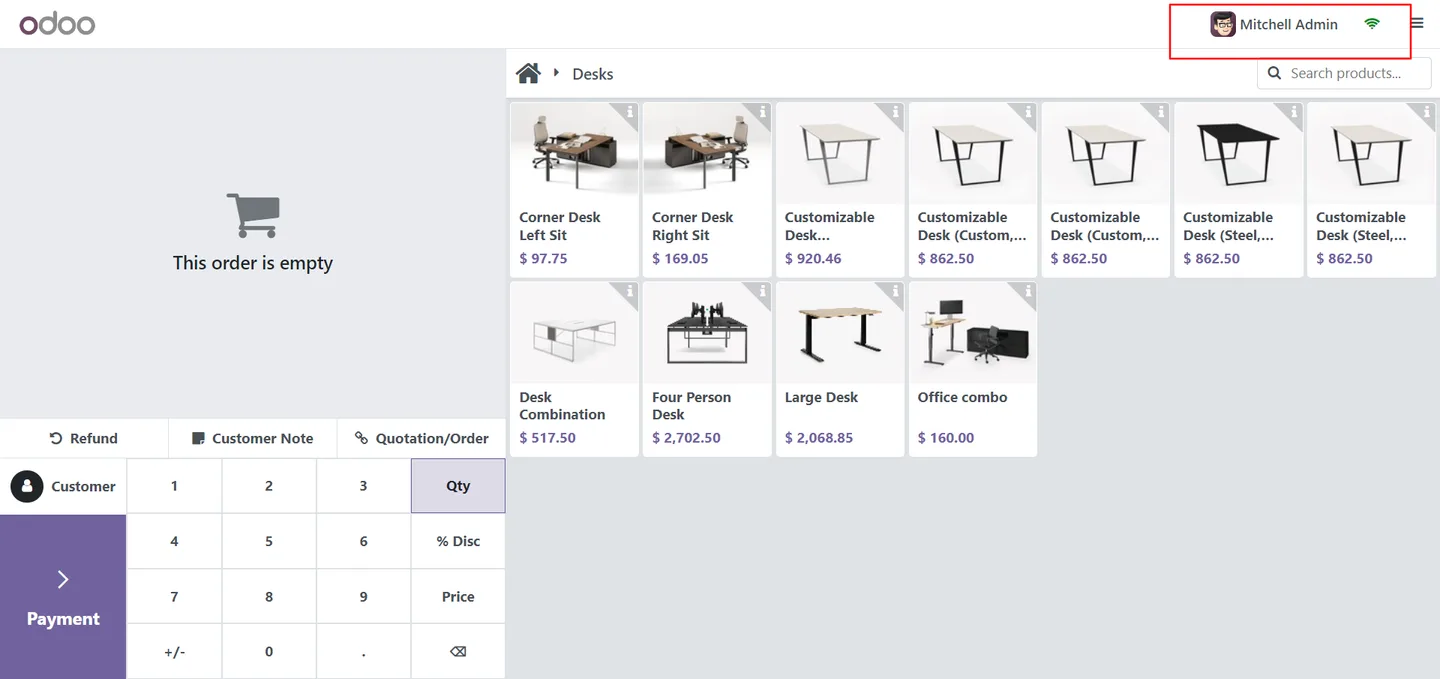
From the POS dashboard, start a new session and pick the cashier you want to log in as.
- 5
Reset the PIN
On the PIN entry screen the selected cashier (or an administrator) can click Reset to set a new PIN. A Password updated confirmation appears once the change is saved.
Frequently asked questions
-
Who can see the reset button?
The currently selected, non-admin cashier sees the reset button only for their own account. Administrators see it for every cashier, so they can reset PINs on behalf of staff when needed.
-
Does the new PIN update the employee record?
Yes. When a cashier resets their PIN, the new value is written straight back to the matching Employee record so HR and POS data stay in sync.
-
Does the cashier need to wait for an admin after resetting?
No. Once the new PIN is saved and the confirmation message appears, the cashier can log into the POS with it immediately.
-
Which Odoo versions are supported?
The module supports Odoo 16.0, 17.0, 18.0, 19.0, and 20.0, in both the Community and Enterprise editions.
-
Can an administrator reset more than one cashier's PIN?
Yes. From the cashier login screen an administrator can select any cashier in turn and reset their PIN — useful after staff turnover or shift changes.
-
Do I need any other module for it to work?
The module depends on Employees, Point of Sale, Discuss, Inventory, and Invoicing — all standard Odoo apps that retailers typically already have installed.
-
Is support included?
Yes. The module includes 90 days of bug-fix support, Monday to Friday, 10:00–19:00 IST.
Listing verified against the Odoo App Store:
Related solutions
Whole-platform solutions that complement POS Cashier Password Reset.
Related services
Get the most out of this module with senior TechUltra consultants.
Odoo Customization Services
Odoo customization from a Gold Partner: custom modules, workflows, reports and Studio changes, written upgrade-safe and quoted at a fixed scope. Free scoping call.
Hire Odoo Developers
Hire certified Odoo developers from a Gold Partner: one developer or a team, full-time or part-time, 70–160 hours a month. Silver, Gold or Platinum plan, free trial.
Odoo Support Services & Maintenance
Odoo support services from a Gold Partner: functional and technical support plus server cover for Enterprise and Community, 30-minute P1 response, 24/7 option.







