

Odoo App · Reporting & PDF
PDF Watermark & Pre-Printed Templates
Add watermarks, background layouts, and pre-printed formats to any Odoo PDF report.

Overview
PDF Watermark & Pre-Printed Templates lets administrators brand and mark Odoo PDF reports without touching the underlying QWeb code. Add a draft or confidential watermark, a full-page background layout, or a pre-printed format that aligns with company stationery.
Built by TechUltra Solutions, the module adds a configuration option under the Advanced Properties tab of each report. You pick a template type, attach the artwork, and the setting applies to that report only — so a quotation and an invoice can carry different markings.
The module works with Odoo's standard PDF generation flow, so existing report behaviour, printing, and email attachments are unchanged. It is useful for teams that need branded documents, confidential stamps, or layouts that match physical stationery.
Key features
-
Three template types
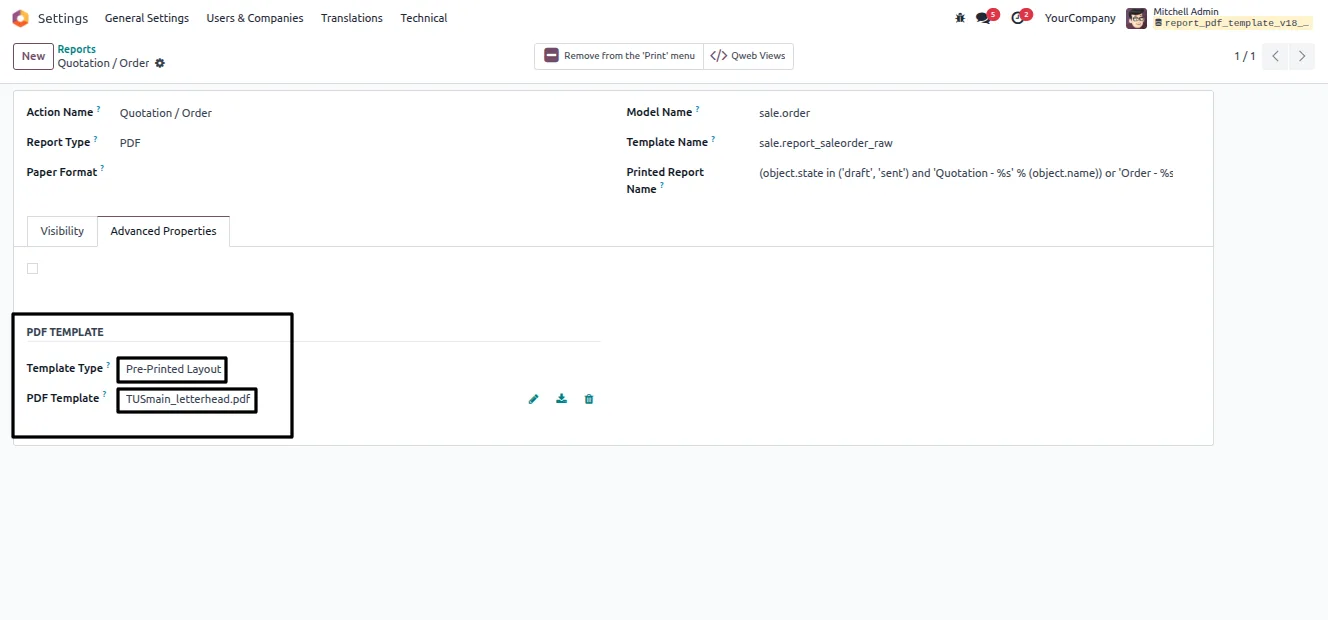
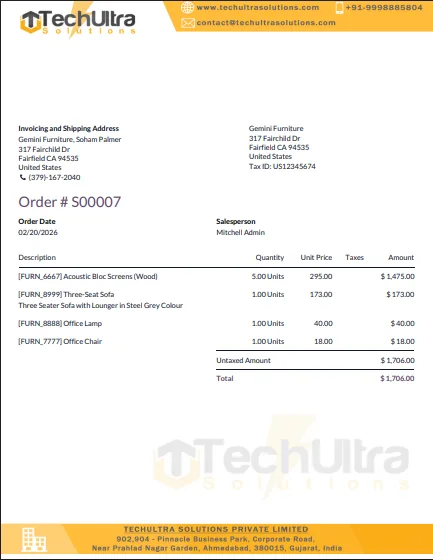
Choose Background, Pre-Printed Layout, or Watermark per report. Each type handles a different need — full-page artwork, stationery alignment, or an overlay stamp.
-
Watermark position control
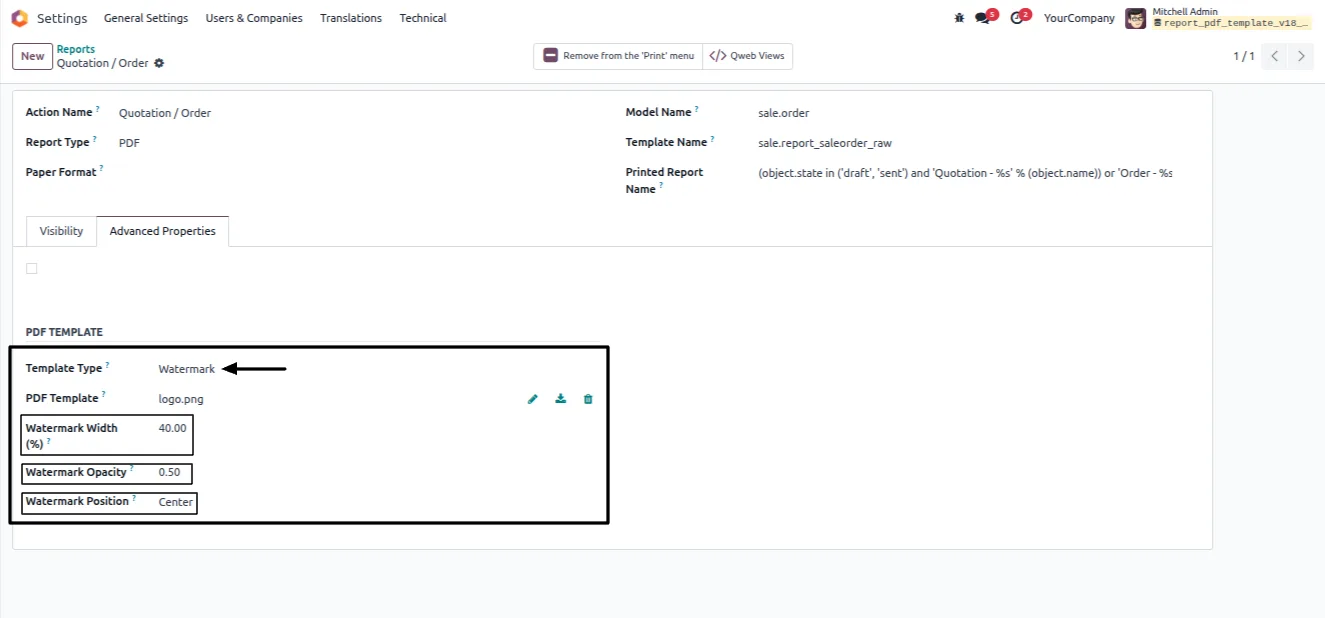
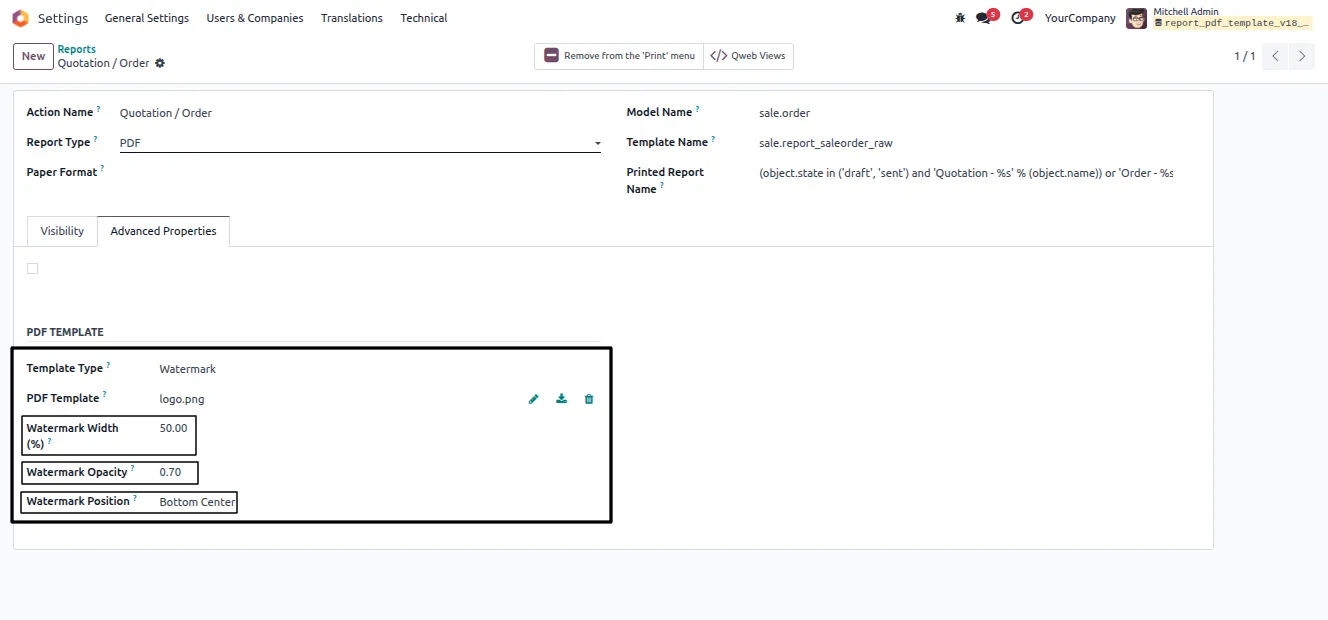
Place the watermark at the top, centre, or bottom of the page so it sits clear of the report's own content.
-
Adjustable width and opacity
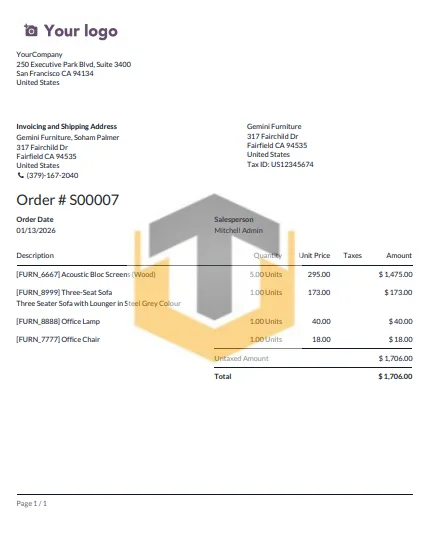
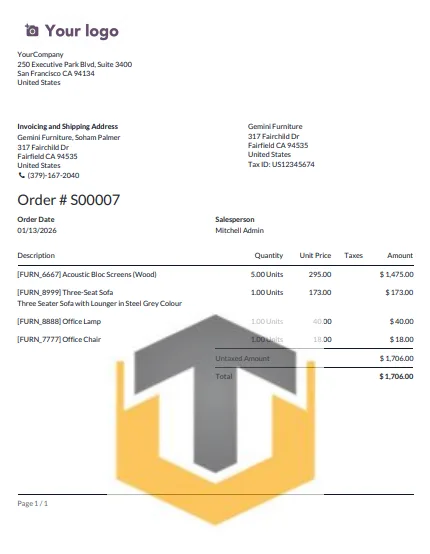
Set the watermark width and opacity so the mark is visible without obscuring the text underneath it.
-
No QWeb changes required
The module applies templates on top of existing reports. You never edit or override the report's QWeb template to add a watermark or background.
-
Per-report configuration
Each report carries its own template settings. Apply a confidential watermark to quotations while leaving invoices on a branded background.
-
Background PDF layouts
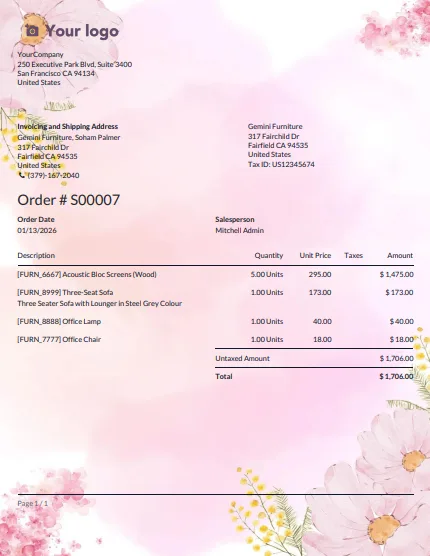
Attach a PDF as a full-page background so every page of the report renders on the chosen layout.
-
Pre-printed stationery support
The Pre-Printed Layout type lets reports align with physical letterhead or pre-printed forms, leaving space for the printed design.
-
Standard PDF compatibility
Watermarks and layouts apply within Odoo's normal PDF generation, so printing, downloads, and email attachments behave as usual.
PDF Watermark & Pre-Printed Templates in Odoo
Every screen, in the order you meet it — configuration first, then the module in use.
Technical details
Specification
- Publisher
- TechUltra Solutions Private Limited
- Technical name
- report_pdf_watermark_pro
- Odoo versions
- 16.0, 17.0, 18.0, 19.0, 20.0
- Lines of code
- 359
- License
- Odoo Proprietary License v1.0 (OPL-1)
- Price
- $24.90 (one-time)
Deployment
- Odoo Online
- Odoo.sh
- On-premise
Odoo dependencies
- Settings
Support
90 days of bug-fix support, Monday to Friday (10:00–19:00 IST). Raise a ticket at support@techultra.in.
Setup & configuration
From install to first call — here is the path.
- 1
Install the module
In Odoo, open Apps, remove the Apps filter, search for “PDF Watermark & Pre-Printed Templates”, and click Install.
- 2
Open the report configuration
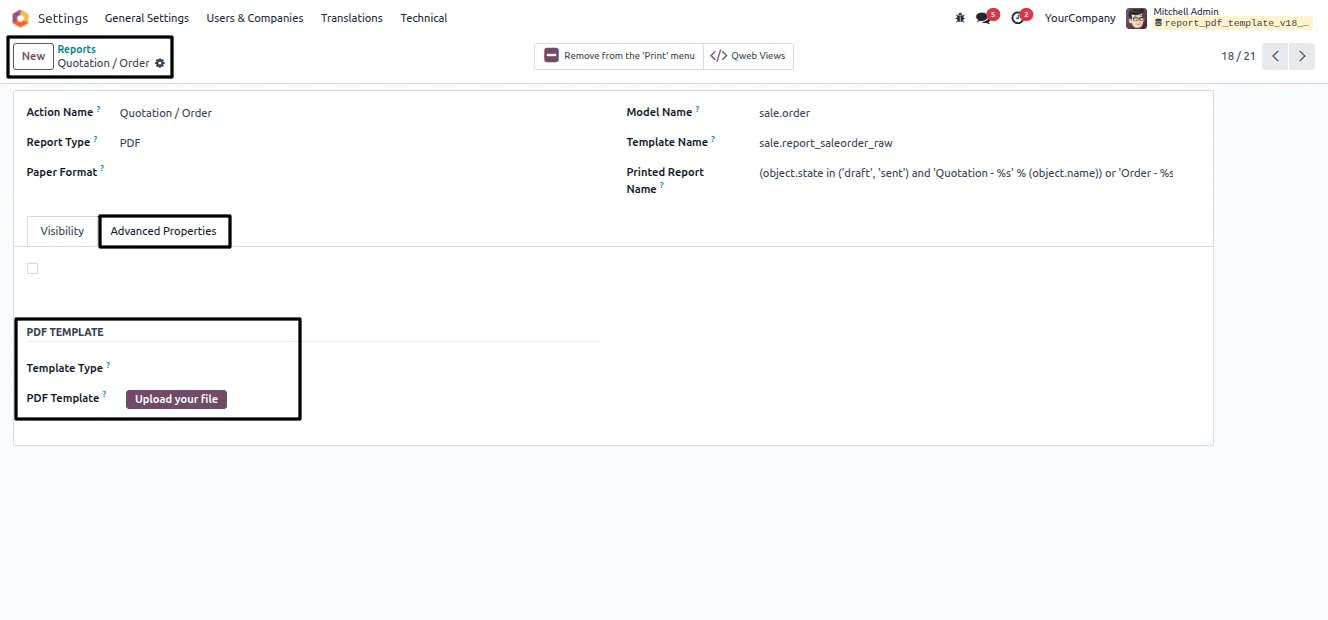
Enable Developer Mode, then go to Settings → Technical → Reporting → Reports and open the report you want to customise.
- 3
Choose a template type
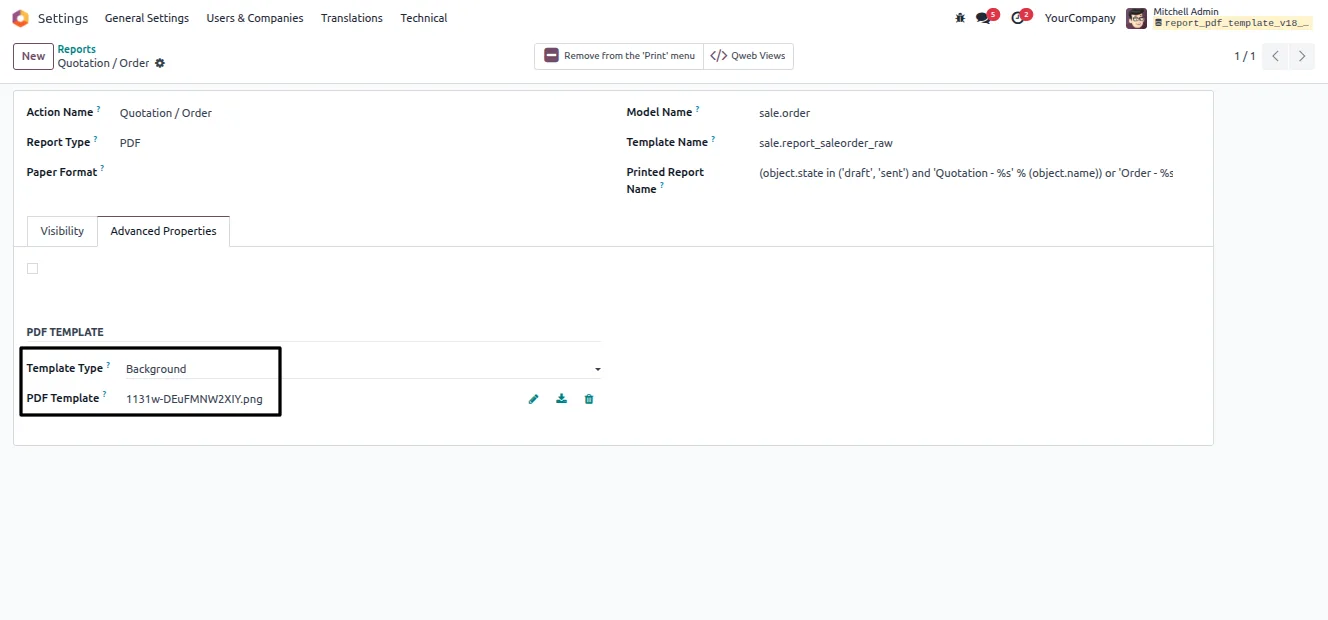
On the report form, open the Advanced Properties tab and set the Template Type to Background, Pre-Printed Layout, or Watermark.
- 4
Attach the template artwork
Attach a PDF for a background or pre-printed layout, or a JPG, JPEG, or PNG image for a watermark.
- 5
Set the watermark properties
For a watermark, configure the width, opacity, and position (Top, Center, or Bottom) so the mark sits clear of the report content.
- 6
Print to verify
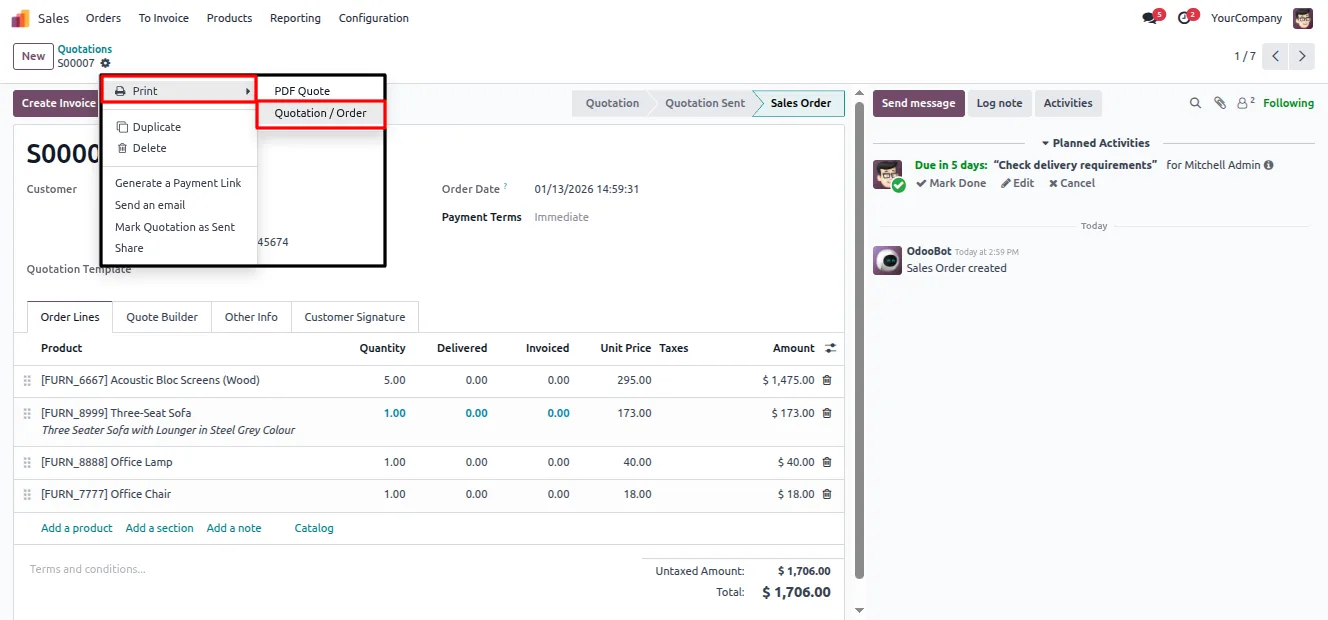
Open a record — for example a quotation under Sales → Quotations — use the Print action, and confirm the template renders as expected.
Frequently asked questions
-
What types of templates can I apply to a report?
Three: a Background (full-page PDF artwork), a Pre-Printed Layout (alignment with physical stationery), and a Watermark (an image overlay). You pick one per report from the Advanced Properties tab.
-
Do I have to edit QWeb templates to add a watermark?
No. The module applies watermarks and backgrounds on top of existing reports. You configure everything from the Reports screen without changing any QWeb code.
-
Can different reports have different watermarks?
Yes. Template settings are stored per report, so a quotation can carry a draft watermark while invoices use a branded background or no marking at all.
-
What image formats are accepted for a watermark?
Watermark templates accept JPG, JPEG, or PNG images. Background and pre-printed layouts use a PDF file.
-
Can I control where the watermark appears on the page?
Yes. You set the watermark to the top, centre, or bottom of the page, and adjust its width and opacity so it does not obscure the report content.
-
Which Odoo versions does the module support?
The module supports Odoo 16.0, 17.0, 18.0, 19.0, and 20.0, in both the Community and Enterprise editions.
-
Does it change how reports are printed or emailed?
No. Templates apply within Odoo's standard PDF generation flow, so printing, downloads, and email attachments work exactly as before.
-
Is support included?
Yes. The module includes 90 days of bug-fix support, Monday to Friday, 10:00–19:00 IST.
Listing verified against the Odoo App Store:
Related services
Get the most out of this module with senior TechUltra consultants.
Odoo Customization Services
Odoo customization from a Gold Partner: custom modules, workflows, reports and Studio changes, written upgrade-safe and quoted at a fixed scope. Free scoping call.
Hire Odoo Developers
Hire certified Odoo developers from a Gold Partner: one developer or a team, full-time or part-time, 70–160 hours a month. Silver, Gold or Platinum plan, free trial.
Odoo Support Services & Maintenance
Odoo support services from a Gold Partner: functional and technical support plus server cover for Enterprise and Community, 30-minute P1 response, 24/7 option.







