
Odoo App · Reporting & PDF
Password-Protected PDF
Add a password to any Odoo PDF report — configured per report, applied to every download.
Overview
Password-Protected PDF lets administrators add a password gate to any QWeb PDF report in Odoo, without writing custom code or changing the report template.
Built by TechUltra Solutions, the module surfaces a Password checkbox on the report action record. Once it is enabled and a password is set on the Advanced Properties page, every download of that report is encrypted, so the recipient must enter the password to open the file in their PDF reader.
It is useful for sensitive documents — payslips, invoices, financial statements, customer agreements — where the PDF may live outside Odoo on a desktop or in email and still needs to be protected from casual access.
Key features
-
Password-protect any QWeb report
Add password protection to any Odoo PDF report by configuring it from Settings → Technical → Actions → Reports — no template changes or custom code required.
-
Password checkbox on the report action
Each report action gets a Password boolean. Toggle it on for the reports you want protected, and leave the rest of the Odoo reporting behaviour untouched.
-
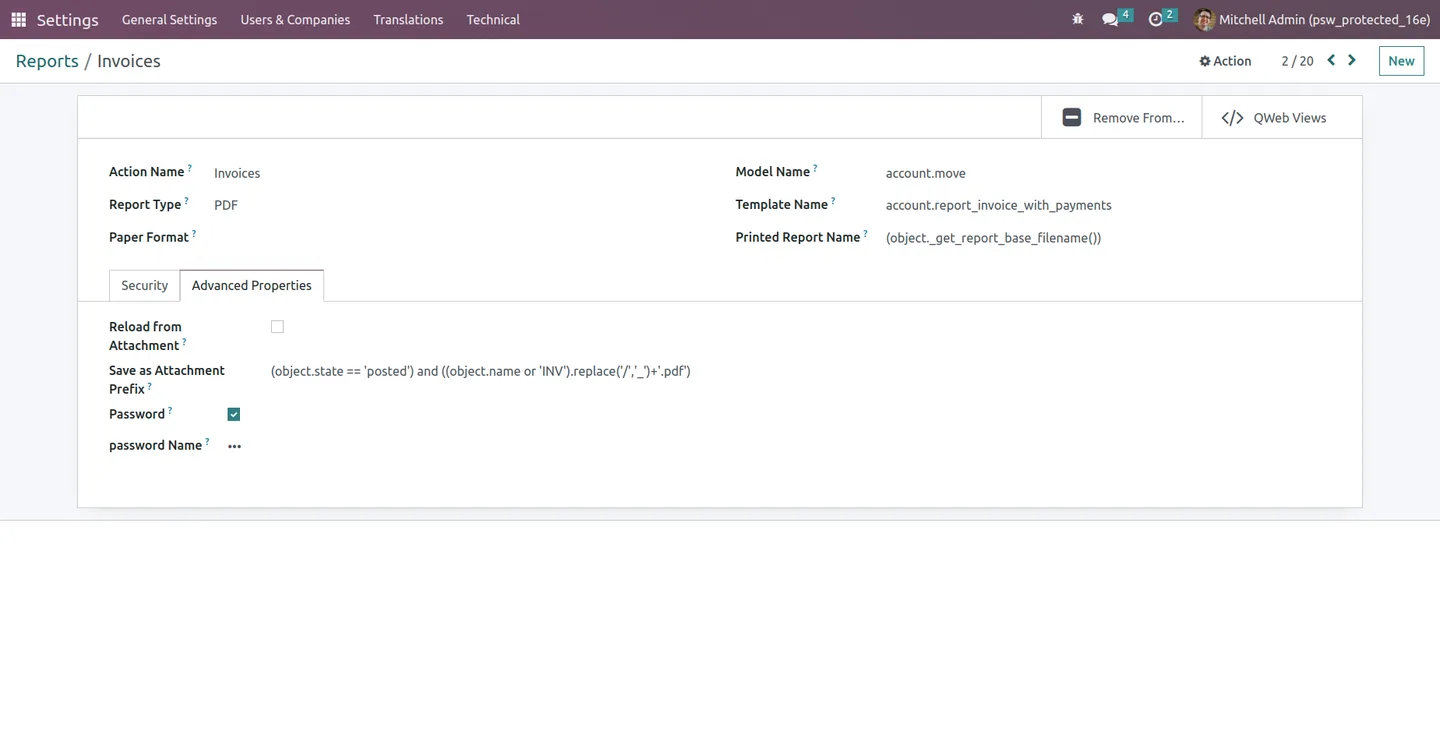
Password set in Advanced Properties
Set the password for each protected report on the Advanced Properties page of the report action, so administrators control the credential without exposing it in the report template.
-
Applies to every download
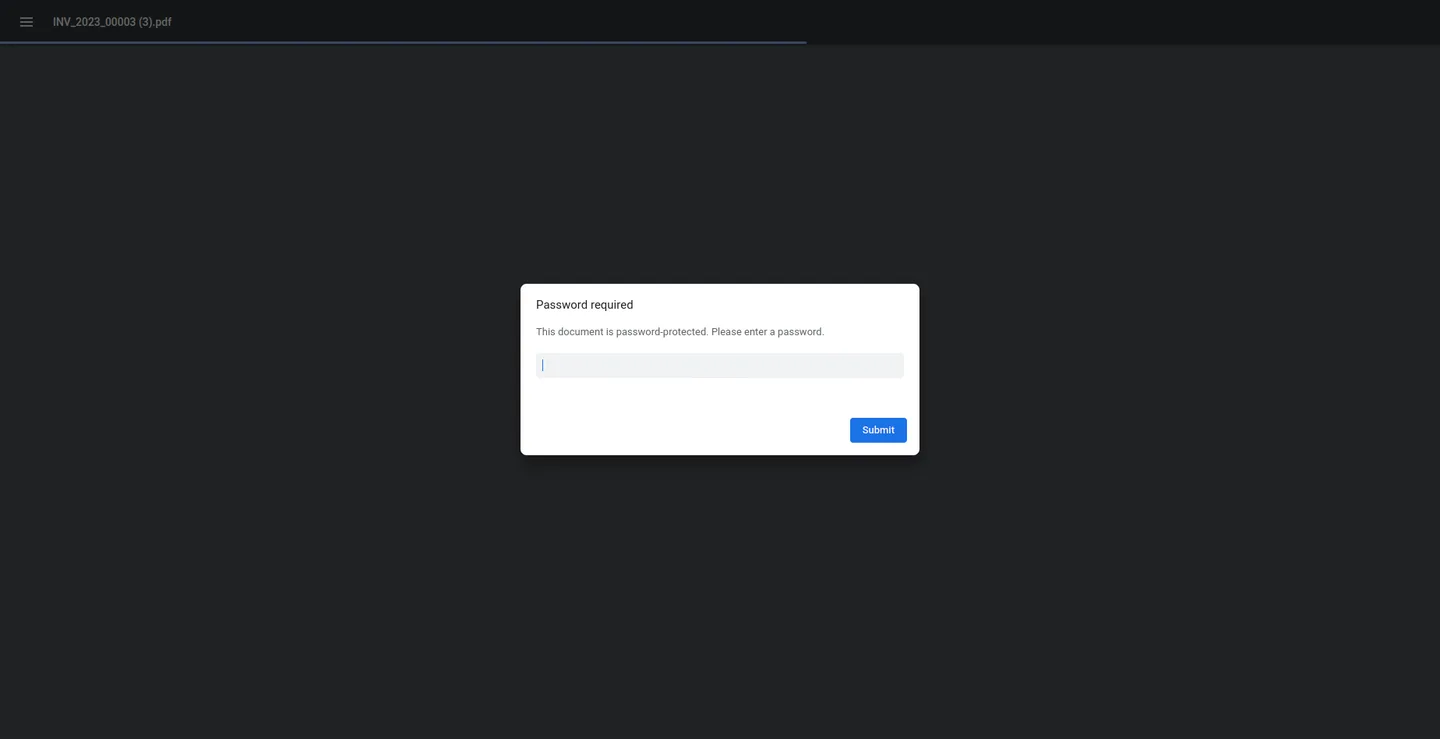
Once enabled, the protection applies to every download of that report. Users must enter the password to open the PDF in their reader.
-
Per-report configuration
Each report is configured independently, so sensitive reports — payslips, invoices, financial statements — can be locked while standard reports stay open.
-
Works on Odoo 16 through 19
The same module covers Odoo 16.0, 17.0, 18.0, and 19.0, so the password workflow stays consistent through Odoo upgrades.
Password-Protected PDF in Odoo
Every screen, in the order you meet it — configuration first, then the module in use.
Technical details
Specification
- Publisher
- TechUltra Solutions Private Limited
- Technical name
- tus_password_protected_pdf
- Odoo versions
- 16.0, 17.0, 18.0, 19.0
- Lines of code
- 73
- License
- Odoo Proprietary License v1.0 (OPL-1)
- Price
- Free
Deployment
- Odoo Online
- Odoo.sh
- On-premise
Odoo dependencies
- Base
Support
90 days of bug-fix support, Monday to Friday (10:00–19:00 IST). Raise a ticket at support@techultra.in.
Setup & configuration
From install to first call — here is the path.
- 1
Install the module
In Odoo, open Apps, remove the Apps filter, search for “Password Protected PDF”, and click Install.
- 2
Enable developer mode
Turn on developer mode so the Settings → Technical menu is visible. The module is configured through the technical reports menu.
- 3
Open the report you want to protect
Go to Settings → Technical → Actions → Reports and open the QWeb report you want to lock — for example an invoice, payslip, or financial statement.
- 4
Enable the password boolean
Tick the Password checkbox on the report record. This tells the module to encrypt the PDF on every download of this report.
- 5
Set the password
Switch to the Advanced Properties page of the report and enter the password recipients will need to open the PDF. Save the record.
- 6
Test the download
Print the report from any document that uses it. Open the generated PDF in your reader and confirm the password is required to view it.
Frequently asked questions
-
Which Odoo reports can I protect?
Any standard QWeb PDF report exposed through Settings → Technical → Actions → Reports can be protected — invoices, payslips, financial statements, sales orders, and custom QWeb reports too.
-
Which Odoo versions are supported?
Password Protected PDF supports Odoo 16.0, 17.0, 18.0, and 19.0, in both Community and Enterprise editions.
-
Where do I set the password?
On the report record itself. Open Settings → Technical → Actions → Reports, pick the report, enable the Password checkbox, and set the password on the Advanced Properties page.
-
Can each report have its own password?
Yes. Configuration is per-report, so the invoice report can have one password, the payslip report another, and unprotected reports stay unchanged.
-
Does the user have to enter the password inside Odoo?
No. The password protects the downloaded PDF file. Anyone opening the file in a PDF reader — inside or outside Odoo — must enter the configured password.
-
Will it work with custom QWeb reports?
Yes. Any report that is a standard Odoo report action is supported, including custom QWeb PDF reports.
-
Is it really free?
Yes. The module is published free of charge on the Odoo App Store under the Odoo Proprietary License (OPL-1).
Listing verified against the Odoo App Store:
Related services
Get the most out of this module with senior TechUltra consultants.
Odoo Customization Services
Odoo customization from a Gold Partner: custom modules, workflows, reports and Studio changes, written upgrade-safe and quoted at a fixed scope. Free scoping call.
Hire Odoo Developers
Hire certified Odoo developers from a Gold Partner: one developer or a team, full-time or part-time, 70–160 hours a month. Silver, Gold or Platinum plan, free trial.
Odoo Support Services & Maintenance
Odoo support services from a Gold Partner: functional and technical support plus server cover for Enterprise and Community, 30-minute P1 response, 24/7 option.







