
Odoo App · AI & OCR
Odoo OCR AI — Invoices & Bills
Turn PDF and image invoices into Odoo customer invoices and vendor bills with one click.
Overview
Odoo OCR AI — Invoices & Bills replaces manual invoice keying with AI optical character recognition. Upload a supplier bill or a customer invoice as a PDF or image, and the module extracts the header and line data, then builds the matching Odoo record for you.
Built by TechUltra Solutions, it is part of the Odoo OCR Using AI family and runs on the shared Odoo OCR AI Base module. The AI reads documents in many layouts, so you are not limited to one supplier's template, and a model-configuration screen maps each extracted field onto the right field of a journal entry.
The module itself is free on the Odoo App Store. Extraction is metered with OCR tokens purchased from ai.fynix.app — for example, 2 million tokens for $20 — so you pay only for the documents you process, with no per-seat licence.
Key features
-
AI-powered data extraction
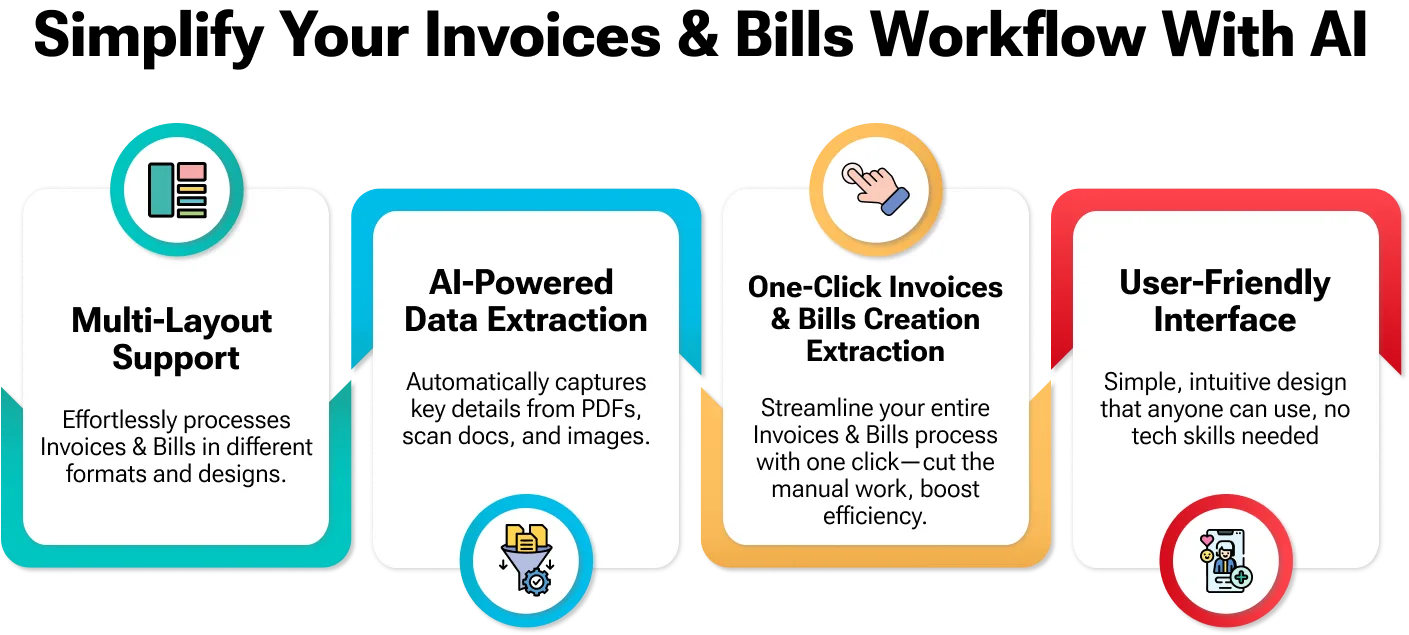
Artificial intelligence reads the invoice or bill and pulls out the relevant header and line data automatically, with no manual typing.
-
One-click invoice and bill creation
Once a document is read, the matching Odoo customer invoice or vendor bill is created in a single click, cutting the time spent on data entry.
-
Multi-layout support
The module extracts data from documents in varied formats and structures, so invoices from different suppliers are all handled without per-template setup.
-
Customer invoices and vendor bills
Works for both directions of accounting — incoming supplier bills and outgoing customer invoices — from the same OCR workflow.
-
PDF and image input
Accepts invoice documents as PDF files or images, so scans, exports, and photographed paper invoices can all be processed.
-
Configurable field mapping
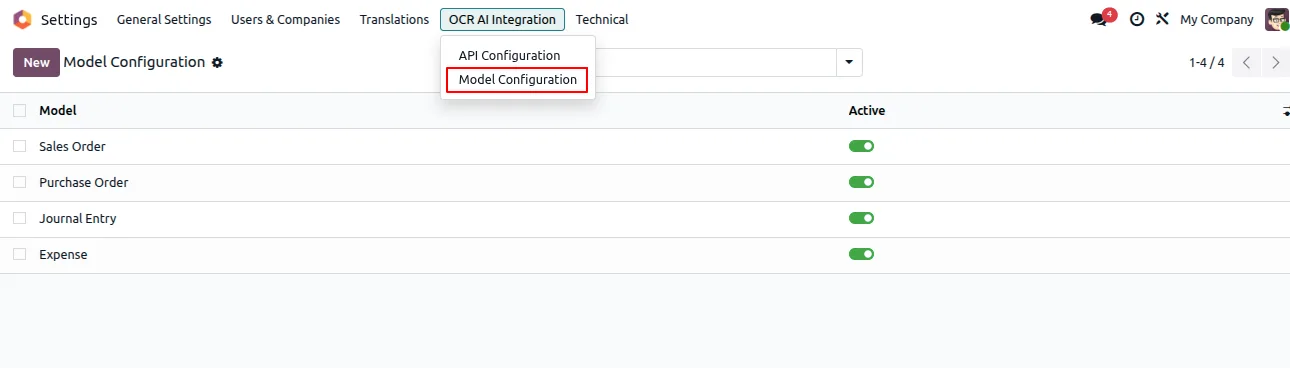
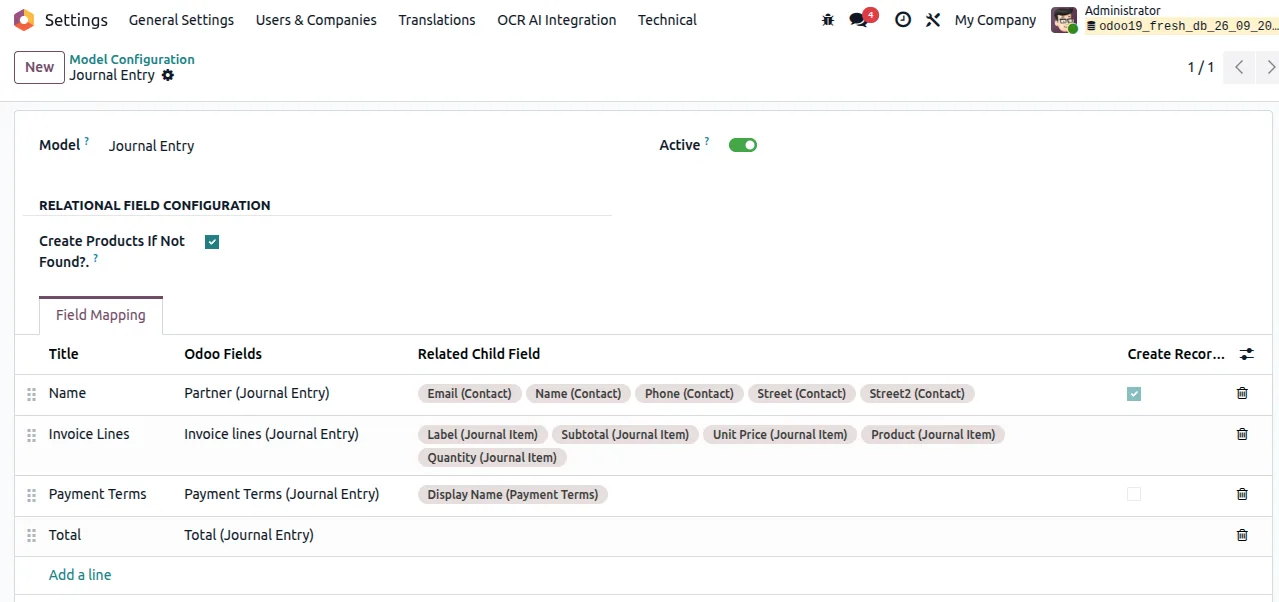
A model-configuration screen maps each AI-extracted field onto the corresponding field of an Odoo journal entry, so the output matches your chart of accounts and layout.
-
Per-company OCR token
Each company connects to the OCR service with its own authentication token, which suits multi-company Odoo databases.
-
User-friendly interface
The upload and review steps sit inside the standard Odoo accounting screens, so the team works in a familiar interface with no separate tool to learn.
Odoo OCR AI — Invoices & Bills in Odoo
Every screen, in the order you meet it — configuration first, then the module in use.

Technical details
Specification
- Publisher
- TechUltra Solutions Private Limited
- Technical name
- tus_odoo_ocr_ai_invoice
- Odoo versions
- 16.0, 17.0, 18.0, 19.0
- Lines of code
- 347
- License
- Odoo Proprietary License v1.0 (OPL-1)
- Price
- Free
Deployment
- Odoo Online
- Odoo.sh
- On-premise
Odoo dependencies
- Invoicing
- Discuss
- Odoo OCR AI Base
Support
90 days of bug-fix support, Monday to Friday (10:00–19:00 IST). Raise a ticket at support@techultra.in.
Setup & configuration
From install to first call — here is the path.
- 1
Install the module
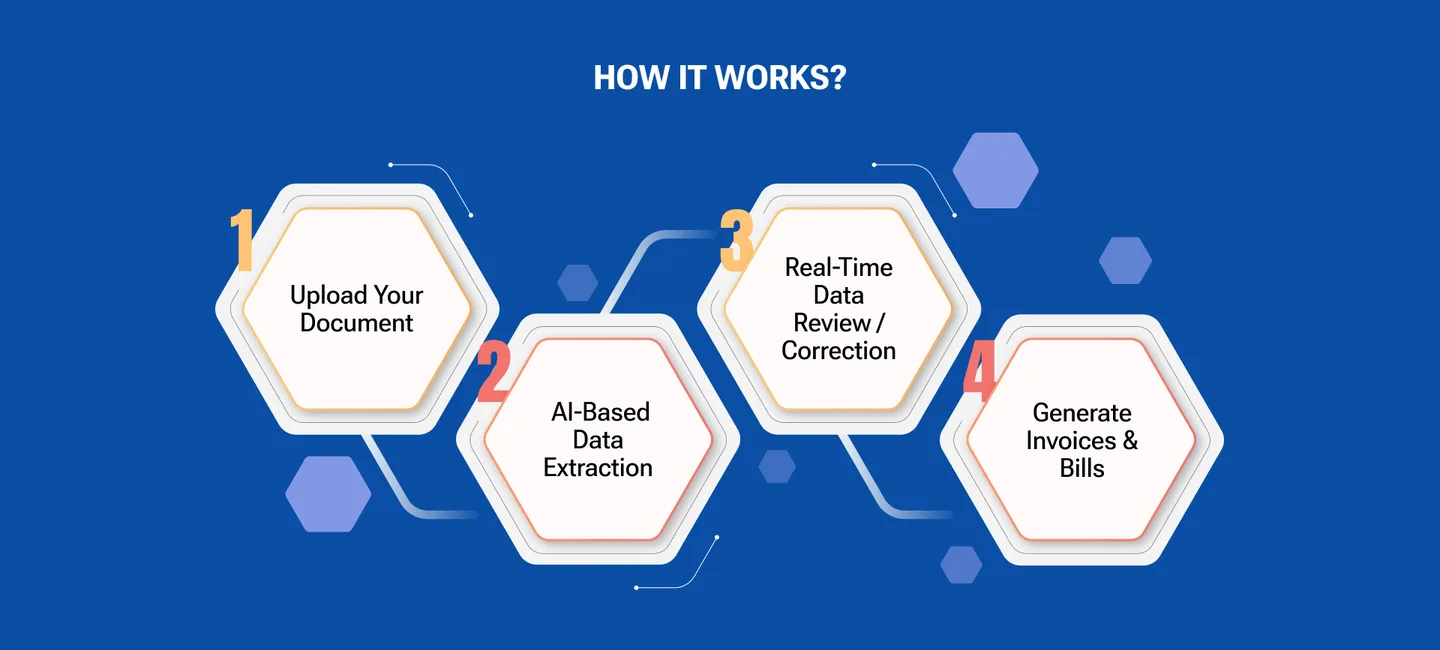
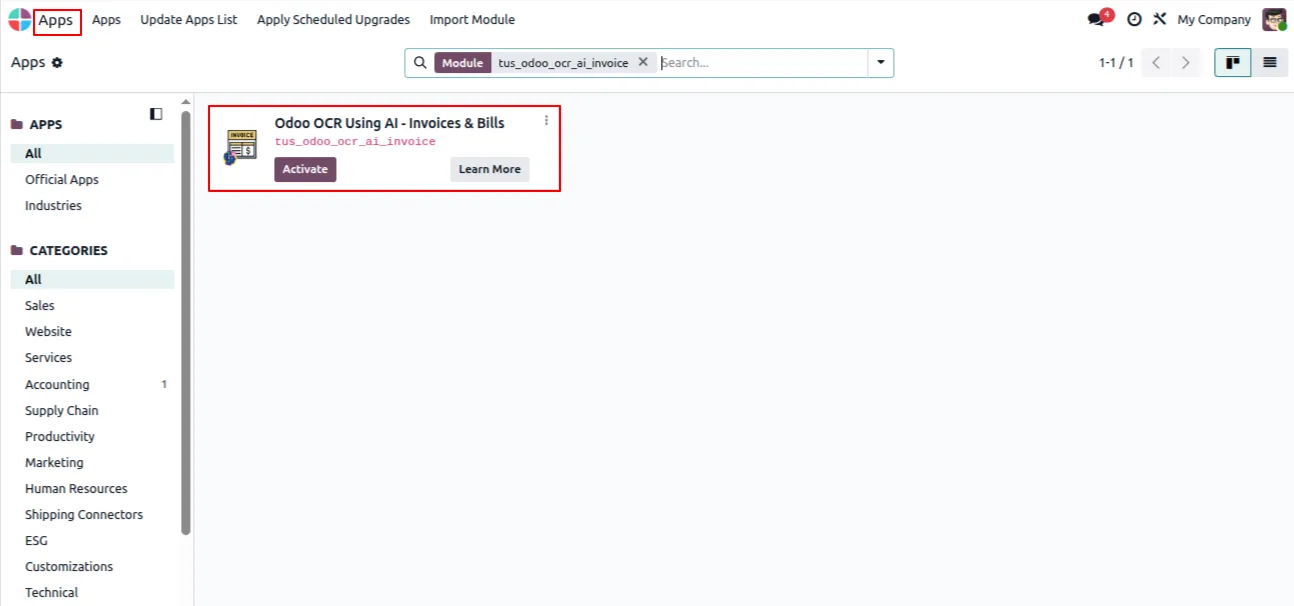
In Odoo, open Apps, remove the Apps filter, search for “Odoo OCR AI — Invoices & Bills”, and click Install. The Odoo OCR AI Base module installs with it.
- 2
Create an OCR AI account
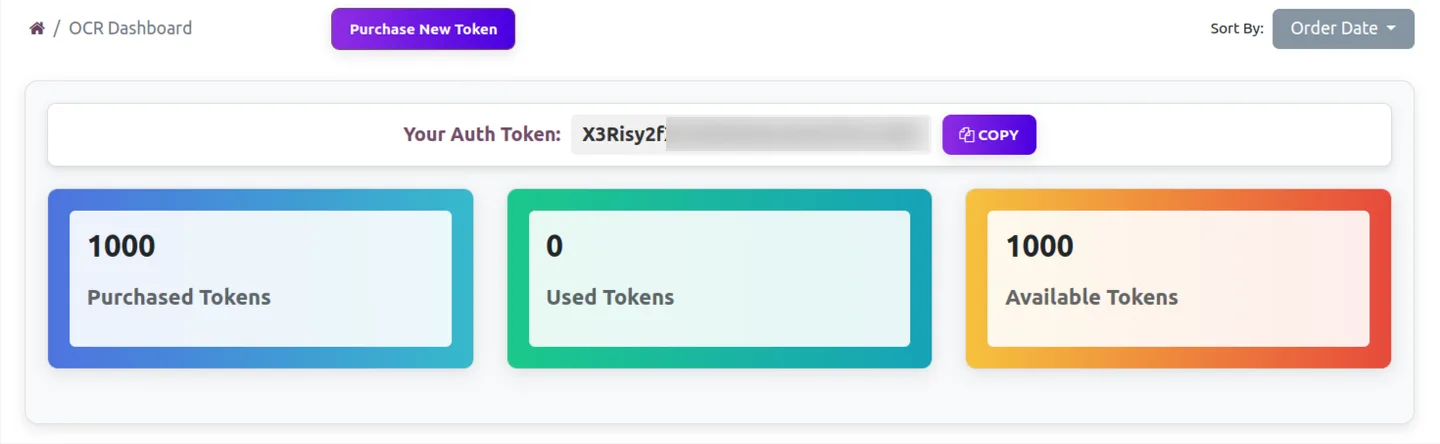
Register at ai.fynix.app and copy your authentication key from the OCR dashboard.
- 3
Buy OCR tokens
Purchase OCR tokens from ai.fynix.app/shop — for example, 2 million tokens for $20. Tokens are consumed as documents are processed.
- 4
Configure the OCR connection
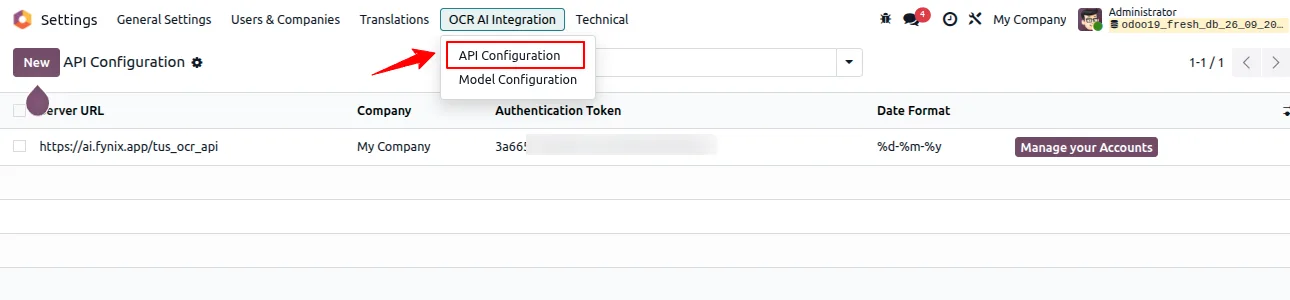
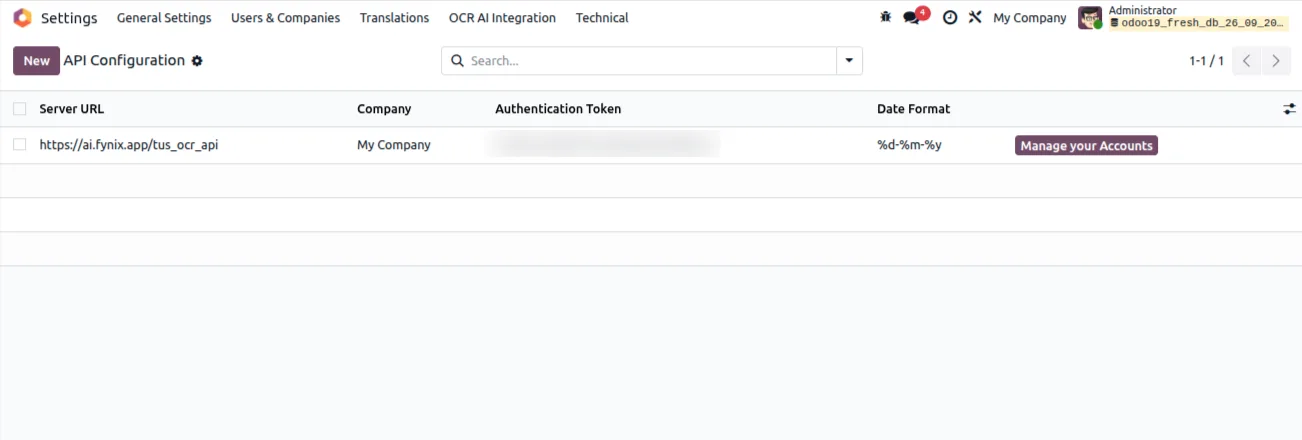
Enable developer mode, go to Settings → OCR AI Integration, enter the company authentication token, and set the server URL to https://ai.fynix.app/tus_ocr_api.
- 5
Map the invoice fields
Open Settings → OCR AI Integration → Model Configuration and map the extracted fields to the Journal Entry model for customer invoices and vendor bills.
- 6
Upload and create
Upload an invoice or bill as a PDF or image, let the AI read it, and create the Odoo customer invoice or vendor bill with one click.
Frequently asked questions
-
What does Odoo OCR AI — Invoices & Bills do?
It reads invoice and bill documents with AI OCR and creates the matching Odoo customer invoice or vendor bill in one click, removing manual data entry.
-
What file types can I upload?
You can upload invoice and bill documents as PDF files or images, so scans, PDF exports, and photos of paper invoices are all supported.
-
Does it work with invoices from different suppliers?
Yes. The module has multi-layout support, so it extracts data from documents in varied formats and structures without per-supplier template setup.
-
Which Odoo versions are supported?
The module supports Odoo 16.0, 17.0, 18.0, and 19.0, in both the Community and Enterprise editions.
-
Is the module free?
Yes. The module is free on the Odoo App Store. AI extraction is metered with OCR tokens bought separately from ai.fynix.app — for example, 2 million tokens for $20.
-
Do I need the Odoo OCR AI Base module?
Yes. This module depends on Odoo OCR AI Base, which carries the OCR connection and field-mapping engine. It installs automatically with this module.
-
How do I control where extracted data goes?
Use Settings → OCR AI Integration → Model Configuration to map each extracted field onto the Journal Entry model, so the output matches your chart of accounts.
-
Is support included?
Yes. The module includes 90 days of bug-fix support, Monday to Friday, 10:00–19:00 IST, via support@techultra.in.
Listing verified against the Odoo App Store:
Related solutions
Whole-platform solutions that complement Odoo OCR AI — Invoices & Bills.
OCR AI Invoice Capture
Free Odoo OCR AI module for Odoo 16–19. AI reads PDF and image vendor bills and invoices and creates the matching Odoo journal entry in one click.
OCR AI Sale Orders
Free Odoo OCR AI module for Odoo 16–19 by TechUltra. AI reads PDF and image customer POs and creates Odoo sales orders in one click. Multi-layout, no templates.
OCR AI Purchase Order
Free Odoo OCR AI module for Odoo 16–19 by TechUltra. AI reads PDF and image supplier quotations and creates Odoo purchase orders in one click. No templates.
Related services
Get the most out of this module with senior TechUltra consultants.
Odoo Customization Services
Odoo customization from a Gold Partner: custom modules, workflows, reports and Studio changes, written upgrade-safe and quoted at a fixed scope. Free scoping call.
Hire Odoo Developers
Hire certified Odoo developers from a Gold Partner: one developer or a team, full-time or part-time, 70–160 hours a month. Silver, Gold or Platinum plan, free trial.
Odoo Support Services & Maintenance
Odoo support services from a Gold Partner: functional and technical support plus server cover for Enterprise and Community, 30-minute P1 response, 24/7 option.







