
Odoo App · Inventory
Mass Import Packages & Lot/Serial Numbers
Paste packages, lots and serial numbers from Excel or Google Sheets straight into Odoo receipts, deliveries, transfers and returns.

Overview
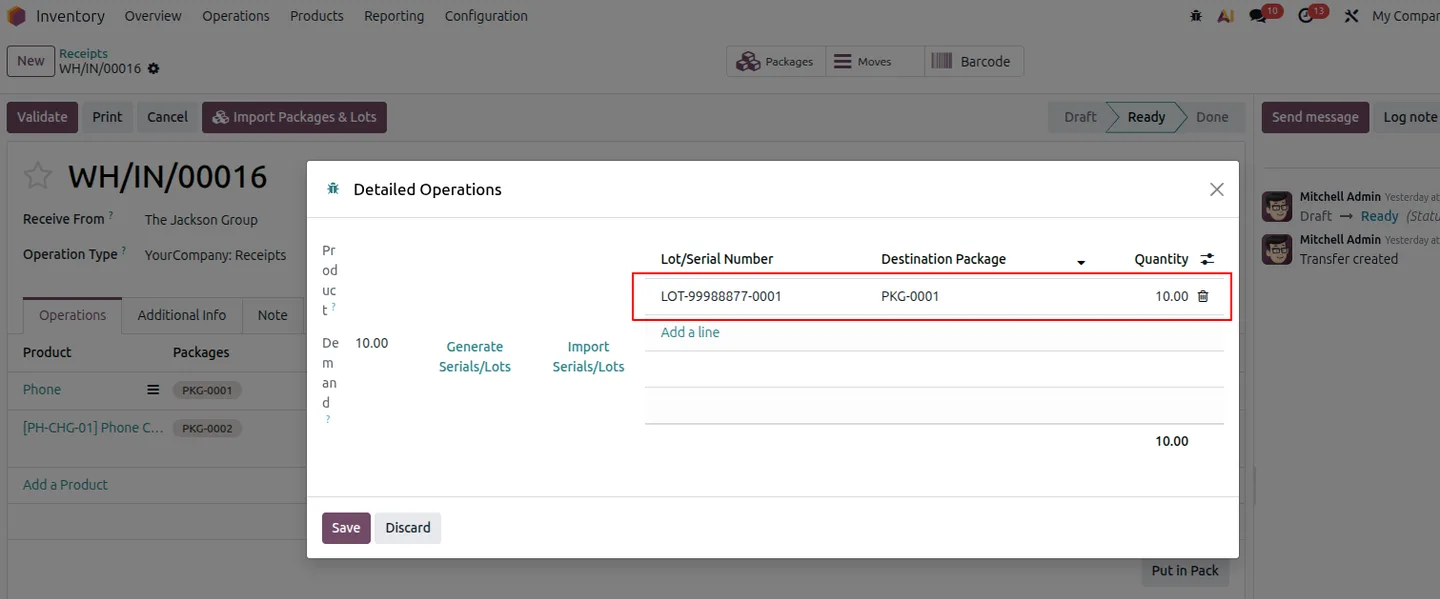
In standard Odoo, recording lots, serial numbers and packages on a receipt means opening the Detailed Operations popup line by line. On a delivery with 50 pallets or a receipt with 50 serial-tracked items, that is 50 popups, and every one is a chance to mistype.
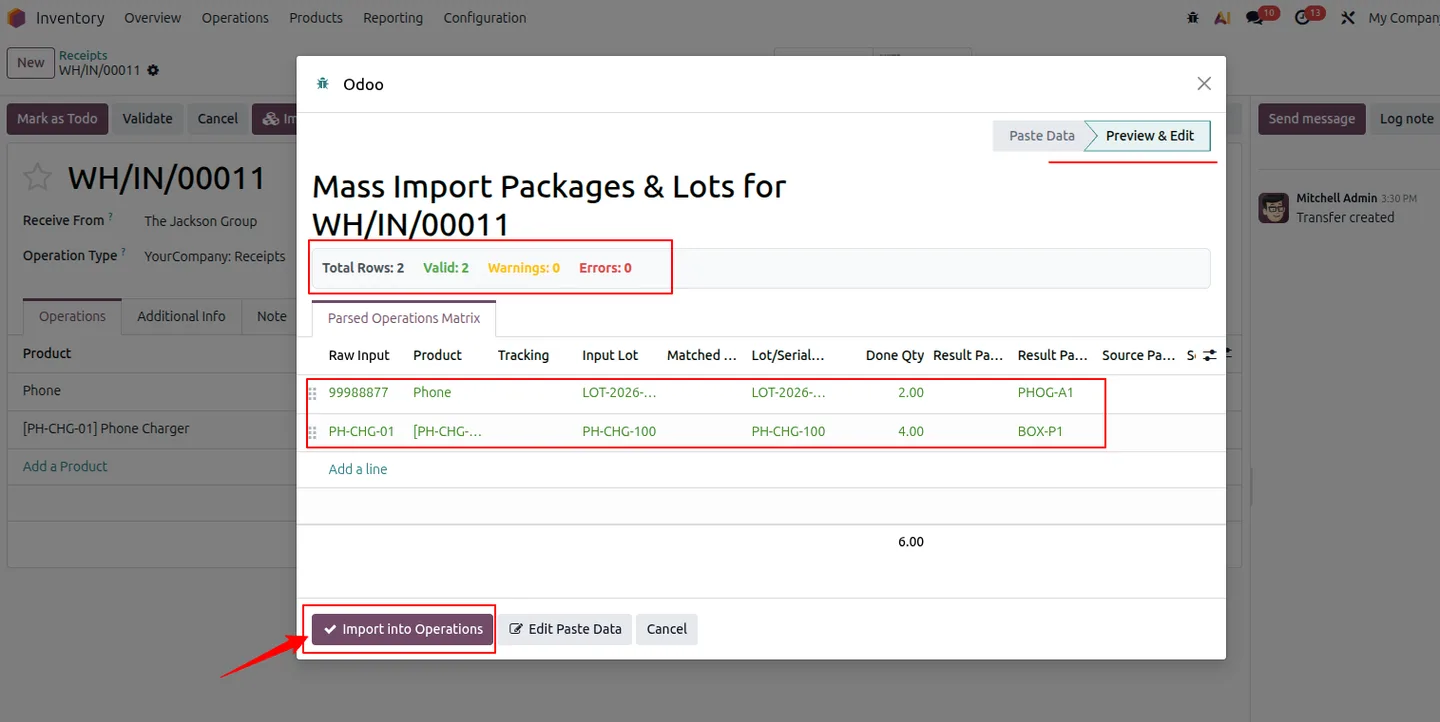
This module adds one button to the picking. Copy the rows from the supplier's spreadsheet, paste them into the wizard, and it detects whether the data is tab, comma, semicolon or pipe separated, reads the headers, and matches each row to a product by barcode or reference. Rows land in an editable preview marked Valid, Warning or Error, and nothing is written until every error is fixed.
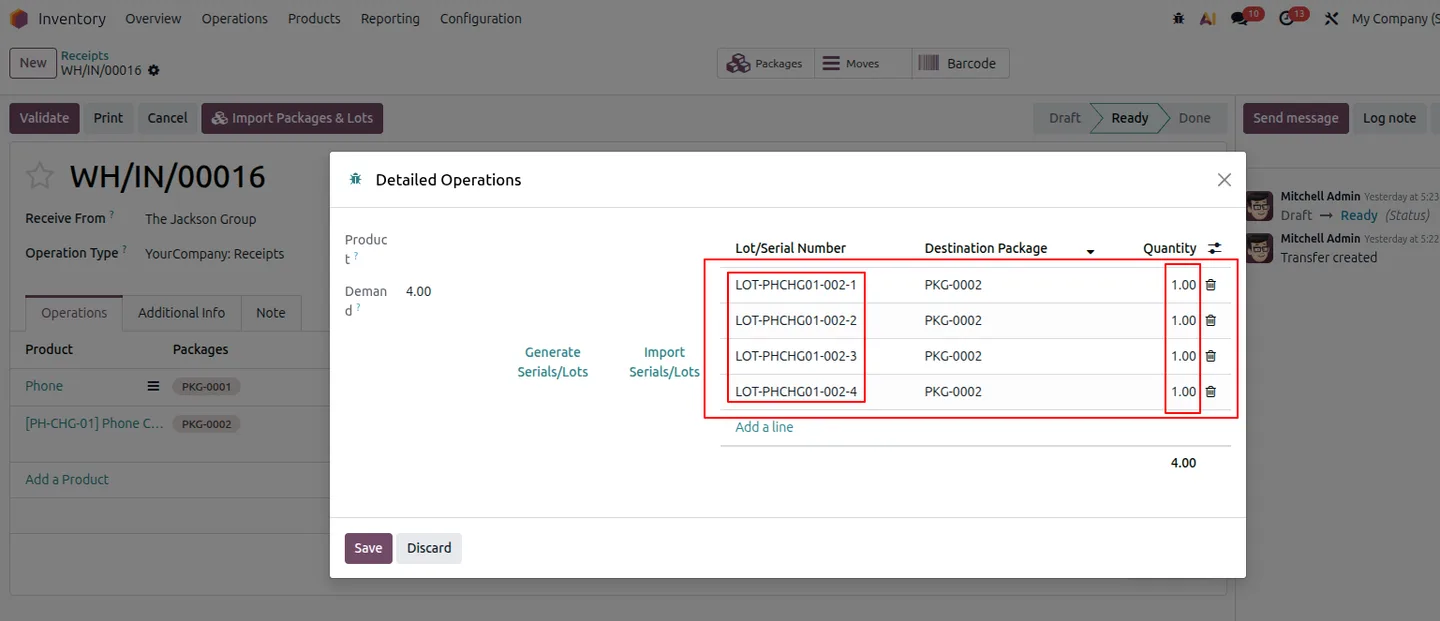
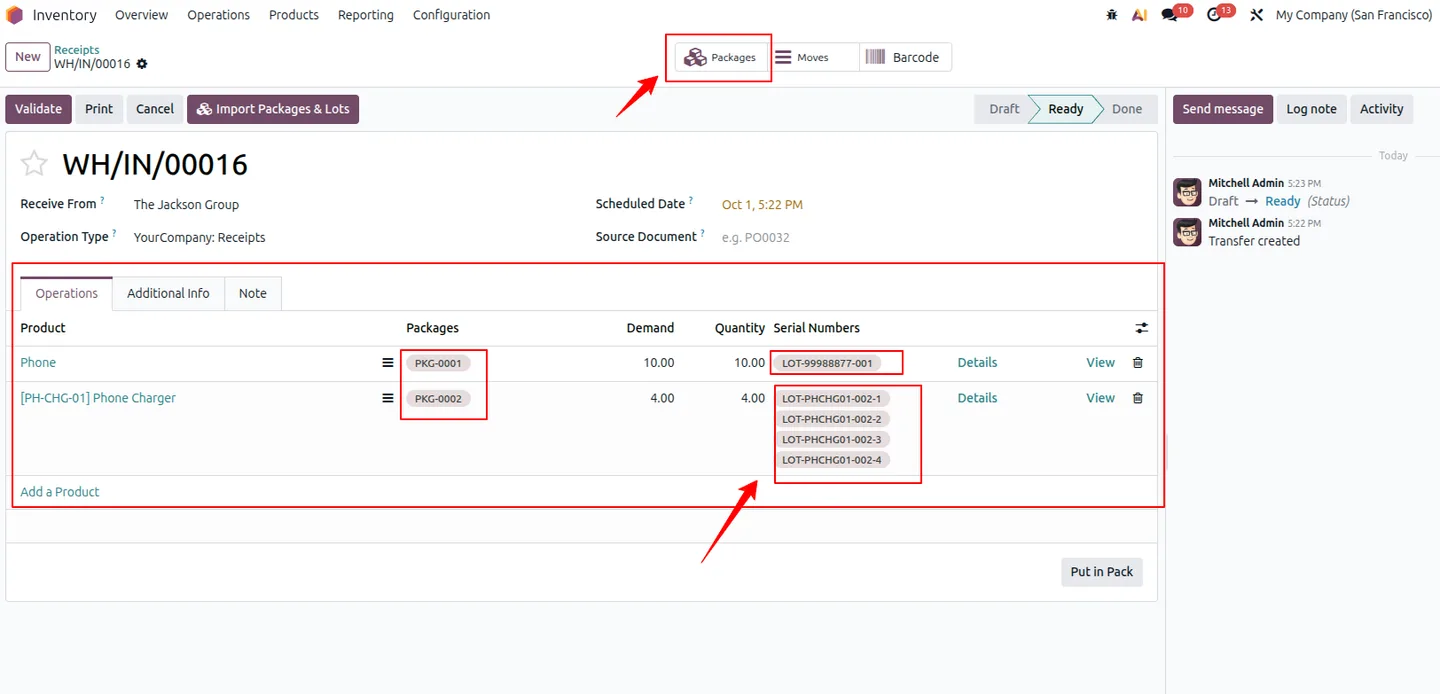
On confirmation it creates any lots, serial numbers and packages that don't exist yet, and can split a serial-tracked row with a quantity above one into individual one-unit lines. The result is written to the detailed operations, either replacing what was there or appending to it.
Key features
-
Paste from any spreadsheet
Copy rows from Excel, Google Sheets, CSV or TSV and paste them into the wizard. No file template or upload is needed.
-
Delimiter and header detection
Recognises tab, comma, semicolon and pipe delimiters and maps headers such as product barcode or reference, lot/serial, quantity, result package and source package.
-
Validation preview
Parsed rows appear in an editable grid with Valid, Warning and Error badges, and errors block the import until they are corrected.
-
Lots, serials and packages created for you
Missing lot and serial numbers and source or destination packages are created during the import when the options are enabled.
-
Serial auto-splitting
A serial-tracked row with a quantity of three becomes three one-unit lines with sequential serials such as SN-100-1, SN-100-2 and SN-100-3.
-
Replace or append
Replace the picking's existing detailed operations with the import, or add the imported rows to what is already there.
Mass Import Packages & Lot/Serial Numbers in Odoo
Every screen, in the order you meet it — configuration first, then the module in use.
Technical details
Specification
- Publisher
- TechUltra Solutions Private Limited
- Technical name
- tus_mass_import_package
- Odoo versions
- 19.0
- Lines of code
- 661
- Works on
- Receipts, deliveries, internal transfers and returns
- License
- Odoo Proprietary License v1.0 (OPL-1)
- Price
- $17.00 (one-time)
Deployment
- Odoo Online
- Odoo.sh
- On-premise
Odoo dependencies
- Inventory
- Discuss
Support
90 days of bug-fix support plus 5 hours of free configuration help, Monday to Friday, 10:00–19:00 IST. Raise a ticket at support@techultra.in.
Setup & configuration
From install to first call — here is the path.
- 1
Enable packages and lots
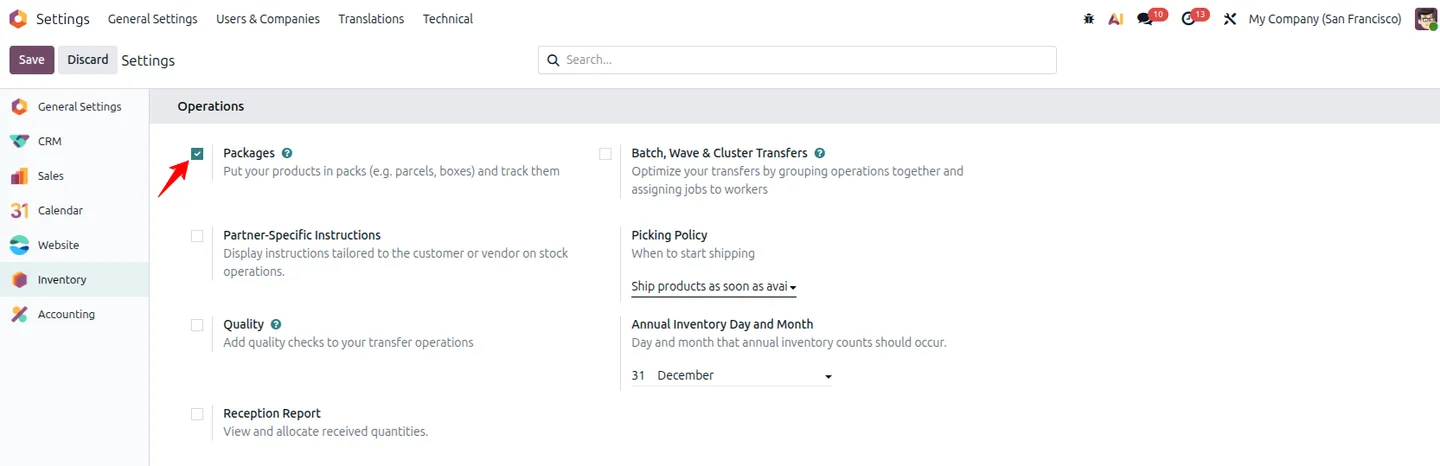
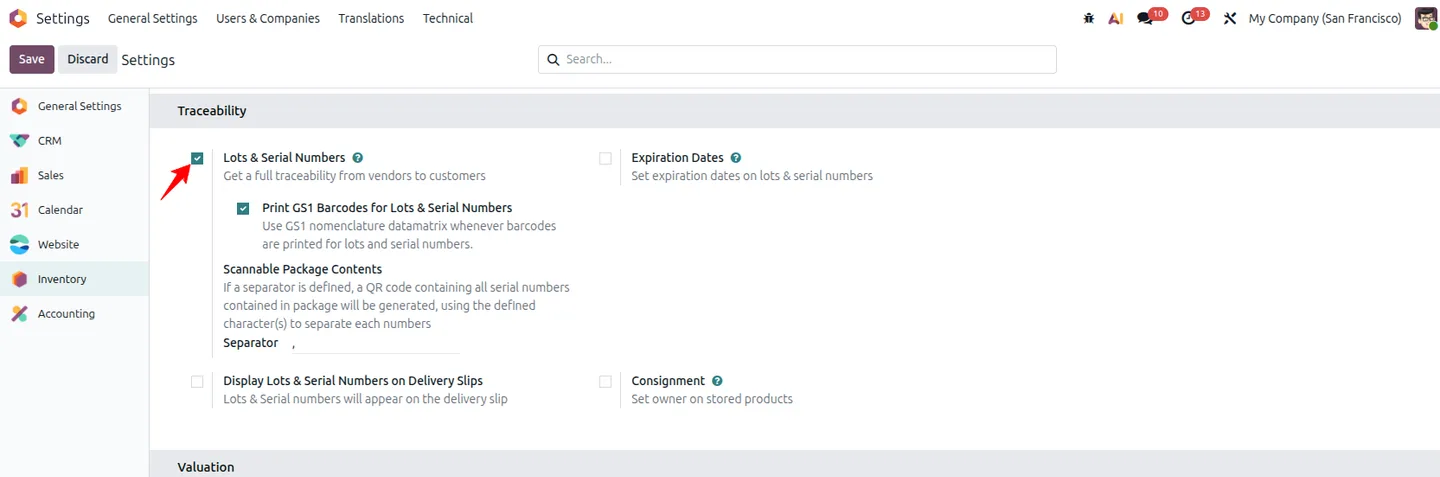
In Inventory → Configuration → Settings, enable Packages and Lots & Serial Numbers.
- 2
Open the importer on a picking
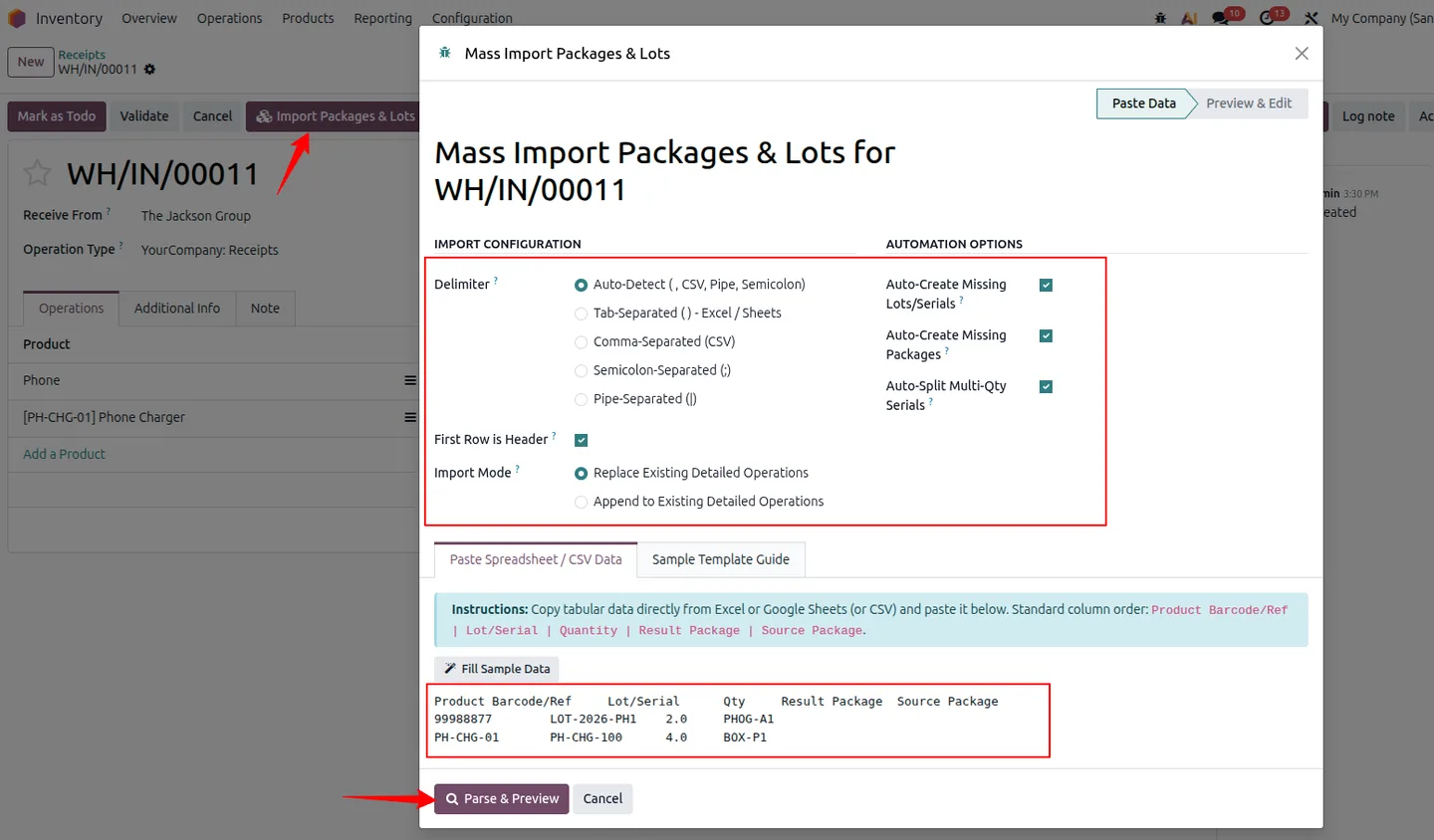
Confirm a receipt, delivery, transfer or return and click Import Packages & Lots. The wizard opens on Paste Data.
- 3
Paste and preview
Paste rows in the order product barcode or reference, lot/serial, quantity, result package, source package. Choose the auto-create and auto-split options, then click Parse & Preview.
- 4
Fix and import
Check the parsing summary and correct any rows marked Error in the grid, then click Import into Operations and confirm the lines on the Detailed Operations tab.
Frequently asked questions
-
Do I need a special Excel or CSV template?
No. Copy rows straight from Excel, Google Sheets, a CSV or TSV file, or plain text and paste them in. The wizard detects the delimiter and matches common headers automatically.
-
What if a lot, serial number or package doesn't exist in Odoo yet?
With Auto-Create Missing Lots/Serials and Auto-Create Missing Packages enabled, they are created during the import.
-
How are serial-tracked products with a quantity above one handled?
With Auto-Split Multi-Qty Serials enabled, a row such as quantity 3 with serial SN-100 becomes three one-unit lines with serials SN-100-1, SN-100-2 and SN-100-3.
-
What is the difference between Replace and Append?
Replace clears the picking's existing detailed operations and writes the imported rows instead. Append keeps the existing lines and adds the imported rows to them.
-
What happens to rows with unknown products?
They are marked Error in the preview grid with an explanation, and the import stays blocked until you correct the product in the grid or fix the pasted text.
Listing verified against the Odoo App Store:
Related solutions
Whole-platform solutions that complement Mass Import Packages & Lot/Serial Numbers.
Odoo Inventory + Warehouse Management
Odoo Inventory module — multi-warehouse, batch/serial, putaway, barcode, replenishment, cross-docking, dropship, consignment. Full WMS in your ERP.
Odoo Purchase
Odoo Purchase module — RFQ, PO, supplier portal, three-way match, blanket PO, drop-ship, sub-contracting. Integrated with Inventory + MRP + Accounting.
Related services
Get the most out of this module with senior TechUltra consultants.
Odoo Customization Services
Odoo customization from a Gold Partner: custom modules, workflows, reports and Studio changes, written upgrade-safe and quoted at a fixed scope. Free scoping call.
Hire Odoo Developers
Hire certified Odoo developers from a Gold Partner: one developer or a team, full-time or part-time, 70–160 hours a month. Silver, Gold or Platinum plan, free trial.
Odoo Support Services & Maintenance
Odoo support services from a Gold Partner: functional and technical support plus server cover for Enterprise and Community, 30-minute P1 response, 24/7 option.