
Odoo App · Inventory & Accounting
Invoice From Picking
Create invoices straight from a done stock picking — linked, traceable, one click.

Overview
Invoice From Picking adds a Create Invoice button to stock pickings in Odoo. Once a picking is Done, warehouse or accounting users can invoice it directly from the picking form — no need to jump back to the originating sales order or rebuild the line items elsewhere.
Built by TechUltra Solutions, the module is aimed at teams whose invoicing trigger is the actual shipment, not the sales confirmation. Warehouse staff complete the delivery, click Create Invoice, and a draft invoice is created and linked to that picking automatically. The connection is preserved on both sides for audit and reporting.
Each invoice carries the picking reference it was generated from, and each picking shows an Invoices smart button with the count of related invoices — one click takes you to the list. The module supports Odoo 16, 17, 18, 19, and 20 in both Community and Enterprise editions.
Key features
-
Create Invoice button on Done pickings
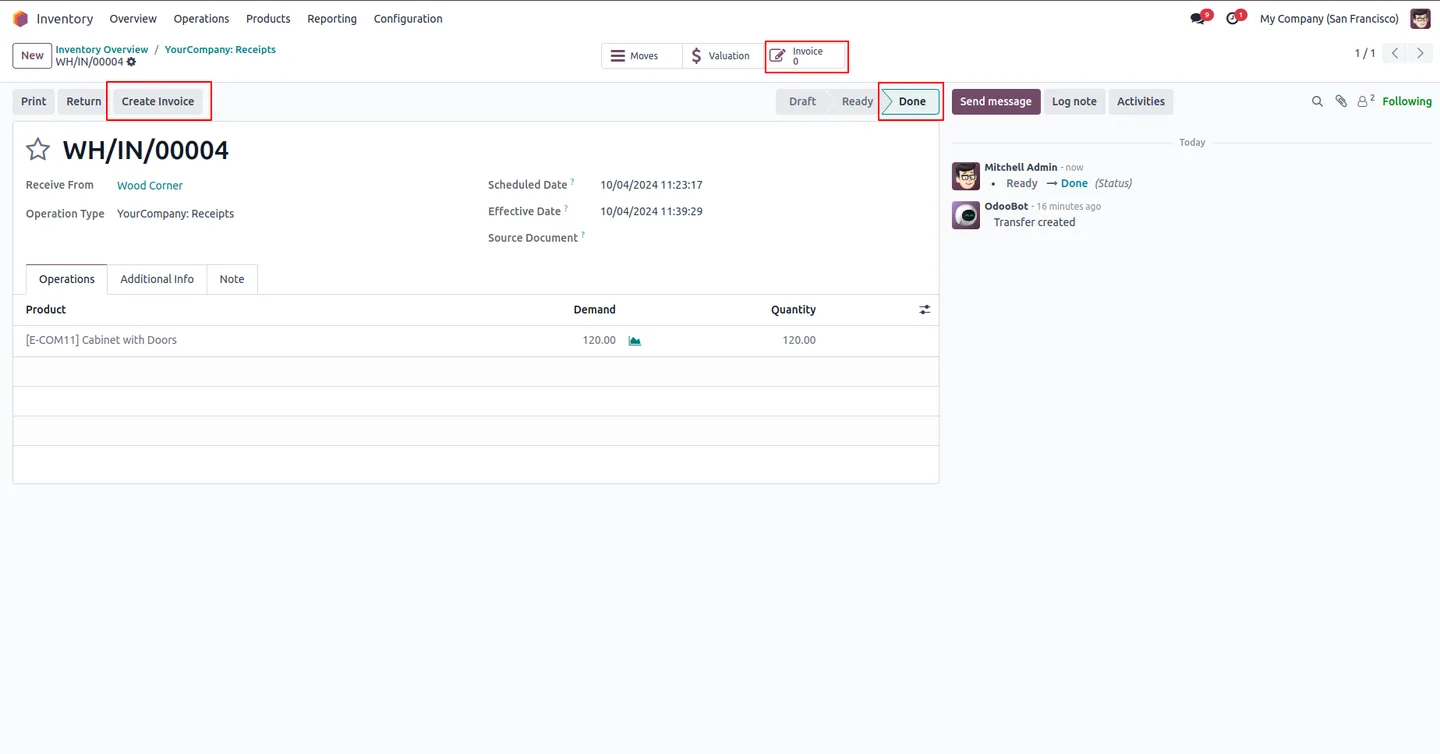
When a picking reaches Done status and has not been invoiced yet, a Create Invoice button appears next to the Return button on the picking form so the invoice can be raised in one click.
-
Automatic picking-to-invoice link
Every invoice created from a picking is automatically linked to that picking operation in the database, keeping the audit trail intact without any manual step.
-
Picking reference on the invoice form
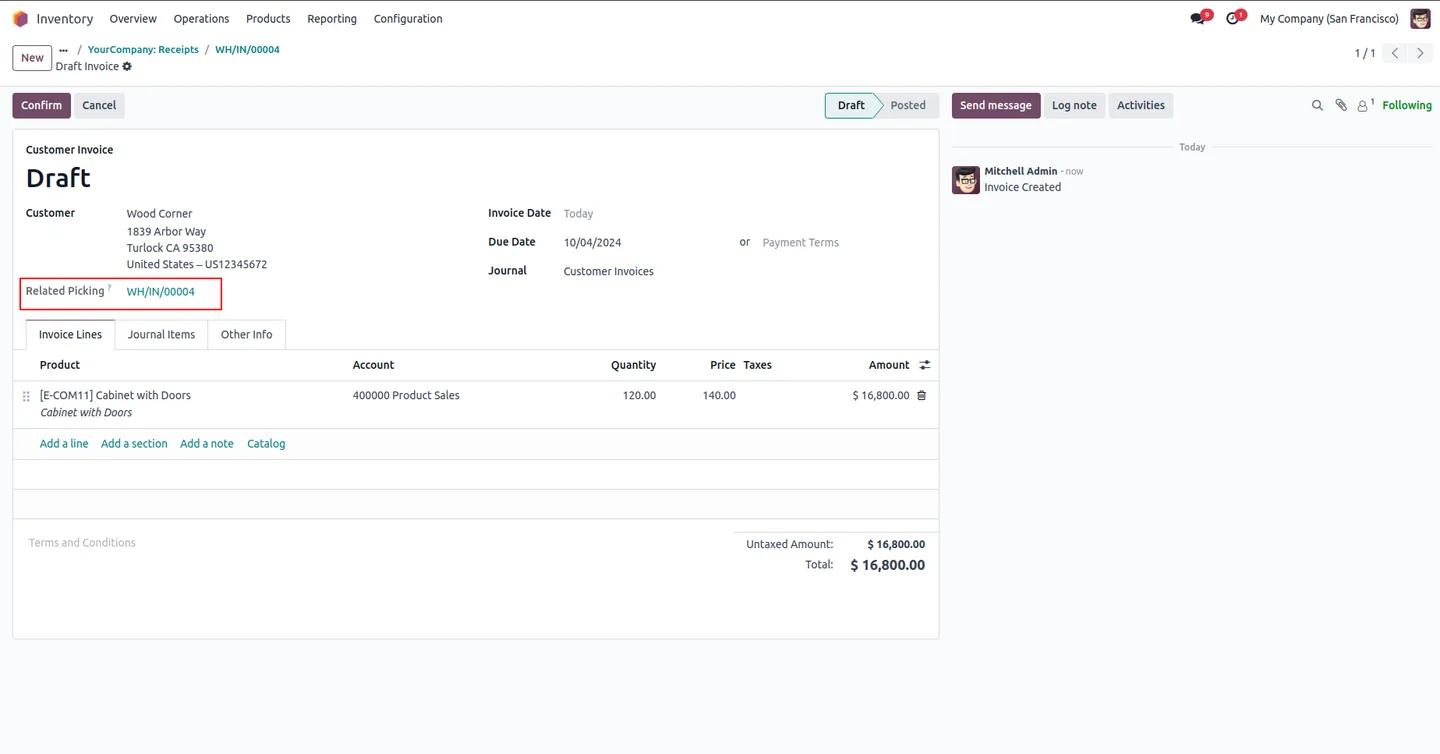
The invoice form shows the reference of the picking it was generated from, so accounting teams can see exactly which shipment triggered the bill.
-
Invoices smart button on pickings
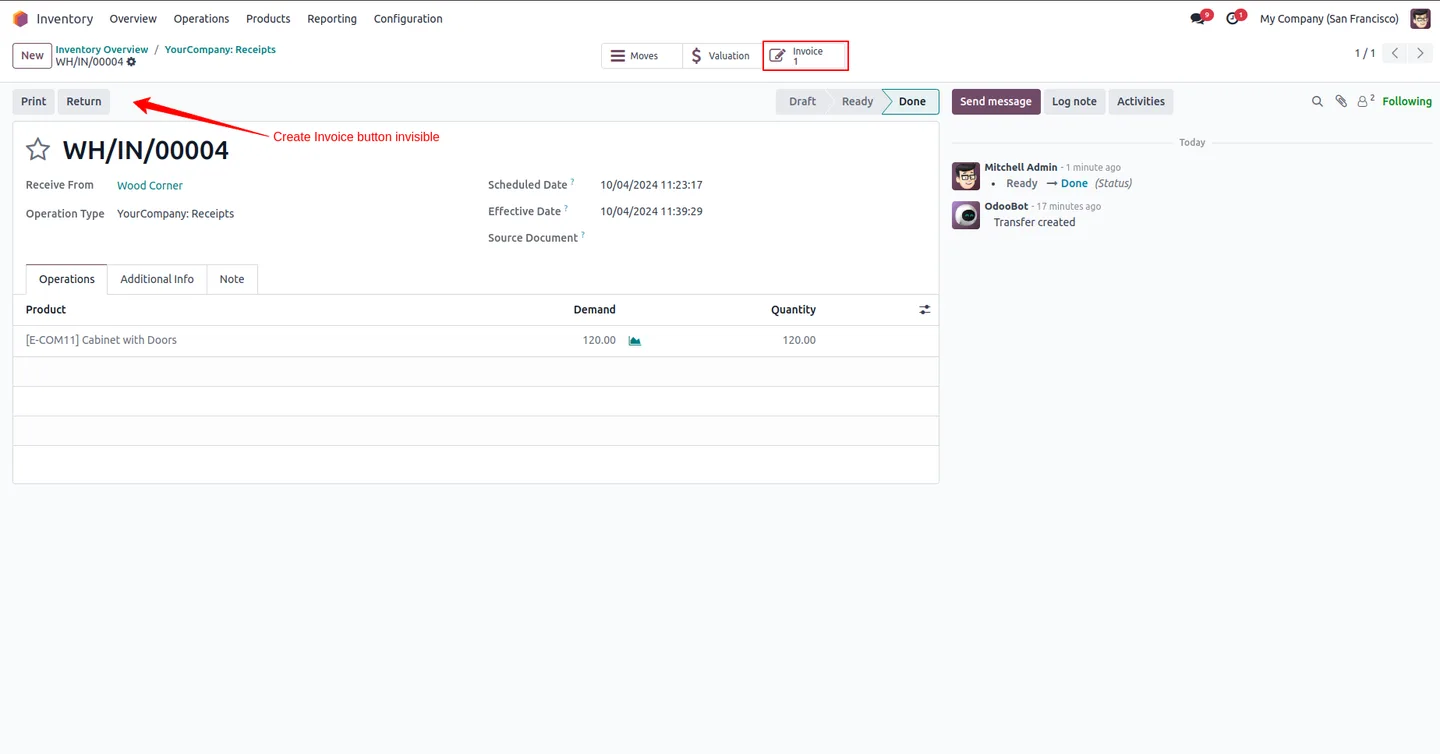
Each picking gets an Invoices smart button that shows the count of invoices it has generated. One click opens the related invoices — no navigation hunt.
-
Triggered by the shipment, not the sale
Invoicing fires from the picking itself, which suits delivery-trigger workflows where what actually ships is what gets billed — partial deliveries, back-orders, drop-shipments.
-
Standard Odoo invoice from there
The draft invoice is a standard Odoo customer invoice — same tax handling, same accounting entries, same posting rules — only the create trigger and the link to the picking are new.
-
Multi-version support
Published for Odoo 16, 17, 18, 19, and 20 (Community and Enterprise), so the workflow stays consistent as your team upgrades across releases.
Invoice From Picking in Odoo
Every screen, in the order you meet it — configuration first, then the module in use.
Technical details
Specification
- Publisher
- TechUltra Solutions Private Limited
- Technical name
- tus_invoice_picking
- Odoo versions
- 16.0, 17.0, 18.0, 19.0, 20.0
- Lines of code
- 96
- License
- Odoo Proprietary License v1.0 (OPL-1)
- Price
- $14.14 (one-time)
Deployment
- Odoo Online
- Odoo.sh
- On-premise
Odoo dependencies
- Inventory
- Invoicing
- Discuss
Support
90 days of bug-fix support, Monday to Friday (10:00–19:00 IST). Raise a ticket at support@techultra.in.
Setup & configuration
From install to first call — here is the path.
- 1
Install the module
In Odoo, open Apps, remove the Apps filter, search for “Invoice From Picking”, and click Install.
- 2
Confirm Inventory and Invoicing are enabled
The module depends on Inventory and Invoicing. If you have a fresh database, install those apps first; on an existing database they will already be in place.
- 3
Validate a delivery
Open any outgoing transfer, validate it through to Done, and a Create Invoice button appears next to the Return button on the picking form.
- 4
Create the invoice
Click Create Invoice. Odoo generates a draft customer invoice, links it back to this picking, and writes the picking reference onto the invoice form.
- 5
Use the smart button
Back on the picking, the new Invoices smart button shows the count of related invoices — open it to jump straight to the linked drafts or posted bills.
Frequently asked questions
-
When does the Create Invoice button appear?
It appears on the picking form once the picking is in Done status and has not yet been invoiced through the module. Before that, the button stays hidden.
-
Does the invoice link back to the picking?
Yes. Each invoice created from a picking is automatically linked to that picking in the database, and the invoice form shows the picking reference for traceability.
-
How do I see invoices already raised against a picking?
Each picking gets an Invoices smart button. The count shows how many invoices have been generated from that picking; clicking it opens the list of linked invoices.
-
Does it replace the standard Sales-to-Invoice flow?
No. It runs alongside it. If your team prefers to invoice from the sales order, that still works. The module is for teams whose invoicing trigger is the shipment itself rather than the sale.
-
Is the resulting invoice a standard Odoo invoice?
Yes. It is a standard customer invoice — same tax handling, accounting entries, and posting rules. Only the create trigger and the link back to the picking are new.
-
Which Odoo versions are supported?
The module is published for Odoo 16.0, 17.0, 18.0, 19, and 20.0, in both Community and Enterprise editions.
-
Does it work for back-orders and partial deliveries?
Yes. Because the button lives on the picking itself, you can invoice each Done picking individually — a partial delivery now and the back-order later.
Listing verified against the Odoo App Store:
Related services
Get the most out of this module with senior TechUltra consultants.
Odoo Customization Services
Odoo customization from a Gold Partner: custom modules, workflows, reports and Studio changes, written upgrade-safe and quoted at a fixed scope. Free scoping call.
Hire Odoo Developers
Hire certified Odoo developers from a Gold Partner: one developer or a team, full-time or part-time, 70–160 hours a month. Silver, Gold or Platinum plan, free trial.
Odoo Support Services & Maintenance
Odoo support services from a Gold Partner: functional and technical support plus server cover for Enterprise and Community, 30-minute P1 response, 24/7 option.







