

Odoo App · Inventory
Inventory Stock Card Report
Generate chronological stock cards by product or category in Odoo, as PDF or Excel.

Overview
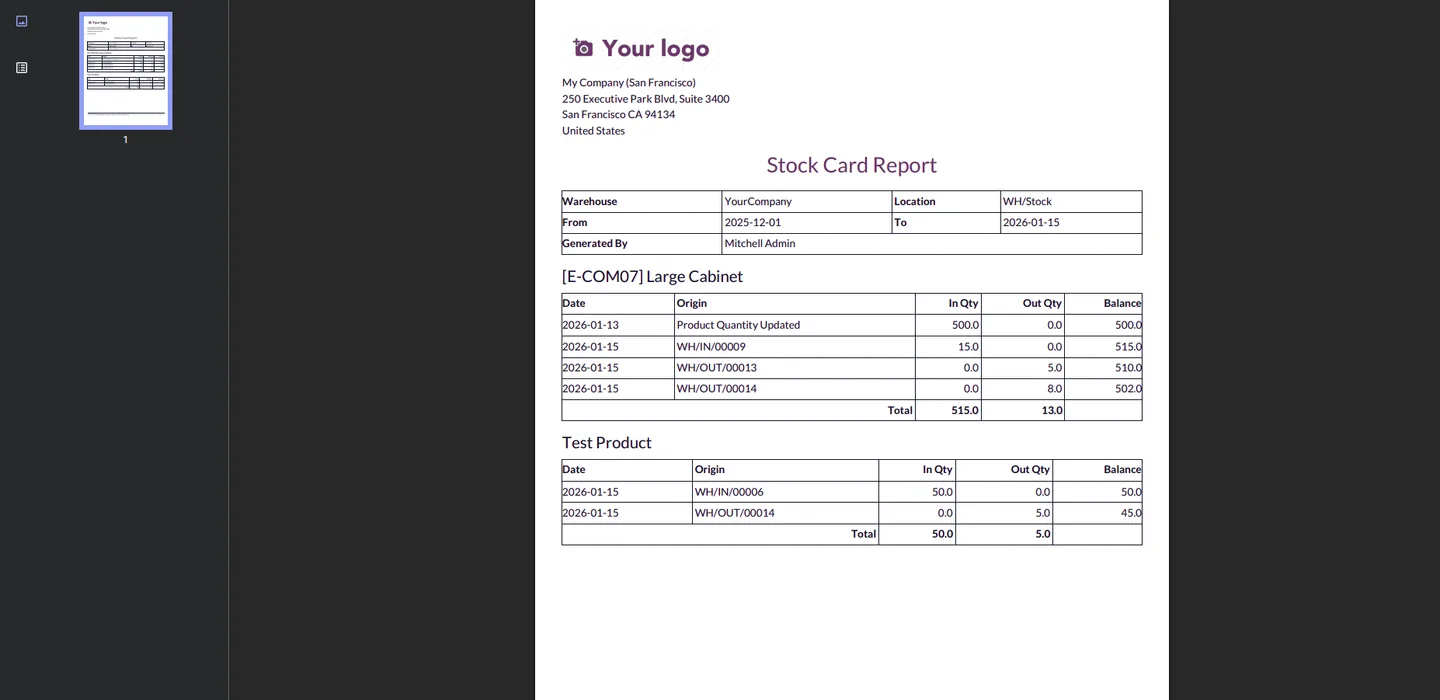
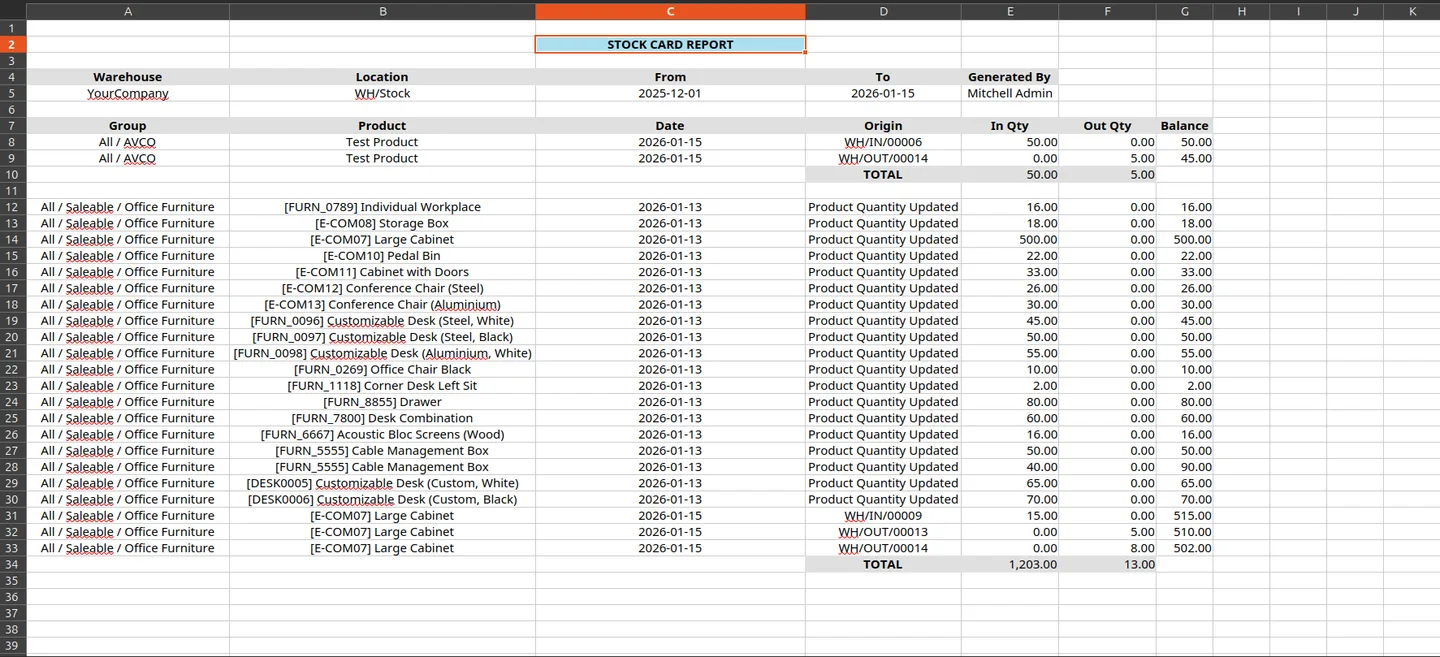
Inventory Stock Card Report answers a simple question that Odoo's standard screens make hard to see: how did this product's stock get to where it is now? The report lays out every movement in date order, with incoming quantity, outgoing quantity, and the running balance after each line.
Built by TechUltra Solutions, the report works at two levels. Group by product for a single item's full movement history, or group by category to review a whole product group at once, with each line still showing the product name.
Warehouse, location, and date-range filters keep each report focused on the period and place you care about. Finished reports export to both PDF and Excel, so the same data works for a printed audit copy or for further analysis in a spreadsheet.
Key features
-
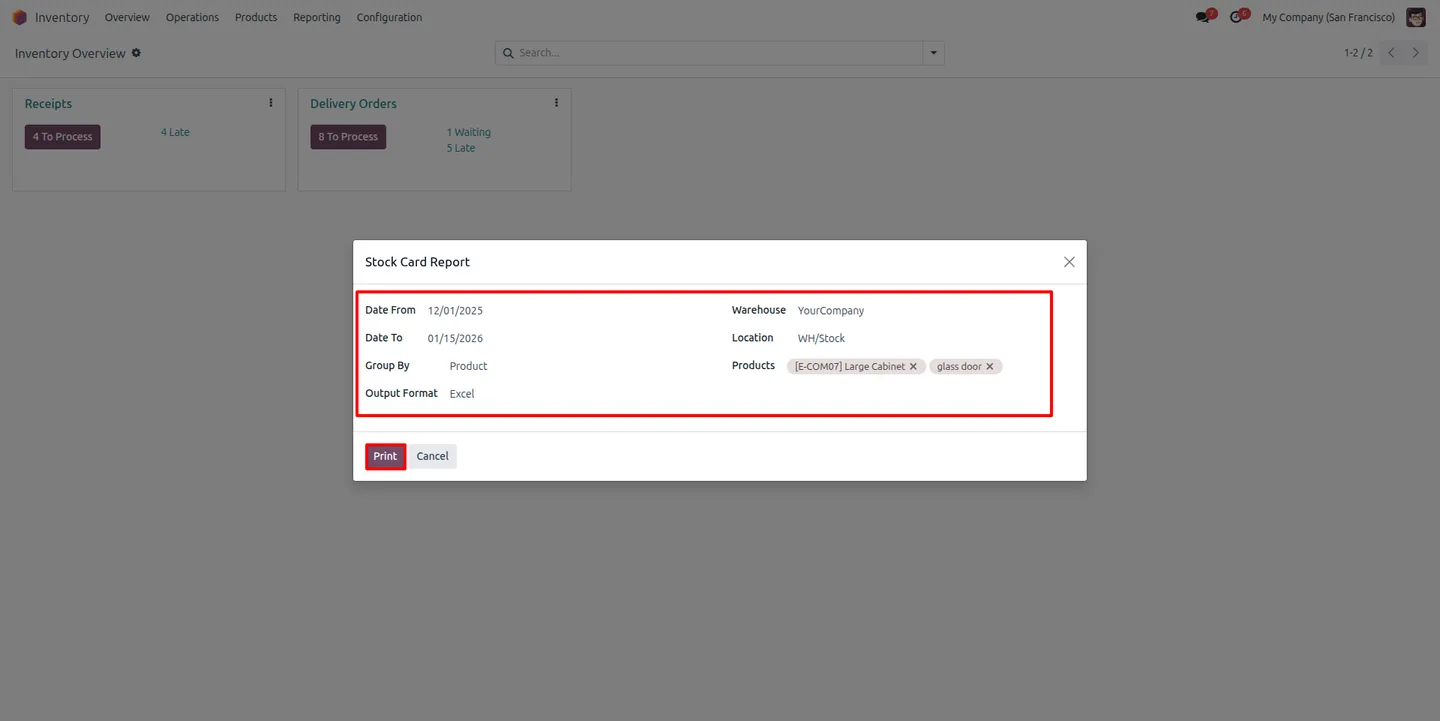
Group by product
Run the report for individual products to see a single item's complete, date-ordered movement history.
-
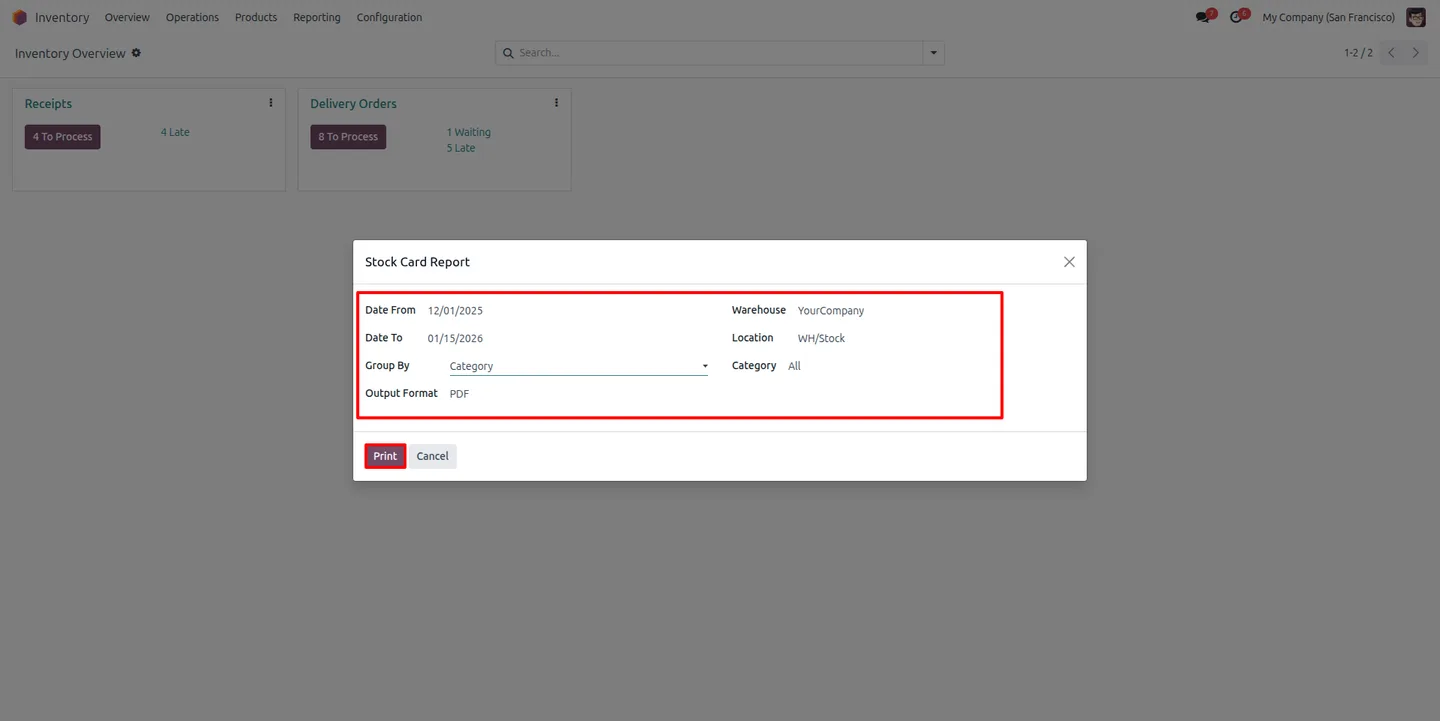
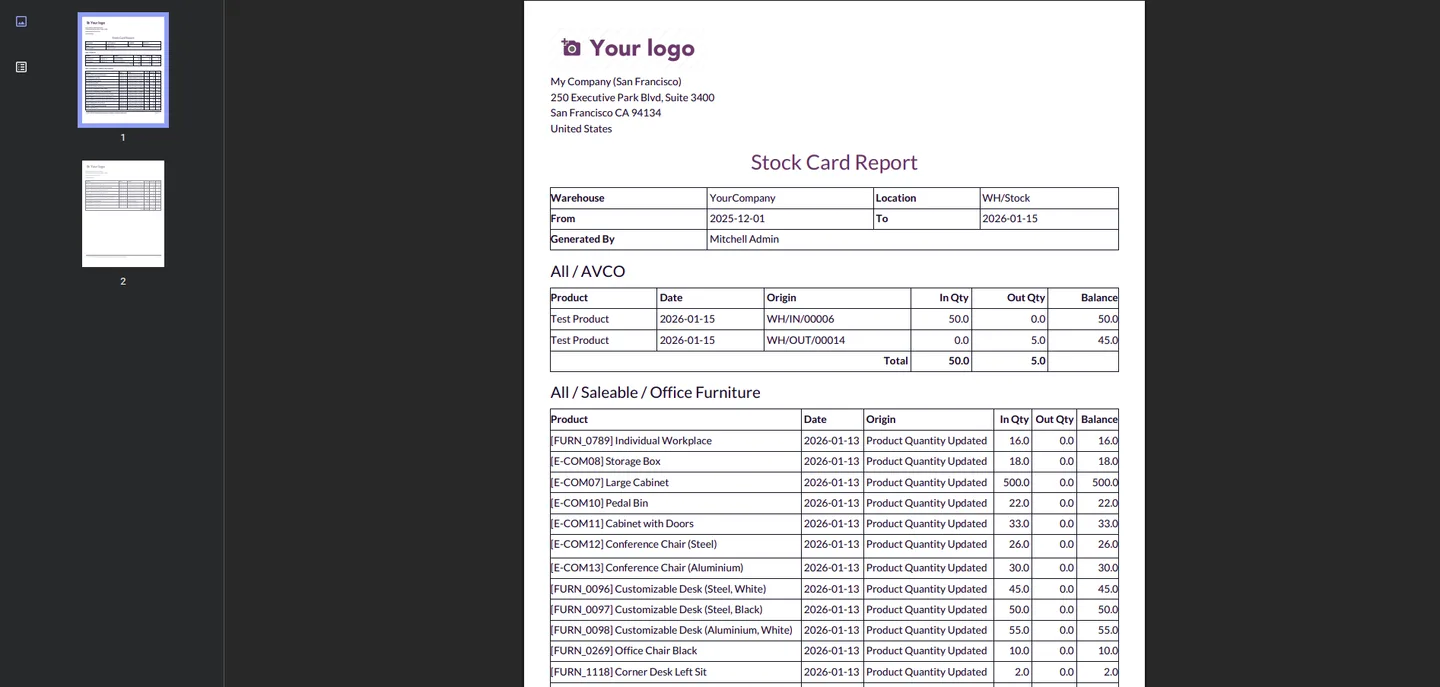
Group by category
Run the report by product category to review a whole group of products at once, with the product name shown on every line.
-
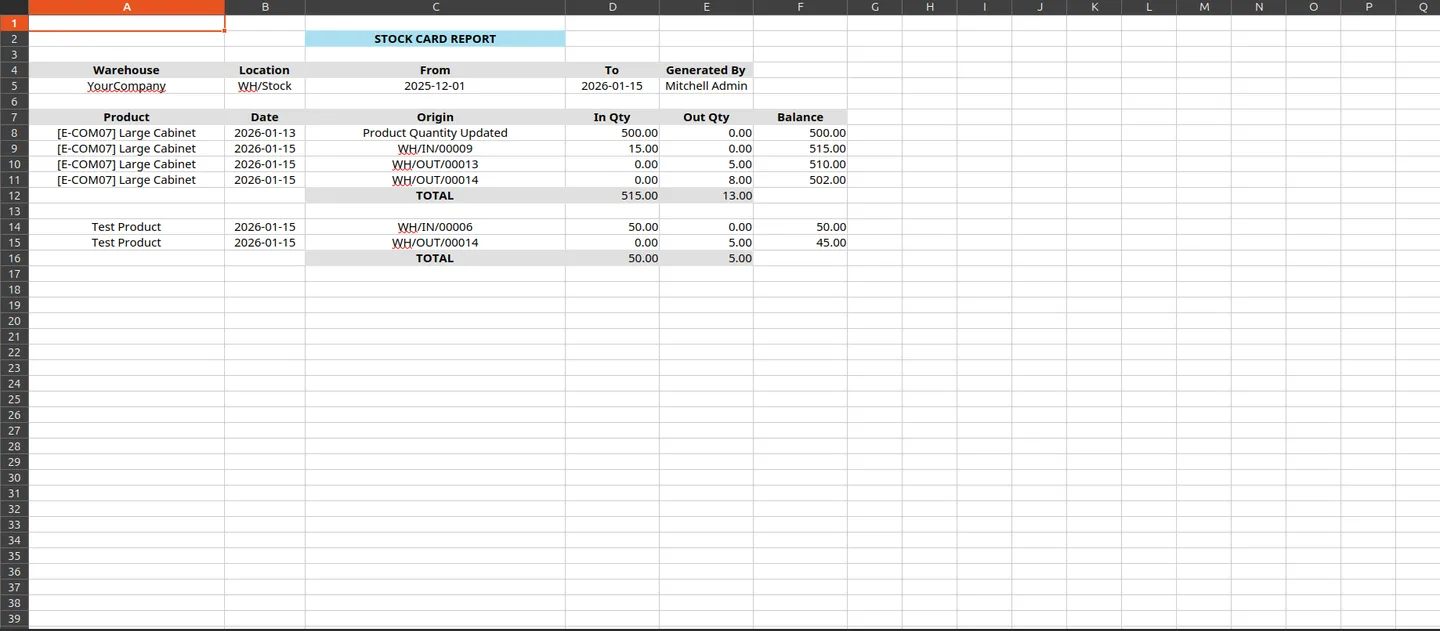
Incoming, outgoing, and balance
Each stock card lists incoming quantities, outgoing quantities, and the running balance after every movement, so stock levels are easy to follow.
-
PDF and Excel export
Generate each report as a PDF for a printed or archived copy, or as an XLSX file for further analysis in a spreadsheet.
-
Warehouse and location filters
Restrict a report to specific warehouses and stock locations, so the figures cover exactly the part of inventory you are reviewing.
-
Custom date range
Set a start and end date to scope the report to any reporting period — a month, a quarter, or an audit window.
-
Clear movement detail
Every line shows the transaction date, the document it came from, the quantity, and the resulting balance, giving a complete picture of each move.
Inventory Stock Card Report in Odoo
Every screen, in the order you meet it — configuration first, then the module in use.
Technical details
Specification
- Publisher
- TechUltra Solutions Private Limited
- Technical name
- inventory_stock_card_report
- Odoo versions
- 16.0, 17.0, 18.0, 19.0, 20.0
- Lines of code
- 455
- License
- Odoo Proprietary License v1.0 (OPL-1)
- Price
- $22.90 (one-time)
Deployment
- Odoo Online
- Odoo.sh
- On-premise
Odoo dependencies
- Inventory
- Discuss
Support
90 days of bug-fix support, Monday to Friday (10:00–19:00 IST). Raise a ticket at support@techultra.in.
Setup & configuration
From install to first call — here is the path.
- 1
Install the module
In Odoo, open Apps, remove the Apps filter, search for “Inventory Stock Card Report”, and click Install.
- 2
Grant report access
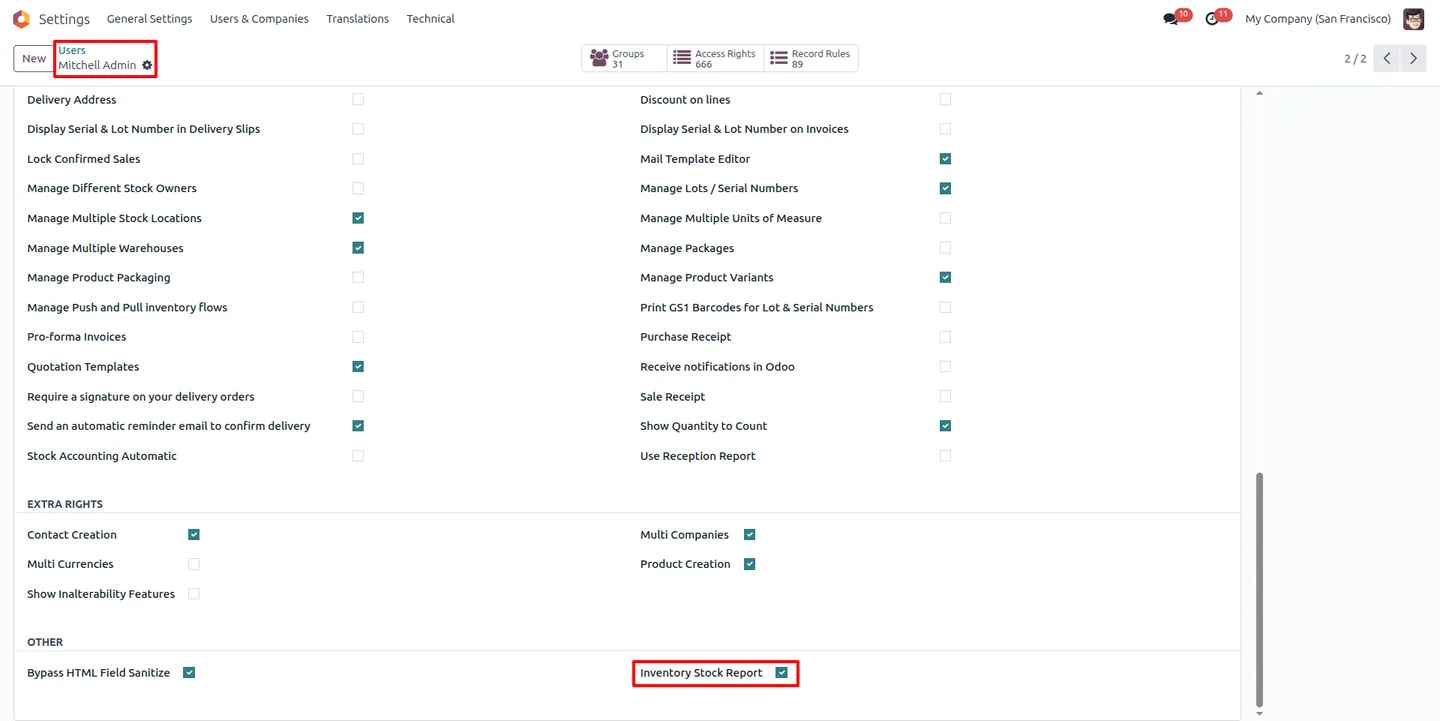
Go to Settings → Users & Companies and give the relevant users access to the Inventory Stock Report option added by the module.
- 3
Open the report
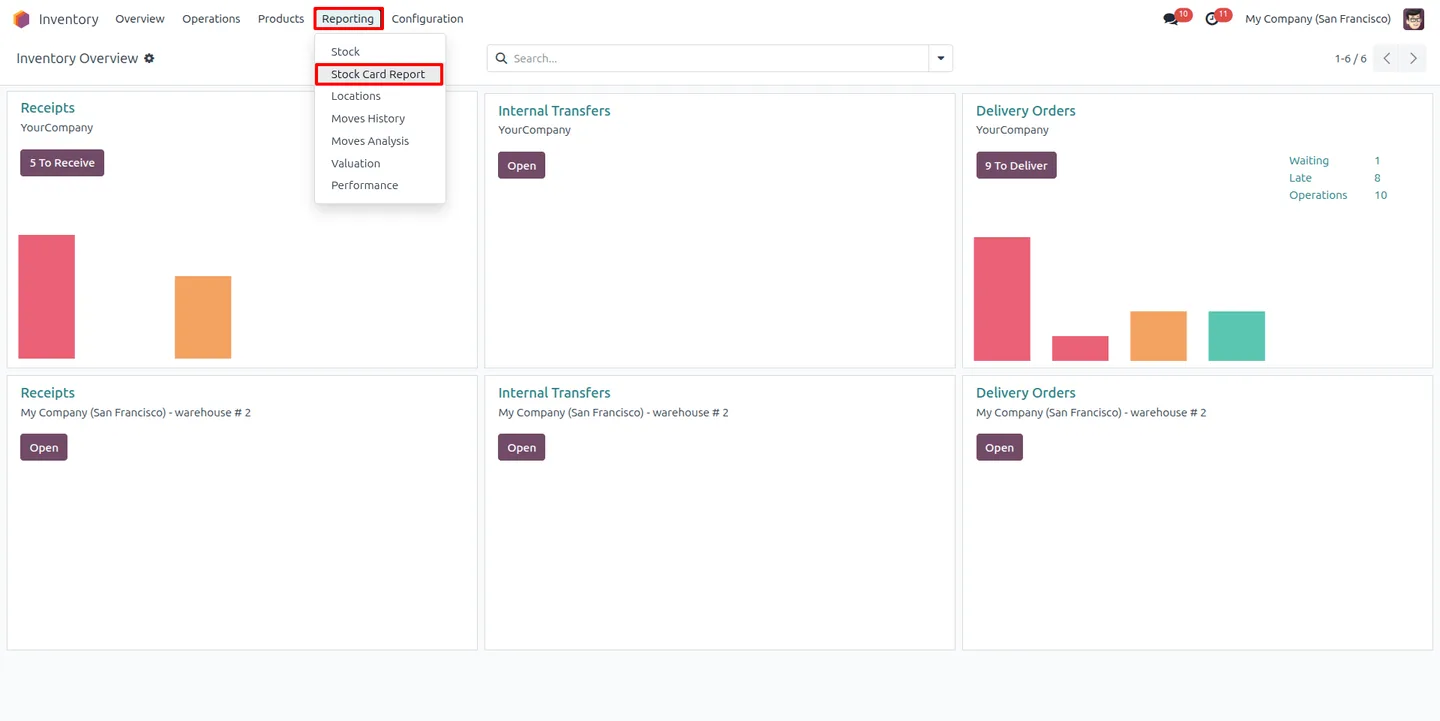
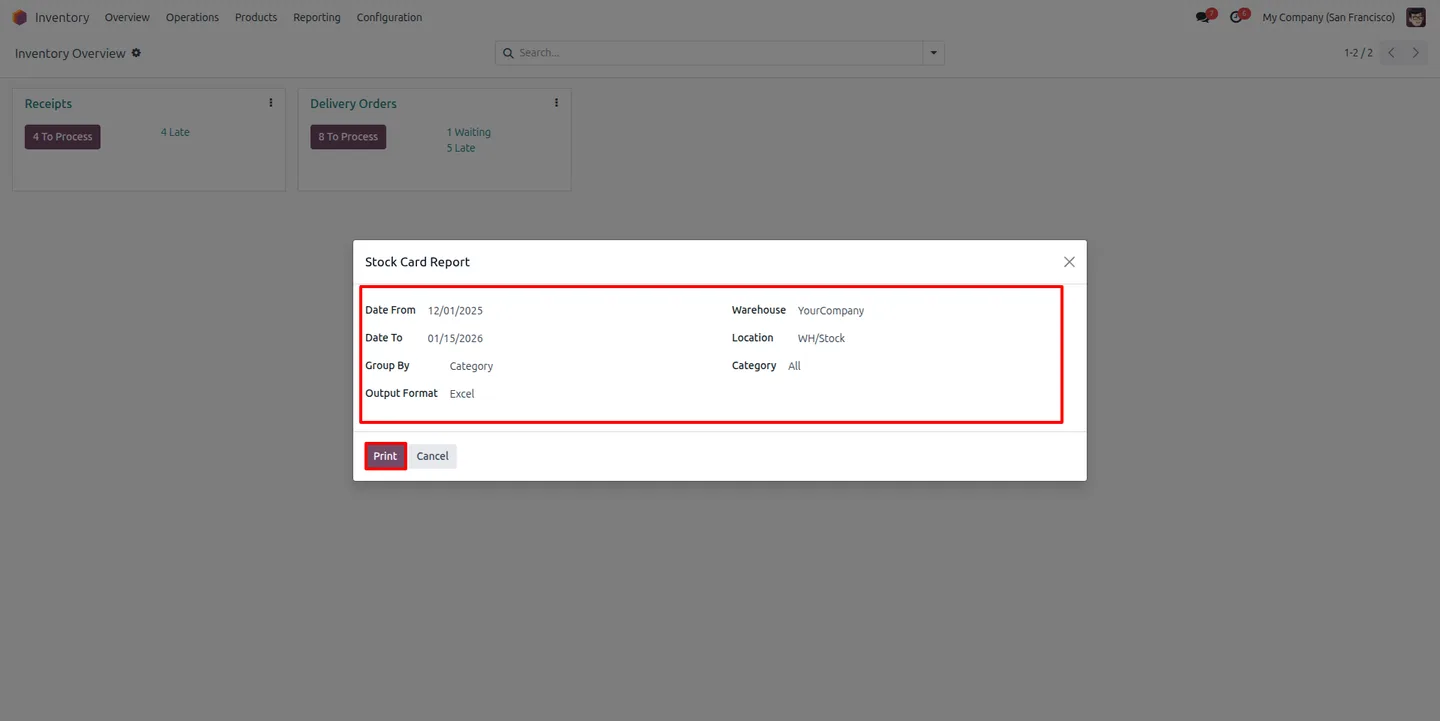
Navigate to Inventory → Reporting → Stock Card Report to open the report configuration screen.
- 4
Set the parameters
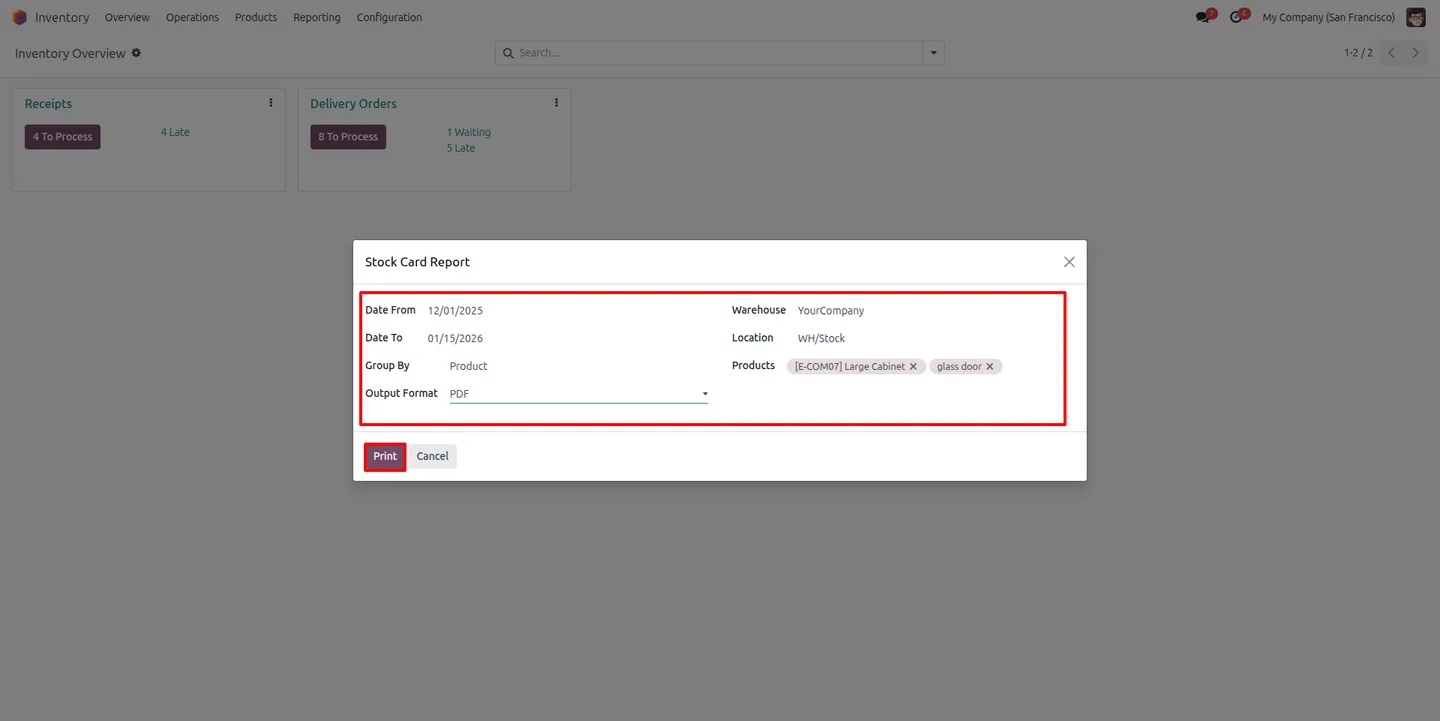
Choose the start and end dates, the grouping method (Product or Category), the products or categories to include, and any warehouse and location filters.
- 5
Generate the report
Pick the output format — PDF or XLSX — and click Print to generate the stock card report.
Frequently asked questions
-
What is a stock card?
A stock card is a chronological record of every movement for a product or category. It shows incoming quantities, outgoing quantities, and the running balance after each move, so you can trace exactly how stock levels changed.
-
Can I report on a whole product category at once?
Yes. The report can be grouped by category, which covers every product in that category in one run while still showing the product name on each line.
-
What export formats are available?
Reports export to both PDF and Excel (XLSX). The PDF suits printing or archiving, and the XLSX file is ready for further analysis in a spreadsheet.
-
Can I limit the report to one warehouse?
Yes. The report includes warehouse and location filters, so you can restrict it to a single warehouse or specific stock locations.
-
Can I choose the reporting period?
Yes. You set a custom start and end date for every report, so it can cover a month, a quarter, or any audit window you need.
-
What does each report line show?
Each line shows the transaction date, the source document, the quantity moved, and the running balance after the movement.
-
Which Odoo versions are supported?
The module supports Odoo 16.0, 17.0, 18.0, 19.0, and 20.0, in both the Community and Enterprise editions.
Listing verified against the Odoo App Store:
Related solutions
Whole-platform solutions that complement Inventory Stock Card Report.
Odoo Inventory + Warehouse Management
Odoo Inventory module — multi-warehouse, batch/serial, putaway, barcode, replenishment, cross-docking, dropship, consignment. Full WMS in your ERP.
Odoo Purchase
Odoo Purchase module — RFQ, PO, supplier portal, three-way match, blanket PO, drop-ship, sub-contracting. Integrated with Inventory + MRP + Accounting.
Related services
Get the most out of this module with senior TechUltra consultants.
Odoo Customization Services
Odoo customization from a Gold Partner: custom modules, workflows, reports and Studio changes, written upgrade-safe and quoted at a fixed scope. Free scoping call.
Hire Odoo Developers
Hire certified Odoo developers from a Gold Partner: one developer or a team, full-time or part-time, 70–160 hours a month. Silver, Gold or Platinum plan, free trial.
Odoo Support Services & Maintenance
Odoo support services from a Gold Partner: functional and technical support plus server cover for Enterprise and Community, 30-minute P1 response, 24/7 option.







