

Odoo App · Inventory
Inventory Count & Stock Audit
Run structured, locked, fully auditable stock counts across warehouses in Odoo.

Overview
Inventory Count & Stock Audit addresses the limits of Odoo's default inventory adjustment, which offers little structure or accountability. The module adds a dedicated Inventory Count record so a physical count becomes a tracked job from start to finish.
Built by TechUltra Solutions, it lets you scope each count by warehouse, location, product, and date range, then assign a responsible user when the count starts — and only that person can complete it. Counters enter actual quantities, and Odoo calculates the difference against on-hand stock before adjustments are applied.
Every adjustment is written to move history for a full audit trail, completed counts can be locked against further edits, and the module records how long a count took. It supports lot and serial numbers with expiry dates, which suits warehouses, third-party logistics (3PL) operations, and manufacturing.
Key features
-
Structured inventory count records
A dedicated Inventory Count record turns a physical count into a tracked job with its own status, location, product list, and reference rather than a loose adjustment.
-
Scoped counts
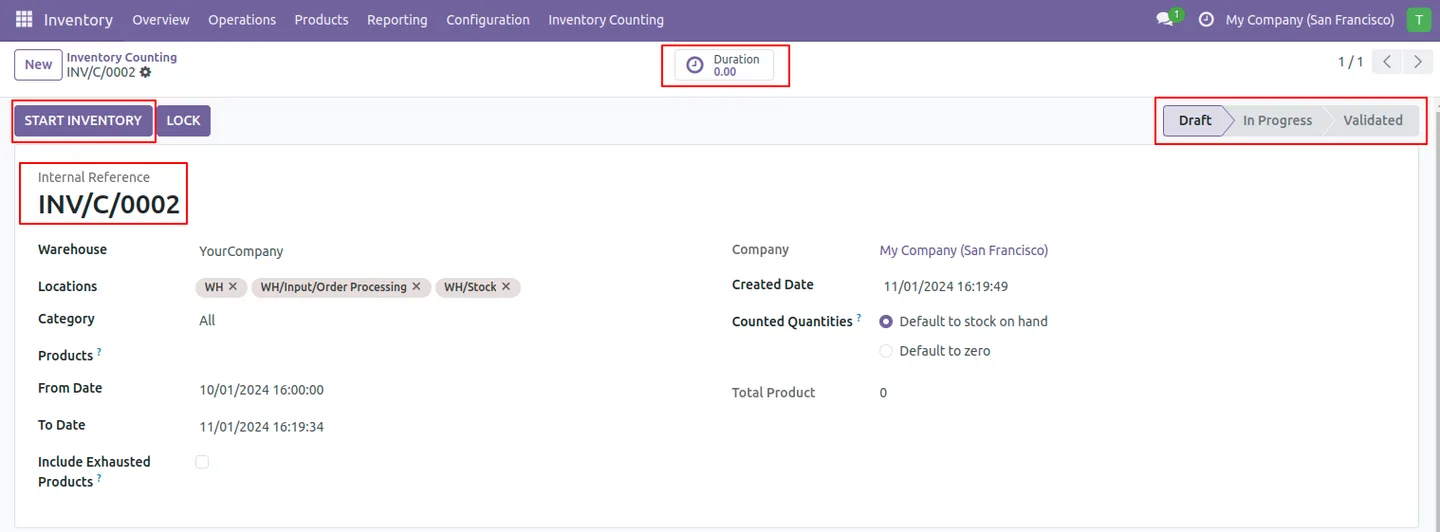
Define each count by warehouse, single or multiple locations, specific products, and a from/to date range, so a count covers exactly the stock you intend.
-
Responsibility tracking
When a count starts, the initiating user becomes the responsible person and is the only one authorised to complete it — clear ownership of every count.
-
Date and zero-quantity counting
Start a count from real-time quantities or from zero, and optionally include exhausted, zero-quantity products so nothing is missed.
-
Expiry-aware counting
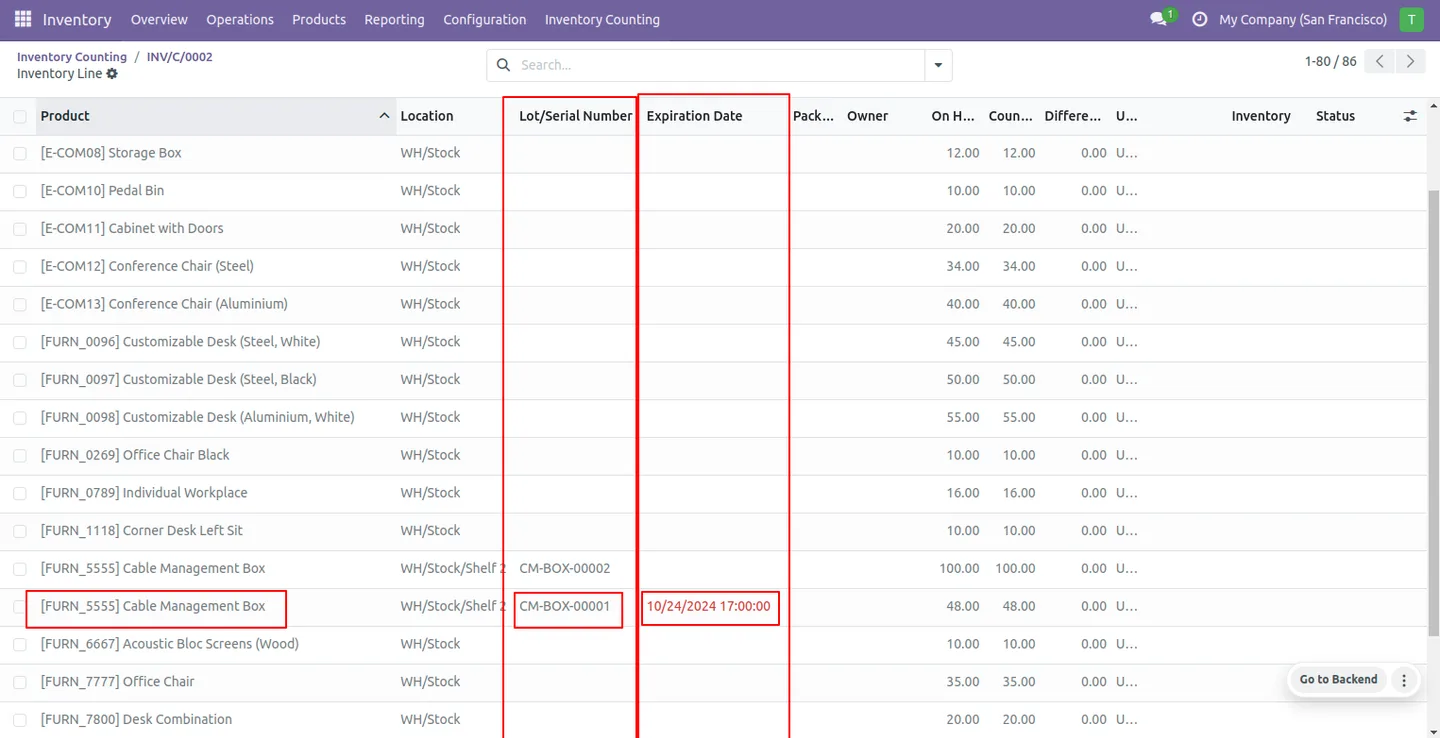
Count stock with lot or serial numbers and product expiry dates, suited to inventory where shelf life and traceability matter.
-
Automatic difference calculation
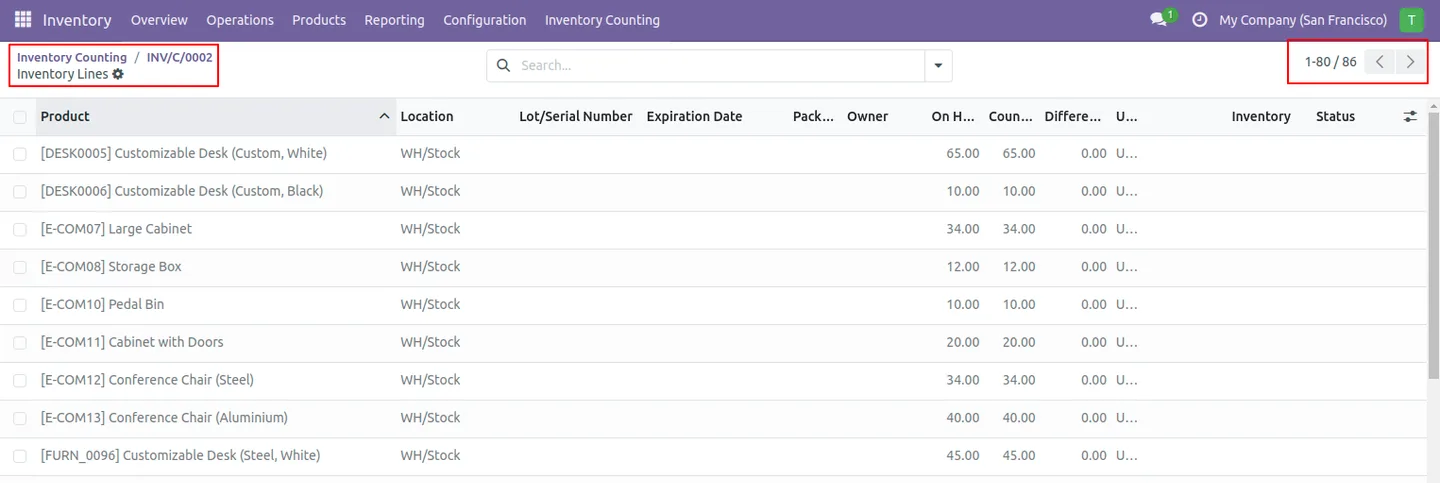
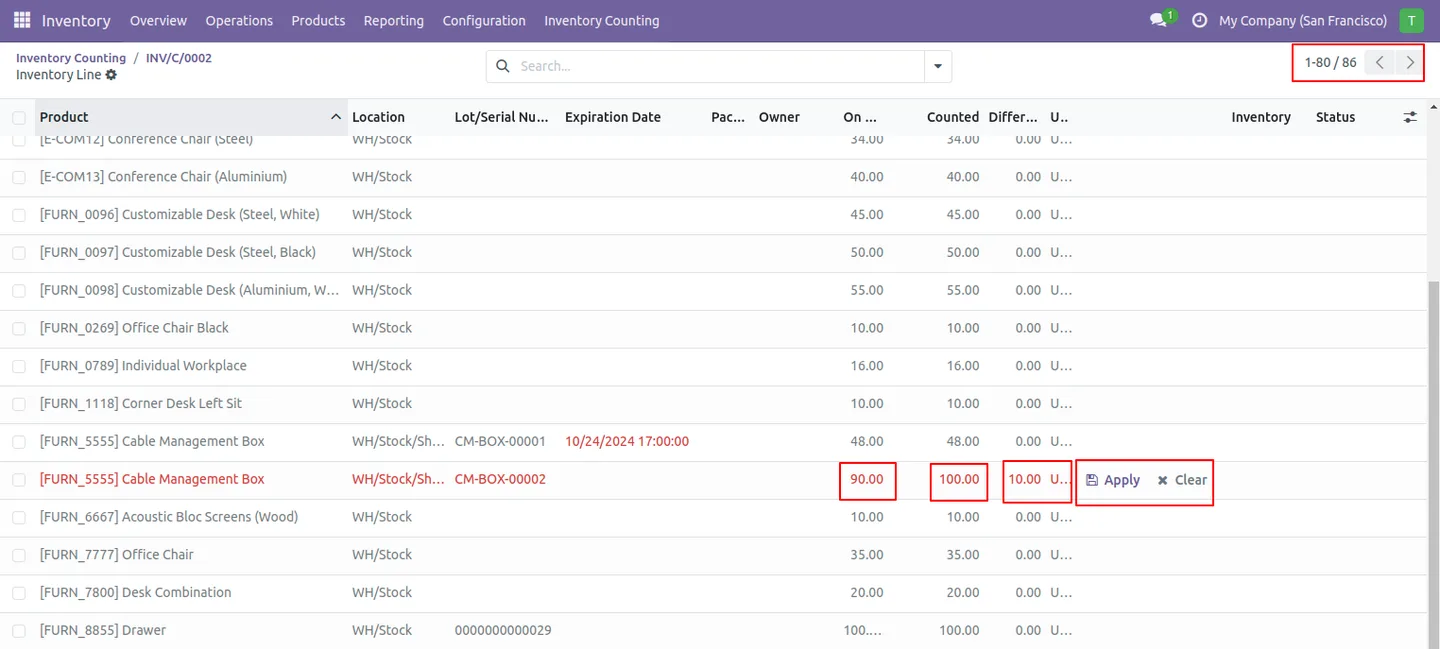
Counters enter the actual counted quantity and the module calculates the difference against on-hand stock, ready to apply or clear.
-
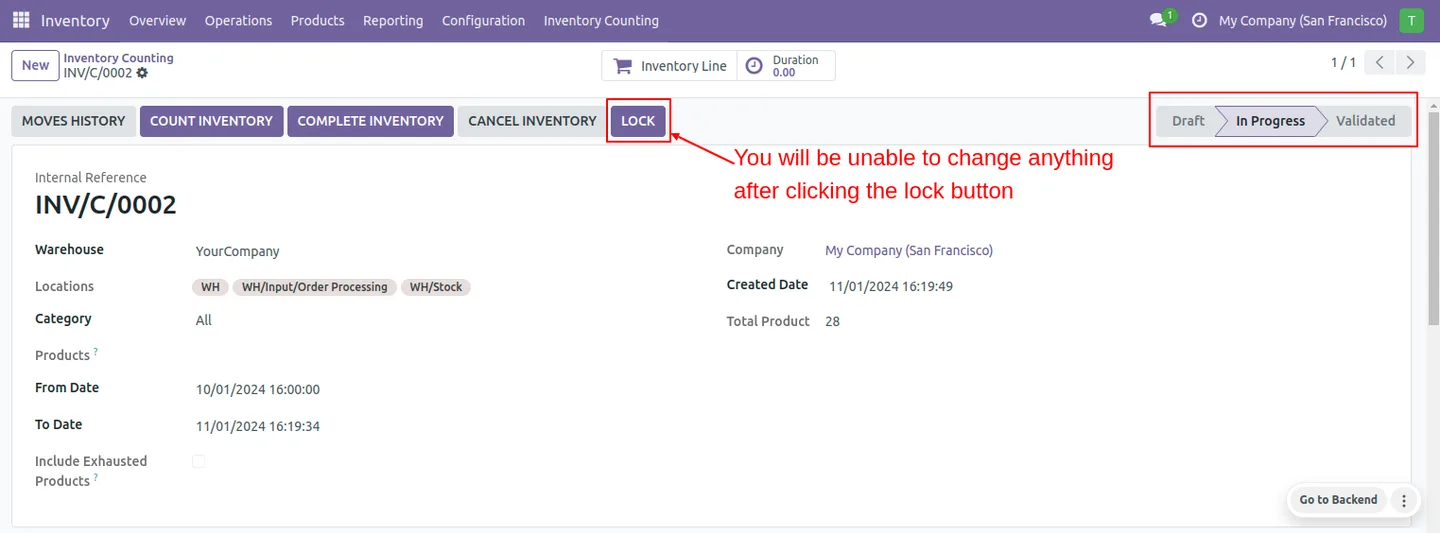
Inventory locking
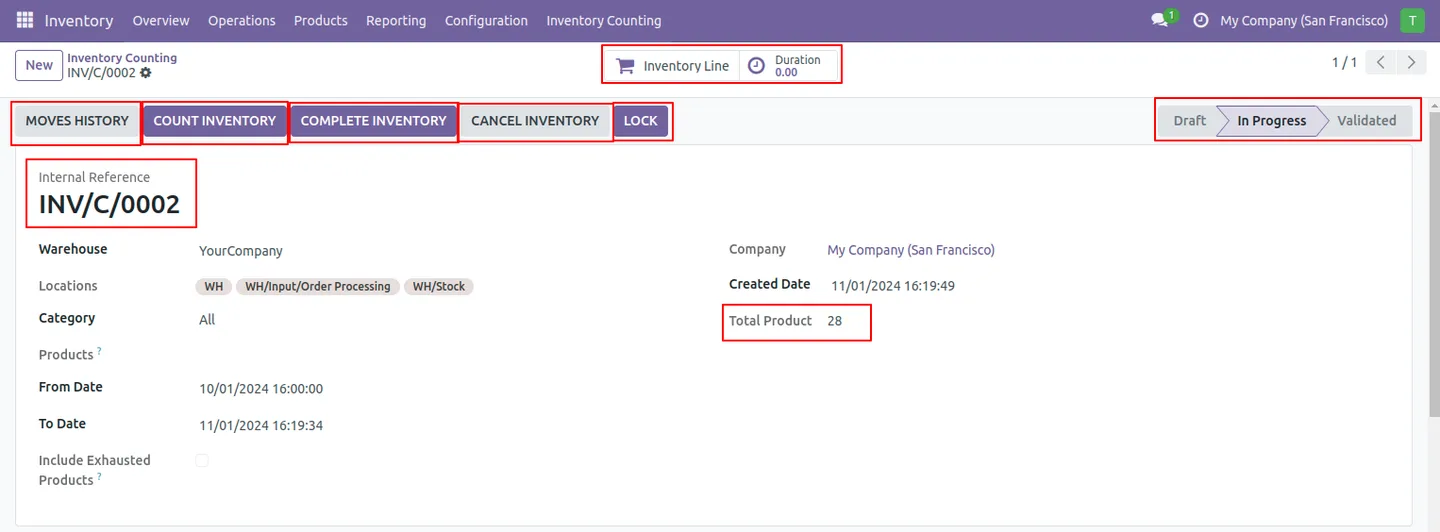
Completed counts can be locked, which prevents unauthorised changes to the figures after the count is finalised.
-
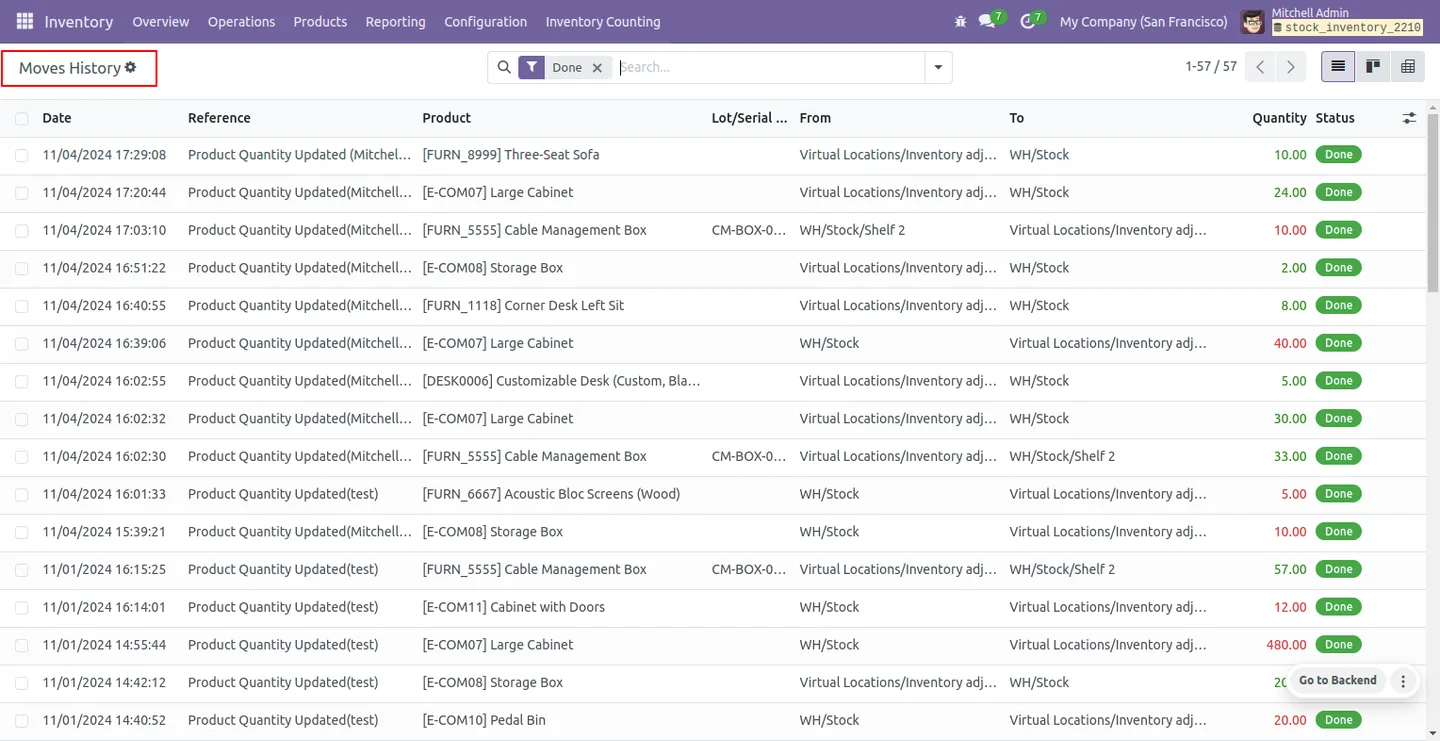
Move history audit trail
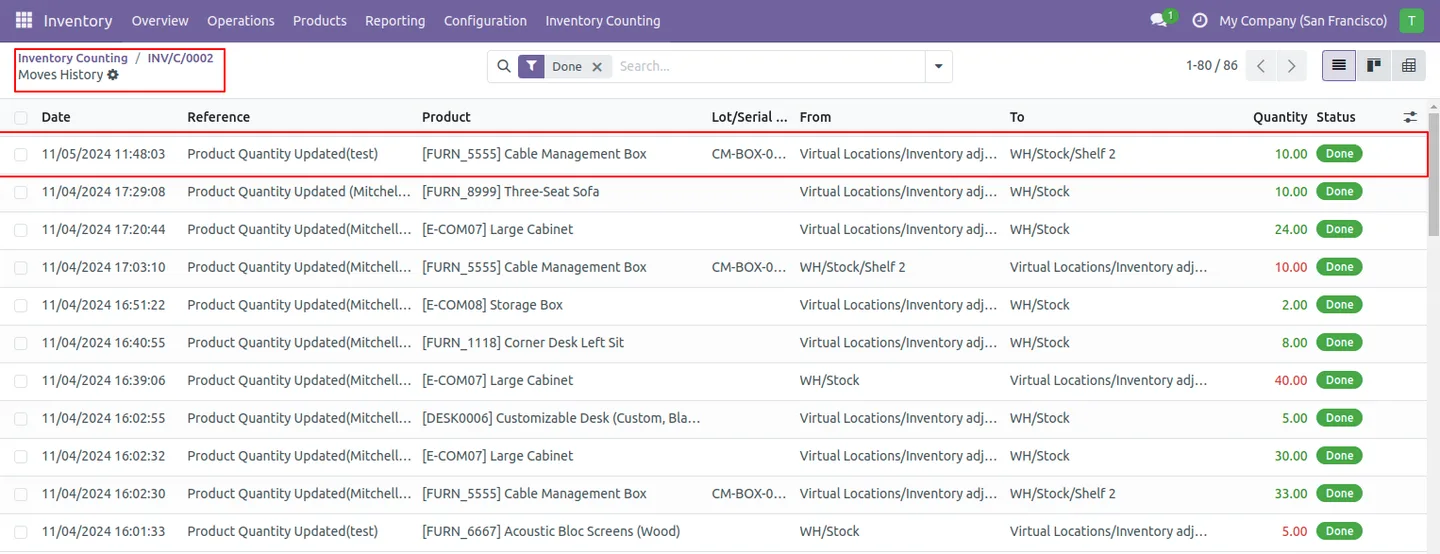
Applied adjustments create move history entries, giving a complete, reviewable record of every change a count made to stock.
-
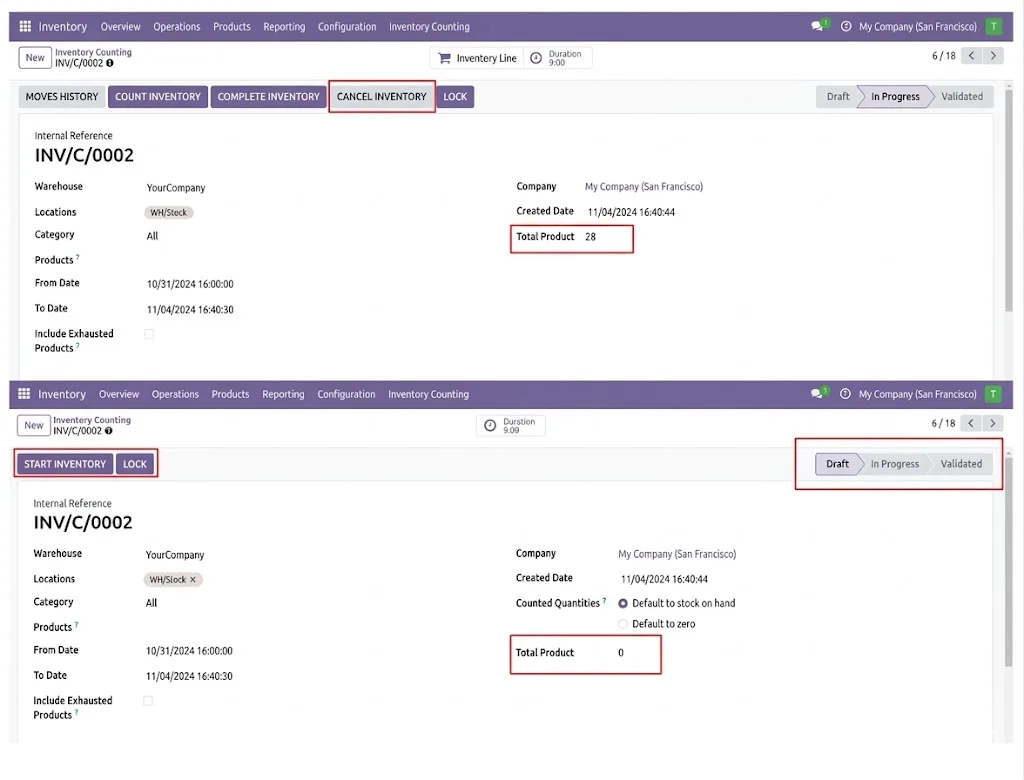
Cancel and reset
A count can be cancelled at any stage and reset to draft, so a mistaken or interrupted count is easy to redo.
-
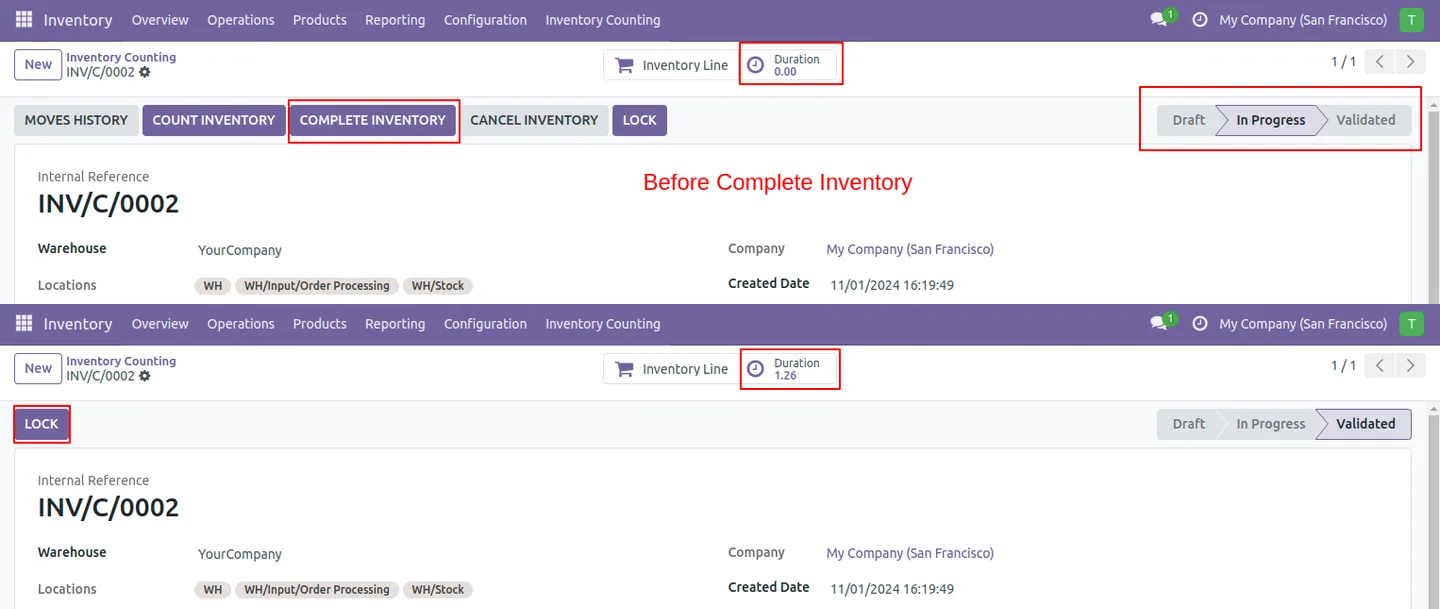
Count duration tracking
The module records the total time spent on a count, giving managers a measure of how long stock-takes take.
Inventory Count & Stock Audit in Odoo
Every screen, in the order you meet it — configuration first, then the module in use.
Technical details
Specification
- Publisher
- TechUltra Solutions Private Limited
- Technical name
- stock_inventory_count_tus
- Odoo versions
- 15.0, 16.0, 17.0, 18.0, 19.0, 20.0
- Lines of code
- 1,296
- License
- Odoo Proprietary License v1.0 (OPL-1)
- Price
- $28.99 (one-time)
Deployment
- Odoo Online
- Odoo.sh
- On-premise
Odoo dependencies
- Inventory
- Discuss
Support
90 days of bug-fix support, Monday to Friday (10:00–19:00 IST). Raise a ticket at support@techultra.in.
Setup & configuration
From install to first call — here is the path.
- 1
Install the module
In Odoo, open Apps, remove the Apps filter, search for “Inventory Count & Stock Audit”, and click Install.
- 2
Set user rights
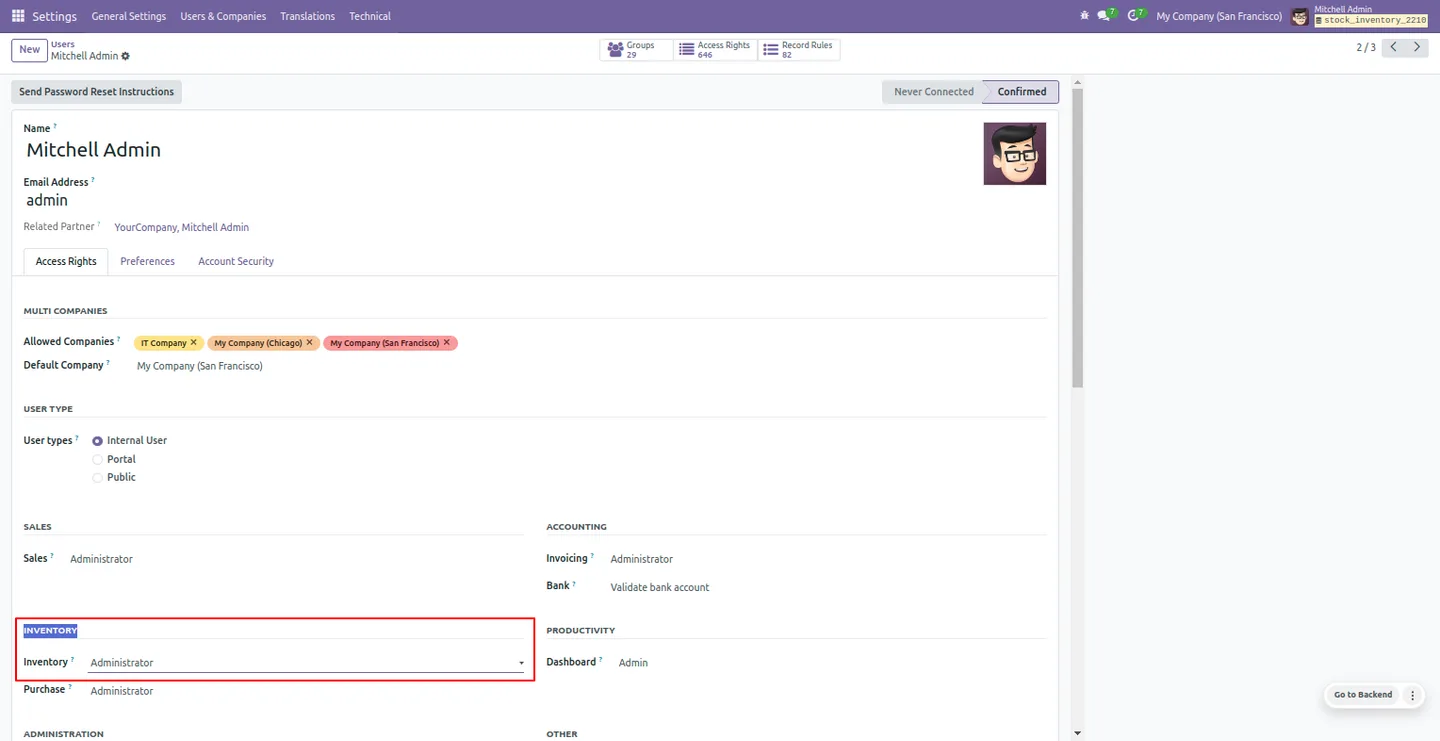
Give the staff who will run counts Inventory user or administrator rights so they can reach the Inventory Count features.
- 3
Create an inventory count
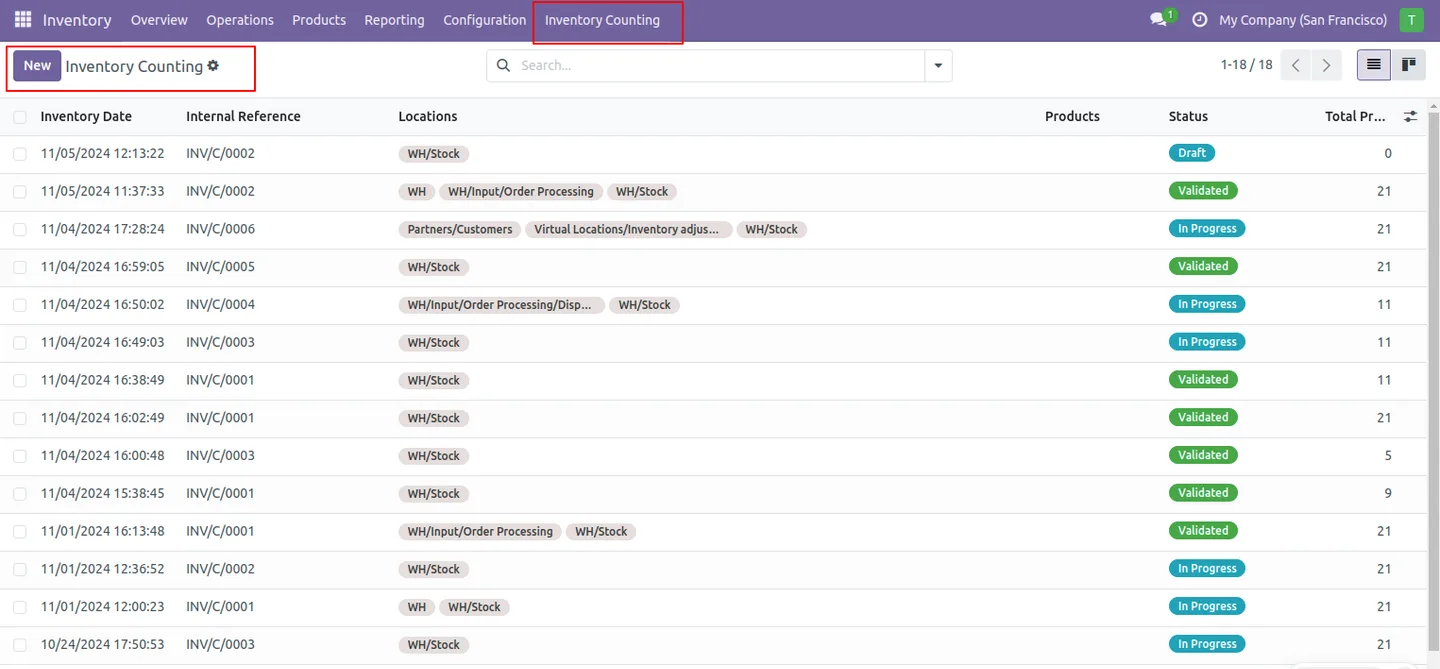
Open the Inventory Count tab in the Inventory app, click New, and set the warehouse, locations, products, date range, counting method, and whether to include exhausted products.
- 4
Start the count
Click Start Inventory. The user who starts it becomes the responsible person and the only one allowed to complete the count.
- 5
Count and apply adjustments
Click Count Inventory, enter the actual counted quantity on each line, then Apply to record adjustments to move history or Clear to discard them.
- 6
Complete and lock the count
Click Complete Inventory to finalise the count. Odoo validates it, shows the total duration, and enables Lock to prevent further changes.
Frequently asked questions
-
How is this different from Odoo's default inventory adjustment?
Odoo's default adjustment offers little structure or accountability. This module adds a dedicated Inventory Count record with scoping, a responsible user, locking, duration tracking, and a move-history audit trail.
-
Can I limit a count to part of my stock?
Yes. Each count is scoped by warehouse, single or multiple locations, specific products, and a from/to date range, so it covers exactly the stock you choose.
-
Who can complete a count?
Only the responsible person. When a user clicks Start Inventory they become responsible for that count and are the only one authorised to complete it.
-
Does it handle lot or serial numbers and expiry dates?
Yes. The module supports counting products that use lot or serial numbers and have expiry dates, with expiry-based counting for stock where shelf life matters.
-
Can I stop unauthorised edits after a count?
Yes. A completed count can be locked, which prevents changes to the finalised figures. A count can also be cancelled and reset to draft before completion.
-
Where can I review the adjustments a count made?
Applied adjustments create move history entries, so you have a complete, reviewable audit trail of every change a count made to stock.
-
Which Odoo versions are supported?
The module supports Odoo 15.0, 16.0, 17.0, 18.0, 19.0, and 20.0, in both the Community and Enterprise editions.
-
Is support included?
Yes. The module includes 90 days of bug-fix support, Monday to Friday, 10:00–19:00 IST.
Listing verified against the Odoo App Store:
Related solutions
Whole-platform solutions that complement Inventory Count & Stock Audit.
Odoo Inventory + Warehouse Management
Odoo Inventory module — multi-warehouse, batch/serial, putaway, barcode, replenishment, cross-docking, dropship, consignment. Full WMS in your ERP.
Odoo Purchase
Odoo Purchase module — RFQ, PO, supplier portal, three-way match, blanket PO, drop-ship, sub-contracting. Integrated with Inventory + MRP + Accounting.
Related services
Get the most out of this module with senior TechUltra consultants.
Odoo Customization Services
Odoo customization from a Gold Partner: custom modules, workflows, reports and Studio changes, written upgrade-safe and quoted at a fixed scope. Free scoping call.
Hire Odoo Developers
Hire certified Odoo developers from a Gold Partner: one developer or a team, full-time or part-time, 70–160 hours a month. Silver, Gold or Platinum plan, free trial.
Odoo Support Services & Maintenance
Odoo support services from a Gold Partner: functional and technical support plus server cover for Enterprise and Community, 30-minute P1 response, 24/7 option.







