

Odoo App · HR & Attendance
HR Leave Balance Report
Allocated, taken, and remaining leave per employee, department, and leave type — with Excel export.

Overview
HR Leave Balance Report is a focused reporting add-on for Odoo 17 Time Off. It gives HR a single view of allocated, taken, and remaining leave for every employee, broken down by department or leave type — without exporting CSVs or stitching together pivot tables.
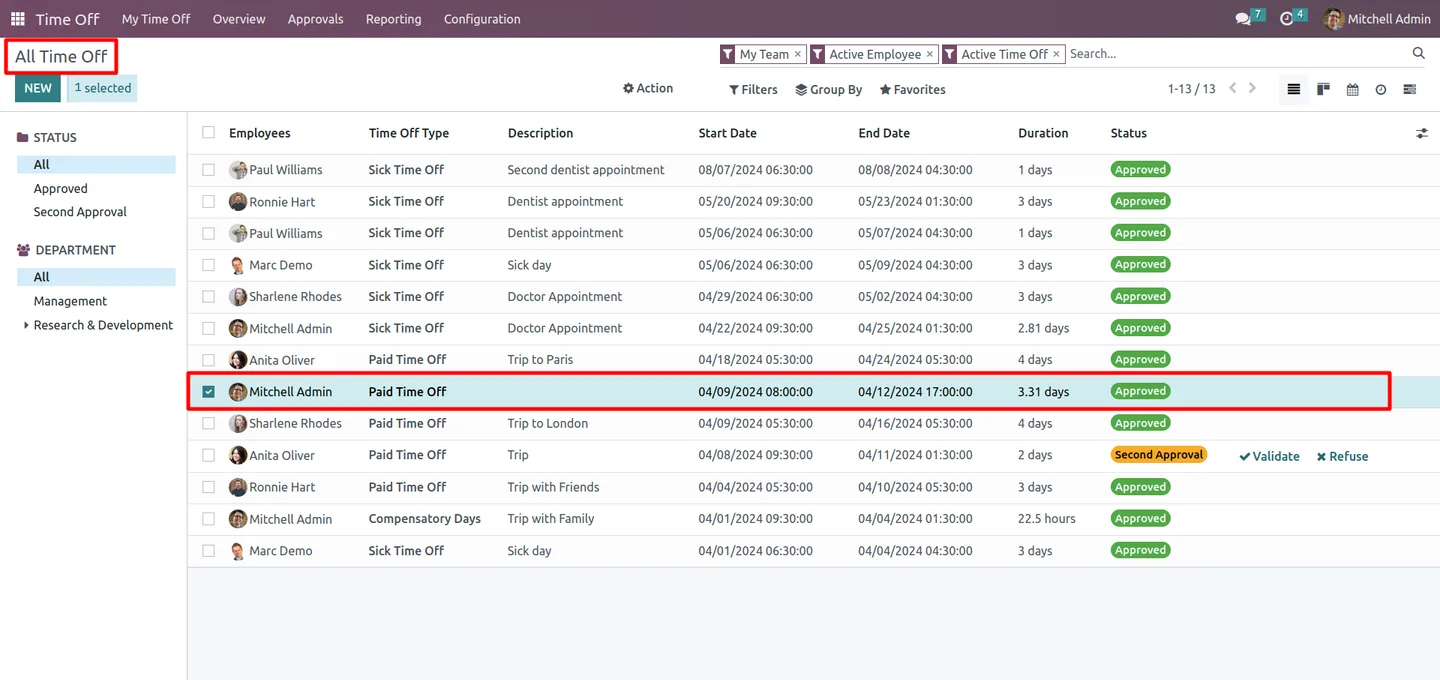
Built by TechUltra Solutions, the module sits inside the standard Time Off menu and ships with Odoo's familiar filter and group-by controls. Filter by employee, department, leave type, or date range; group by department or leave type to see aggregated balances; then drill into individual rows to confirm the underlying allocations and time-off requests.
An Excel export button hands the same data to finance or workforce planners in a spreadsheet-ready format. The module has no setup — install it and the new Time Off Balance Report appears under Time Off → Reporting.
Key features
-
Time Off Balance Report
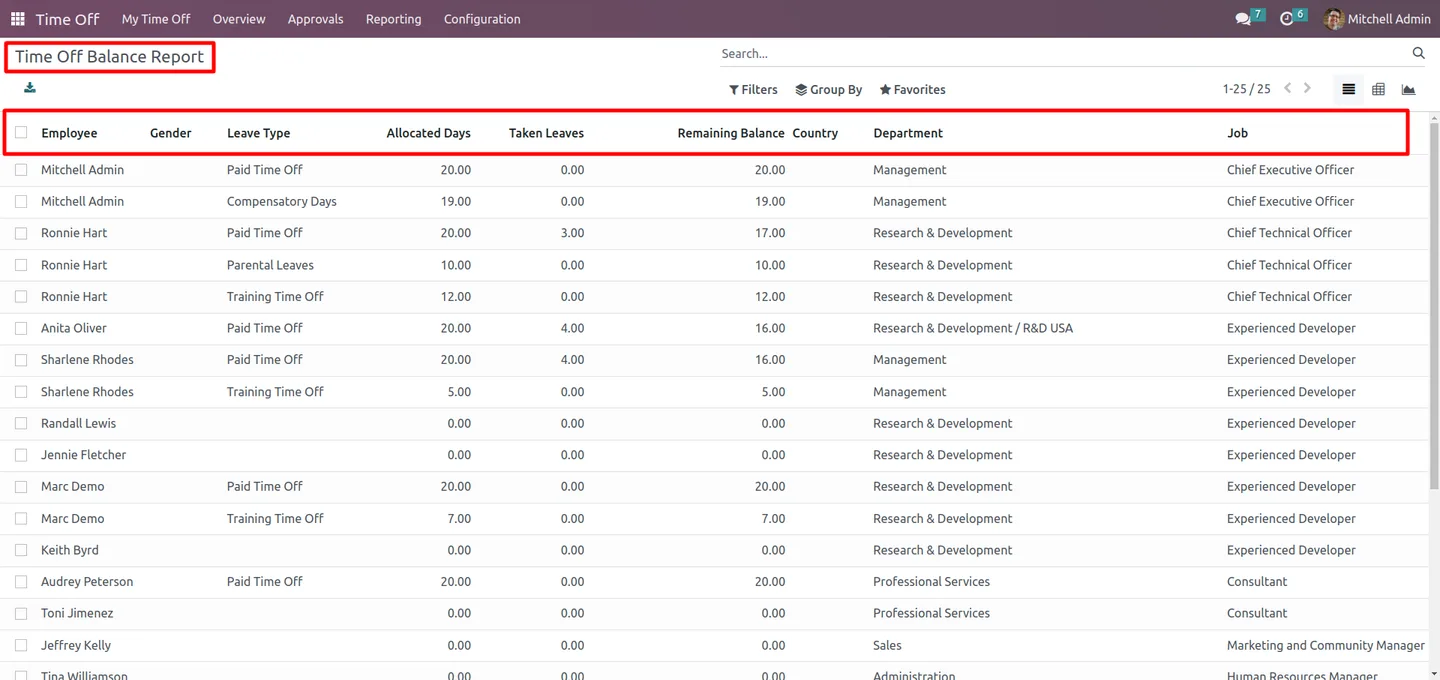
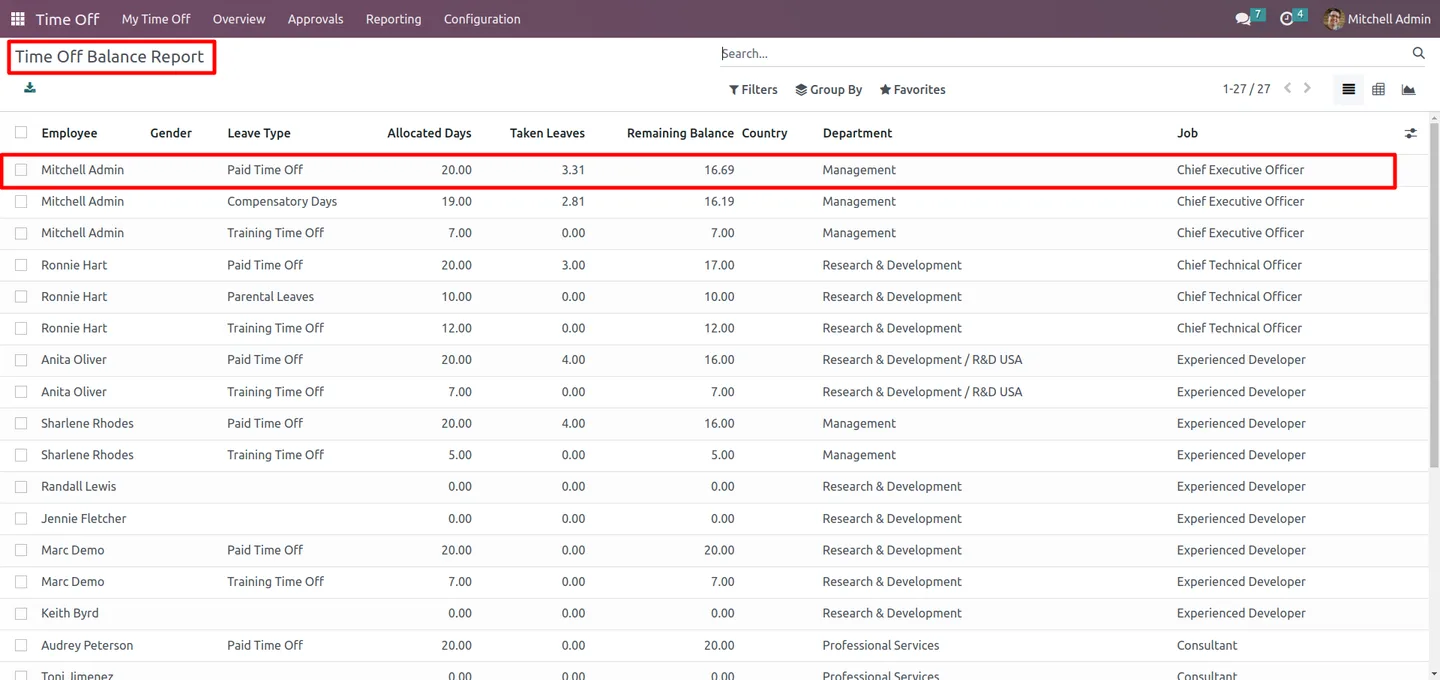
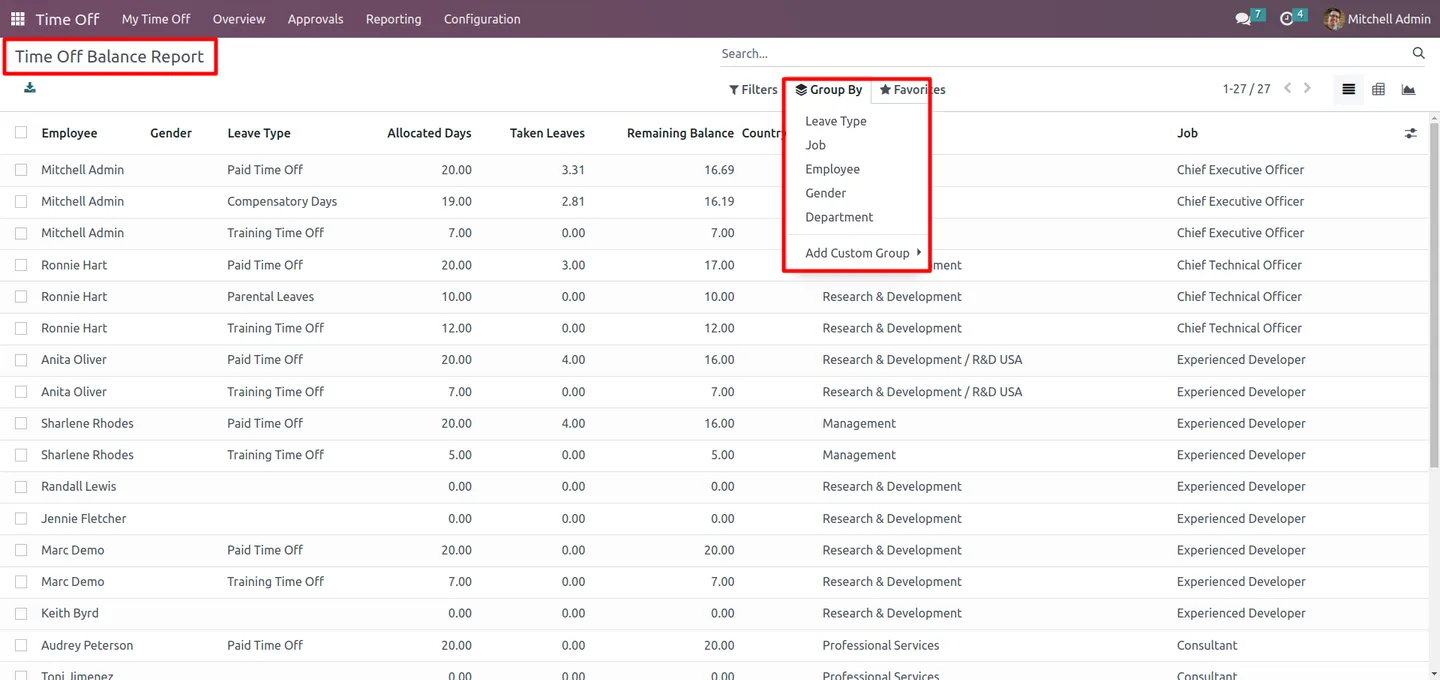
A new report under Time Off → Reporting showing allocated, taken, and remaining leave per employee — the three numbers HR is always asked about, in one row each.
-
Breakdown by employee, department, or leave type
View leave allocations, usage, and balances by individual employee, by department, or by leave type — the same data sliced however the conversation needs.
-
Standard Odoo filter and group-by controls
Use the standard Odoo filter and group-by options to narrow the report by employee, manager, leave type, or date range — no custom view to learn.
-
Excel export
Download the full report in Excel format with a single click — useful for payroll handoff, board packs, or sharing with department heads.
-
Departmental rollup
Group by department to see total leave allocated, taken, and remaining at the team level — quick visibility into which departments are running low on coverage.
-
Leave-type analysis
Group by leave type to see how casual, sick, paid, and other leave categories are being consumed across the workforce.
-
Zero configuration
There is no setup wizard and no settings page. Install the module and the new report is immediately available under Time Off → Reporting.
HR Leave Balance Report in Odoo
Every screen, in the order you meet it — configuration first, then the module in use.

Technical details
Specification
- Publisher
- TechUltra Solutions Private Limited
- Technical name
- tus_hr_holidays_balance_report
- Odoo versions
- 17.0
- Lines of code
- 81
- License
- Odoo Proprietary License v1.0 (OPL-1)
- Price
- $79 (one-time)
Deployment
- Odoo Online
- Odoo.sh
- On-premise
Odoo dependencies
- Employees
- Time Off
- Discuss
- Calendar
Support
90 days of bug-fix support, Monday to Friday (10:00–19:00 IST). Raise a ticket at support@techultra.in.
Setup & configuration
From install to first call — here is the path.
- 1
Install the module
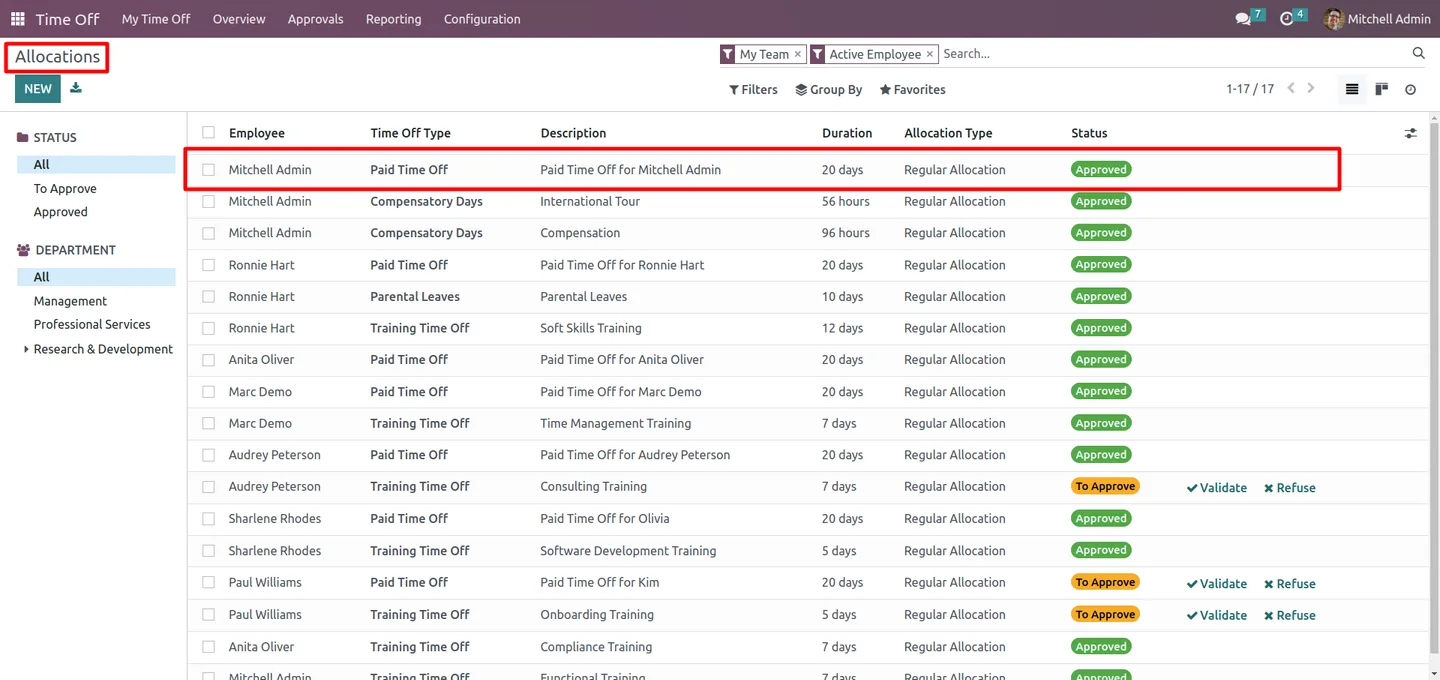
In Odoo, open Apps, remove the Apps filter, search for “HR Leave Balance Report”, and click Install. The Employees, Time Off, Discuss, and Calendar apps must already be installed.
- 2
Open the new report
Navigate to Time Off → Reporting → Time Off Balance Report. The report opens with one row per employee showing allocated, taken, and remaining leave.
- 3
Apply filters
Use the standard Odoo Filters menu to narrow by employee, department, manager, leave type, or date range — match the report to the conversation you are about to have.
- 4
Group the data
Use Group By to roll the report up by department or by leave type. This is the fastest way to see which teams are running low on coverage.
- 5
Export to Excel
Click the Excel export action to download the current view as a spreadsheet — useful for payroll handoff, headcount planning, or sharing with department heads.
Frequently asked questions
-
Which Odoo versions are supported?
The module is published for Odoo 17.0, in both Community and Enterprise editions. The standard Time Off, Employees, Discuss, and Calendar apps need to be installed first.
-
Where does the report live in Odoo?
Under Time Off → Reporting → Time Off Balance Report. It sits alongside the standard Time Off reports, so HR does not have to learn a new menu.
-
What numbers does the report show?
For each employee it shows allocated leave, leave taken, and remaining balance, broken down by leave type. You can group those rows by department or leave type to see aggregated balances.
-
Can I export the report to Excel?
Yes. A built-in Excel export action downloads the current view — including the filters and grouping you have applied — as a spreadsheet ready to share or hand to payroll.
-
Does the module require configuration?
No. There is no setup wizard or settings page — install the module and the new Time Off Balance Report appears under Time Off → Reporting straight away.
-
Does it work with multiple leave types?
Yes. Every leave type defined in Time Off — casual, sick, paid, unpaid, custom — flows into the report, with grouping by leave type so you can analyse usage category by category.
-
Is support included?
Yes. The module includes 90 days of bug-fix support, Monday to Friday, 10:00–19:00 IST.
Listing verified against the Odoo App Store:
Related solutions
Whole-platform solutions that complement HR Leave Balance Report.
Related services
Get the most out of this module with senior TechUltra consultants.
Odoo Customization Services
Odoo customization from a Gold Partner: custom modules, workflows, reports and Studio changes, written upgrade-safe and quoted at a fixed scope. Free scoping call.
Hire Odoo Developers
Hire certified Odoo developers from a Gold Partner: one developer or a team, full-time or part-time, 70–160 hours a month. Silver, Gold or Platinum plan, free trial.
Odoo Support Services & Maintenance
Odoo support services from a Gold Partner: functional and technical support plus server cover for Enterprise and Community, 30-minute P1 response, 24/7 option.







