

Odoo App · Accounting & Finance
Fiscal Position Automation
Auto-create default and state-based fiscal positions when you set up a company in Odoo 17 Enterprise.

Overview
Setting up fiscal positions for a new company in Odoo is mechanical work: pick the country, pick the state, then manually create one fiscal position per interstate combination so the right taxes apply on invoicing. For multi-state operations this is dozens of records, all of them following the same pattern.
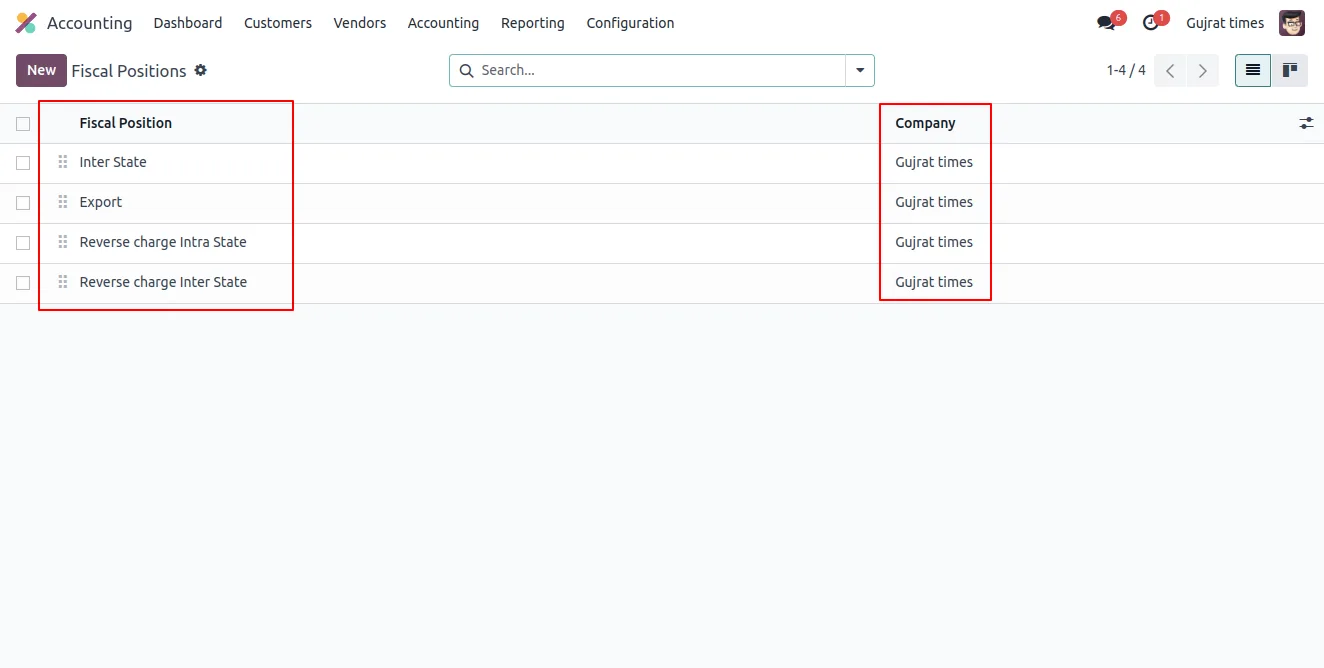
Fiscal Position Automation, built by TechUltra Solutions, removes that work. The module reads the company's state and country, applies the fiscal localization, and generates the matching fiscal positions automatically — including interstate fiscal positions with state mappings filled in.
It is a tightly scoped, Enterprise-only module: 52 lines of code, three dependencies (Accounting, Invoicing, Discuss), and a single goal — get accounting from a fresh company record to a usable fiscal-positions list in five clicks instead of an afternoon.
Key features
-
Auto-create fiscal positions from company state and country
When you set the company's state and country and apply fiscal localization, the module creates the matching default fiscal positions automatically — no manual record-by-record setup.
-
Interstate fiscal position mapping
The module populates interstate fiscal positions with state-by-state mappings so taxes resolve correctly the first time you invoice a customer in a different state.
-
Built on Odoo's accounting configuration
Integrates with Odoo Enterprise's standard accounting configuration — the generated positions appear under Accounting → Configuration → Fiscal Positions exactly where the team expects them.
-
Customisable after generation
Auto-generated positions are standard Odoo records — you can edit names, tax mappings, account mappings, and conditions afterwards to match your specific business rules.
-
Multi-company friendly
Repeat the setup for each new company you add. The module reads each company's state and country, so each entity ends up with its own auto-generated fiscal positions.
-
Lightweight Enterprise add-on
A focused 52-line module with three dependencies — Accounting (Enterprise), Invoicing, and Discuss — built specifically for Odoo 17 Enterprise.
Fiscal Position Automation in Odoo
Every screen, in the order you meet it — configuration first, then the module in use.


Technical details
Specification
- Publisher
- TechUltra Solutions Private Limited
- Technical name
- account_extended
- Odoo versions
- 17.0
- Edition
- Enterprise only (requires the Accounting app)
- Lines of code
- 52
- License
- Odoo Proprietary License v1.0 (OPL-1)
- Price
- $49 (one-time)
Deployment
- Odoo Online
- Odoo.sh
- On-premise
Odoo dependencies
- Accounting
- Invoicing
- Discuss
Support
90 days of bug-fix support, Monday to Friday (10:00–19:00 IST). Raise a ticket at support@techultra.in.
Setup & configuration
From install to first call — here is the path.
- 1
Install the module
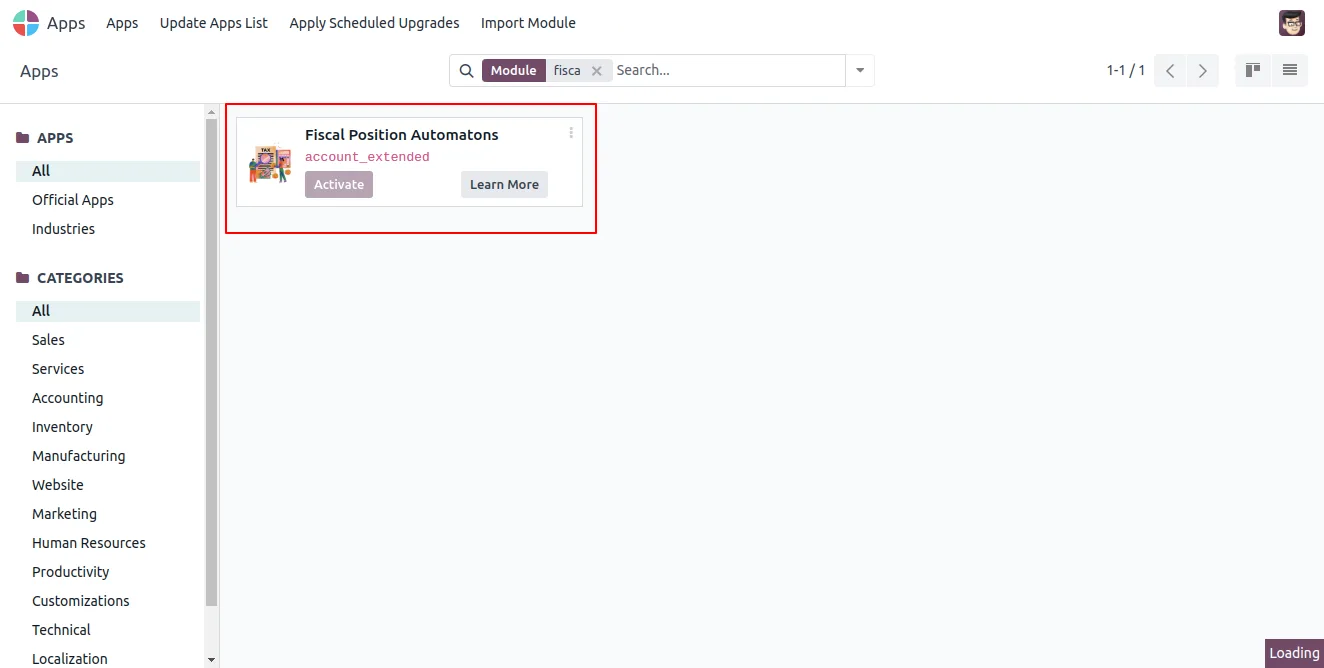
In Odoo, open Apps, remove the Apps filter, search for “Fiscal Position Automation”, and click Install. The Accounting (Enterprise), Invoicing, and Discuss apps must already be installed.
- 2
Create the company
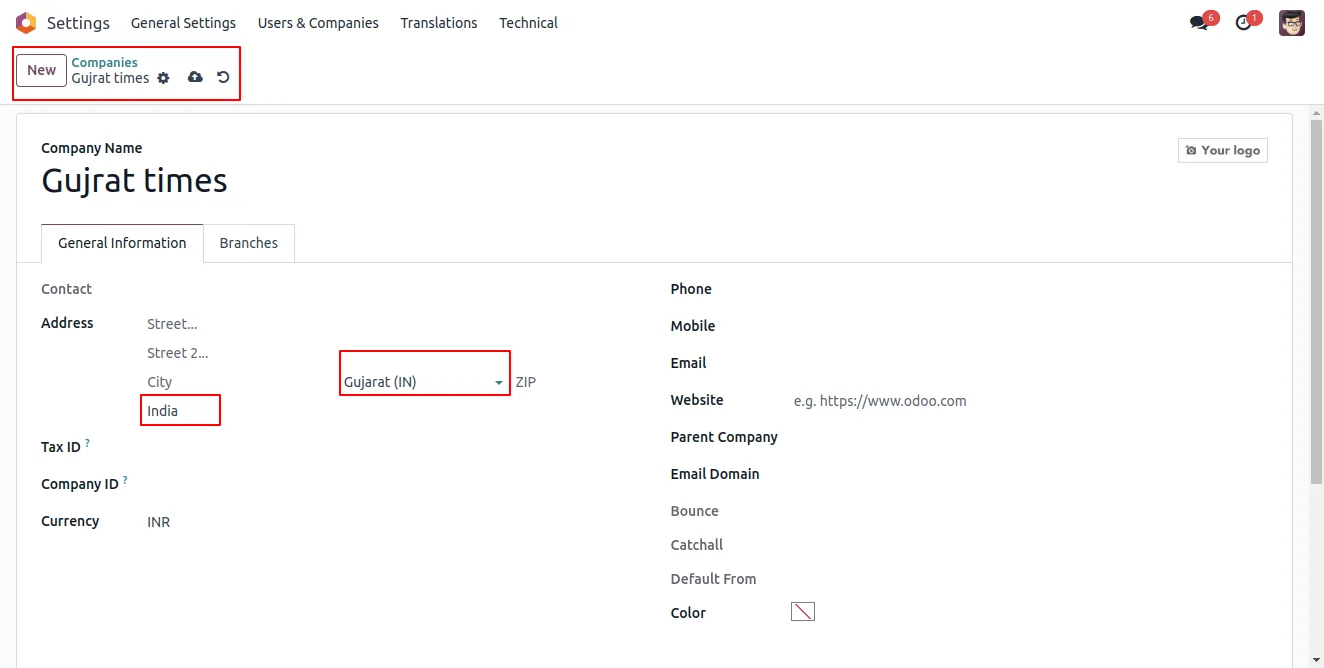
Add the new company under Settings → Companies, then set the state and country on its address — the module uses both fields to decide which fiscal positions to generate.
- 3
Switch to the new company
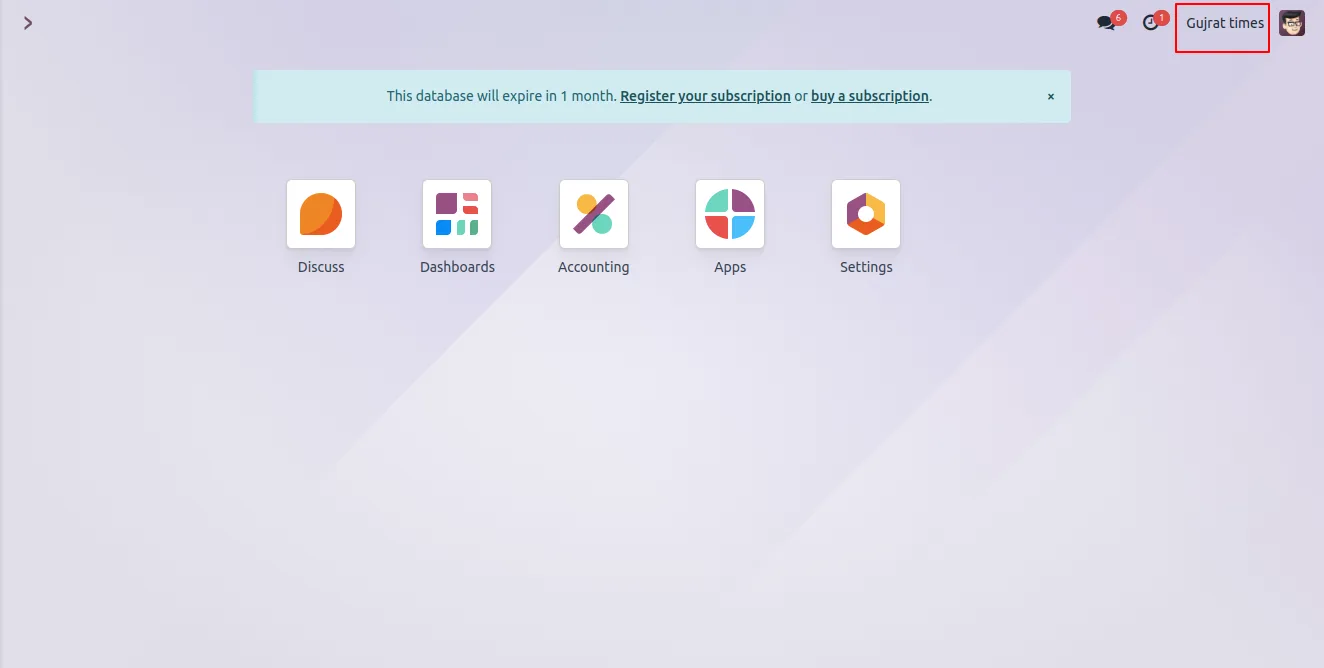
From the company selector at the top of Odoo, switch into the newly created company so subsequent setup steps run in its context.
- 4
Apply fiscal localization
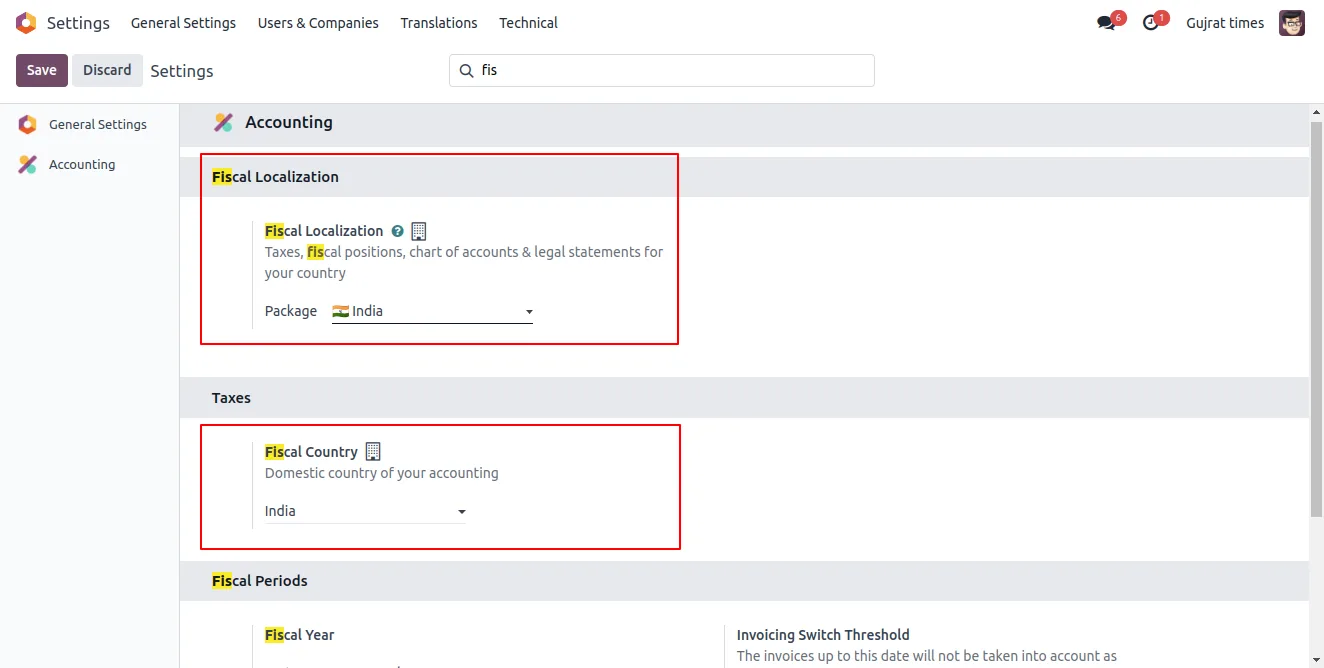
Go to Settings, search for Fiscal Localization, and apply the package matching the company's country. The module hooks into this step to generate the default and interstate fiscal positions.
- 5
Review the generated positions
Open Accounting → Configuration → Accounting → Fiscal Positions to see the auto-created list. Open the Interstate Fiscal Positions view to confirm the state-by-state mappings.
- 6
Customise as needed
The generated positions are standard Odoo records — adjust names, tax maps, or account maps to match your specific business rules before going live.
Frequently asked questions
-
Which Odoo versions and editions are supported?
The module is published for Odoo 17.0 Enterprise. It depends on the Accounting app (account_accountant), which ships only with Enterprise — a Community-only deployment cannot run it.
-
What does the module create automatically?
It creates default fiscal positions based on the company's state and country, plus interstate fiscal positions with state-by-state mappings — the records you would otherwise create by hand one at a time.
-
When does the automation fire?
When you set the company's state and country and apply the matching fiscal localization. The module reads both values and generates the fiscal positions at that moment.
-
Can I edit the auto-generated fiscal positions?
Yes. The records are standard Odoo fiscal positions — you can rename them, change the tax mapping, change the account mapping, or add custom conditions to fit your accounting rules.
-
Does it work with multi-company setups?
Yes. Run the same flow for each company you add. The module looks at the active company's state and country, so each company ends up with its own auto-generated positions.
-
What if I add new states to the company later?
Re-applying fiscal localization in the active company will pick up the new state context. For complex retrofits, raise a ticket with TechUltra during the support window and we will help align the positions to the new structure.
-
Where do the generated positions live?
Under Accounting → Configuration → Accounting → Fiscal Positions, alongside any manually created positions. Interstate mappings are visible from the Interstate Fiscal Positions view.
-
Is support included?
Yes. The module includes 90 days of bug-fix support from TechUltra, Monday to Friday, 10:00–19:00 IST.
Listing verified against the Odoo App Store:
Related solutions
Whole-platform solutions that complement Fiscal Position Automation.
Odoo Accounting
Odoo Accounting — multi-entity, multi-currency, bank-feed integration, reconciliation, deferred revenue, GAAP / IFRS. 60+ country localisations.
Odoo as Accounting Software
Odoo Accounting standalone — alternative to QuickBooks, Tally, Xero, Zoho Books. Real GL, multi-entity, statutory compliance, scales into full ERP.
E-Invoicing on Odoo
Native e-invoicing for Odoo — India GST, Italy FatturaPA, Saudi ZATCA, Mexico CFDI, EU EN 16931. IRN registration, statutory submission, audit archives.
Related services
Get the most out of this module with senior TechUltra consultants.
Odoo Customization Services
Odoo customization from a Gold Partner: custom modules, workflows, reports and Studio changes, written upgrade-safe and quoted at a fixed scope. Free scoping call.
Hire Odoo Developers
Hire certified Odoo developers from a Gold Partner: one developer or a team, full-time or part-time, 70–160 hours a month. Silver, Gold or Platinum plan, free trial.
Odoo Support Services & Maintenance
Odoo support services from a Gold Partner: functional and technical support plus server cover for Enterprise and Community, 30-minute P1 response, 24/7 option.







