

Odoo App · HR & Employees
Employee Image Exporter
Bulk-export Odoo employee photos into a named, formatted ZIP file in one action.

Overview
Employee Image Exporter solves a routine HR task that Odoo does not handle natively: getting employee photos out of the system in bulk. Instead of opening records one by one, an HR user runs a single export and downloads every photo at once.
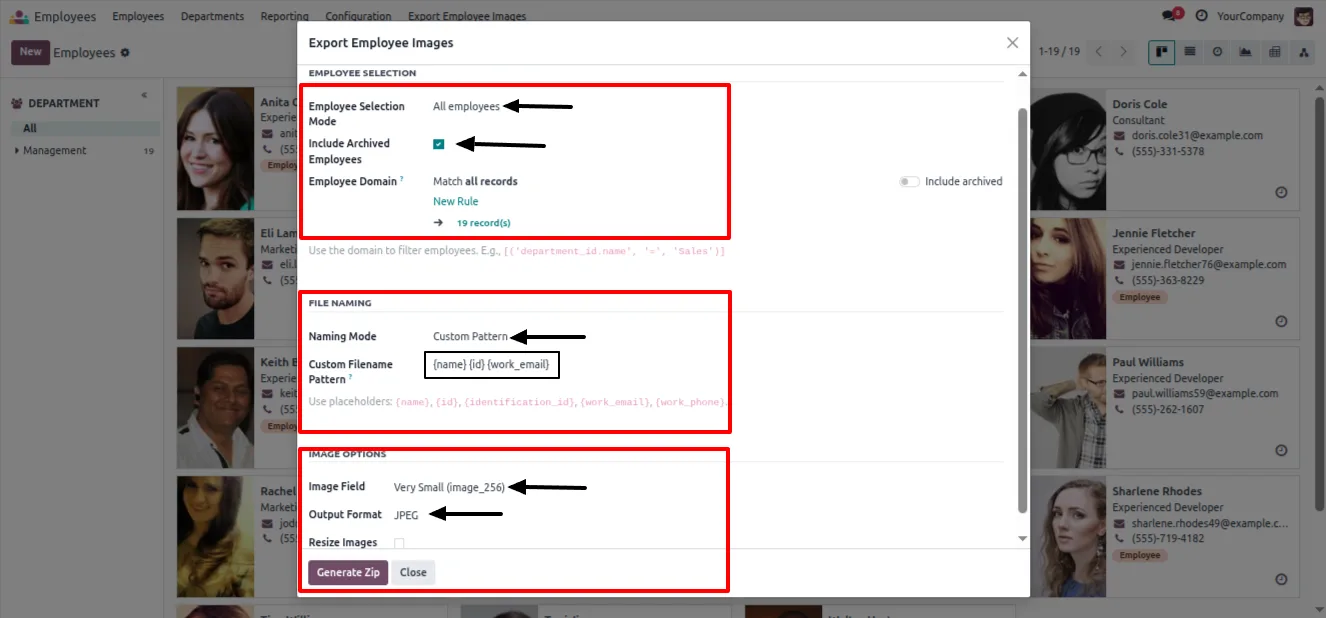
Built by TechUltra Solutions, the module exports images for all employees, a hand-picked selection, or any domain-filtered set, with an option to include archived staff. File names follow dynamic patterns — employee name, identification number, record ID, or a custom format — and each photo can be exported in its original format, as JPEG, or as PNG, with resizing options.
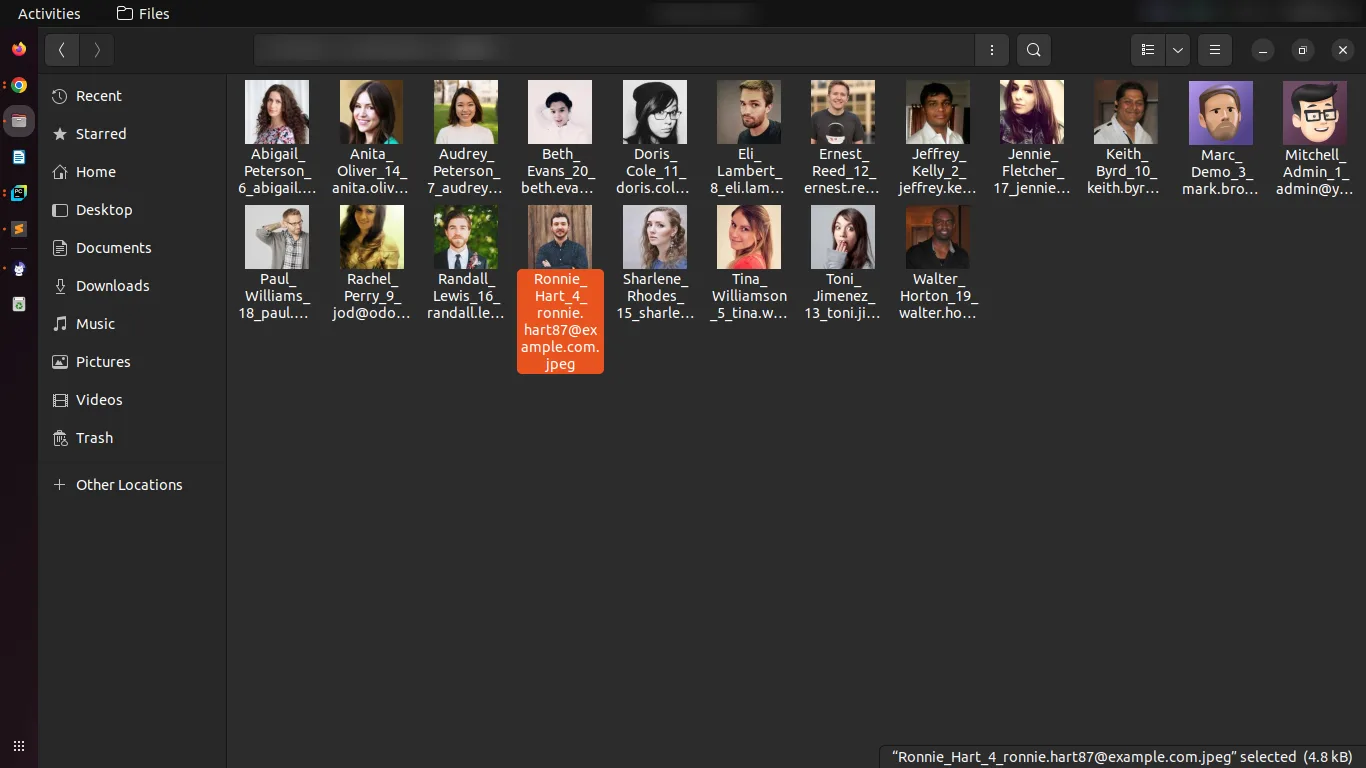
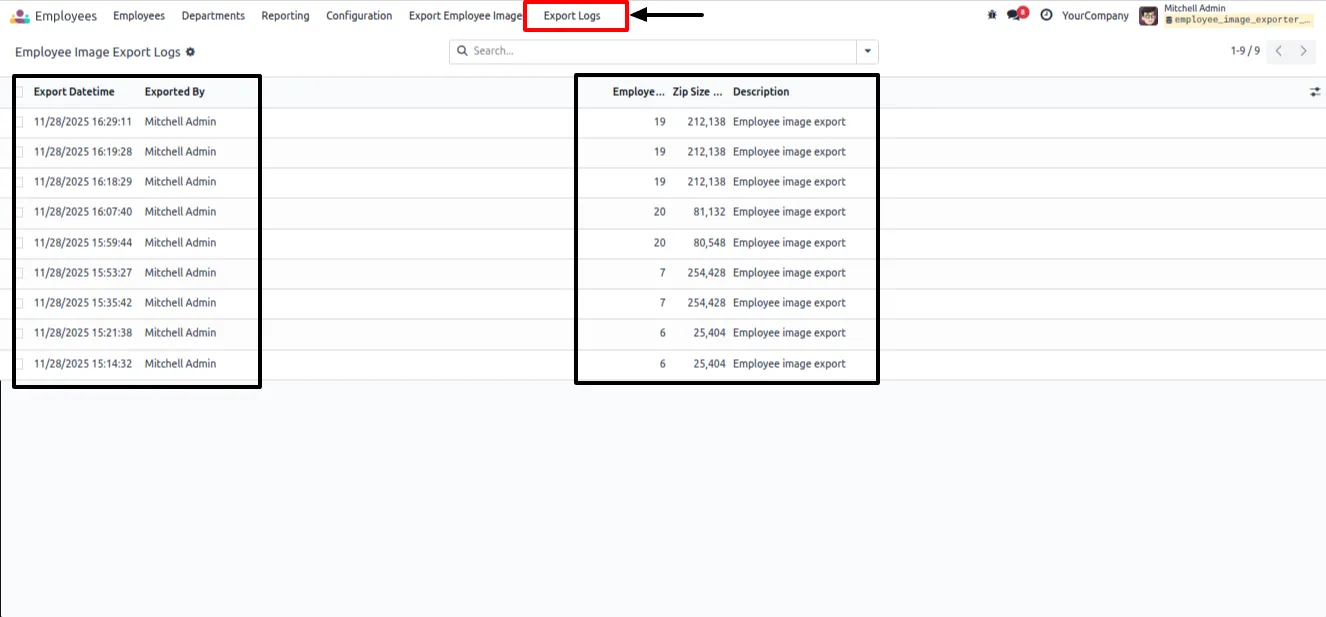
Every export is packaged into one neatly organised ZIP file, ready for ID cards, audits, documentation, or backups. Access-controlled export logs record who ran each export, so HR managers keep a clear history of when images left the system.
Key features
-
Bulk export by scope
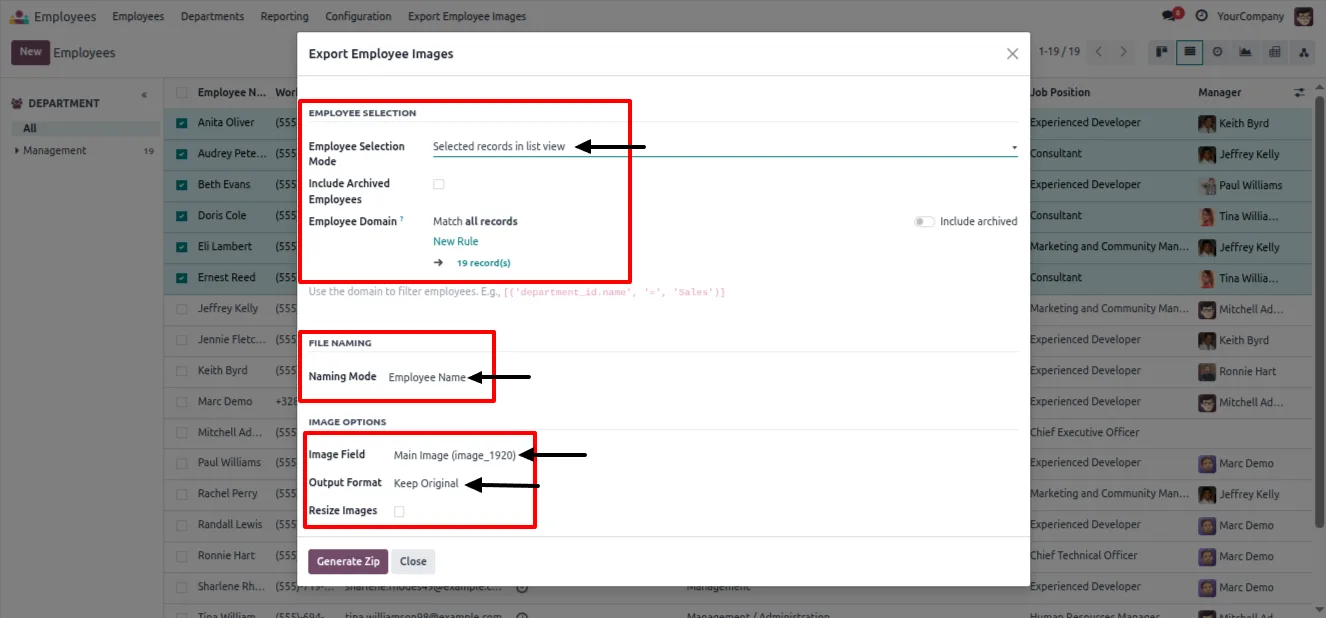
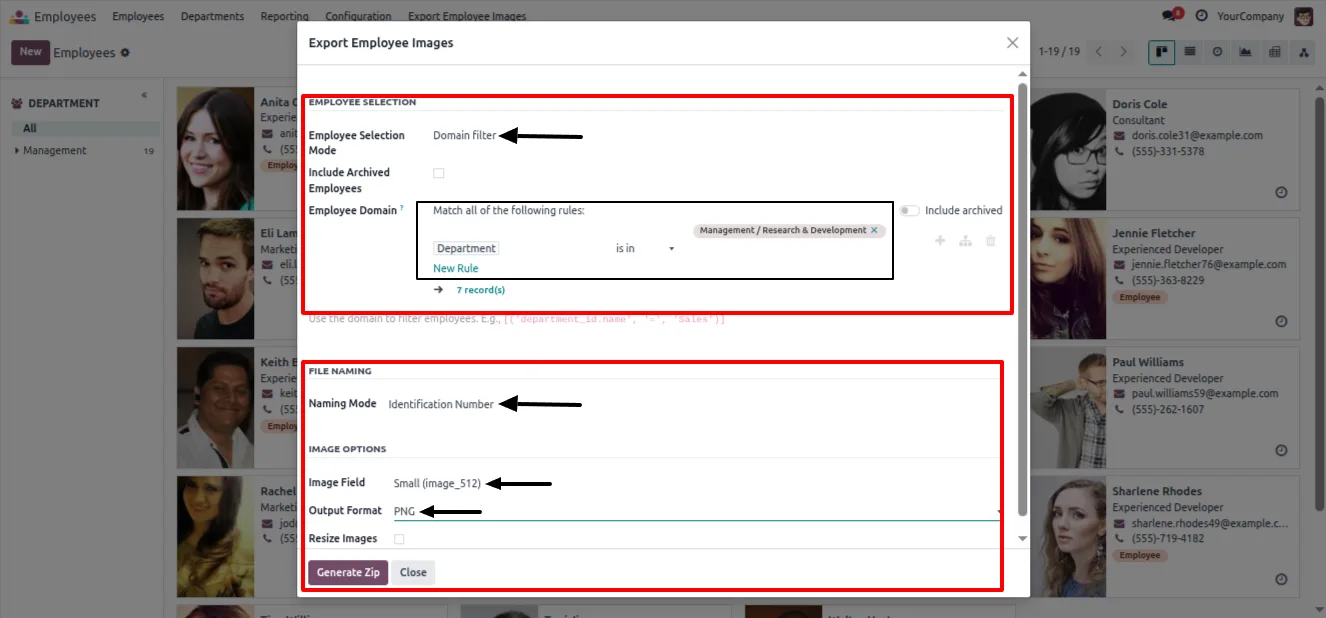
Export employee images for all employees, only the records you select, or any group matched by a domain filter, in a single run.
-
Include or exclude archived employees
Choose whether archived staff are part of an export, so historical records can be captured or left out as the task requires.
-
Dynamic file naming
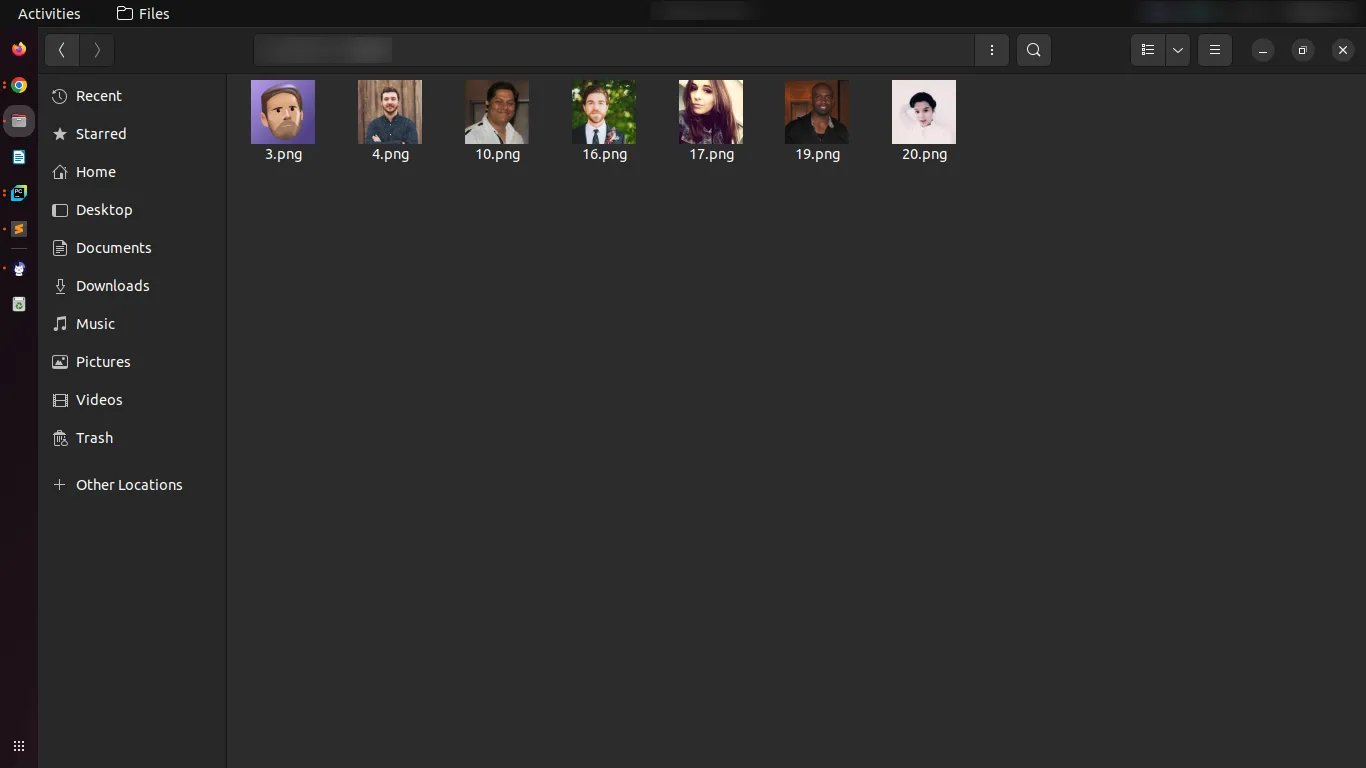
Name exported files using patterns such as the employee name, identification number, record ID, or a custom format, so photos arrive ready to use.
-
Choice of output format
Export each photo in its original format, as JPEG, or as PNG, matching the file type the destination system expects.
-
Image resizing
Resize images during export with multiple size options, useful for ID cards, directories, or keeping a ZIP file compact.
-
Organised ZIP output
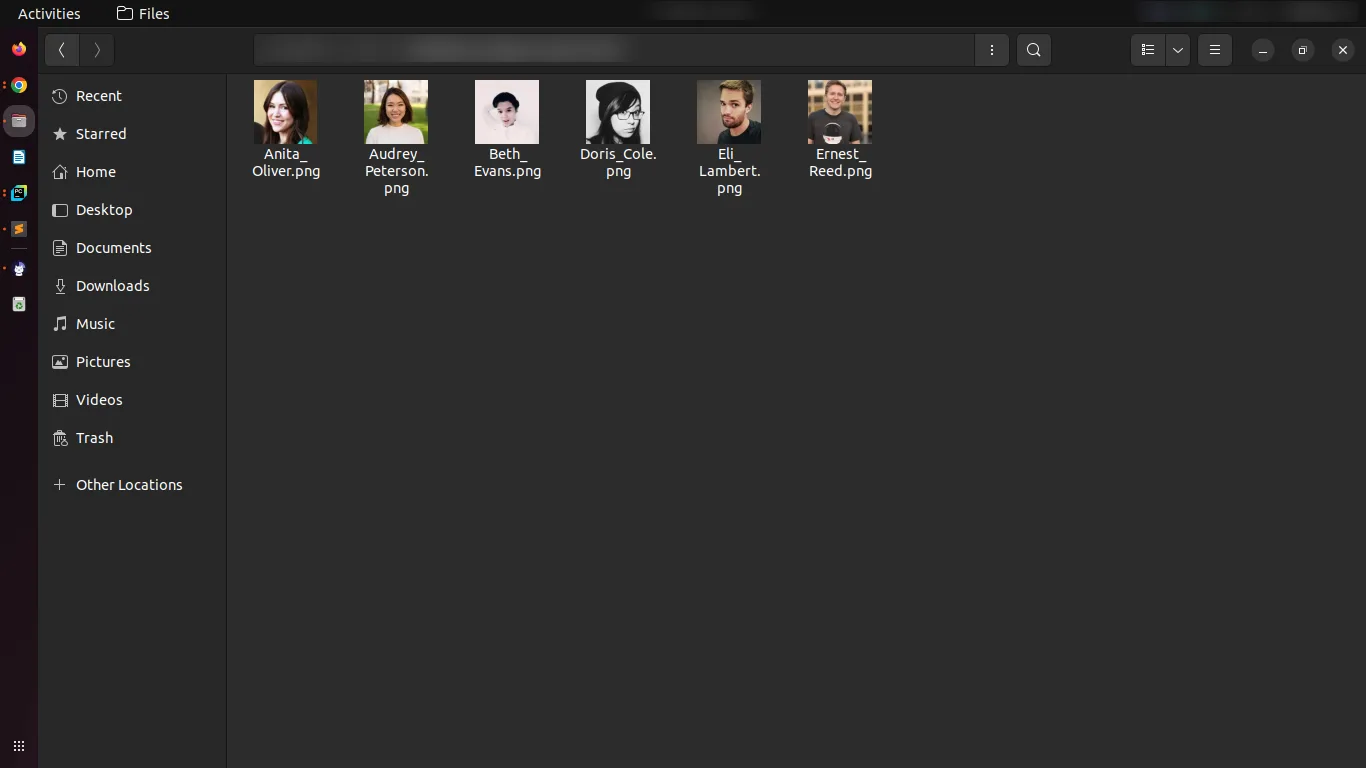
Every export produces one neatly organised ZIP file containing all selected employee images, ready to download in a single click.
-
Access-controlled export logs
Export logs record who performed each export, and only authorised users can view that history, keeping a clear audit trail of image exports.
Employee Image Exporter in Odoo
Every screen, in the order you meet it — configuration first, then the module in use.
Technical details
Specification
- Publisher
- TechUltra Solutions Private Limited
- Technical name
- employee_image_exporter
- Odoo versions
- 16.0, 17.0, 18.0, 19.0, 20.0
- Lines of code
- 386
- License
- Odoo Proprietary License v1.0 (OPL-1)
- Price
- $12 (one-time)
Deployment
- Odoo Online
- Odoo.sh
- On-premise
Odoo dependencies
- Employees
Support
90 days of bug-fix support, Monday to Friday (10:00–19:00 IST). Raise a ticket at support@techultra.in.
Setup & configuration
From install to first call — here is the path.
- 1
Install the module
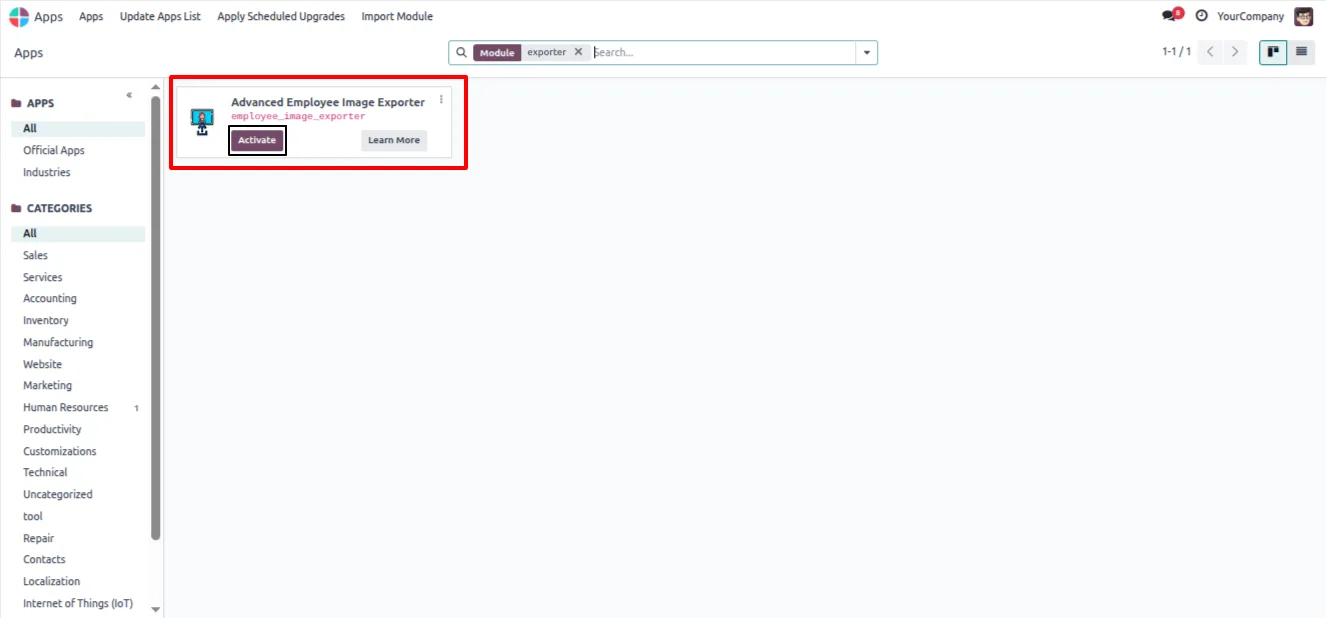
In Odoo, open Apps, remove the Apps filter, search for “Employee Image Exporter”, and click Install.
- 2
Set user permissions
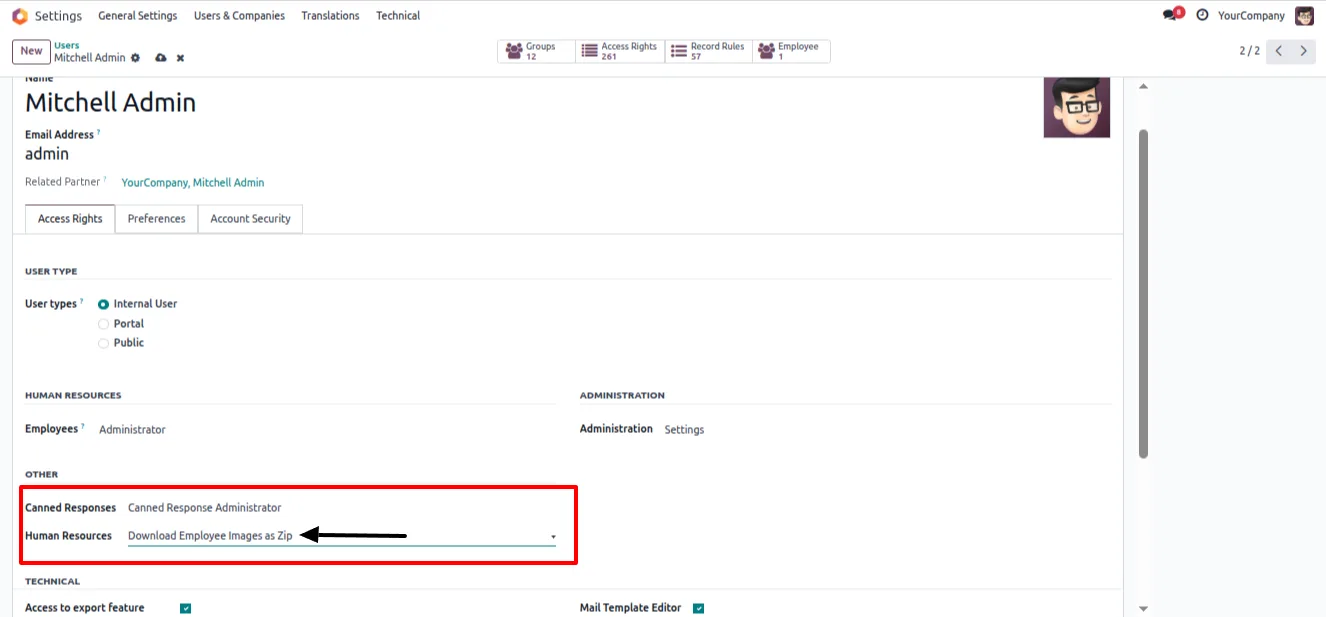
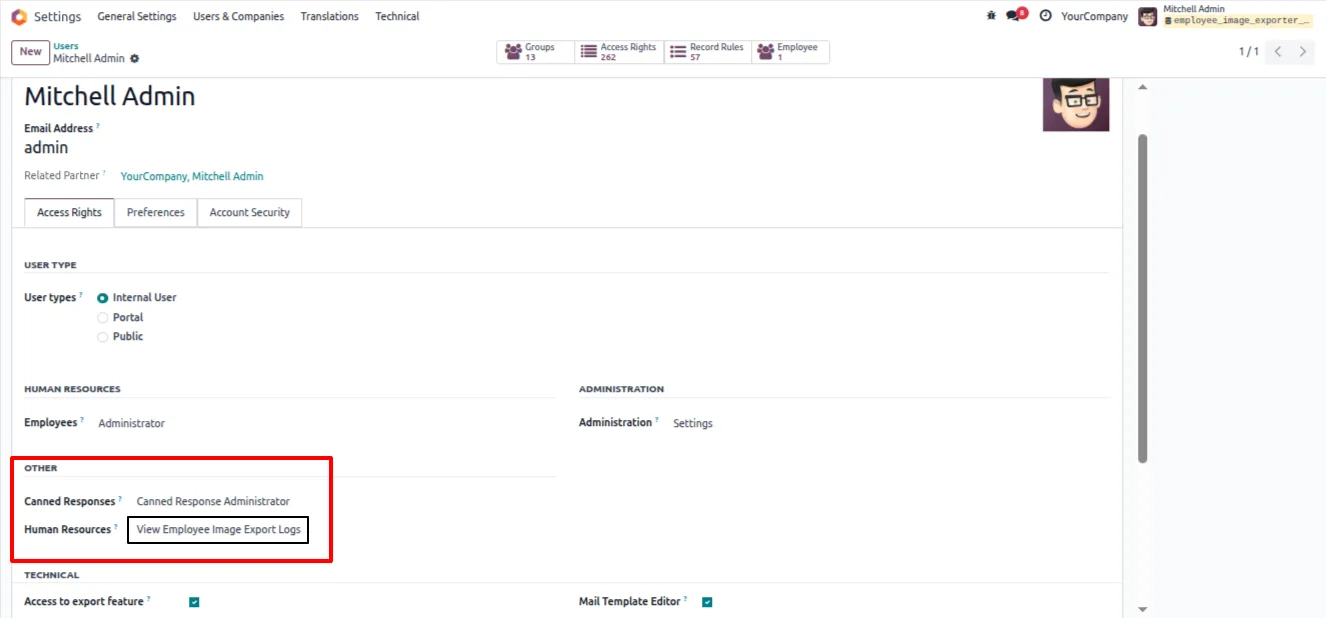
In Settings → Users & Companies → Users, assign Human Resources access rights so the user can run exports and download the ZIP file.
- 3
Select employees to export
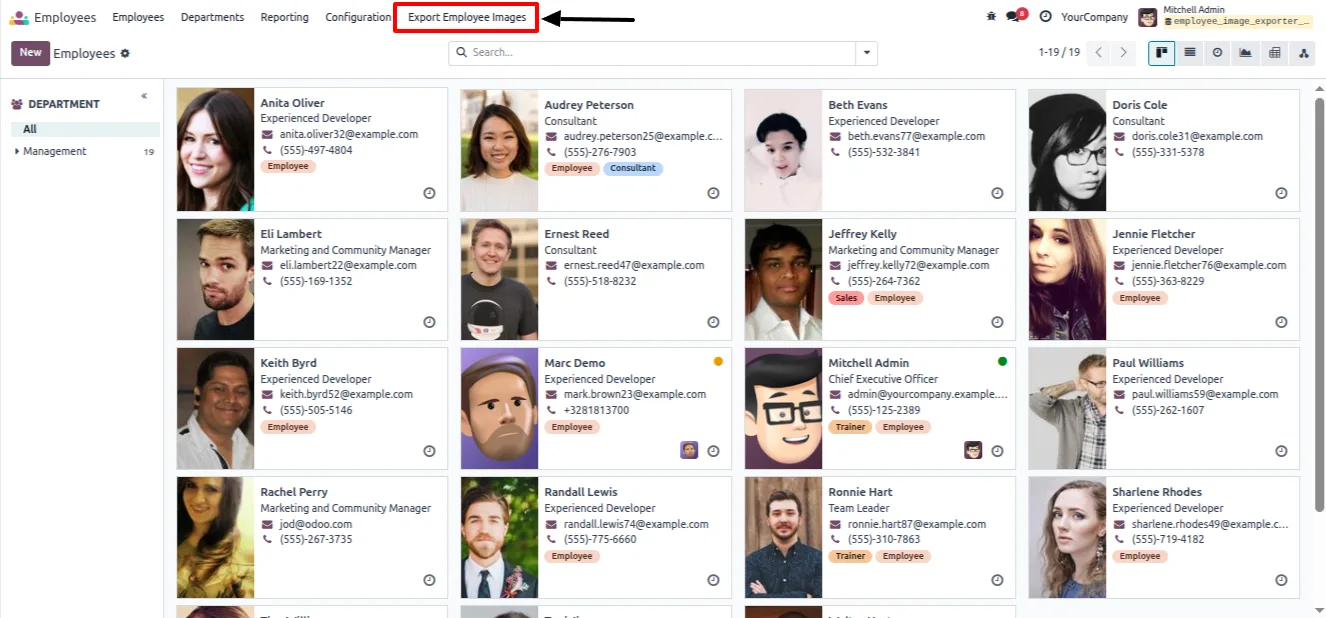
Open the Employees module, switch to list view, and select the employees whose photos you want, or prepare a domain filter for a larger group.
- 4
Run the export wizard
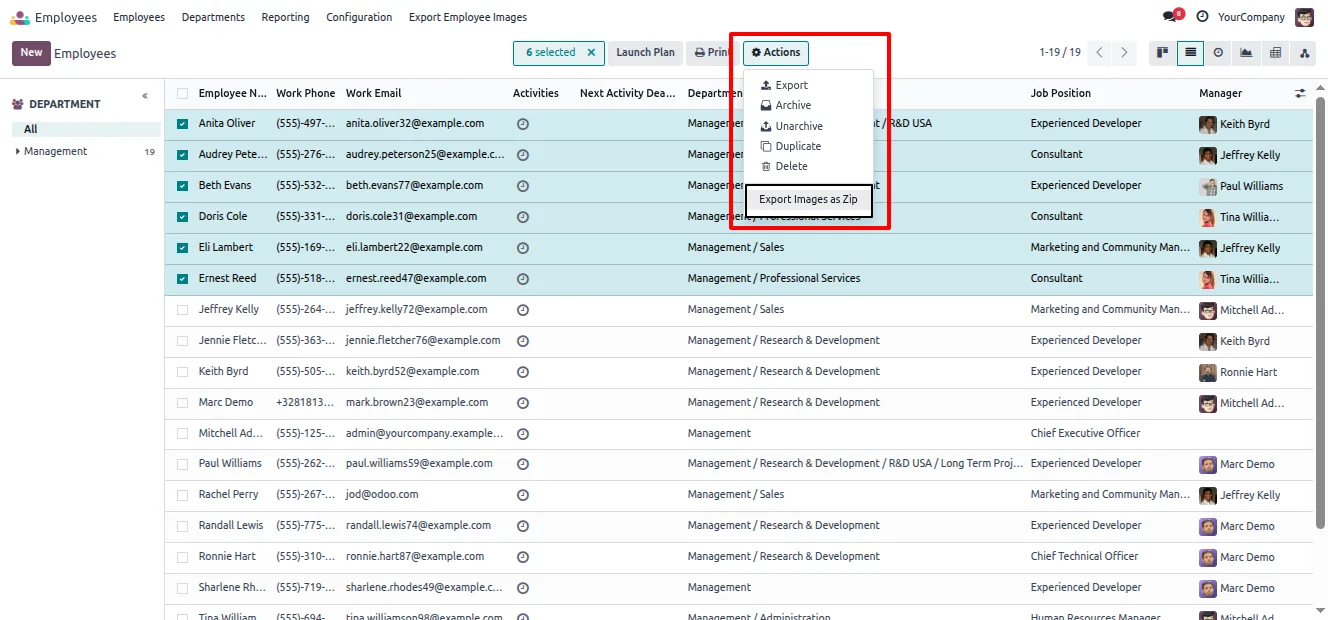
From the Actions menu, choose Export Images as ZIP, then set the naming mode, image field, and output format and click Generate ZIP.
- 5
Download and verify
Download the generated ZIP file and confirm the photos, names, and format are correct before using them.
- 6
Grant log access
Give export-log viewing rights to the HR managers who should be able to see the history of who ran each export.
Frequently asked questions
-
Can I export photos for only some employees?
Yes. You can export images for all employees, only the records you select in the list view, or any group matched by a domain filter.
-
How are the exported files named?
File names follow dynamic patterns. You can use the employee name, identification number, record ID, or a custom format, so files arrive labelled the way you need.
-
What image formats can I export?
Each photo can be exported in its original format, as JPEG, or as PNG. The module also supports resizing the images with multiple size options.
-
Can I include archived employees in an export?
Yes. The export wizard has an option to include or exclude archived employees, so you can capture historical records when you need them.
-
How are the images delivered?
Every export is packaged into one neatly organised ZIP file containing all selected employee photos, which you download in a single click.
-
Is there a record of who exported images?
Yes. Access-controlled export logs record who performed each export, and only authorised users can view that history.
-
Which Odoo versions are supported?
The module supports Odoo 16.0, 17.0, 18.0, 19.0, and 20.0, in both the Community and Enterprise editions.
Listing verified against the Odoo App Store:
Related services
Get the most out of this module with senior TechUltra consultants.
Odoo Customization Services
Odoo customization from a Gold Partner: custom modules, workflows, reports and Studio changes, written upgrade-safe and quoted at a fixed scope. Free scoping call.
Hire Odoo Developers
Hire certified Odoo developers from a Gold Partner: one developer or a team, full-time or part-time, 70–160 hours a month. Silver, Gold or Platinum plan, free trial.
Odoo Support Services & Maintenance
Odoo support services from a Gold Partner: functional and technical support plus server cover for Enterprise and Community, 30-minute P1 response, 24/7 option.







