

Odoo App · Security & Access
Discuss Access Control
Allow or block the Discuss app, chat icon, and notifications per user in Odoo.

Overview
By default, Odoo gives every internal user the Discuss app, the chat icon, and live notifications. For roles that do not need workplace chat, that is a steady source of interruptions. Discuss Access Control puts that decision back in the administrator's hands, one user at a time.
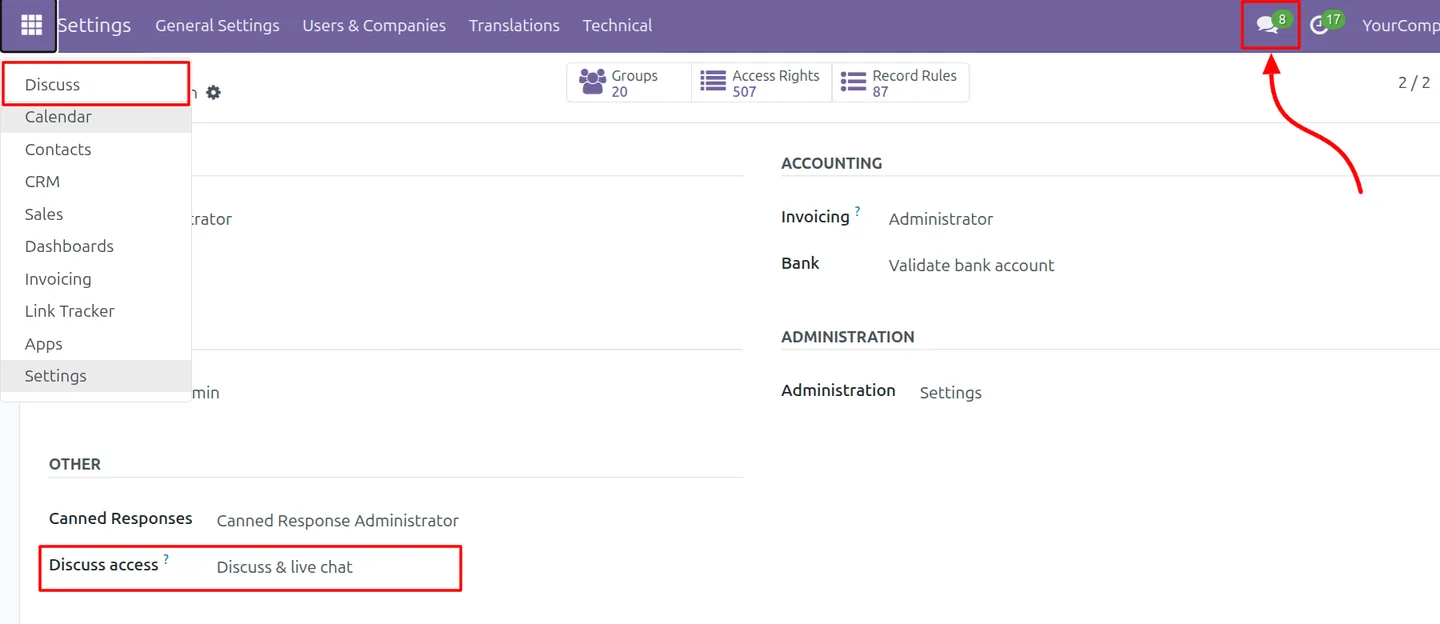
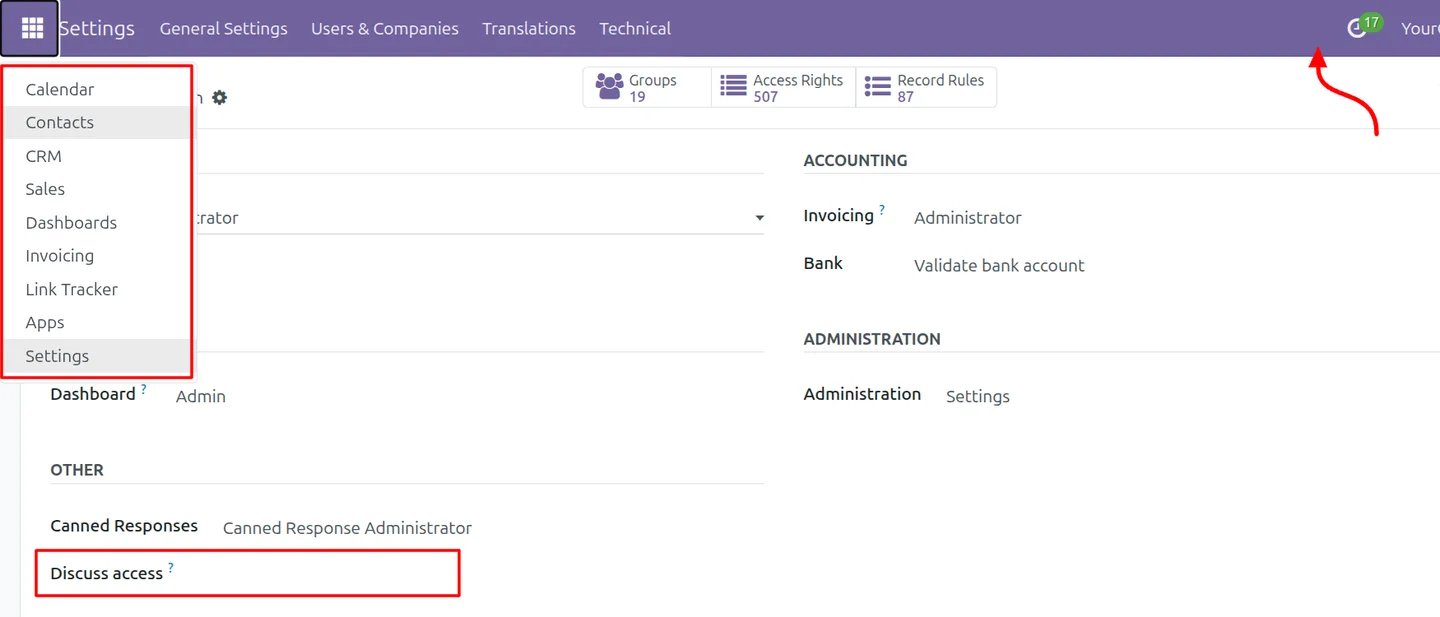
Built by TechUltra Solutions, the module adds a single checkbox to the user form. Clear it for a user and the Discuss app, the top-bar messaging icon, and chat pop-ups all disappear from their interface. Authorised colleagues keep full messaging as before.
The control works through standard Odoo security groups, so it sits alongside existing roles without overriding core Discuss behaviour. It is a fit for accounting, warehouse, and operations teams where a quieter, more focused screen matters more than internal chat.
Key features
-
Per-user Discuss control
A checkbox on each user form turns Discuss access on or off for that user alone, so access is decided individually rather than for everyone at once.
-
Hides the Discuss app
When access is removed, the Discuss application no longer appears for the user, keeping their app menu focused on the tools their role actually uses.
-
Removes the navbar chat icon
The top-bar messaging icon is hidden for restricted users, so there is no chat entry point in the interface for roles that should not be messaging.
-
Stops chat pop-ups and notifications
Restricted users no longer receive chat pop-ups or notifications, removing a steady stream of interruptions during focused work.
-
Smart group assignment
Toggling the checkbox adds or removes the matching Odoo security group automatically, so access stays in sync with the user setting without manual group edits.
-
Works with existing roles
The control sits alongside the user's other roles and permissions, layering on top of standard access rights rather than replacing them.
-
Cleaner interface for restricted staff
With the app, icon, and notifications gone, restricted users get a tidier, less distracting screen suited to accounting, warehouse, and operations work.
-
Non-intrusive integration
The module enforces access without overriding core Discuss functionality, so authorised users keep the standard messaging experience unchanged.
Discuss Access Control in Odoo
Every screen, in the order you meet it — configuration first, then the module in use.
Technical details
Specification
- Publisher
- TechUltra Solutions Private Limited
- Technical name
- hide_user_discussion
- Odoo versions
- 16.0, 17.0, 18.0, 19.0, 20.0
- Lines of code
- 111
- License
- Odoo Proprietary License v1.0 (OPL-1)
- Price
- $12 (one-time)
Deployment
- Odoo Online
- Odoo.sh
- On-premise
Odoo dependencies
- Discuss
Support
90 days of bug-fix support, Monday to Friday (10:00–19:00 IST). Raise a ticket at support@techultra.in.
Setup & configuration
From install to first call — here is the path.
- 1
Install the module
In Odoo, open Apps, remove the Apps filter, search for “Discuss Access Control”, and click Install.
- 2
Open a user record
Go to Settings → Users & Companies → Users and open the user whose Discuss access you want to change.
- 3
Set the Discuss Access option
Find the Discuss Access option on the user form. Leave it cleared to block the app, chat icon, and notifications, or tick it to allow full access.
- 4
Adjust from user preferences if needed
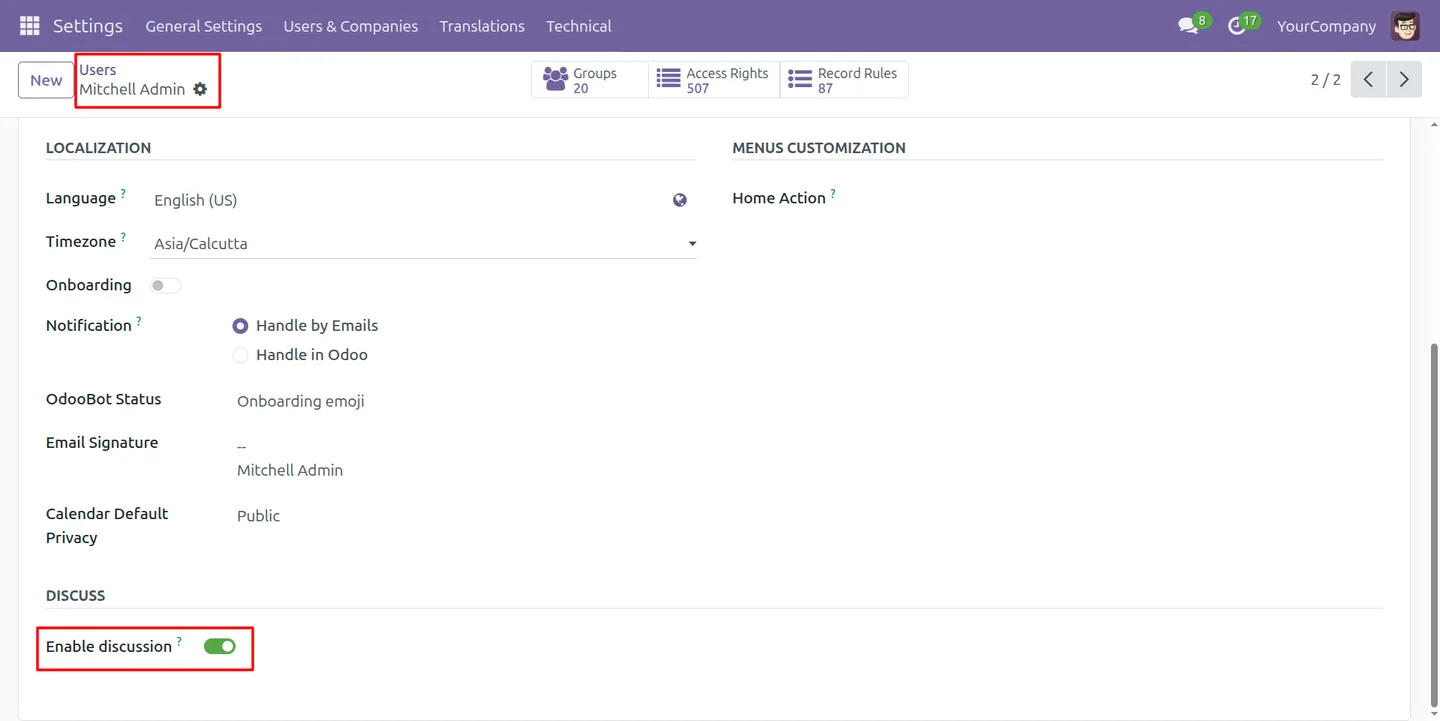
The same control is available under the user's Preferences tab in the Discuss section, so access can be reviewed from either place.
- 5
Verify the result
Have the restricted user log in and confirm the Discuss app, navbar chat icon, and chat notifications are no longer shown.
Frequently asked questions
-
What does Discuss Access Control do?
It lets administrators allow or block the Odoo Discuss app for each user individually. Blocking it also removes the navbar chat icon and stops chat pop-ups and notifications for that user.
-
How do I restrict Discuss for a user?
Open the user under Settings → Users & Companies → Users and clear the Discuss Access checkbox. The same option is also on the user's Preferences tab.
-
Does blocking Discuss also hide the chat icon?
Yes. When a user is restricted, the top-bar messaging icon is hidden and chat pop-ups and notifications are disabled, so there is no chat entry point in their interface.
-
Does it affect users who should keep chat?
No. Only users you specifically restrict are affected. Everyone else keeps the standard Discuss app, chat icon, and notifications.
-
Will this conflict with a user's other roles?
No. The control works through standard Odoo security groups and layers on top of a user's existing roles without overriding core Discuss behaviour.
-
Who is this module for?
It suits organisations that want a distraction-free interface for specific roles — for example accounting, warehouse, and operations staff who do not need internal chat.
-
Which Odoo versions are supported?
The module supports Odoo 16.0, 17.0, 18.0, 19.0, and 20.0, in both the Community and Enterprise editions.
-
Is support included?
Yes. The module includes 90 days of bug-fix support, Monday to Friday, 10:00–19:00 IST.
Listing verified against the Odoo App Store:
Related services
Get the most out of this module with senior TechUltra consultants.
Odoo Customization Services
Odoo customization from a Gold Partner: custom modules, workflows, reports and Studio changes, written upgrade-safe and quoted at a fixed scope. Free scoping call.
Hire Odoo Developers
Hire certified Odoo developers from a Gold Partner: one developer or a team, full-time or part-time, 70–160 hours a month. Silver, Gold or Platinum plan, free trial.
Odoo Support Services & Maintenance
Odoo support services from a Gold Partner: functional and technical support plus server cover for Enterprise and Community, 30-minute P1 response, 24/7 option.







