
Business process
Warehouse inbound-to-outbound in Odoo 20, step by step
From goods arriving from a supplier to a customer's parcel leaving the dock: the eight steps, the Odoo app that runs each one, and the gaps we usually close in 3PL work, containers, cross-docking, routing and barcode rules.
Last reviewed:
How does inbound-to-outbound run in Odoo 20?
8 steps, each run by the Odoo app named on it. The screenshots are from our Odoo 20 feature guide.
- 1 Set up warehouses, locations and labels
- 2 Receive against the purchase order
- 3 Put away by rule, product and package
- 4 Give incoming stock to waiting orders
- 5 Replenish before stock runs out
- 6 Pick in batches and waves
- 7 Pack, label and ship
- 8 Count, trace and take returns
- 1
Set up warehouses, locations and labels
Odoo 20 · Inventory
Each warehouse gets its own locations, from the dock to every shelf and bin. Storage categories set a maximum weight per location and whether it takes mixed products. Location labels print from Odoo, and in Odoo 20 they can print on thermal printers in ZPL.
Who: Warehouse manager
ZPL location barcodes: how it works in Odoo 20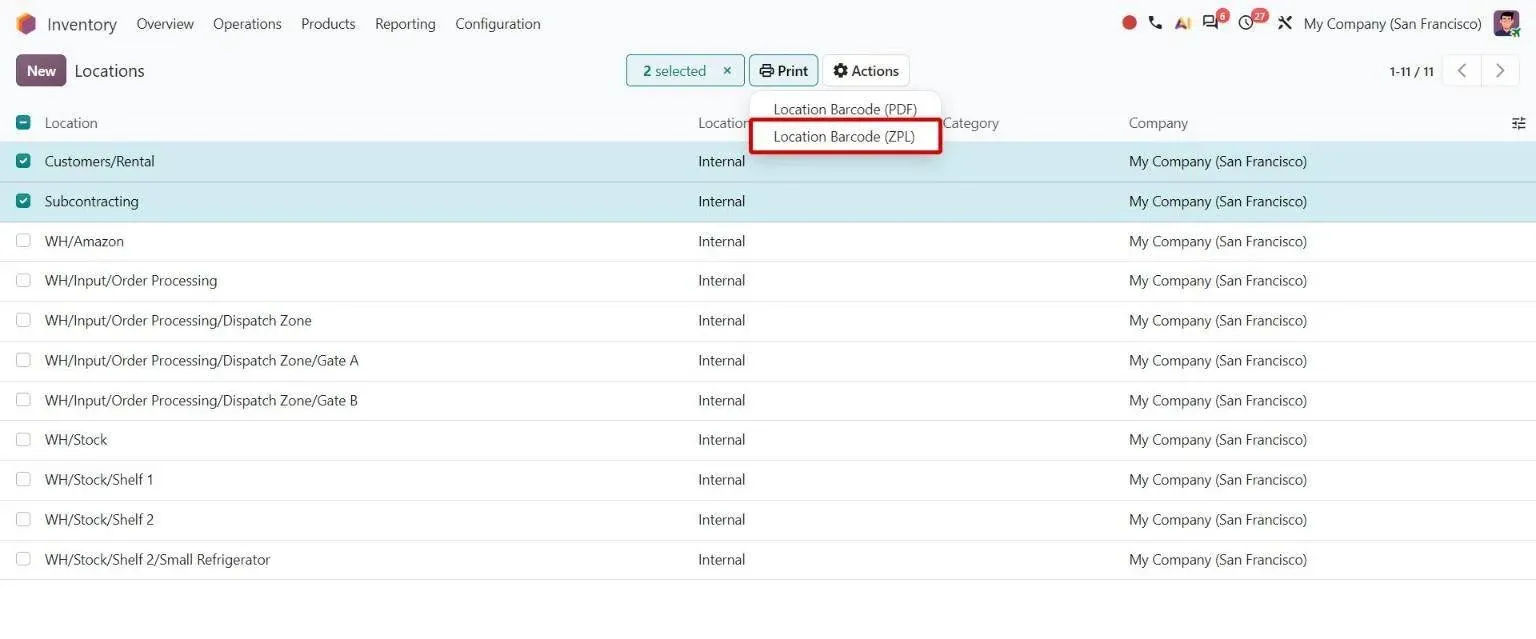
Step 1, Odoo 20 Inventory: Locations list Print menu with new Location Barcode (ZPL) option - 2
Receive against the purchase order
Odoo 20 · Purchase · Inventory · Barcode
A confirmed purchase order creates the receipt. Each warehouse receives in one, two or three steps: receive and store, receive then store, or receive, check quality, then store. In the Barcode app, workers scan what arrived, and Odoo 20 shows managers the scan steps as they change the settings.
Who: Receiving team
Preview Barcode instructions in operation type: how it works in Odoo 20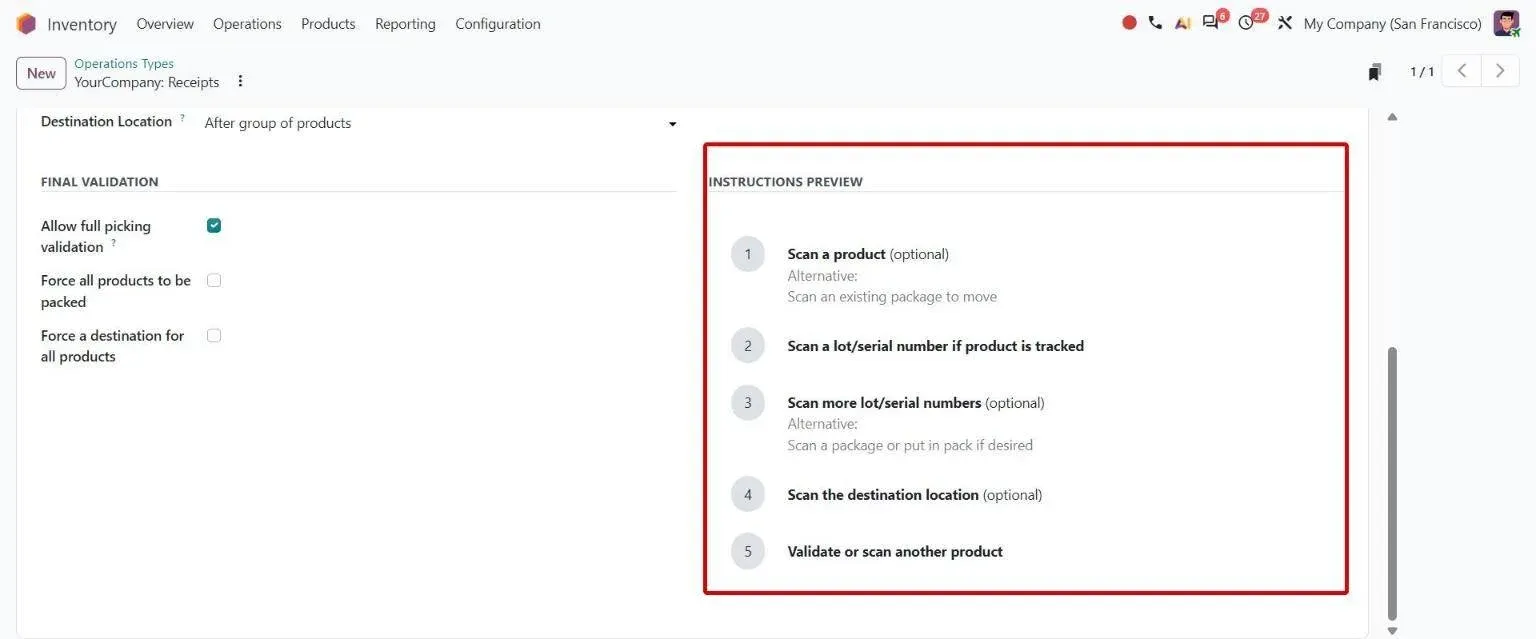
Step 2, Odoo 20 Inventory: Receipts operation type Barcode App tab with numbered Instructions Preview - 3
Put away by rule, product and package
Odoo 20 · Inventory
Putaway rules send each product, product category or package type to a set location, within the limits of its storage category. Packaging barcodes let a worker scan a whole box or pallet as its packaged quantity instead of unit by unit.
Who: Warehouse operator
Product packaging barcodes: how it works in Odoo 20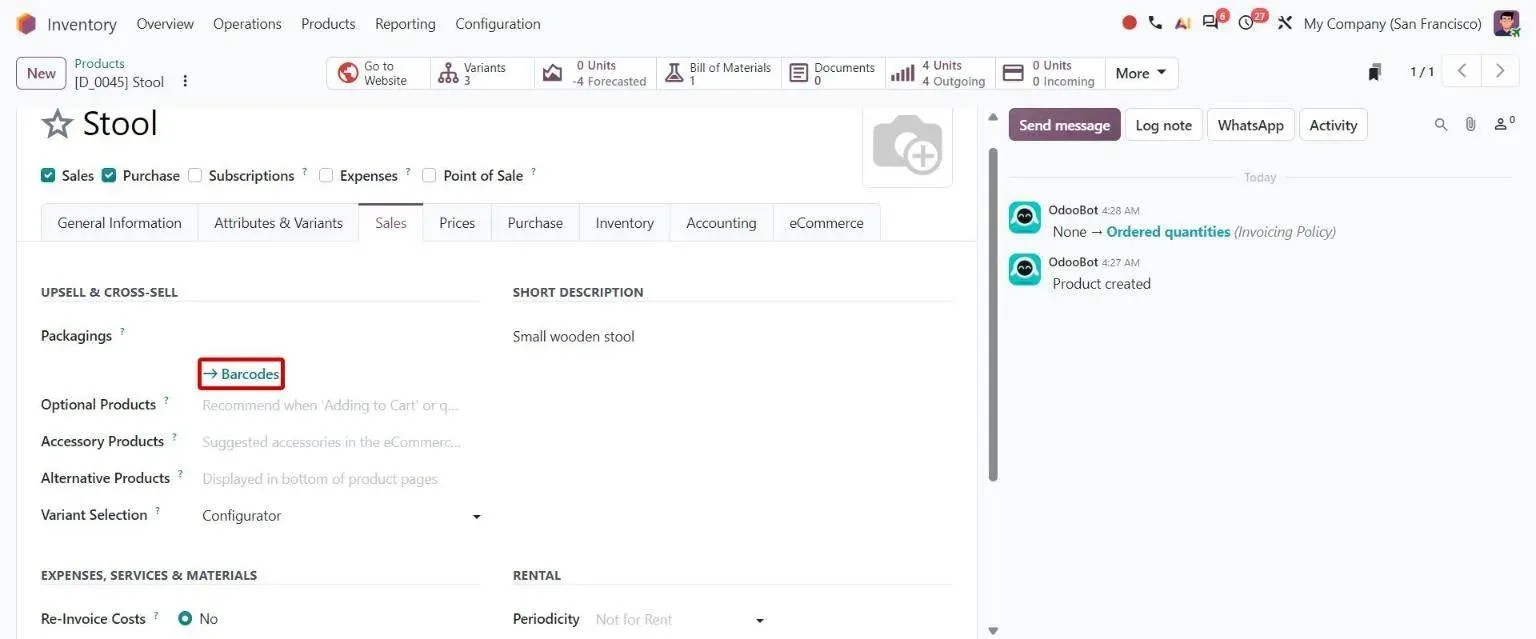
Step 3, Odoo 20 Inventory: Product Sales tab with new Barcodes link under Packagings - 4
Give incoming stock to waiting orders
Odoo 20 · Inventory · Sales
The product's forecast shows which deliveries are waiting for stock. The allocation report assigns an incoming receipt to a specific waiting delivery, so the goods go to that order when they land.
Who: Planner, warehouse manager
Allocation report: how it works in Odoo 20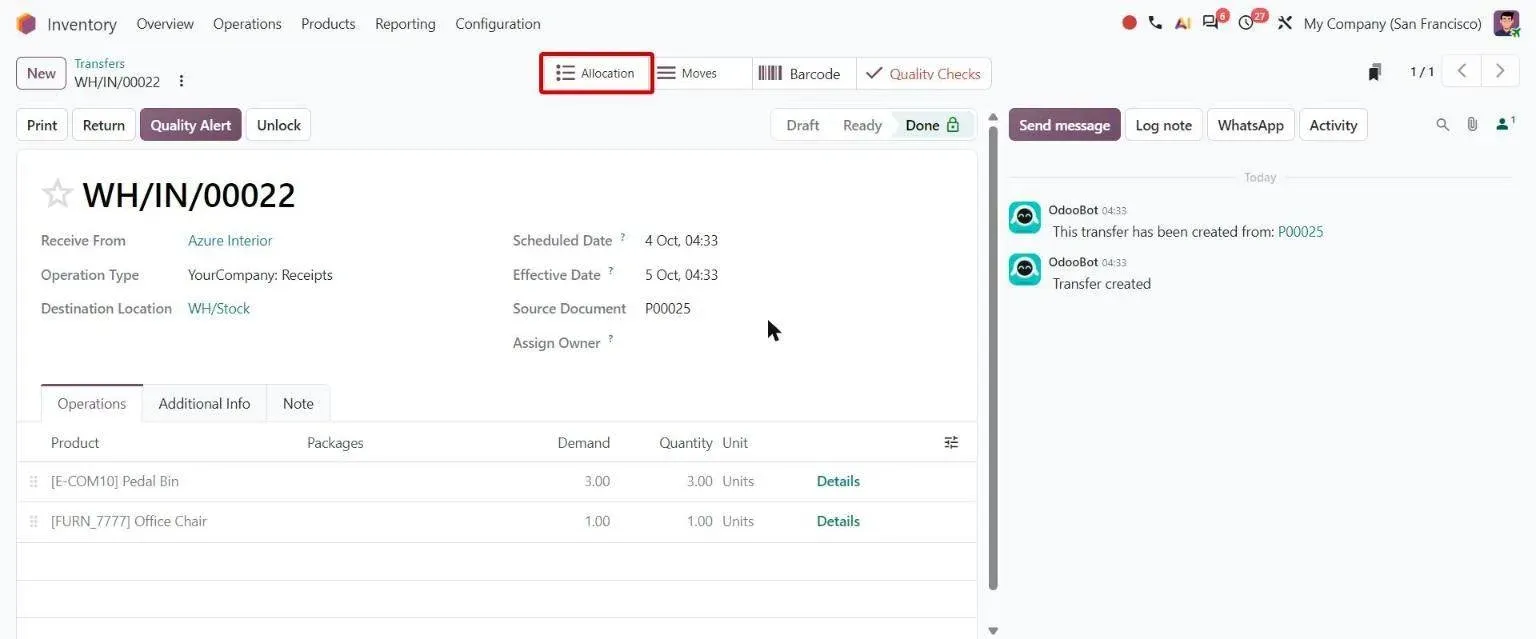
Step 4, Odoo 20 Inventory: Receipt form with new Allocation smart button opening the allocation report - 5
Replenish before stock runs out
Odoo 20 · Inventory · Purchase
Reordering rules hold a minimum and maximum per product and location, and the replenishment report proposes purchase orders or transfers between warehouses. In Odoo 20, the report also suggests the minimum and maximum from past demand.
Who: Buyer, planner
Suggested stock levels for reordering rules: how it works in Odoo 20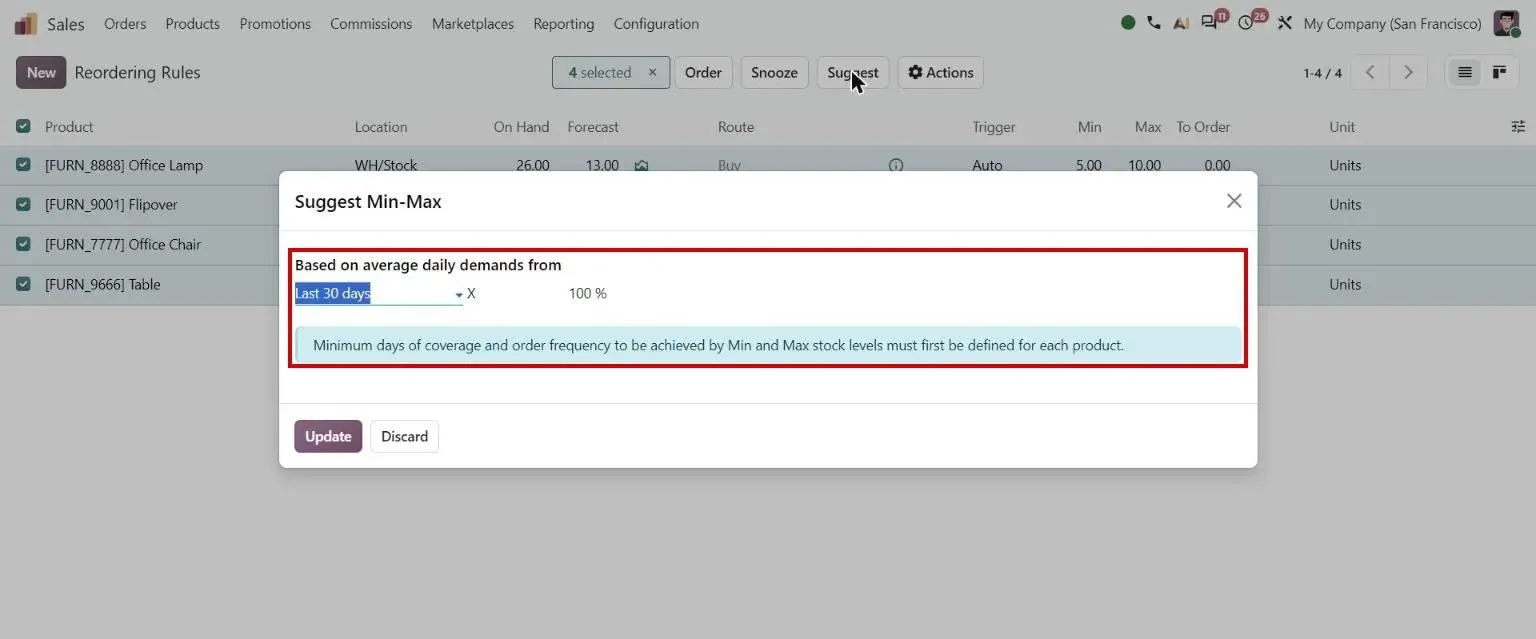
Step 5, Odoo 20 Inventory: Suggest Min-Max dialog - 6
Pick in batches and waves
Odoo 20 · Inventory · Barcode
Deliveries run in one, two or three steps: deliver, pick then deliver, or pick, pack, then deliver. Pickings can be grouped into batches or waves, automatically per operation type, and picked in the Barcode app. In Odoo 20, workers decide on backorders there when stock is short.
Who: Picker
Backorders: how it works in Odoo 20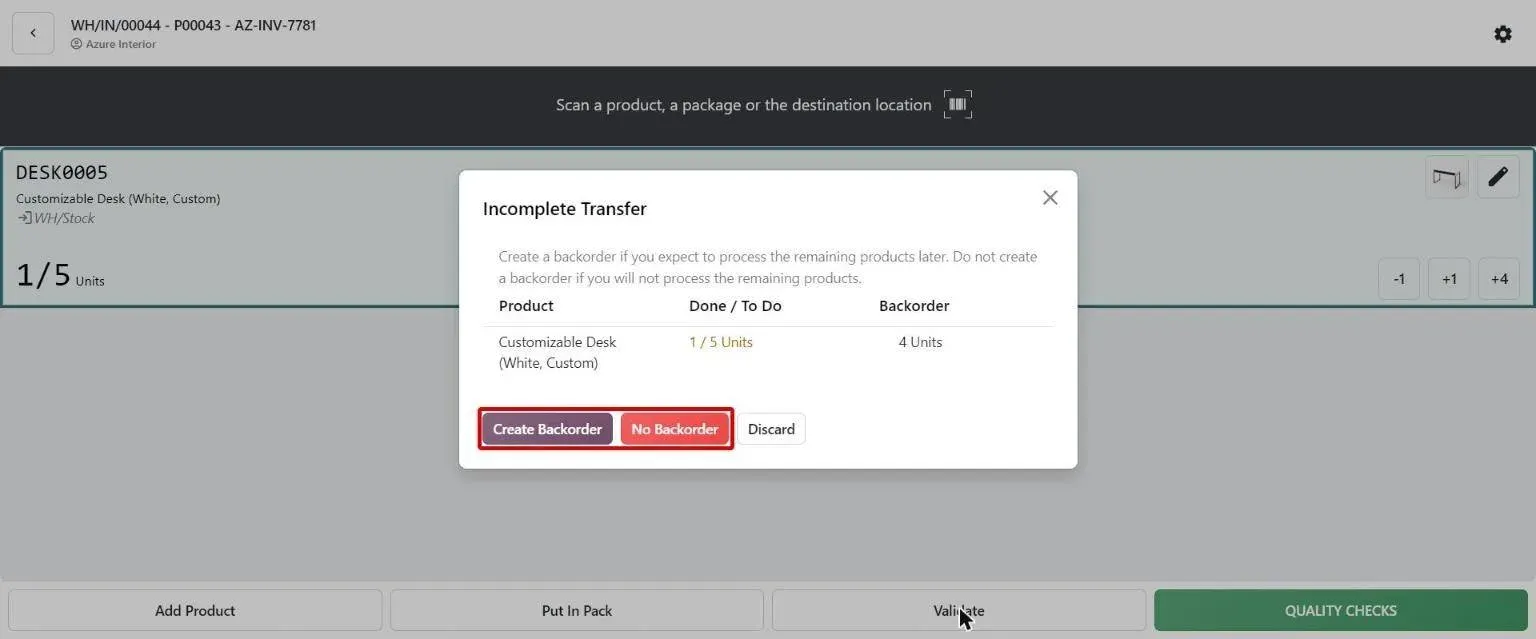
Step 6, Odoo 20 Barcode: Barcode Incomplete Transfer dialog offering Create Backorder or No Backorder - 7
Pack, label and ship
Odoo 20 · Inventory · Delivery
Packages are weighed and labelled on the delivery, and the carrier label prints from Odoo. Carrier connectors get rates, print labels and return tracking numbers, and Odoo 20 Enterprise adds a ShipStation connector. Delivery methods can be limited to countries, states or zip prefixes.
Who: Packer, shipping desk
ShipStation shipping connector: how it works in Odoo 20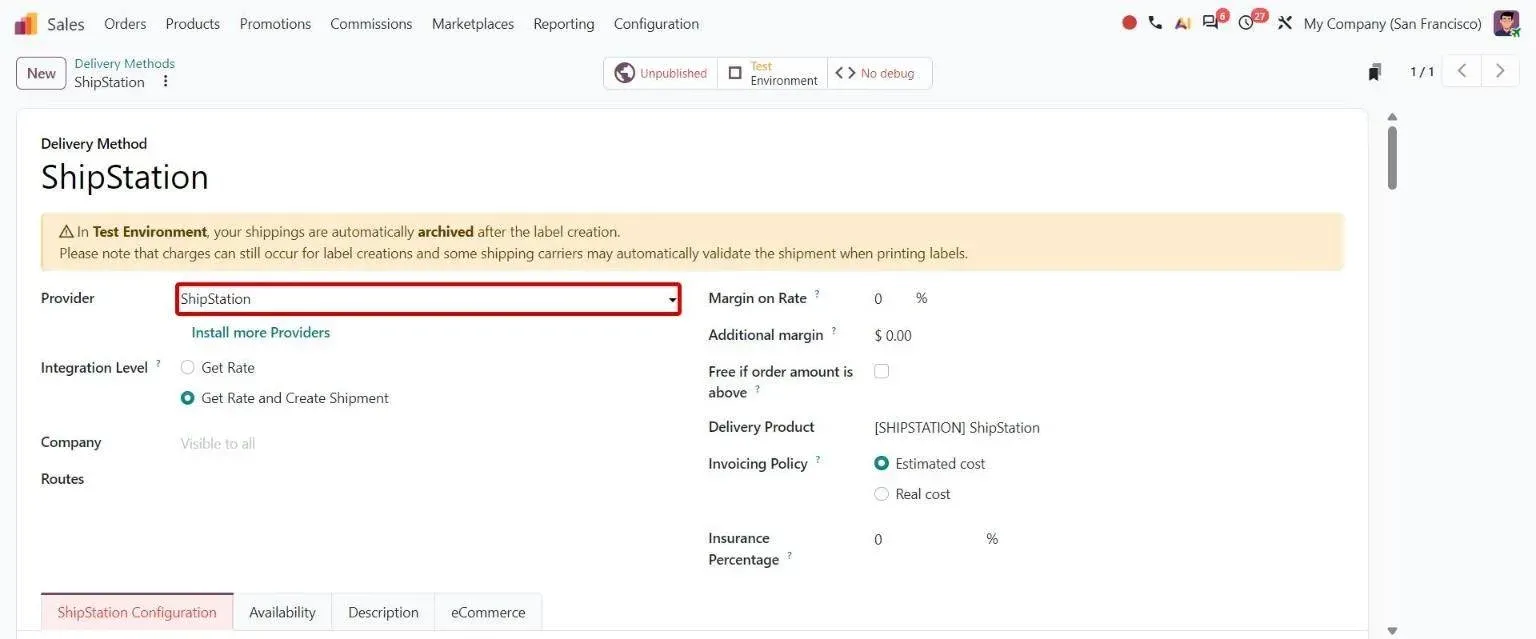
Step 7, Odoo 20 Inventory: Delivery method form using the new ShipStation provider - 8
Count, trace and take returns
Odoo 20 · Inventory · Barcode
Locations carry a count frequency for cycle counts, and in Odoo 20 counters can type a product's total in the Barcode app instead of scanning each unit. The traceability report follows a lot from receipt to customer, and a return comes back against the original delivery.
Who: Stock controller
Inventory count: how it works in Odoo 20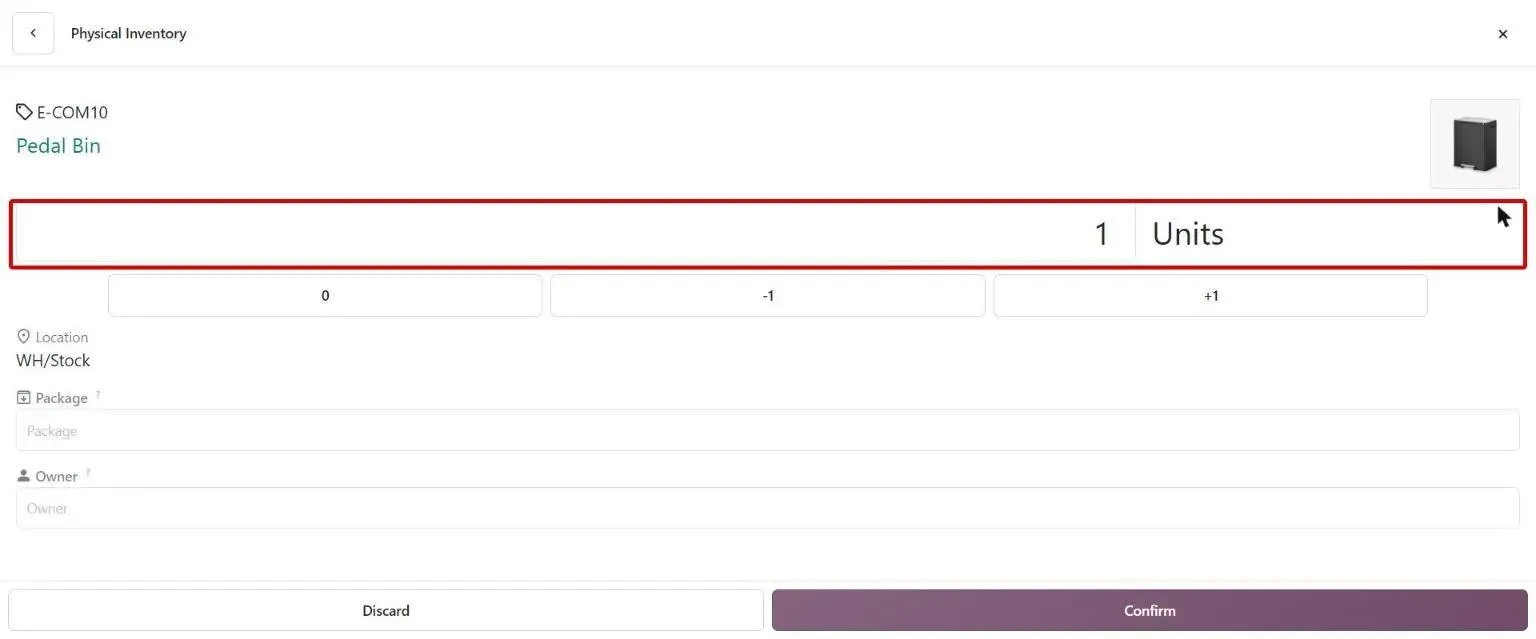
Step 8, Odoo 20 Barcode: Barcode count line opened via pen icon to type total counted quantity
Which Odoo 20 apps does inbound-to-outbound use?
| Odoo app | Module (edition) | What it does here |
|---|---|---|
| Inventory | stock (Community) | Warehouses, locations, routes, receipts, putaway, batches and waves, deliveries and reordering |
| Purchase | purchase (Community) | Purchase orders that create the receipt |
| Landed costs | stock_landed_costs (Community) | Freight, duty and insurance added to the value of received stock |
| Expiry dates | product_expiry (Community) | Expiry and removal dates on lots, with the earliest-expiring stock picked first |
| Delivery | stock_delivery (Community) | Delivery methods, package weights and shipping rules by country, state or zip prefix |
| Dispatch | stock_fleet (Community) | Docks, drivers and vehicles on batch transfers, and the CMR consignment note |
| Barcode | stock_barcode (Enterprise) | Scanning for receipts, picking, packing and counts on a phone or scanner |
| Quality | quality_control (Enterprise) | Quality checks on receipts and other operations |
| Carrier connectors | delivery_shipstation and other carrier connectors (Enterprise) | Live rates, labels, return labels and tracking from the delivery |
Where is standard Odoo enough, and where is it not?
Standard Odoo runs every step above. These are the gaps we close most often. Each is scoped and priced in discovery, not from a list.
-
A 3PL status the warehouse floor recognises
Standard Odoo: Odoo transfers move through a fixed set of states, from draft and waiting to ready and done. There is no state for the stages an outside 3PL works through, such as picked, printed or pulled, so its progress stays in its own tool.
What we add: For CABA Design, a 3PL status path from ready through pick, receive, print, pull, ship and done on top of the standard transfer, with pick lists for the US and China floors, merged batch lists and barcode pick sessions.
-
Containers tracked before they land
Standard Odoo: Landed costs add freight and duty to stock once it is received. Before that, goods on a ship or a plane show only as an expected receipt, with no container, transport mode or arrival dates.
What we add: For CABA Design, a container record for sea, air and ground shipments with load, ship and arrival dates, in-transit updates to the related 3PL work, and landed cost applied on the 3PL receipt.
-
Cross-docking to the orders that are waiting
Standard Odoo: In Odoo 20, the allocation report assigns an incoming receipt to a waiting delivery from each product's forecast. Choosing which open orders a whole inbound shipment should cover, and printing their labels, is still done by hand.
What we add: For CABA Design, a cross-dock document that lists potential orders, the orders selected and the inbound lines that cover them, and prints the outbound labels when it is posted, so stock ships without a full putaway.
-
The warehouse and carrier picked from the address
Standard Odoo: The warehouse is set on each sales order, and delivery methods can be limited to countries, states or zip prefixes. Odoo does not choose the shipping warehouse or the carrier from the destination and the service level.
What we add: For CABA Design, region, 3PL and carrier assigned on the order from the destination zip code, parcel or white-glove service set on the product, and actions to expedite or reroute an order after it is placed.
-
Barcode rules by order type
Standard Odoo: Odoo tracks stock by product, and by lot or serial number when tracking is on. Validating a transfer checks quantities and tracking, not business rules such as which barcodes may go on a B2B, store or advance-sale order.
What we add: For Koskii, a central register per garment barcode with cost, QC status, vendor and sale, and picking validation that enforces barcode rules for B2B, B2C and advance-sale orders.
Who approves what, and what is recorded?
- With three-step reception, goods pass through a quality-control location before they reach stock.
- Storage categories cap the weight a location can hold and whether it takes mixed products, and putaway rules respect them.
- Lots and serial numbers trace each unit from receipt to customer, and the traceability report shows the whole chain.
- Expiry dates on lots set the removal order, so the earliest-expiring stock leaves first.
- Stock at a past date shows what was on hand at any moment, for audits and disputes.
- Every transfer records who validated it and when, and followers are told when it is validated, cancelled or partly delivered.
What data moves when you migrate this process?
For the warehouse, these records move from the old system. Stock opens by location, lot and serial number with its value, so the first count in Odoo matches the shelf.
- Warehouses and locations with their barcodes
- Products with barcodes, packagings, weights and dimensions
- Opening stock by location, lot and serial number, with its value
- Reordering rules with their minimum and maximum
- Open receipts and deliveries
- Vendors, carriers and shipping accounts
Moving from another system? See SAP Business One to Odoo , NetSuite to Odoo , Tally to Odoo or Dynamics to Odoo .
What can AI take over in inbound-to-outbound?
The AI layer proposes and checks. A person still approves what gets bought, made or promised.
- Erpmate in Odoo Inventory Reorder points from real demand and lead time, plus expiring lots and stuck pickings flagged every morning.
- AI inventory forecast app Demand forecast per product in Odoo, with reorder suggestions.
- WhatsApp and Odoo Dispatch and tracking updates sent from Odoo to customers on WhatsApp.
- AI cost estimator What the AI layer costs to run each month, from your own order and message volumes.
Who runs inbound-to-outbound on Odoo with TechUltra?
CABA Design
A US direct-to-consumer furniture brand that makes to order and ships through US and China 3PLs, on Odoo 18 Enterprise. Inbound containers carry landed cost onto the 3PL receipt, inbound stock can be cross-docked to waiting orders, the 3PL floor works to its own status path with pick lists and barcode sessions, and parcel, express and freight are rated and booked from the delivery.
Read the CABA Design case studyHow long does it take, and what does it cost?
Implementation starts from about USD 4,000 and goes up with scope: the number of plants and products, the gaps above, integrations and how clean your data is. A one-week discovery maps your process and ends with a fixed timeline and a fixed price.
How does it differ by industry?
Only the industries where we have a reference for this process.
-
Furniture and home furnishings
Made-to-order furniture shipped through US and China 3PLs, with containers, cross-docking, zip-based carrier choice and white-glove delivery rules.
CABA Design case study -
Apparel retail
A garment-level barcode ledger with QC status, picking validation by order type, and transfers between company-owned and franchise stores.
Koskii case study -
Pharmacy retail
Stock ownership by location, transfers between branches and warehouses, replenishment, and expiry alerts and expiry-date control on receipt, across three countries.
Dawatech case study
Questions about inbound-to-outbound in Odoo
-
What is inbound-to-outbound in Odoo?
It is the warehouse process from goods arriving from a supplier to a customer's parcel leaving: set up locations, receive, put away, allocate incoming stock, replenish, pick, pack and ship, then count and trace. In Odoo 20 it runs in Inventory, with Purchase, Delivery and, in Enterprise, Barcode and Quality.
-
Which Odoo apps do I need to run a warehouse?
Inventory and Purchase at minimum, plus Sales for customer orders. Add Barcode (Enterprise) for scanning, Quality (Enterprise) for receipt checks, landed costs for freight and duty, expiry dates for lots with a shelf life, and a carrier connector for labels and tracking.
-
How many steps can receipts and deliveries have in Odoo?
Up to three each. Receipts run as receive and store, receive then store, or receive, quality check, then store. Deliveries run as deliver, pick then deliver, or pick, pack, then deliver. Each warehouse picks its own setting.
-
Does Odoo support batch and wave picking?
Yes. In Odoo 20, batch and wave transfers are part of Inventory, and batches can be built automatically per operation type. Workers then pick them in the Barcode app (Enterprise), where they can also decide on backorders when stock is short.
-
Can Odoo cross-dock inbound stock to customer orders?
Partly. Odoo 20 can assign an incoming receipt to a waiting delivery from the product's allocation report. Choosing which open orders a whole shipment should cover, and printing their labels in one go, needs a customisation like the cross-dock document we built for CABA Design.
-
Can Odoo work with an outside 3PL warehouse?
Yes, with work. Standard transfers do not track a 3PL's own stages, so we add a status path, pick lists and a 3PL application inside Odoo, as for CABA Design. If you run a 3PL business yourself, see Odoo for third-party logistics.
-
What does it cost to set up warehouse management in Odoo?
Implementation starts from about USD 4,000 and goes up with scope: warehouses, routes, barcode hardware, carrier connectors, integrations and data clean-up. A one-week discovery ends with a fixed price. Odoo's own subscription is billed by Odoo; see Odoo pricing.