

Odoo App · Point of Sale
POS Chatter
Message colleagues from inside the Odoo POS session — no closing, no pausing.
Overview
POS Chatter closes a small but painful gap in the standard Odoo Point of Sale: there is no way to read or reply to a Discuss message without leaving the POS session.
Built by TechUltra Solutions, the module brings the familiar chatter directly into the POS interface, so cashiers can ping a supervisor about a refund, ask the back office to verify stock, or answer a manager's question without closing the open session.
A simple boolean enables the feature per shop, recipients see notifications the moment a message arrives, and the full chat history is available from the same panel — keeping the till active while in-store teams stay in touch.
Key features
-
Chatter inside an open POS session
Use Odoo's Discuss chatter from the Point of Sale interface without closing or pausing the session — the till stays open while messages move.
-
Time-saving workflow for the till
Cashiers no longer have to close a session to use chat, then reopen it and reconcile cash — a short, frequent interruption removed.
-
Message any Odoo user from POS
Send messages to any user in Odoo. Recipients are notified inside their Discuss app the moment a new message arrives from the till.
-
Real-time notifications in POS
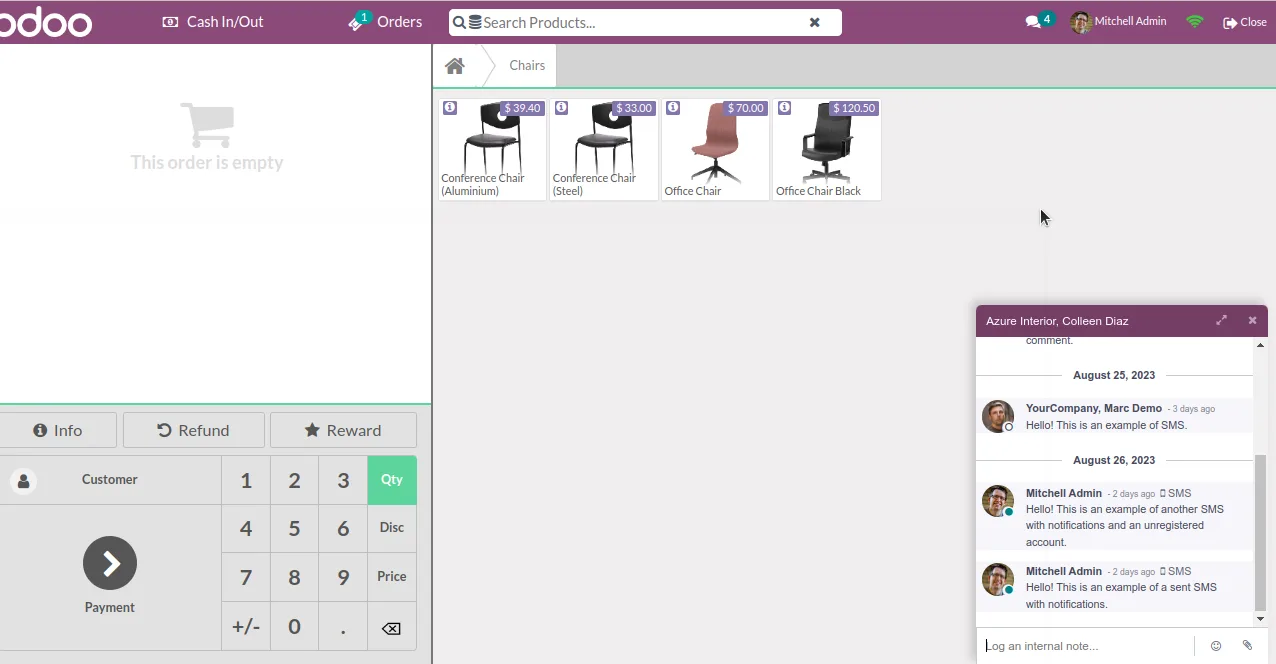
Inbound messages surface in the POS interface in real time, so cashiers see manager replies or back-office answers without leaving the screen.
-
Full chat history in the panel
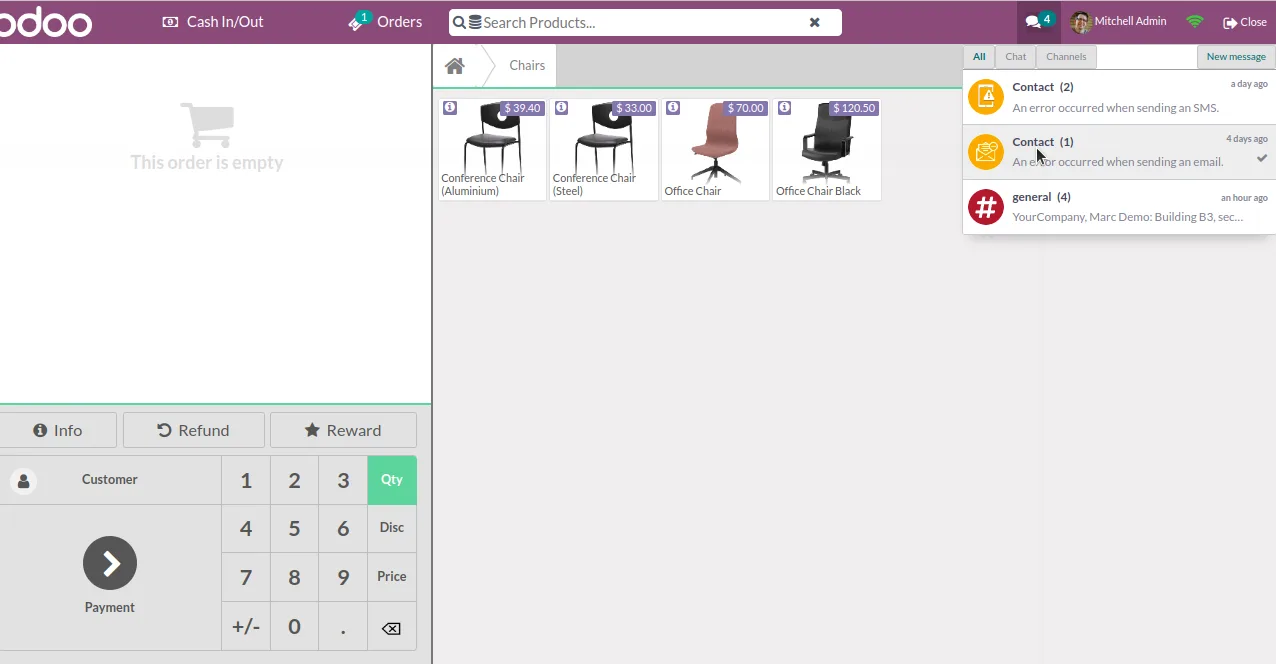
View the complete chat list and history from inside POS — context for the current conversation is one click away.
-
Per-shop on/off switch
Enable the chatter per Point of Sale shop with a single boolean field, so stores that prefer the standard POS UI stay untouched.
-
No configuration beyond install
After installation and the per-shop toggle, the chatter button appears in POS — no scheduled jobs or external services to set up.
-
Works with both Odoo editions
Compatible with both the Community and Enterprise editions of Odoo 15 — the same POS workflow regardless of subscription.
POS Chatter in Odoo
Every screen, in the order you meet it — configuration first, then the module in use.
Technical details
Specification
- Publisher
- TechUltra Solutions Private Limited
- Technical name
- tus_pos_chatter
- Odoo versions
- 15.0
- Lines of code
- 194
- License
- Odoo Proprietary License v1.0 (OPL-1)
- Price
- $28.71 (one-time)
Deployment
- Odoo Online
- Odoo.sh
- On-premise
Odoo dependencies
- Point of Sale
- Discuss
- Inventory
- Invoicing
Support
90 days of bug-fix support, Monday to Friday (10:00–19:00 IST). Raise a ticket at support@techultra.in.
Setup & configuration
From install to first call — here is the path.
- 1
Install the module
In Odoo, open Apps, remove the Apps filter, search for “POS Chatter”, and click Install.
- 2
Enable POS chat for the shop
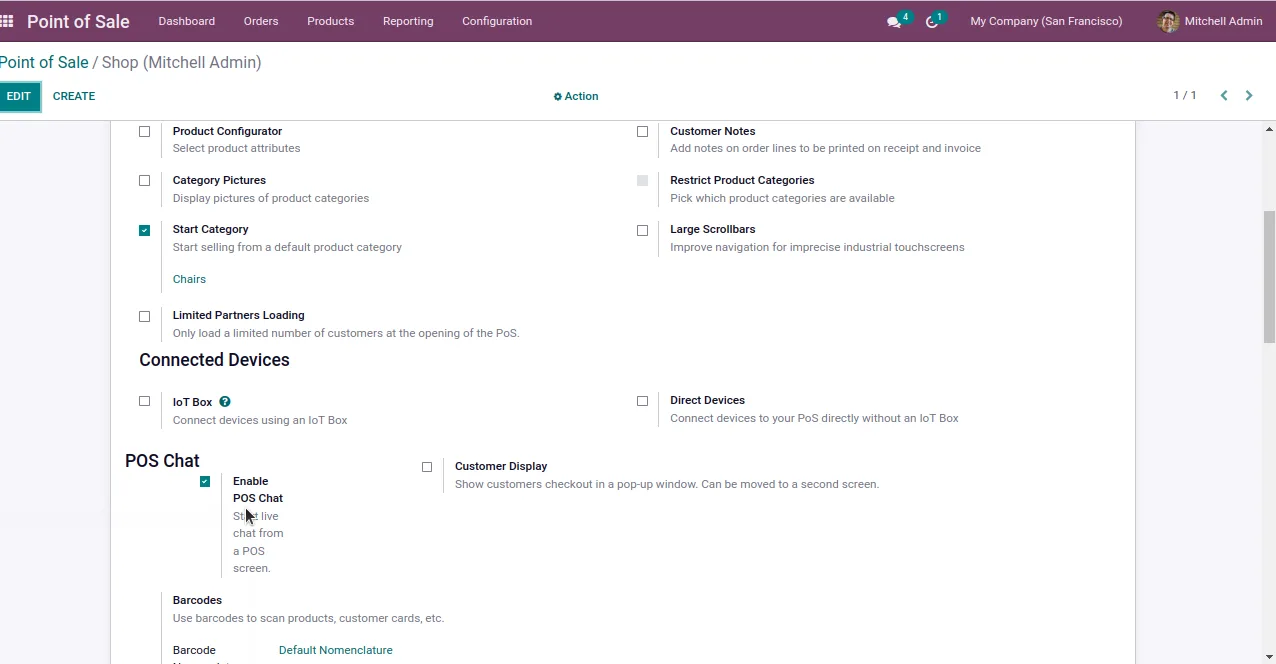
Go to Point of Sale → Configuration → Point of Sale → Shop, open the shop, and tick the “Enable POS Chat” boolean.
- 3
Open a POS session
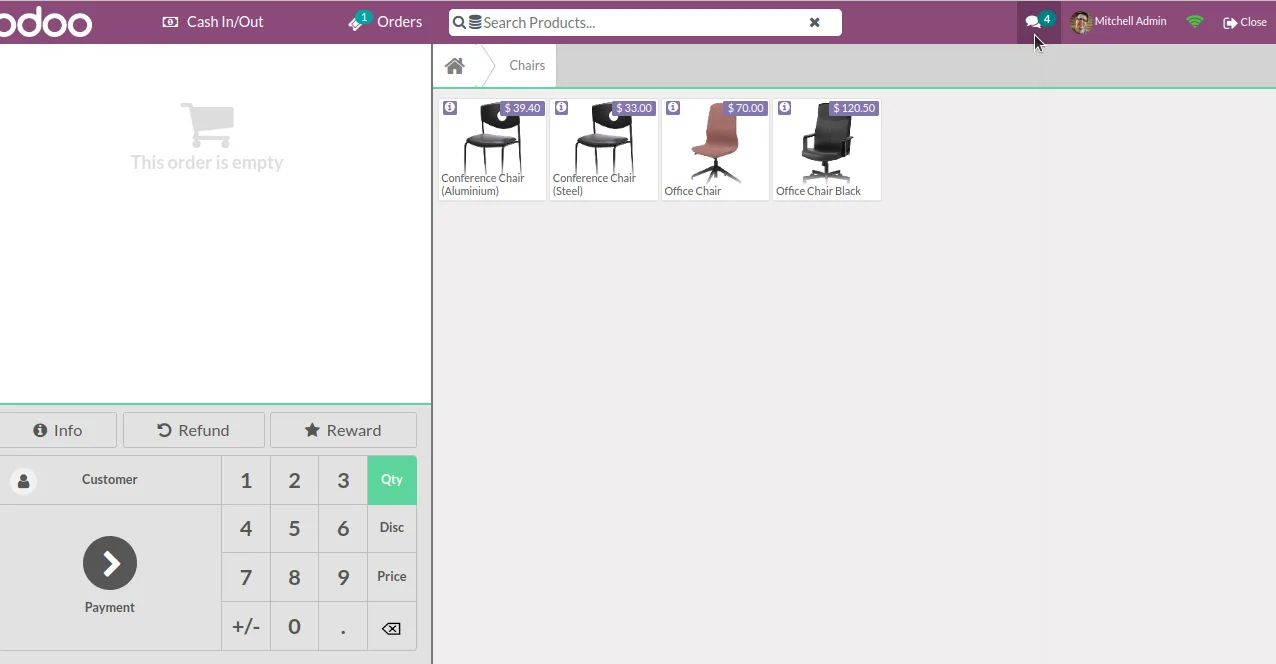
Launch a session for that shop. A chatter button now sits in the POS interface, ready to use.
- 4
Send and receive messages
Open the chatter from within POS, pick any Odoo user, and start a conversation. Replies arrive as in-POS notifications without disturbing the active till.
Frequently asked questions
-
What does POS Chatter add to Odoo?
It places the Odoo Discuss chatter inside the Point of Sale interface, so cashiers can send and receive messages without closing or pausing an active POS session.
-
Do I need to close the POS session to use chat?
No — that is the whole point. The chatter runs inside the session itself, so the till stays open while you message a supervisor or the back office.
-
Who can a cashier message from POS?
Any user in Odoo. Recipients are notified in their Discuss inbox as usual, so the conversation works just like any other Odoo chat.
-
How do I enable it for a specific shop?
Open Point of Sale → Configuration → Point of Sale → Shop, choose the shop, and tick the “Enable POS Chat” boolean. The button then appears in POS for that shop.
-
Which Odoo version is supported?
POS Chatter targets Odoo 15.0 specifically, in both Community and Enterprise editions.
-
Are notifications real time?
Yes. Inbound messages surface in the POS interface as they arrive, so cashiers do not need to leave the screen to know a reply has landed.
-
Is any extra configuration required?
Beyond installation and the per-shop boolean, no. There are no scheduled jobs, external accounts, or API tokens to set up.
Listing verified against the Odoo App Store:
Related solutions
Whole-platform solutions that complement POS Chatter.
Related services
Get the most out of this module with senior TechUltra consultants.
Odoo Customization Services
Tailored Odoo customizations from a Gold Partner — 200+ projects, upgrade-safe patterns, fixed-scope quotes, senior consultants. Free demo consultation.
Hire Odoo Developers
Hire certified Odoo developers from a Gold Partner — 400+ implementations, Odoo since 2016. Silver / Gold / Platinum packages, free trial.
Odoo Support Services & Maintenance
Odoo support services from a Gold Partner: functional and technical support plus server cover for Enterprise and Community, 30-minute P1 response, 24/7 option.







