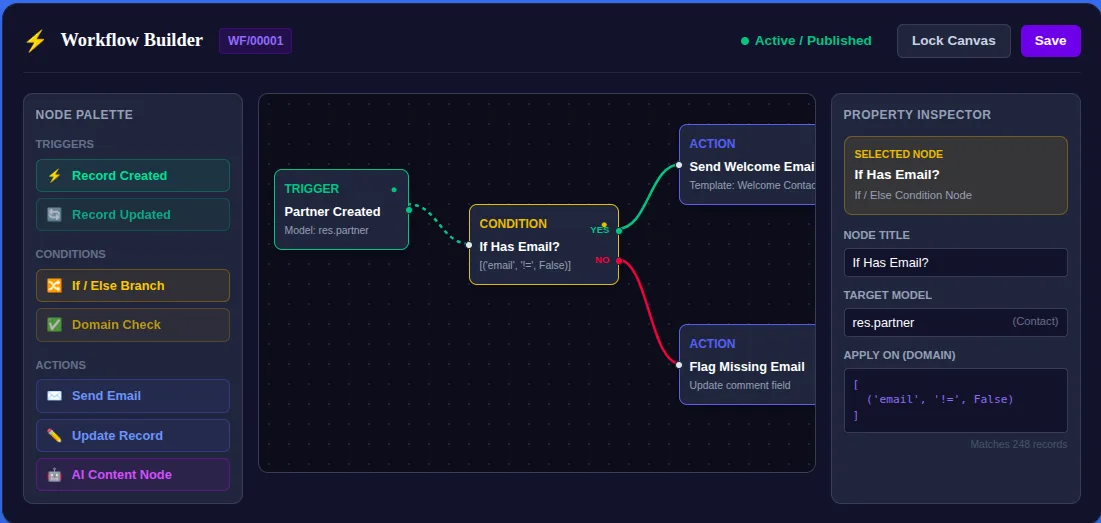
Add WhatsApp to your Odoo workflows with Automation Studio — WhatsApp
Drop a WhatsApp node onto an Odoo workflow: send approved templates, turn the quick-reply button a customer taps into a real Odoo action, and route inbound replies back to the right record — no code.
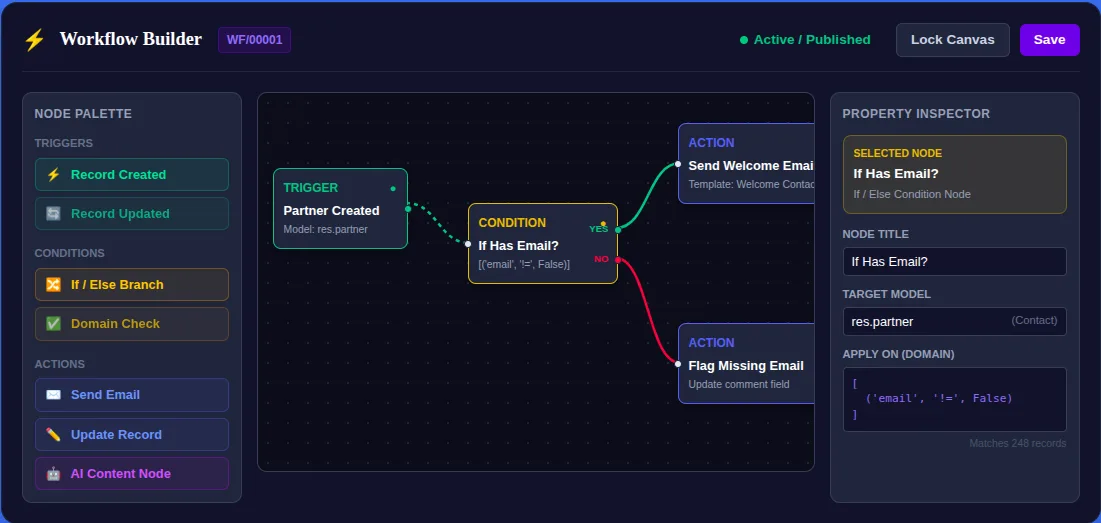
WhatsApp is where a lot of your customers actually reply. But in most Odoo setups it’s a one-way street: you send a notification, the customer answers, and that answer lands in an inbox nobody’s workflow is watching. The conversation and the record drift apart.
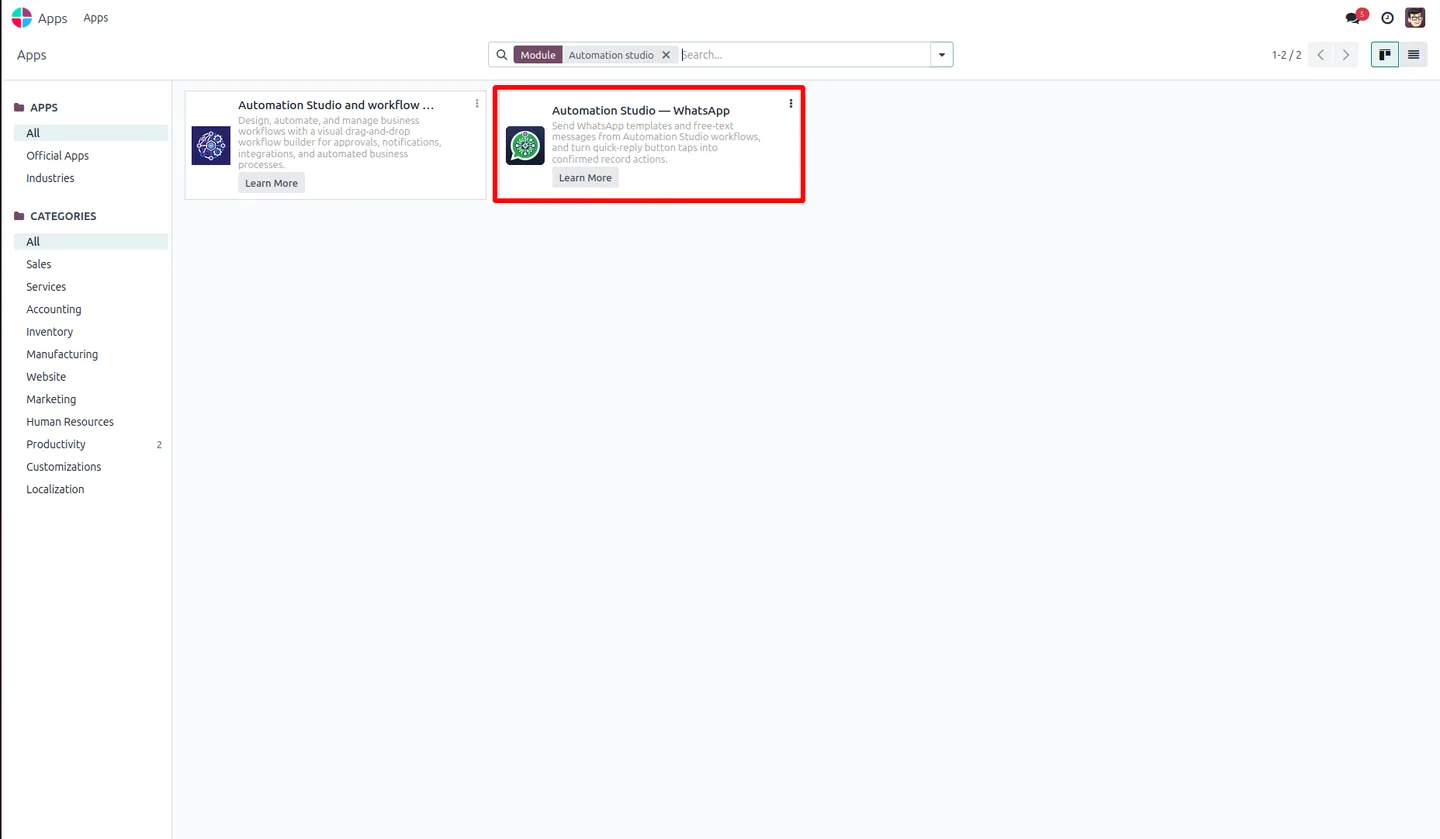
Automation Studio — WhatsApp closes that loop. It’s an add-on for TechUltra’s Automation Studio workflow builder that adds WhatsApp Business as a two-way node on the visual canvas — so a workflow can send a message, and what the customer taps back becomes a real Odoo action. It’s live on the Odoo App Store for Odoo 16 through 19.
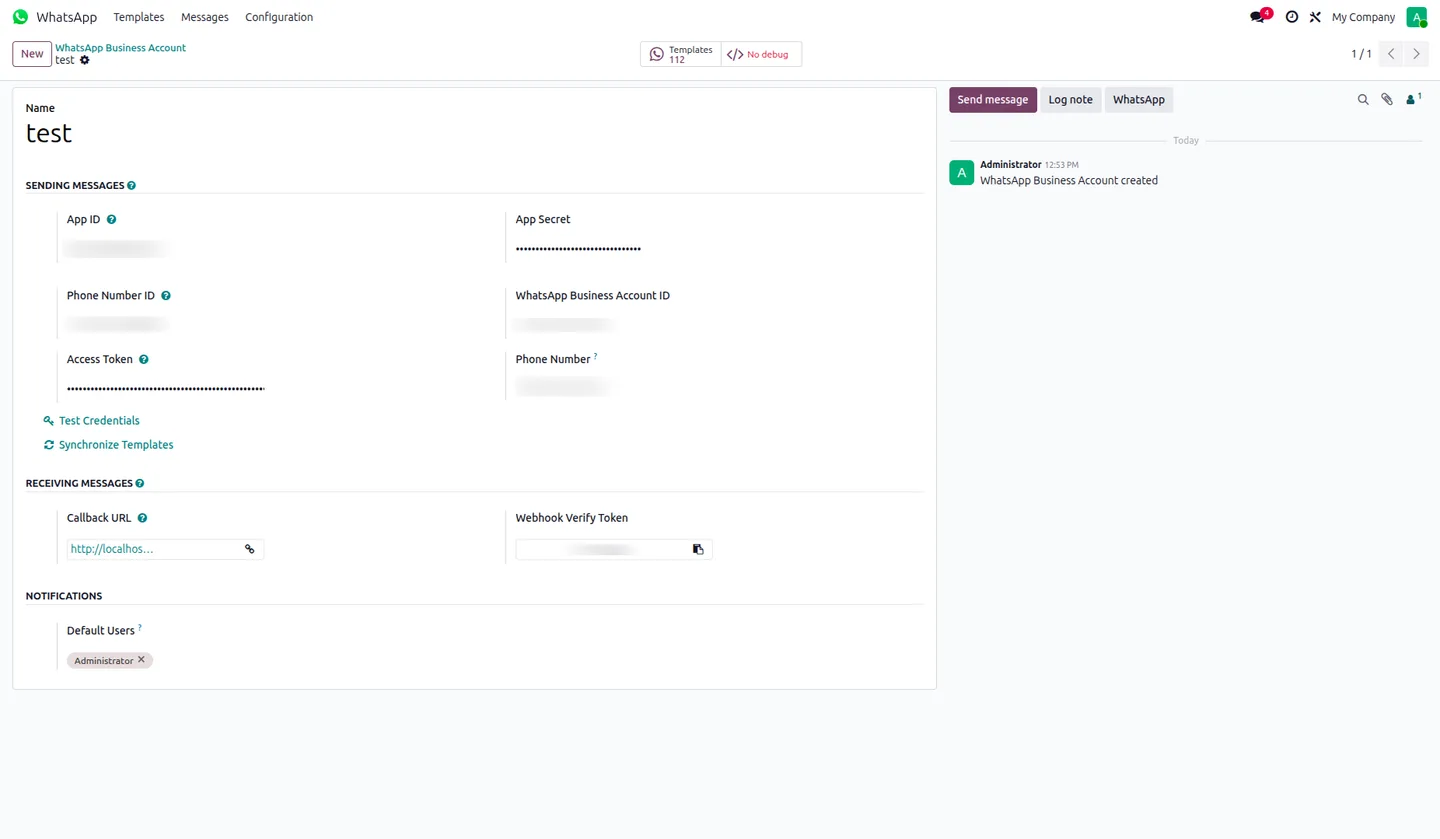
How do you send a WhatsApp message from a workflow?
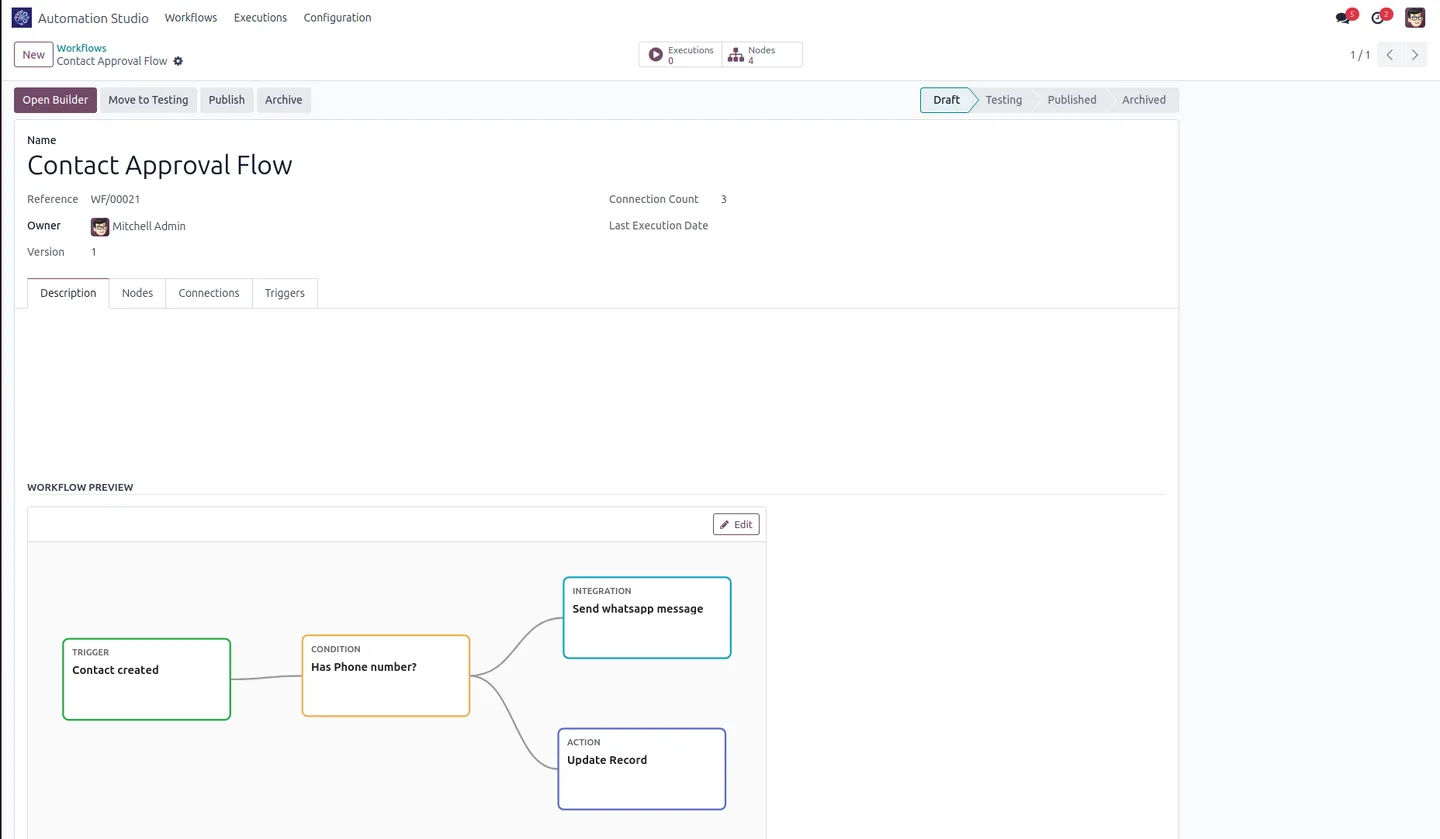
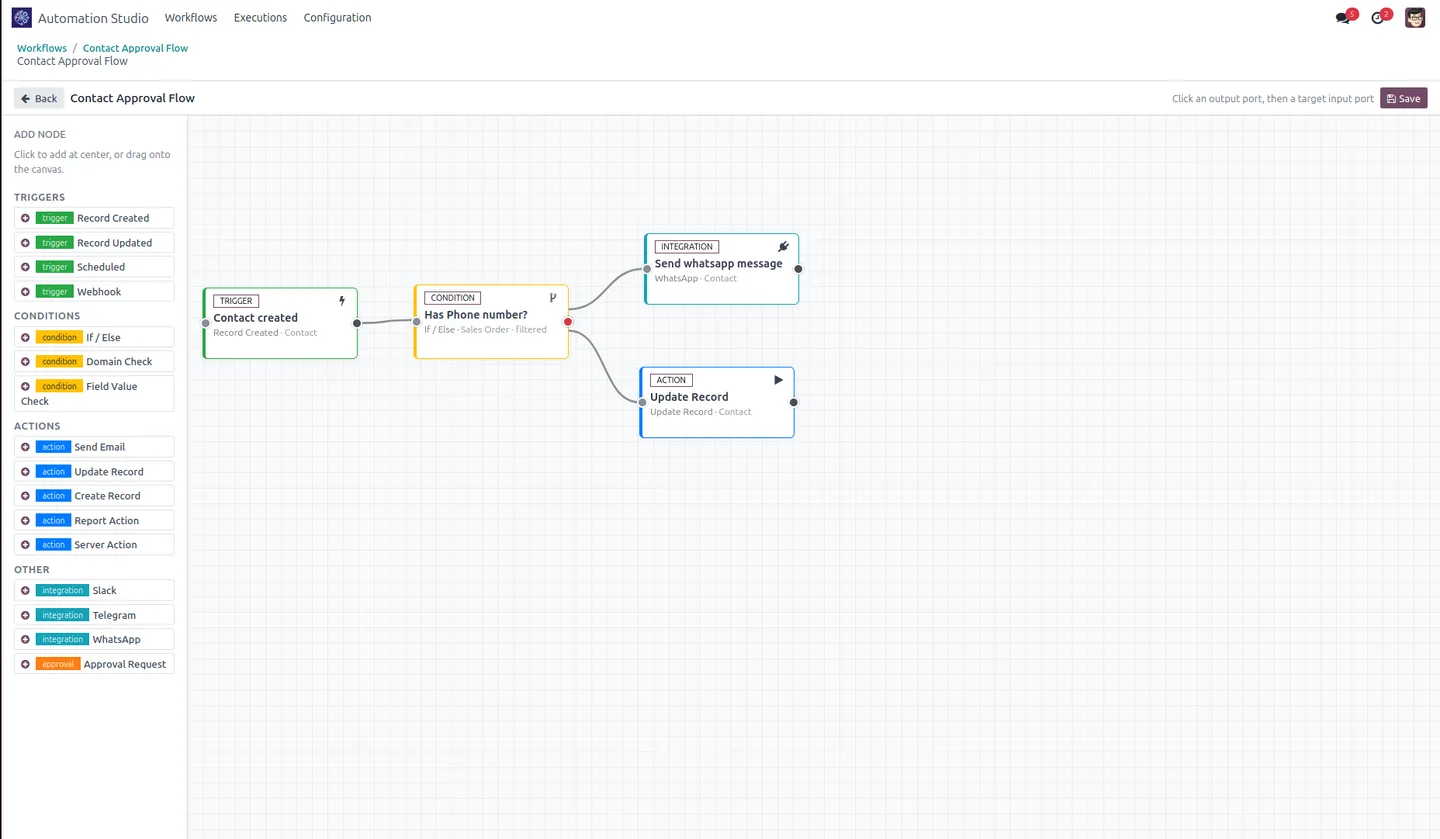
You drop a WhatsApp node onto an Automation Studio canvas and configure it in the inspector. Pick a connected WhatsApp Business account (filtered by company, so it’s multi-company safe), then choose what to send: a Meta-approved template, or a free-text message inside the 24-hour session window. Because it’s just another node, WhatsApp slots into the same flows as your Telegram, Slack, and conditional-logic steps.
What happens when a customer taps a button?
This is the part that turns messaging into automation. When you send a template with quick-reply buttons, you map each button to a concrete outcome:
- Confirm a sales order
- Post an invoice
- Trigger any Odoo server action
- Or launch a separate published Automation Studio workflow on the same record
So a customer tapping “Confirm” in WhatsApp can move the actual order forward in Odoo — no staff member re-keying anything.
Can one message lead to another workflow?
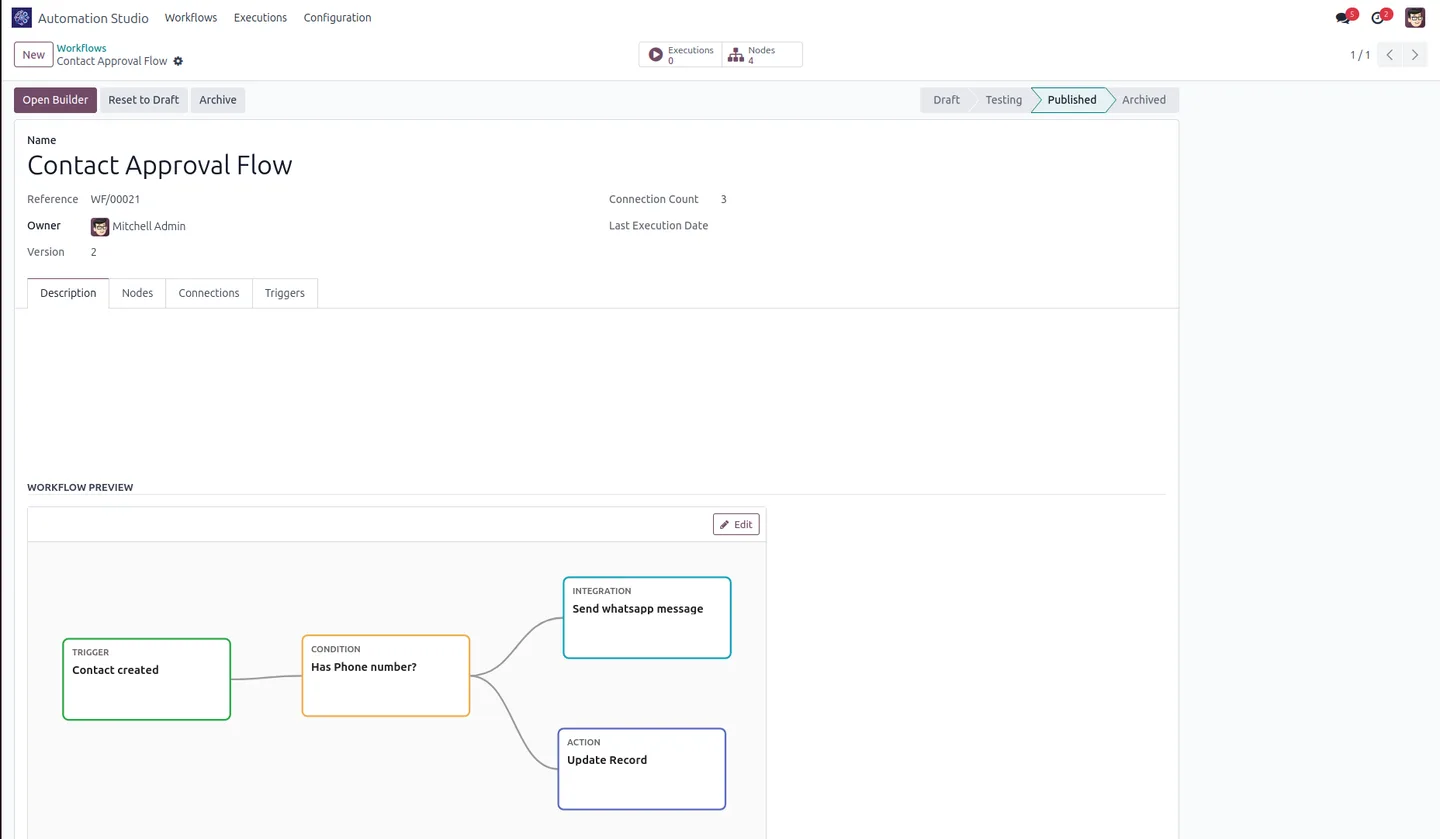
Yes — button responses can chain. A tap can hand off to another published workflow on the same record, so you compose longer conversations out of small, reusable pieces instead of one giant flow. Send an order confirmation; the reply kicks off a delivery-scheduling workflow; that one asks the next question. Each step is its own workflow you can edit independently.
Do replies stay tied to the right record?
They do, automatically. Incoming webhooks match each reply to the original message, so a customer’s response is linked back to the exact Odoo record that started the conversation. Nothing lands in an orphaned inbox. You also get a phone-number override per node — use the template’s default number, or set a static value or an expression evaluated at run time.
What do you need to run it?
This is an add-on, so it has two prerequisites:
- The Automation Studio & Workflow Builder base module — the canvas the WhatsApp node lives on.
- Odoo Enterprise’s WhatsApp Messaging — WhatsApp is an Enterprise feature, so this add-on targets Enterprise editions of Odoo 16 to 19.
Install the base builder first, then this module layers the messaging nodes on top.
Who is it for?
Sales and support teams that already talk to customers on WhatsApp and want those conversations to do something in Odoo — confirm orders, collect approvals, schedule deliveries — without a developer wiring webhooks by hand. It’s the messaging half of a no-code automation stack: the base builder gives you triggers and logic; this gives you the channel your customers actually use.
WhatsApp automation is one of the things we’re known for — see the wider AI & Agentic ERP toolkit for where it fits.
Getting started
Make sure Automation Studio and Odoo Enterprise WhatsApp Messaging are in place, install Automation Studio — WhatsApp, and drop your first WhatsApp node into a workflow. The full feature list and screenshots are on the app page, and you can buy it from the Odoo App Store listing.
Want help designing a WhatsApp workflow around your process? Talk to our team, see the productized WhatsApp–Odoo integration, or explore the full Odoo App Store catalogue.
Frequently asked questions
-
Is Automation Studio — WhatsApp a standalone module?
No. It's an add-on for the Automation Studio & Workflow Builder module — install that first. It also requires Odoo Enterprise's WhatsApp Messaging, since WhatsApp is an Enterprise feature.
-
Can it send approved WhatsApp templates?
Yes. A WhatsApp node can send Meta-approved templates or free-text messages within the 24-hour session window, selected from the node inspector.
-
What happens when a customer taps a quick-reply button?
You map each button to an action — confirm an order, post an invoice, or trigger a server action — or route it to launch another Automation Studio workflow on the same record.
-
Are inbound replies linked to the right record?
Yes. Incoming webhooks match replies to the original message, so responses are tied back to the correct Odoo record automatically.
-
Can I control which number a message is sent from?
Yes. Each node can use the default template phone number or override it per node with a static value or an expression evaluated at run time.
-
Which Odoo versions are supported?
Odoo 16.0, 17.0, 18.0, and 19.0 on the Enterprise edition, because WhatsApp Messaging is an Enterprise feature.
Related services & solutions
Put this into practice with TechUltra's senior Odoo consultants.
WhatsApp ↔ Odoo Integration
Two-way WhatsApp Business API integration with Odoo. Customer messages, order updates, invoices, and payment links — unified inbox for agents.
Odoo Customization Services
Tailored Odoo customizations from a Gold Partner — 200+ projects, upgrade-safe patterns, fixed-scope quotes, senior consultants. Free demo consultation.
Odoo Integration Services
Two-way Odoo integrations with Magento, Shopify, Salesforce, Amazon, QuickBooks, payment gateways. 200+ shipped integrations — free consultation call.
Odoo App Store catalogue
240 TechUltra modules — AI, WhatsApp, automation, accounting, and more.