No-code Odoo automation with Automation Studio & Workflow Builder
Build Odoo automations on a drag-and-drop canvas — event triggers, branching logic, Telegram and Slack alerts, execution logs, and a sandbox — without writing a line of server code.

Odoo can already automate a lot — but the moment your logic gets past “email me when a lead is created,” you’re usually in server-action and Python territory. That means a developer, a deployment, and a change that’s hard for the business team to see or adjust later.
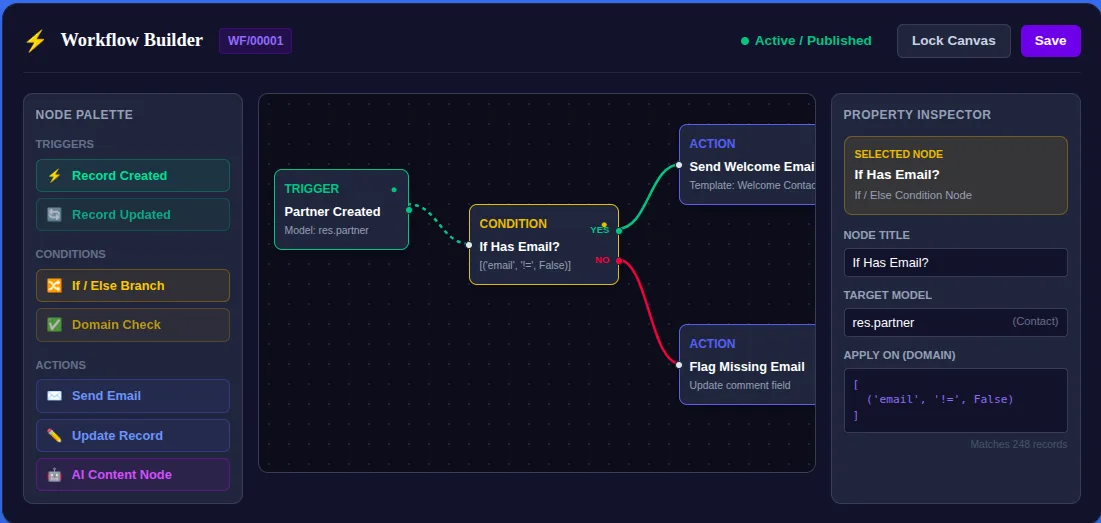
Automation Studio & Workflow Builder moves that work onto a visual canvas. You drag nodes, connect them, and the workflow runs against your Odoo models — approvals, conditional routing, and notifications configured by the people who own the process, not coded. It’s a TechUltra Solutions module for Odoo 16 through 19, live on the Odoo App Store.
How does a visual workflow work?
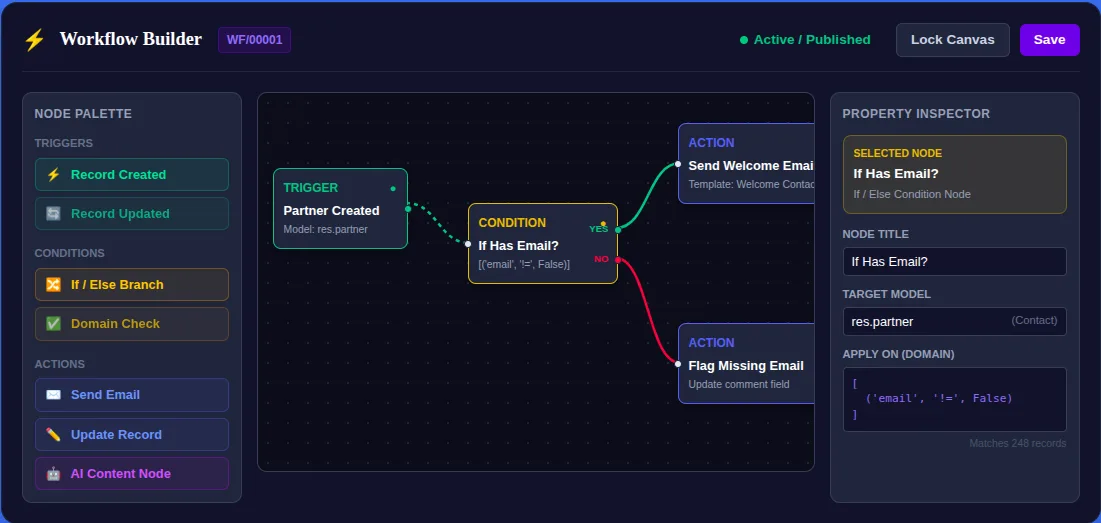
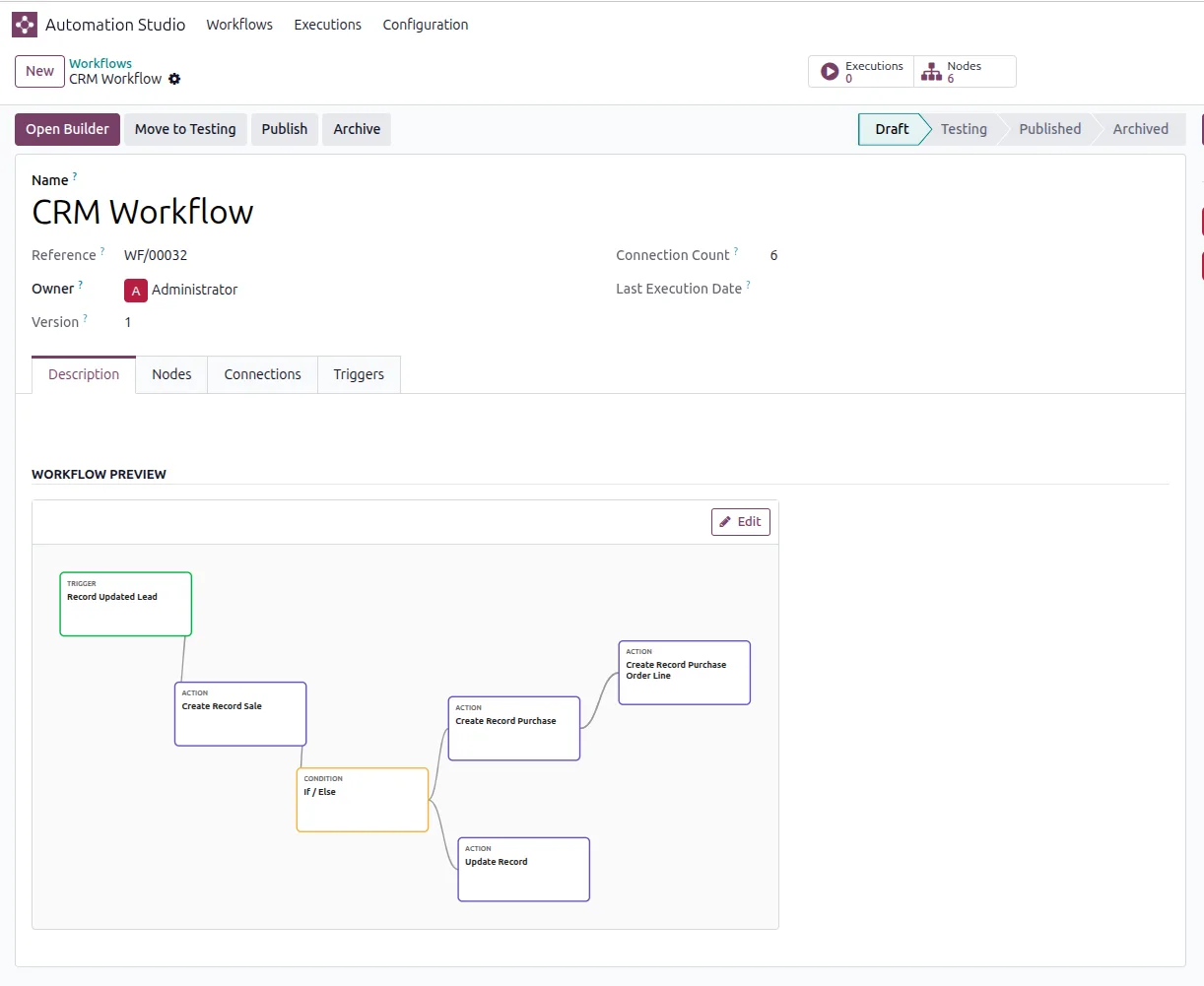
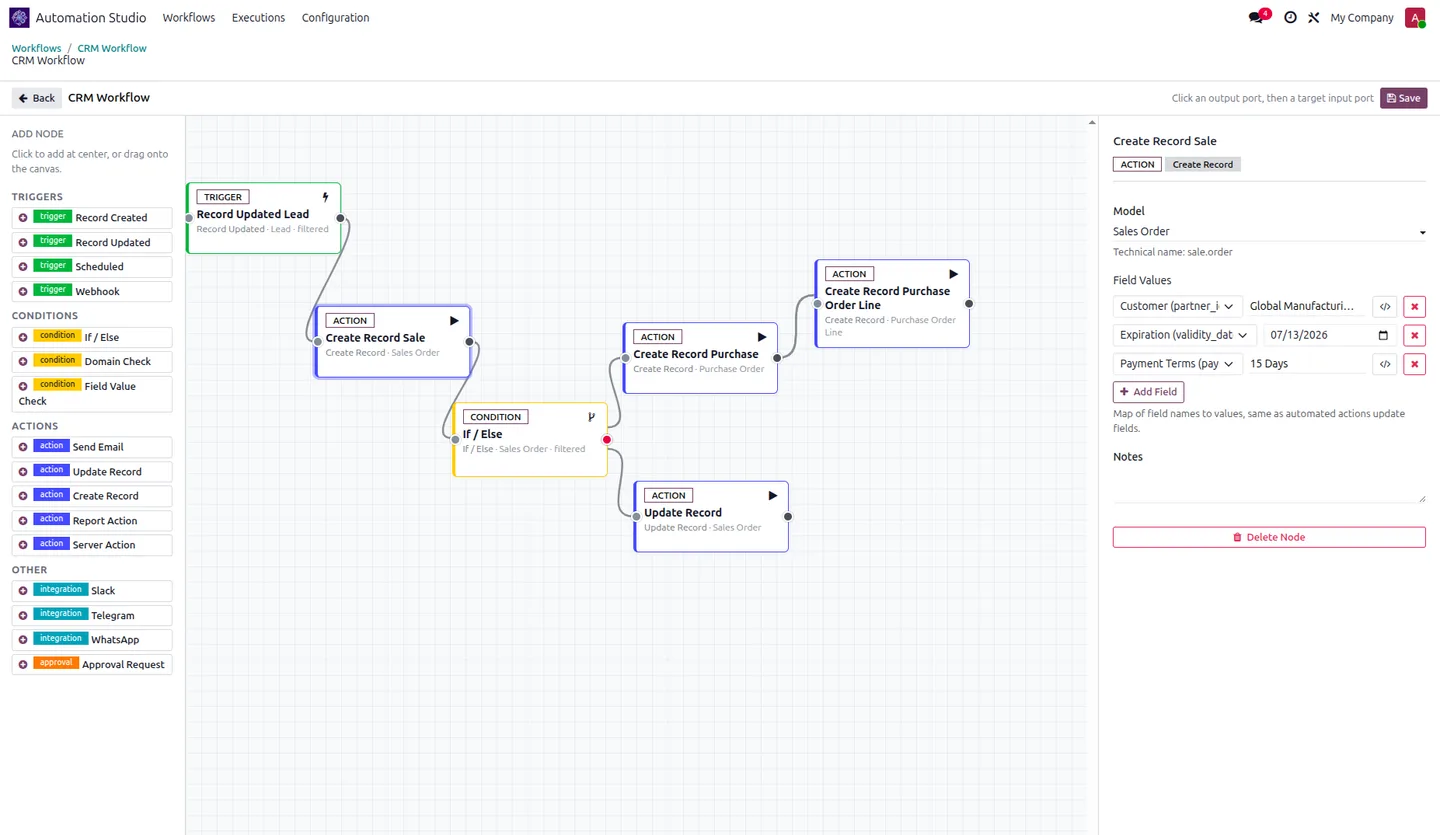
Three kinds of node make up any automation:
- Triggers listen for database events — a record created, a record updated, a model changed — and start the workflow. No custom server action to wire up.
- Conditions apply Odoo filters to branch the flow, routing a record down a success path or an alternative path based on rules you set.
- Actions do the work at the end — send a notification, or hand off to the next step.
You connect them on a grid, and you’re building a graph-based business process instead of a wall of code.
Can it handle real conditional logic?
Yes — this is where no-code tools usually fall down, and where Automation Studio earns its place. Branching uses Odoo’s own filter engine, so the conditions you can already express on a list view are the conditions you can branch on. High-value deals take one path, everything else takes another; approved records notify one team, rejected ones another.
Which notifications are built in?
Telegram and Slack, out of the box, with templated messages that include record data — so an alert reads “Deal Acme Corp moved to Won, ₹4.2L” rather than a generic ping. You drop a notification node onto a path and pick the channel.
Need WhatsApp too? That’s the companion module — more on that below.
What happens when a workflow fails?
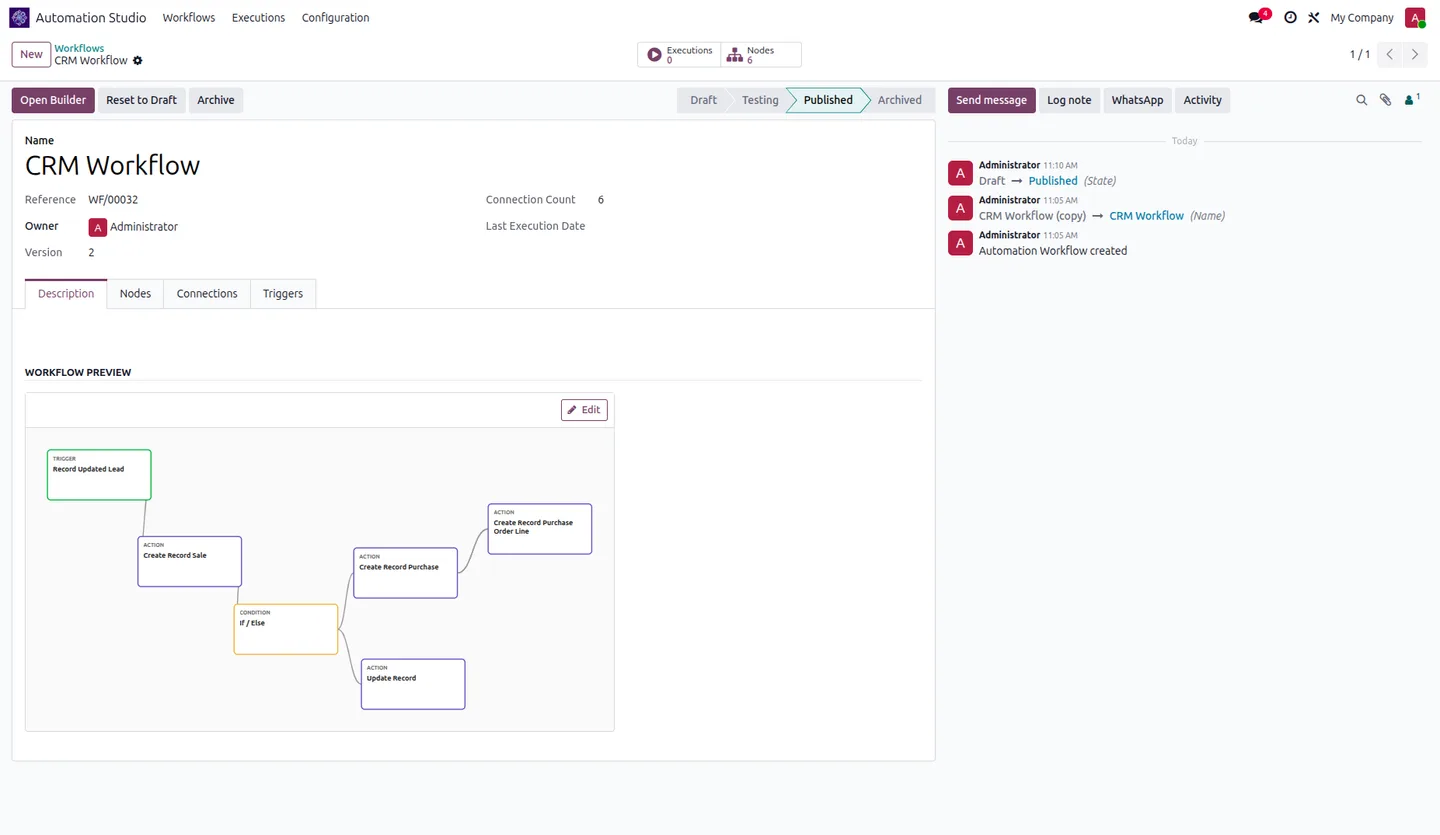
You see it, and you can fix it. Every run is captured in execution logs: what fired, what it did, and where it errored. Failed executions can be retried manually, so a transient hiccup (an API timeout, say) doesn’t silently drop a notification. And before anything reaches production, you validate it in a sandbox — so a change to a live approval flow never surprises the business.
Add WhatsApp to your workflows
Automation Studio is the base builder. Its companion, Automation Studio — WhatsApp, adds WhatsApp Business messaging nodes on top — send approved templates, and map the quick-reply buttons a customer taps to concrete Odoo actions like confirming an order. If two-way WhatsApp is on your roadmap, install the base builder first and layer the add-on on top. We cover it in detail in our post on Automation Studio — WhatsApp.
Who is it for?
Ops managers who own approval flows, sales teams who want deal-stage alerts, and Odoo admins who are tired of writing a server action for every small rule. If your automations currently live in a developer’s backlog, this puts them back in the hands of the team that runs the process — with logs and a sandbox so it stays safe.
It sits alongside the rest of our AI & Agentic ERP work — practical, governed automation you can adopt incrementally.
Getting started
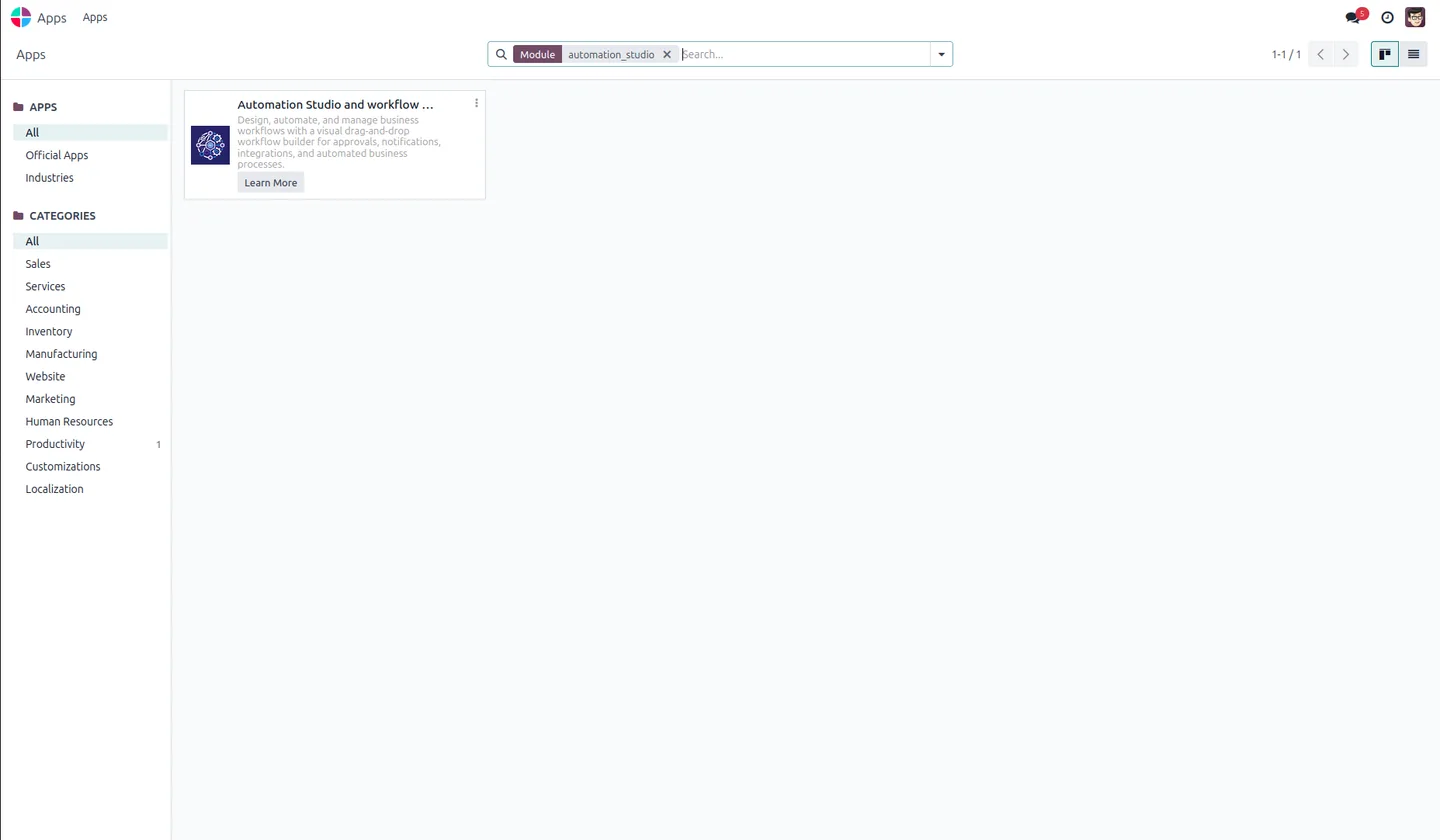
Install Automation Studio on Odoo 16–19 from the Apps screen, drag your first trigger onto the canvas, and publish once you’ve tested it in the sandbox. Full features, screenshots, and the spec are on the app page, and you can buy it from the Odoo App Store listing.
Want a hand mapping your first workflow? Talk to our team, or browse the full Odoo App Store catalogue for the rest of our automation and AI modules.
Frequently asked questions
-
Do I need to write code to build a workflow?
No. Automation Studio is a no-code, drag-and-drop builder. You place nodes on a canvas and connect them; triggers, conditions, and actions are all configured visually — no server actions or Python required.
-
What can trigger a workflow?
Database events — record creation, record updates, and model changes — trigger workflows directly, without custom server actions.
-
Which notification channels are built in?
Telegram and Slack are built in, with templated messages that include record data. For WhatsApp, add the companion Automation Studio — WhatsApp module.
-
Can I test a workflow before it goes live?
Yes. You can validate a workflow in a sandbox before publishing it, and every run is logged so you can audit and retry failures.
-
Which Odoo versions are supported?
Automation Studio & Workflow Builder supports Odoo 16.0, 17.0, 18.0, and 19.0, on Odoo Online, Odoo.sh, and on-premise.
Related services & solutions
Put this into practice with TechUltra's senior Odoo consultants.
WhatsApp ↔ Odoo Integration
Two-way WhatsApp Business API integration with Odoo. Customer messages, order updates, invoices, and payment links — unified inbox for agents.
Odoo Customization Services
Tailored Odoo customizations from a Gold Partner — 200+ projects, upgrade-safe patterns, fixed-scope quotes, senior consultants. Free demo consultation.
Odoo Integration Services
Two-way Odoo integrations with Magento, Shopify, Salesforce, Amazon, QuickBooks, payment gateways. 200+ shipped integrations — free consultation call.
Odoo App Store catalogue
240 TechUltra modules — AI, WhatsApp, automation, accounting, and more.