

Odoo App · Printing & Reports
PrintNode Direct Print
Send Odoo documents straight to networked printers through the PrintNode cloud service.

Overview
PrintNode Direct Print links Odoo to PrintNode, a cloud printing service, so documents go from the ERP to a physical printer over the internet — no local print dialog, and no need for the printer to be on the same machine as the user.
Built by TechUltra Solutions, the module routes documents such as sales orders, purchase orders, invoices, and vendor bills to the right printer. Each user can have default printers, paper sizes, colour settings, and print actions, and a preview step lets staff check a document before it prints.
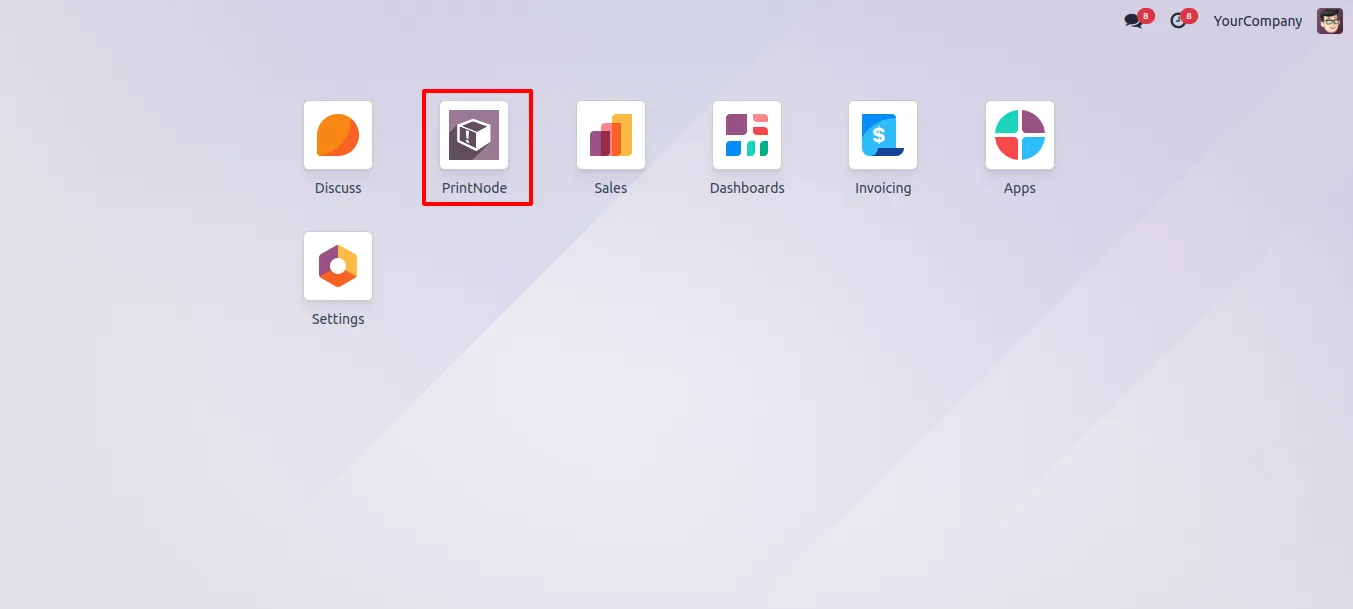
Once Odoo is connected to PrintNode with an API key, the module fetches every system and printer it finds automatically, so most printers need no manual setup. A dedicated PrintNode app inside Odoo gathers the account, printer, system, user, and document-history screens in one place, and printing rights can be limited so only chosen users send documents to paper.
Key features
-
Direct cloud printing from Odoo
Send documents from Odoo straight to a networked printer through PrintNode — cloud printing that works across any network the printer is reachable on.
-
Centralised print management
Manage and control all printing tasks from one place inside Odoo, instead of juggling separate printer dialogs and drivers.
-
Automatic system and printer discovery
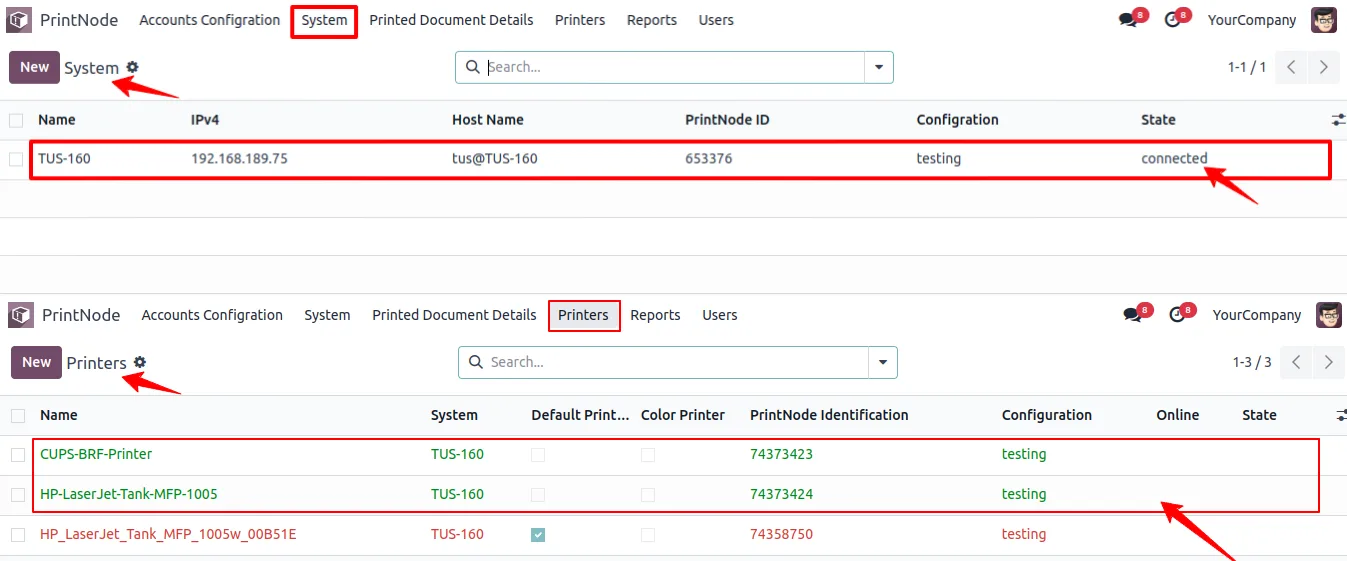
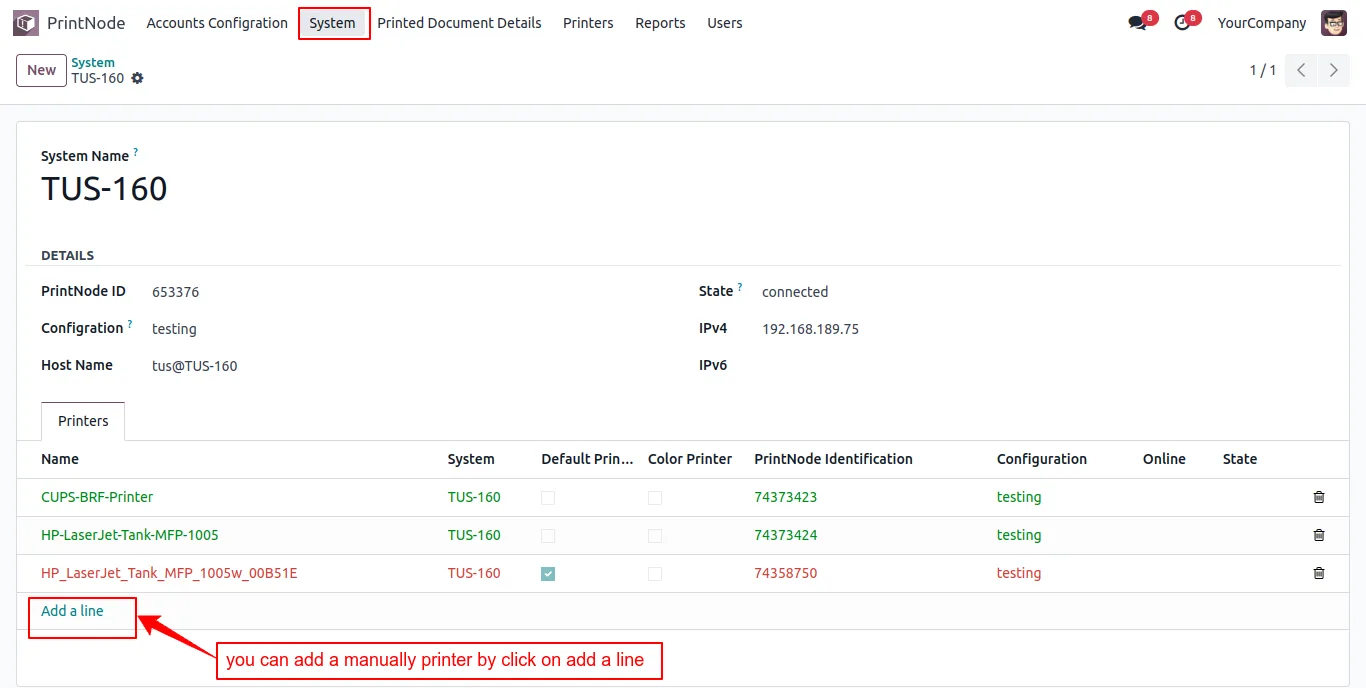
After Odoo is connected to PrintNode, the module fetches every system and printer it can see automatically — no manual printer configuration for most setups.
-
Per-user print preferences
Each user can set a default printer, paper size, colour preference, and print action, so documents route the way each role needs them.
-
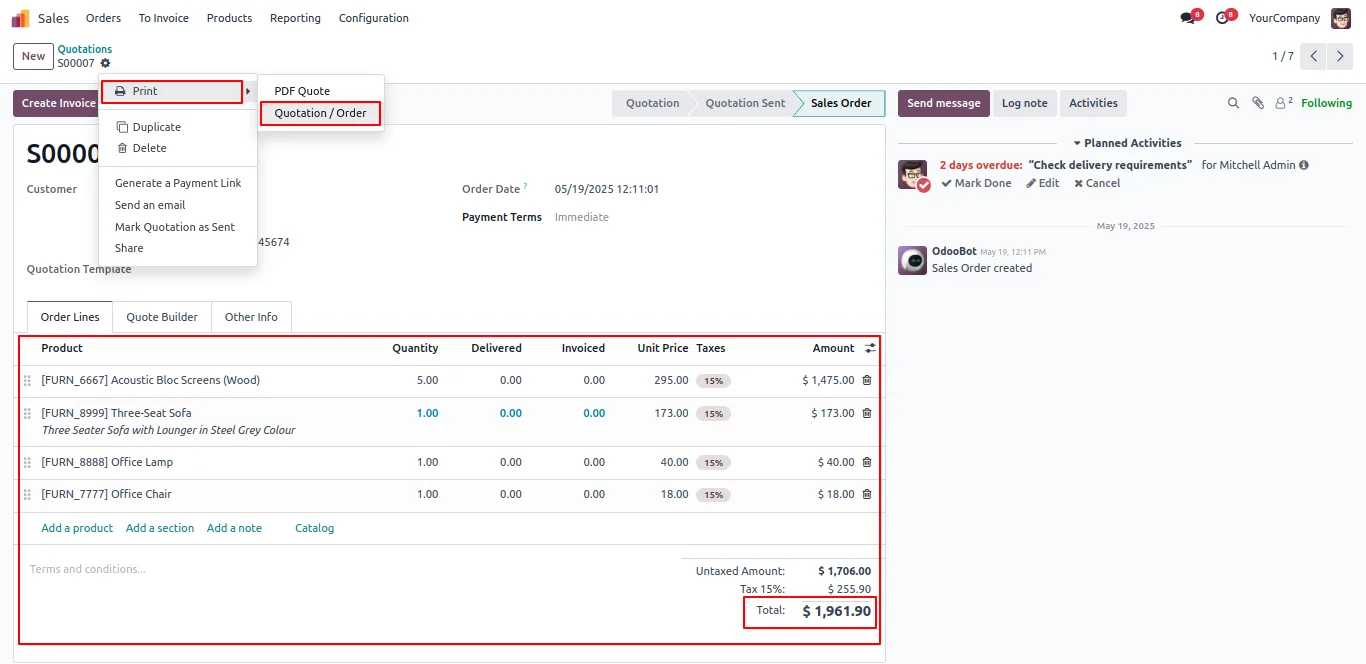
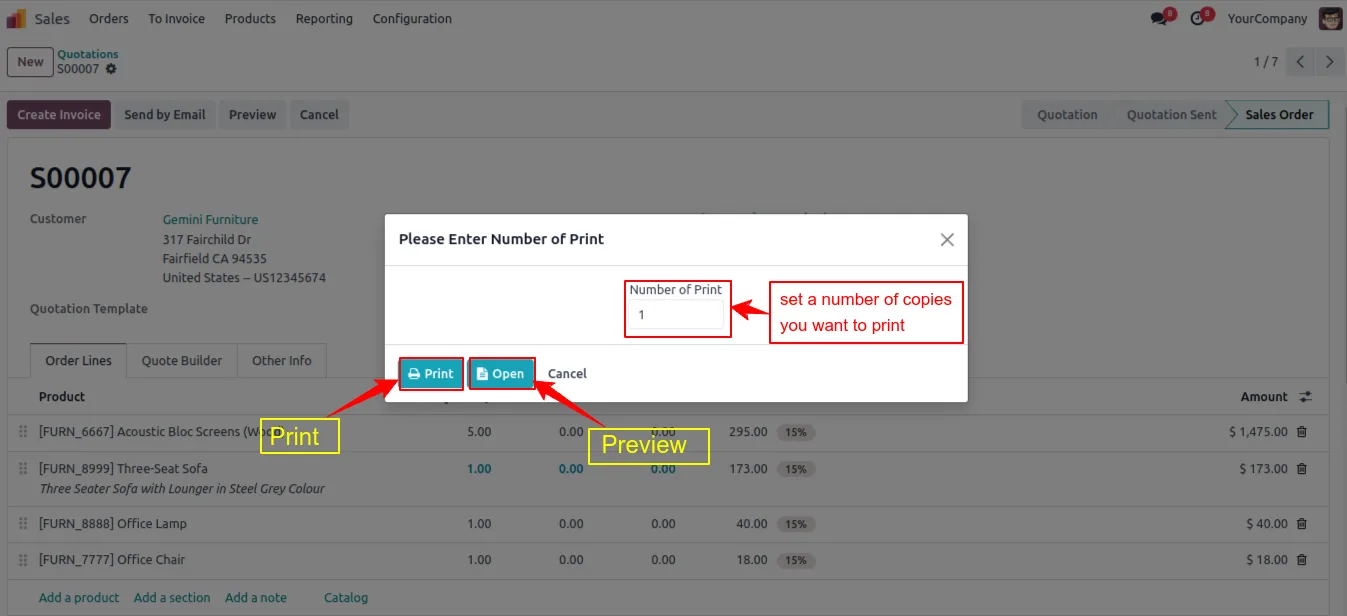
Document preview before printing
A preview step lets staff review a document before the print job is sent, reducing wasted paper from wrong or unchecked prints.
-
Per-user printing restrictions
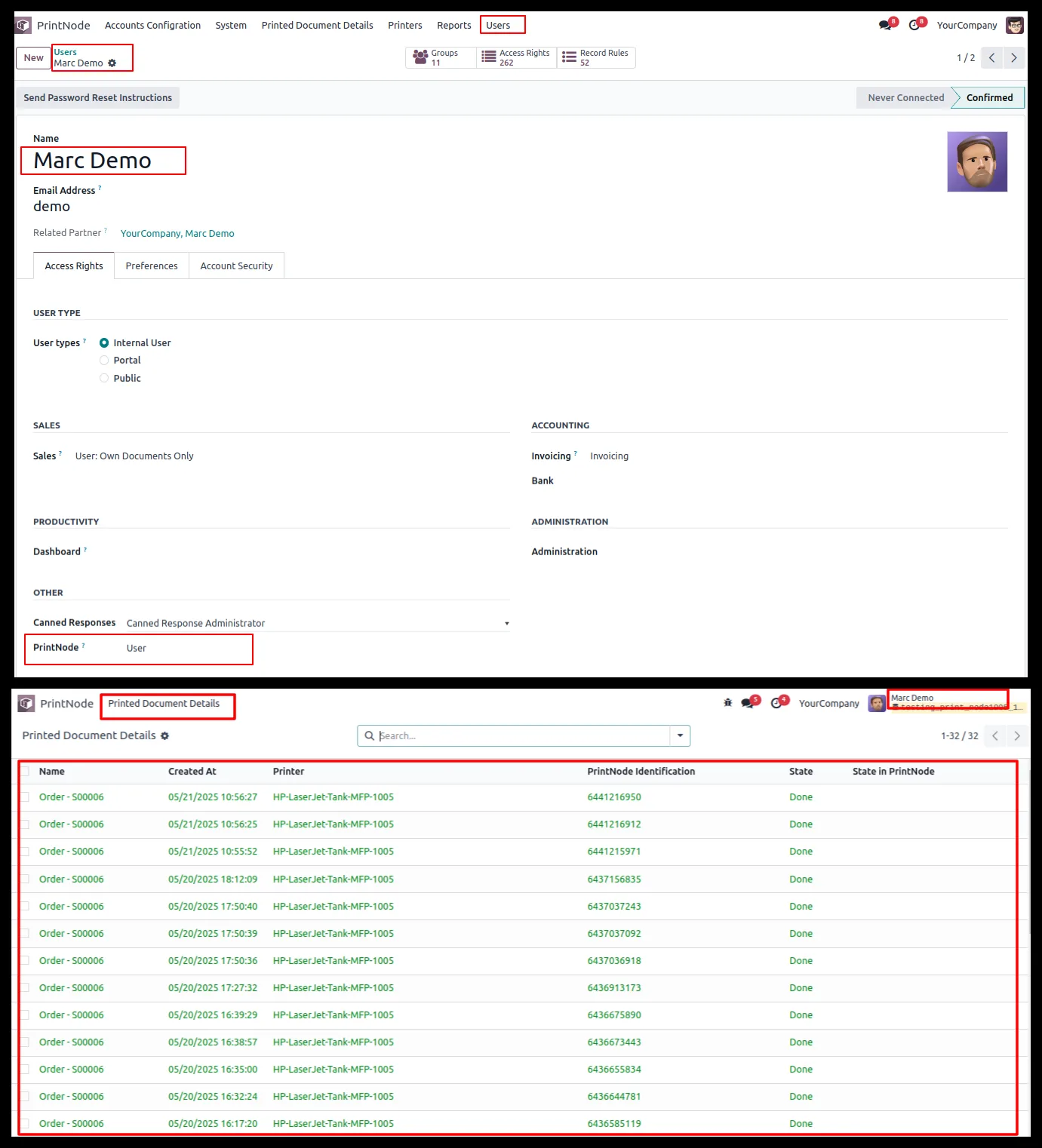
Only selected users may print invoices or reports to a physical printer; other users can generate soft copies only.
-
Tracking and reporting
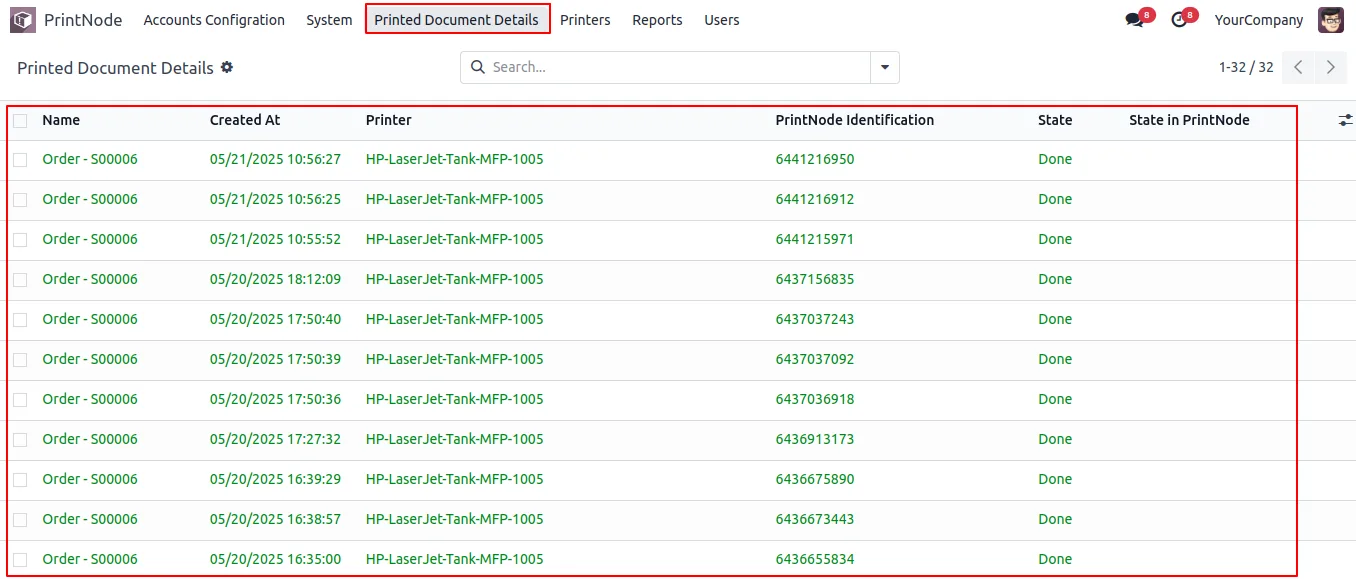
Monitor printing activity and review printed-document history, so you can analyse usage patterns and manage printing costs.
-
Visual printer status
Connected printers show with a green ribbon and name, while disconnected printers appear in red — so problem printers are easy to spot.
-
Dedicated PrintNode app
A dedicated app inside Odoo brings account configuration, printers, systems, users, and printed documents together on one set of screens.
-
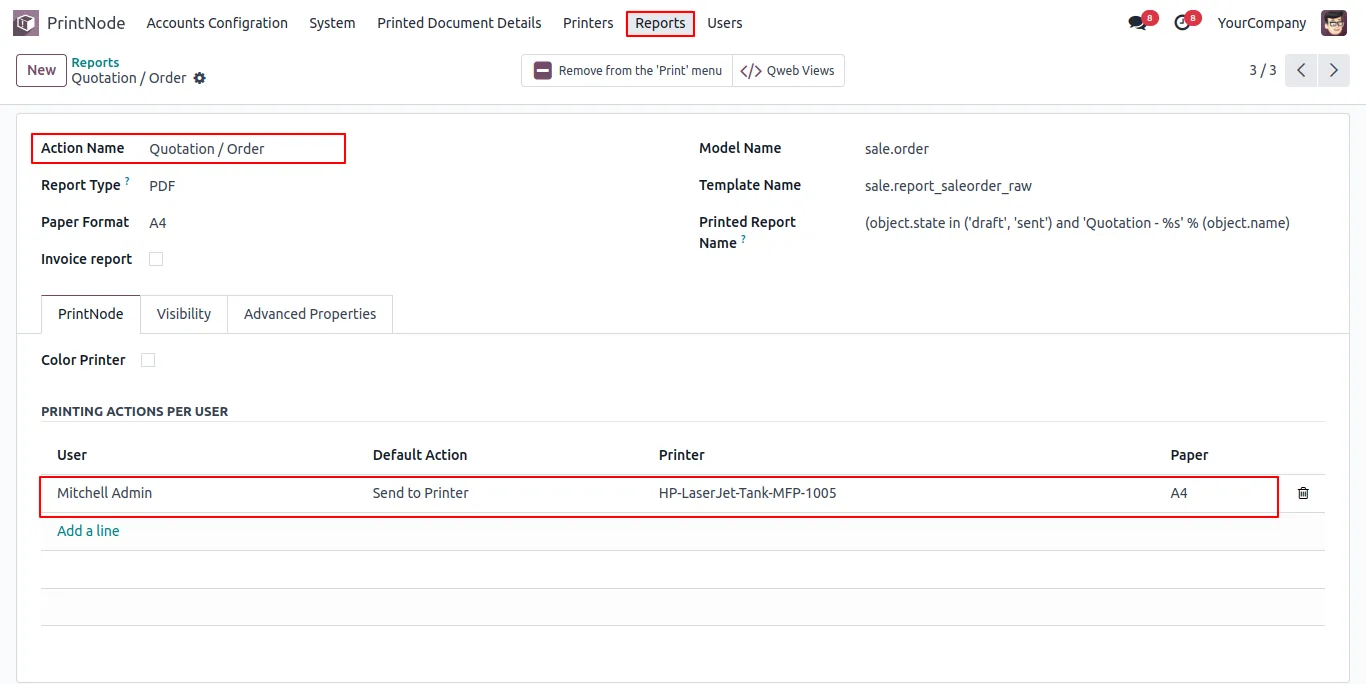
Per-report print rules
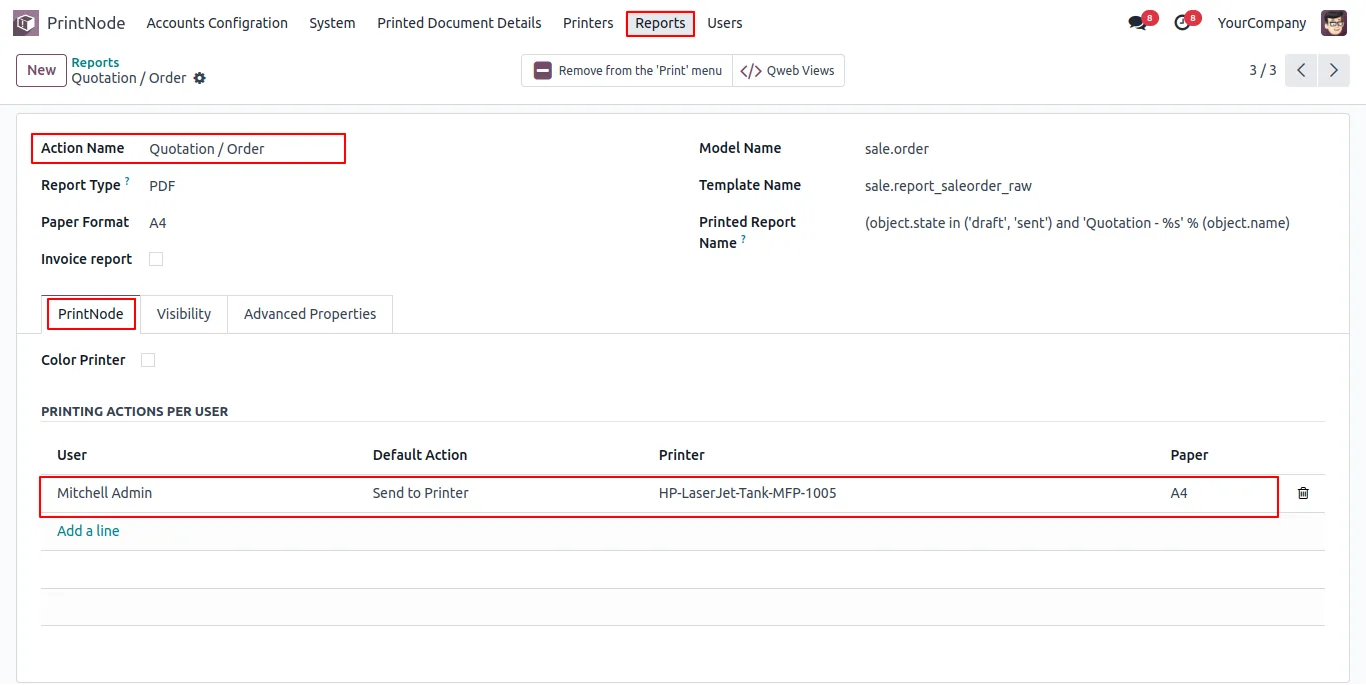
For each report — sales orders, invoices, and more — set the printer, paper size, colour requirement, and print action per user.
PrintNode Direct Print in Odoo
Every screen, in the order you meet it — configuration first, then the module in use.

Technical details
Specification
- Publisher
- TechUltra Solutions Private Limited
- Technical name
- tus_printnode
- Odoo versions
- 16.0, 17.0, 18.0, 19.0, 20.0
- Lines of code
- 4,486
- License
- Odoo Proprietary License v1.0 (OPL-1)
- Price
- $99 (one-time)
Deployment
- Odoo Online
- Odoo.sh
- On-premise
Odoo dependencies
- Sales
- Purchase
- Invoicing
Support
90 days of bug-fix support, Monday to Friday (10:00–19:00 IST). Raise a ticket at support@techultra.in.
Setup & configuration
From install to first call — here is the path.
- 1
Install the module
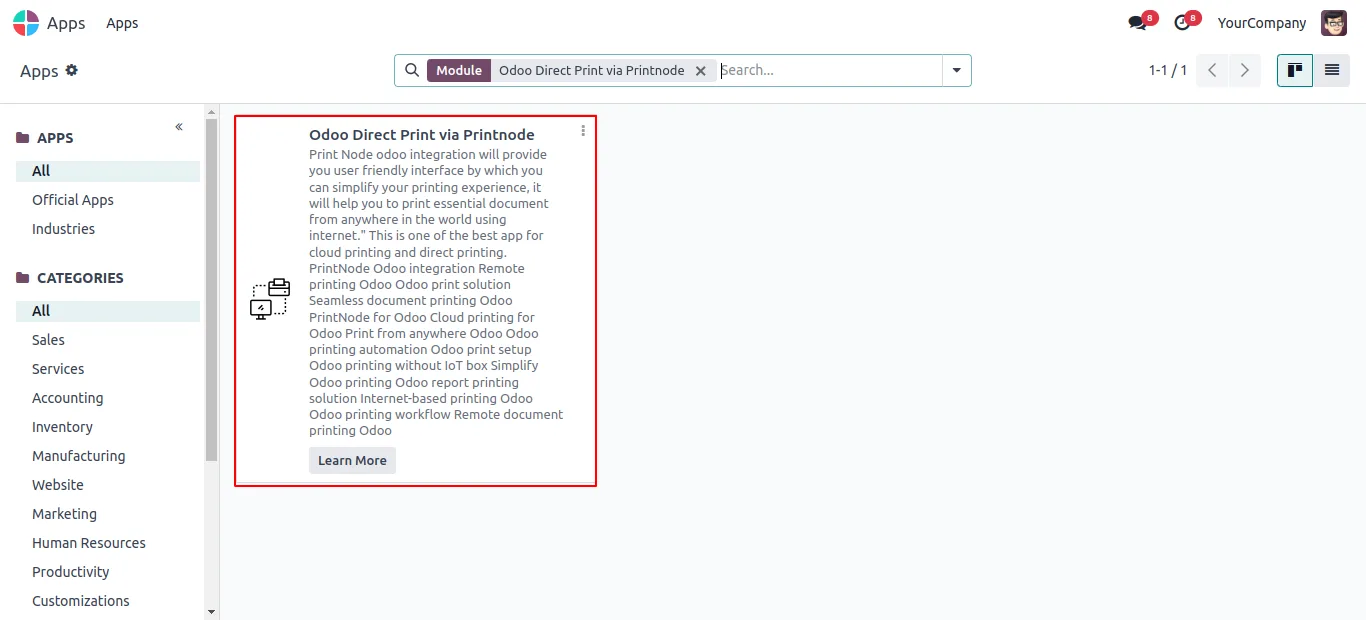
In Odoo, open Apps, remove the Apps filter, search for “PrintNode Direct Print”, and click Install. The PrintNode app then appears on the Odoo home screen.
- 2
Set up PrintNode and the desktop client
Create a PrintNode account, then download and install the PrintNode desktop client for Windows or Ubuntu. Once it runs, your system and connected printers register with your PrintNode account automatically.
- 3
Generate an API key
Sign in to your PrintNode account, open the API keys tab, and generate a new API key for Odoo to authenticate with.
- 4
Connect Odoo to PrintNode
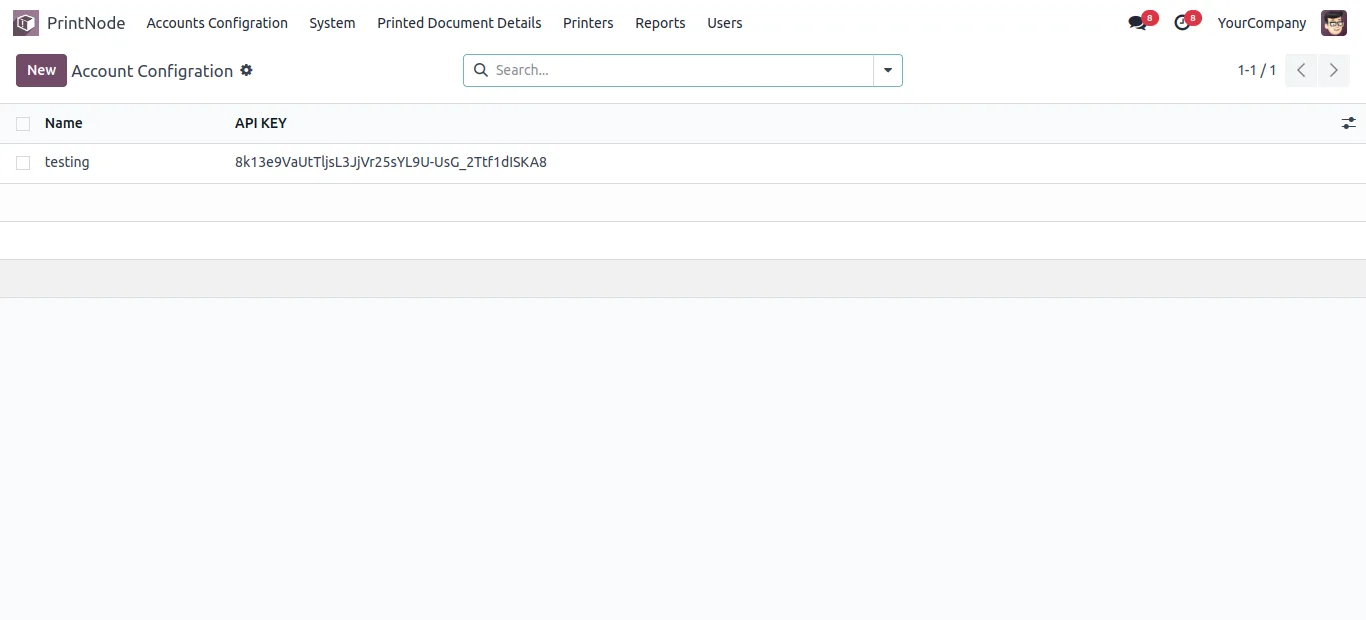
In Odoo, go to PrintNode → Account Configuration, paste the API key, enter an account name, and confirm. Odoo then populates the Printers and Systems tabs automatically.
- 5
Configure printers and reports
In the Printer tab, set default printers, mark colour-capable devices, and define paper sizes. For each report, open its PrintNode settings and set the printer, paper size, colour, and print action per user.
- 6
Set printing permissions
Assign PrintNode manager or user roles, and choose which users may print documents directly to a physical printer versus generating soft copies only.
Frequently asked questions
-
What is PrintNode and why is it required?
PrintNode is a cloud printing service. This module connects Odoo to it so documents print to networked printers over the internet. You need a PrintNode account and its desktop client installed on the machine your printers are attached to.
-
Which documents can I print directly?
You can route business documents such as sales orders, purchase orders, invoices, and vendor bills straight to a printer, with per-report rules controlling the printer, paper size, and colour.
-
Do I have to configure each printer by hand?
Usually no. Once Odoo is connected to PrintNode, the module fetches every system and printer it can see automatically. You can still add a printer manually if needed.
-
Can I limit who prints to a physical printer?
Yes. Only selected users may print invoices or reports directly to paper; other users can generate soft copies only. PrintNode manager and user roles control wider access.
-
How do I know if a printer is online?
Connected printers display with a green ribbon and name, while disconnected printers appear in red, so a printer that is offline is easy to identify.
-
Can staff check a document before it prints?
Yes. A preview step lets users review a document before the print job is sent, which cuts wasted paper from incorrect prints.
-
Which Odoo versions are supported?
PrintNode Direct Print supports Odoo 16.0, 17.0, 18.0, 19.0, and 20.0.
-
Is support included?
Yes. The module includes 90 days of bug-fix support, Monday to Friday, 10:00–19:00 IST.
Listing verified against the Odoo App Store:
Related services
Get the most out of this module with senior TechUltra consultants.
Odoo Customization Services
Tailored Odoo customizations from a Gold Partner — 200+ projects, upgrade-safe patterns, fixed-scope quotes, senior consultants. Free demo consultation.
Hire Odoo Developers
Hire certified Odoo developers from a Gold Partner — 400+ implementations, 92% satisfaction, Odoo since 2016. Silver / Gold / Platinum packages, free trial.
Odoo Support & Maintenance
Odoo Gold Partner support: functional, technical and server coverage for Enterprise and Community, with a 30-minute P1 response and a 24/7 Premium tier. Free call.







