

Odoo App · Security & Access
Email OTP Login & 2FA
Secure Odoo signup, login, and two-factor authentication with email one-time passwords.

Overview
Passwords alone leave Odoo accounts exposed to reused and stolen credentials. Email OTP Login & 2FA adds a one-time password step that confirms the person signing in actually controls the account's email address.
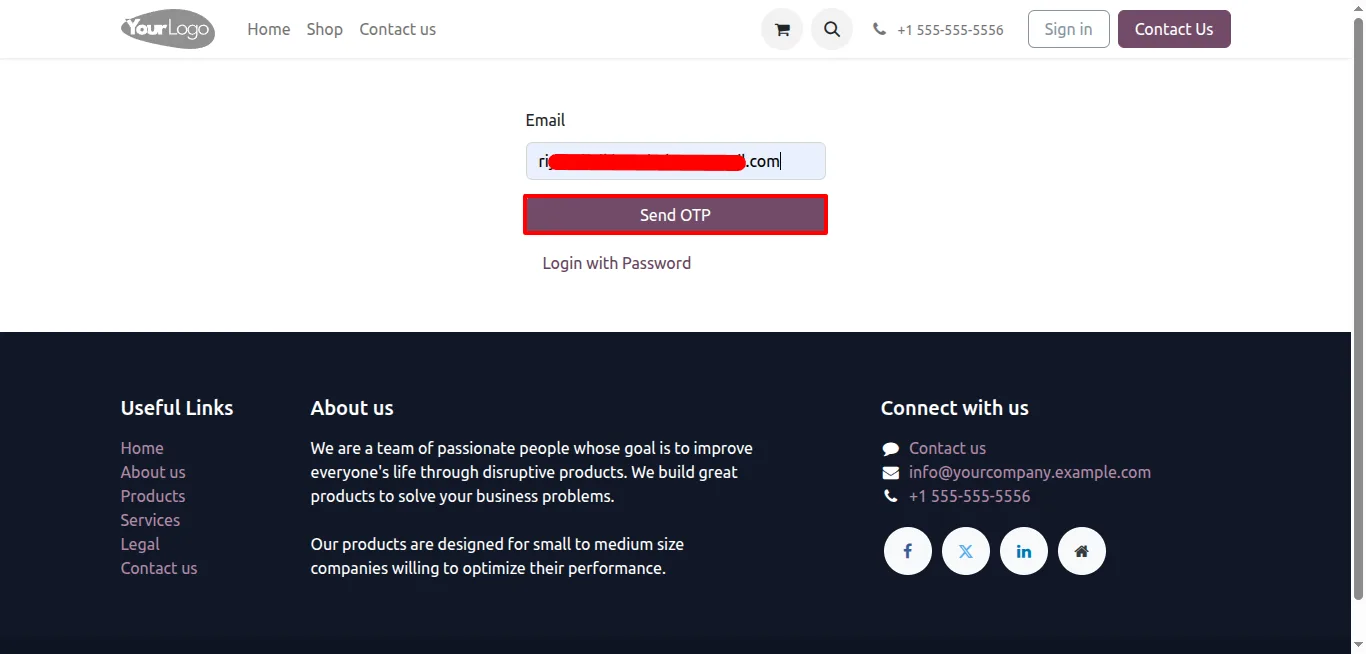
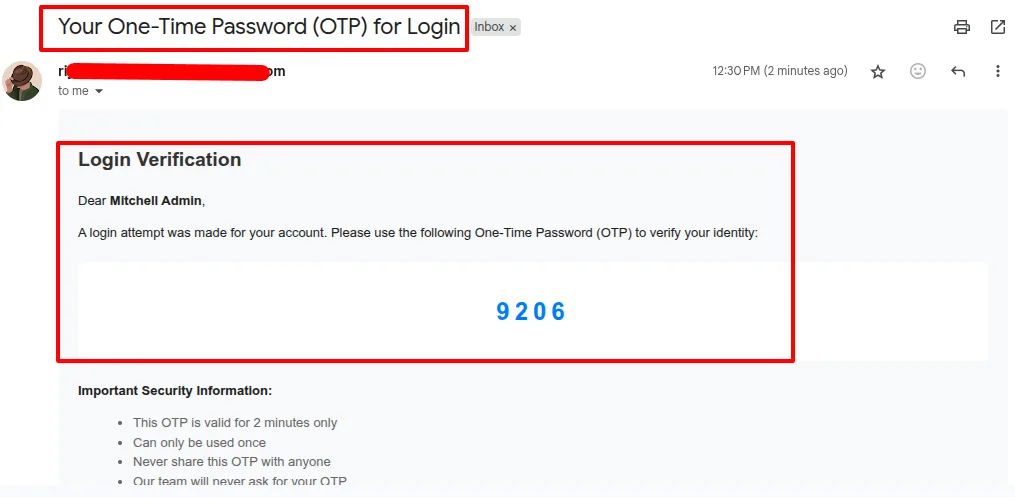
Built by TechUltra Solutions, the module generates and validates OTPs for three flows: verifying new users at signup, securing login with an email code, and adding two-factor authentication on top of the normal password. OTPs are delivered automatically by email, so there is no separate authenticator app for users to install.
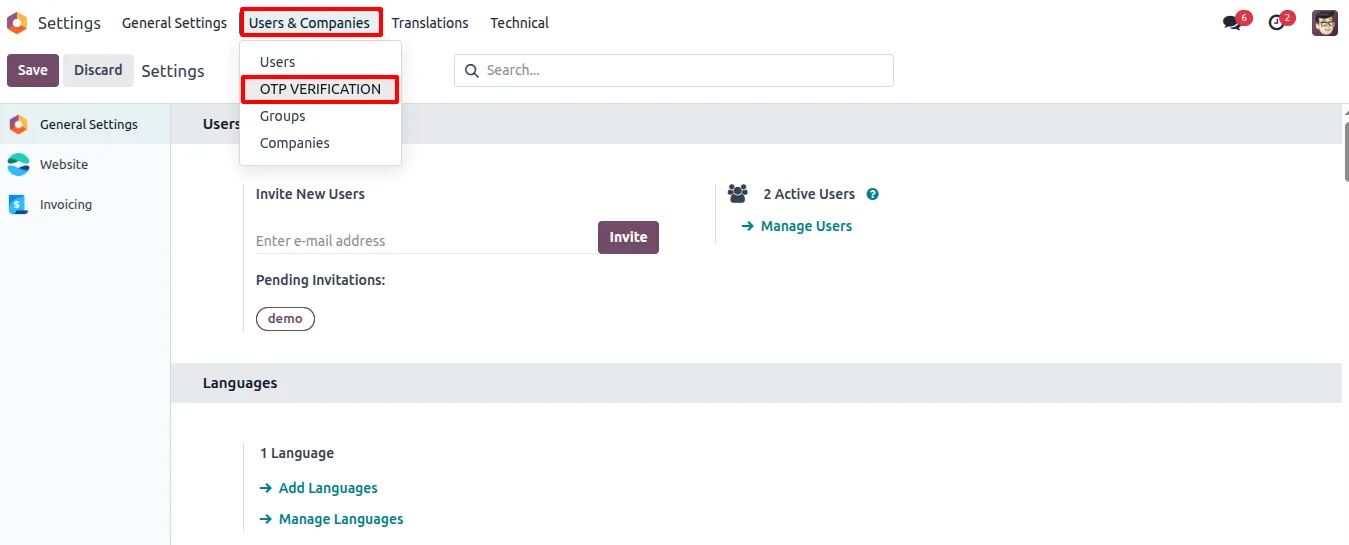
Administrators get oversight as well as security. Each user's OTP and its verification state are recorded, and an OTP Verification menu shows the verification history across email addresses. The expiry time is configurable, so codes stay valid only as long as you allow.
Key features
-
Email-based OTP generation and validation
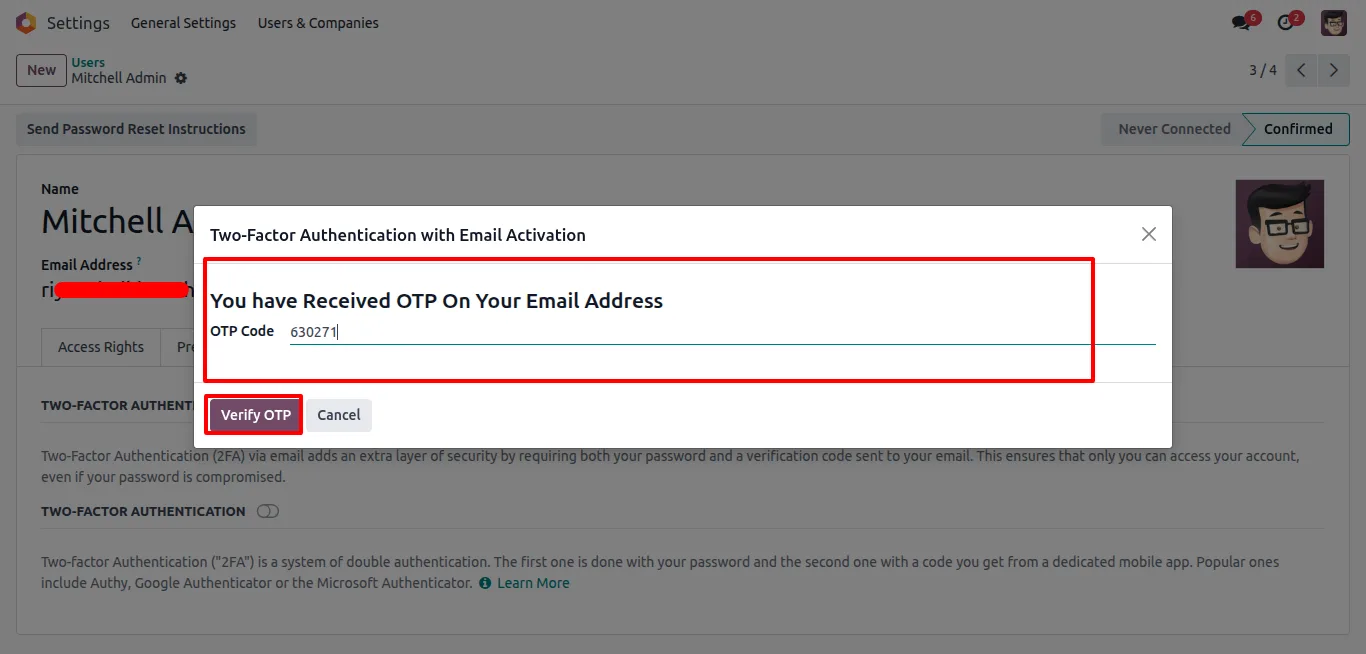
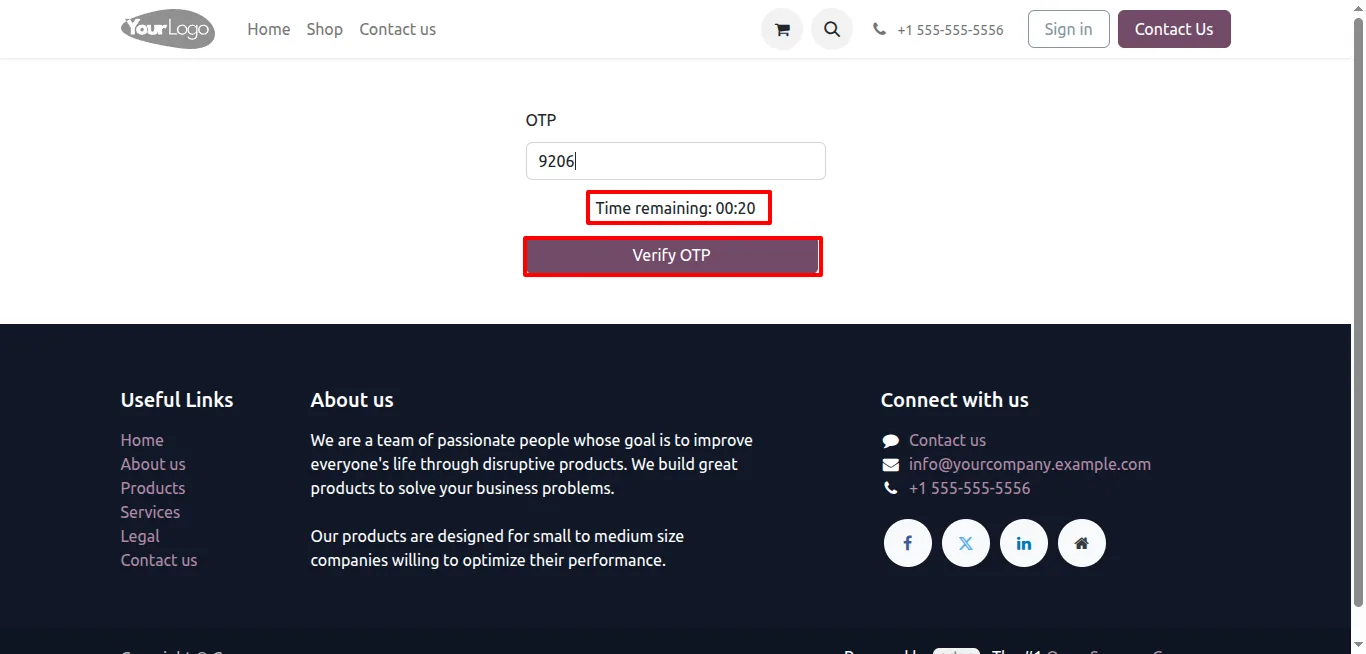
The module generates one-time passwords and validates the code a user enters, confirming control of the account's email address.
-
OTP-verified signup
New users confirm their identity with an emailed code during signup, so accounts are tied to a working, verified email address from the start.
-
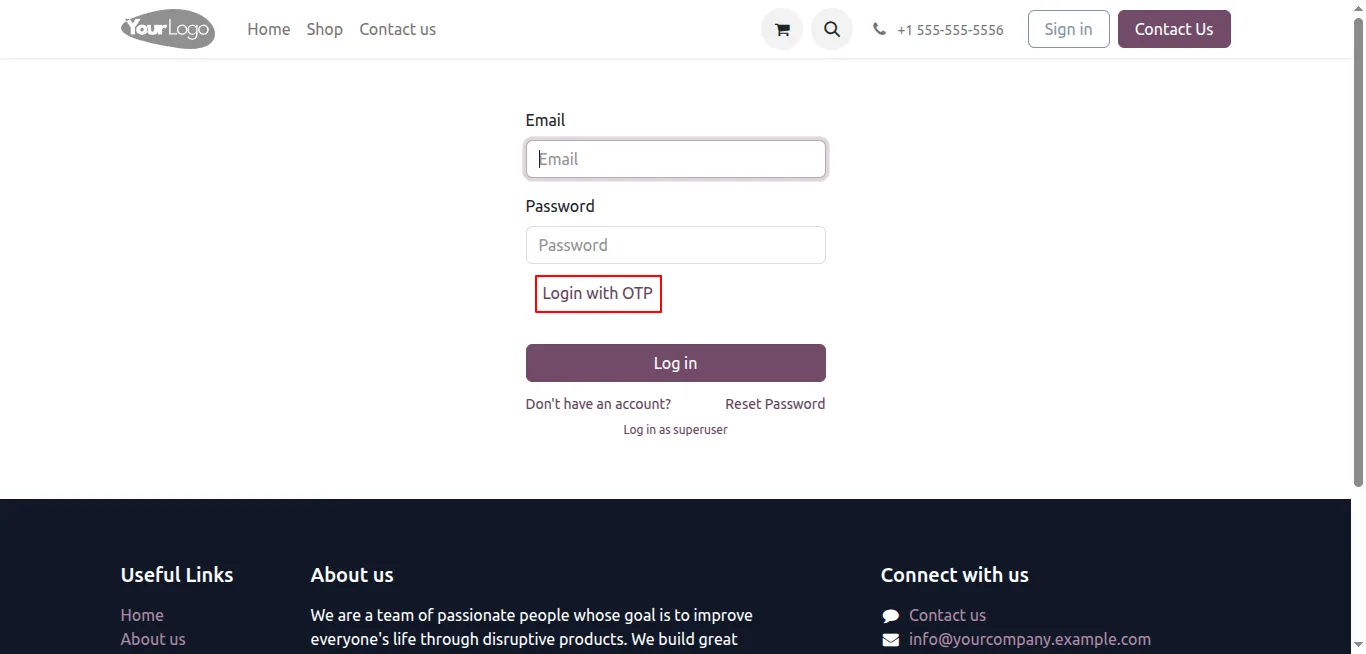
Secure login with OTP
Login can require an emailed one-time password, adding a verification step beyond the username and password.
-
Two-factor authentication
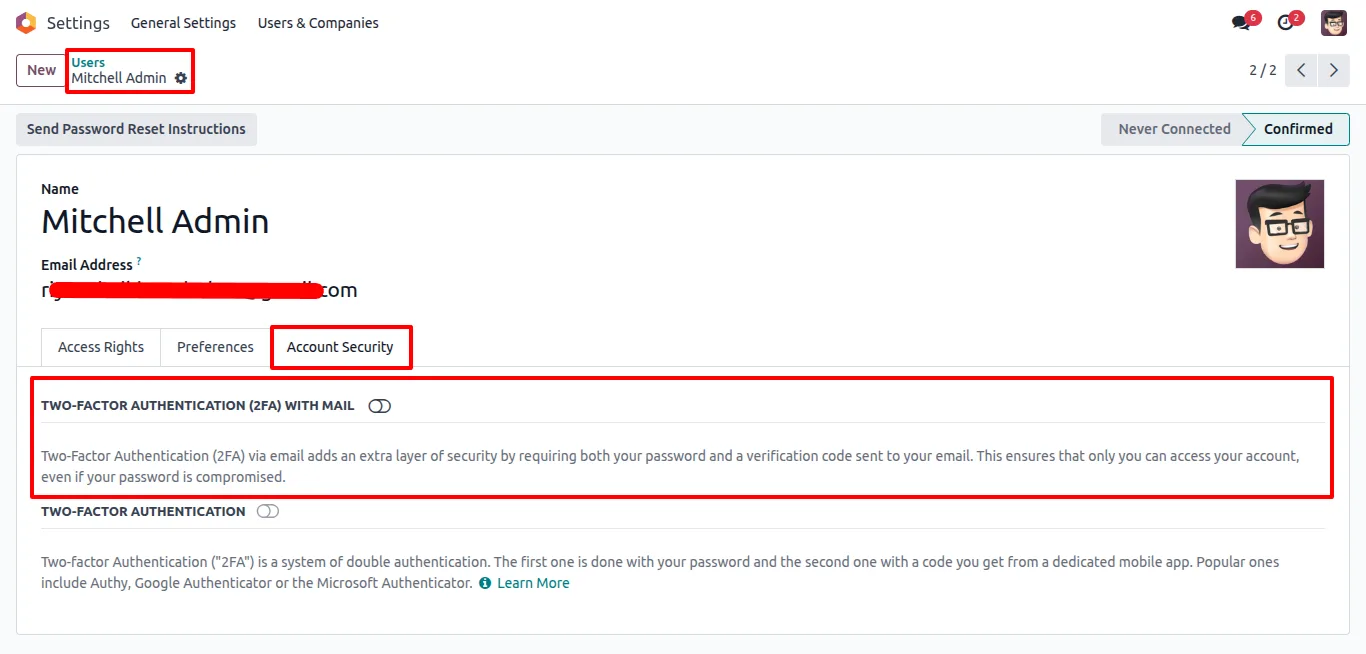
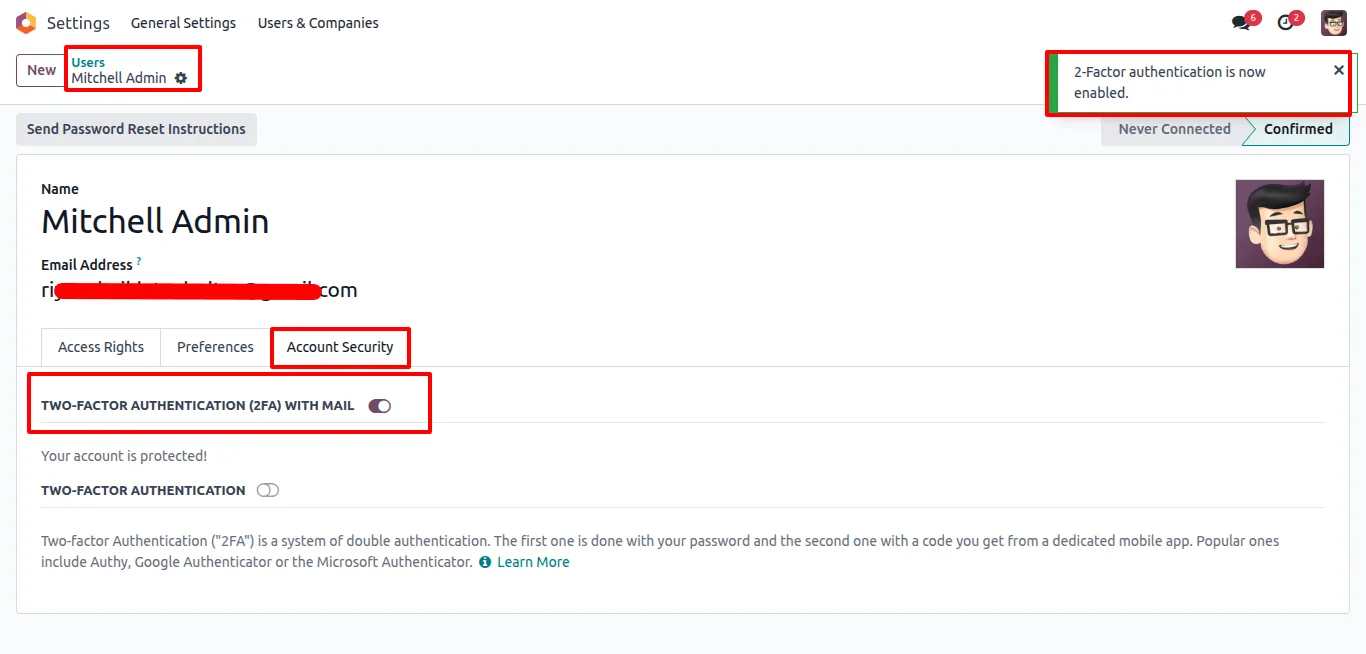
Enable 2FA by email so users must enter a fresh OTP after their password — extra protection for accounts with sensitive access.
-
Configurable OTP expiry
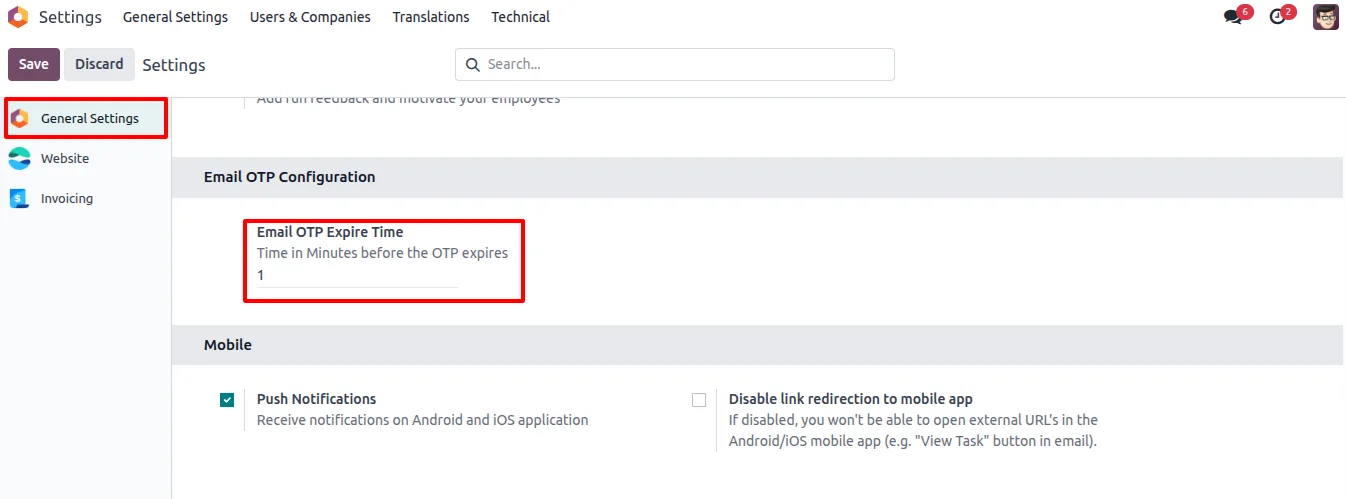
Set how long an OTP stays valid from General Settings — the default is two minutes — so codes expire on a schedule that suits your security policy.
-
Automated OTP delivery
One-time passwords are emailed automatically when needed, with no manual sending and no authenticator app for users to set up.
-
OTP history tracking
Each user's OTP and verification state are recorded, so administrators can follow the verification process across email addresses.
-
Admin verification menu
An OTP Verification menu under Users & Companies lets administrators review verification details and states from one place.
Email OTP Login & 2FA in Odoo
Every screen, in the order you meet it — configuration first, then the module in use.
Technical details
Specification
- Publisher
- TechUltra Solutions Private Limited
- Technical name
- tus_email_otp_login
- Odoo versions
- 16.0, 17.0, 18.0, 19.0
- Lines of code
- 1,019
- License
- Odoo Proprietary License v1.0 (OPL-1)
- Price
- $20 (one-time)
Deployment
- Odoo Online
- Odoo.sh
- On-premise
Odoo dependencies
- Discuss
- Website
Support
90 days of bug-fix support, Monday to Friday (10:00–19:00 IST). Raise a ticket at support@techultra.in.
Setup & configuration
From install to first call — here is the path.
- 1
Install the module
In Odoo, open Apps, remove the Apps filter, search for “Email OTP Login”, and click Install.
- 2
Set the OTP expiry time
Open General Settings and set the OTP Expiry Time. The default is two minutes — adjust it to match your security policy.
- 3
Assign access to the verification menu
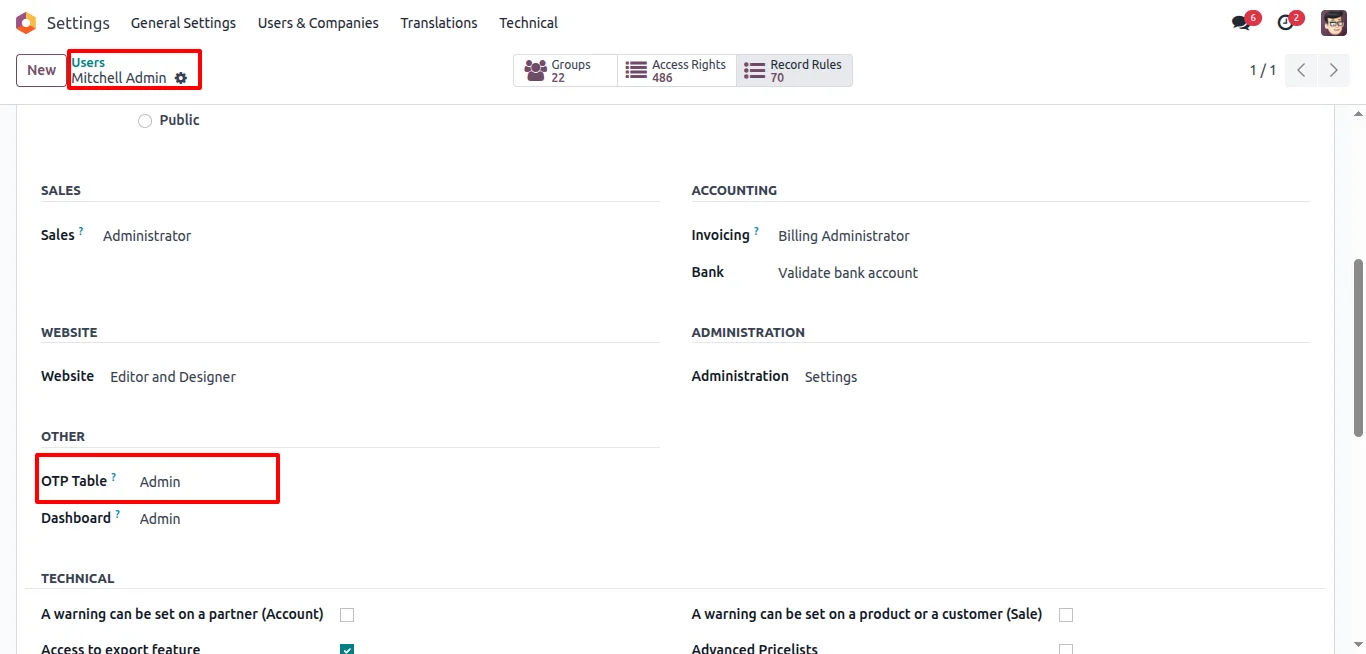
Under Users, choose which users can open the OTP Verification menu to review verification history.
- 4
Configure user email addresses
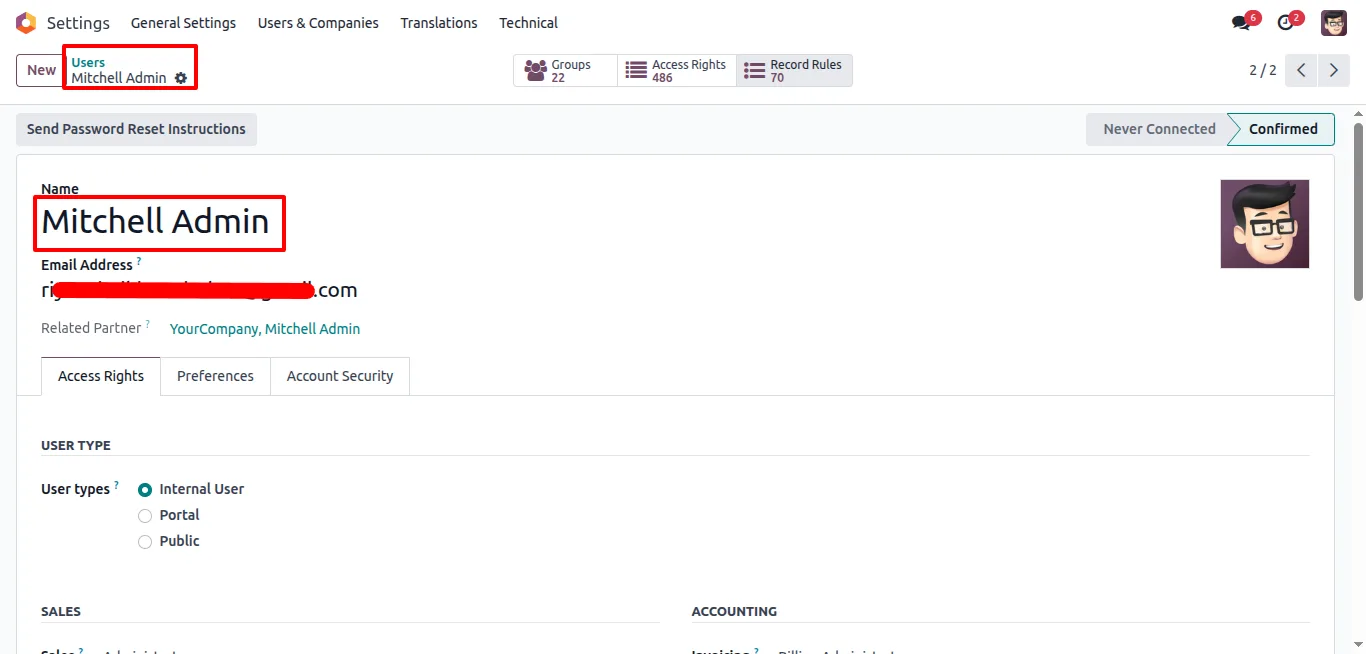
In Users, create or open each user and set a valid address in the Email Address field, since every OTP is delivered there.
- 5
Enable two-factor authentication
Turn on 2FA by email for the users who need it, so login requires an emailed OTP in addition to the password.
- 6
Test a login
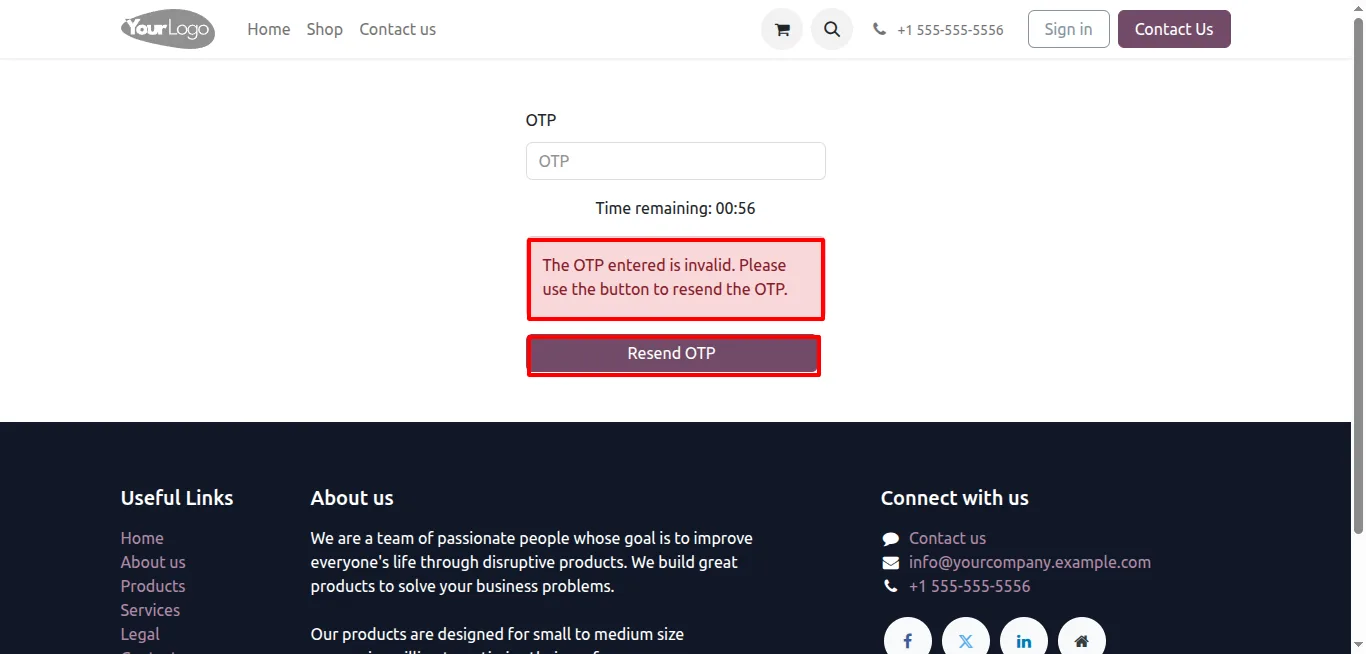
Sign in as a test user, request the OTP, and confirm the emailed code is accepted and that an expired or wrong code is rejected.
Frequently asked questions
-
What is an email OTP?
An OTP is a one-time password — a short code valid for a single use. This module emails the code to the user, who enters it to confirm they control the account's email address.
-
Which authentication flows does it cover?
Three: verifying new users at signup, securing login with an emailed code, and two-factor authentication on top of the normal password.
-
Do users need a separate authenticator app?
No. Codes are delivered by email automatically. There is no authenticator app for users to install or configure.
-
How long is an OTP valid?
The expiry time is configurable in General Settings, with a default of two minutes. After it expires, the user must request a new code.
-
Can administrators see verification activity?
Yes. Each user's OTP and verification state are recorded, and the OTP Verification menu under Users & Companies shows verification details and history.
-
What does a user need before they can receive an OTP?
A valid email address set in the Email Address field of their user record, since every OTP is sent to that address.
-
Which Odoo versions are supported?
The module supports Odoo 16.0, 17.0, 18.0, and 19.0, in both the Community and Enterprise editions.
-
Is support included?
Yes. The module includes 90 days of bug-fix support, Monday to Friday, 10:00–19:00 IST.
Related services
Get the most out of this module with senior TechUltra consultants.
Odoo Customization Services
Tailored Odoo customizations from a Gold Partner — 200+ projects, upgrade-safe patterns, fixed-scope quotes, senior consultants. Free demo consultation.
Hire Odoo Developers
Hire certified Odoo developers from a Gold Partner — 400+ implementations, 92% satisfaction, Odoo since 2016. Silver / Gold / Platinum packages, free trial.
Odoo Support & Maintenance
Odoo Gold Partner support — 24/7 functional, technical, and server coverage for Enterprise and Community editions. Fast turnaround, free consultation.







