Seamless Shopify Odoo Connector for Smarter Integration
Connect Shopify with Odoo using a powerful connector. Sync products, orders, and inventory to streamline workflows, save time, and boost business efficiency.

Shopify Odoo Connector
Are you planning to connect your Shopify website to your Odoo ERP, but have no idea how to go about it? Before connecting Shopify to Odoo, let’s check the features that will work with your business model.
Features Highlights
Multiple shops
In our Shopify connector, we manage multiple Shopify instances from one screen.
Import operation
Import Products, Orders, Sale Orders, Inventory, Location from Shopify to odoo using this connector.
Export Operation
We manage export operations like export products and update the order status.
Import sale order with auto workflow
Import sale orders from Shopify with their fulfilment status (shipped, unshipped, partially shipped) and run them through a configurable sale order auto workflow.
Manage inventory
Import stock from Shopify into Odoo as inventory adjustments and export stock from Odoo back to Shopify.
Automatic queue jobs
Auto operations (import orders, import products, update order status, export stock, import stock) run through queue jobs and configurable scheduled actions.
Manage logs for every operation
Queue lines record every product processed and log lines record anything that failed to import.
Refund order
Refund a Shopify order from Odoo, with return, credit note and restocking in Shopify.
Price list
Manage multiple product prices using Odoo pricelists and push price updates to Shopify.
Features
- => Manage multiple instances(shop) with smart kanban view .
- => Sync product variants,price,categories,Tags,images .
- => Import sale Orders from Shopify with its fulfilment status like shipped, unshipped, any, partially.
- => sale order auto workflow management.
- => Import customers with all child address details.
- => Export and import products with all necessary details(stock, tags, price, and images).
- => Manage multiple prices using price list.
- => Publish/Unpublished products from odoo to shopify.
- => Automatic update order status from odoo to Shopify.
- => For Auto operation, we have a Queue job process.
- => Configurable schedule actions for various operations like import product, import order, import stock, update order status, export stock etc…
- => Refund sale order from Shopify to odoo with restocking in Shopify.
Setup and configure your Shopify instance
After complete successfully installing this module, after need permit access rights for this module then after you will be able to see the Shopify dashboard. first, go to Shopify >> Configuration >> Instance menu and create new instance for your Shopify shop.
Setup import configuration for this Shopify instance
For importing product and order configure this.
For configuration exporting product and order status .
For automatic operation configuration .
There we give auto operation functionality for easy work and smooth flow. there are five auto operations like1) Auto import order operation 2) Auto import product operation 3) Auto update order status operation 4) Auto export stock operation 5) Auto import stock operation
Import product configuration
For importing product:- You can perform import operation from Shopify->Shopify Operation . When you perform an import operation then product Queue will create that Queue process from the scheduler action and create a product. Please be verify before importing product check whether import configuration for for the product is set or not, it is not set please set this configuration from Shopify >> Configuration >> Instance >> select import product configuration
After you can **process queue ** manually from the manual button in the queue the shopify > queue
Queue lines :- in queue line all record will display of an products
Log lines:- if any product is not imported then its log created in log lines
Before executing this operation you need to check whether the sale order auto workflow configuration is done or not, if it is not then please create sale auto workflow configuration. Go to Shopify => Configuration => WorkFlow process and create new workflow .
- You can set the workflow option to validate order create order and etc .
- You need to set a shipping and invoice policy.
- You need to set sale Journal for the entries.
After creating the sale order auto workflow. Go to Shopify => configuration => sale auto workflow configuration and set workflow configuration sale order auto workflow configuration
Import stock operation for this Shopify instance
For importing stocks:- You can perform import stock operations from the shopify operation and its create queue as per the product and sale order flow.
- After clicking on the manual, that will process and will create an inventory adjustment.
- Also its processes from the schedule action automatically.
- After the processing queue, it will create an Inventory Adjustments
- Inventory Adjustments is an odoo feature that updates stock with proper inventory valuation and cost price of the product you can verify the stock location and product and product quantity in Inventory Adjustments
Export product operation
-
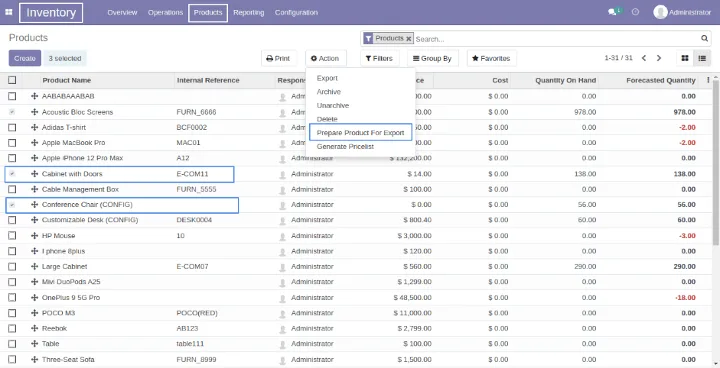
For Exporting product:- first, we need to prepare the product for export it means the product is in odoo after preparing the product for export we are listing that product in Shopify odoo connector here you can change the product image and other info then you can export the product in Shopify website. You can also prepare the product for export from the Inventory Inventory-> Product ->Products->select product ->Action-> prepare product for export.
-
After that, you can see that product in the Shopify connector with exported False its means that the product is not exported yet you can change the image and other info if you want. Shopify -> Products -> Products -> select Product from list -> action -> export product OR
Shopify -> shopify operation -> export product
Publish product operation
For Publishing product:-publish product same 2 way to perform the operation first select products from Shopify and from the action you can publish product. Shopify -> Product -> Products-> select product -> action-> publish product
Also, you can publish products from the Shopify operation Shopify -> Shopify Operation -> publish products
You can publish and unpublished products from the product form view Shopify -> Products -> Product -> select Product -> click on shopify publish OR Shopify Unpublish
Update product operation
For Update product:- You need to select the product from Shopify and from action, you can update the product Also, you can update all products from the Shopify Operation Shopify -> Product ->Products-> select product -> action-> update product.
You can also update product from here Shopify -> Shopify Operation -> Update Product
Update product price operation
For Update product Price:- You can update all product prices from Shopify operation. Also, you can update specific product prices from the same as product publish You can set product price for odoo product from the price list Sale > Product > Pricelist >select your select pricelist -> edit product price .
For Update product price:- You need to select the product from Shopify and from action, you can update the product price Shopify -> Product ->Products-> select product ->Action-> update product price.
update product You can also update the product price from here Shopify -> shopify operation -> update product
Update order status operation
For Update order status:- The update order status will update the order status on the Shopify website After the import order in odoo if any order state changed then that order is eligible for the update order status ex (if you import the pending order it means that order is in confirm state in odoo after the delivery done that order state will be done so we need to update that order status in Shopify website ) You can update order status from the Shopify operation. For Also, you can update order status from the sale order list view select to order for the update status, and from action, you can update the order status Sales -> Orders -> select order -> Action -> update order status.
update product You can also update the order status from here Shopify -> Shopify Operation -> Update order status
Update Image Operation
For Update Image:- Users can change and set images from the Shopify product view After that, you can update those images In, etc Shopify website You can update all images from the Shopify operation Shopify -> Shopify Operation -> update image.
also, update the specific product images from the Shopify product view from the action Shopify ->Products -> Products -> select product -> add or update image.
update product image You can also update the product image from here Shopify ->Products -> Products ->Action -> Update image
Refund in Shopify operation
For Refund in Shopify:- You can also refund your order. Let see how it’s Work:- Go to Shopify -> Sale -> select order. If delivery and invoice are done in this order you can see Refund in Shopify button in sale order.also, we give a refund with a return option if you want to refund the order.
After you can add custom quantity, return the order, create a credit note, restock in Shopify. .
About TechUltra Solutions.
TechUltra Solutions is a leading Odoo and ERP development company working since 2016. Our services include Hiring Odoo Developers, Odoo Implementation, Odoo Development, Odoo Customization, Odoo Integration, Odoo Training, Odoo Consulting, Odoo Migration, and Odoo Support.
Don’t forget to get a free Odoo consultation. See also our Shopify Odoo integration page.
TechUltra Solutions has client in various locations such as USA, UK, Peru, India, Dubai, South Africa, Indonesia, Egypt, Spain, UAE, Canada, France, Italy and World-Wide.
Frequently asked questions
-
What can the Shopify Odoo Connector import and export?
It imports products (variants, price, categories, tags, images), customers with child addresses, sale orders with fulfilment status, inventory and locations from Shopify into Odoo, and exports products, stock, price updates, images and order status from Odoo to Shopify.
-
Does the Shopify Odoo Connector support multiple Shopify stores?
Yes. Multiple Shopify instances (shops) are managed from one screen using a kanban view, each with its own import, export and automatic operation configuration.
-
Which operations run automatically in the Shopify Odoo Connector?
Five auto operations run via queue jobs and configurable scheduled actions: auto import orders, auto import products, auto update order status, auto export stock and auto import stock. Queue lines and log lines record every product and any failures.
-
How do refunds work with the Shopify Odoo Connector?
Open the order under Shopify > Sale; once delivery and invoice are done, a "Refund in Shopify" button appears. You can refund a custom quantity, return the order, create a credit note and restock the items in Shopify.
Related services & solutions
Put this into practice with TechUltra's senior Odoo consultants.
Shopify + Odoo Integration
Native Shopify-to-Odoo bidirectional sync. Products, inventory, orders, customers, refunds, accounting entries in real time. Multi-store, multi-currency, B2B.
HubSpot + Odoo Integration
Native HubSpot-to-Odoo bidirectional sync. Companies, contacts, deals, orders, invoices, payment status. Keep HubSpot marketing + sales; run Odoo as ERP.
Odoo Integration Services
Two-way Odoo integrations with Magento, Shopify, Salesforce, Amazon, QuickBooks, payment gateways. 200+ shipped integrations — free consultation call.
Odoo App Store catalogue
245 TechUltra modules — AI, WhatsApp, automation, accounting, and more.