Desktop activity visibility inside Odoo, without the spyware
How TUS Activity Tracker reports active vs idle time, application usage and optional screenshots into Odoo — with one policy for capture and retention, and access scoped by security group.
Hybrid and remote work made a simple question harder to answer fairly: are people working? Spreadsheets and spot checks miss most of the day. Generic monitoring tools answer it, but they erode trust and sit outside every system you already run.
What leaders actually need is narrower than “surveillance”: active versus idle time, the applications behind the work, and optional screenshot context — reported into the system where employees, contracts and HR records already live.
What TUS Activity Tracker does
TUS Activity Tracker pairs a lightweight system-tray agent with an Odoo module. The agent records foreground activity and periodic screenshots, queues them when the machine is offline, and syncs into Odoo. Managers then open dashboards, timelines and daily summaries in the same place they already manage people.
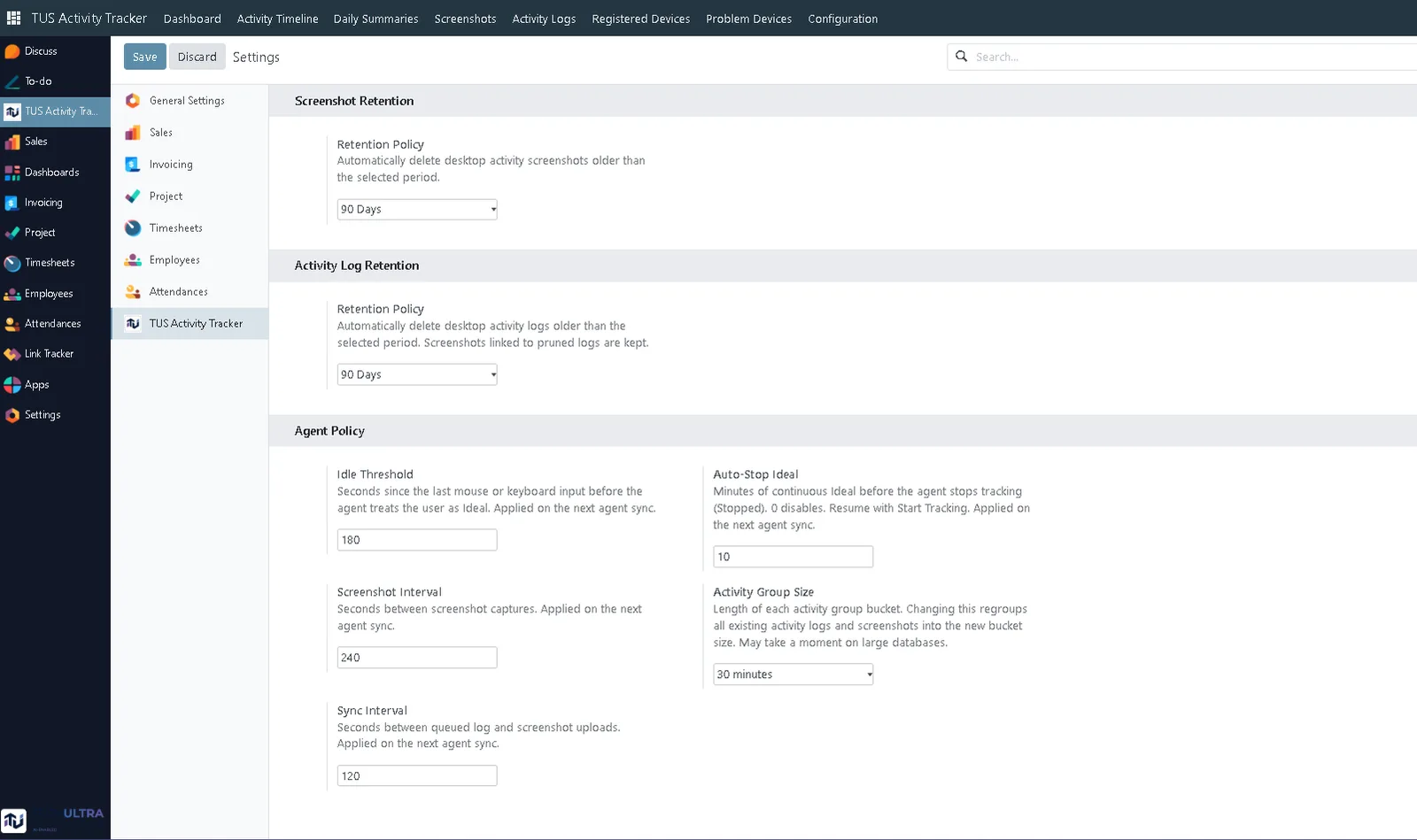
The policy stays in one place. Idle thresholds, screenshot intervals, sync behaviour and retention are configured in Odoo Settings, so one rule applies to every machine rather than drifting per device.
What you get today
The agent is tray-resident and stays out of the way — typically around 0% CPU and 15–40 MB RAM with the window closed.
Manager dashboard
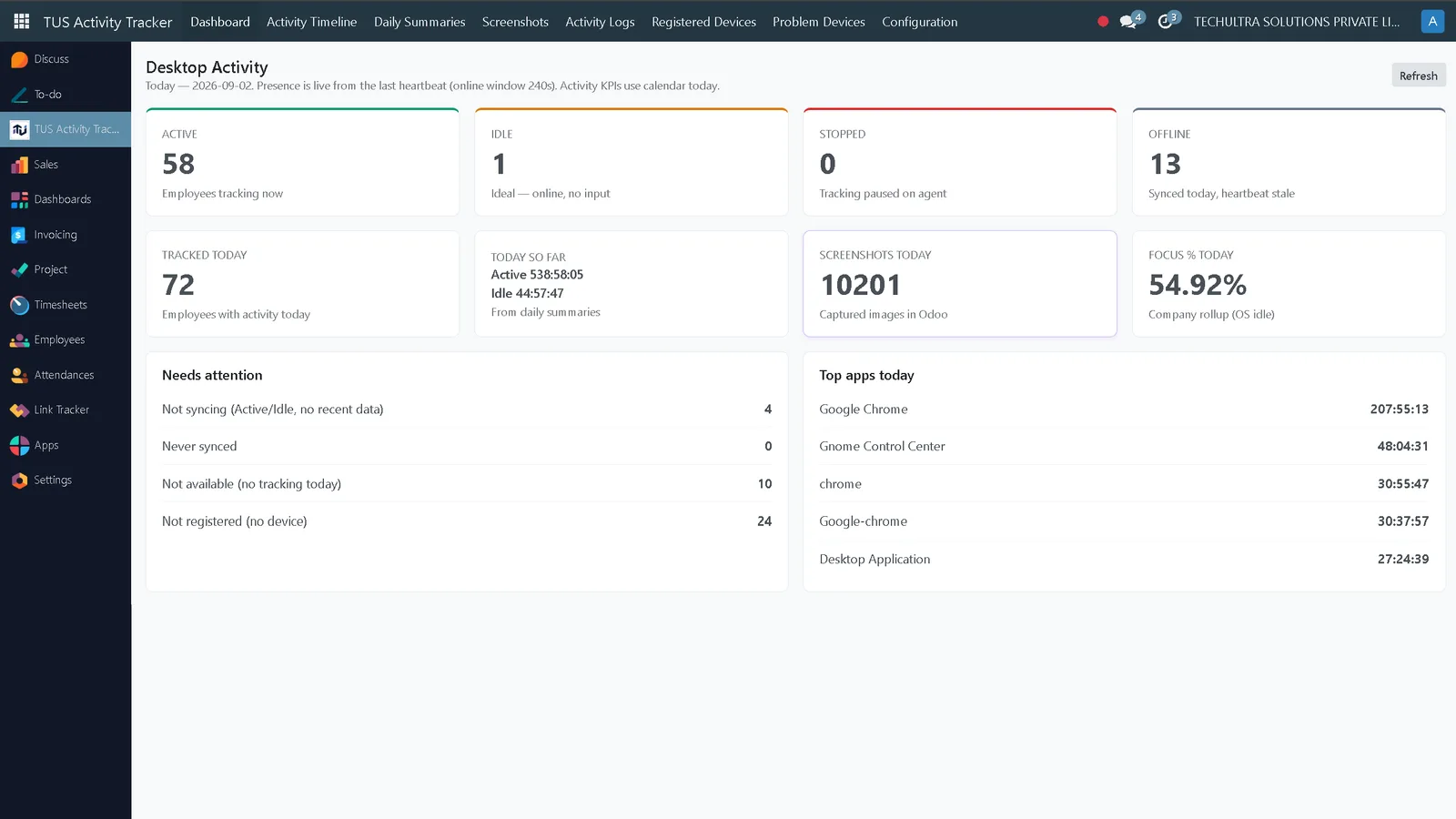
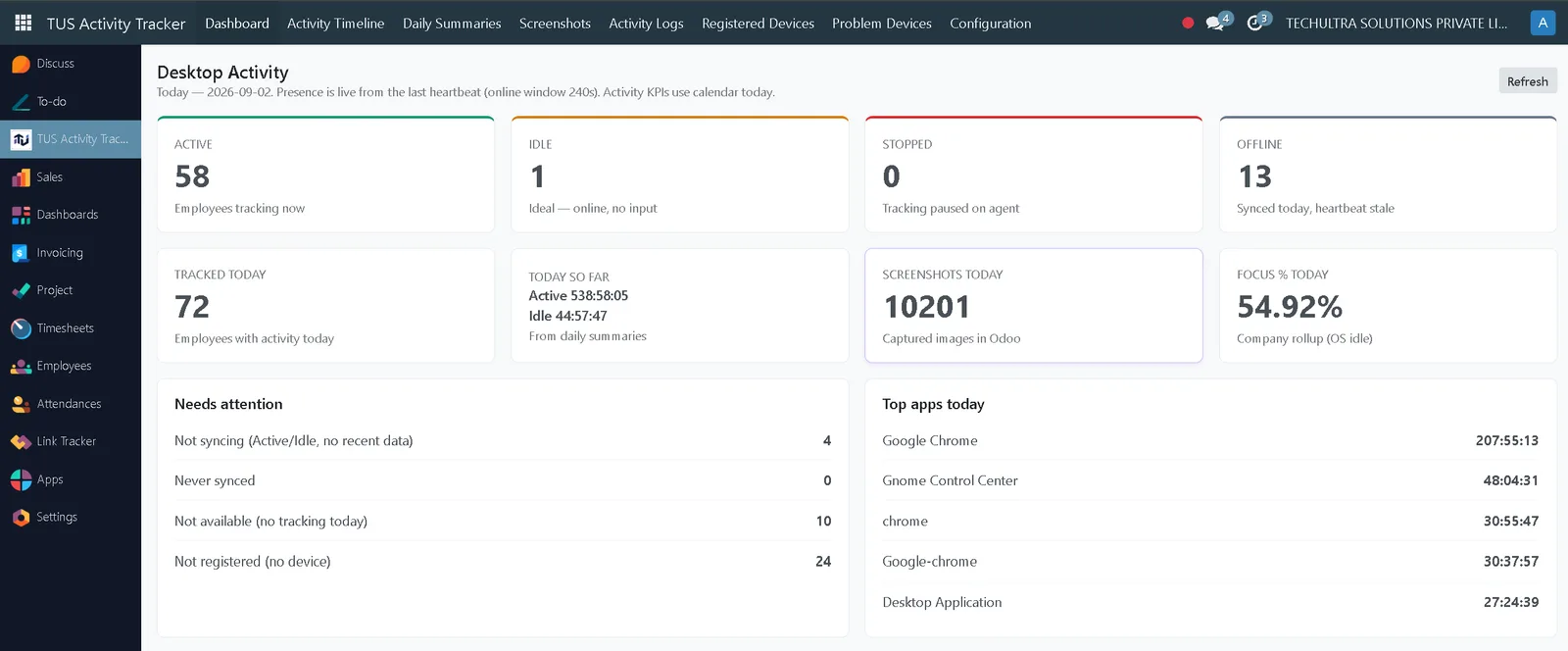
Four presence states across the top — active, idle, stopped and offline — then the day itself: employees with any activity, the active-versus-idle split, screenshots captured, and a company focus percentage. Presence reads from the last heartbeat; the activity figures are calendar-day totals, so the two answer different questions on purpose.
Underneath, Needs attention is the panel managers actually work from. It counts the devices not syncing, the ones that never synced, the ones with no tracking today, and the employees never registered on a device at all — which is usually the largest number and the one nobody would otherwise chase.
Activity Timeline
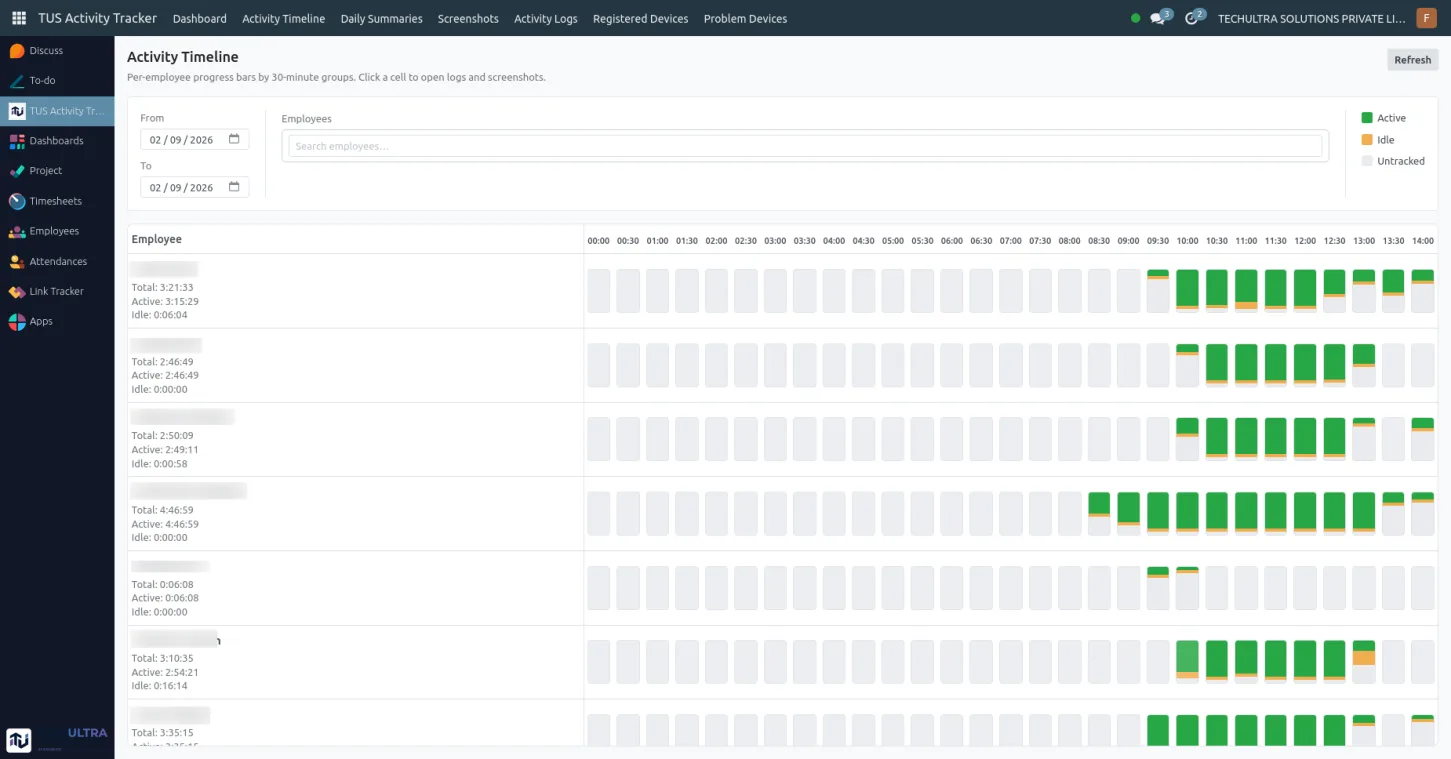
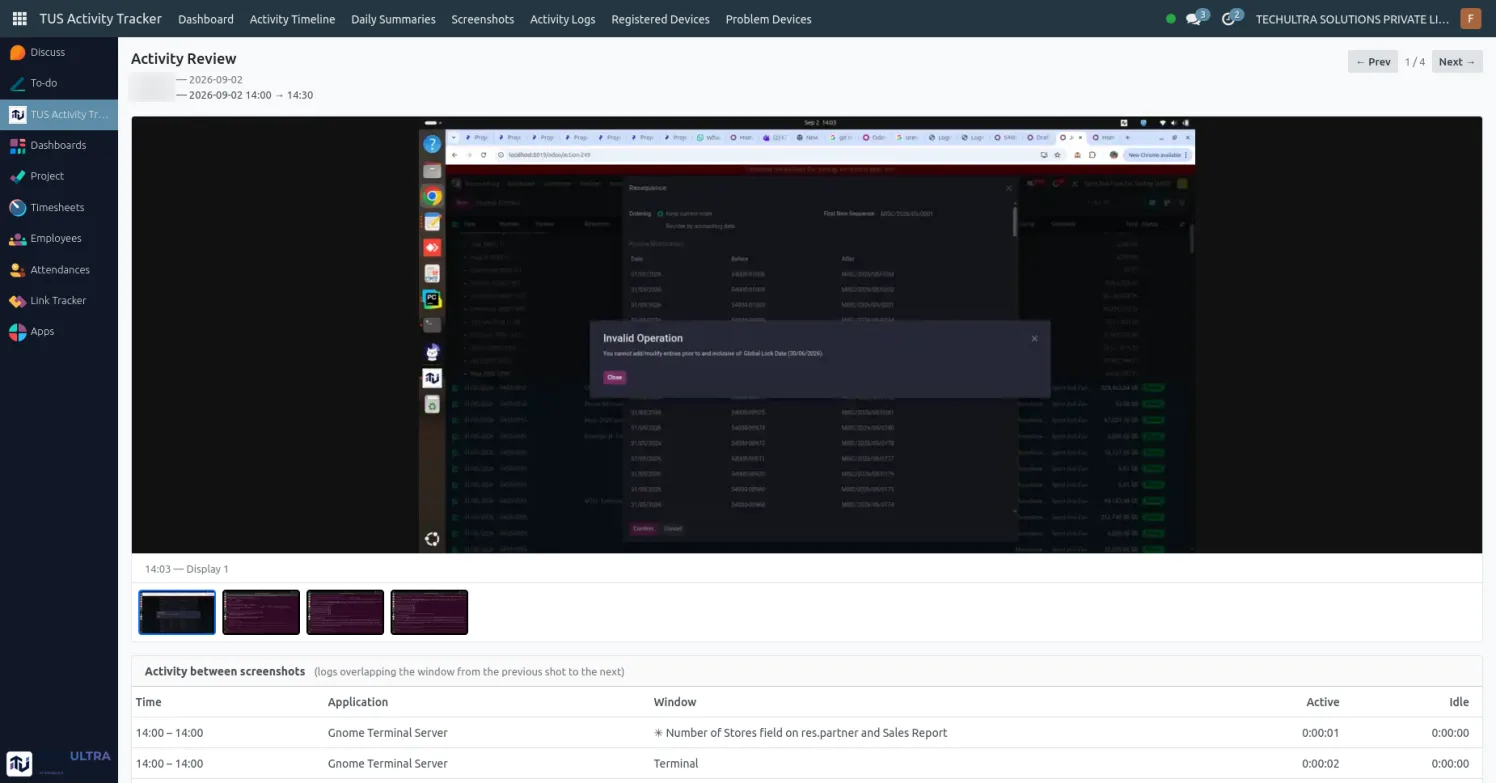
Configurable time buckets for active, idle and untracked periods, per employee. A day reads as a sequence you can inspect, not a single score you have to trust.
Daily summaries and application usage
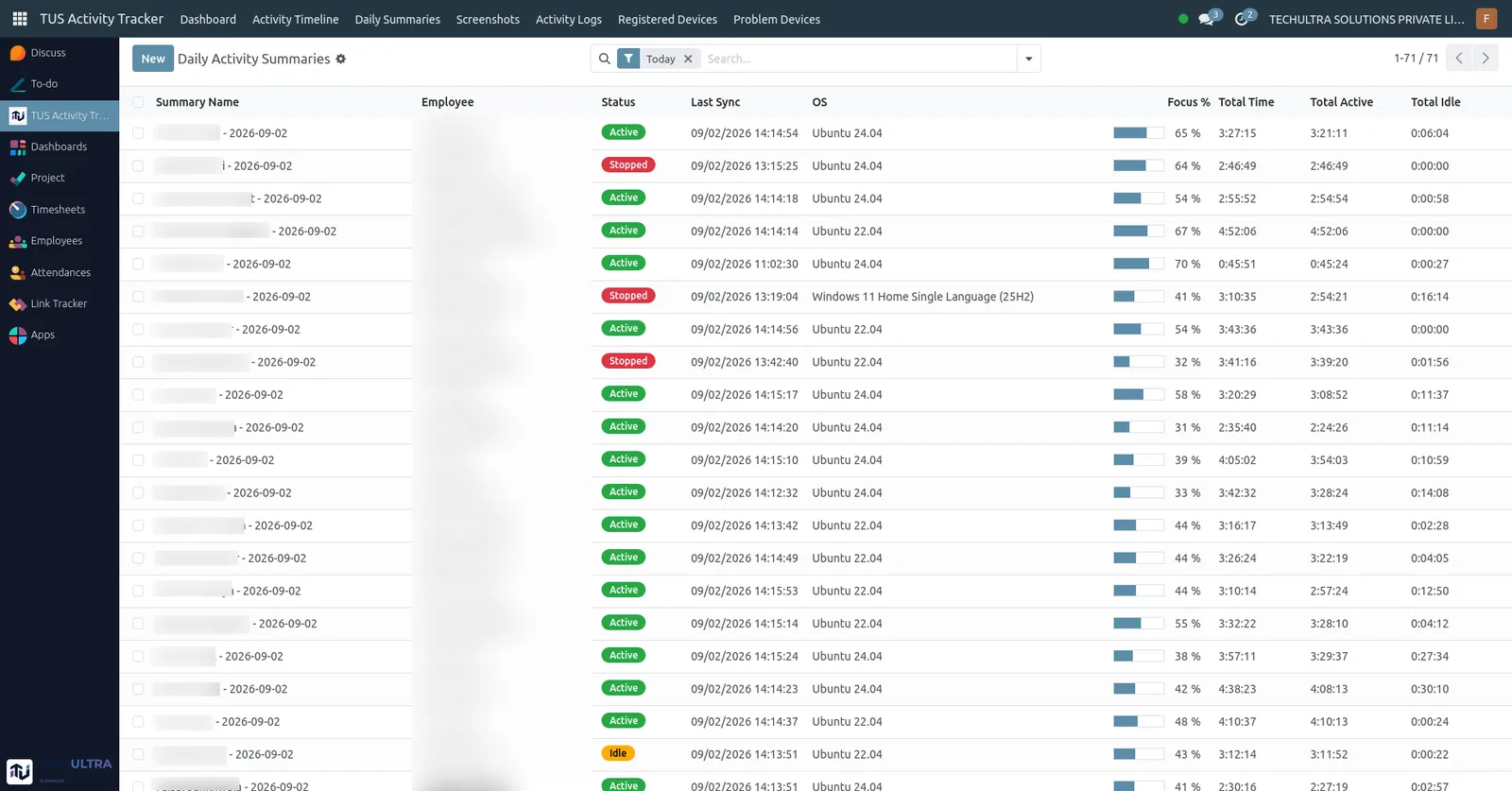
Which applications consumed the day, and how focused that time was. Rollups arrive ready for review, with the retention period you set in Odoo.
Screenshots
Periodic multi-monitor captures, with User, Manager and Admin access rules deciding who can open them.
How rollout works
1. Install the module and set one policy. Install TUS Activity Tracker in Odoo and configure Settings — idle threshold, screenshot interval, sync and retention.
2. Assign access groups. Assign User, Manager or Admin, and make sure each employee record is linked to their Odoo user. Screenshot visibility follows the group.
3. Deploy the agent. Roll it out to Windows 10/11, Linux 22.04+ and macOS workstations.
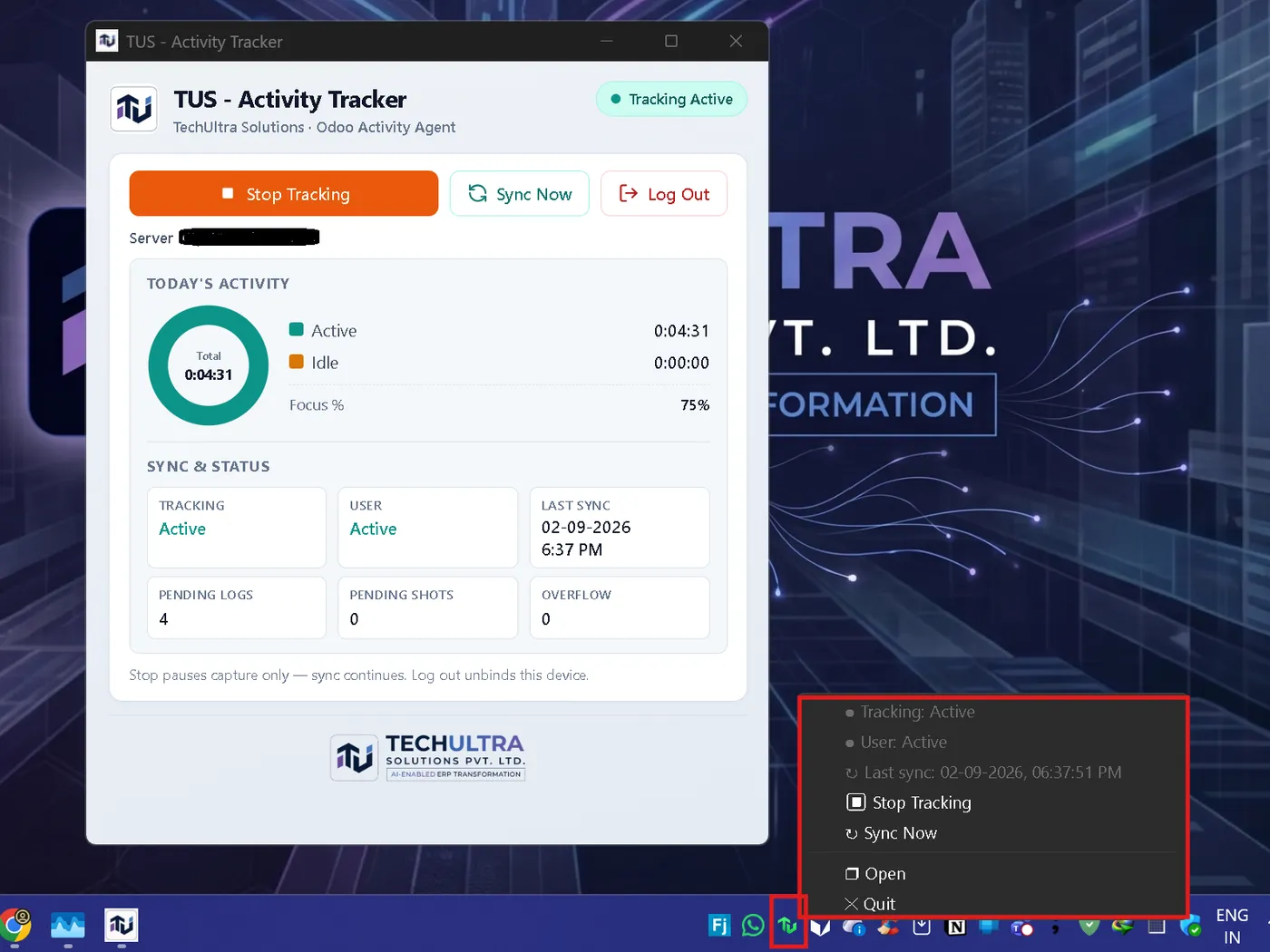
4. Employees enrol once. They enrol from the tray a single time; tracking then continues in the background while managers follow progress in Odoo.
Trust, not theatre
This is a visible tray application, not silent spyware, and the distinction is built into how it behaves:
- Employees can Start and Stop Tracking themselves.
- An idle auto-stop can pause tracking after a long period of inactivity.
- Screenshot access is scoped by security group, so personal captures can stay private to the employee.
- Device tokens are shown once at enrolment; Odoo stores only a hash.
- Stop pauses capture only — sync continues, so nothing already recorded is stranded on the device. Logging out is the separate action that unbinds the device.
- Capture and retention intervals live only in Odoo Settings, so one policy applies everywhere rather than being negotiated machine by machine.
That last point is the one HR teams tend to care about most. A monitoring tool where each device can be configured differently is a policy you cannot actually defend.
In progress: Project tasks and timesheets from the agent
The next piece brings Odoo Project timers onto the desktop, so billable and project hours land in Odoo without leaving the workstation.
Employees will pick a specific Odoo Project task in the agent and start or stop work on it the same way they already start and stop tracking. On stop, the agent asks for a short description of what was done, then records the elapsed time on the task’s timesheet — matching how Odoo Timesheets already expect both time and a description against a task.
The point is one story rather than two disconnected tools: desktop activity for HR oversight, and hours that roll into Project and Timesheets for delivery and cost visibility.
Next: Field Service, geo-fencing and geo-tracking
After that, the plan extends visibility from the desk to the field by connecting to Odoo Field Service, so onsite work sits alongside desktop activity in the same operational picture.
Building on Field Service’s customer locations, map views and geolocalized partners, this adds geo-fencing — knowing whether a technician is inside or outside a job zone — and geo-tracking for field presence across the day. For distributed service teams that answers the questions directors actually ask: who was on site, were they in the right place, and how does that time relate to the Field Service task.
Field Service linkage targets customers running Odoo Enterprise Field Service.
Where to start
If you want leadership to have clear, Odoo-native visibility into desktop work, the TUS Activity Tracker solution page covers the capabilities and rollout in more detail, and our team can confirm the supported Odoo version against the edition and modules you already run.
Frequently asked questions
-
Is this silent monitoring?
No. It is a visible tray application. Employees can Start and Stop Tracking themselves, and an idle auto-stop can pause tracking after a long period of inactivity. Device tokens are shown once at enrolment and Odoo stores only a hash.
-
Who can see the screenshots?
Access is scoped by Odoo security group. The usual configuration keeps personal screenshots private to the employee while giving managers the oversight they need for coaching and compliance.
-
How much does the agent slow a machine down?
With the window closed the agent typically sits at around 0% CPU and 15–40 MB RAM. It is a tray-resident process, not a background service that indexes the disk.
-
What happens when a laptop goes offline?
The agent queues activity and screenshots locally and syncs them to Odoo when the connection returns, so a day worked on a train is not a gap in the record.
Related services & solutions
Put this into practice with TechUltra's senior Odoo consultants.
Odoo Customization Services
Tailored Odoo customizations from a Gold Partner — 200+ projects, upgrade-safe patterns, fixed-scope quotes, senior consultants. Free demo consultation.
Odoo Development Services
Odoo development by a Gold Partner: custom modules, OWL front-end components, APIs and webhooks, with tests and CI/CD. 100+ projects. Book a free consultation.
Odoo App Store catalogue
245 TechUltra modules — AI, WhatsApp, automation, accounting, and more.