

Odoo App · Accounting & Finance
Outstanding Invoice & Bill Report
Track unpaid customer invoices and vendor bills with Excel and PDF reports in Odoo.

Overview
Outstanding Invoice & Bill Report gives Odoo finance teams a clear picture of who owes money and what the business still owes. It pulls unpaid customer invoices and vendor bills into structured reports instead of leaving that work to spreadsheets exported by hand.
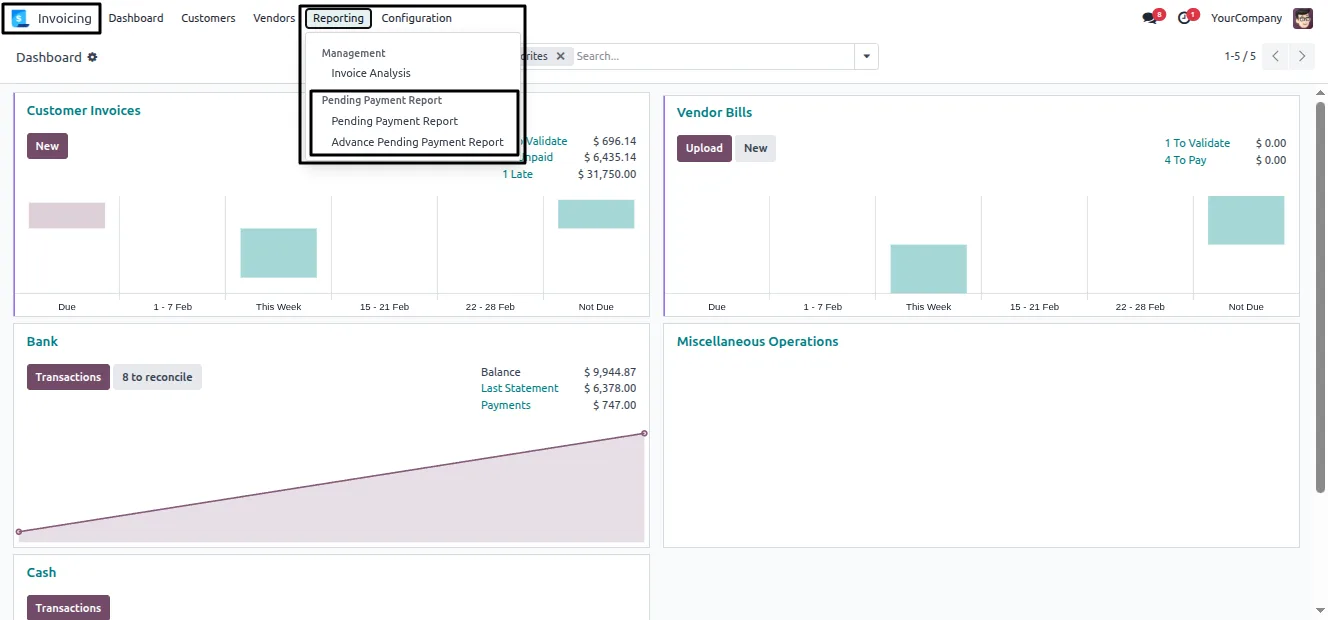
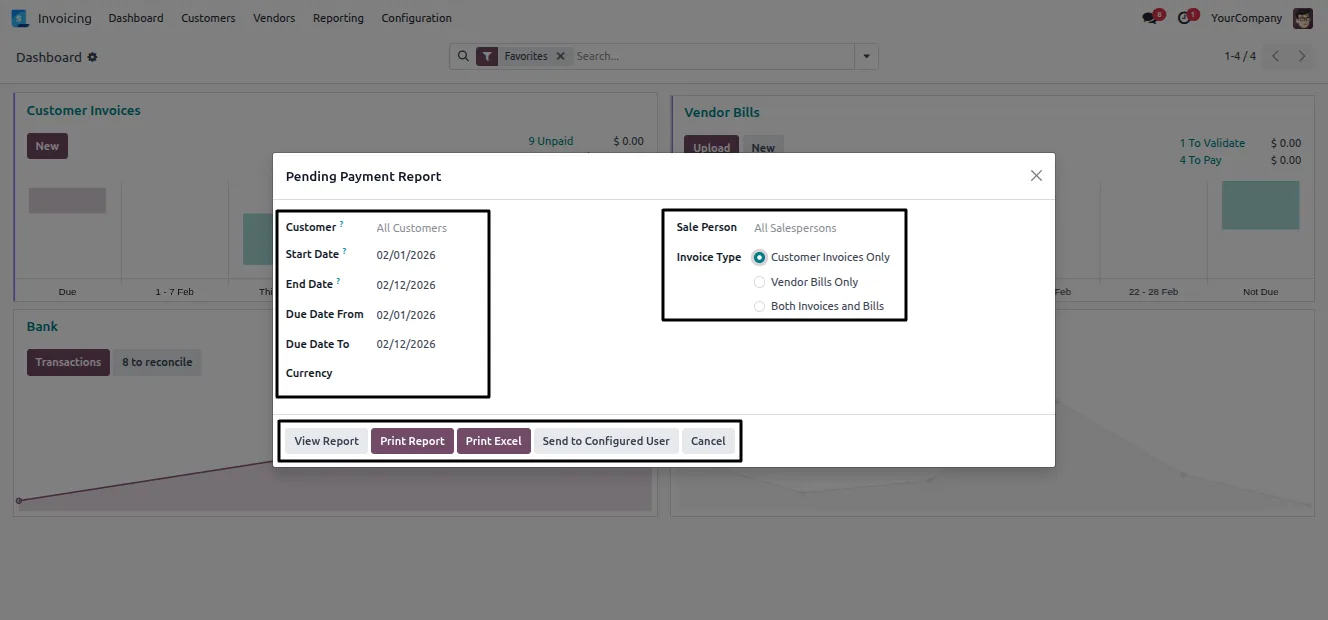
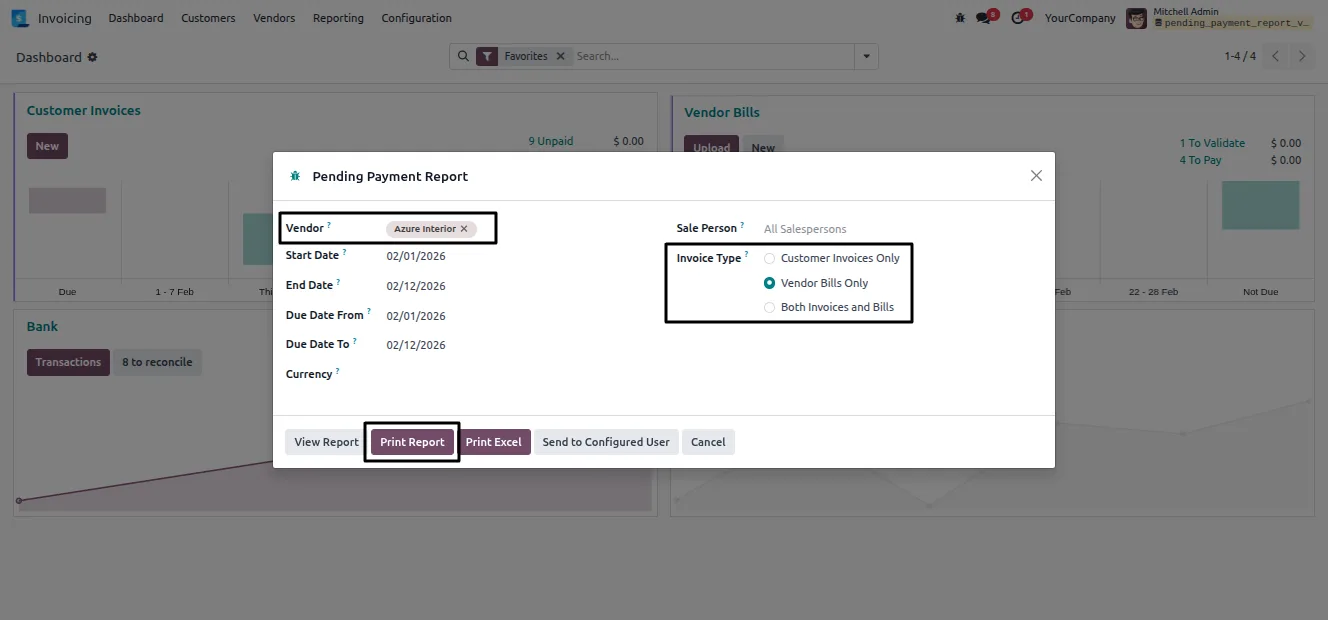
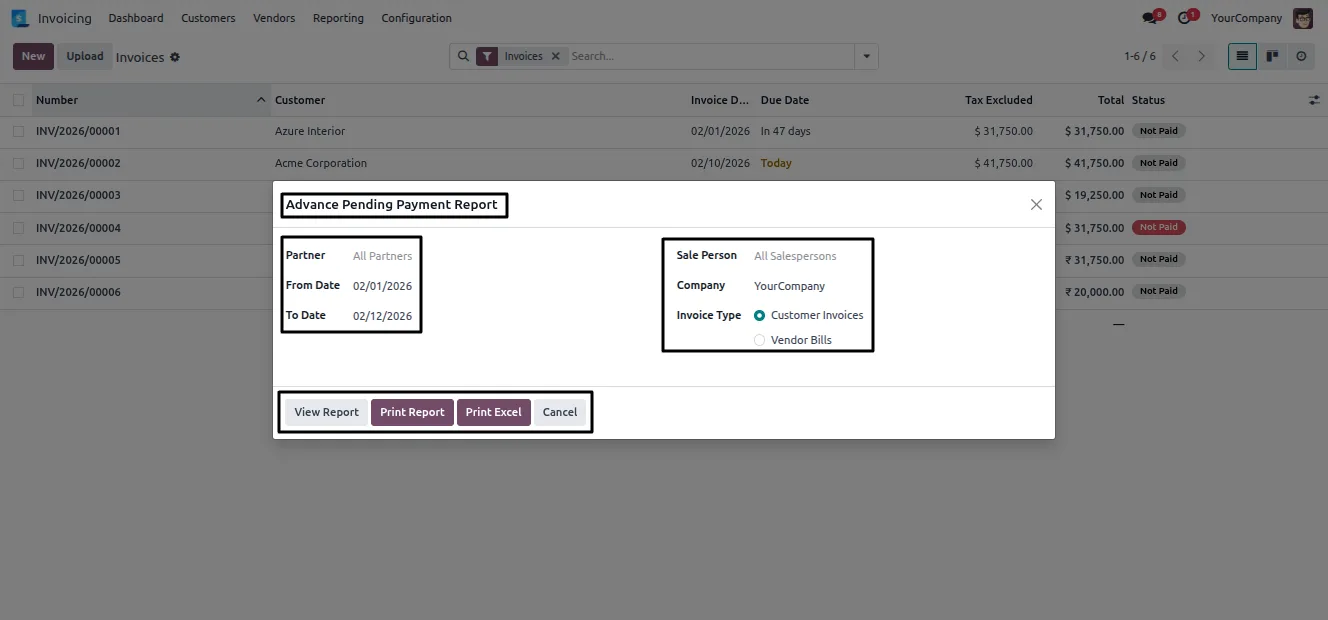
Built by TechUltra Solutions, the module adds Pending Payment Report and Advance Pending Payment Report menus under Invoicing → Reporting. A wizard lets you filter by customer or vendor, invoice and bill date ranges, due-date range, salesperson, currency, and invoice type, then view the result on screen or export it.
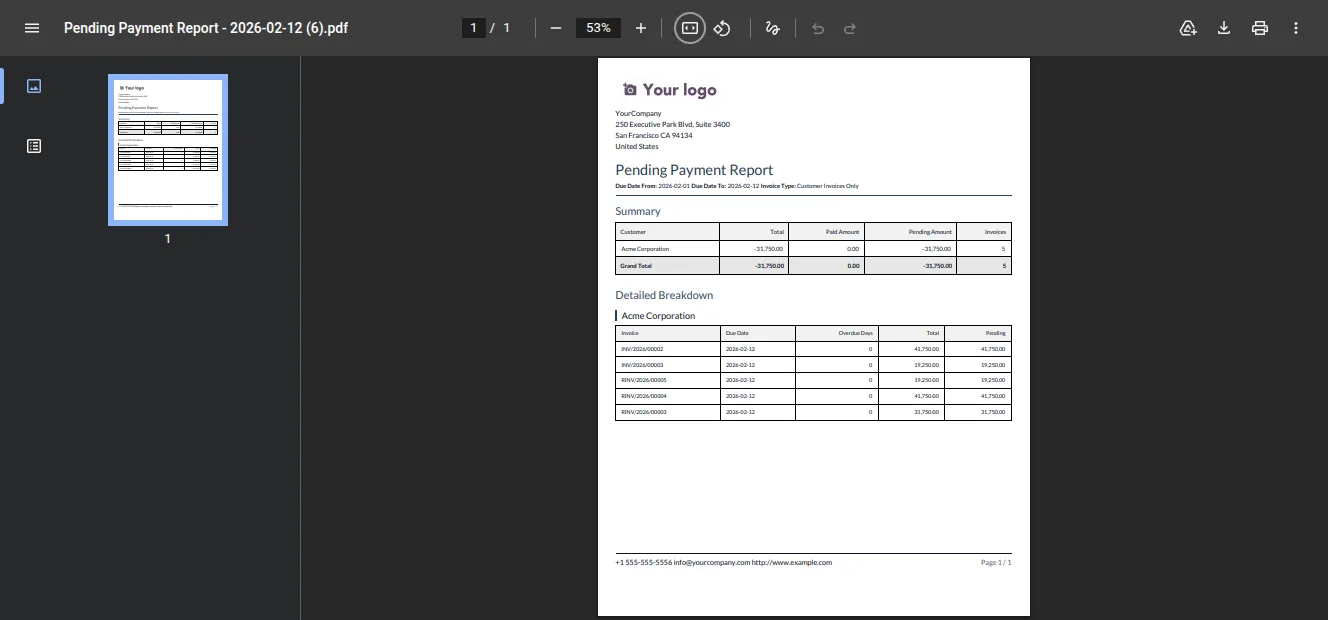
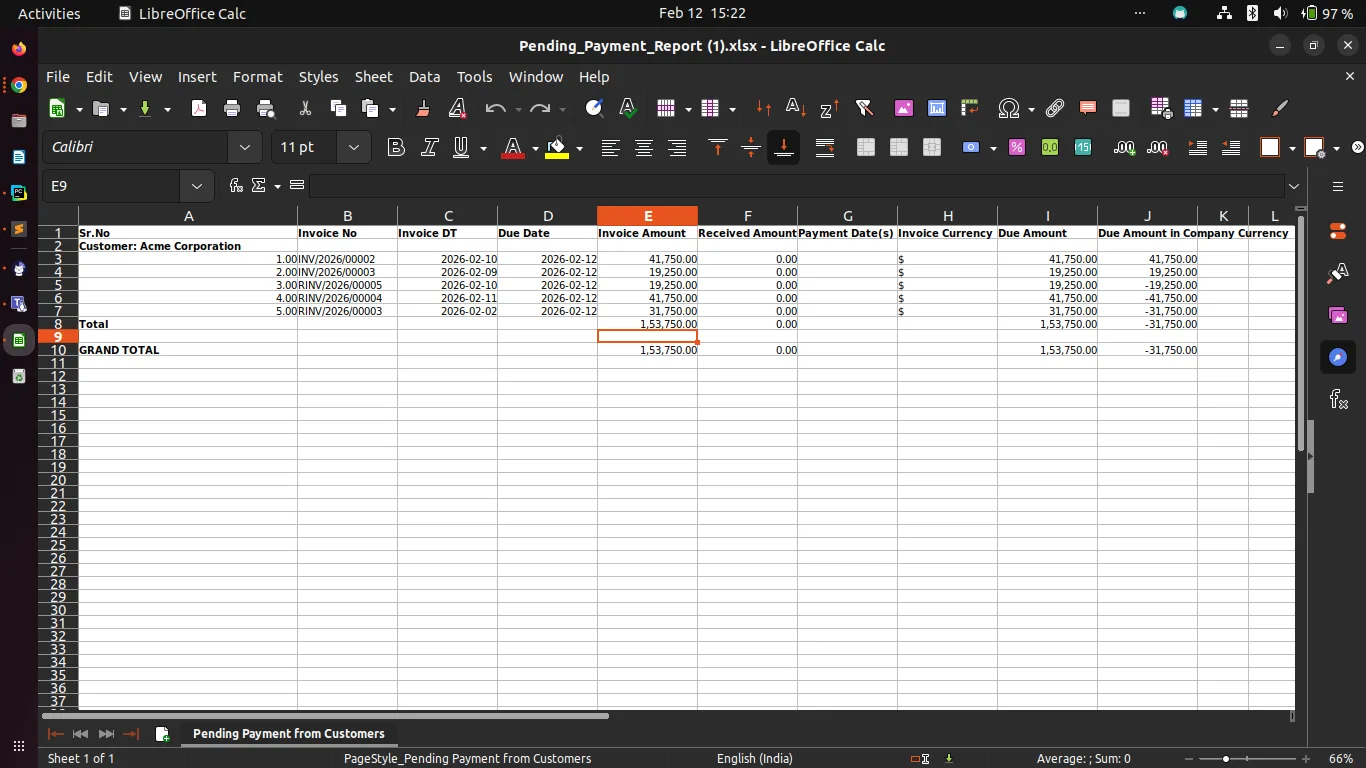
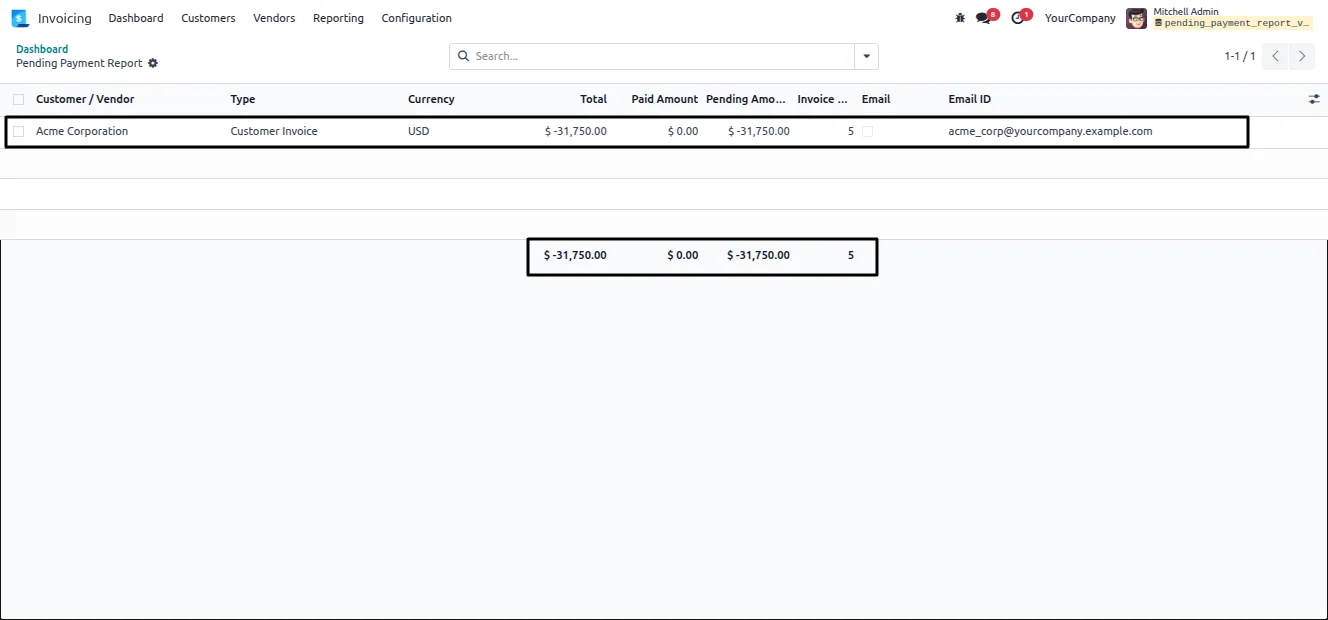
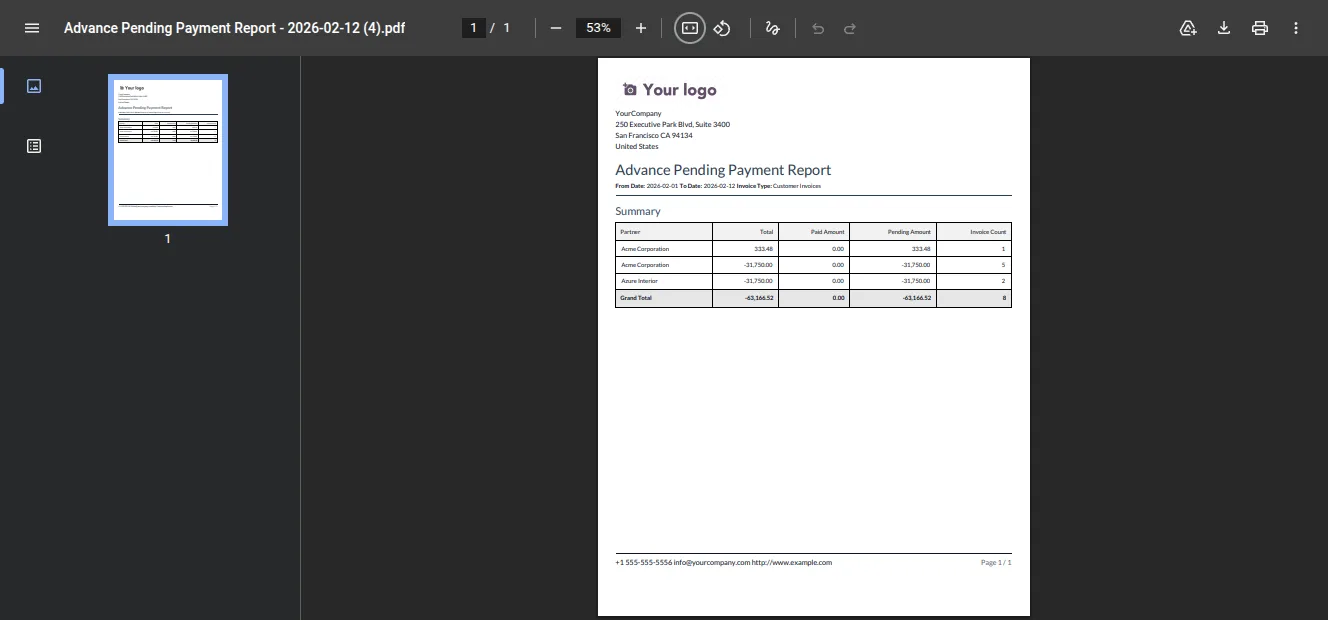
Reports group the data by customer or vendor with totals, paid amounts, pending balances, and invoice counts, plus currency-wise totals and a grand total. The module can also email pending-payment details to a configured user, so payment follow-up runs on a schedule rather than from memory.
Key features
-
Excel and PDF reports
Generate outstanding-payment reports as both Excel and PDF files from a single wizard, or preview the result on screen before exporting.
-
Invoices, bills, or both
Run the report for customer invoices only, vendor bills only, or both at the same time, so receivables and payables can be reviewed together or apart.
-
Grouped by customer or vendor
Report data is grouped by customer or vendor, with totals, paid amounts, pending balances, and invoice counts for each one.
-
Multiple filters
Filter by start date, end date, due date, and customer or vendor selections to narrow the report to exactly the period and accounts you need.
-
Currency-wise totals
The report shows currency-wise totals alongside a grand total, so multi-currency balances stay readable instead of being added up incorrectly.
-
Automatic follow-up emails
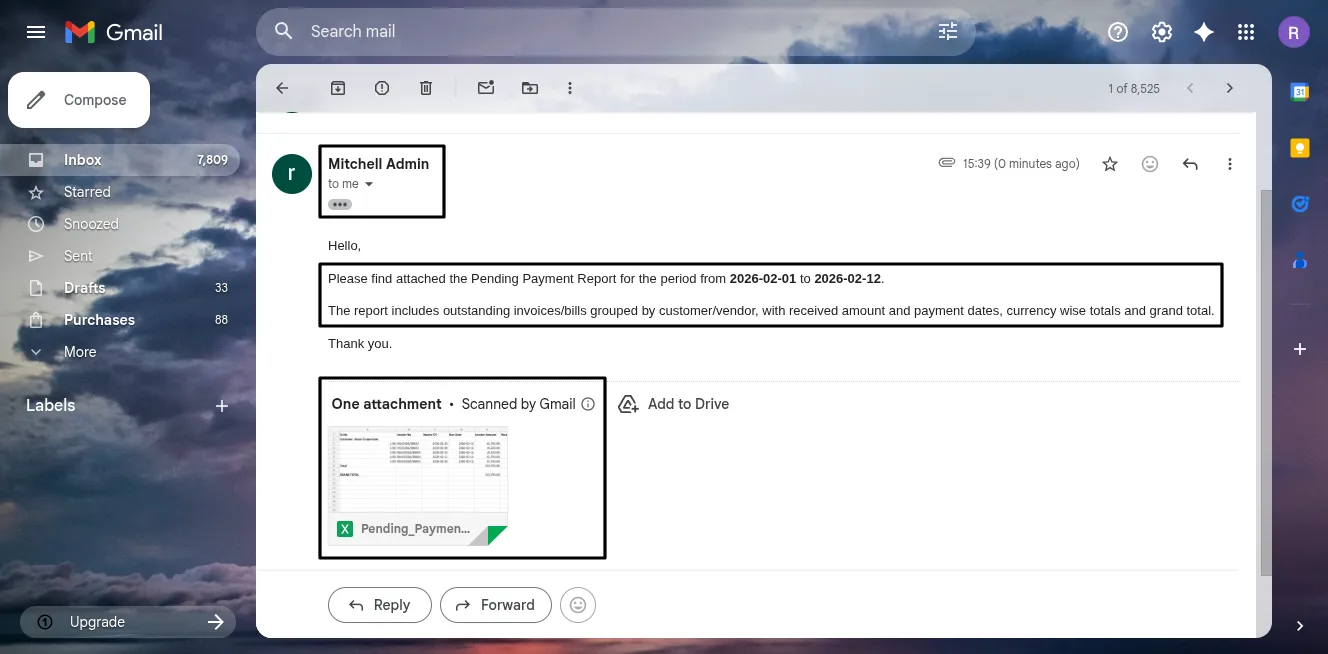
Pending-payment details for invoices and bills can be emailed automatically to a configured user, keeping payment follow-up on a routine.
-
Configurable recipient
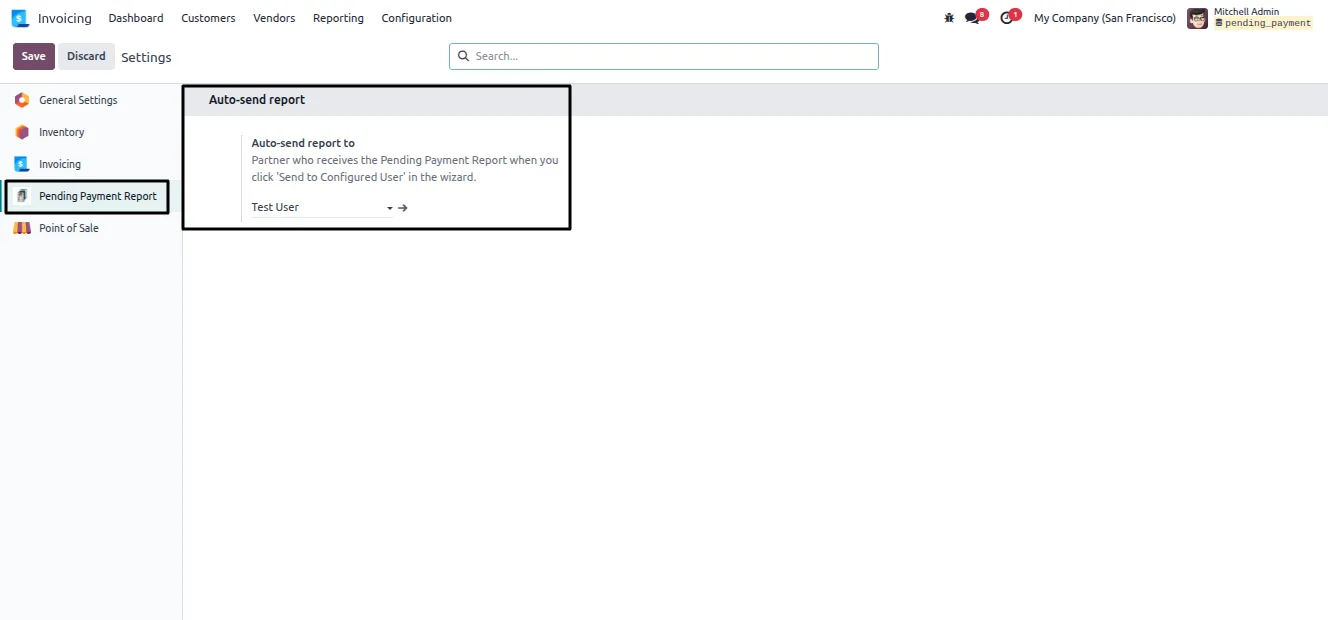
Set the partner who receives the report when the Send to Configured User option is chosen in the wizard, so reminders always reach the right person.
-
Salesperson and invoice-type filters
Narrow the report by salesperson and by invoice type, making it easy to review one rep's outstanding accounts or a single document type.
Outstanding Invoice & Bill Report in Odoo
Every screen, in the order you meet it — configuration first, then the module in use.
Technical details
Specification
- Publisher
- TechUltra Solutions Private Limited
- Technical name
- pending_payment_report
- Odoo versions
- 16.0, 17.0, 18.0, 19.0
- Lines of code
- 1,291
- License
- Odoo Proprietary License v1.0 (OPL-1)
- Price
- $22.99 (one-time)
Deployment
- Odoo Online
- Odoo.sh
- On-premise
Odoo dependencies
- Invoicing
- Discuss
Support
90 days of bug-fix support, Monday to Friday (10:00–19:00 IST). Raise a ticket at support@techultra.in.
Setup & configuration
From install to first call — here is the path.
- 1
Install the module
In Odoo, open Apps, remove the Apps filter, search for “Outstanding Invoice & Bill Report”, and click Install.
- 2
Open the reporting menus
Go to Invoicing → Reporting. Two new menu items appear: Pending Payment Report and Advance Pending Payment Report.
- 3
Set the report filters
Open Pending Payment Report and set the filters — customer or vendor, invoice and bill date ranges, due-date range, salesperson, currency, and invoice type. Empty optional fields include all records.
- 4
Configure the email recipient
Under the Pending Payment Report menu, set the partner who will receive the report when the Send to Configured User option is selected in the wizard.
- 5
Generate the report
Choose View Report, Print PDF, Print Excel, or Send via email to produce the outstanding invoice and bill report in the format you need.
Frequently asked questions
-
What does this module report on?
It reports on outstanding customer invoices and vendor bills — the amounts still unpaid — grouped by customer or vendor, with paid amounts, pending balances, and invoice counts.
-
What report formats can I generate?
You can generate Excel and PDF reports from the wizard, or preview the result on screen with View Report before exporting it.
-
Can I report on invoices and bills separately?
Yes. The wizard lets you run the report for customer invoices only, vendor bills only, or both at the same time.
-
How does the automatic follow-up email work?
When you choose Send to Configured User in the wizard, the module emails the pending-payment details for invoices and bills to the partner set under the Pending Payment Report menu.
-
How are multiple currencies handled?
The report shows currency-wise totals alongside a single grand total, so balances in different currencies stay separated and accurate.
-
What filters are available?
You can filter by start date, end date, due date, customer or vendor, salesperson, currency, and invoice type. Leaving an optional filter empty includes all matching records.
-
Which Odoo versions are supported?
The module supports Odoo 16.0, 17.0, 18.0, and 19.0, in both the Community and Enterprise editions.
-
Is support included?
Yes. The module includes 90 days of bug-fix support, Monday to Friday, 10:00–19:00 IST.
Related solutions
Whole-platform solutions that complement Outstanding Invoice & Bill Report.
Odoo Accounting
Odoo Accounting — multi-entity, multi-currency, bank-feed integration, reconciliation, deferred revenue, GAAP / IFRS. 60+ country localisations.
Odoo as Accounting Software
Odoo Accounting standalone — alternative to QuickBooks, Tally, Xero, Zoho Books. Real GL, multi-entity, statutory compliance, scales into full ERP.
E-Invoicing on Odoo
Native e-invoicing for Odoo — India GST, Italy FatturaPA, Saudi ZATCA, Mexico CFDI, EU EN 16931. IRN registration, statutory submission, audit archives.
Related services
Get the most out of this module with senior TechUltra consultants.
Odoo Customization Services
Tailored Odoo customizations from a Gold Partner — 200+ projects, upgrade-safe patterns, fixed-scope quotes, senior consultants. Free demo consultation.
Hire Odoo Developers
Hire certified Odoo developers from a Gold Partner — 400+ implementations, 92% satisfaction, Odoo since 2016. Silver / Gold / Platinum packages, free trial.
Odoo Support & Maintenance
Odoo Gold Partner support — 24/7 functional, technical, and server coverage for Enterprise and Community editions. Fast turnaround, free consultation.







