

Odoo App · Inventory
Inventory Backdate Control
Backdate completed stock transfers in Odoo with a full, locked audit trail.

Overview
Odoo locks the completion date once a stock transfer is marked Done, so a delivery or receipt recorded a day late carries the wrong date. Inventory Backdate Control lets authorized users correct that date — without losing the original record of what actually happened.
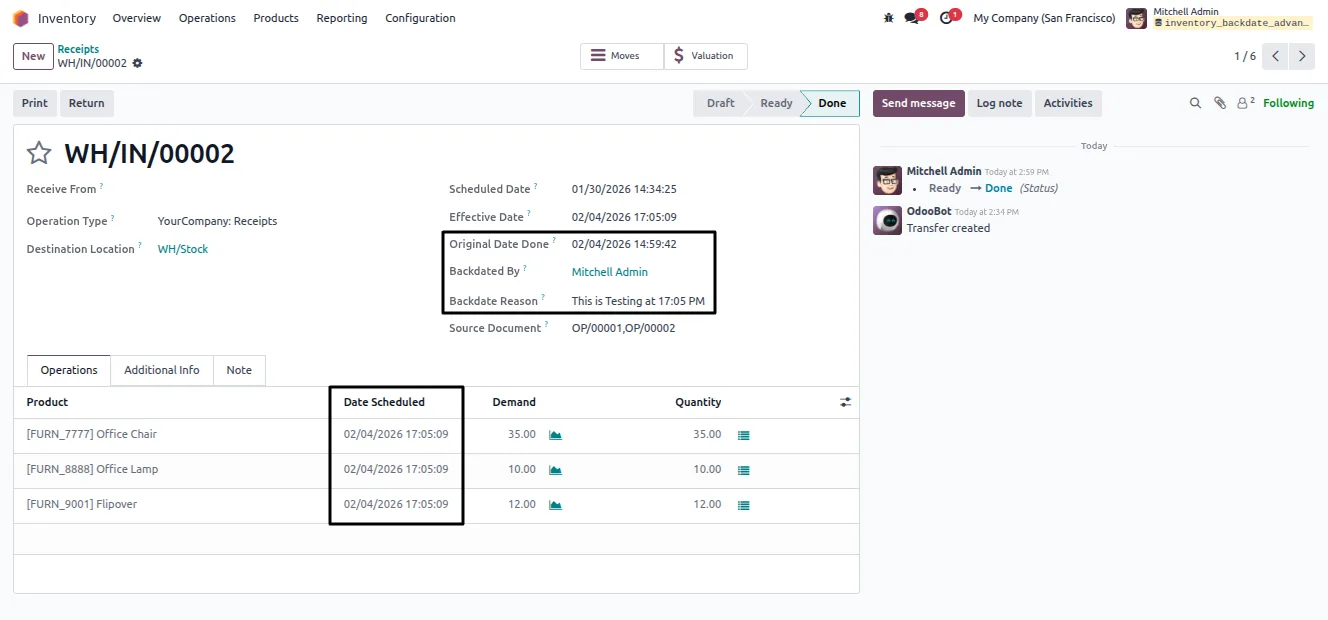
Built by TechUltra Solutions, the module preserves the original completion date in dedicated read-only fields, logs the user who performed the backdate, and requires a written reason for every change. The audit fields cannot be edited after the fact, so the trail stays intact for internal controls and external audits.
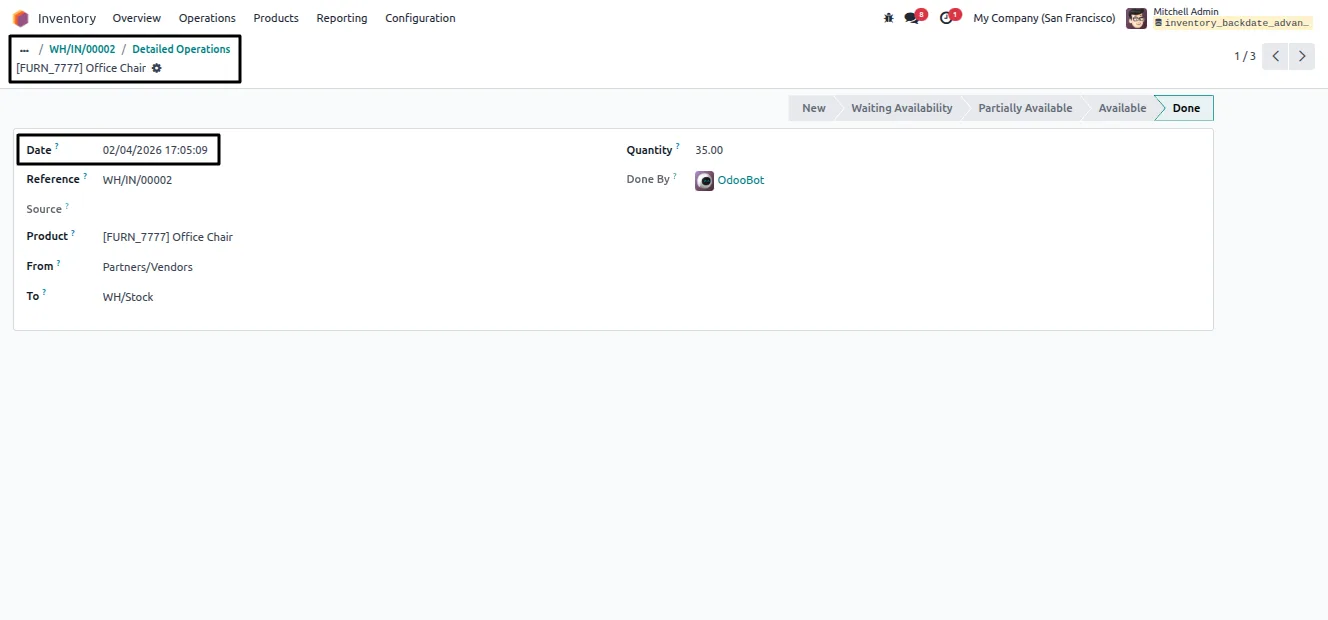
A mass-backdate wizard applies a new date to many completed transfers at once, selected by domain filter or by hand. It can optionally recalculate inventory valuation so the linked journal entry dates move with the stock moves, keeping accounting and inventory aligned.
Key features
-
Backdate completed transfers
Authorized users can change the completion date of Done stock transfers safely and consistently, correcting deliveries and receipts recorded on the wrong day.
-
Original date preserved
The module stores the original completion date of each stock picking and stock move and prevents it from being overwritten, so the real history is never lost.
-
User accountability
Every backdate records the user who performed it, giving clear responsibility and traceability for each adjustment.
-
Mandatory reason on every change
A reason is required and stored for each backdate, so the justification for the change is always on the record for audit review.
-
Mass-backdate wizard
Backdate many completed stock transfers in one operation, choosing records with a flexible domain filter or by selecting them directly.
-
Optional valuation recalculation
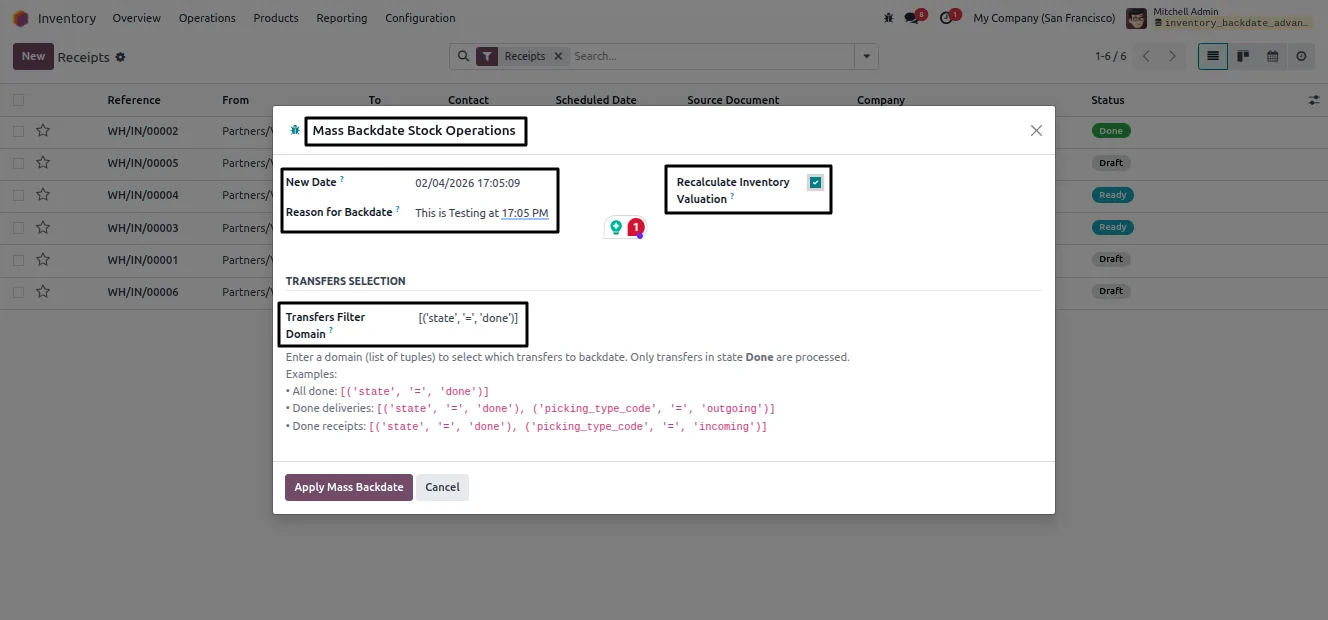
Enable “Recalculate Inventory Valuation” in the wizard to move the journal entry dates linked to affected stock moves, keeping accounting in step with inventory.
-
Locked audit fields
Original date, responsible user, and backdate reason are stored in read-only fields, so the audit trail cannot be altered after the change.
-
Restricted access
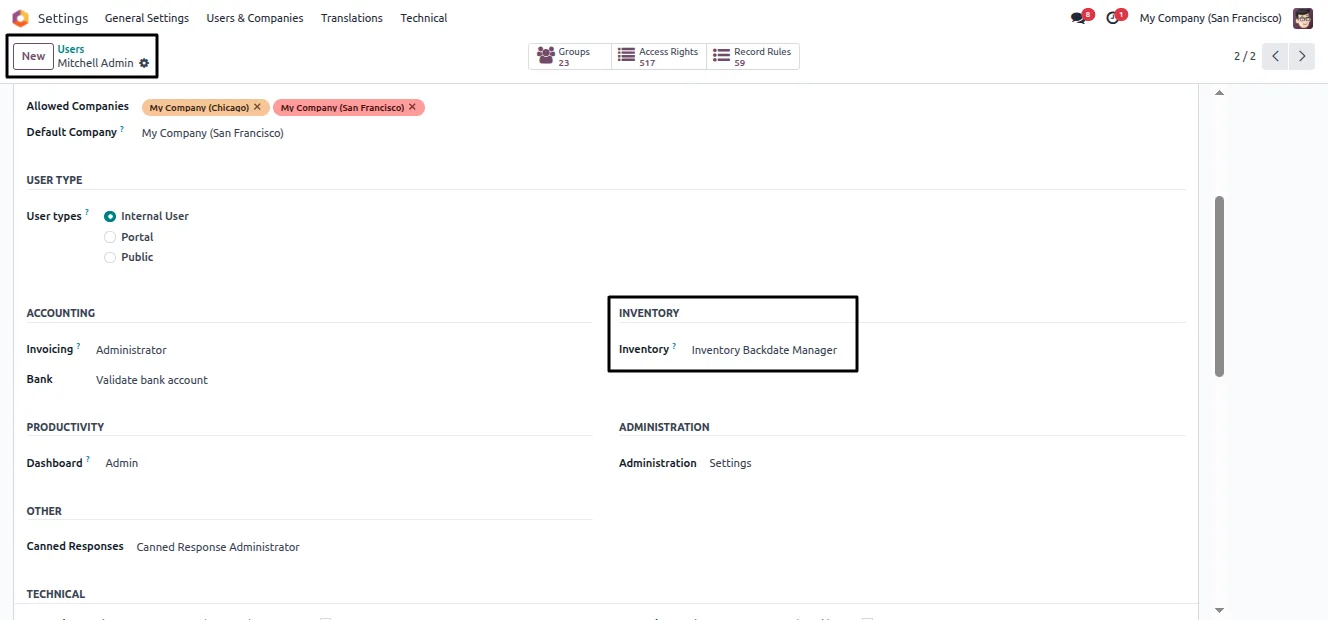
Backdating is limited to members of the Inventory Backdate Manager group, so only approved staff can perform or review these changes.
Inventory Backdate Control in Odoo
Every screen, in the order you meet it — configuration first, then the module in use.
Technical details
Specification
- Publisher
- TechUltra Solutions Private Limited
- Technical name
- inventory_backdate_advanced
- Odoo versions
- 16.0, 17.0, 18.0, 19.0, 20.0
- Lines of code
- 248
- License
- Odoo Proprietary License v1.0 (OPL-1)
- Price
- $12 (one-time)
Deployment
- Odoo Online
- Odoo.sh
- On-premise
Odoo dependencies
- Inventory
- Discuss
- Invoicing
Support
90 days of bug-fix support, Monday to Friday (10:00–19:00 IST). Raise a ticket at support@techultra.in.
Setup & configuration
From install to first call — here is the path.
- 1
Install the module
In Odoo, open Apps, remove the Apps filter, search for “Inventory Backdate Control”, and click Install.
- 2
Grant the manager group
Under Settings → Users & Companies → Users, open each user who should backdate transfers and assign the Inventory Backdate Manager group. This also reveals the audit fields — original date, responsible user, and reason.
- 3
Open the Mass Backdate menu
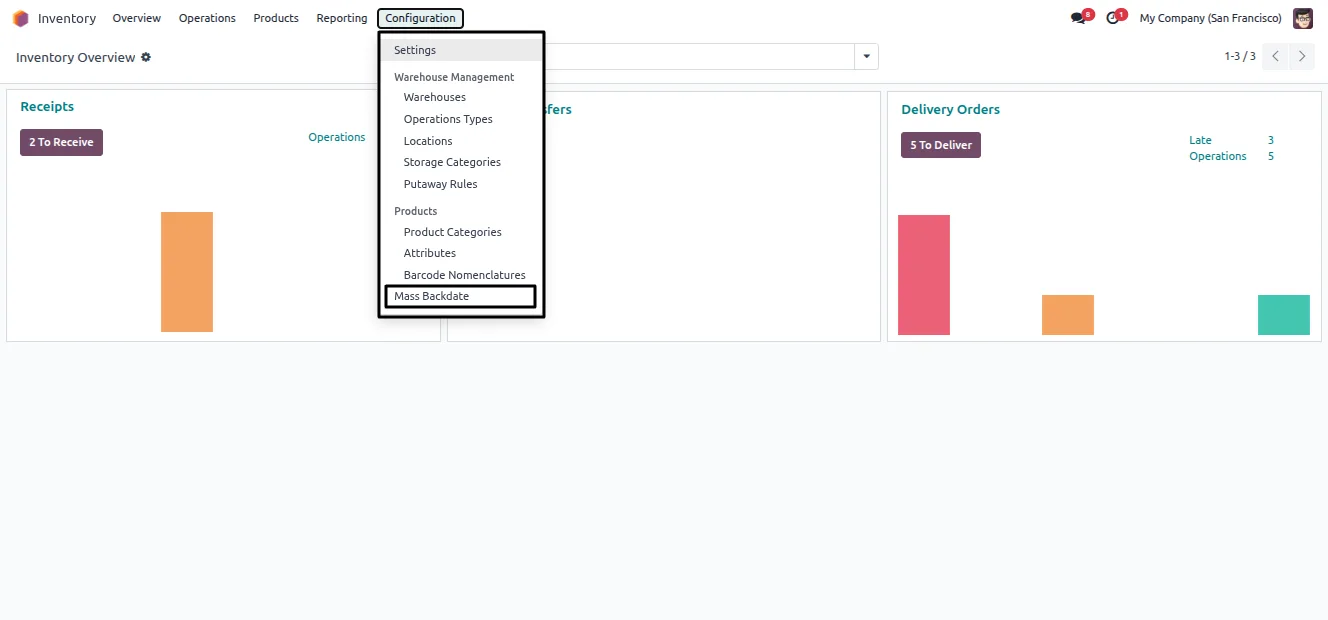
Go to Inventory → Configuration and find the Mass Backdate menu at the bottom of the page.
- 4
Run the mass-backdate wizard
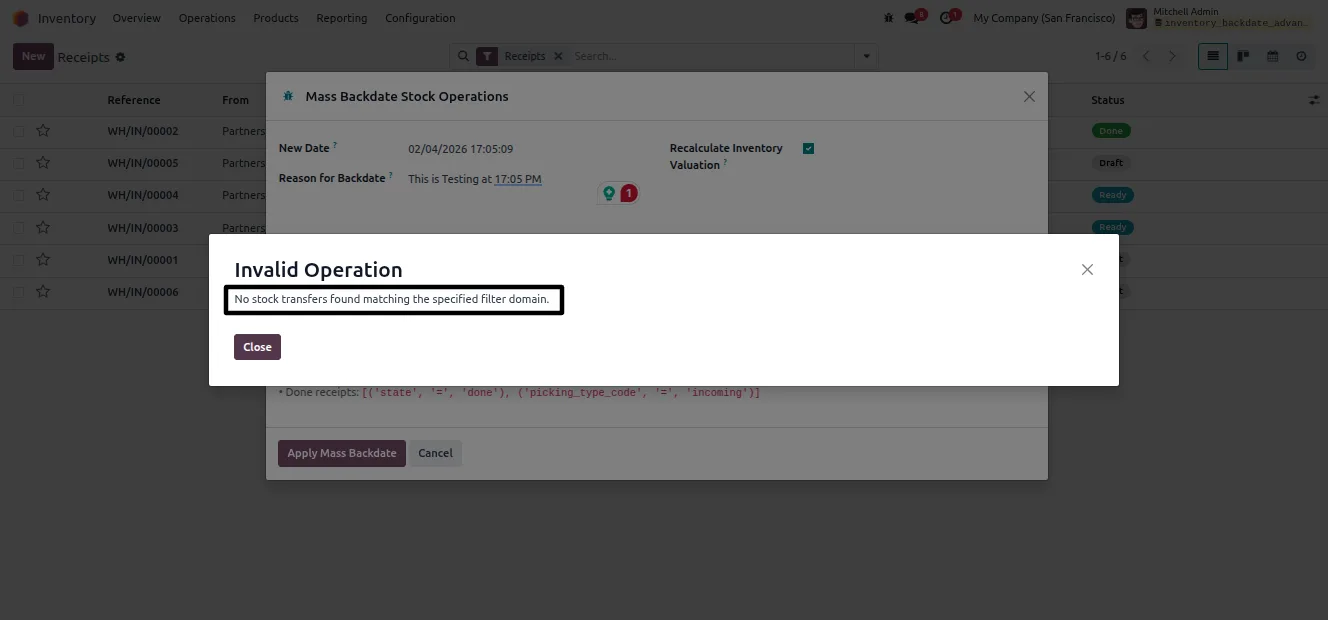
Open Mass Backdate, enter the New Date, provide the mandatory Reason for Backdate, and use the Domain Filter to pick the stock pickings. Optionally enable “Recalculate Inventory Valuation”.
- 5
Apply and verify
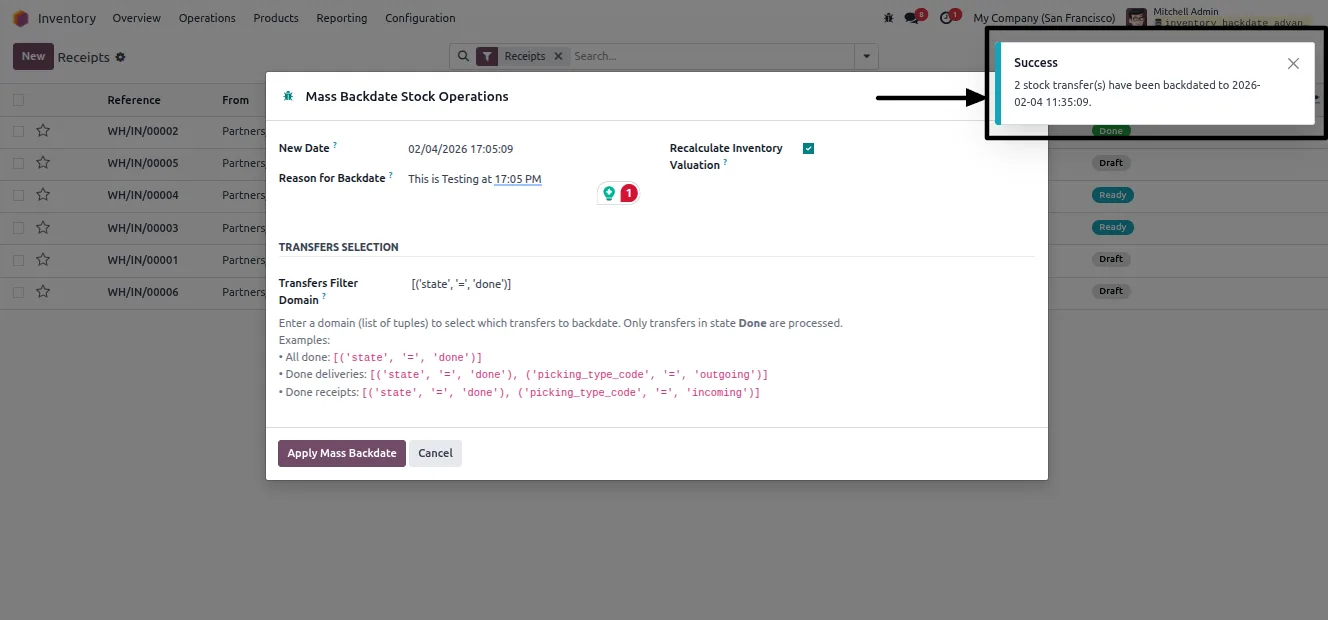
Click Apply Mass Backdate. The system confirms how many transfers changed. Open an affected transfer to check Original Date Done, Backdated By, Backdate Reason, and the updated Effective Date.
Frequently asked questions
-
Why can't I just edit the date on a Done transfer?
Odoo locks the completion date once a stock transfer is validated. Inventory Backdate Control adds a controlled way to change that date while keeping the original on record.
-
Is the original date kept after a backdate?
Yes. The original completion date of the stock picking and its stock moves is stored in a dedicated read-only field and is never overwritten by the backdate.
-
Who is allowed to backdate transfers?
Only users in the Inventory Backdate Manager group. Members of that group can perform backdates and see the audit fields; other users cannot.
-
Is a reason required for each backdate?
Yes. The wizard requires a reason for every backdate, and it is stored on the record so the justification is always available for audit.
-
Can I backdate many transfers at once?
Yes. The Mass Backdate wizard applies a new date to multiple completed transfers in one operation, selected by domain filter or directly.
-
Does backdating affect accounting valuation?
Only if you choose it. Enabling “Recalculate Inventory Valuation” in the wizard updates the journal entry dates linked to the affected stock moves so accounting stays aligned with inventory.
-
Which Odoo versions are supported?
The module supports Odoo 16.0, 17.0, 18.0, 19.0, and 20.0, in both the Community and Enterprise editions.
-
Is support included?
Yes. The module includes 90 days of bug-fix support, Monday to Friday, 10:00–19:00 IST.
Listing verified against the Odoo App Store:
Related solutions
Whole-platform solutions that complement Inventory Backdate Control.
Odoo Inventory + Warehouse Management
Odoo Inventory module — multi-warehouse, batch/serial, putaway, barcode, replenishment, cross-docking, dropship, consignment. Full WMS in your ERP.
Odoo Purchase
Odoo Purchase module — RFQ, PO, supplier portal, three-way match, blanket PO, drop-ship, sub-contracting. Integrated with Inventory + MRP + Accounting.
Related services
Get the most out of this module with senior TechUltra consultants.
Odoo Customization Services
Odoo customization from a Gold Partner: custom modules, workflows, reports and Studio changes, written upgrade-safe and quoted at a fixed scope. Free scoping call.
Hire Odoo Developers
Hire certified Odoo developers from a Gold Partner: one developer or a team, full-time or part-time, 70–160 hours a month. Silver, Gold or Platinum plan, free trial.
Odoo Support Services & Maintenance
Odoo support services from a Gold Partner: functional and technical support plus server cover for Enterprise and Community, 30-minute P1 response, 24/7 option.







