
Odoo App · CRM & Purchase
CRM to Purchase Quotation
Raise vendor RFQs straight from a CRM lead, with full lead-to-purchase traceability.

Overview
CRM to Purchase Quotation connects opportunity tracking with procurement. During an opportunity discussion, sales teams often need vendor pricing before they can confirm a customer quote — but moving between the CRM and Purchase apps by hand causes delays, duplicate data entry, and lost context.
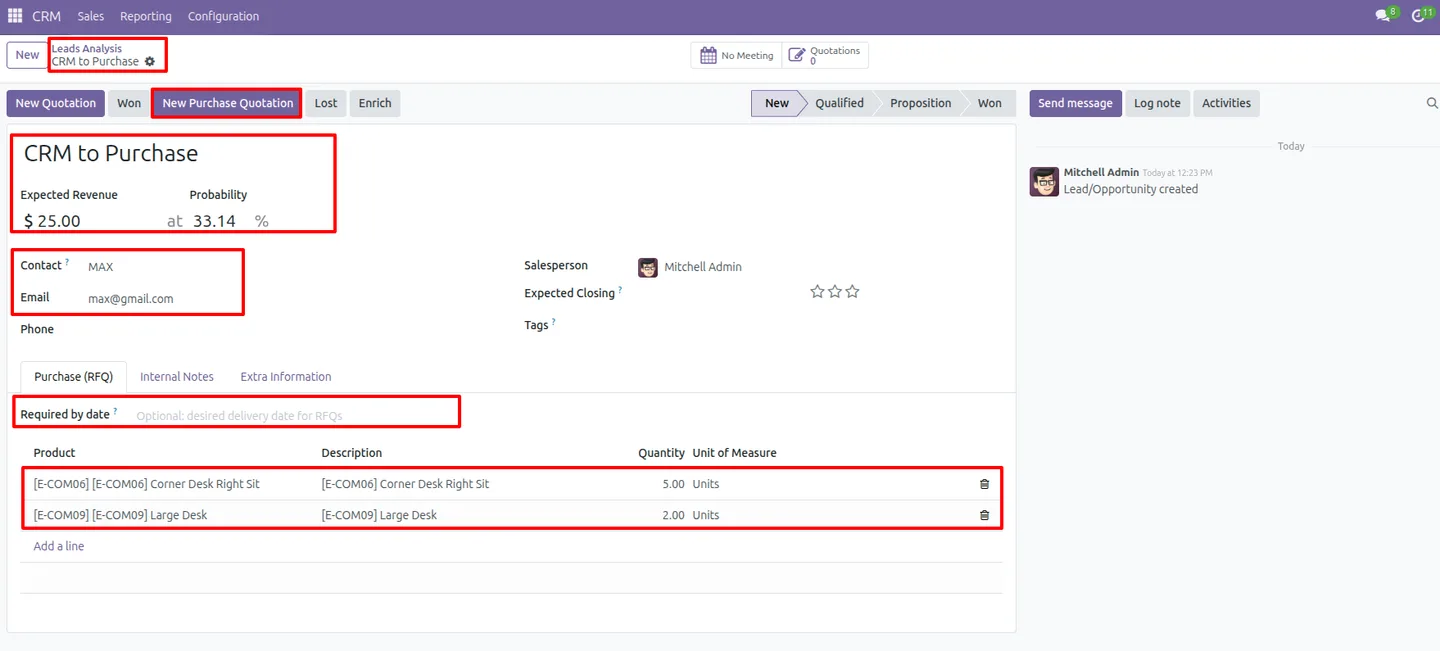
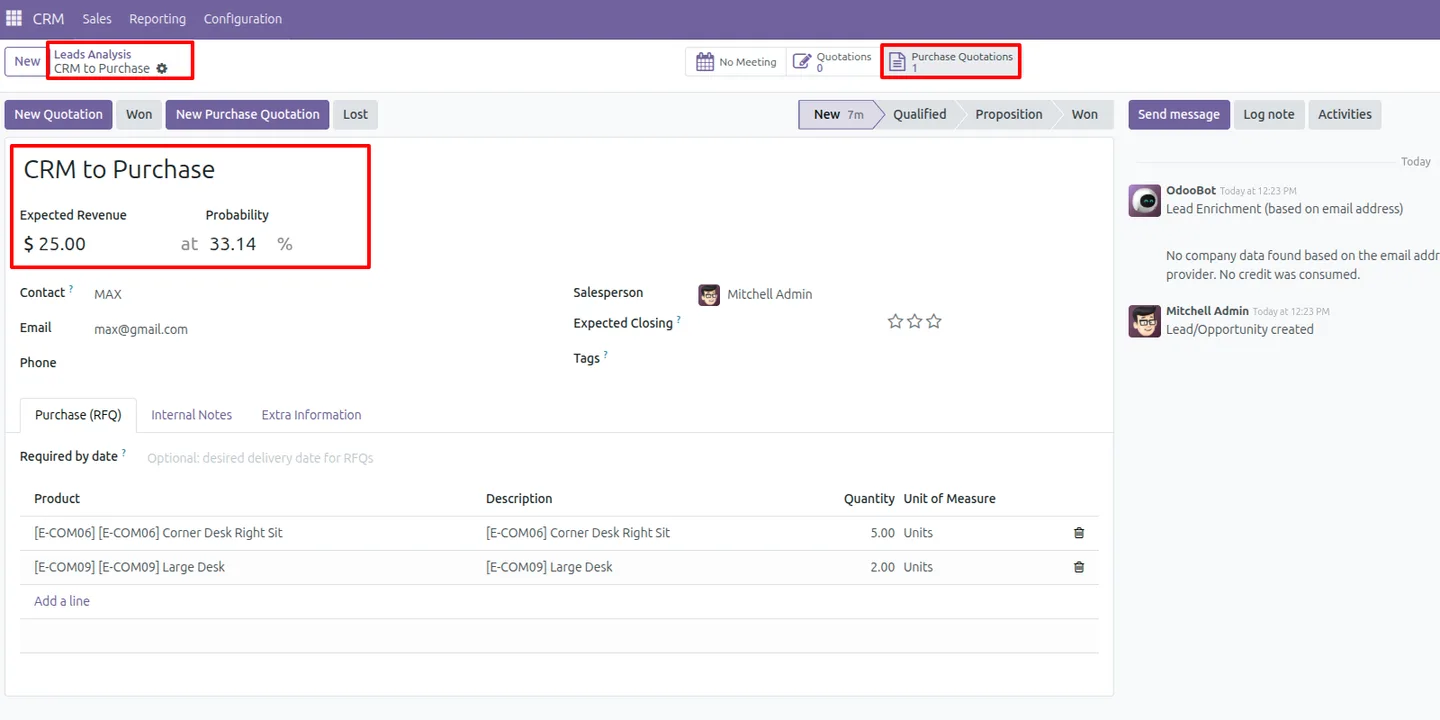
Built by TechUltra Solutions, the module adds a New Purchase Quotation button to the CRM lead form. Sales staff raise a vendor RFQ in place, pick or create the vendor through a guided wizard, and let the lead's product lines and contact details carry over automatically.
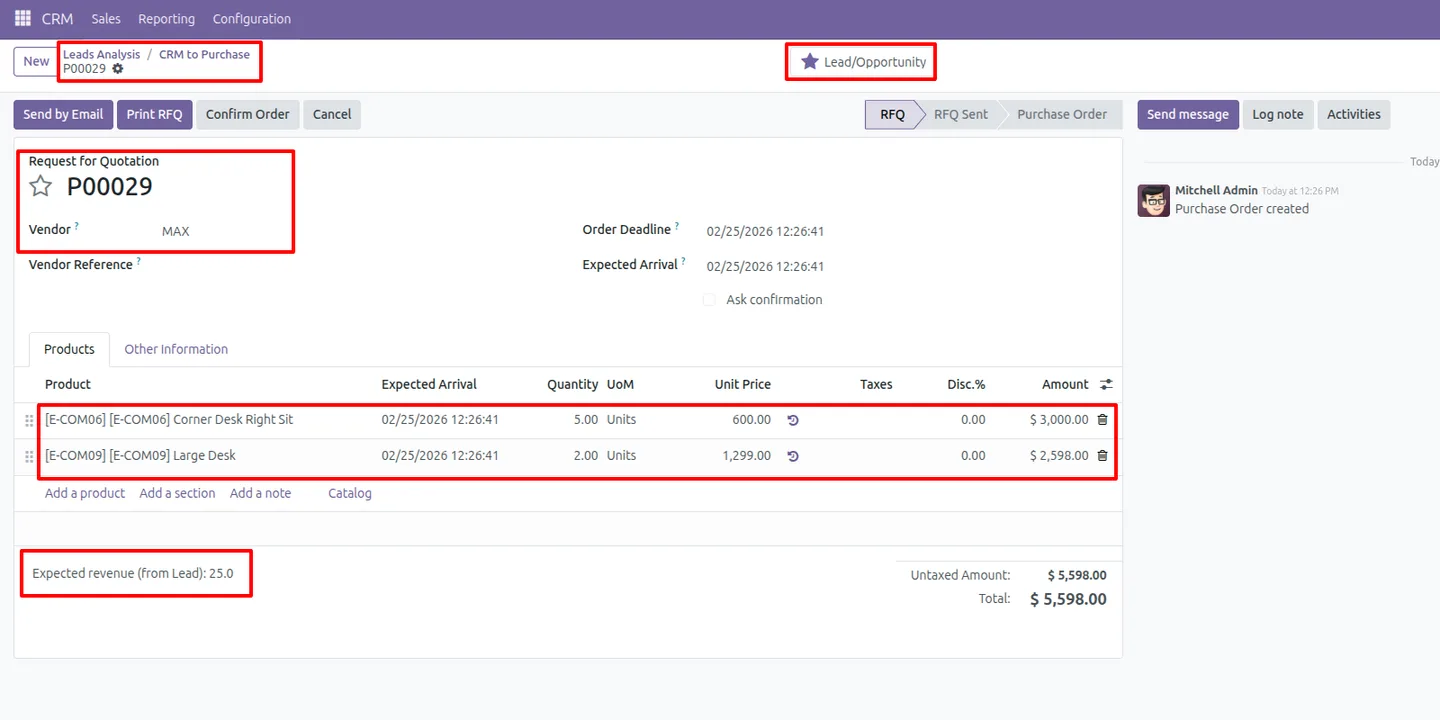
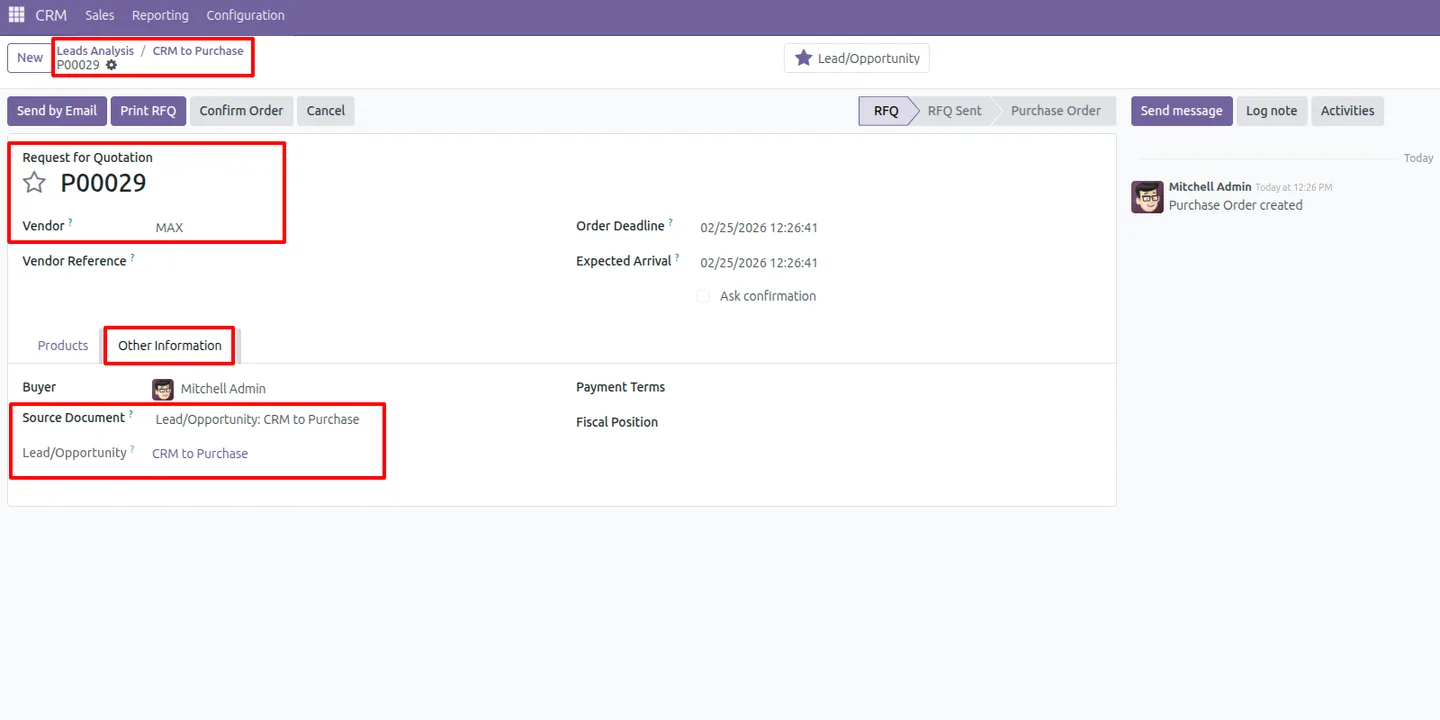
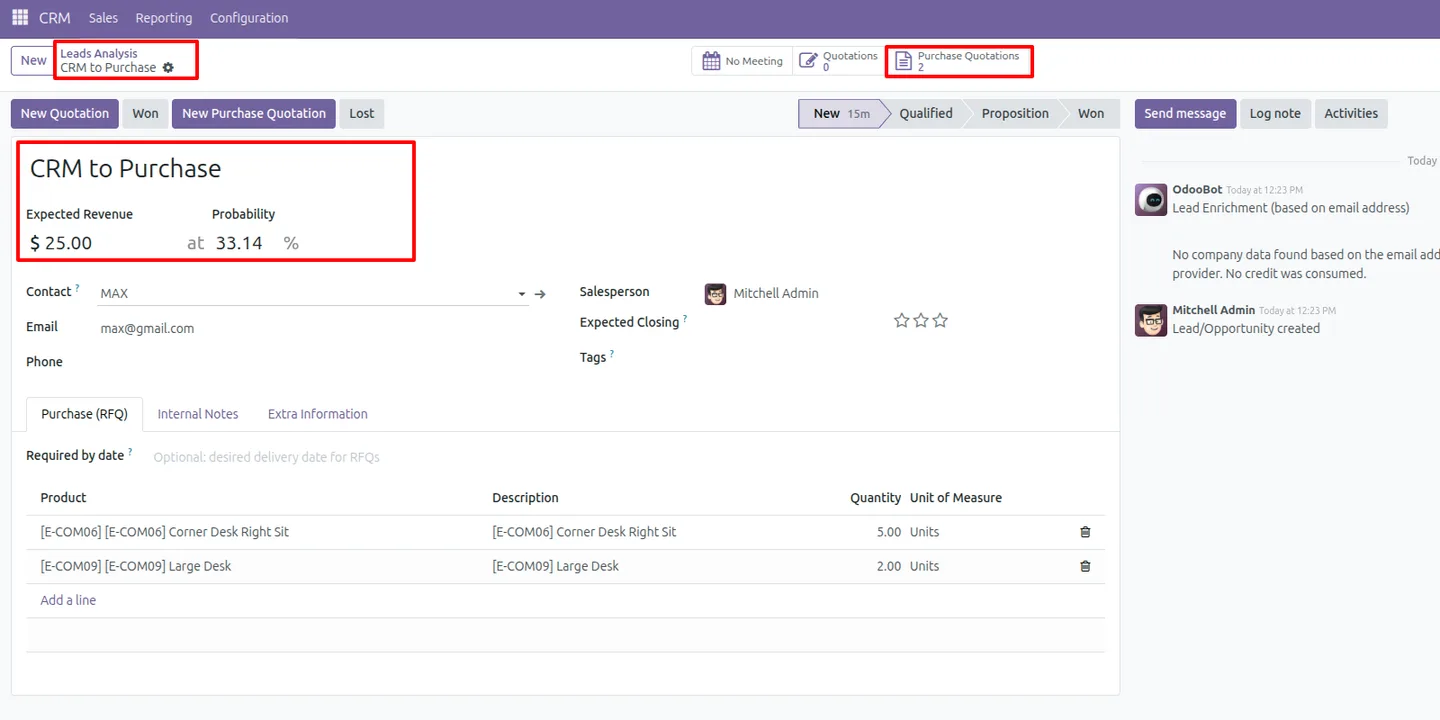
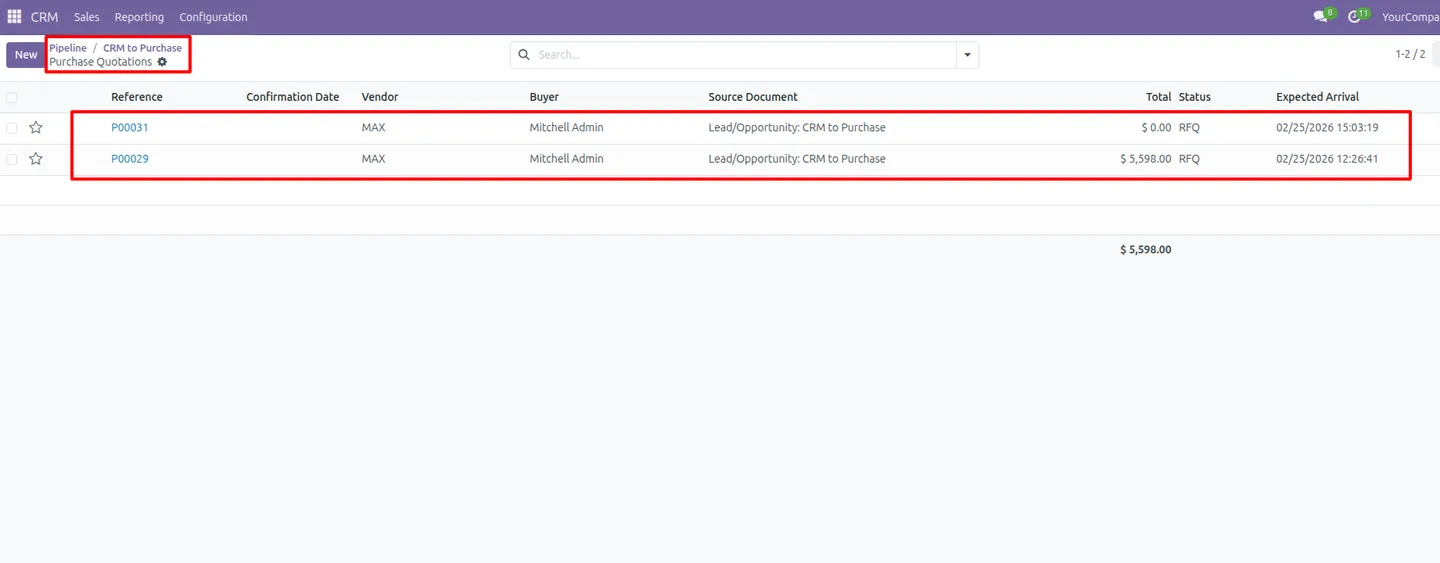
Every RFQ created this way is linked back to its lead. A Purchase Quotations smart button on the lead shows the count and opens the related RFQs, so sales and procurement share one traceable thread from opportunity to vendor quote.
Key features
-
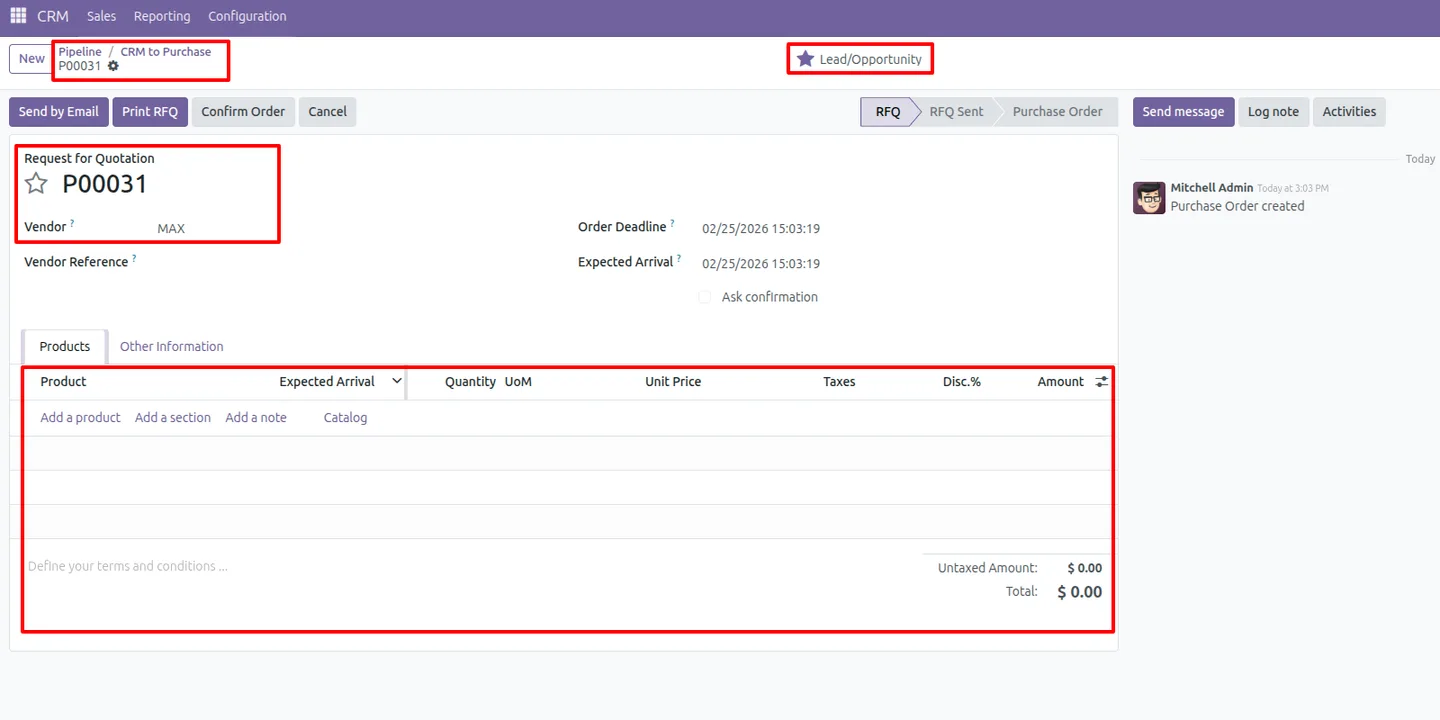
Create an RFQ from a CRM lead
A dedicated New Purchase Quotation button on the lead form raises a vendor RFQ without leaving the CRM workflow.
-
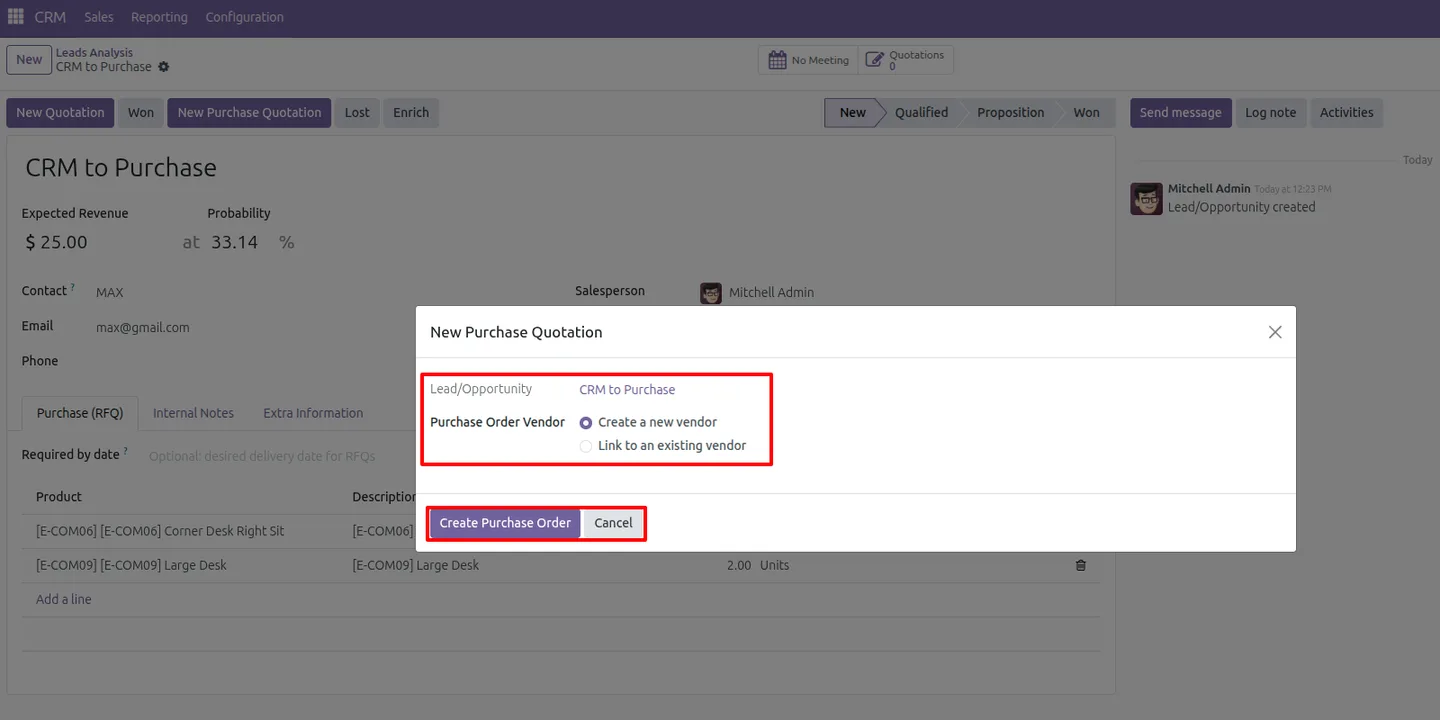
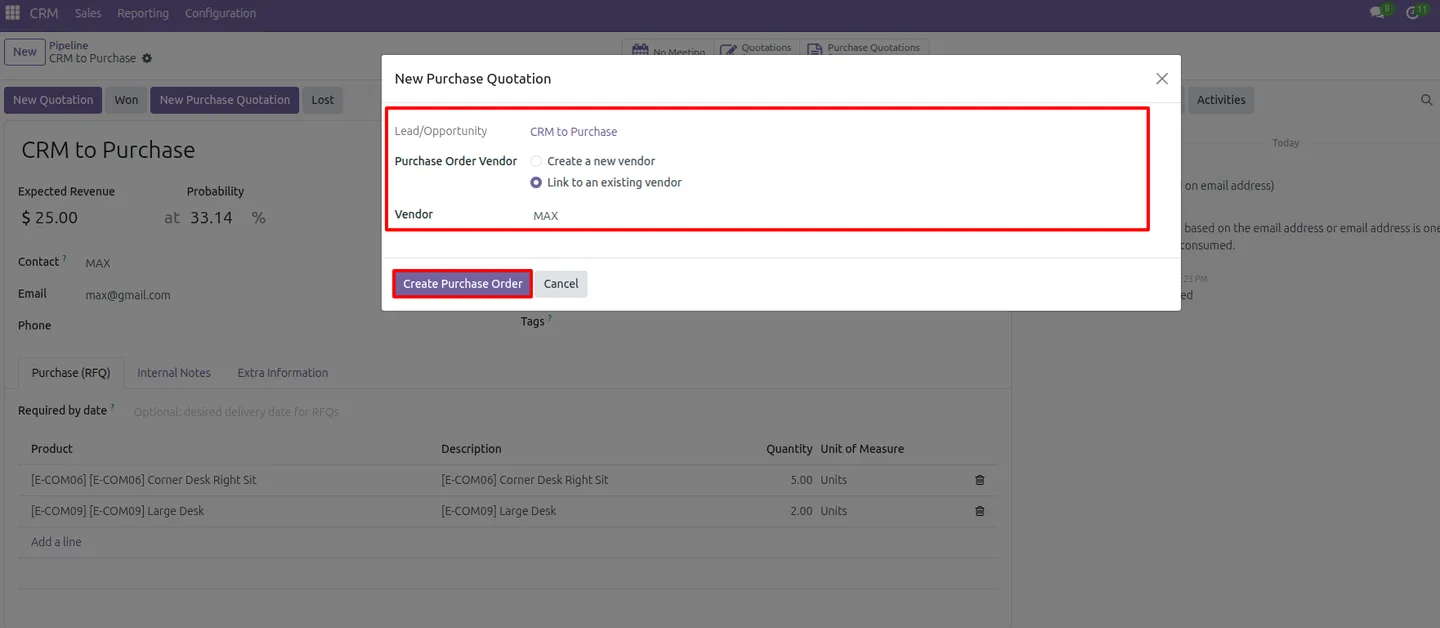
Vendor selection wizard
A guided wizard lets you link an existing vendor or create a new one before the RFQ is confirmed, keeping vendor assignment accurate.
-
Automatic product line transfer
When pre-fill is enabled and the lead's requested products are set, those product lines copy into the RFQ, cutting manual data entry.
-
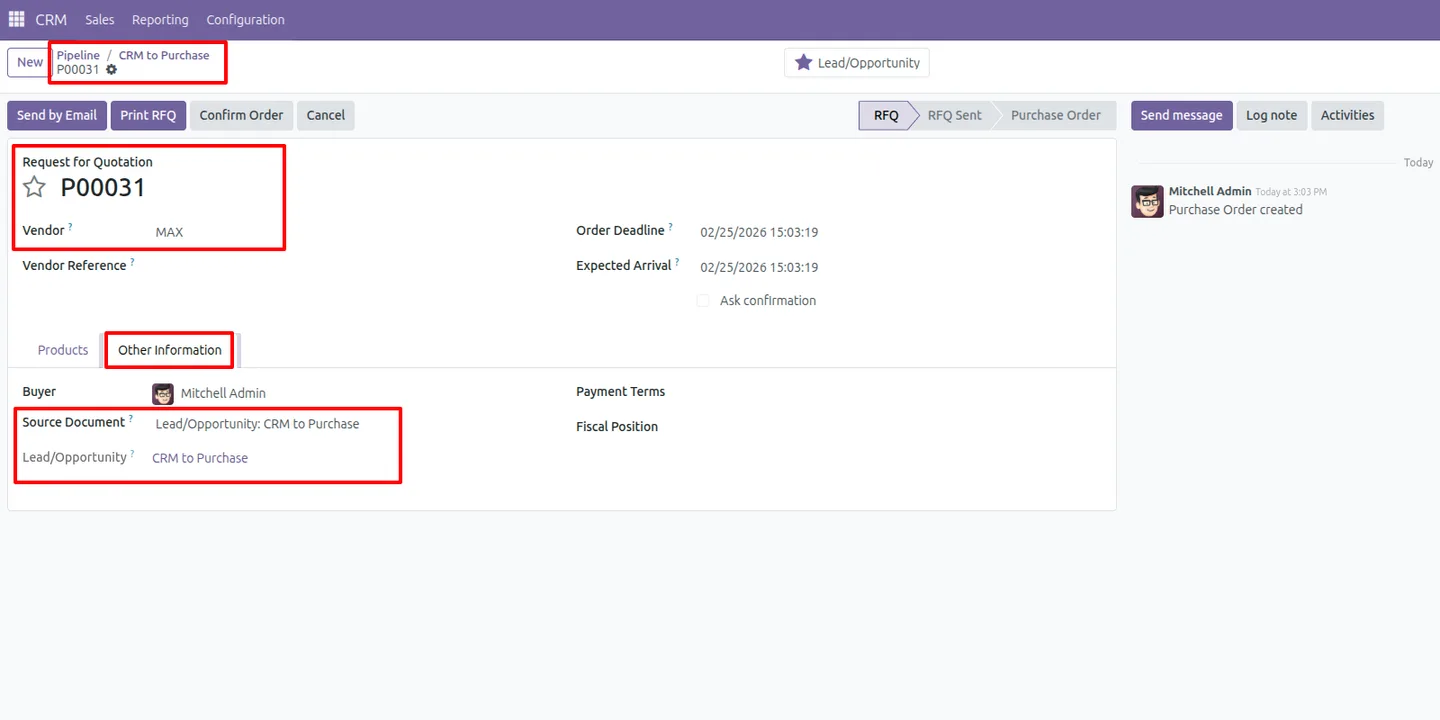
Lead-to-purchase traceability
Every RFQ raised through the module is linked to its originating lead, so the procurement trail is always tied back to the opportunity.
-
Purchase Quotations smart button
A smart button on the lead form shows the count of related RFQs and opens them directly, giving a quick view of procurement activity.
-
Contact and revenue carry-over
Contact details, the expected-revenue reference, and the delivery date can be carried into the RFQ so the quote starts with the lead's context.
-
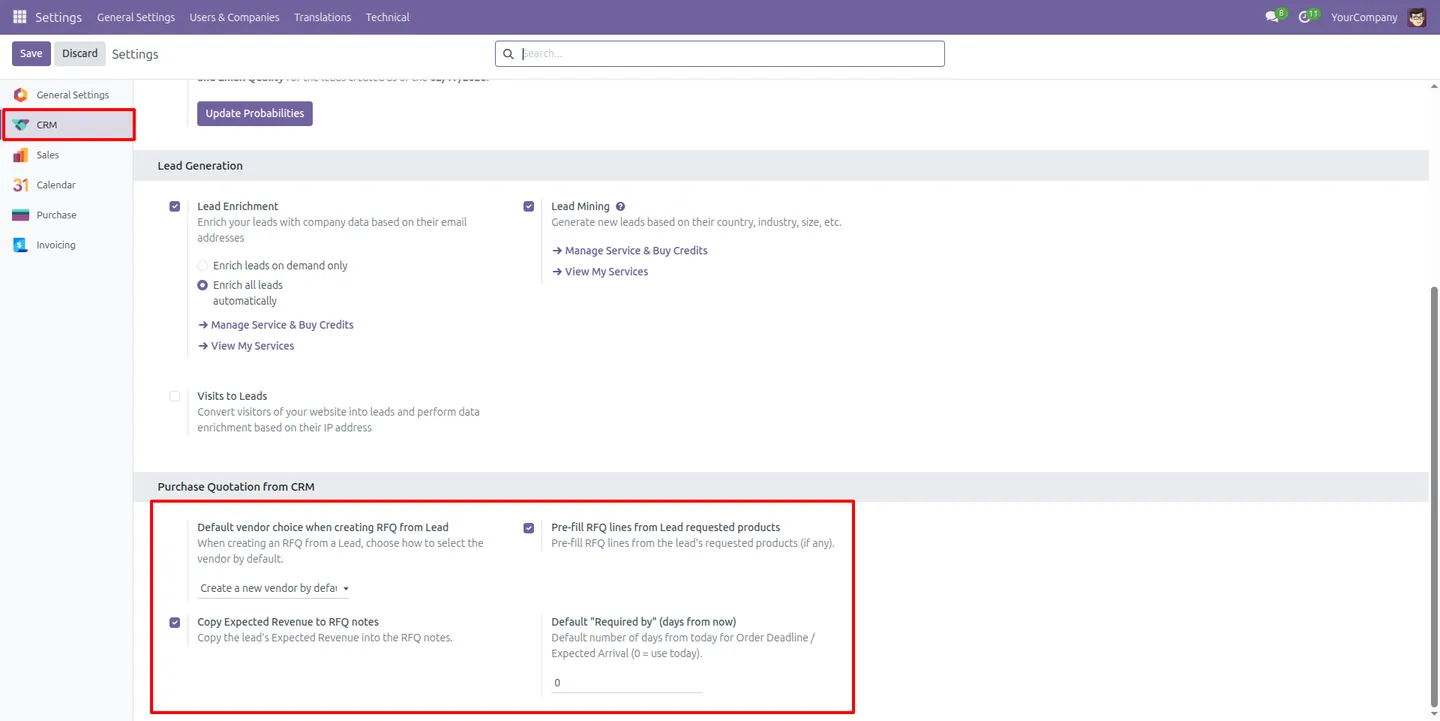
Administrator configuration
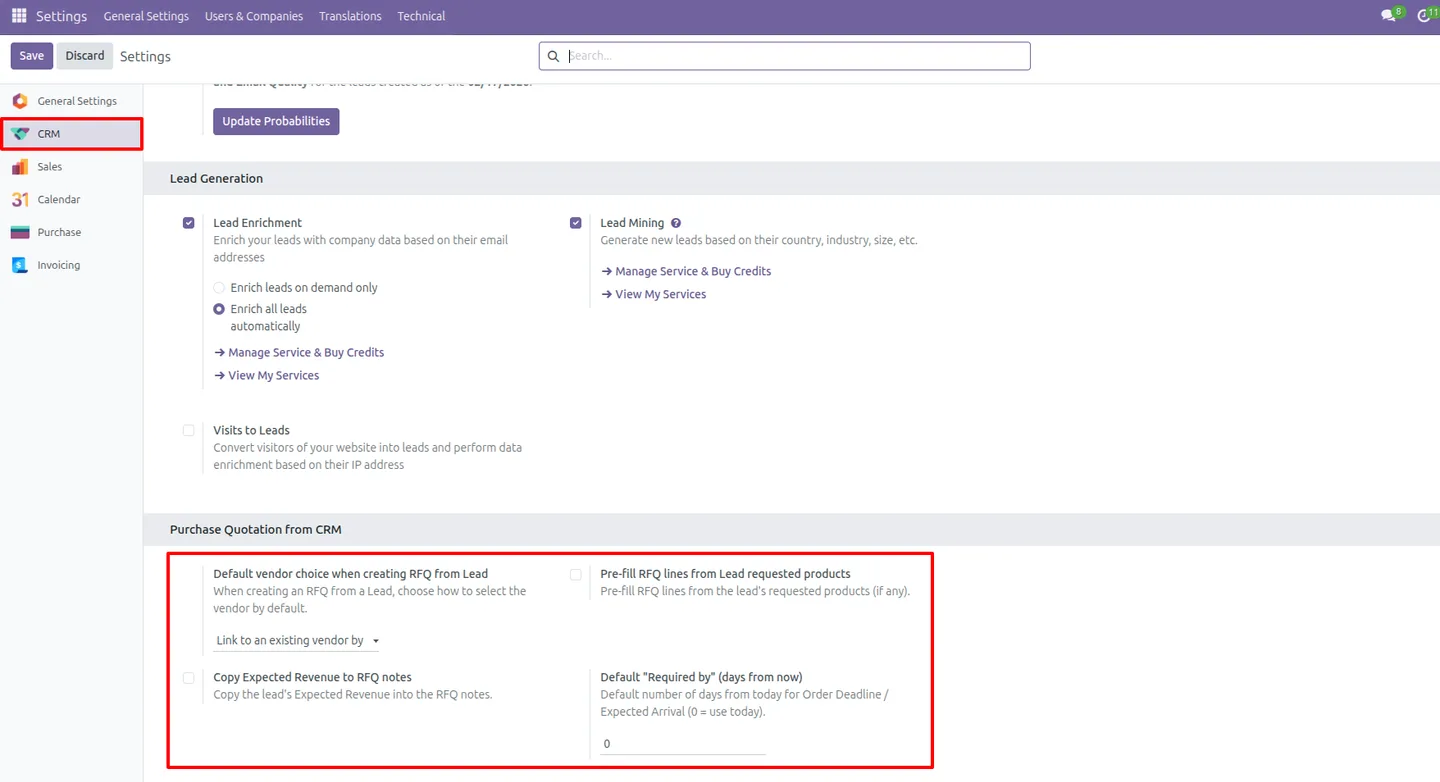
Admins set the default vendor behaviour, toggle RFQ line pre-fill, copy lead information into RFQ notes, and define a default Required By deadline.
-
Faster sales-to-procurement handoff
Raising RFQs in place removes app switching between Sales and Procurement, reducing delays and keeping both teams in sync.
CRM to Purchase Quotation in Odoo
Every screen, in the order you meet it — configuration first, then the module in use.
Technical details
Specification
- Publisher
- TechUltra Solutions Private Limited
- Technical name
- purchase_quotation_from_crm_advanced
- Odoo versions
- 16.0, 17.0, 18.0, 19.0
- Lines of code
- 400
- License
- Odoo Proprietary License v1.0 (OPL-1)
- Price
- $12 (one-time)
Deployment
- Odoo Online
- Odoo.sh
- On-premise
Odoo dependencies
- CRM
- Purchase
- Contacts
- Calendar
- Invoicing
- Discuss
Support
90 days of bug-fix support, Monday to Friday (10:00–19:00 IST). Raise a ticket at support@techultra.in.
Setup & configuration
From install to first call — here is the path.
- 1
Install the module
In Odoo, open Apps, remove the Apps filter, search for “CRM to Purchase Quotation”, and click Install.
- 2
Set the configuration options
As an administrator, choose the default vendor behaviour, toggle RFQ line pre-fill, decide whether to copy lead information into RFQ notes, and set a default Required By in days.
- 3
Open a CRM lead
Go to the CRM app and open a lead or opportunity that needs vendor pricing.
- 4
Create the purchase quotation
Click the New Purchase Quotation button and complete the vendor selection wizard — link an existing vendor or create a new one.
- 5
Review the pre-filled RFQ
Check the RFQ: contact details, expected-revenue reference, delivery date, and product lines are filled in where configured. Confirm to create it.
- 6
Track related RFQs
Use the Purchase Quotations smart button on the lead to see the count of related RFQs and open them.
Frequently asked questions
-
How do I raise a purchase RFQ from a lead?
Open a CRM lead and click the New Purchase Quotation button. A vendor selection wizard guides you through picking or creating a vendor, then the RFQ is created without leaving the CRM.
-
Can the RFQ pull products from the lead?
Yes. When the pre-fill option is enabled and the lead has requested products defined, those product lines transfer into the RFQ automatically, reducing manual entry.
-
How are leads and RFQs linked?
Every RFQ created through the module is linked to its lead. A Purchase Quotations smart button on the lead shows the count and opens the related RFQs.
-
Can I create a new vendor during the process?
Yes. The vendor selection wizard lets you either link an existing vendor or create a new one before the RFQ is confirmed.
-
What can administrators configure?
Administrators set the default vendor behaviour, enable or disable RFQ line pre-fill, choose whether to copy lead information into RFQ notes, and define a default Required By deadline in days.
-
Does it require the Purchase app?
Yes. The module connects CRM and Purchase, so both apps must be installed. It also builds on Contacts, Calendar, Invoicing, and Discuss.
-
Which Odoo versions are supported?
The module supports Odoo 16.0, 17.0, 18.0, and 19.0.
-
Is support included?
Yes. The module includes 90 days of bug-fix support, Monday to Friday, 10:00–19:00 IST.
Related services
Get the most out of this module with senior TechUltra consultants.
Odoo Customization Services
Tailored Odoo customizations from a Gold Partner — 200+ projects, upgrade-safe patterns, fixed-scope quotes, senior consultants. Free demo consultation.
Hire Odoo Developers
Hire certified Odoo developers from a Gold Partner — 400+ implementations, 92% satisfaction, Odoo since 2016. Silver / Gold / Platinum packages, free trial.
Odoo Support & Maintenance
Odoo Gold Partner support — 24/7 functional, technical, and server coverage for Enterprise and Community editions. Fast turnaround, free consultation.







