

Odoo App · Accounting & Finance
Post-Dated Cheque Management
Register, collect, and bounce customer and vendor post-dated cheques inside Odoo Accounting.

Overview
Post-Dated Cheque Management brings PDC handling into Odoo Accounting. A post-dated cheque is one written for a future date, so the funds cannot be deposited immediately — and Odoo's standard payment flow does not model that waiting period cleanly.
Built by TechUltra Solutions, the module covers both sides of the ledger: cheques received from customers (accounts receivable) and cheques issued to vendors (accounts payable). Each PDC is registered against its invoice or bill and then moves through a defined lifecycle of states.
At every stage — registration, collection, bounce, cancellation, or reset to draft — the module posts the correct journal entries against dedicated PDC accounts. The result is a complete, auditable record of every post-dated cheque from the day it is received to the day it clears or bounces.
Key features
-
Customer post-dated cheques
Record PDCs received from customers against their invoices, holding the amount in a dedicated receivable account until the cheque is collected.
-
Vendor post-dated cheques
Track PDCs issued to vendors against their bills, so future-dated outgoing payments are visible and accounted for before they clear.
-
Full lifecycle tracking
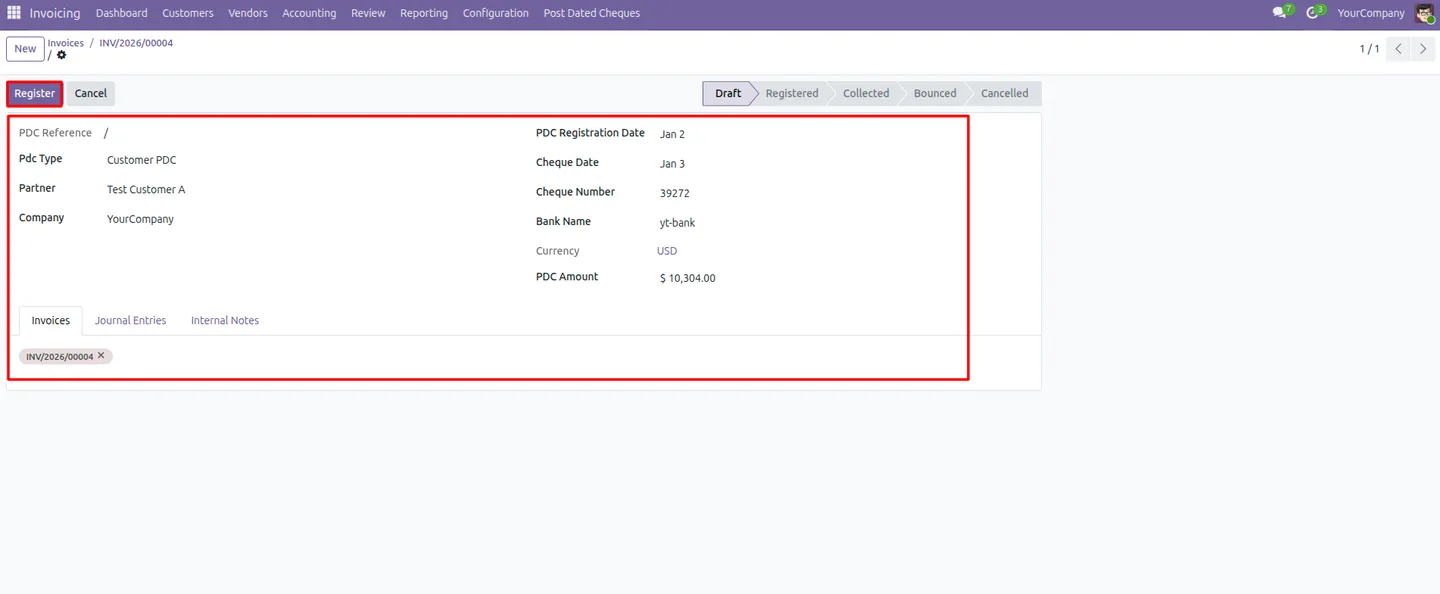
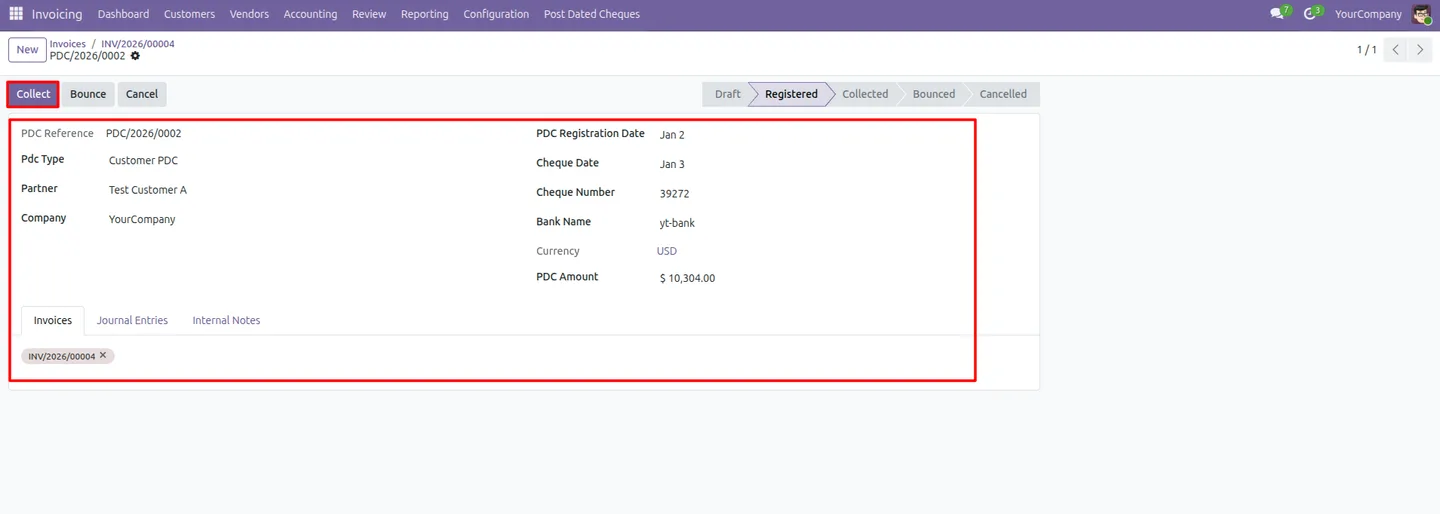
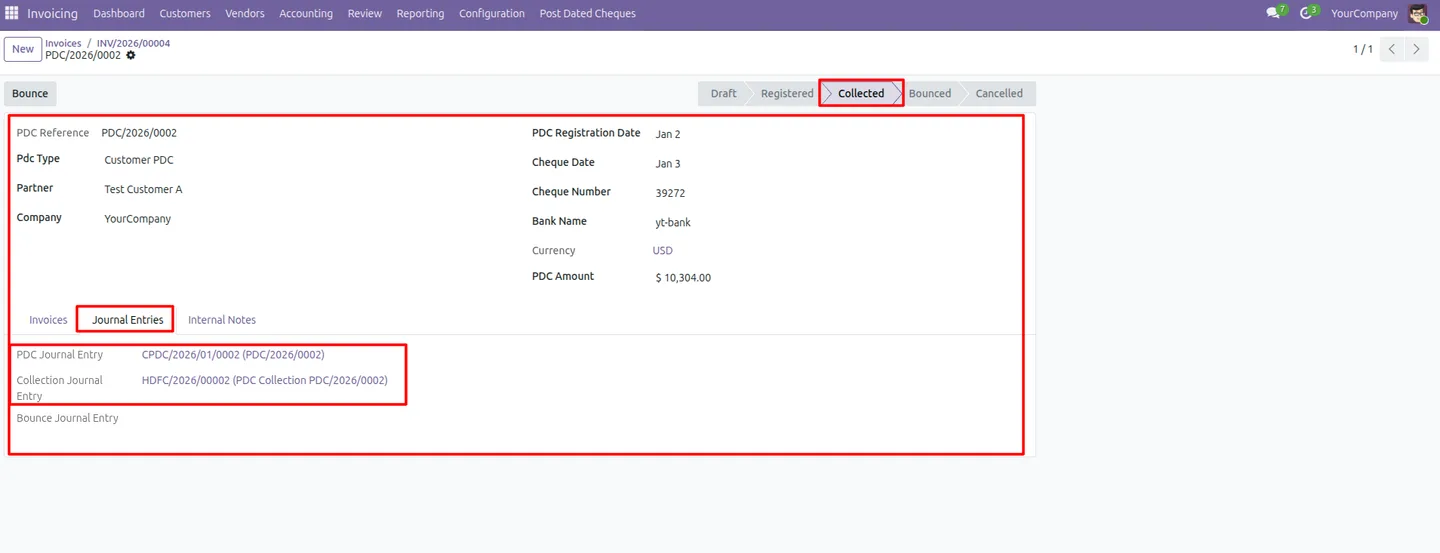
Each cheque moves through registered, collect, bounce, cancel, and reset-to-draft states, giving a clear status for every PDC at any time.
-
Automated journal entries
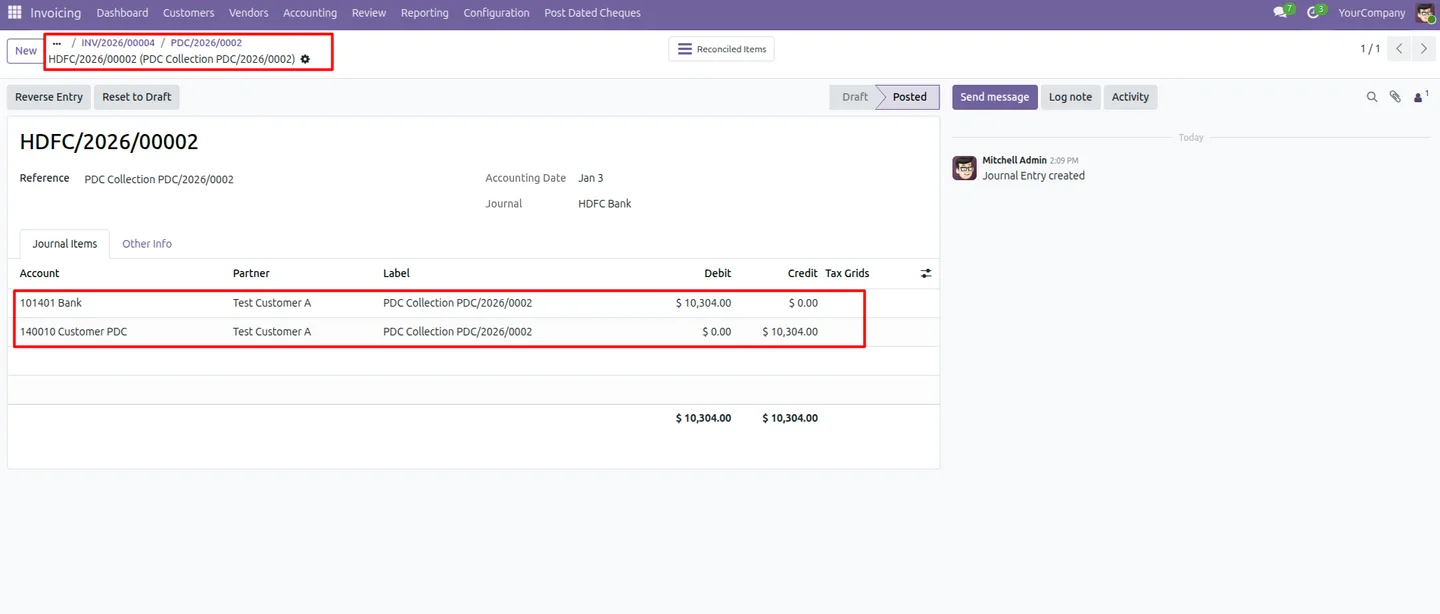
The module posts the matching journal entries at each stage of the lifecycle, so the accounting follows the cheque without manual postings.
-
Dedicated PDC accounts
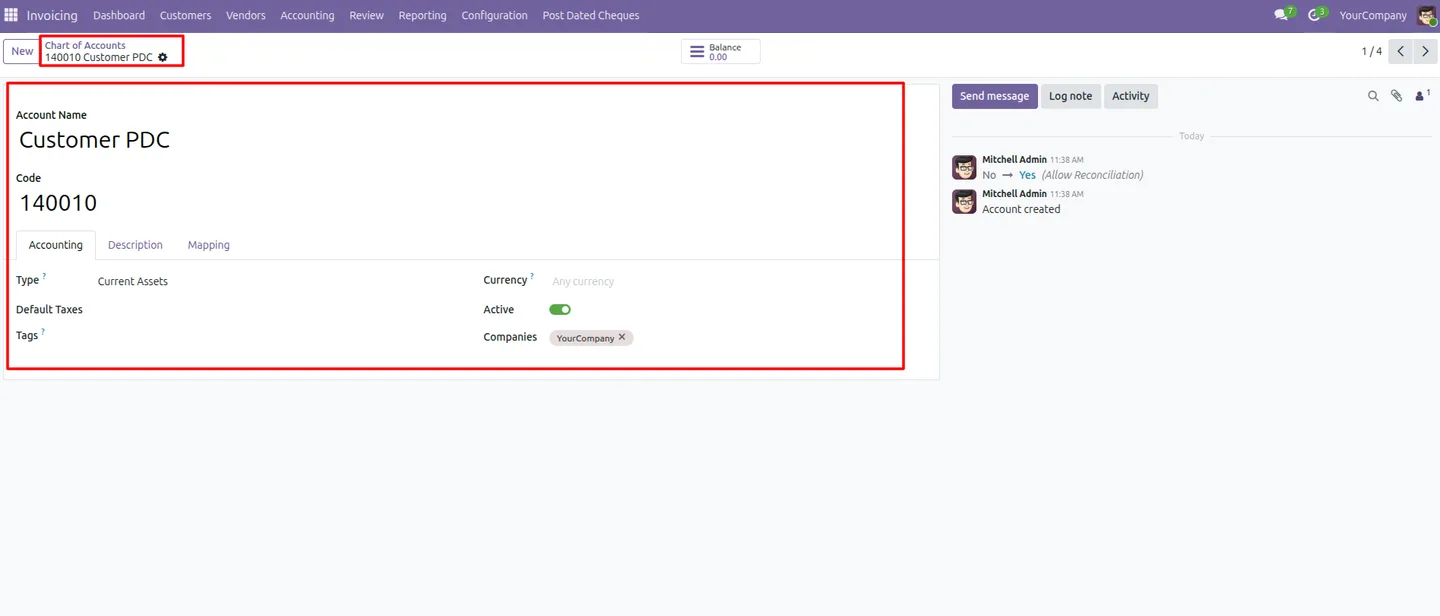
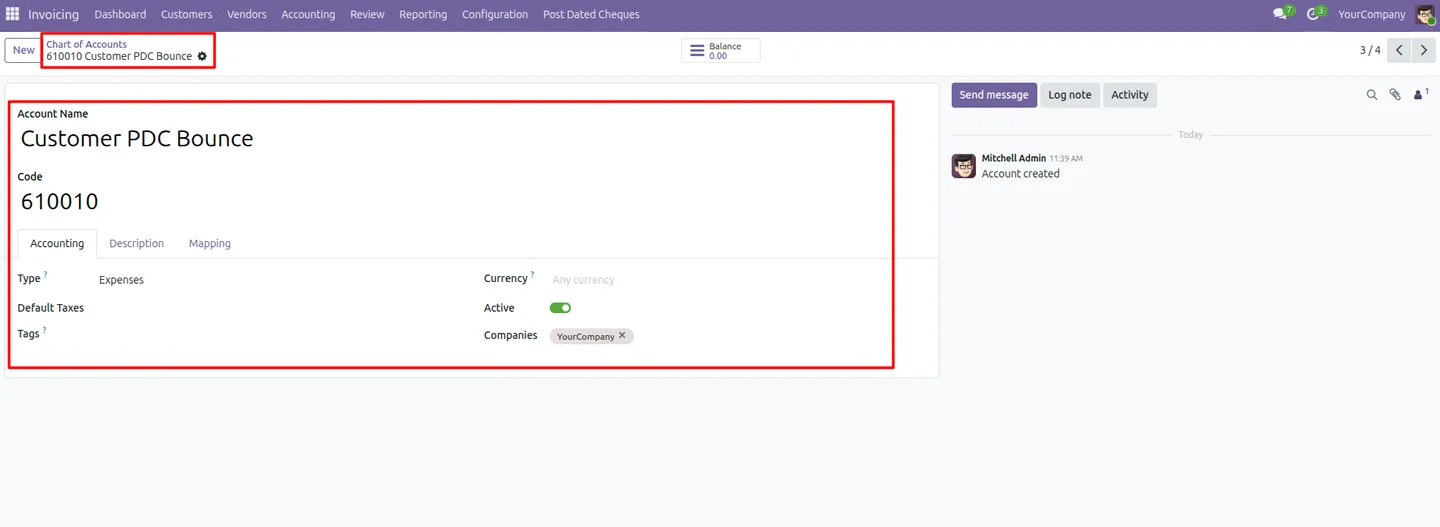
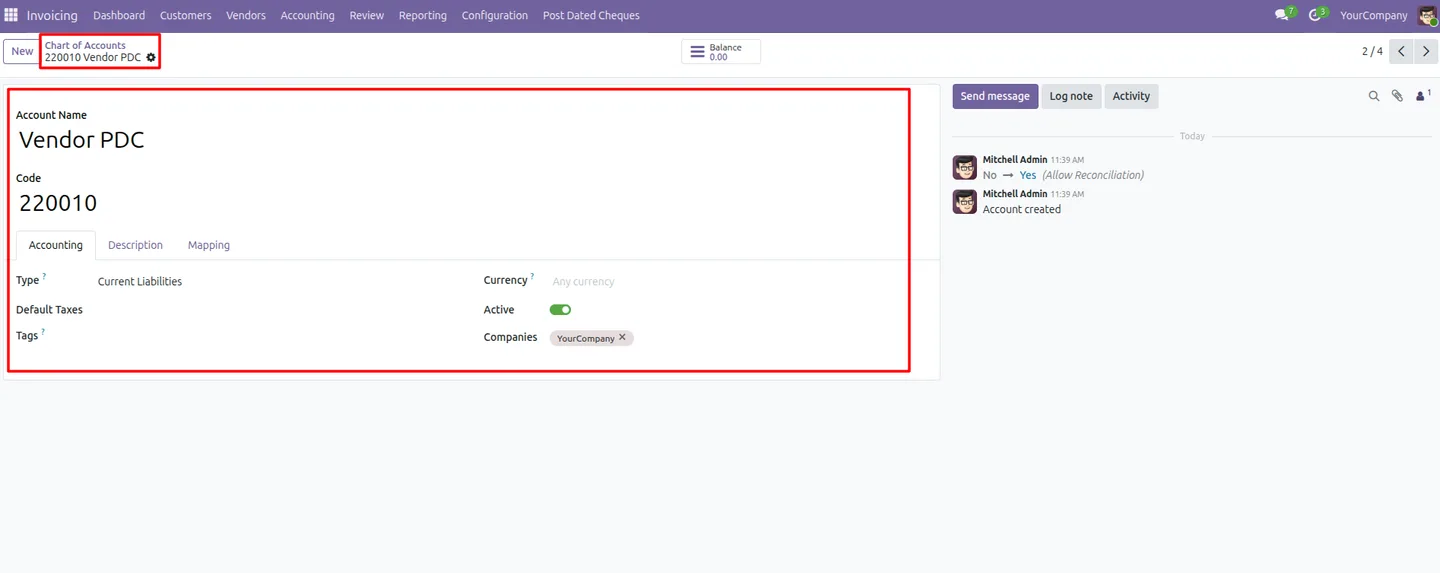
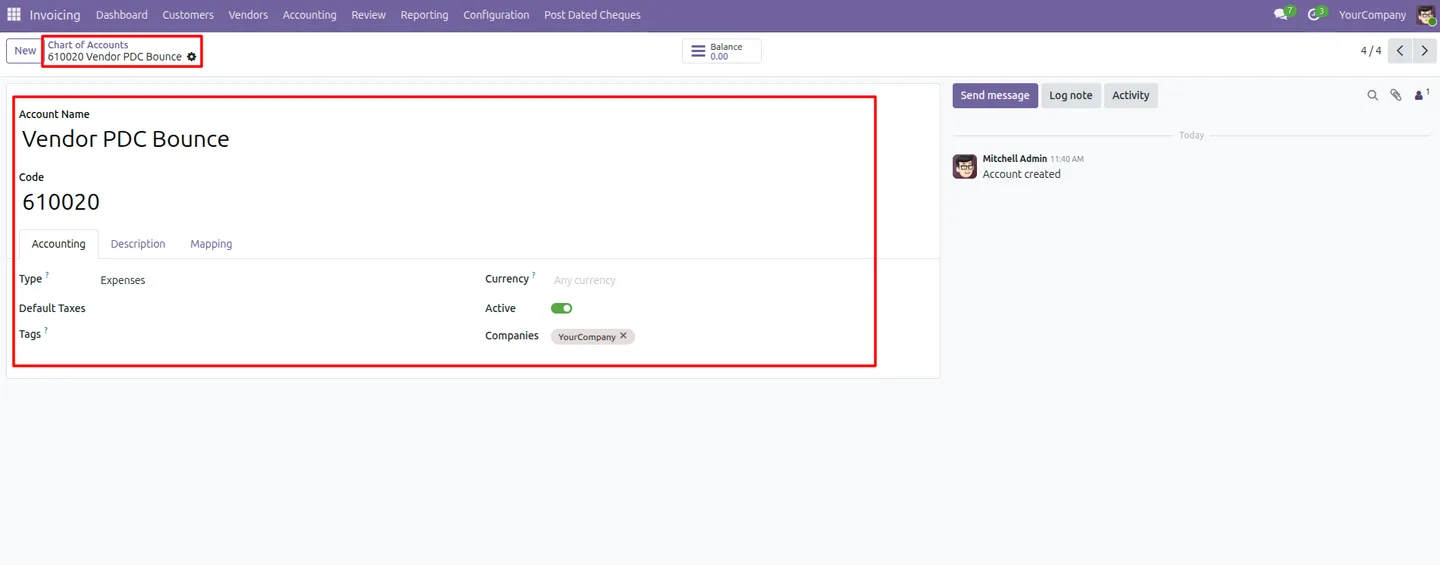
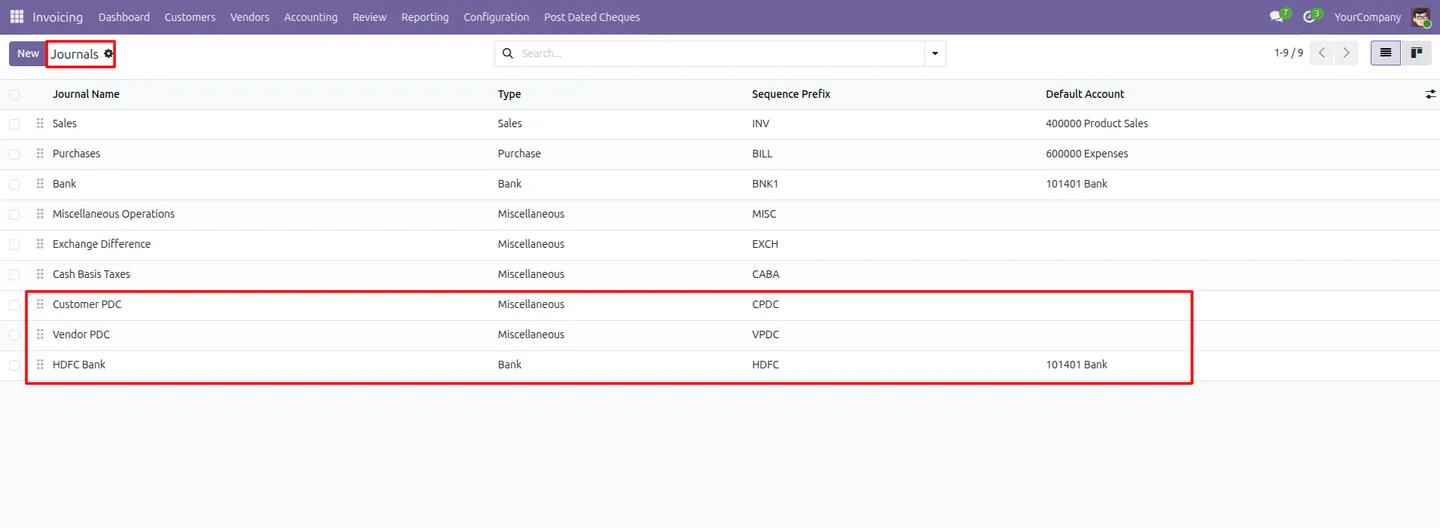
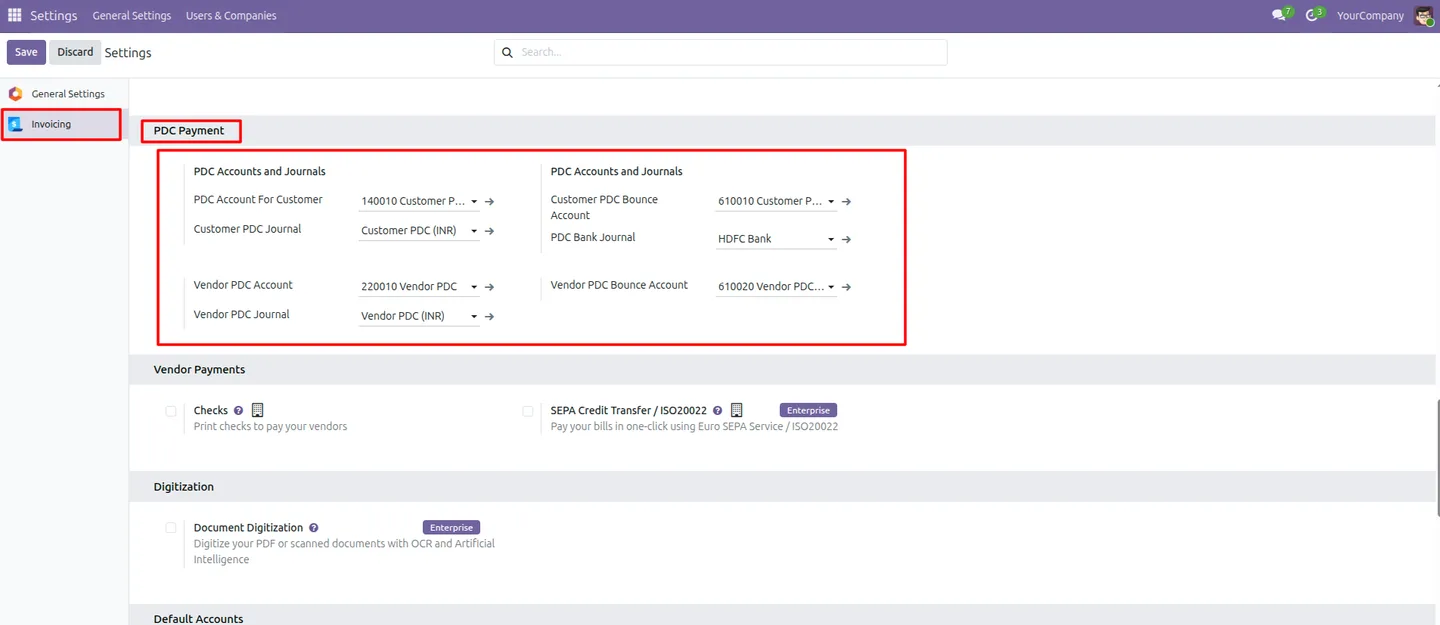
Separate Customer PDC, Customer PDC Bounce, Vendor PDC, and Vendor PDC Bounce accounts keep post-dated amounts isolated from cleared cash.
-
Bounce handling
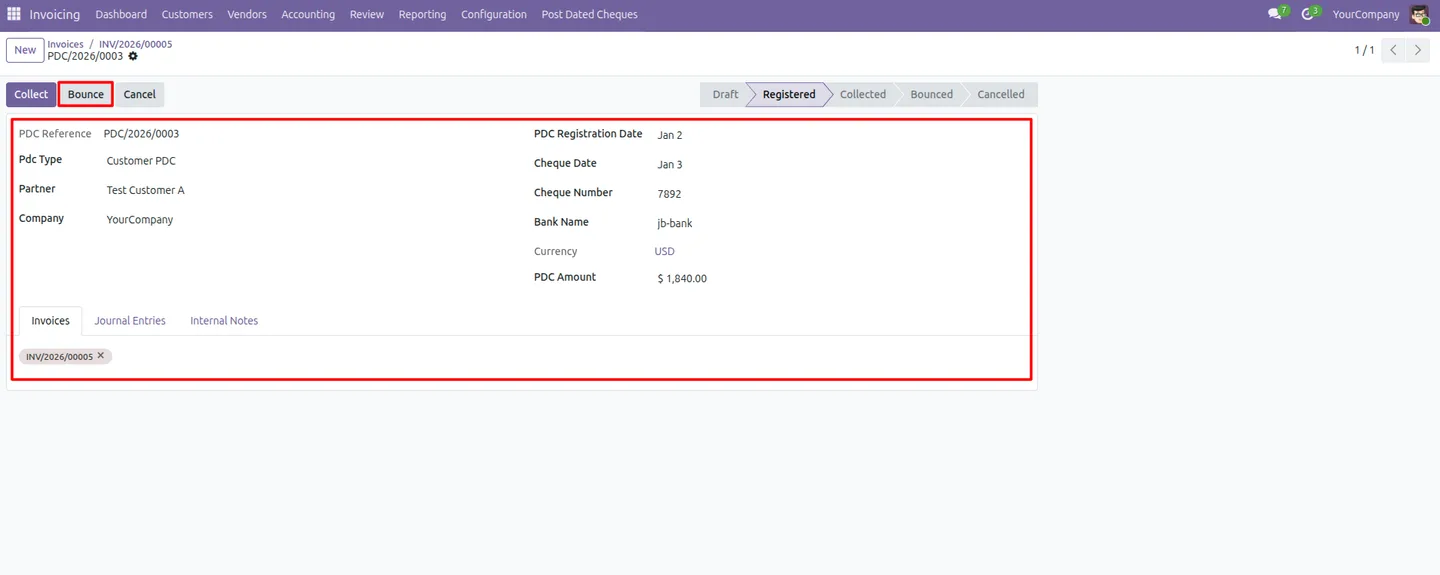
When a cheque is dishonoured, the bounce action reverses the collection and routes the amount to the relevant PDC bounce account.
-
Invoice and bill linkage
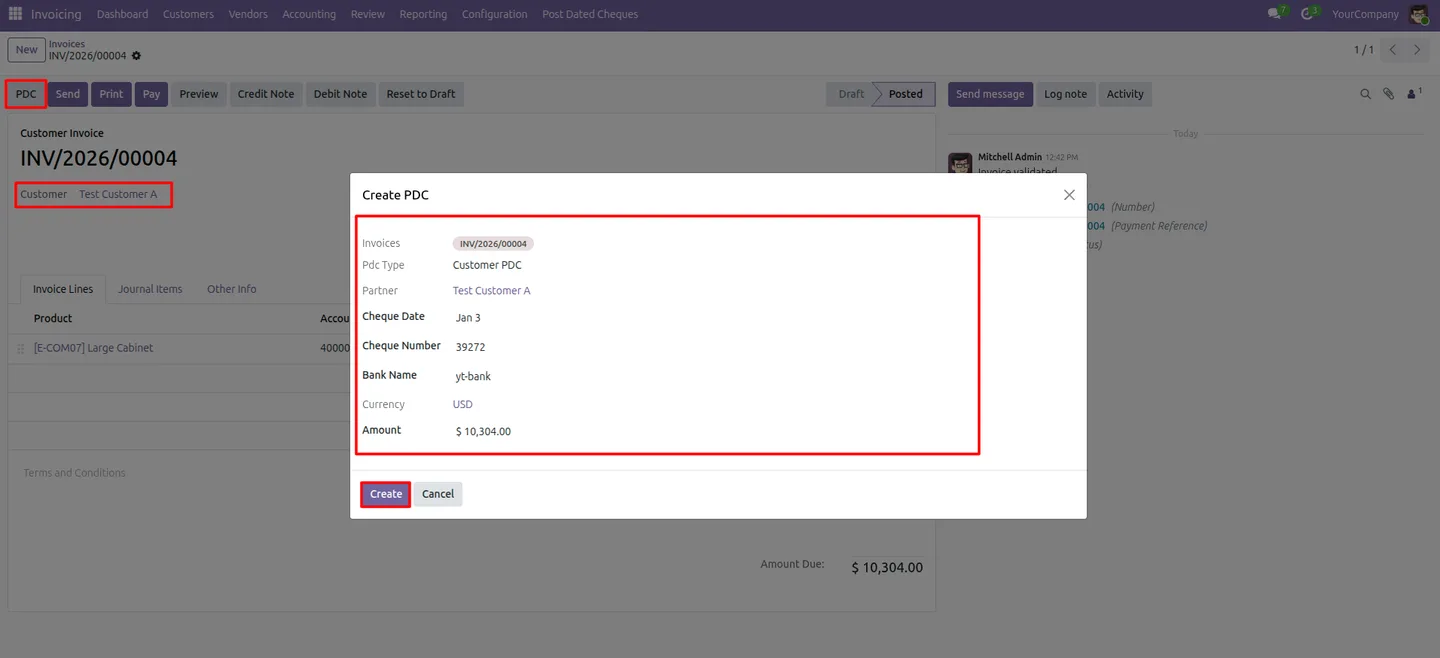
Register a PDC directly from a confirmed invoice or bill using the PDC button, keeping each cheque tied to the document it pays.
-
Configurable accounts and journals
PDC accounts, bank journals, and module settings are configurable from Accounting settings to match your chart of accounts.
Post-Dated Cheque Management in Odoo
Every screen, in the order you meet it — configuration first, then the module in use.
Technical details
Specification
- Publisher
- TechUltra Solutions Private Limited
- Technical name
- tus_pdc_management
- Odoo versions
- 16.0, 17.0, 18.0, 19.0, 20.0
- Lines of code
- 639
- License
- Odoo Proprietary License v1.0 (OPL-1)
- Price
- $20 (one-time)
Deployment
- Odoo Online
- Odoo.sh
- On-premise
Odoo dependencies
- Invoicing
- Discuss
Support
90 days of bug-fix support, Monday to Friday (10:00–19:00 IST). Raise a ticket at support@techultra.in.
Setup & configuration
From install to first call — here is the path.
- 1
Install the module
In Odoo, open Apps, remove the Apps filter, search for “Post-Dated Cheque Management”, and click Install.
- 2
Set up PDC accounts
In your Chart of Accounts, create the PDC-specific accounts: Customer PDC, Customer PDC Bounce, Vendor PDC, and Vendor PDC Bounce.
- 3
Configure bank journals
Set up the bank journals used for PDC handling so collected cheques post to the correct cash or bank account.
- 4
Configure PDC settings
Go to Accounting → Settings and set the PDC accounts and journals so the module knows where to post each stage.
- 5
Register a cheque from an invoice or bill
Confirm a customer invoice or vendor bill, then use the PDC button to register the post-dated cheque against it.
- 6
Process the cheque
As the cheque matures, use the collect, bounce, or cancel actions; the module posts the matching journal entries automatically.
Frequently asked questions
-
What is a post-dated cheque?
A post-dated cheque is a cheque written with a future date, so the funds cannot be deposited until that date arrives. This module tracks the waiting period and the eventual outcome inside Odoo.
-
Does it handle both customer and vendor cheques?
Yes. The module manages PDCs received from customers against invoices and PDCs issued to vendors against bills, covering both accounts receivable and accounts payable.
-
What states does a PDC move through?
Each cheque moves through registered, collect, bounce, cancel, and reset-to-draft states, so its current status is always clear.
-
Are journal entries created automatically?
Yes. The module posts the matching journal entries at each stage — registration, collection, bounce, and cancellation — so the accounting stays in step with the cheque.
-
What happens when a cheque bounces?
The bounce action reverses the collection entry and routes the amount to the relevant PDC bounce account, keeping dishonoured cheques separate from cleared funds.
-
Which accounts do I need to set up?
You set up four dedicated accounts in your Chart of Accounts: Customer PDC, Customer PDC Bounce, Vendor PDC, and Vendor PDC Bounce, plus the bank journals used for collection.
-
Which Odoo versions are supported?
The module supports Odoo 16.0, 17.0, 18.0, 19.0, and 20.0.
-
Is support included?
Yes. The module includes 90 days of bug-fix support, Monday to Friday, 10:00–19:00 IST.
Listing verified against the Odoo App Store:
Related solutions
Whole-platform solutions that complement Post-Dated Cheque Management.
Odoo Accounting
Odoo Accounting — multi-entity, multi-currency, bank-feed integration, reconciliation, deferred revenue, GAAP / IFRS. 60+ country localisations.
Odoo as Accounting Software
Odoo Accounting standalone — alternative to QuickBooks, Tally, Xero, Zoho Books. Real GL, multi-entity, statutory compliance, scales into full ERP.
E-Invoicing on Odoo
Native e-invoicing for Odoo — India GST, Italy FatturaPA, Saudi ZATCA, Mexico CFDI, EU EN 16931. IRN registration, statutory submission, audit archives.
Related services
Get the most out of this module with senior TechUltra consultants.
Odoo Customization Services
Odoo customization from a Gold Partner: custom modules, workflows, reports and Studio changes, written upgrade-safe and quoted at a fixed scope. Free scoping call.
Hire Odoo Developers
Hire certified Odoo developers from a Gold Partner: one developer or a team, full-time or part-time, 70–160 hours a month. Silver, Gold or Platinum plan, free trial.
Odoo Support Services & Maintenance
Odoo support services from a Gold Partner: functional and technical support plus server cover for Enterprise and Community, 30-minute P1 response, 24/7 option.







